
01Projects in AI & Search Visibility, explained
A project in AI & Search Visibility is a dedicated workspace that gathers all data related to the search visibility of one website domain, including business name, website and configuration for AI generated answers, SEO and AEO audits, and competitor tracking.
Each project automatically starts the first SEO & AEO audit after creation.
02How businesses use projects in AI & Search Visibility
- Monitor search visibility. A plumbing company creates a project for its website to see how AI search engines answer questions about its services.
- Track relevant prompts. During setup the business adds up to 10 prompts that reflect common customer questions. The AI engine then tracks how the brand appears for those prompts.
- Compare against competitors. The business adds up to five competitor domains. The platform gathers data on those competitors and shows side by side visibility metrics in the project reports.
03The numbers and rules that matter
- During the beta, each HighLevel location (subaccount) can have up to 4 projects per monthly cycle.
- Up to 10 active prompts per project.
- Up to 5 competitors per project.
04How to set up and use projects in AI & Search Visibility in HighLevel
Create a project
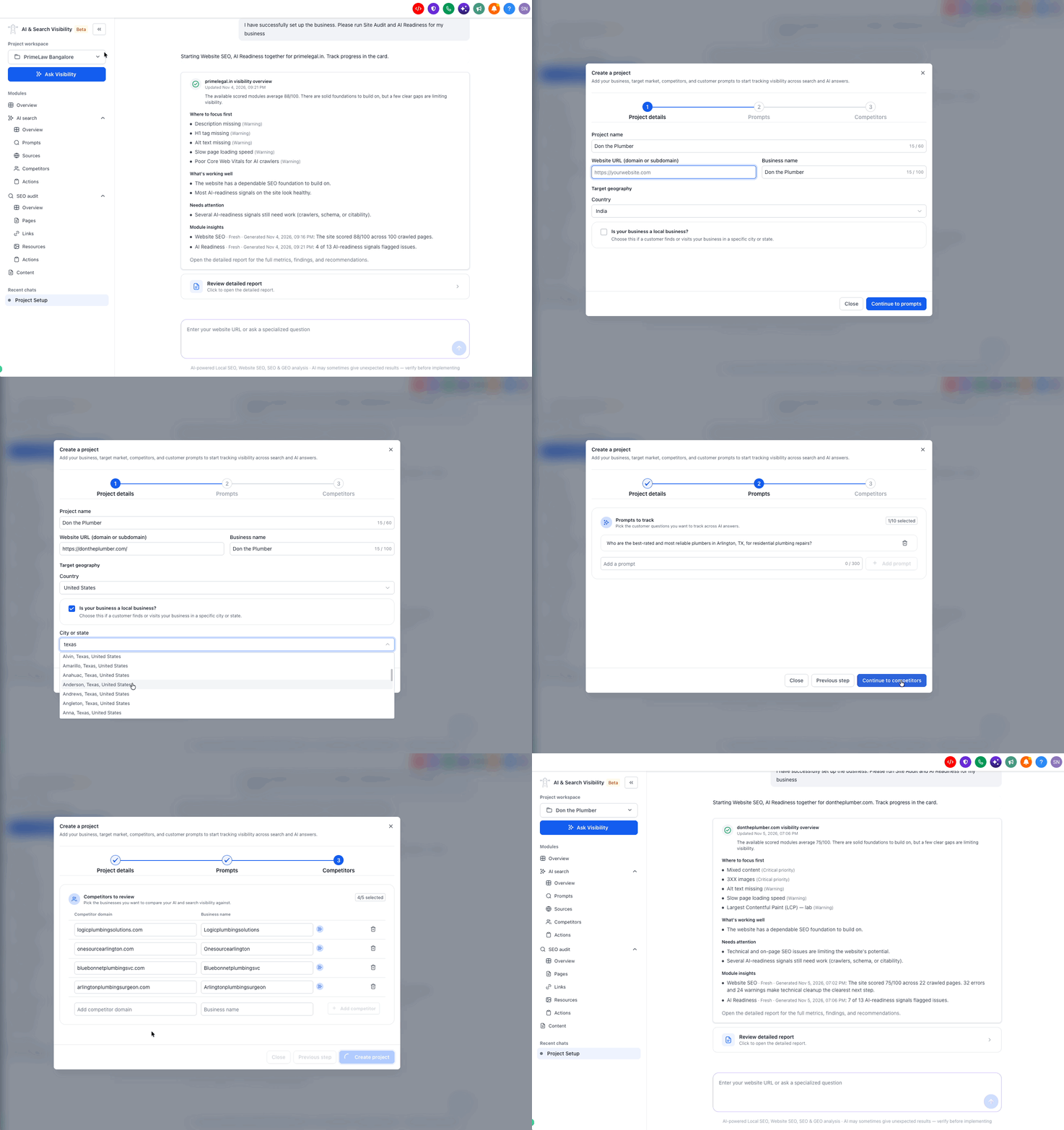
- Open AI & Search Visibility from the main menu in old UI and Marketing > AI & Search Visibility in the new UI and begin creating a new project.
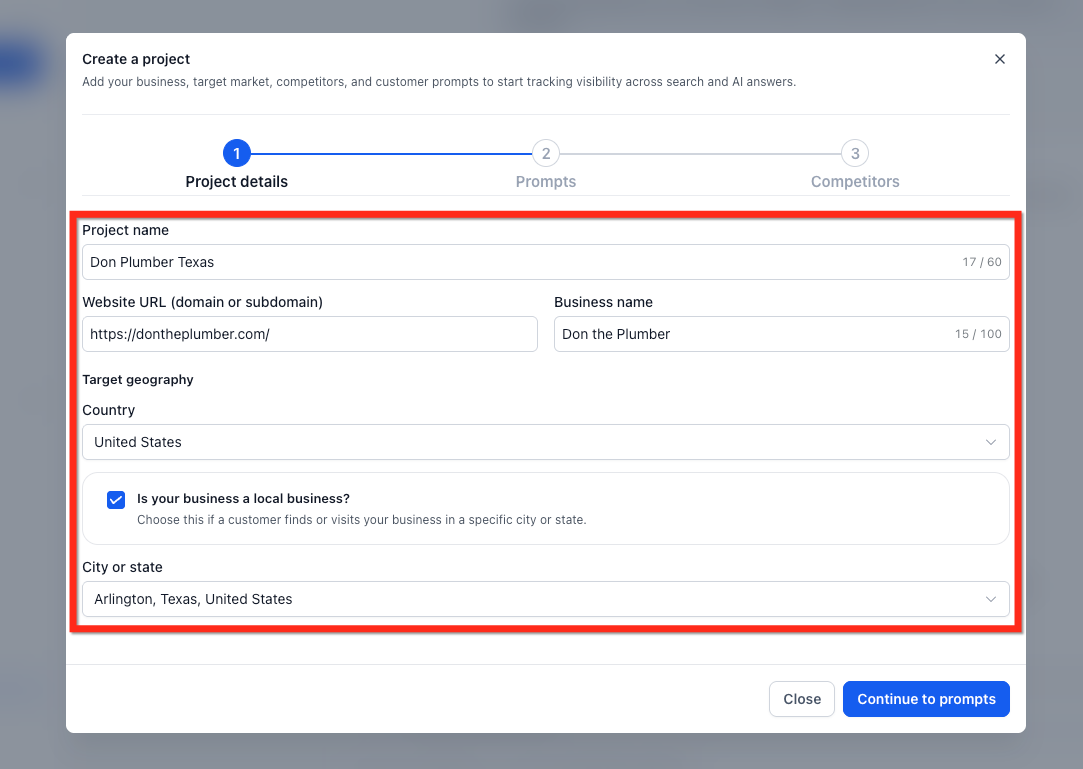
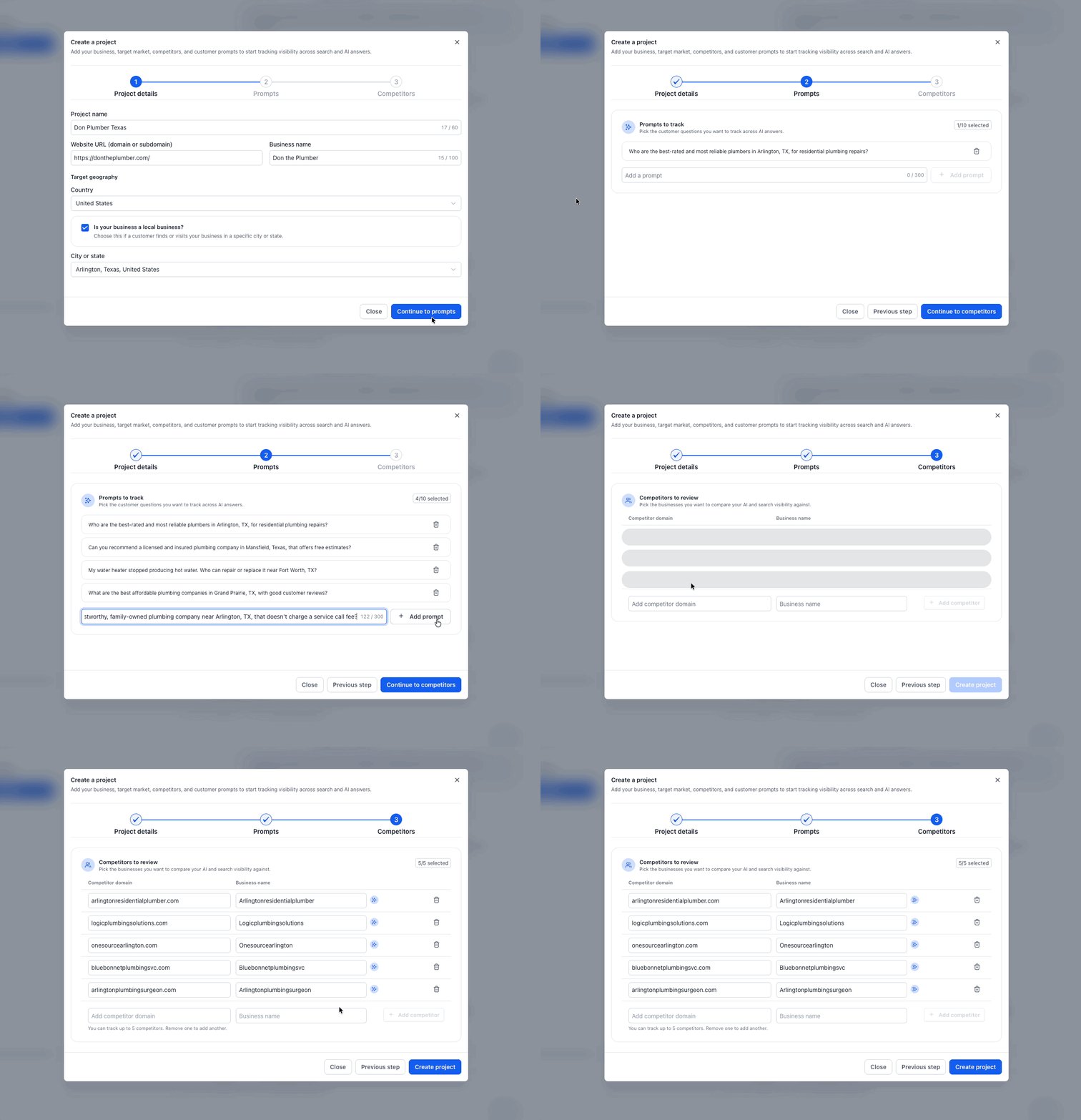
- In Project Details, enter the required business information: Project Name, Business Name, Business Website.
- Complete any additional required business or location fields displayed during setup.
- Continue to Prompts and review or configure the questions you want to track. Keep the beta limit of 10 active prompts in mind.
- Continue to Competitors. Review automatically identified competitors, if available, or add relevant businesses manually. You can track up to 5 competitors per project.
- Review your information and complete project creation.
- Allow a few minutes for the first SEO & AEO audit scan to complete before reviewing its findings.
05What it looks like in HighLevel
06Settings that matter
- Project Name. A name used to identify and organize the project within HighLevel.
- Business Name. The official customer facing name of the business; used to identify the brand in AI generated answers, reports and recommendations.
- Business Website. The website domain that the project will monitor and audit.
- Prompts. Questions that reflect what potential customers might ask an AI search engine; up to 10 active prompts per project.
- Competitors. Businesses to compare against the brand; up to 5 competitors per project, identified automatically or added manually.
07Things to know before you rely on it
- Beta supports up to 10 active prompts per project.
- Up to 5 competitors can be tracked per project.
Michael's take

Michael ReimerFounder of CRM Pros, HighLevel Commander and Certified Admin
Projects in AI & Search Visibility provide data driven insight into how AI search engines see a brand.
Companies without a website or who don’t care about search rankings can skip it.
Get More InformationOpens on HighLevelPublished November 16, 2026 · Updated November 16, 2026