
01Who this is for
- Marketing managers who run LinkedIn ads and need a quick way to capture leads directly into HighLevel.
- B2B SaaS Founders who want to feed qualified contacts into their sales pipelines without extra landing pages.
- Event organizers that use LinkedIn promotion to register attendees and require a built in confirmation message.
02LinkedIn lead forms, explained
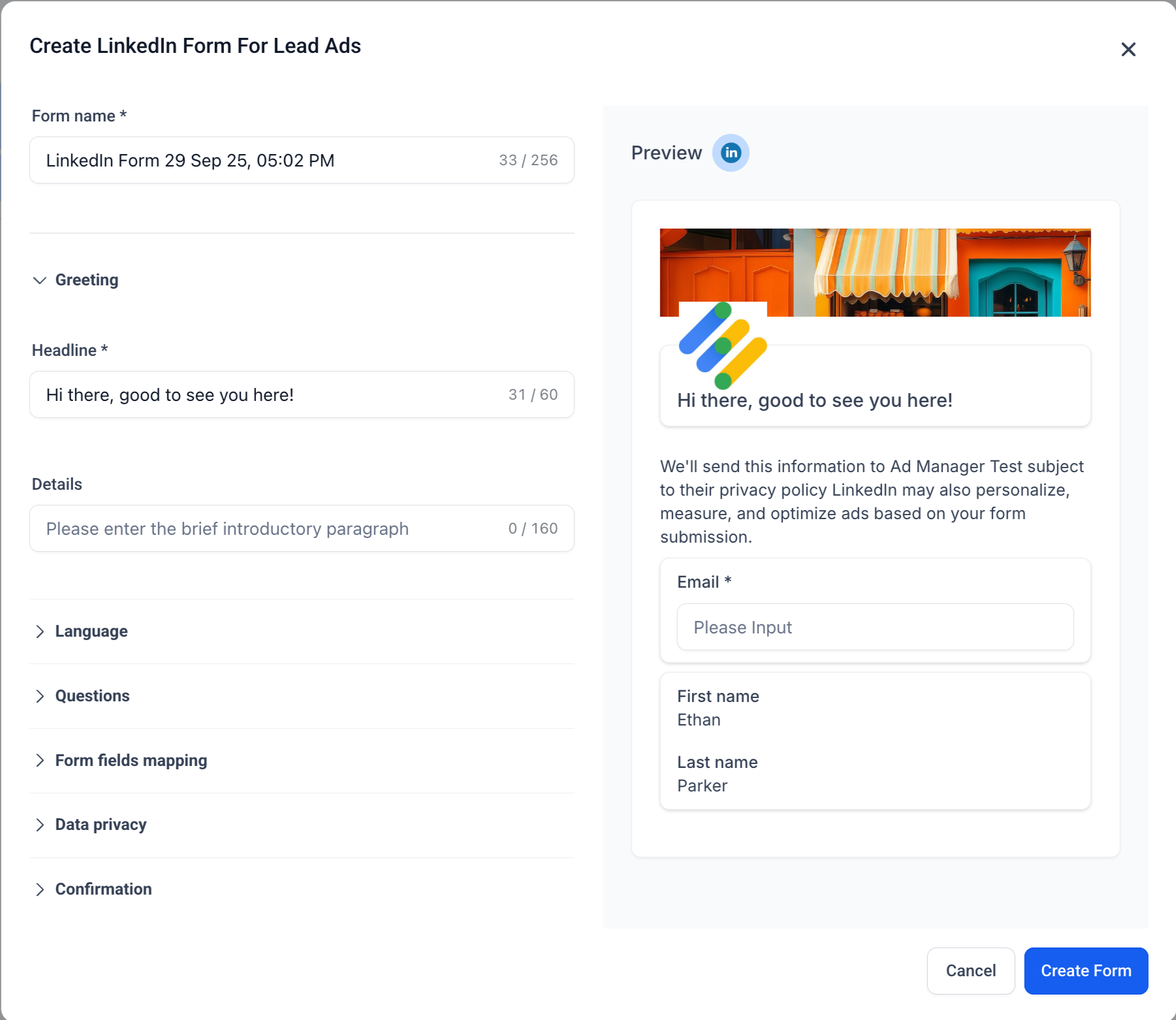
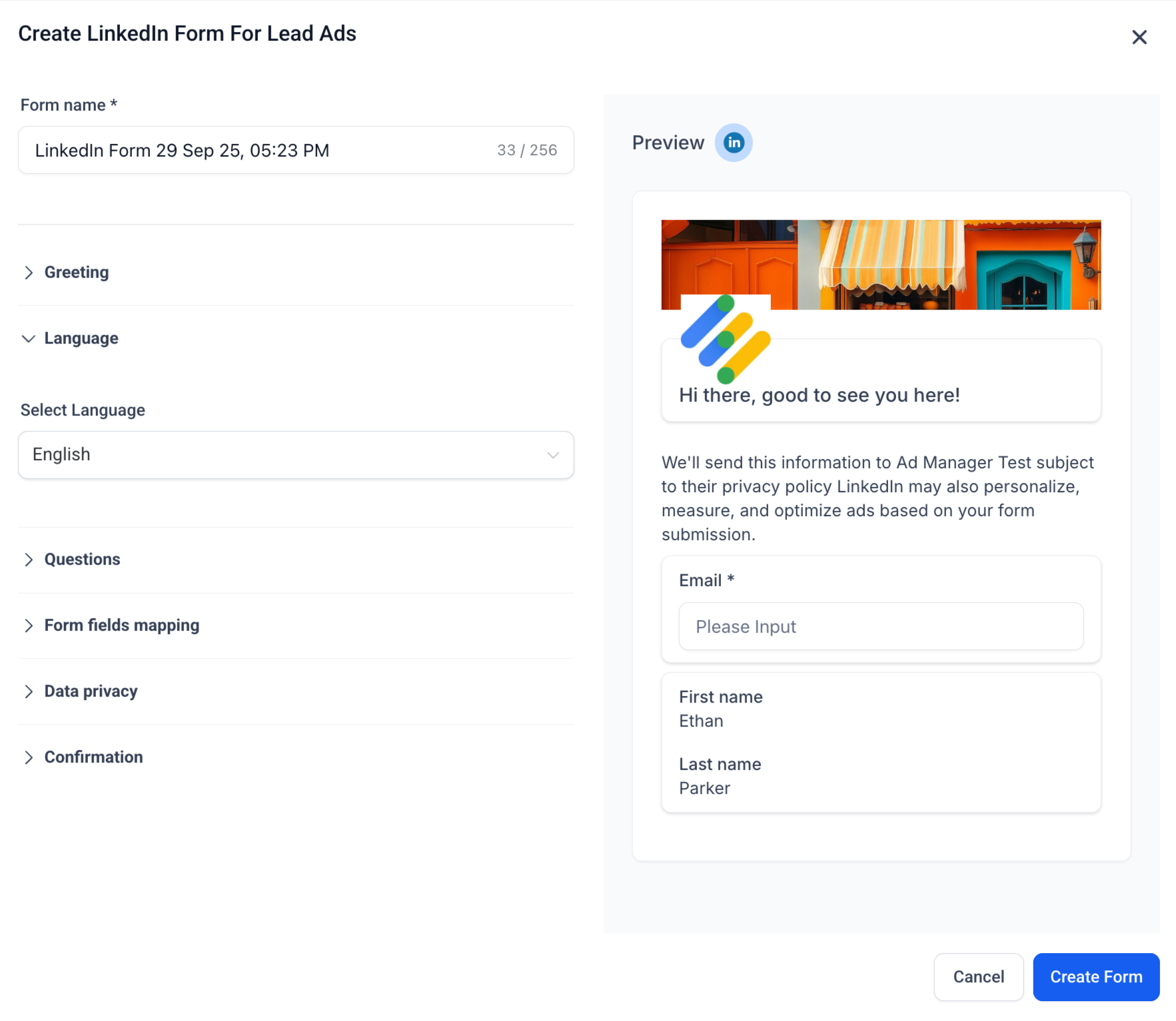
The Lead Form Builder lives inside the LinkedIn campaign flow in HighLevel Ad Manager. When you pick a Lead Generation objective, a link appears to create a new form. The builder presents fields for the form name, greeting text, language, questions, privacy settings and a confirmation screen.
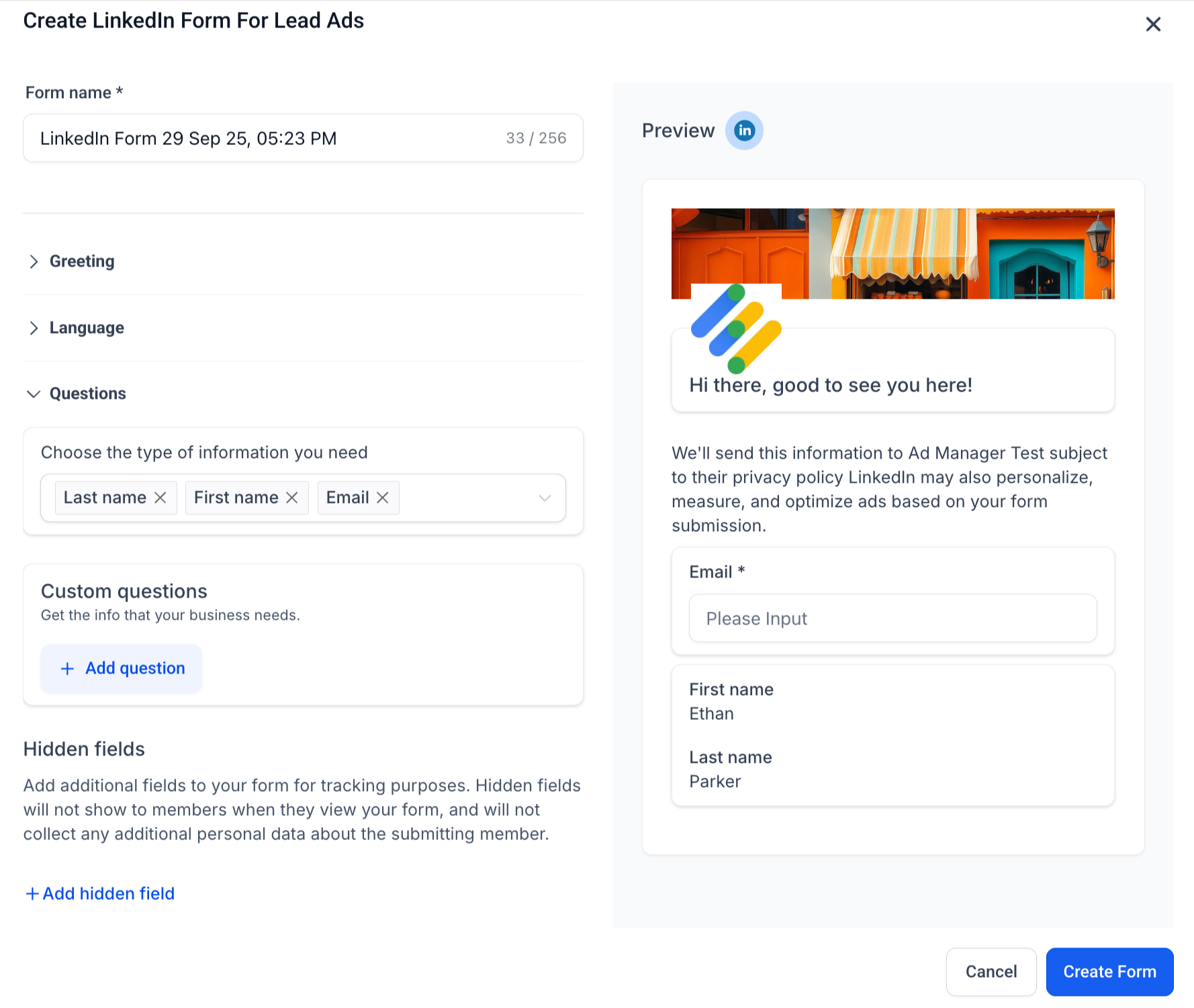
Each element can be customized. You decide which pre filled LinkedIn profile fields to include, add up to three custom questions, and attach hidden fields for tracking. All fields are mapped to contact attributes in HighLevel, so submissions appear as contacts ready for automations.
After you finish, a live preview shows how the form looks on desktop and mobile. Saving the form stores it in the campaign and makes the data flow into your pipelines automatically.
03How businesses use LinkedIn lead forms
- Real estate agency. The agency creates a lead form that asks for name, email and property interest. They map those fields to contact records in HighLevel and set a hidden field for the campaign name. When prospects submit, the data lands in the agency’s follow up workflow.
- Software vendor. The vendor adds a custom short answer question about the prospect’s current solution, includes a consent checkbox for marketing emails, and links the form to a download CTA. Mapped fields populate the vendor’s sales pipeline for targeted outreach.
- Event management company. The company builds a form that captures attendee name, job title and a multiple choice question about session preference. A thank you page with a “Visit Website” CTA directs registrants to the event agenda page. All responses are saved as contacts in HighLevel.
04The numbers and rules that matter
- Form Name: Max length 256 characters.
- Headline: Max 60 characters.
- Details: Max 160 characters.
- Greeting headline: Up to 60 characters.
- Confirmation headline: Max 60 characters.
- Confirmation description: Max 300 characters.
- Prefilled fields: Up to 12.
- Custom questions: Up to 3.
- Hidden fields: Up to 20.
- Consent checkboxes: Up to 5.
05Before you start
- A LinkedIn ad campaign must be created in HighLevel Ad Manager with the Lead Generation objective selected.
06How to set up and use LinkedIn lead forms in HighLevel
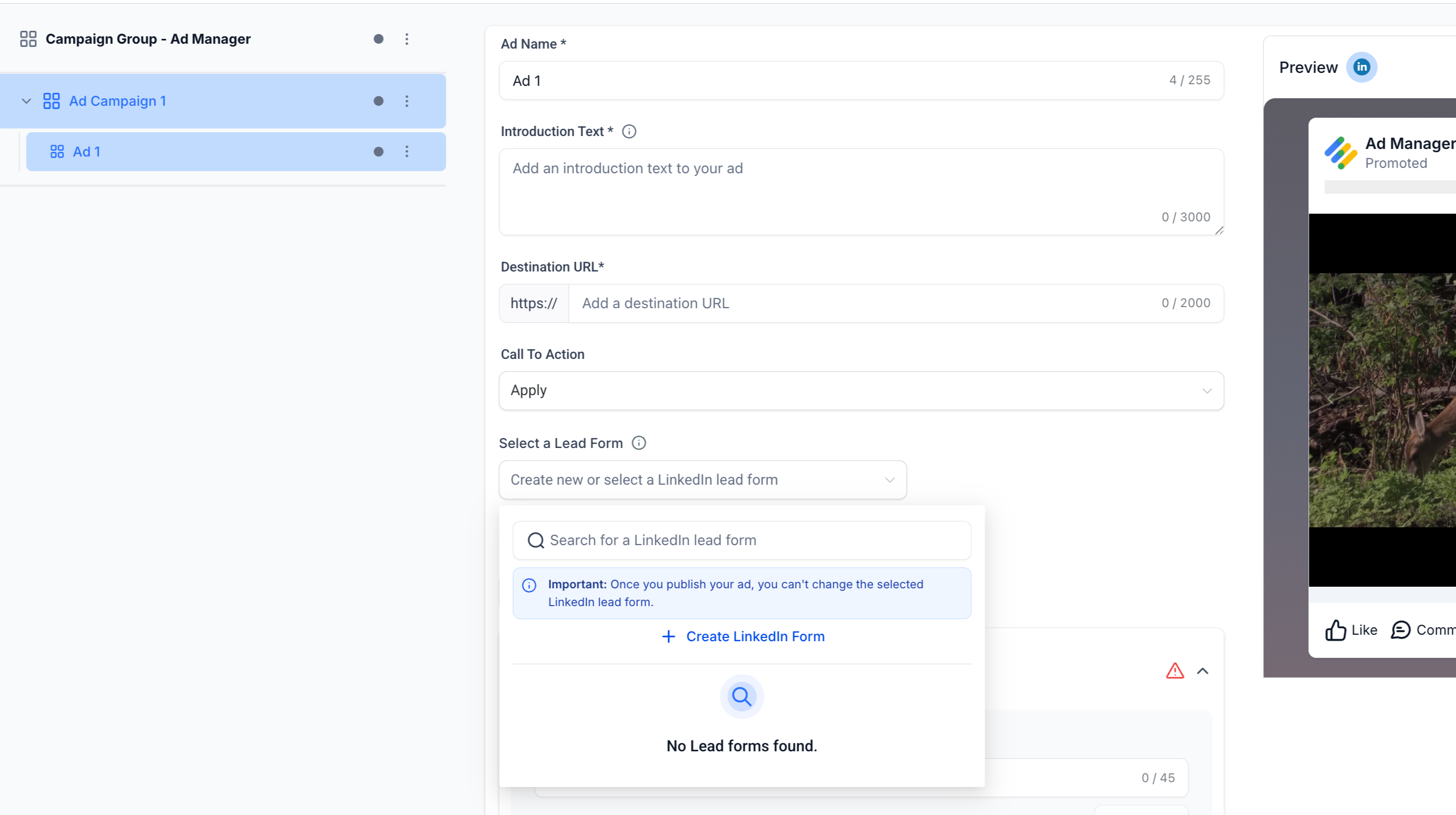
Open the Lead Form Builder
- Create a LinkedIn campaign in HighLevel Ad Manager and choose Lead Generation as the objective.
- In the ad level view, locate the option to select a lead form.
- Click the Create New button to launch the Lead Form Builder.
Add basic details
- Enter a name for the form; the default includes a timestamp but you can replace it.
- Make sure the name does not exceed 256 characters.
Set the greeting section
- Type a headline for the form, keeping it under 60 characters.
- Optionally add a detail paragraph, limited to 160 characters.
Choose the display language
- Select the language in which the form will appear to users.
Define the questions
- Pick which prefilled LinkedIn profile fields to include, up to twelve.
- Add a custom question, choose short answer or multiple choice, and write the question text.
- Insert a hidden field for tracking purposes.
Map form fields to HighLevel
- Assign each LinkedIn field, prefilled, custom or hidden, to a corresponding contact field in HighLevel.
Configure data privacy
- Provide the URL of your company’s privacy policy.
- Optionally add extra privacy text beneath the link.
- Add up to five consent checkboxes and label each one for compliance.
Set up the confirmation page
- Enter a headline for the thank you screen, limited to 60 characters.
- Write a longer description, up to 300 characters.
- Choose a call to action option, supply the link and the button text.
Preview and save the form
- Review the live preview for both desktop and mobile layouts.
- Verify that the headline, intro text, fields and privacy information are correct.
- Click the Create Form button to store the form.
07What it looks like in HighLevel
08Settings that matter
- Form Name. The title of the lead form that appears in your campaign list.
- Headline. The main text shown at the top of the form.
- Details. Optional paragraph that explains the offer below the headline.
- Language. Determines the language in which the form is displayed to prospects.
- Prefilled Fields. Standard LinkedIn profile fields that LinkedIn automatically fills for users.
- Custom Questions. Additional questions you add, either short answer or multiple choice.
- Hidden Fields. Data items that are not shown to users but are sent with each submission.
- Privacy Policy URL. Link to the company’s privacy policy that appears on the form.
- Privacy Text. Optional extra disclaimer shown under the privacy policy link.
- Consent Checkboxes. Boxes that prospects can tick to grant marketing or data processing consent.
- Confirmation Page Headline. Short message displayed after a lead submits the form.
- Confirmation Page Description. Longer text that follows the headline on the thank you screen.
09Things to know before you rely on it
- Form names can be up to 256 characters long.
- Headlines on the form and on the confirmation page are limited to 60 characters each.
- Detail text in the greeting section may not exceed 160 characters.
- You can include a maximum of twelve prefilled LinkedIn fields.
- Custom questions are limited to three per form.
- Hidden fields can be added up to twenty times per form.
- Consent checkboxes may be added up to five times.
- The description on the confirmation page is limited to 300 characters.
10How it connects to the rest of HighLevel
- Set up LinkedIn ads in HighLevel Ad Manager LinkedIn ads setup
- Create a LinkedIn ad campaign in HighLevel Ad Manager LinkedIn campaign guide
- Target audiences for LinkedIn campaigns in Ad Manager Audience targeting
Michael's take

Ever wonder if the hassle of moving LinkedIn leads into your HighLevel account is worth it? The short answer is yes, because the built in builder lets you capture names, emails and custom data without ever leaving LinkedIn, then syncs those leads into HighLevel where you can trigger any workflow you already have.
What I’d do first is set up a simple form with a clear headline and just the essential prefilled fields. Then I’d map those fields to the contact record, add a single GDPR consent box, and preview the mobile view. Once it looks clean, I hit Create Form and let LinkedIn do the heavy lifting.