
01Who this is for
- Marketing managers can automate offer delivery to customers who text a keyword, reducing manual handling of requests.
- Customer support teams gain a quick way to provide information without opening a ticket, keeping response times consistent.
02SMS keyword campaigns, explained
The feature uses a filtered Customer Replied trigger to listen for inbound SMS messages that contain a specific keyword. When the message matches the filter, the workflow runs the actions you defined, such as sending a reply or adding a tag. The workflow lives under Automation > Workflows and can be built from scratch.
You can choose Exact Match Phrase to require the message to equal the keyword or Contains Phrase to allow longer messages. The Reply Channel filter limits the trigger to SMS only. Optional settings let the same contact run the workflow again after a prior run finishes.
03How businesses use SMS opt in campaigns
- Restaurant. A diner texts MENU to the restaurant's number and receives a text with the current menu and specials. The workflow sends the menu and tags the contact as menu requested for later reference.
- Fitness studio. A prospect texts CLASS to get details about upcoming classes. The workflow replies with the schedule and adds a class inquiry tag, helping staff follow up without extra effort.
- Retail store. A shopper texts COUPON to claim a discount code. The workflow returns the coupon text, includes the store name, and records a coupon requested tag for internal tracking.
04The numbers and rules that matter
- For U.S. messaging from a 10 digit local number, the number must be linked to an approved A2P campaign.
05Before you start
- A phone number assigned to the subaccount that can send and receive SMS must be in place.
- Complete any required registration or verification for the number and the destination country.
- Prepare clear call to action wording that includes the business name, keyword purpose, rate information, and opt out instructions.
06How to set up and use SMS opt in campaigns in HighLevel
Set up workflow
- Open Automation > Workflows and start a new workflow from scratch.
- Add a new trigger, select Customer Replied, and give the trigger a descriptive name.
- Click Add Filters and set Reply Channel to SMS.
- Add an Exact Match Phrase filter and type the chosen keyword.
- Save the trigger.
- Add a Send SMS action below the trigger and compose the response message.
- Optionally add an Add Contact Tag action with a tag such as coupon requested.
- Review the Allow Re entry setting and enable it only if contacts should trigger again.
- Review the message content and consent language before publishing.
- Save and publish the workflow.
Test workflow
- Send the exact keyword from a personal phone to the business SMS number.
- Open Conversations and verify the inbound message appears.
- Check the workflow Execution Logs for the contact record and any errors.
- Confirm the automated reply was received and that any tag was applied.
- Send a different word to ensure the workflow does not trigger and review repeat entry behavior if applicable.
07What it looks like in HighLevel
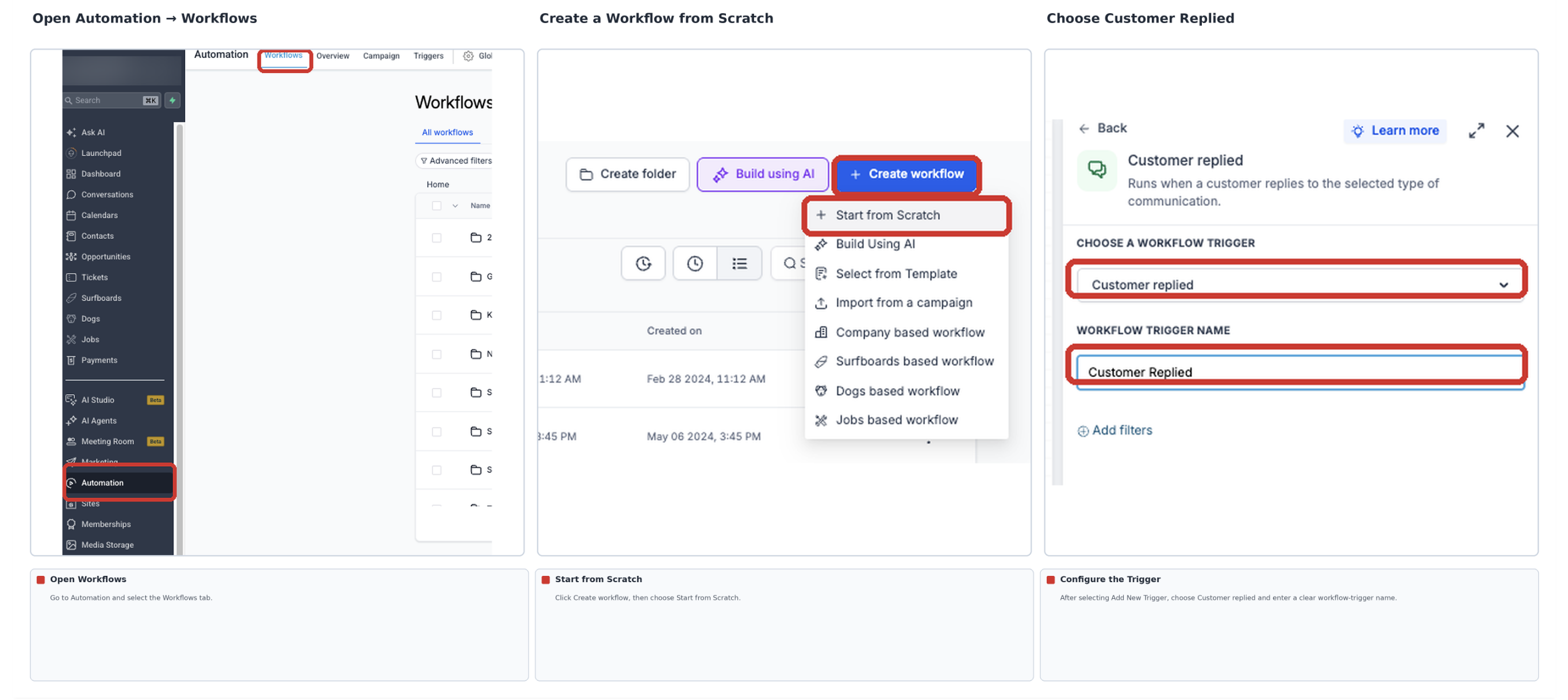
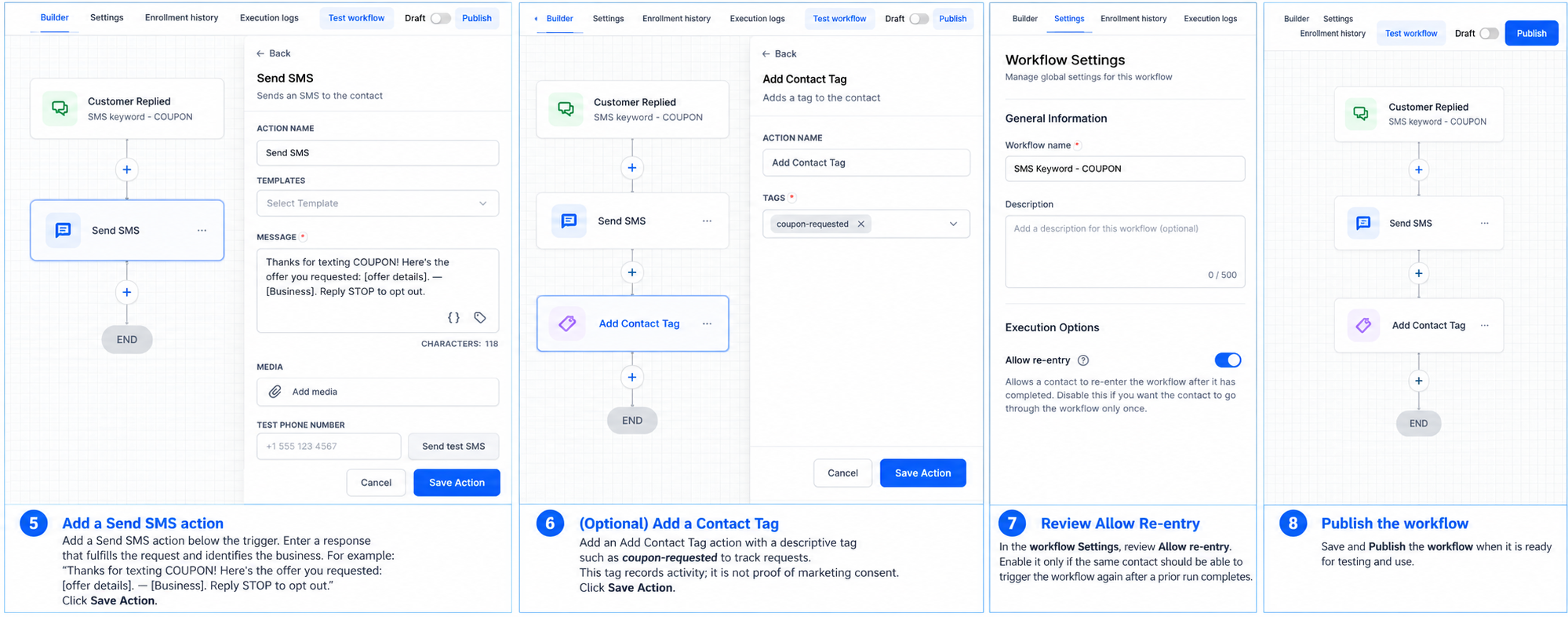
08Settings that matter
- Reply Channel. Limits the trigger to inbound messages that arrive via SMS only.
- Exact Match Phrase. Requires the incoming text to equal the specified keyword; use Contains Phrase for longer messages.
- Allow Re, entry. Controls whether a contact can start the workflow again after a previous run has completed.
09Things to know before you rely on it
- Do not use STOP or HELP as promotional keywords, as they are reserved for compliance.
- Adding a contact tag records activity but does not create consent for future marketing messages.
- A contact cannot re enter the workflow while still active in the same run unless Allow Re entry is enabled.
10If something goes wrong
- No inbound SMS appears in Conversations. Confirm the message was sent to the correct SMS enabled number and that inbound messaging is active.
- SMS arrives but the workflow does not run. Verify the workflow is published, Reply Channel is set to SMS, the keyword matches the Exact Match Phrase filter, and the contact is allowed to re enter.
- Workflow runs but no reply is delivered. Check the Send SMS action for errors, ensure the contact is not opted out via DND, and confirm any required messaging registration is in place.
- Multiple replies are sent. Look for other published workflows that use the same keyword and review the Allow Re entry configuration.
11How it connects to the rest of HighLevel
- Reuse SMS message blocks with snippets SMS snippets
- Access ready made message templates Template library
- View pricing and plan options Pricing
Michael's take

The problem most businesses face is getting a quick, trackable response when a prospect texts in for an offer. The first thing I would get right is the exact match keyword filter so only the intended word triggers the reply.
Once the filter is solid, I would publish the workflow, send a test from a clean number, and watch the execution log to make sure everything runs as expected.