
01Who this is for
- Front desk staff at a boutique hotel, they can capture guest arrivals right away via a QR code and see each submission in HighLevel.
- Event coordinators for small workshops, they use the form to log attendees and let the team verify eligibility before confirming any offers.
- Retail pop up managers, they collect visitor information on site and trigger internal notifications to follow up on potential leads.
02QR code check in campaigns, explained
The feature links a QR code to a HighLevel form. When a visitor scans the code, the form opens, the visitor fills in the required fields and submits. HighLevel records the submission and can start a Form Submitted workflow.
The workflow can add a campaign specific tag to the contact and optionally send an internal notification to staff. The process does not create a unique ticket, prevent repeated scans, or automatically validate offers. Review and redemption decisions are handled manually after the submission.
All components live inside the platform: the form is created under Sites > Forms, the QR code under Sites > QR Codes, and the workflow under Automation > Workflows.
03How businesses use QR code check in campaigns
- Coffee shop. The shop creates a simple check in form, generates a QR code for the counter, and builds a workflow that tags customers as "Check In Requested" and notifies the barista. Staff then verify the request before offering a free drink.
- Fitness studio. The studio designs a form to capture member name and class preference, attaches it to a QR code displayed at the entrance, and configures a workflow that tags the member and alerts the instructor. The team reviews each submission to confirm class eligibility.
- Retail pop up. The pop up builds a form for visitors to request a discount, links it to a QR code on the booth, and sets up a workflow that adds a "Check In Requested" tag and sends a notification to the sales lead. Staff check the request before applying the discount.
04The numbers and rules that matter
- Use HighLevel Coupons for supported redemption limits, including one use per customer.
05How to set up and use QR code check in campaigns in HighLevel
Set up QR code check in campaign
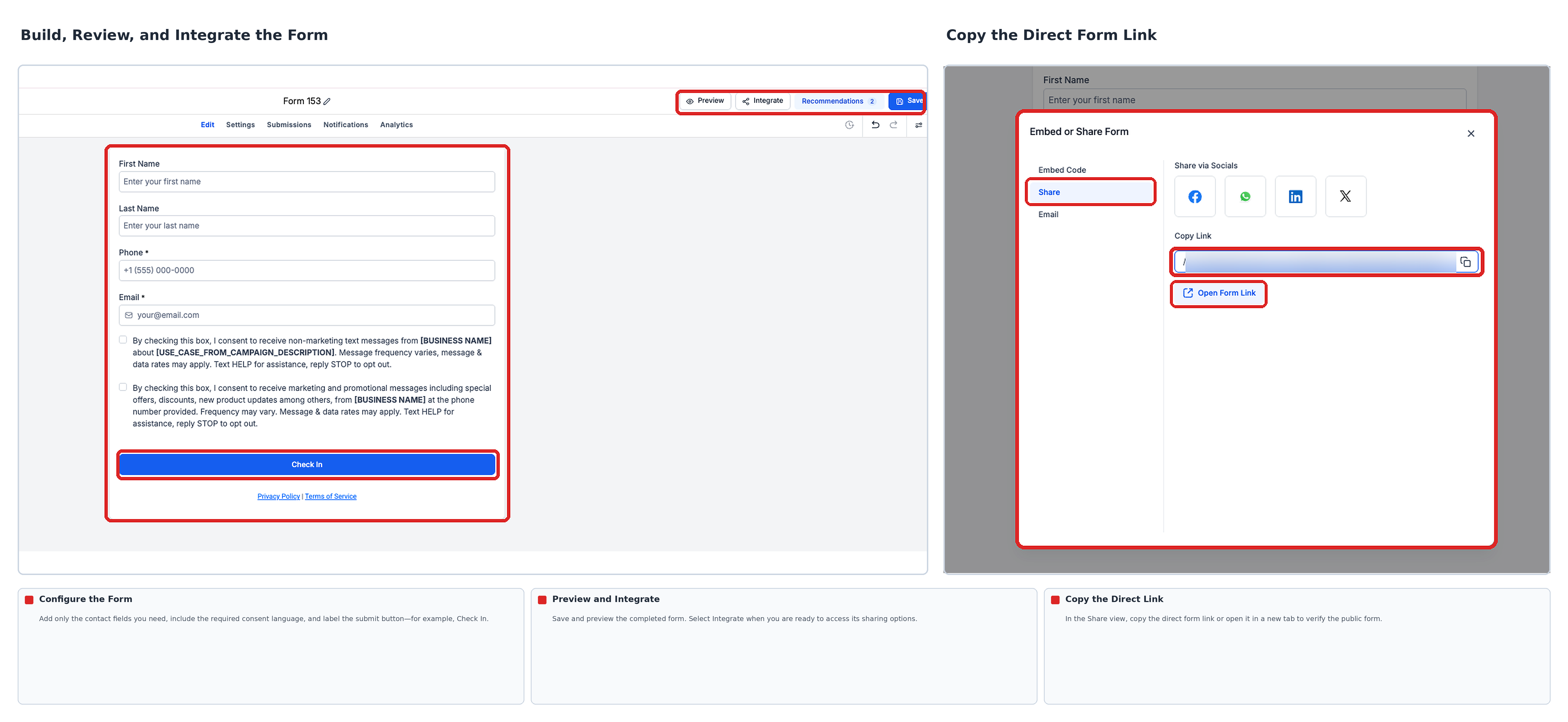
- Open Sites > Forms and click + Create New Form.
- Select a blank form or a template, add only needed contact fields and rename the submit button.
- Save the form and preview it.
- Click Integrate and copy the direct form link.
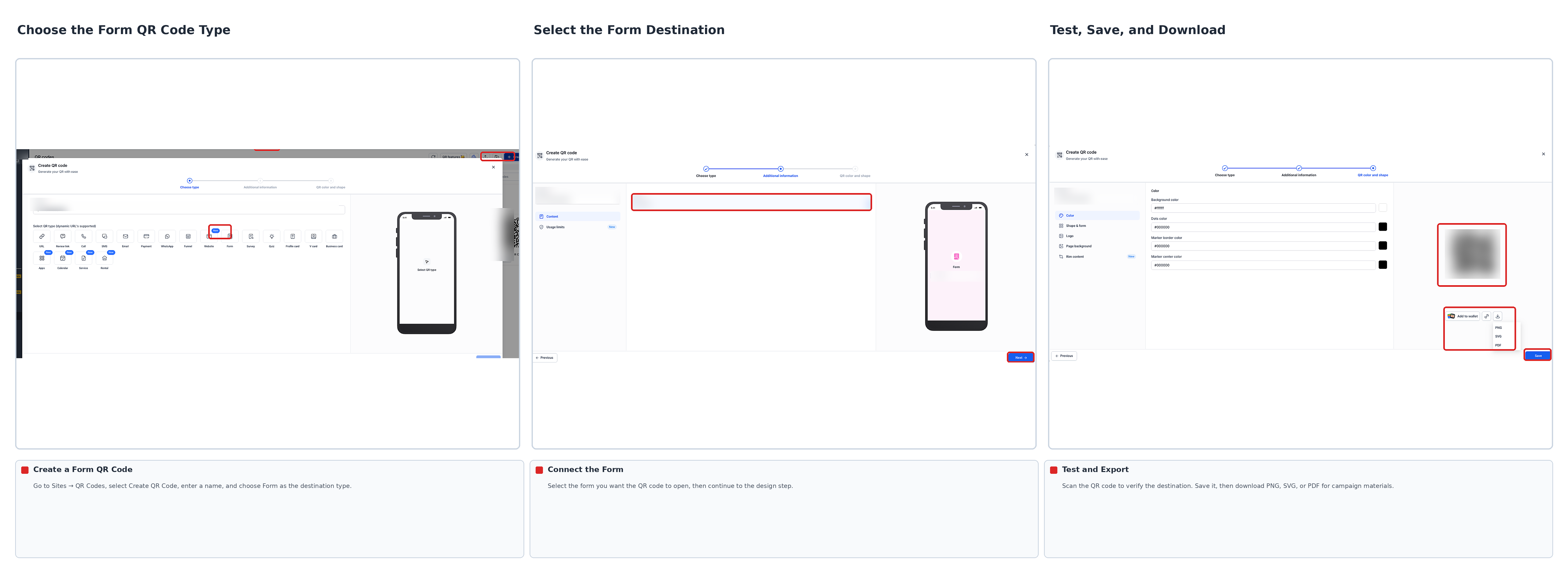
- Navigate to Sites > QR Codes and choose Create QR Code.
- Enter a name, pick Form as the destination type, and paste the copied form link.
- Test the QR code by scanning it, then save and download the image for signage.
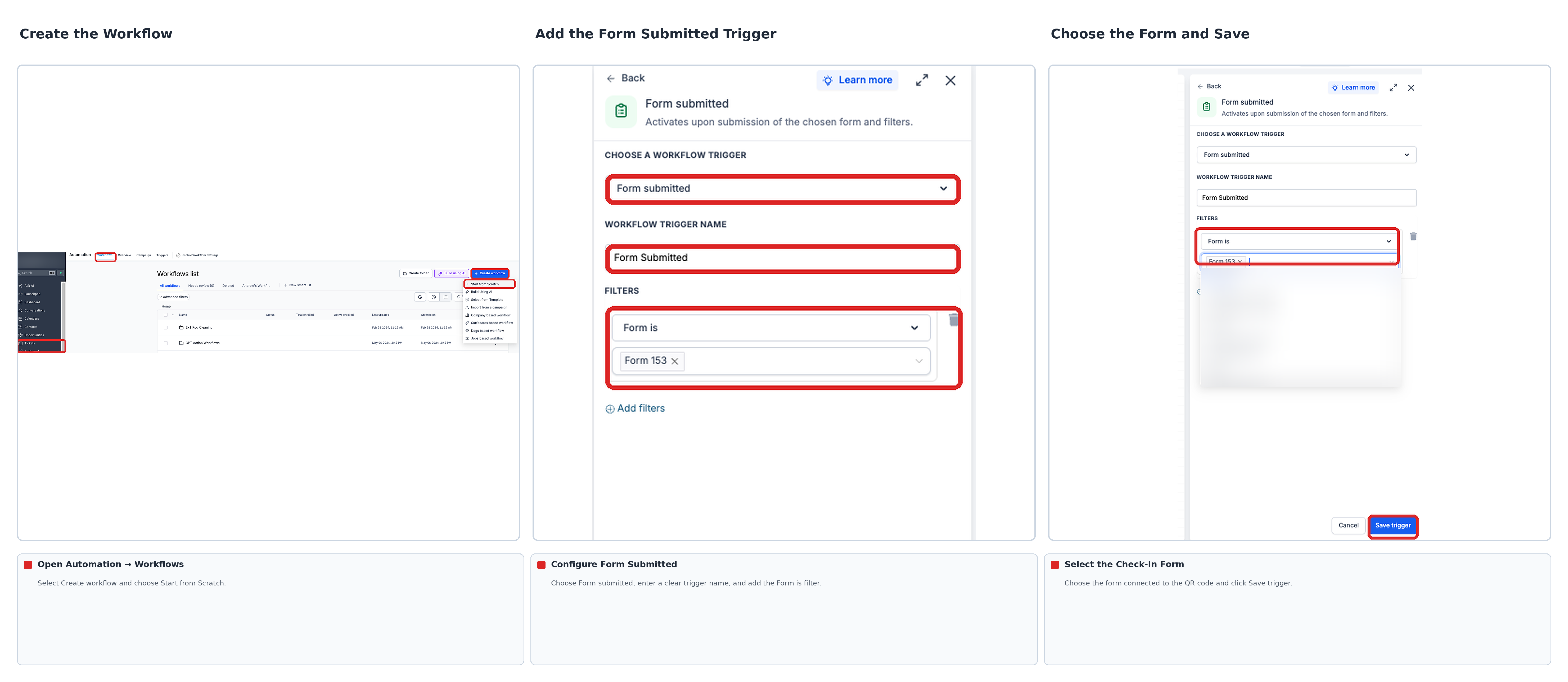
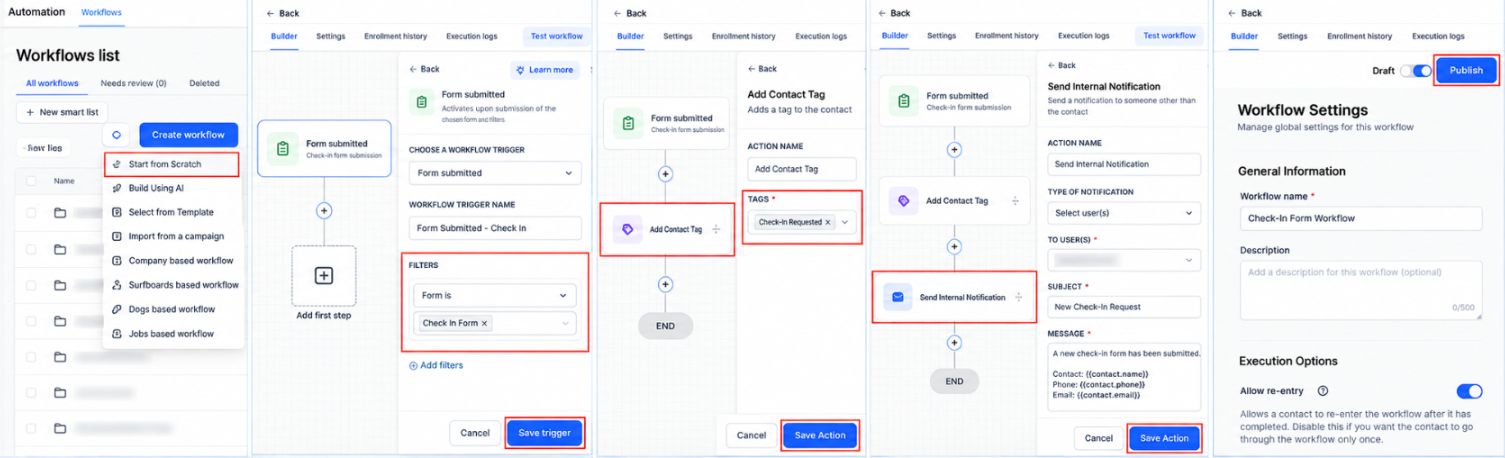
- Go to Automation > Workflows and create a new workflow.
- Add the Form Submitted trigger and set the Form Is filter to the check in form.
- Insert an Add Contact Tag action like Check In Requested and optionally add Send Internal Notification.
- Save the workflow and publish it.
- Submit a test entry through the form and confirm the submission, tag and any staff alert appear.
Review check ins and record redemptions
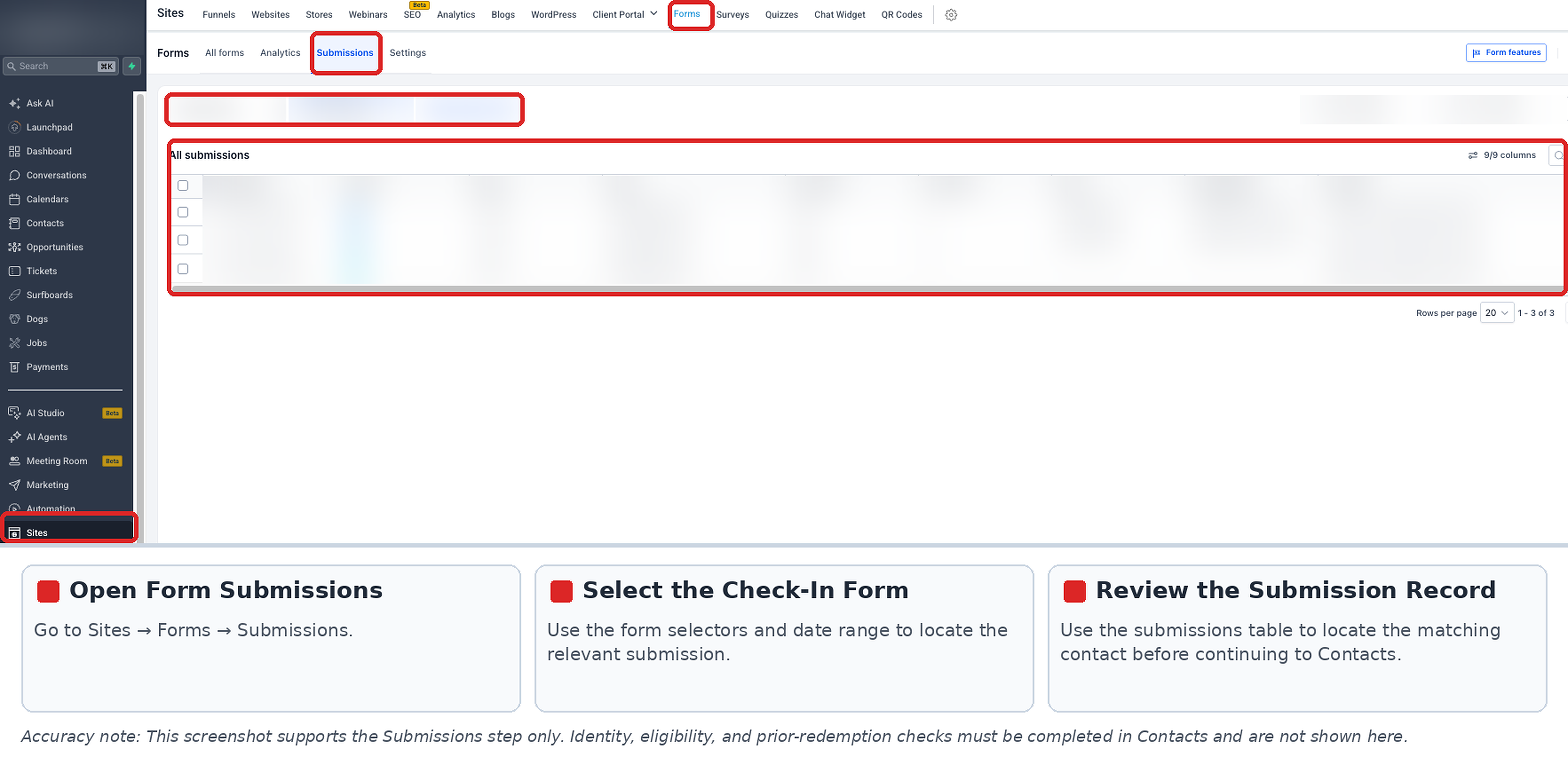
- Open Sites > Forms > Submissions or click the Submissions tab on the form.
- Find the related contact in Contacts and verify identity, eligibility and prior redemptions.
- If the offer is approved, add a separate tag such as Redeemed to record the decision.
Testing and troubleshooting check in campaigns
- If the wrong page opens, re check the QR destination under Sites > QR Codes and scan again.
- If no form response appears, open the direct form link, submit test data and verify the Submissions list.
- If no tag or alert appears, ensure the workflow is published, the Form Is filter matches the correct form, and the actions are set up correctly.
- If a visitor submits the form multiple times, review each submission manually and verify eligibility before approving any redemption.
06What it looks like in HighLevel
07Settings that matter
- Form destination type. Specifies that the QR code should open a HighLevel form when scanned.
- Form Is filter. Filters the Form Submitted trigger to fire only for the selected check in form.
- Add Contact Tag action. Adds a predefined tag to the contact record when the workflow runs.
08Things to know before you rely on it
- The QR code opens a shared form; it does not issue a unique ticket for each visitor.
- The shared form cannot automatically block repeated submissions or enforce single use redemption.
- Do not rely on hidden fields, URL parameters or contact tags alone to prevent duplicate redemptions.
- For event tickets that need validation, use HighLevel Events check in instead.
09If something goes wrong
- Wrong page opens after scanning. Open Sites > QR Codes, verify the QR destination URL, and scan again.
- No form response appears. Open the direct form link, submit test details, and check the Submissions list for the entry.
- Contact tag or staff alert does not fire. Confirm the workflow is published, the Form Is filter matches the correct form, and the actions are set up correctly.
- Visitor submits the form multiple times. Review each submission manually and verify eligibility before approving any redemption.
10How it connects to the rest of HighLevel
- Create an SMS opt in workflow SMS opt in workflow
- Set up custom value trigger links Trigger links
- Explore all marketing features Marketing features
Michael's take

QR code check in campaigns feel like a modest convenience. They give you a quick way to collect visitor info without a paper sheet, but they don’t replace a secure ticketing system. If you just need a sign in sheet or a simple offer request, the QR link to a form works well.
A small boutique that runs weekend pop up sales can place a QR code at the entrance. Customers scan, drop their email, and the staff get a Slack style notification to greet them and decide if the discount applies. I’d test the whole flow. Scan, submit, tag, notify. Before printing hundreds of signs, just to be sure nothing gets lost.