
01Who this is for
- Agency owners who send automated onboarding emails can keep the look consistent with their brand.
- Marketing teams managing client communications can ensure verification messages carry the client’s logo.
- Support staff handling password reset notices can embed brand colors for a cohesive user experience.
02Agency system email templates, explained
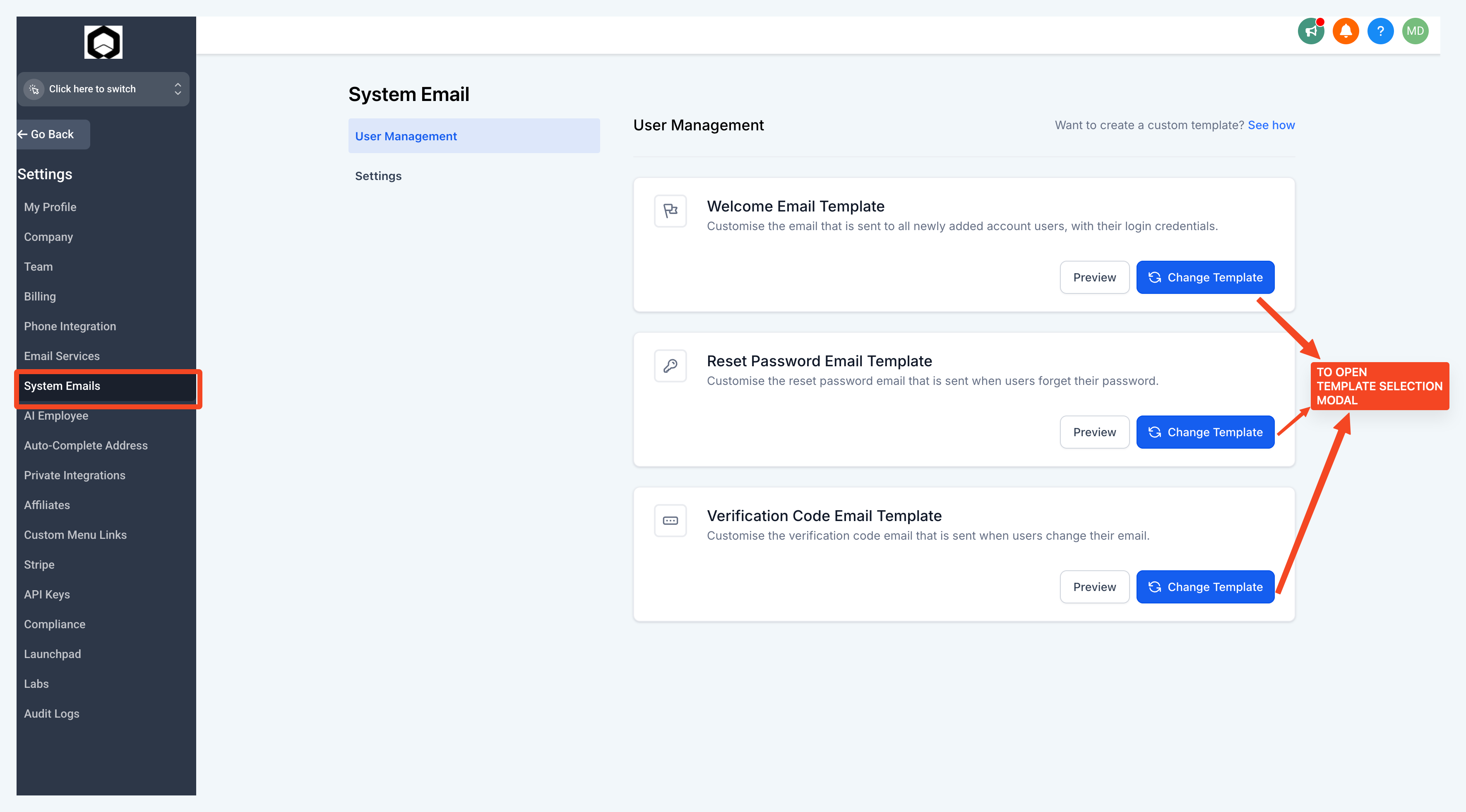
The feature provides control over three core system emails, Welcome, Password Reset and Verification, so they can reflect a company’s visual identity. Templates can be edited directly, new ones can be built, and branding assets such as logos and call to action button colors can be applied.
All settings are accessed from the Agency Settings area under System Emails. Changes are saved to the selected subaccount and stored in the chosen template folder. If a customized template contains errors that stop sending, HighLevel automatically falls back to the default version so delivery continues.
03How businesses use agency system email templates
- Digital marketing agency. The agency edits the Welcome email, selects the appropriate subaccount, uploads its logo, and sets the CTA button color to match its brand. The updated template is saved and will be used for new client sign ups.
- SaaS startup. The startup creates a new Verification email template, adds its branding elements, and configures the CTA color. The template is stored in the system templates folder and applied to all verification sends.
- Ecommerce store. The store modifies the Password Reset email, updates the logo through the Settings tab, and changes the button color to its brand hue. The edited template replaces the default for all password reset flows.
04How to set up and use agency system email templates in HighLevel
Modify an existing system email template
- Locate the Welcome, Password Reset or Verification template you want to change.
- Click the Change Template button next to the chosen email.
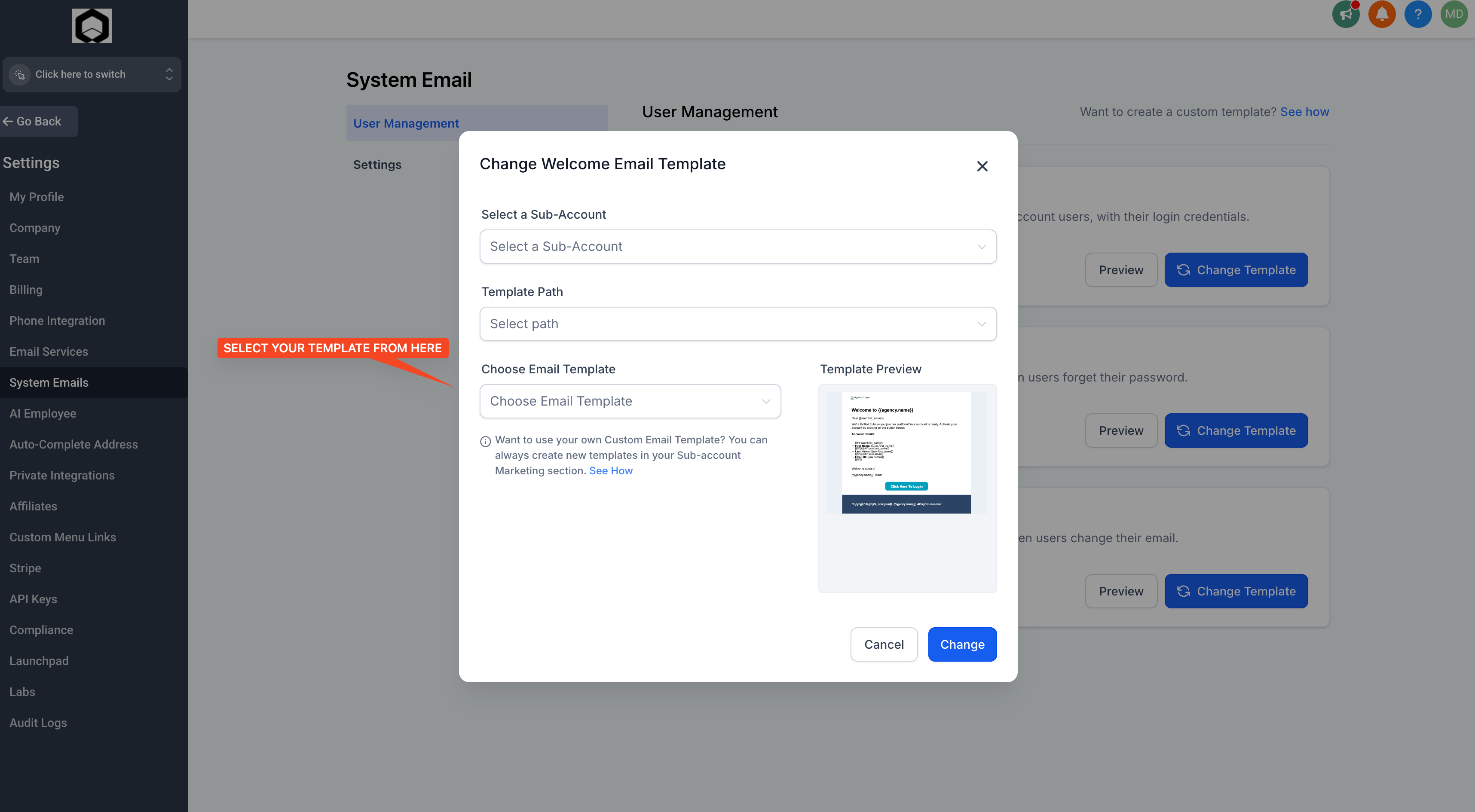
- Select the subaccount that should receive the updated template.
- Pick the folder where the template file is stored.
- Choose the specific template and click Change to open it for editing.
Create a new system email template (optional)
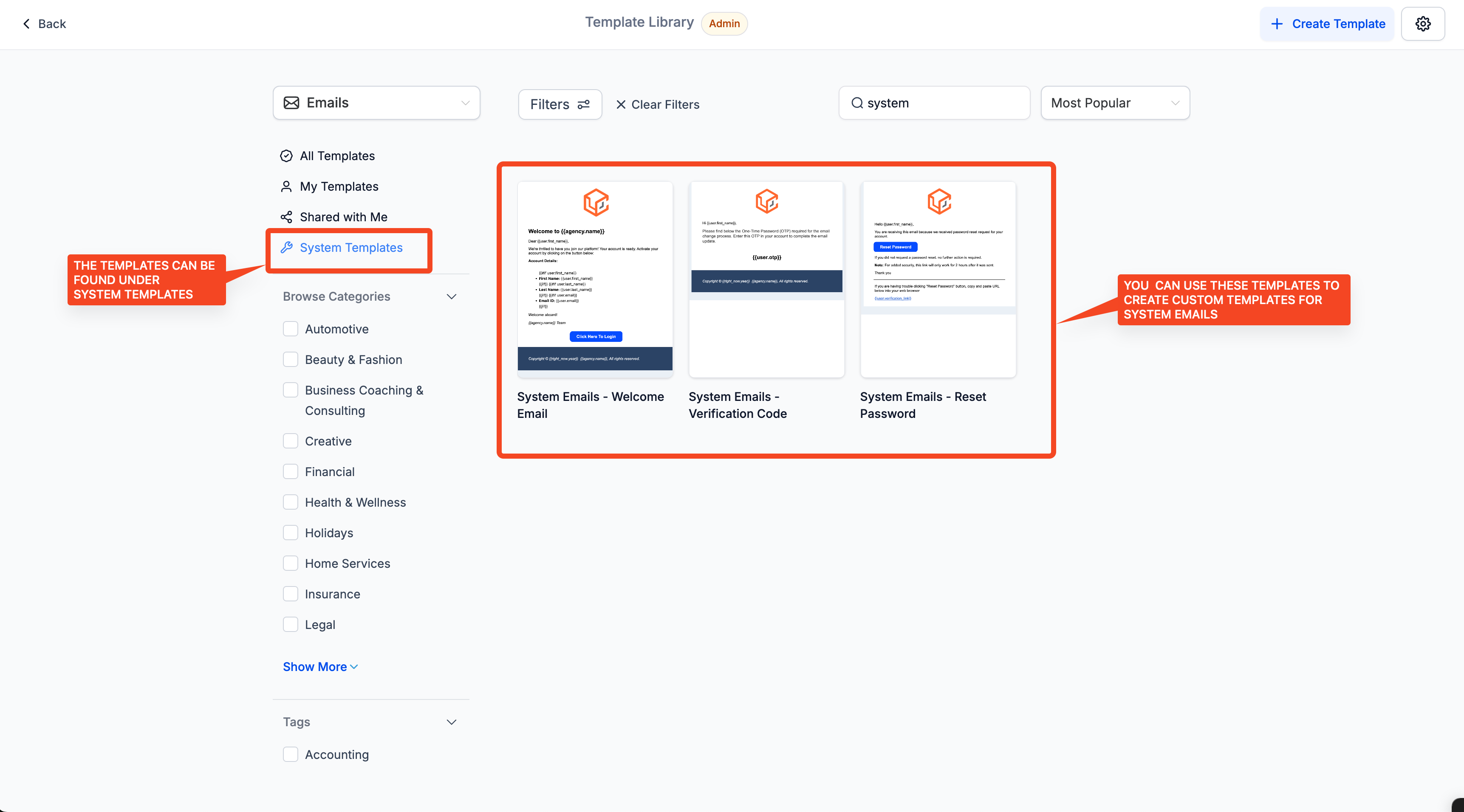
- Open Email Marketing and go to the Templates section.
- Select Create New Template and then choose System Templates.
- Find the system email type you wish to build and proceed.
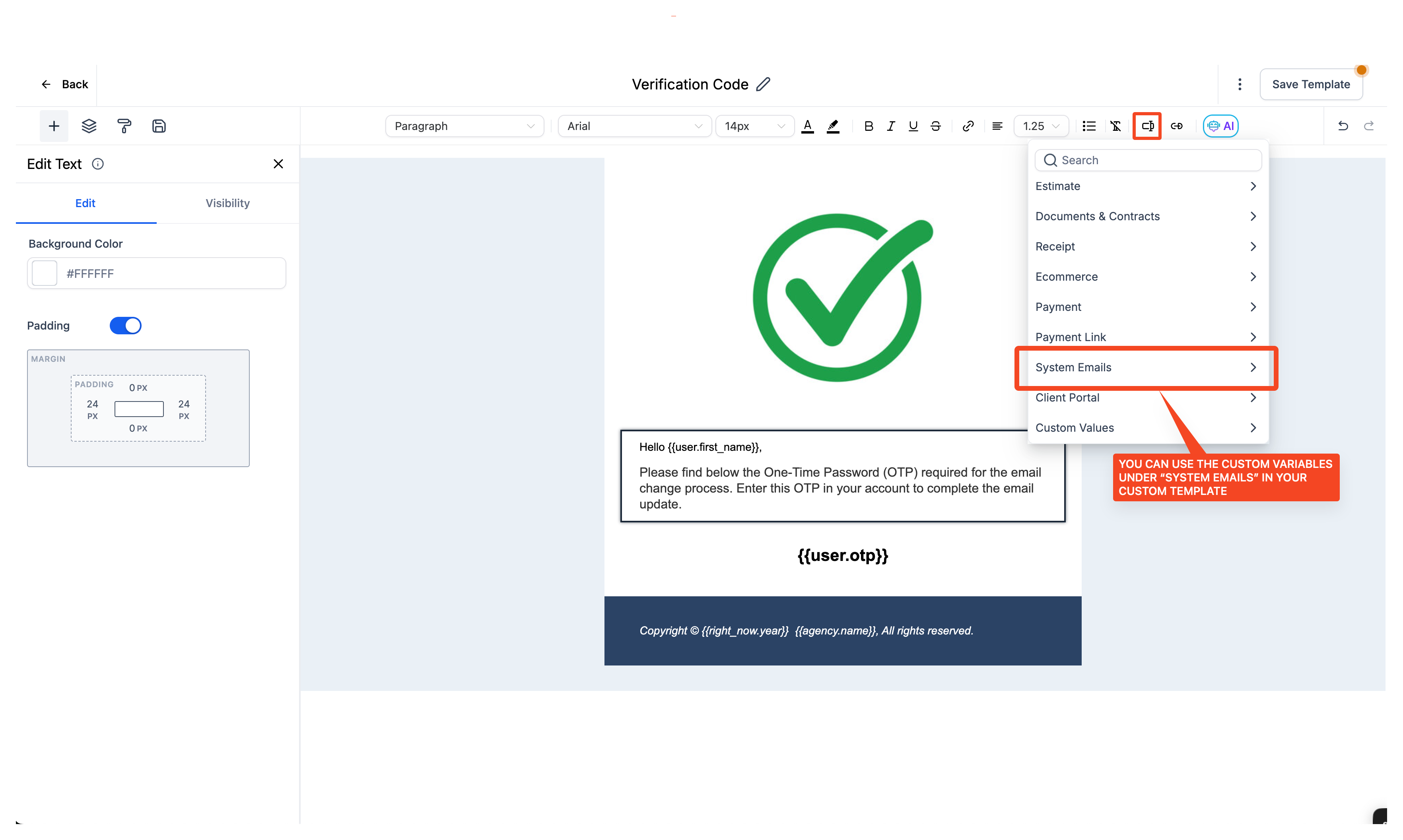
- Design the email by adding text, images and other branding elements.
Customize logo and CTA colors
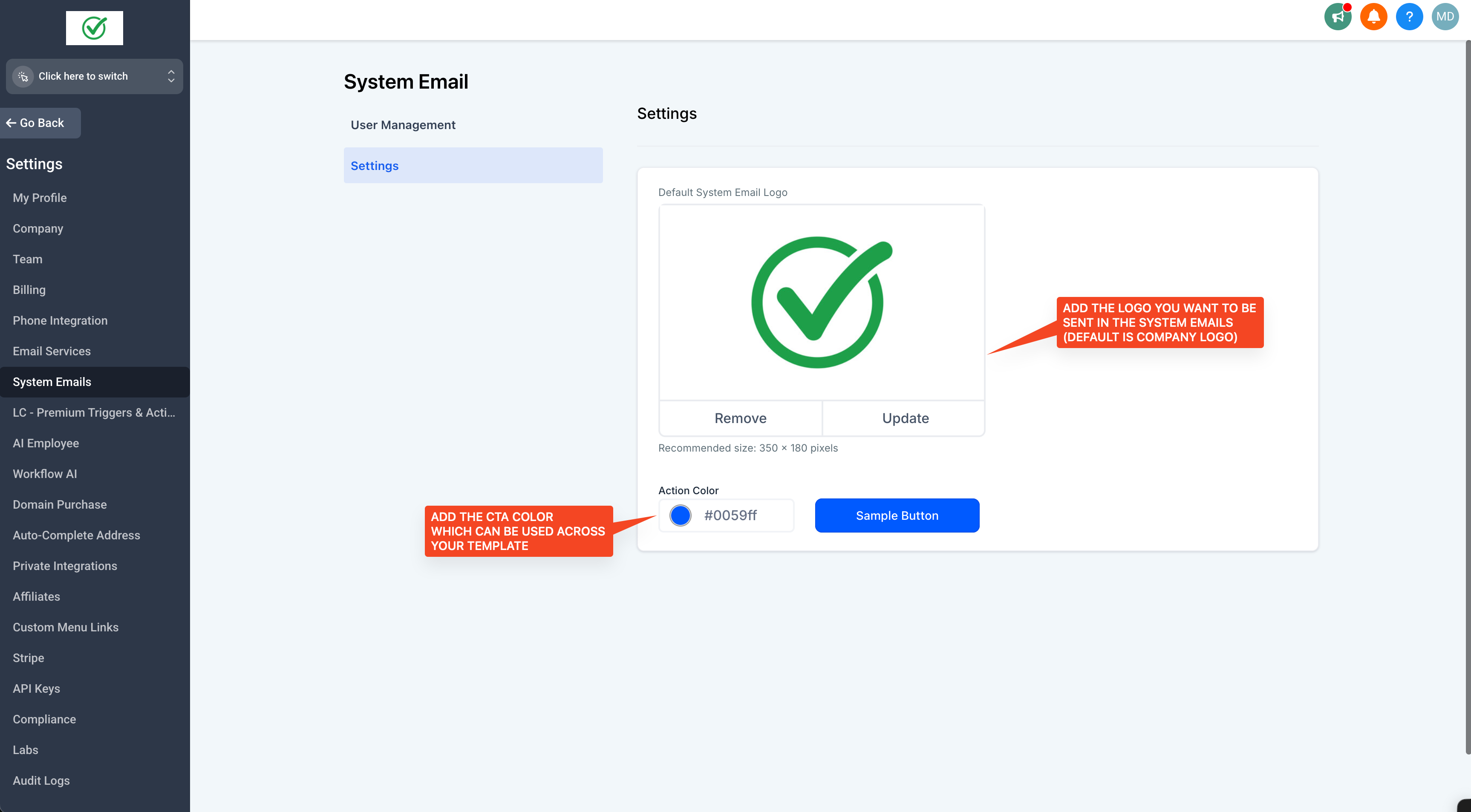
- In the email template editor, open the Settings panel.
- Upload your brand logo using the provided upload option.
- Adjust the call to action button colors to match your palette.
- Save the changes to apply the new branding to the template.
05What it looks like in HighLevel
06Settings that matter
- Subaccount. Determines which subaccount the template changes apply to.
- Template Path. Selects the folder that contains the template file to edit.
- Logo. Allows uploading a brand logo that appears in the email.
- CTA button colors. Sets the color of the call to action button used in the email.
07Things to know before you rely on it
- If a customized template has errors that block sending, HighLevel automatically uses the default system template for that email.
- Branding or merge fields that do not display may indicate unsupported or invalid fields in the selected template.
08If something goes wrong
- Branding or merge fields do not appear as expected. Review the selected template for invalid or unsupported fields.
09How it connects to the rest of HighLevel
- Learn how to use the template library for system emails Template library overview
- Send or schedule a regular email campaign after customizing templates Email campaign guide
- View HighLevel pricing and plan options Pricing page
Michael's take

Most people try to edit the system email templates directly in the default editor without first creating a separate template in Email Marketing. That often leads to hidden merge field errors or branding elements that never display. I would begin with building the email in the Email Marketing templates section, where the preview and test tools give immediate feedback, then link that template in the System Emails area.
Once the custom template is linked, I would double check the logo upload and CTA color settings, send a test email to confirm everything looks right, and finally enable it for the chosen subaccount.