
01Who this is for
- Marketing agencies can collect client approvals without giving them platform access.
- Small business owners can let stakeholders review scheduled posts securely.
- Freelance social media managers can track approval status and notes in one place.
02External link approval flows, explained
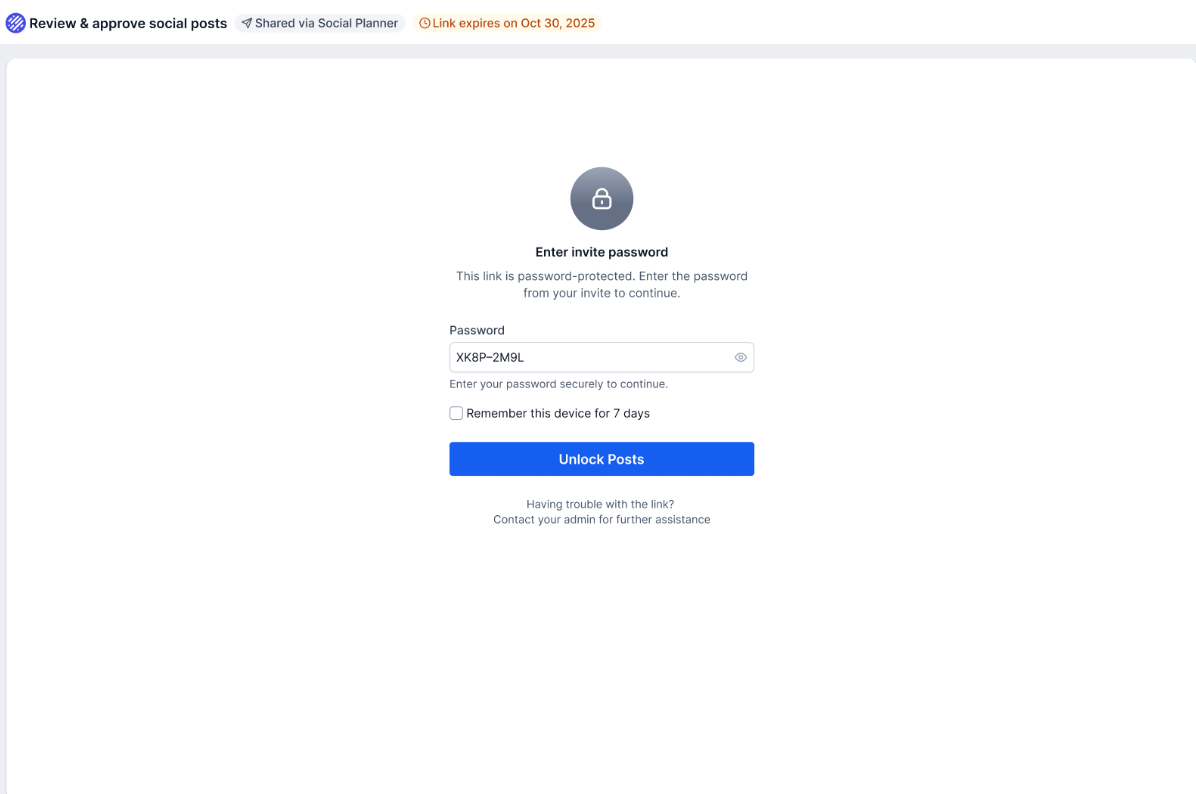
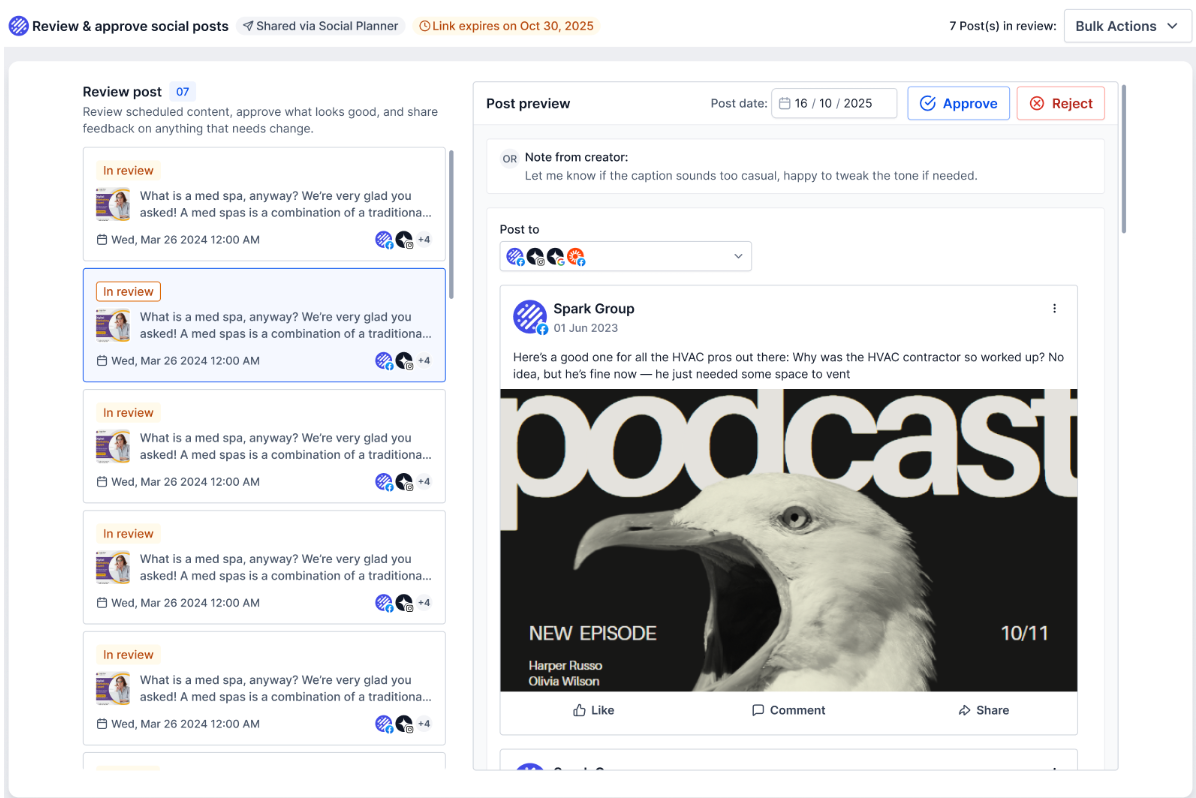
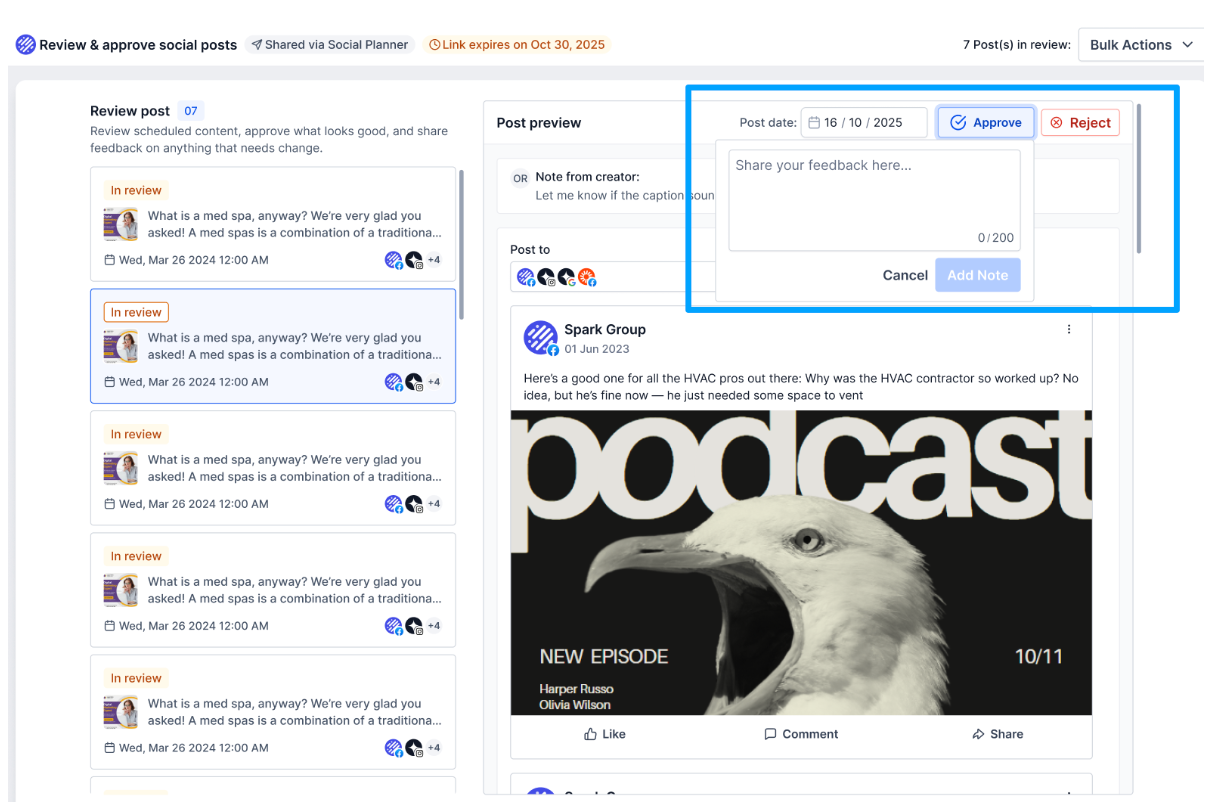
External Link Approval Flow is a feature inside the Social Planner that creates a secure, password protected link for a specific post. The link, known as a Magic Link, can be sent to anyone outside the HighLevel account so they can view the post details and decide whether to approve, reject, or reschedule it.
All approval actions are recorded in the Social Planner interface. The post’s status updates automatically, and any notes from the approver are stored for the creator to review. Links can be regenerated, revoked, or extended from a central management area, keeping external collaboration tidy and auditable.
03How businesses use external link approval flow
- Dental practice. The practice creates a Magic Link for a promotional post, copies the generated URL and sends it to the clinic manager via email. The manager opens the link on a desktop, adds feedback, and either approves or reschedules the post directly in the approval view.
- Real estate agency. An agent selects a prospective buyer as the approver, generates an approval link with a custom password, and shares it through WhatsApp. The buyer reviews the listing photo and caption, then approves the scheduled posting, leaving a brief note for the marketing team.
- Ecommerce store. The store’s marketing lead generates a link for a flash sale announcement, shares it on Slack with the sales director, and the director uses the link to reject the post and add comments on needed image changes. The creator edits the post and resends a new link.
04The numbers and rules that matter
- Links are valid for 30 days.
05Before you start
- User must have the required permissions to generate approval links.
- Approver must open the link using a desktop or web view; mobile view is not yet supported.
06How to set up and use external link approval flow in HighLevel
Generate an external approval link
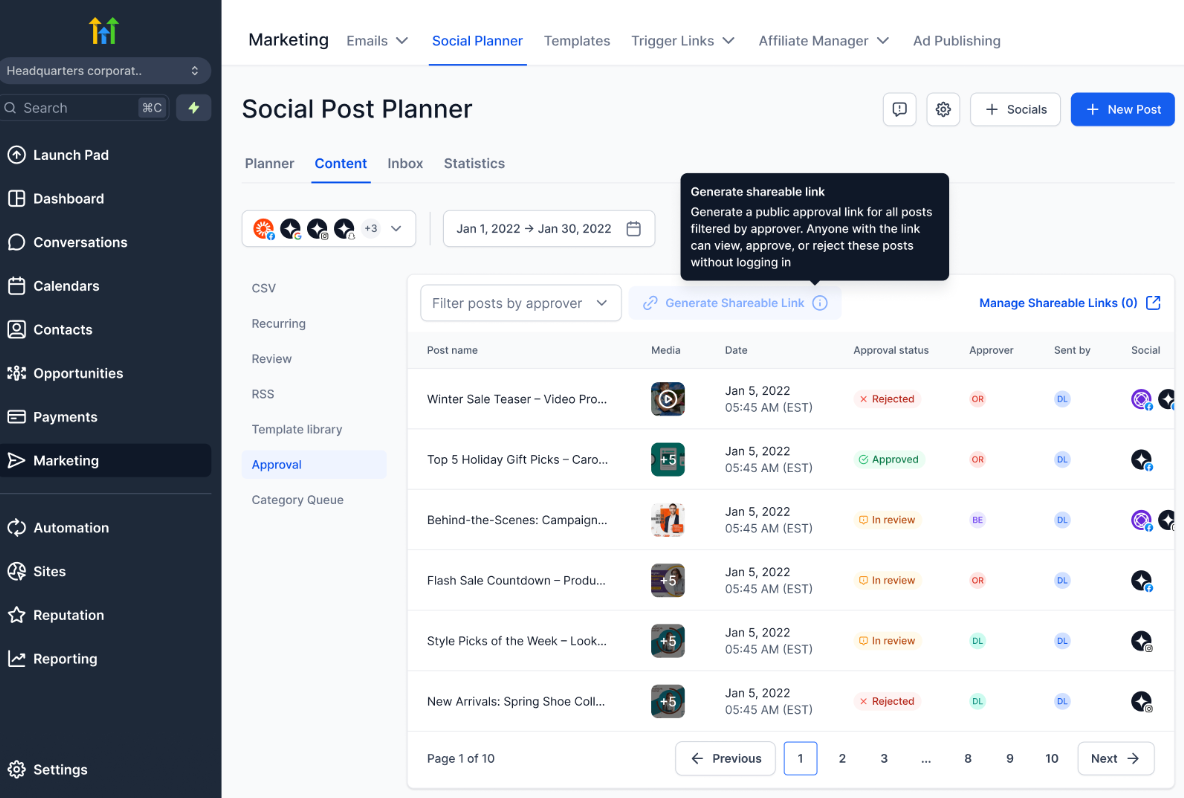
- Navigate to Marketing > Social Planner.
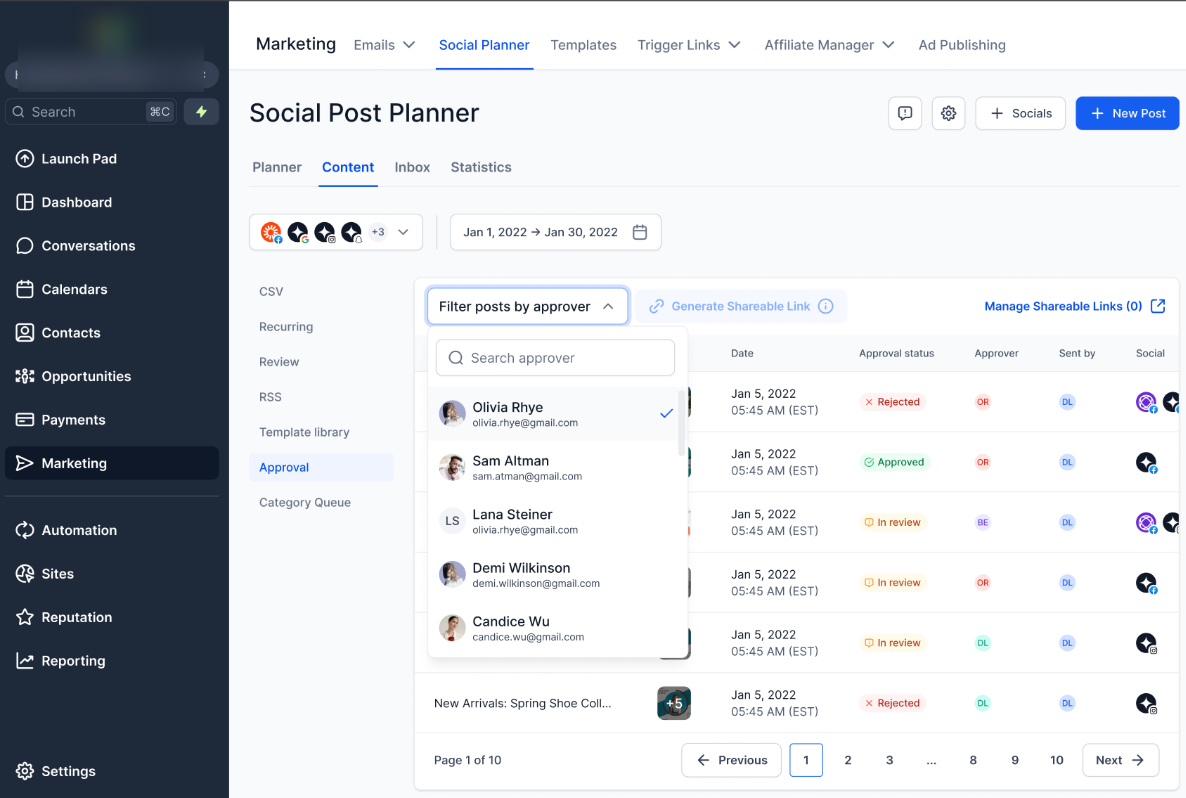
- Pick an approver from the dropdown list.
- Press the Generate Approval Link button.
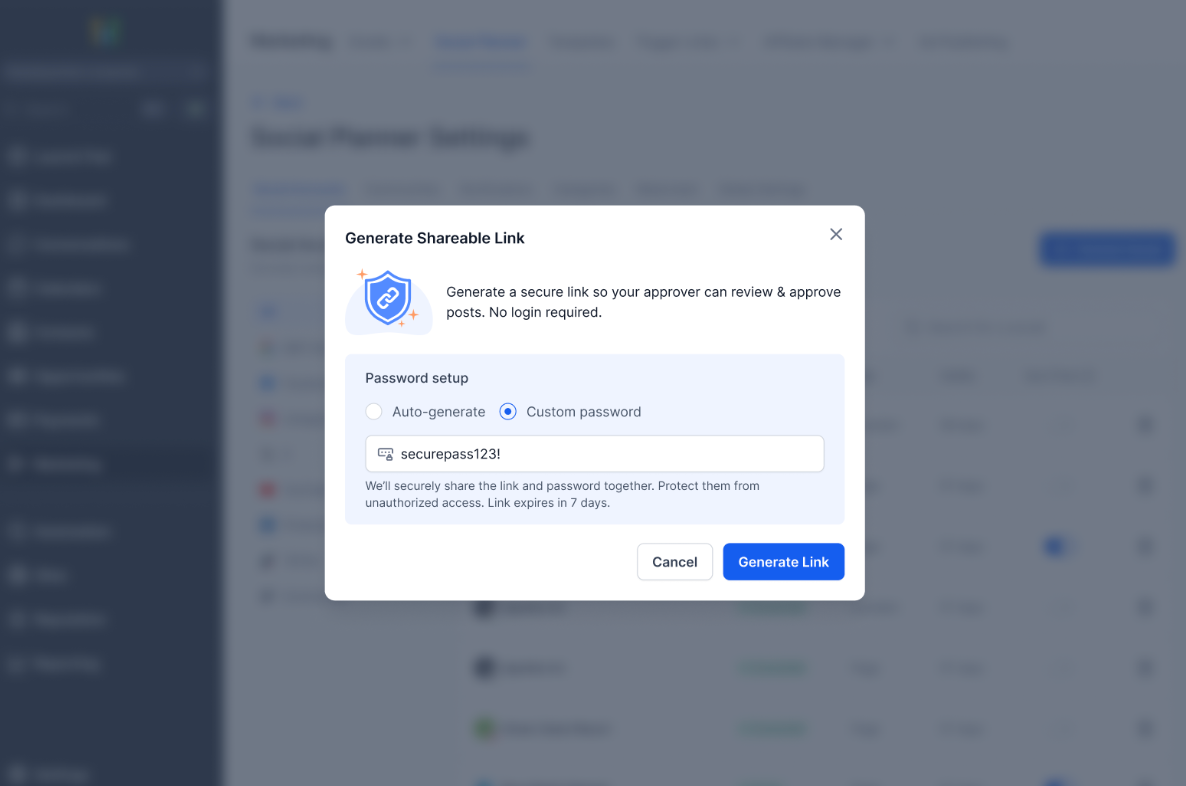
- Choose to auto generate a password or type a custom one.
- Copy the resulting link and distribute it to the external reviewer.
Share the approval link
- Send the copied link via Email, WhatsApp, Slack, or any other messaging platform.
Manage existing approval links
- Open Settings > Manage Links to see all generated approval links.
07What it looks like in HighLevel
08Settings that matter
- Password. Controls access to the approval link by requiring a password, which can be auto generated or set manually.
09Things to know before you rely on it
- Links remain active for thirty days before expiring.
- After expiration, the approver can request a new link and the creator can right away regenerate one.
- Mobile view of the approval link is not yet available; only desktop or web view works.
- Only users with appropriate permissions can create approval links.
- No actions can be taken on a post after it has been published.
10How it connects to the rest of HighLevel
- Learn how to connect Facebook pages for publishing. Connect Facebook
- Review image and video specifications for Social Planner posts. Content guidelines
- Explore using post approvals within the Social Planner. Post approvals
Michael's take

When you need client sign off on social posts without adding extra logins, the external link approval flow can be useful. It keeps approvals in one place and lets you track the notes and status.
If your workflow already includes a simple back and forth email approval or you rarely need external sign off, the feature may feel like extra overhead. The link only works on desktop for now, so teams that rely on mobile approvals might hit a wall.