
01Who this is for
- Agency Founders with multiple client subaccounts need to control which templates staff can see to maintain consistent branding.
- Marketing managers in agencies want to prevent non relevant templates from appearing for their locations.
- Whitelabel service providers require a way to hide HighLevel branded assets from client views.
02Extended template library access, explained
The feature expands Template Library permissions to admins on the $97 and $297 plans. Admins can open Agency View, go to the Template Library, and browse all ready made assets. From there they may hide individual templates or entire categories, which removes those items from every subaccount while keeping them visible to agency admins for later use (per HighLevel's help center, checked November 2026).
When a template is hidden, a grey “Hidden” badge appears on the item. Hidden templates stay in the library for admins, so they can still duplicate or edit them internally. Hiding a category toggles a Hide switch in Settings, right away making all templates in that folder invisible to locations. The changes apply to existing and future subaccounts without further action.
03How businesses use extended template library access
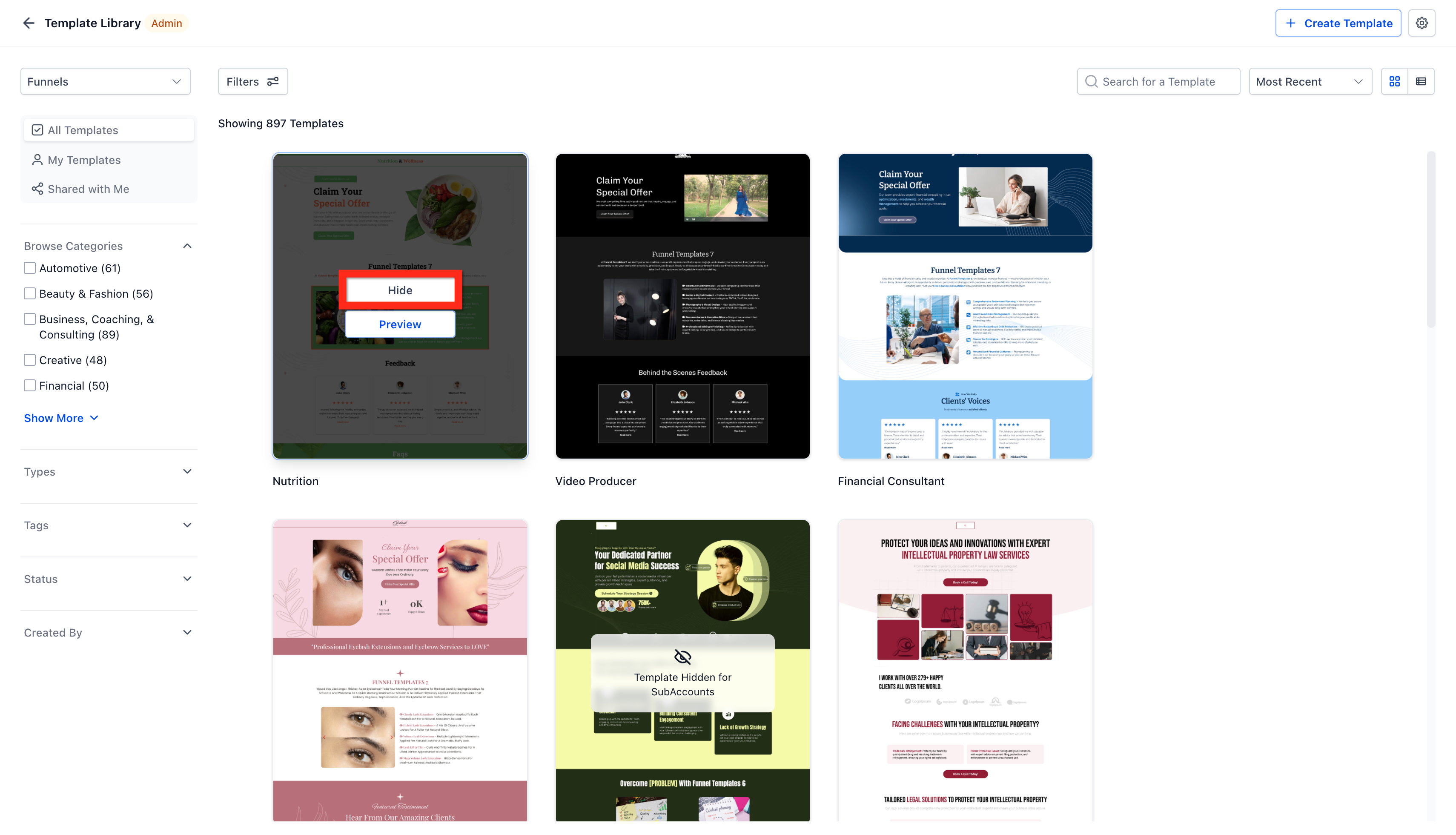
- Digital marketing agency. The agency admin opens the Template Library, hovers over a template that does not match the agency’s niche, clicks Hide, and confirms the grey Hidden badge. The template no longer appears for any client subaccount, keeping the agency’s offering focused.
- White label SaaS provider. The provider navigates to Settings within the Template Library, selects the product type, locates a category that contains HighLevel branded assets, and toggles the Hide option. All templates in that category disappear from client locations, preserving the provider’s white label appearance.
- Consulting firm with multiple practice areas. An admin browses the library, finds a template relevant only to one practice area, and hides the entire category that holds those templates. Staff in other practice areas no longer see unrelated templates, simplifying their workflow.
04The numbers and rules that matter
- $97 “Starter” plan includes extended access (per HighLevel's help center, checked November 2026).
- $297 “Unlimited” plan includes extended access (per HighLevel's help center, checked November 2026).
- Template creation still requires the $497 Pro plan (per HighLevel's help center, checked November 2026).
05Before you start
- You must be an agency admin on a $97 Starter or $297 Unlimited plan (per HighLevel's help center, checked November 2026).
06How to set up and use extended template library access in HighLevel
Hide an individual template
- Open Agency view and select Template Library.
- Find the template you want to conceal.
- Hover over the template and click the Hide button.
- Check that a grey Hidden badge appears to confirm the change.
Hide an entire category
- Enter the Template Library.
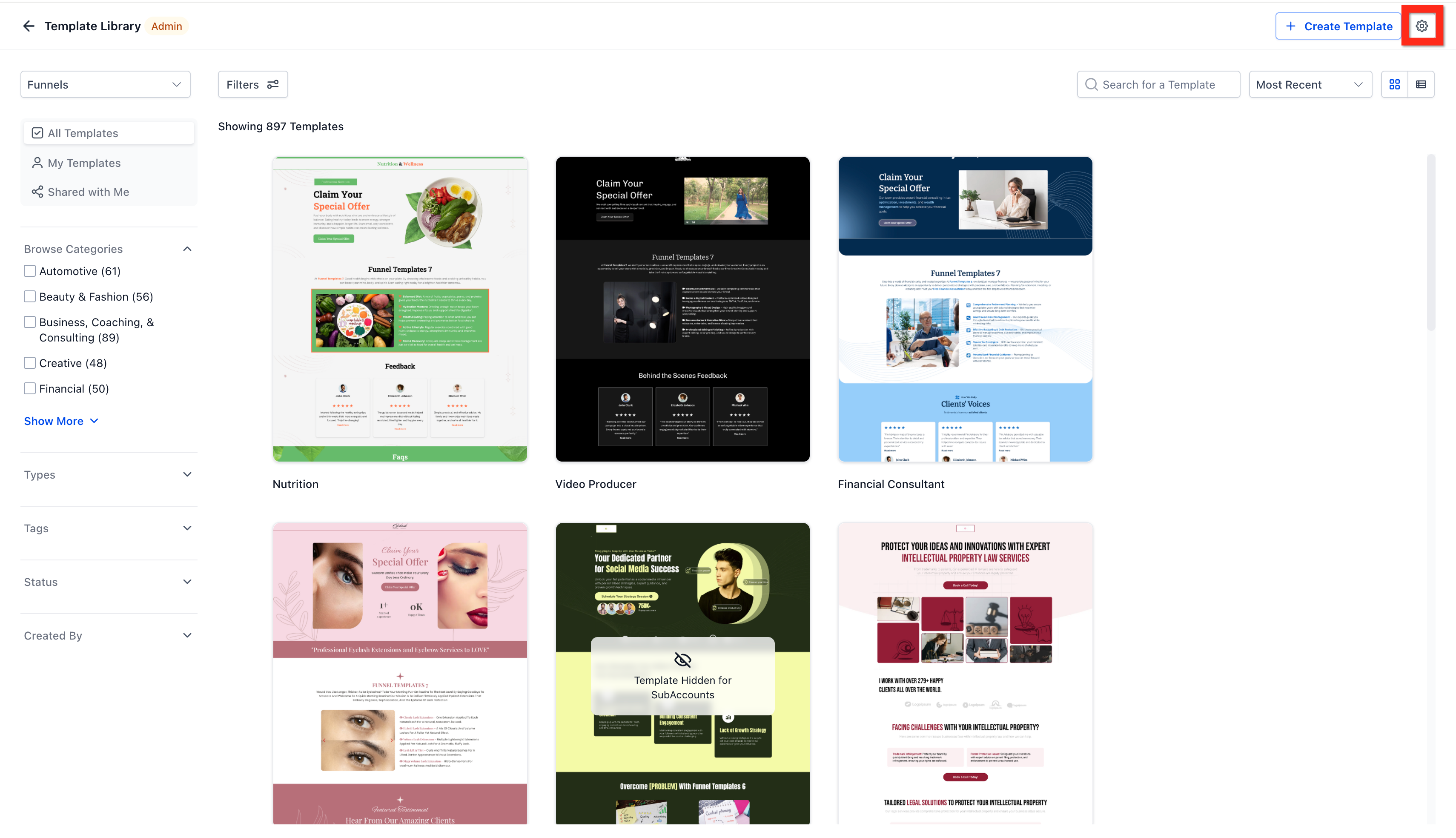
- Click the gear icon to open Settings.
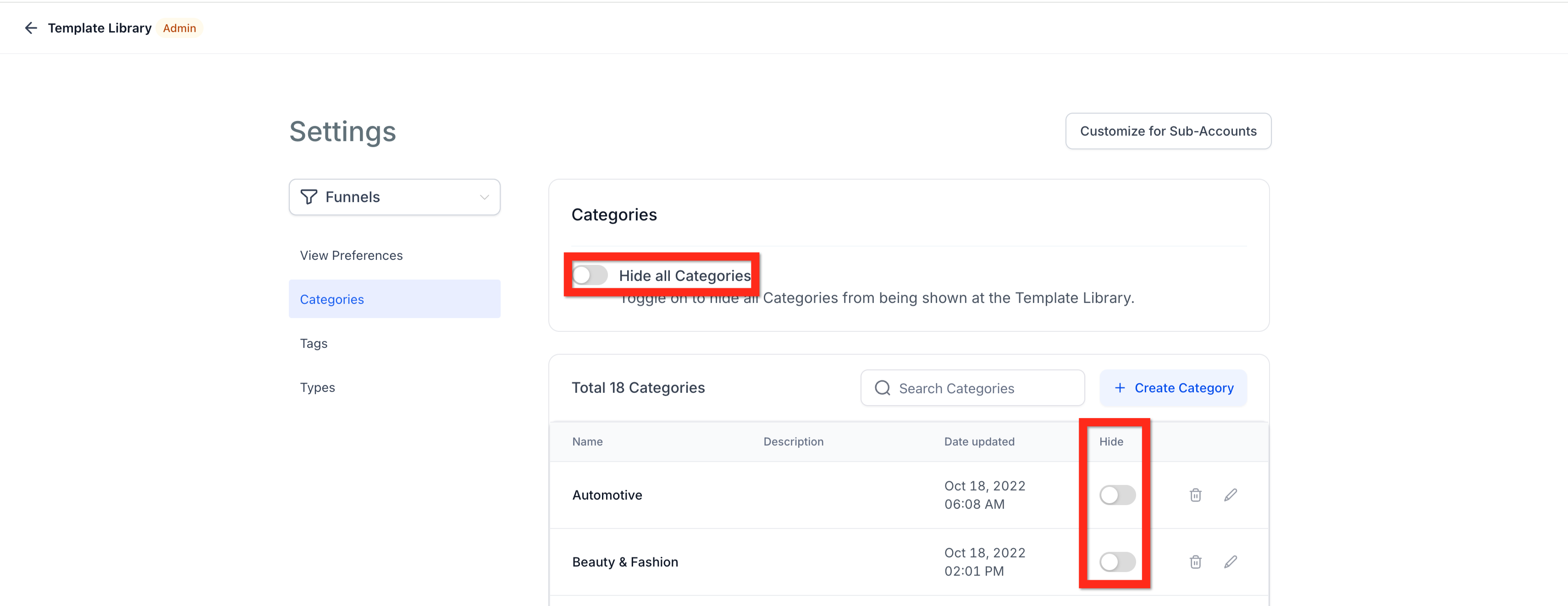
- Choose the product (for example Funnels) and go to Categories.
- Toggle the Hide switch next to the chosen category.
07What it looks like in HighLevel
08Settings that matter
- Hide. Controls whether a specific template is visible to subaccounts; hidden templates remain accessible to agency admins.
- Hide toggle (next to a category). Determines the visibility of all templates within that category for every location.
09Things to know before you rely on it
- Template creation is limited to the $497 Pro plan; admins on $97 and $297 plans cannot create new templates (per HighLevel's help center, checked November 2026).
- Only agency admins have permission to hide templates; regular users and location roles cannot access these controls.
- Category hiding provides the quickest bulk hide method; there is no separate bulk hide button for individual templates.
10How it connects to the rest of HighLevel
- Get an overview of the Template Library and learn how to browse assets. Template Library overview
- Learn how to add your own email templates to the library for future use. Add email templates
- Read instructions for hiding default or HighLevel templates from the library. Hide default templates
Michael's take

When my agency needs tighter brand control, being able to hide templates we don’t use helps keep the client view clean.
If you’re already on the $497 Pro plan for creating templates, the extended access may not add much new capability.