
01Who this is for
- Marketing managers can pull detailed email performance reports for analysis and stakeholder sharing.
- Agency owners can generate CSV exports for multiple client accounts to streamline reporting workflows.
- Small business Founders can keep a local record of campaign metrics for compliance and future planning.
02Exporting email campaign data, explained
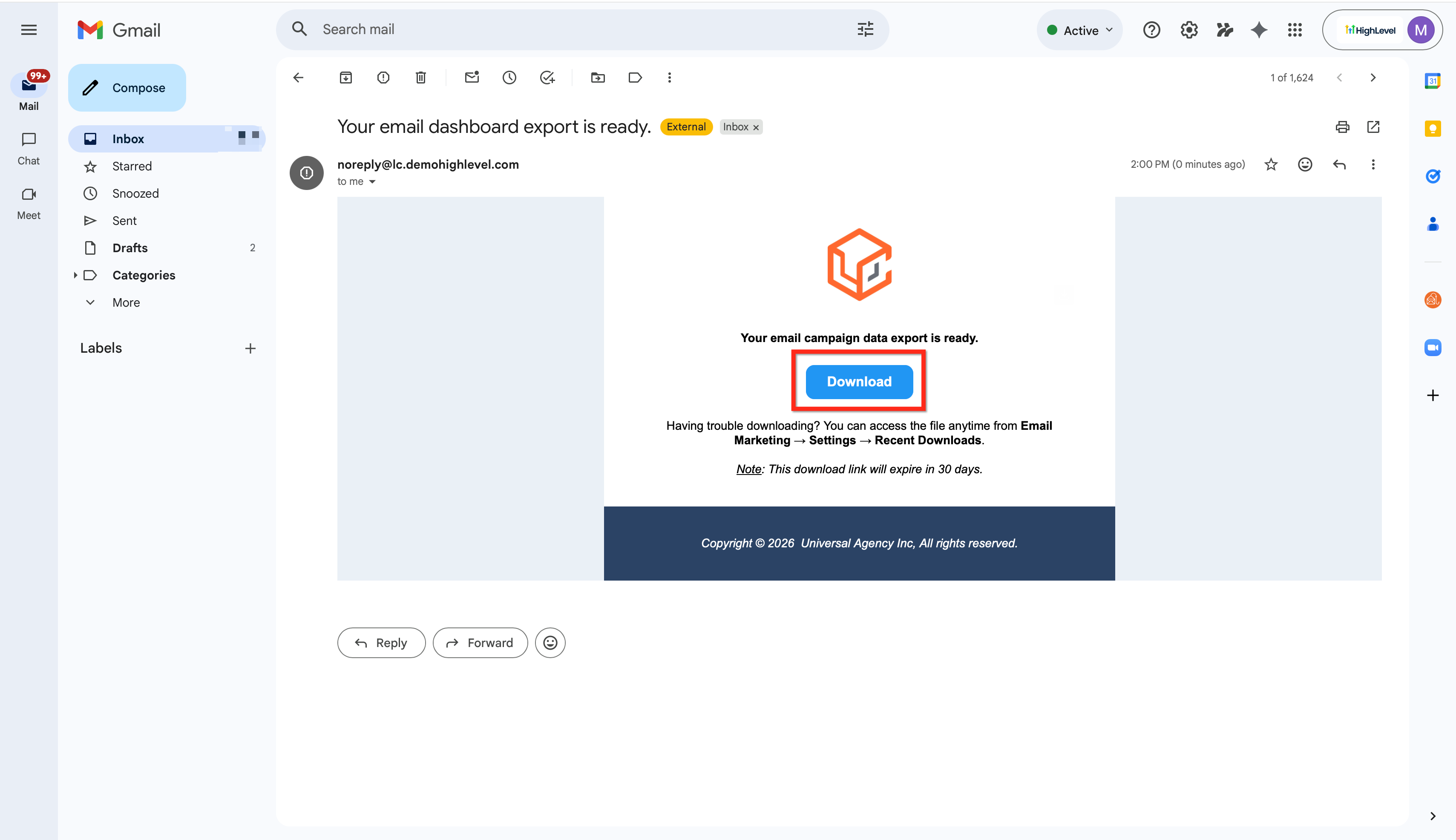
The export feature creates a CSV file containing key email performance numbers like deliveries, opens, and clicks. It works on data shown in the Email Statistics dashboard, covering regular campaigns, workflow email actions, and bulk send activities. After you request an export, HighLevel emails a download link that stays active for a set period.
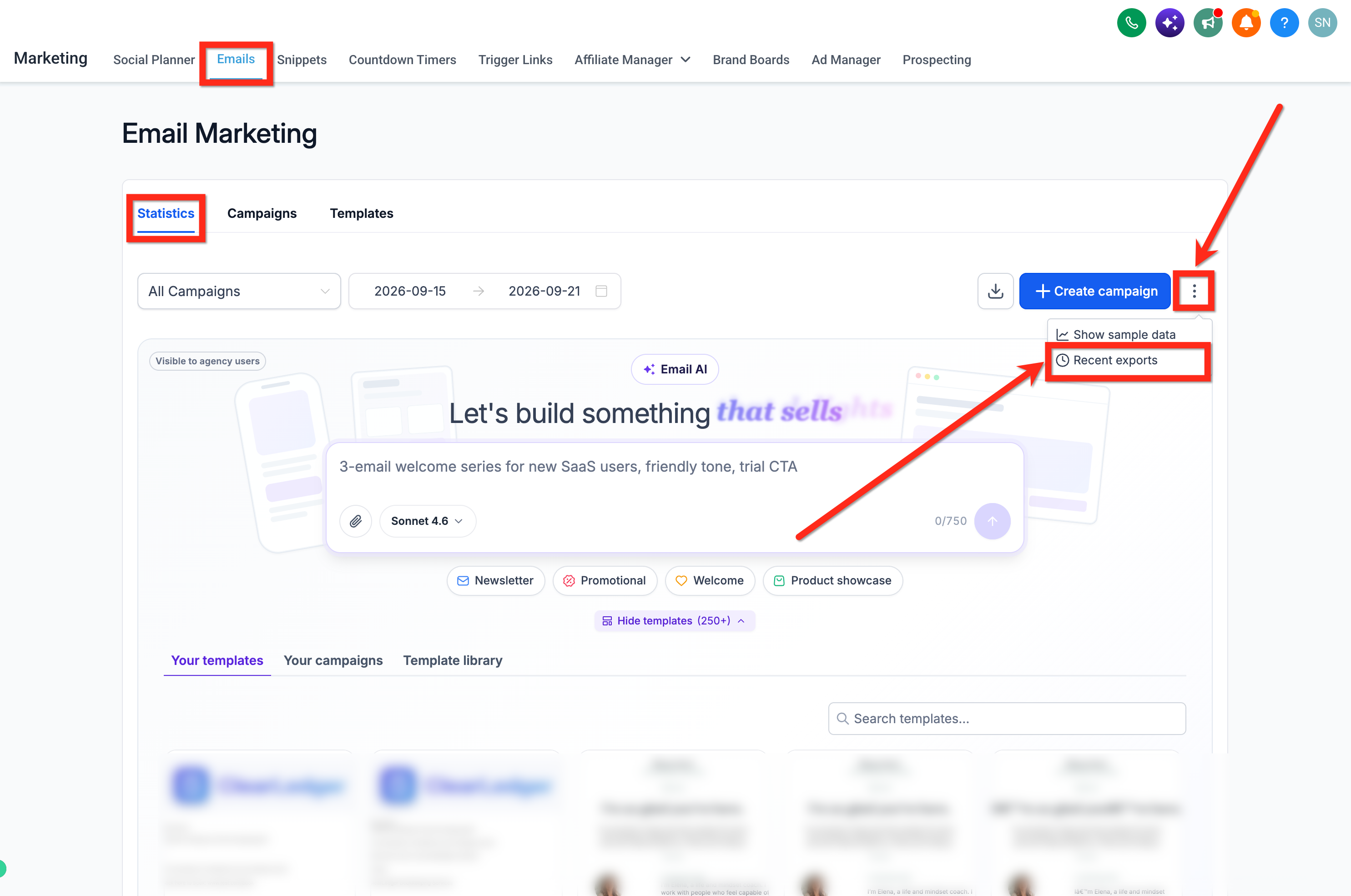
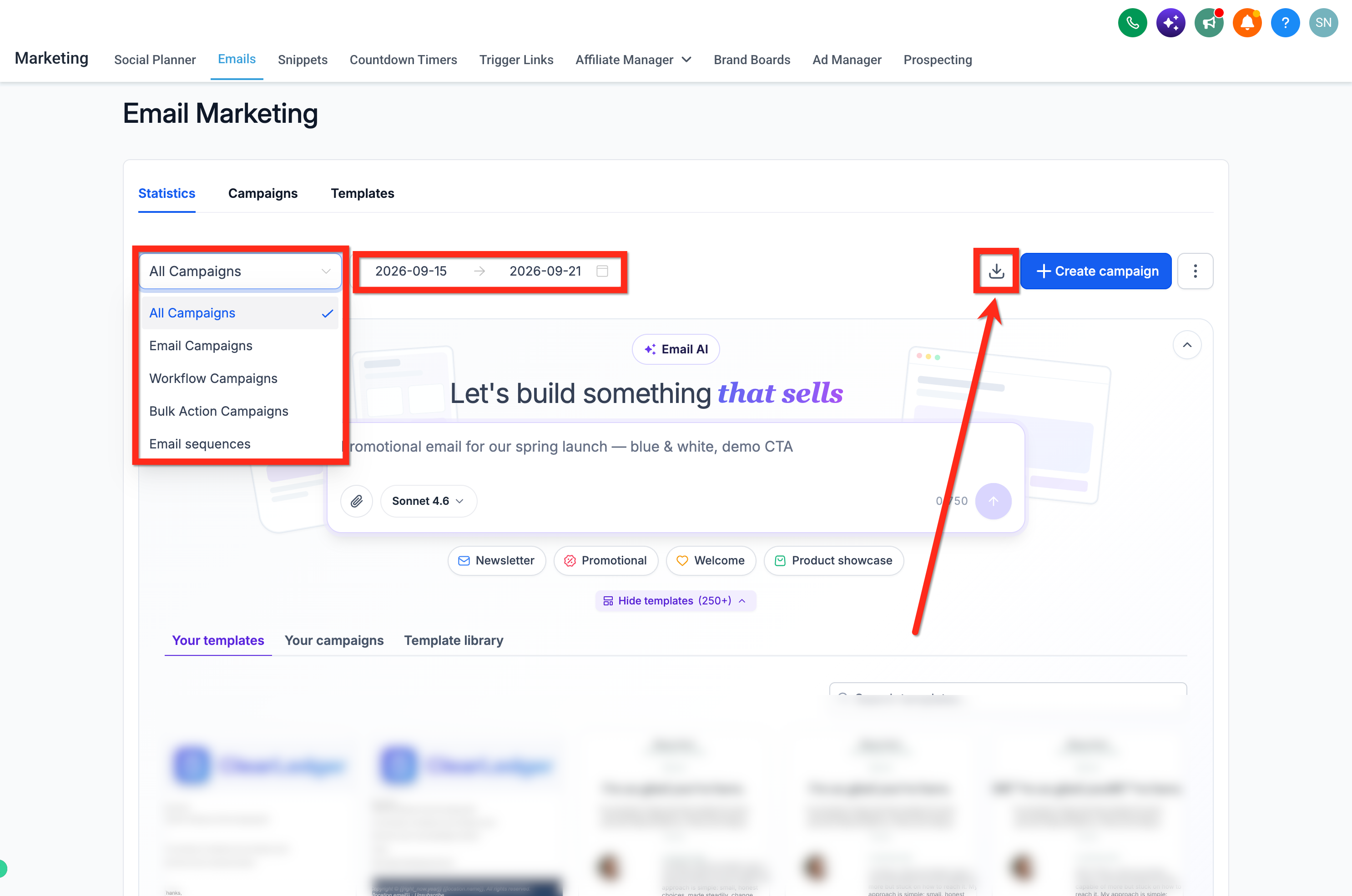
The export option is accessed directly from the Email Statistics view. You choose the scope, such as all campaigns, only workflow actions, or bulk sends, set a date range, and provide the email address that should receive the file. No extra configuration is needed beyond having access to Email Statistics for your location.
03How businesses use exporting email campaign data
- Marketing agency. The agency opens the Email Statistics dashboard, selects the export type for all client campaigns, enters the desired date range, and provides the agency’s reporting email. The CSV arrives in the inbox for inclusion in client performance reports.
- SaaS startup. The startup chooses the workflow only export to capture metrics for each automated email step, enters the period of a product launch, and receives the CSV file. The data is then used to evaluate onboarding email effectiveness.
- Ecommerce store. The store selects the bulk actions export after a promotional sale, sets the date range to the sale dates, and inputs the store manager’s email. The CSV download is used to reconcile promotional email delivery numbers with sales data.
04The numbers and rules that matter
- Recent Exports stores records for up to 30 days.
- Download links remain valid for 30 days after the export is generated.
- All exports include deliveries, opens, and clicks.
05Before you start
- Email Statistics must be available for the location where the export is requested.
06How to set up and use exporting email campaign data in HighLevel
Export email campaign data
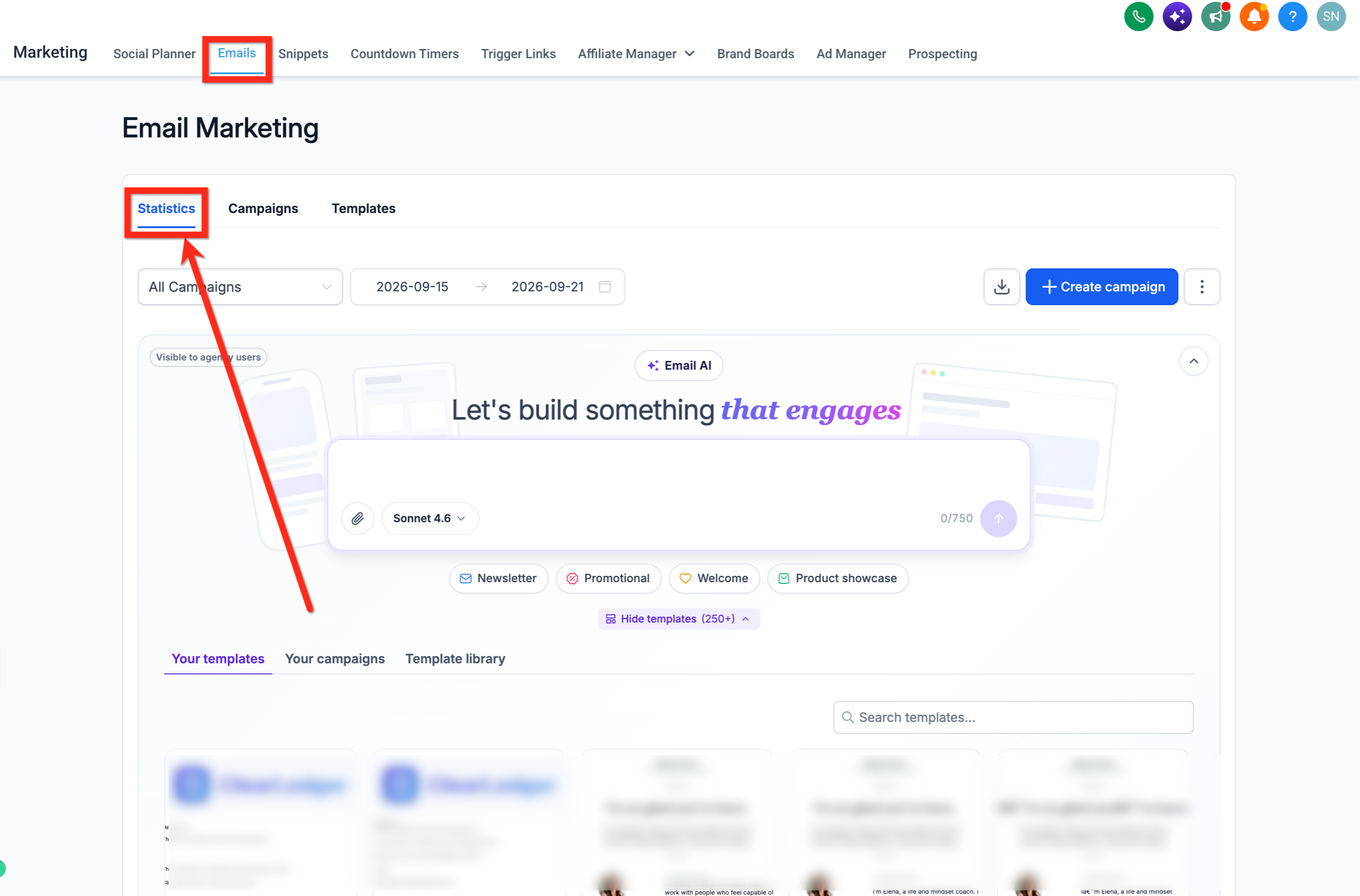
- Navigate to Marketing > Emails > Statistics.
- Select the desired campaign type and set the date range.
- Click the Export button.
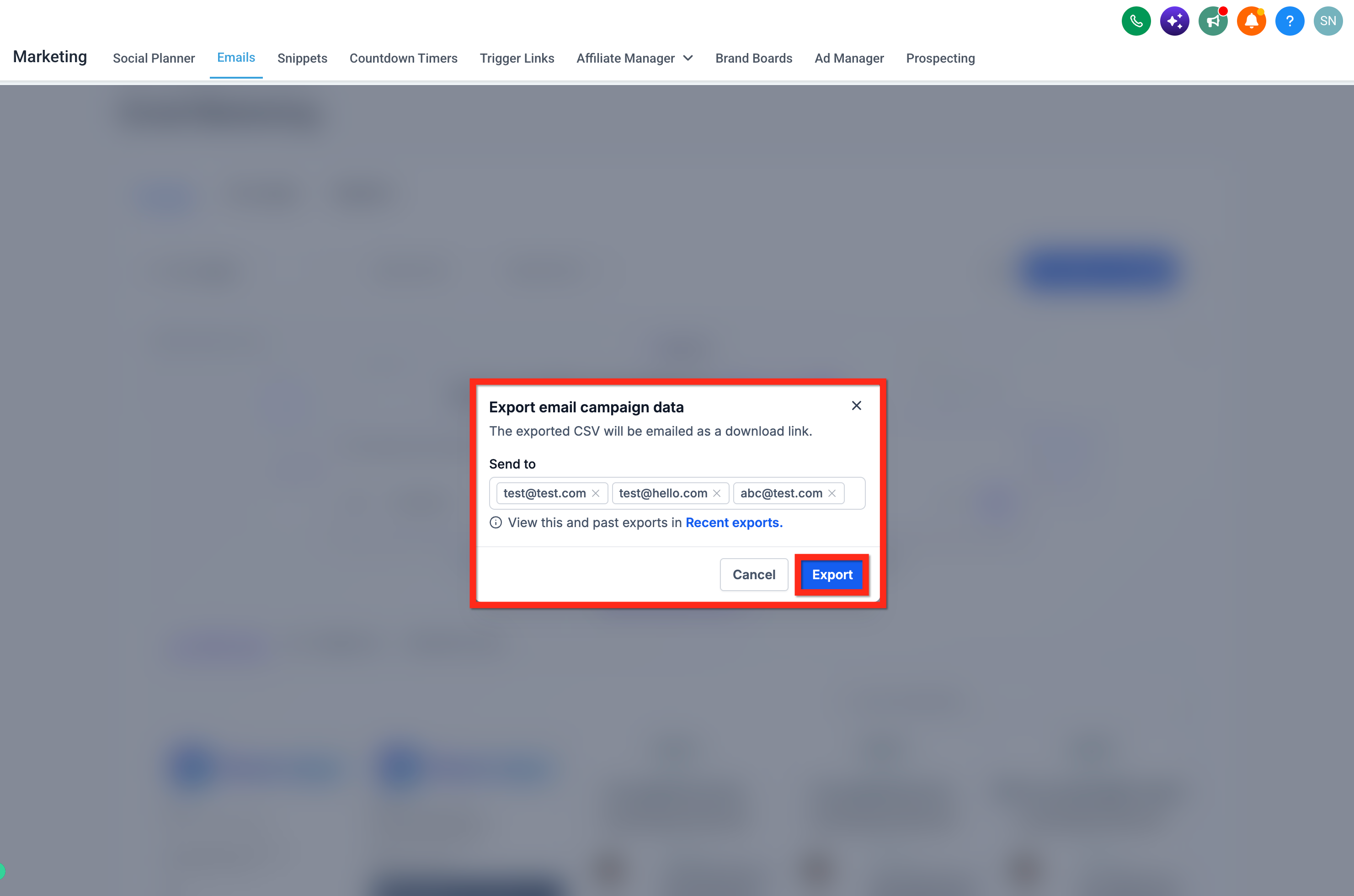
- Enter the email address(es) to receive the file and click Export again.
- Open your email inbox and follow the link to download the CSV file.
07What it looks like in HighLevel

08Things to know before you rely on it
- Export records are kept in the Recent Exports list for up to 30 days.
- Download links sent by email remain valid for 30 days after the export is generated.
- Exporting is a reporting action only and does not modify any campaigns, workflows, contacts, or statistics.
09How it connects to the rest of HighLevel
- How to send or schedule a regular email campaign in HighLevel Email campaign setup
- Overview of all marketing capabilities in HighLevel Marketing features
- Pricing and plan options for HighLevel Pricing page
Michael's take

Exporting email data can feel like a security risk if you’re not sure who will see the file.
The CSV lands in an inbox, so you need to control who you send it to and keep the link safe.