
01Who this is for
- Agency owners who want to add advertising services to their SaaS offering and control the price per client.
- Marketing managers in agencies who need a single place to launch Meta, Google or LinkedIn ads for multiple subaccounts.
- Founders of agencies that already collect payments through Stripe and want to monetize Ad Manager without extra platform fees.
02Ad Manager, explained
Ad Manager is a HighLevel component that centralizes campaign creation and management for Meta, Google and LinkedIn. The feature lives under the Marketing menu for subaccounts and under Agency view for configuration. Agencies can enable the tile in a SaaS plan, set a resale price at the agency level, or customize pricing for individual subaccounts. They may also grant free access or hide the offering entirely.
The configuration steps are found in Agency view. The SaaS Configurator controls whether the Ad Manager addon appears in a plan. The Reselling tab defines the default resale price, while the Subaccounts page allows per client overrides, free deployment or disabling. Clients discover the tool inside their own account under Marketing > Ad Manager and follow a simple activation flow that creates a Stripe linked subscription.
03How businesses use Ad Manager
- Digital marketing agency. The agency enables Ad Manager in its SaaS offering, sets a monthly resale fee, and assigns the same price to all client subaccounts. Clients then purchase the feature through the activation screen inside HighLevel.
- Boutique branding firm. The firm selects a specific client and uses the Reselling tab in the Subaccounts area to enter a custom price that matches the client’s contract. The client pays the custom amount when activating Ad Manager.
- Consulting practice. The practice checks the Deploy Ad Manager Directly option for a strategic partner, which automatically sets the client’s price to $0 and grants immediate access without a payment step (per HighLevel's help center, checked November 2026).
04The numbers and rules that matter
- $0 base cost for agencies (per HighLevel's help center, checked November 2026).
- All agencies have access to Ad Manager at no cost. “You Pay” is fixed at $0 (per HighLevel's help center, checked November 2026).
- Supported platforms: Meta (Facebook and Instagram), Google, LinkedIn.
- Default resale price is $0 (free for subaccounts) (per HighLevel's help center, checked November 2026).
- You Pay = $0 for agencies (per HighLevel's help center, checked November 2026).
05Before you start
- Connect your agency’s Stripe account so payment subscriptions can be processed.
06How to set up and use Ad Manager in HighLevel
Enable Ad Manager for subaccounts via SaaS configurator
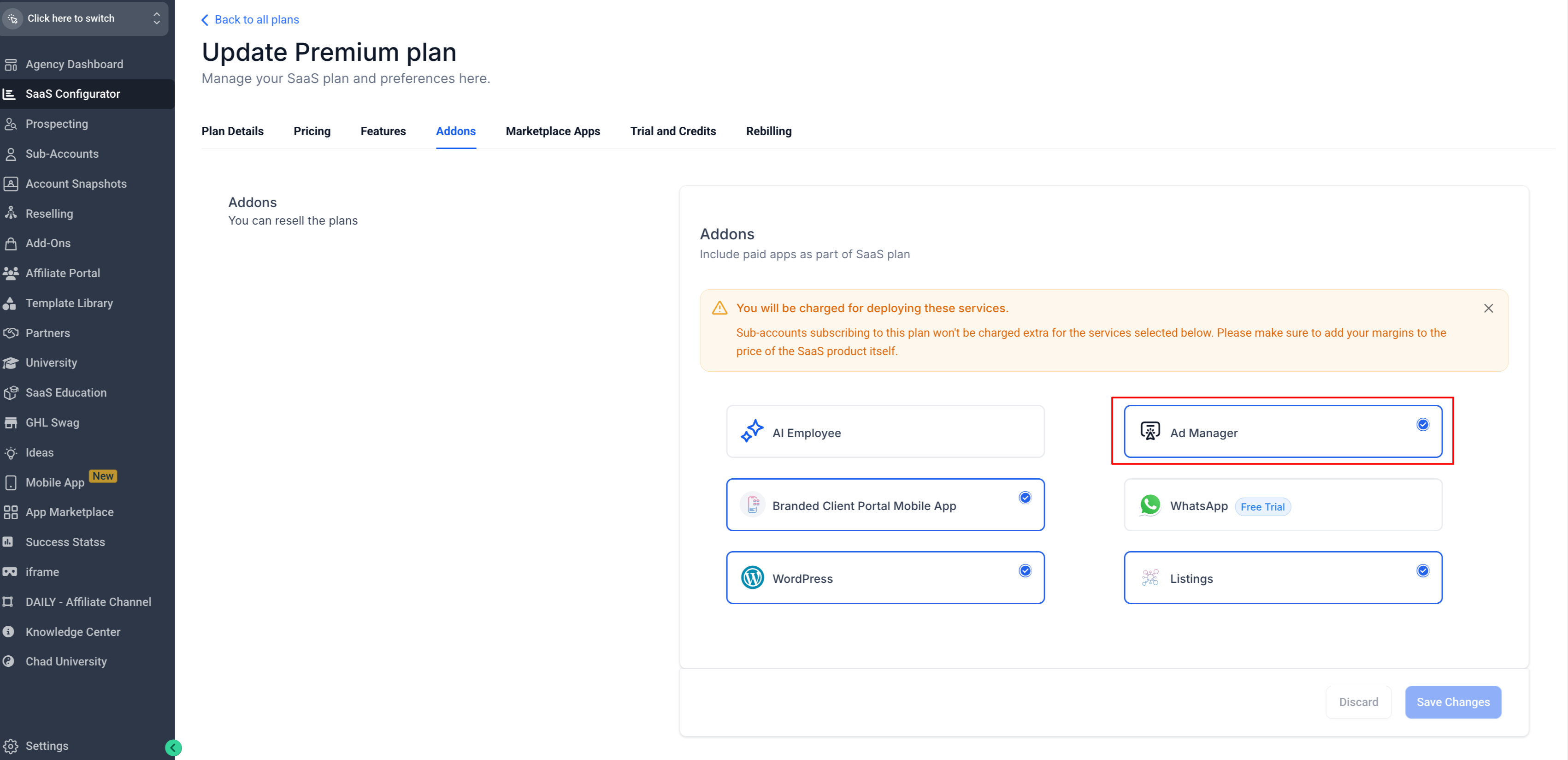
- Navigate to Agency view > SaaS Configurator.
- Select an active SaaS plan and click Edit Details.
- Open the Addons Tab and tick the Ad Manager tile.
- Click Save to apply the change.
Set resale pricing at the agency level
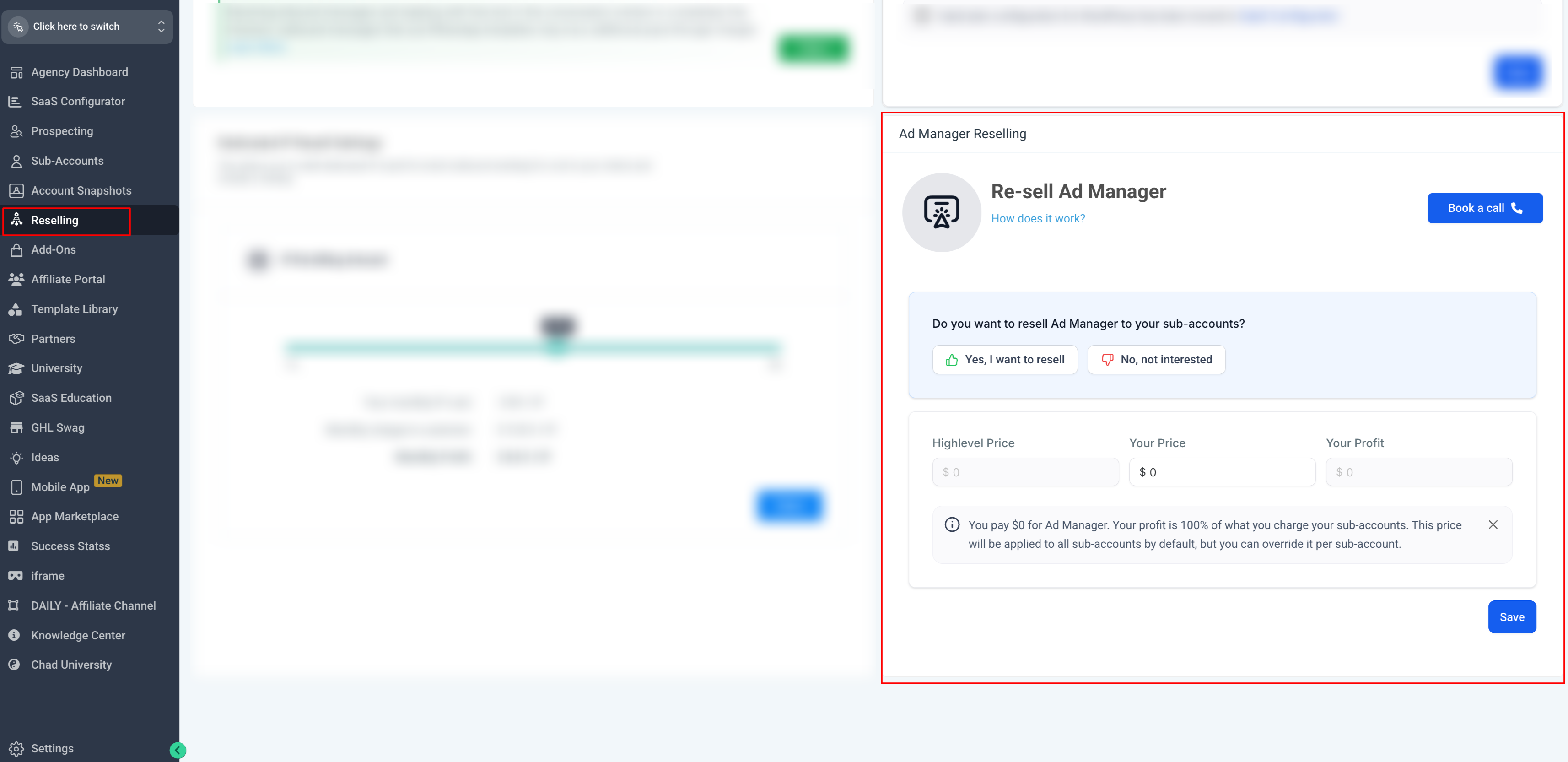
- Go to Agency view > Reselling tab.
- Locate the Ad Manager section.
- Choose Yes or No with the thumbs icons to indicate resale intent.
- Enter the amount you want subaccounts to pay in the Your Price field.
- Click Save to store the setting.
Customize pricing for a subaccount
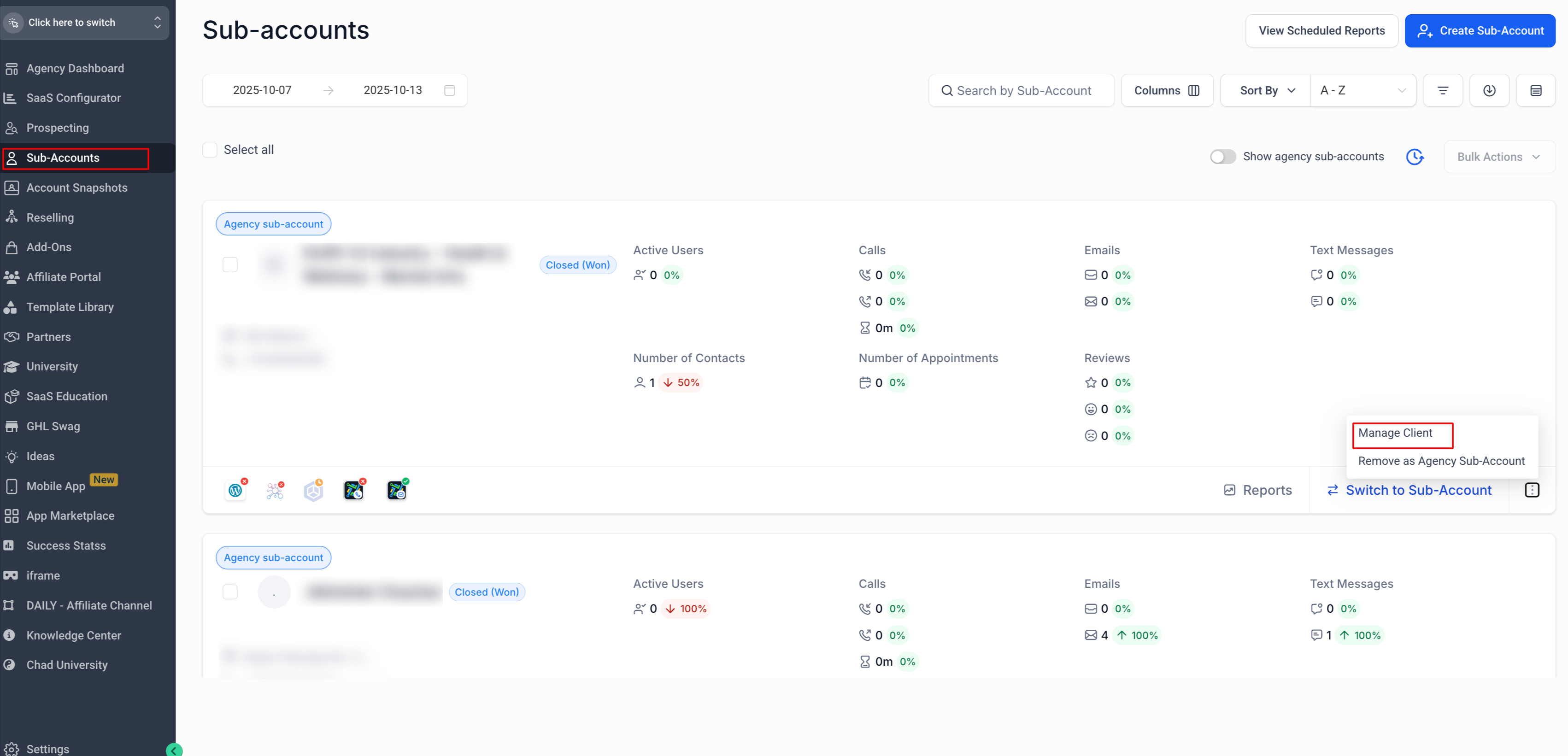
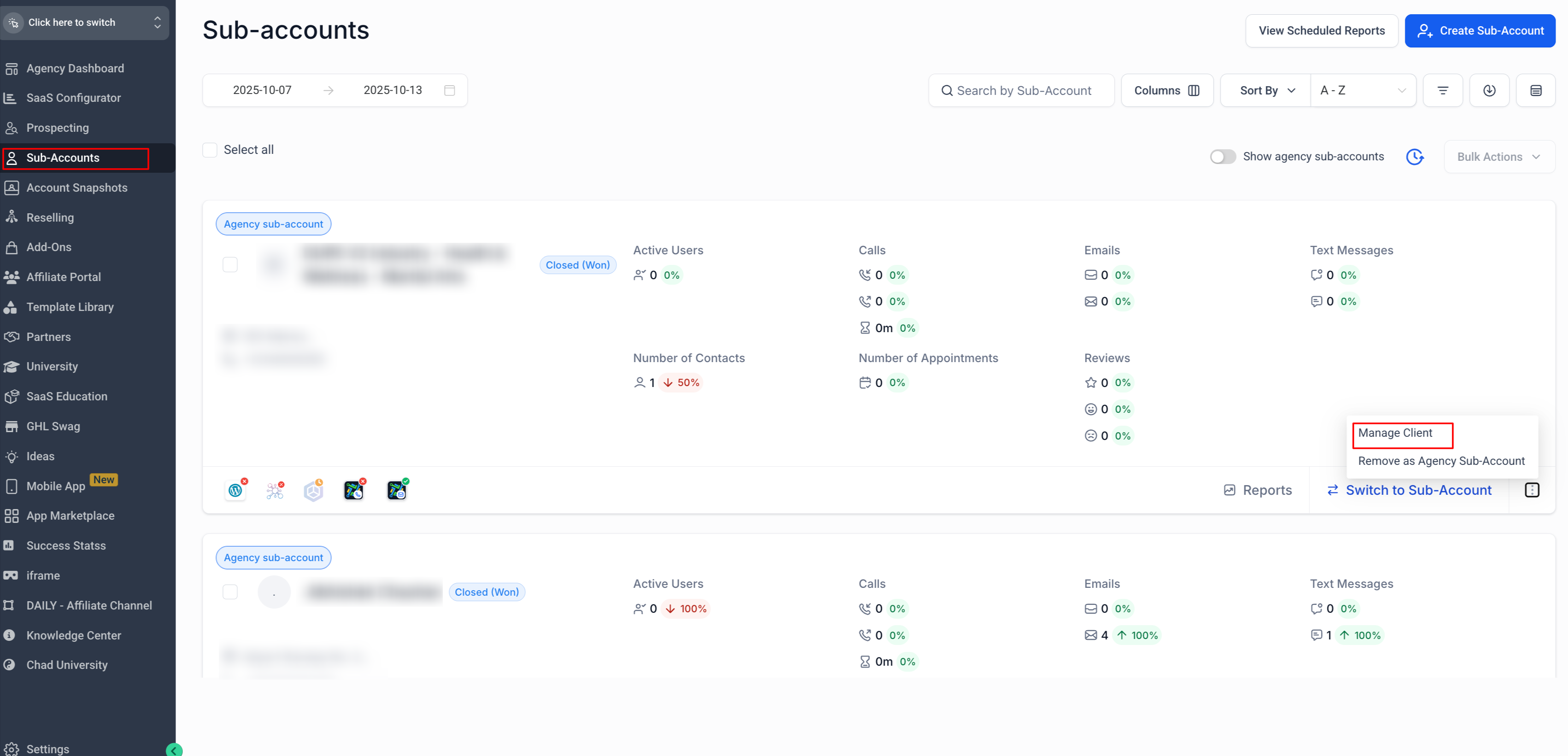
- Go to Agency view > Subaccounts.
- Select the client you wish to adjust.
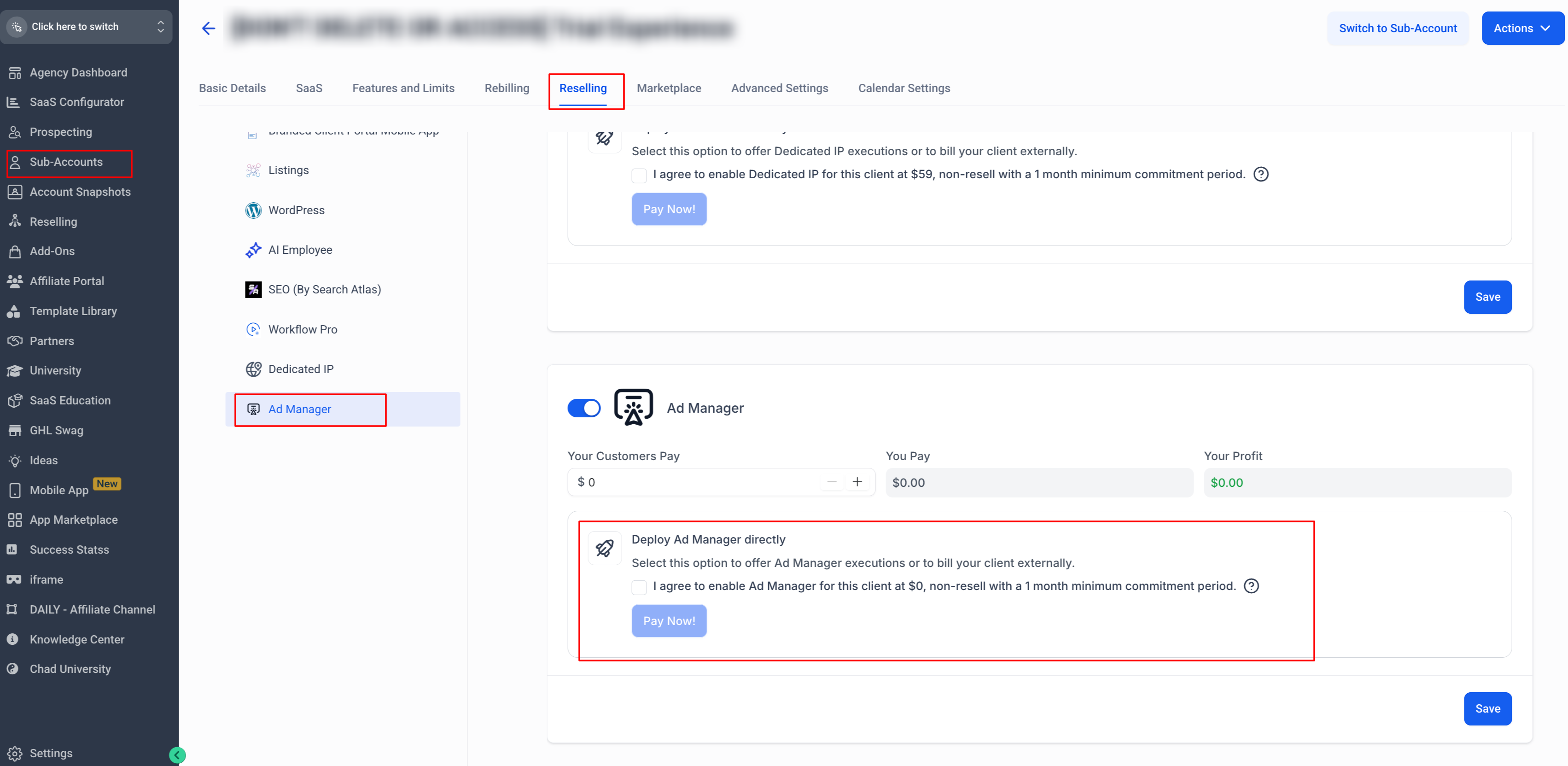
- Click Manage Client > Reselling Tab.
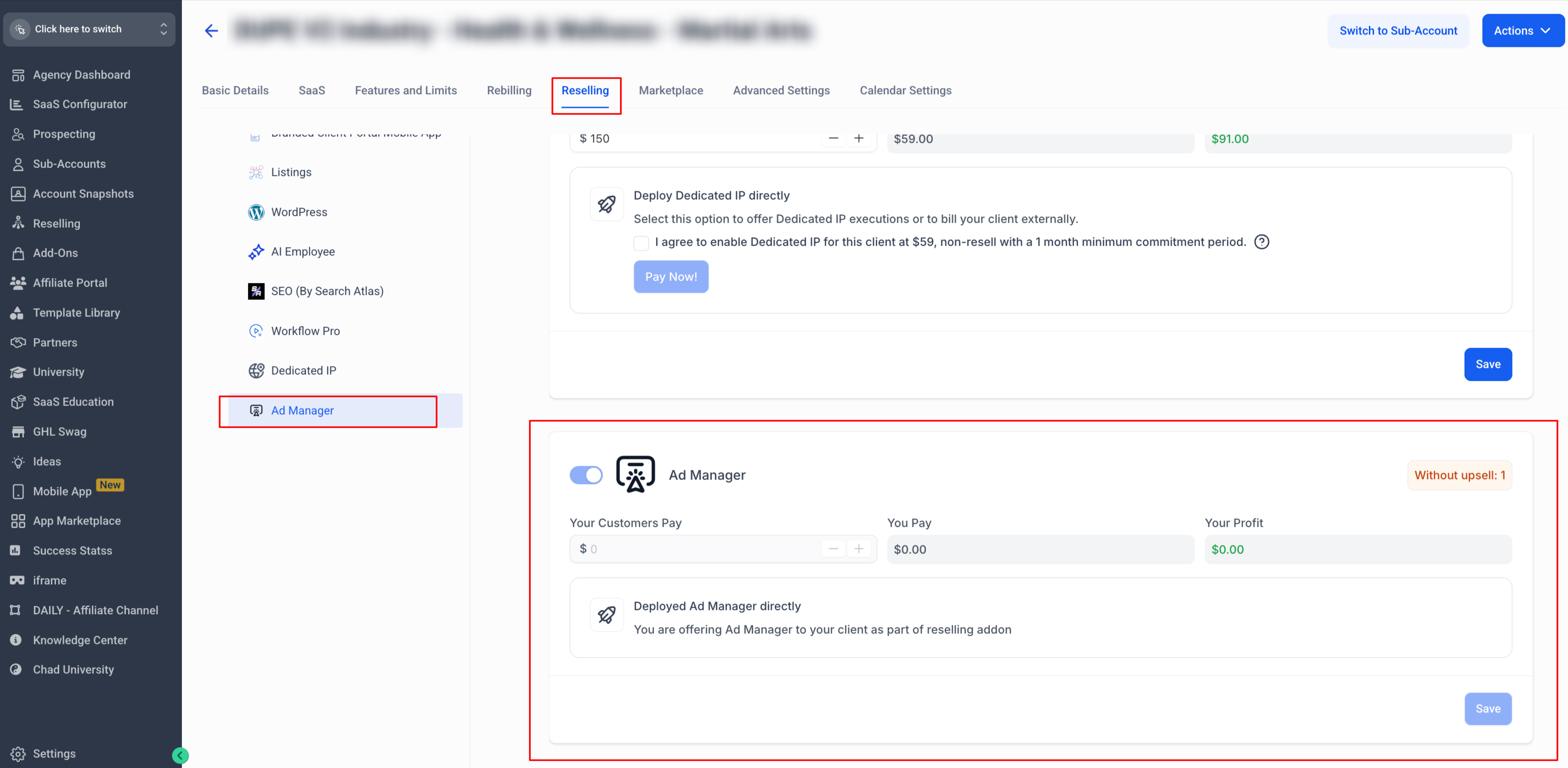
- Enter a custom amount in the Your Customers Pay field for Ad Manager.
- Click Save to confirm the custom price.
Offer Ad Manager for free to a subaccount
- Go to Agency view > Subaccounts.
- Choose the client to receive free access.
- Click Manage Client > Reselling Tab.
- Check Deploy Ad Manager Directly, which sets Your Customers Pay to $0, then click Save (per HighLevel's help center, checked November 2026).
Disable Ad Manager offering for a subaccount
- Go to Agency view > Subaccounts.
- Open Manage Client > Reselling.
- Toggle the Ad Manager feature off in the Ad Manager section.
- Click Save to apply the change.
Client activation flow for Ad Manager
- Log in to the subaccount.
- Open Marketing > Ad Manager from the left navigation.
- Click the CTA that appears, either “Activate Ad Manager for $X/month” or “Get Started.”
- Complete the payment step that creates a subscription linked to the agency’s Stripe account.
- Follow the onboarding screens that finish the Ad Manager setup.
07What it looks like in HighLevel
08Settings that matter
- Ad Manager tile. Controls whether the Ad Manager addon appears in a SaaS plan’s Addons list.
- Your Price field. Sets the amount each subaccount will be charged for accessing Ad Manager.
- Deploy Ad Manager Directly checkbox. When checked, forces the client’s price to $0 and grants immediate access (per HighLevel's help center, checked November 2026).
- Ad Manager toggle. Enables or disables the offer of Ad Manager for a specific subaccount.
09Things to know before you rely on it
- Ad Manager is free for agencies; the base cost shown in the SaaS Configurator is $0 (per HighLevel's help center, checked November 2026).
- The default resale price is $0; agencies must enter any custom amount manually (per HighLevel's help center, checked November 2026).
- Price changes only affect new subscriptions; existing subscriptions stay on their current rate.
- If a client has already purchased or activated Ad Manager, the offering cannot be disabled retroactively.
10How it connects to the rest of HighLevel
- Explore all marketing capabilities in HighLevel. All Marketing features
- Review current pricing and plan options for HighLevel. HighLevel pricing and plans
- Start a free trial to test Ad Manager before reselling. 30 day trial
Michael's take

The feature lets you bundle ad campaign management into your service offering and charge a fee you choose, or give it away for free to select clients. It’s a clean way to add revenue without extra licensing costs, since HighLevel doesn’t charge the agency at all.
If I were starting, I’d first connect Stripe, then decide whether to include Ad Manager in a software package or sell it as a standalone add on. Test the onboarding flow with a trusted client to make sure the subscription creates correctly before you roll it out broadly.