
01Who this is for
- Marketing managers can assemble visually consistent emails quickly using pre built blocks.
- Small business owners can add product listings or countdown timers without hiring a developer.
- Email designers can replace custom HTML with drag and drop elements to speed layout work.
02Email Builder elements, explained
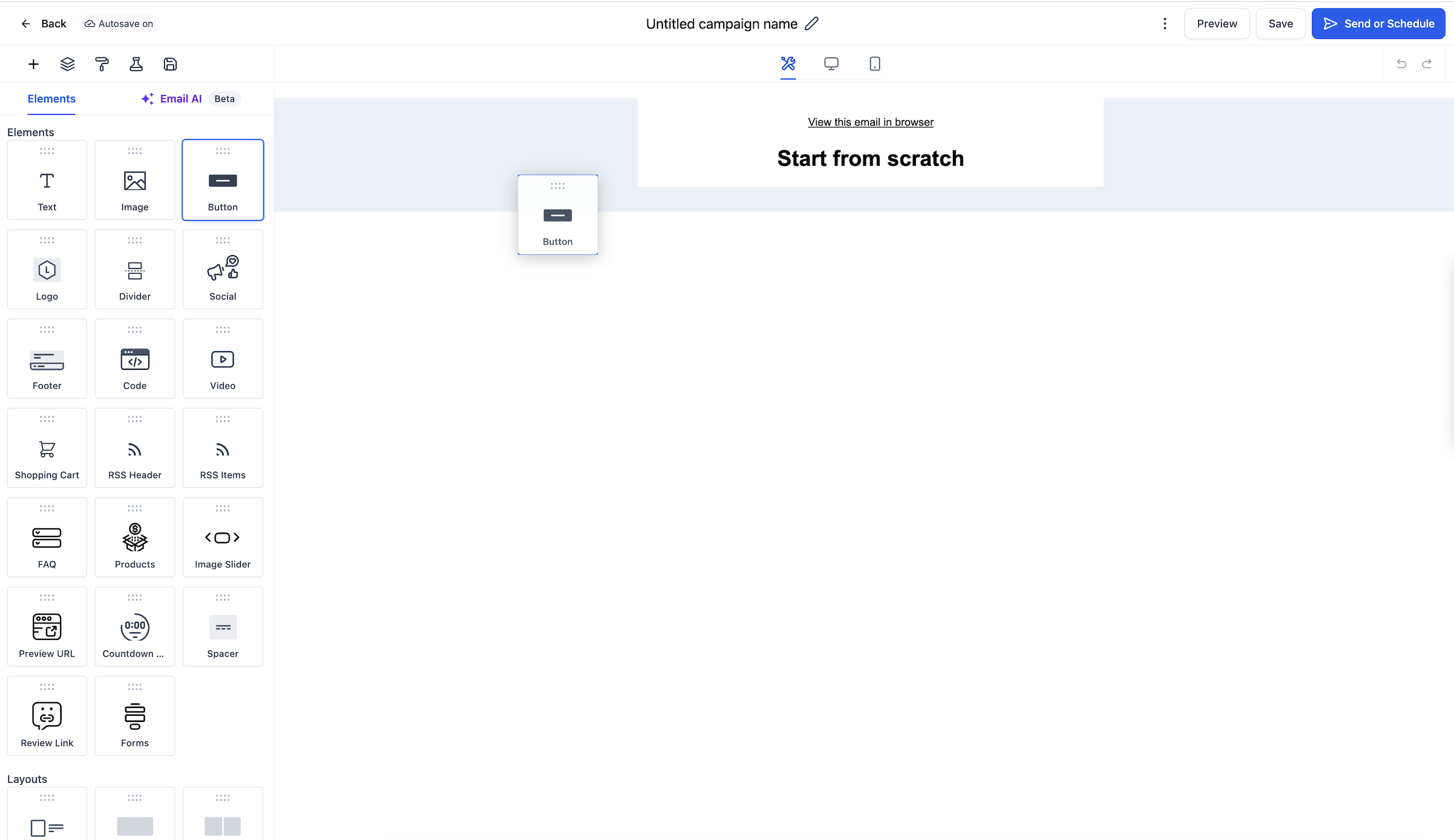
Elements are pre built content pieces that let you add and style parts of an email without writing code. Each block, such as Text, Image, Button, Video, or Countdown Timer, serves a specific purpose and can be placed wherever needed on the canvas.
All elements are responsive by default, meaning they automatically adapt to mobile screens. You can preview the mobile version and adjust spacing or alignment via the Mobile View tab. The Elements tab in the builder houses every available block for easy drag and drop.
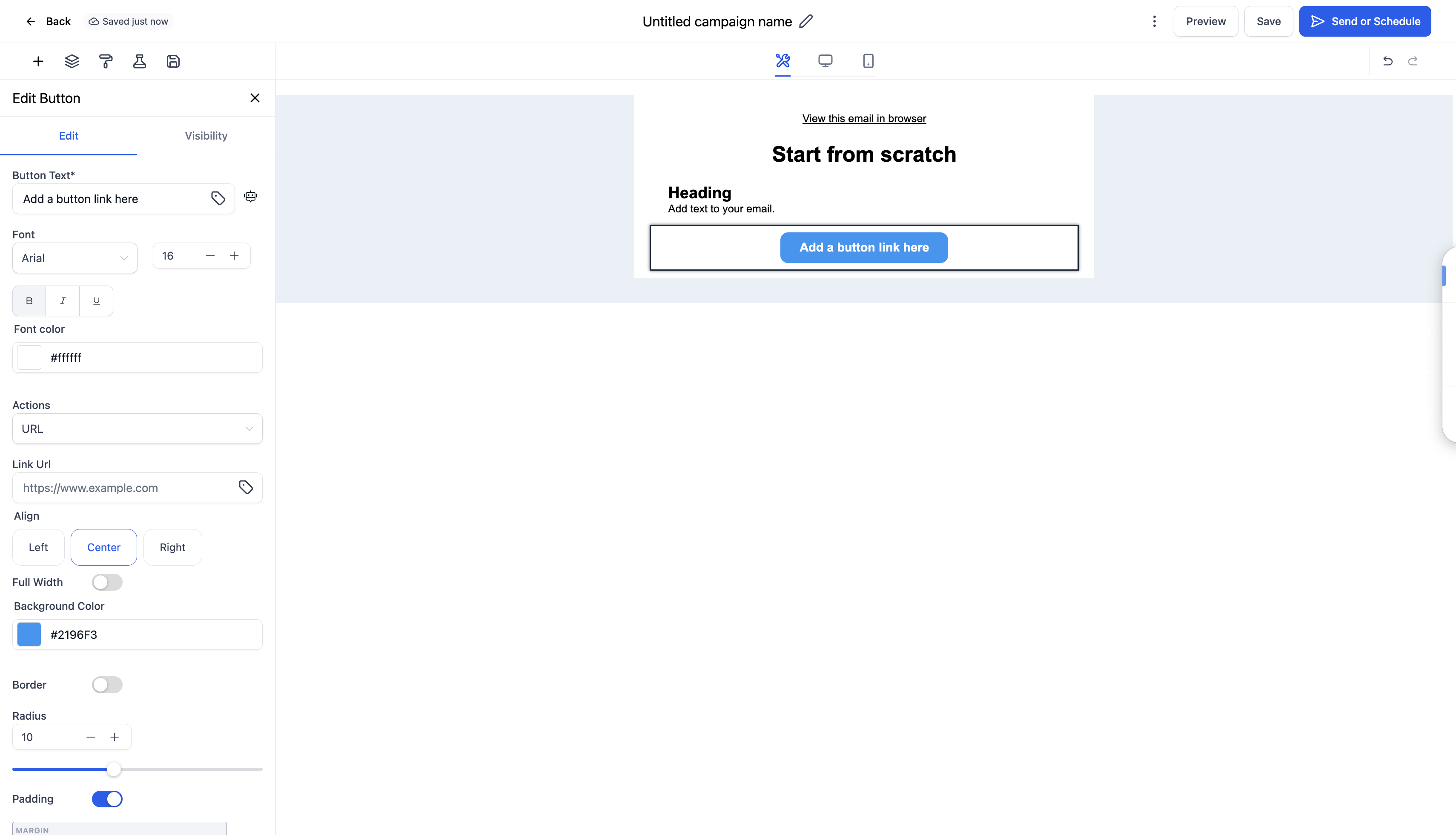
After you drop an element, clicking it opens its edit panel where you can modify text, choose images, set links, adjust colors, and configure any element specific options.
03How businesses use Email Builder elements
- Ecommerce store. The owner drags a Products element onto the email canvas, selects the desired product collection, and customizes the button styles to showcase items directly inside the newsletter.
- Coaching business. The coach adds a Countdown Timer element to create urgency for a limited time enrollment offer, then sets the end date and formats the timer colors to match the brand.
- Blog publisher. The publisher drops an RSS Header / RSS Items element, enters the blog’s RSS feed URL, and lets the builder automatically list the latest posts in each campaign.
04How to set up and use Email Builder elements in HighLevel
Add an element
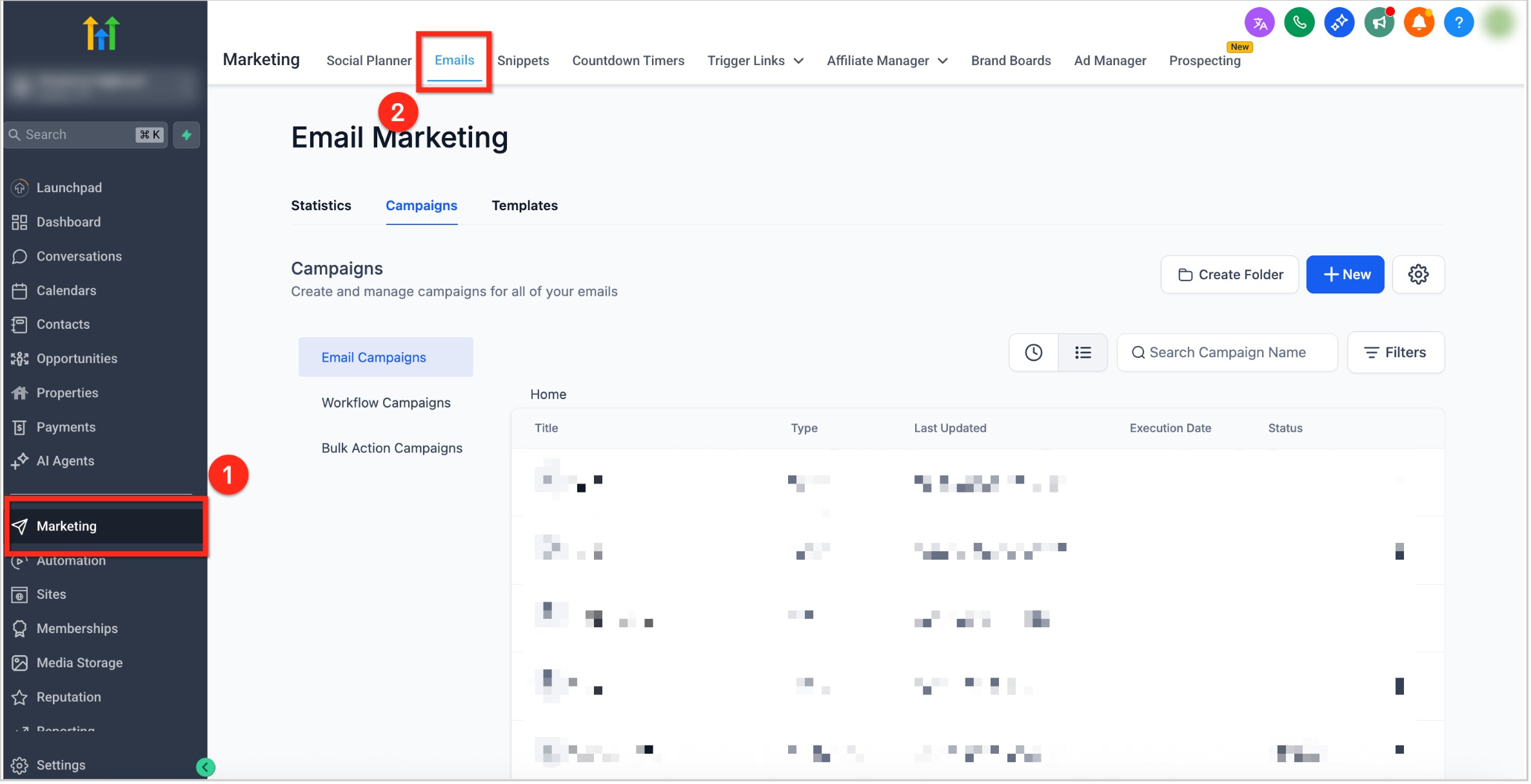
- From the dashboard, choose Marketing in the left navigation.
- Click Emails in the top navigation ribbon.
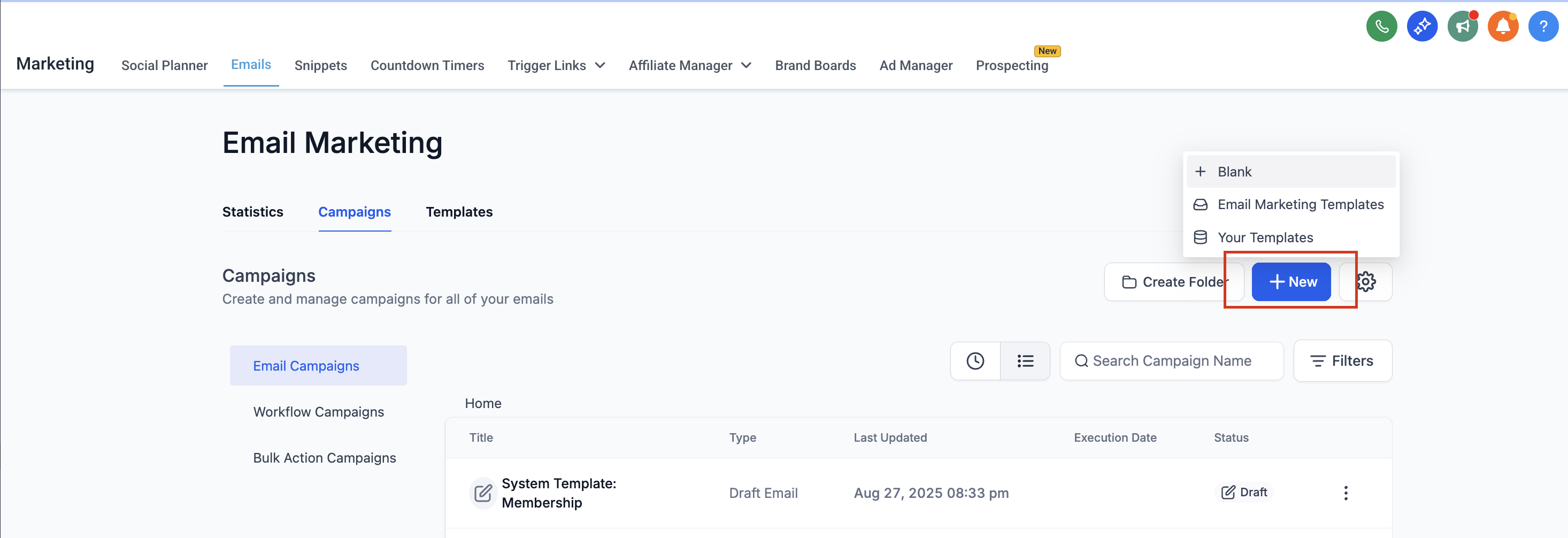
- Select a starting type to create a new email.
- Open the Elements tab and drag the desired element onto the canvas.
- Select the placed element to edit its content, style, and settings.
05What it looks like in HighLevel
06How it connects to the rest of HighLevel
- Add video previews directly inside emails Video element
- Use custom fonts for text elements Custom fonts
Michael's take

The drag and drop nature is meant to be used dynamically, moving elements around until the flow feels right.
I would open a fresh email, pull in a Text element for the headline, drop a Button right after it and then test the mobile view. Seeing the spacing and alignment in real time lets you fine tune the design before you hit send.