
01Who this is for
- Marketer building multilingual landing pages, needs labels that match the visitor’s language and avoid extra graphic work.
- Business owner creating promotional campaigns, wants timer copy that reflects the brand voice and stays consistent across assets.
02Countdown timer labels, explained
Custom Countdown Timer Labels replace the generic Days, Hours, Minutes and Seconds text that appears beneath each segment of a timer. The feature pulls the subaccount’s locale and pre fills those labels in the appropriate language, but you can type any wording you prefer.
Each timer holds a single set of labels. Changing a label updates every live instance of that timer right away. If you need different wording for separate campaigns, duplicate the timer and edit the copy independently. The label edits affect only the on screen text; redirects, expiry actions and dynamic links remain unchanged.
03How businesses use countdown timer labels
- Ecommerce retailer. Open the promotional countdown timer, hide the default “Hours” label, and type “Hours Left” to match the site’s copy. Save the timer so the new wording appears on product pages.
- Fitness studio. Create a timer for class sign ups, set the Day label to “Class Days” and the Minute label to “Class Minutes”. The custom text reflects the studio’s branding and appears in the booking funnel.
- Travel agency. In a French targeted landing page, edit the timer labels to “Jours”, “Heures”, “Minutes” and “Secondes”. The platform’s locale auto detects French, and the custom words ensure the timer reads naturally for visitors.
04Before you start
- Access to the Marketing section of HighLevel is required.
- A countdown timer must exist or be ready to be created.
05How to set up and use countdown timer labels in HighLevel
Change countdown timer labels
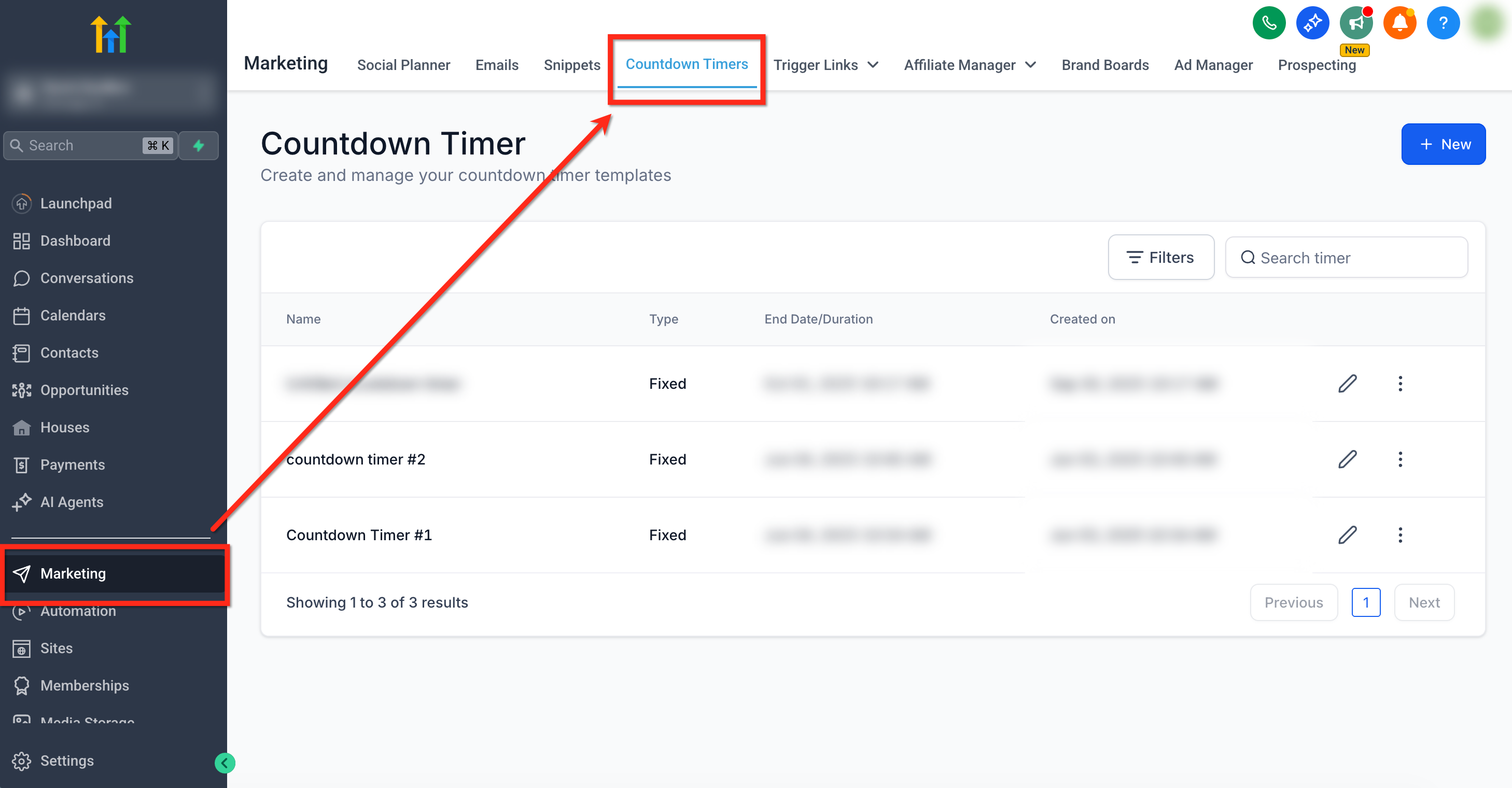
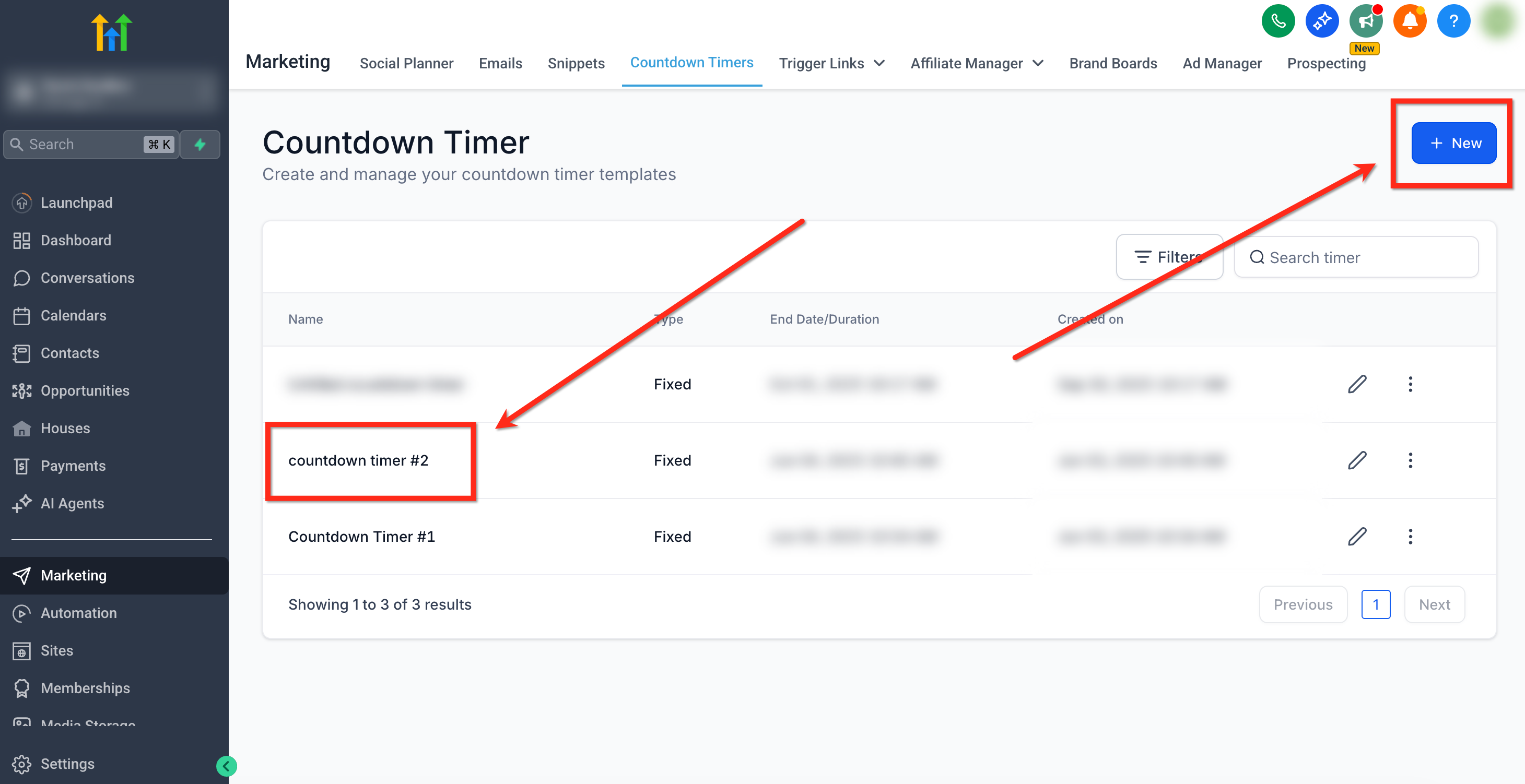
- Navigate to Marketing > Countdown Timer.
- Open an existing timer by clicking its name or create a new one by selecting + New.
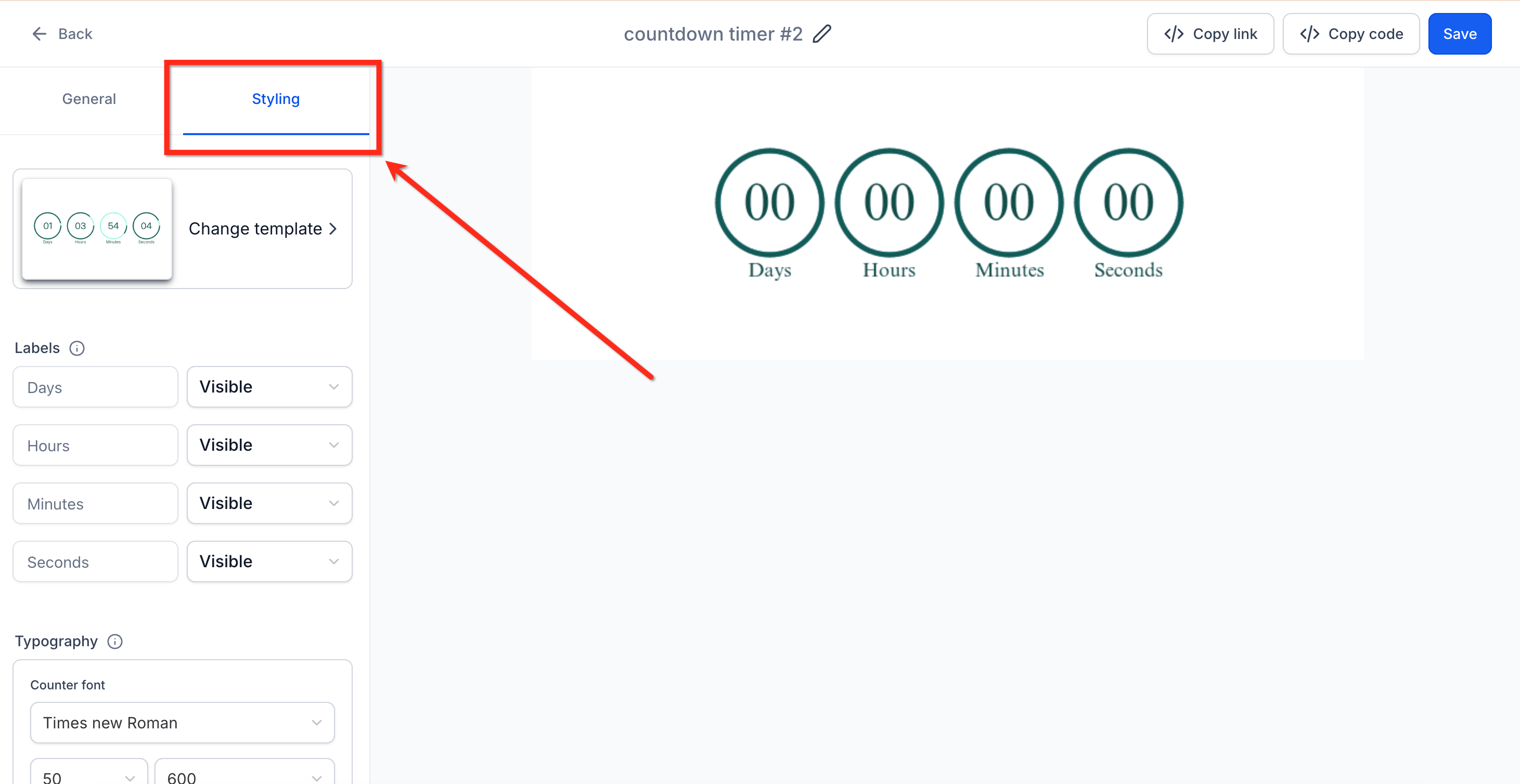
- In the left sidebar, select the Styling tab.
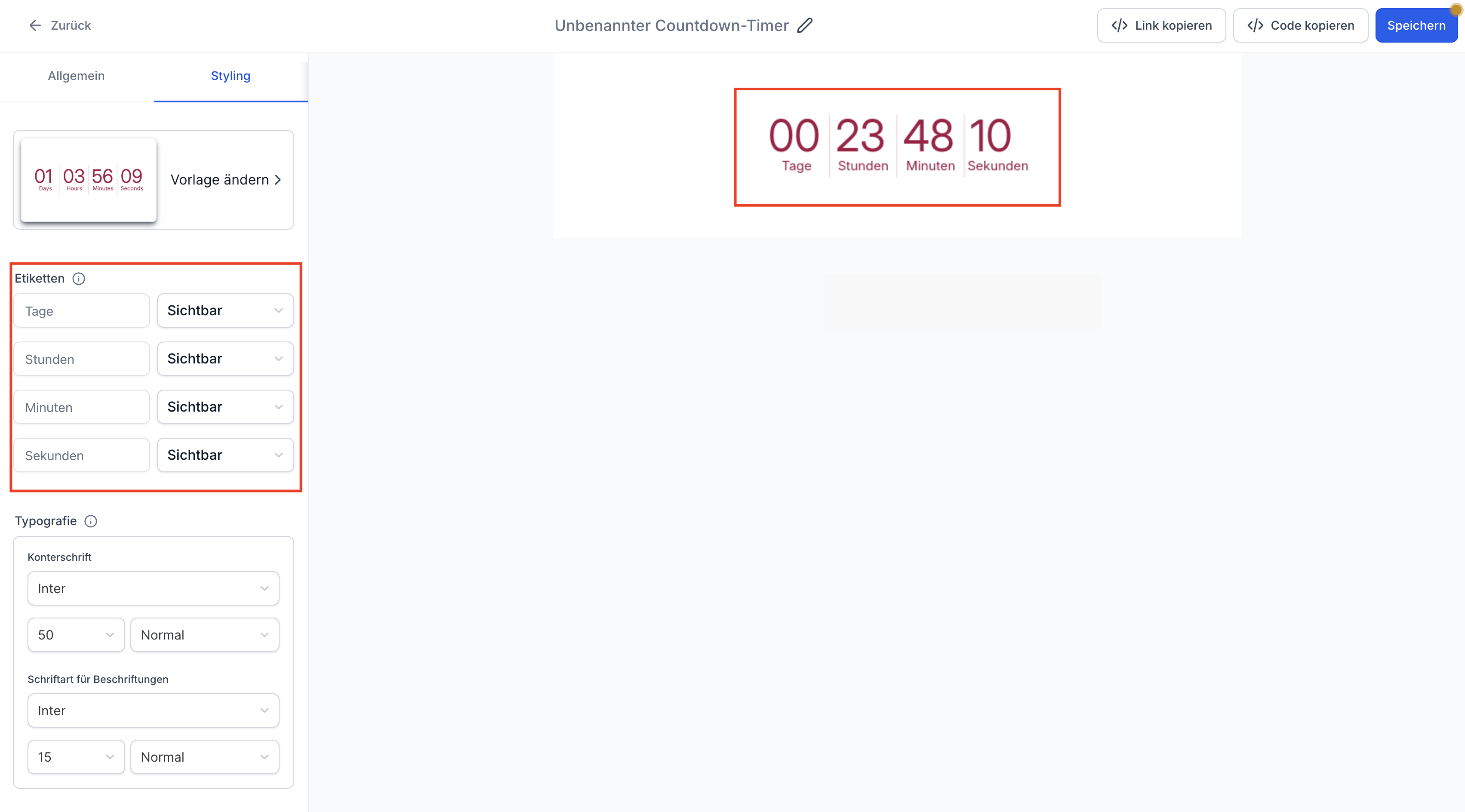
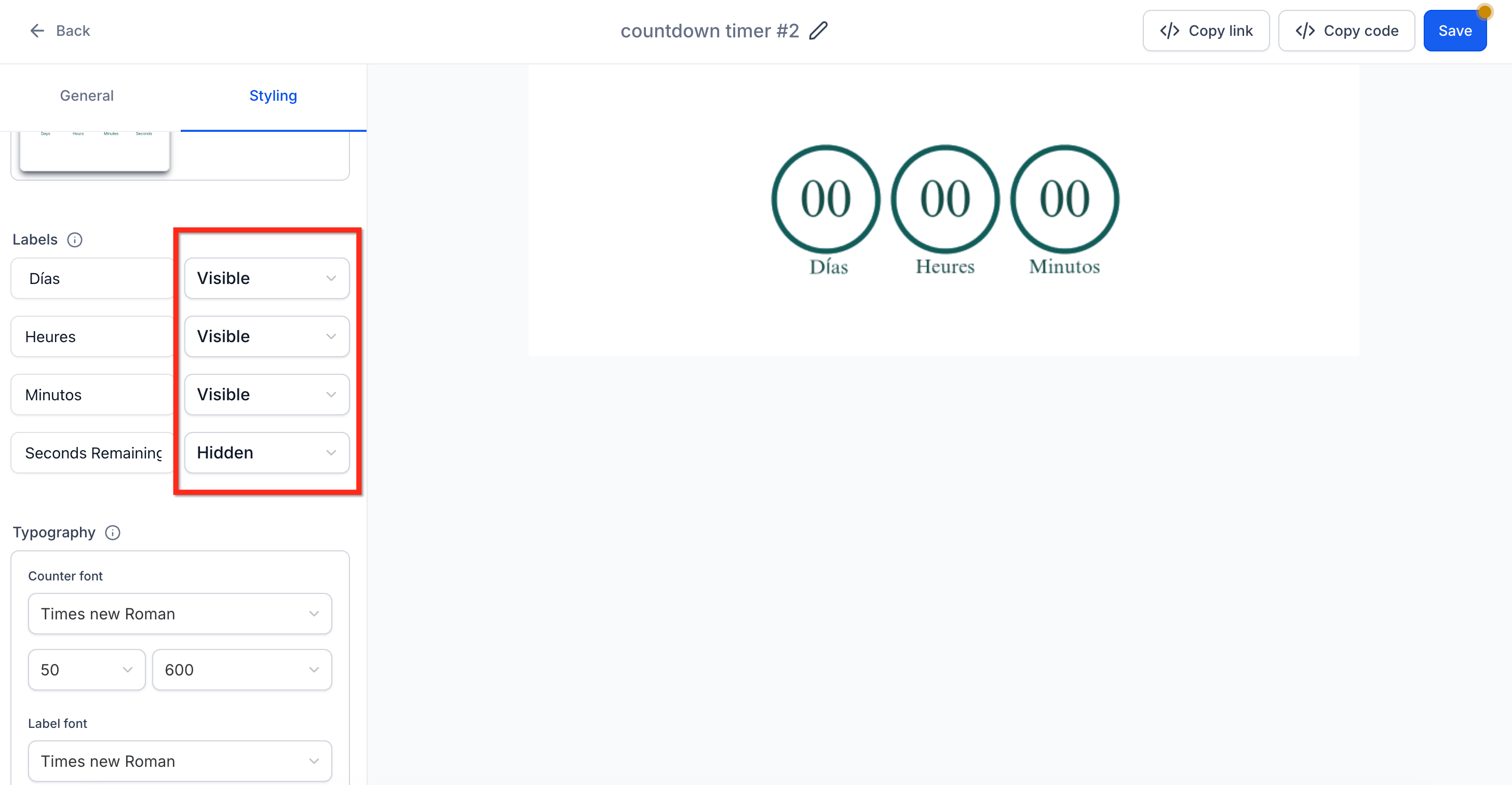
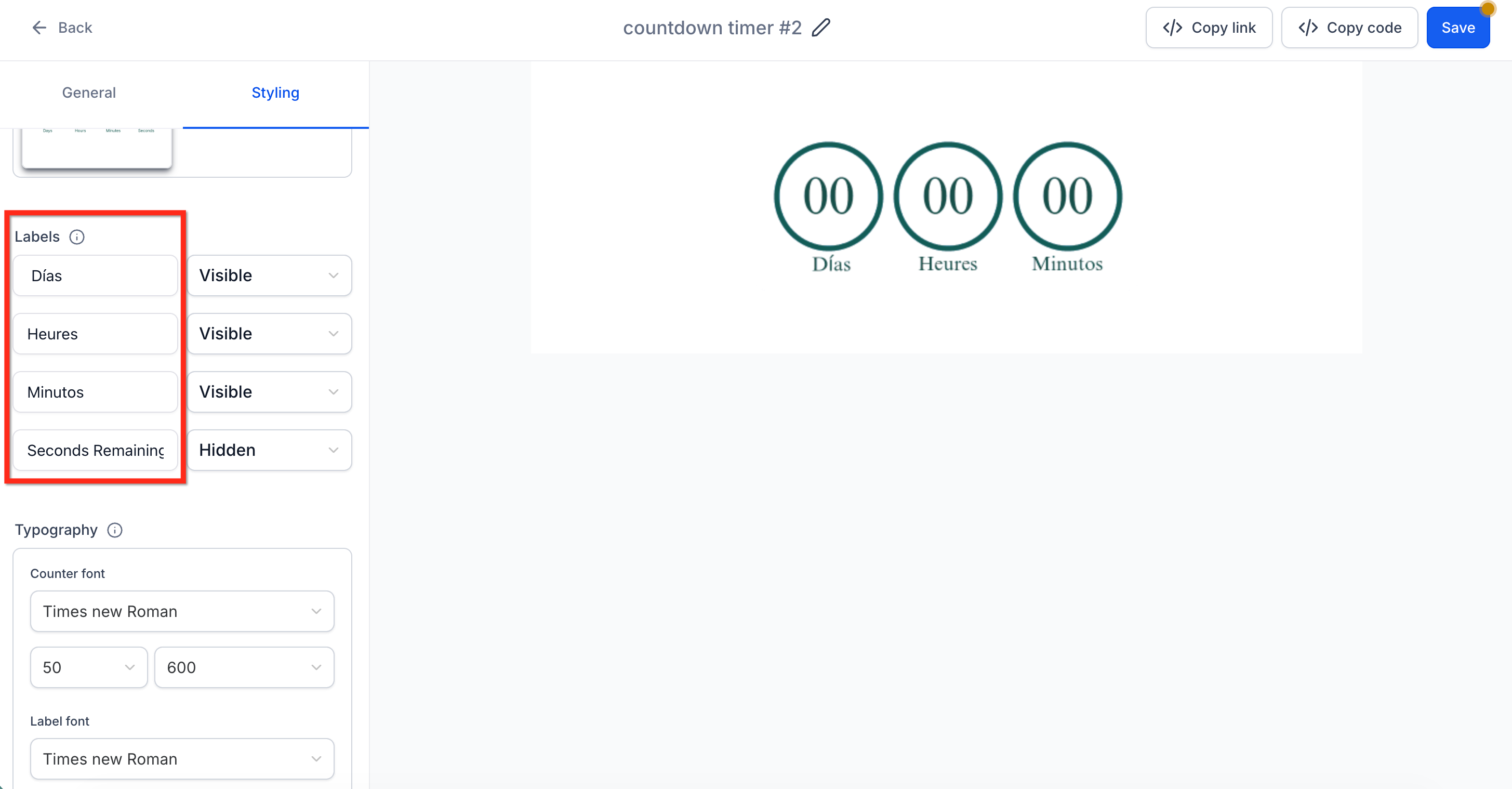
- Under Labels, use each dropdown to choose Visible or Hidden for the desired segment.
- Enter the desired text for Day, Hour, Minute and Second fields to set custom labels.
- Click Save to apply the changes.
06What it looks like in HighLevel
07Settings that matter
- Labels. Controls whether the Day, Hour, Minute and Second labels are shown or hidden for a timer.
08Things to know before you rely on it
- Auto translation provides default labels based on the subaccount language, but it may not cover every dialect; manual edits might be needed for nuanced wording.
09How it connects to the rest of HighLevel
- Learn how to start a countdown timer Getting started
- Sync the timer across emails and funnels Sync timer
- Set up a recurring countdown timer Recurring timer
Michael's take

Custom labels let you avoid creating separate graphics for each language and keep timer copy aligned with your brand while matching each market’s language.