
01Who this is for
- Marketing managers who need to add tracking pixels or widgets for detailed campaign reporting.
- Email designers seeking fine grained styling beyond the default editor tools.
- Small business owners who want to reuse custom code snippets across multiple templates.
02Code elements, explained
The Code Element adds a block to the email canvas where you can type or paste HTML and inline CSS. It appears in the Add Elements panel and can be dropped into any section of the email layout, giving you direct control over structure and styling.
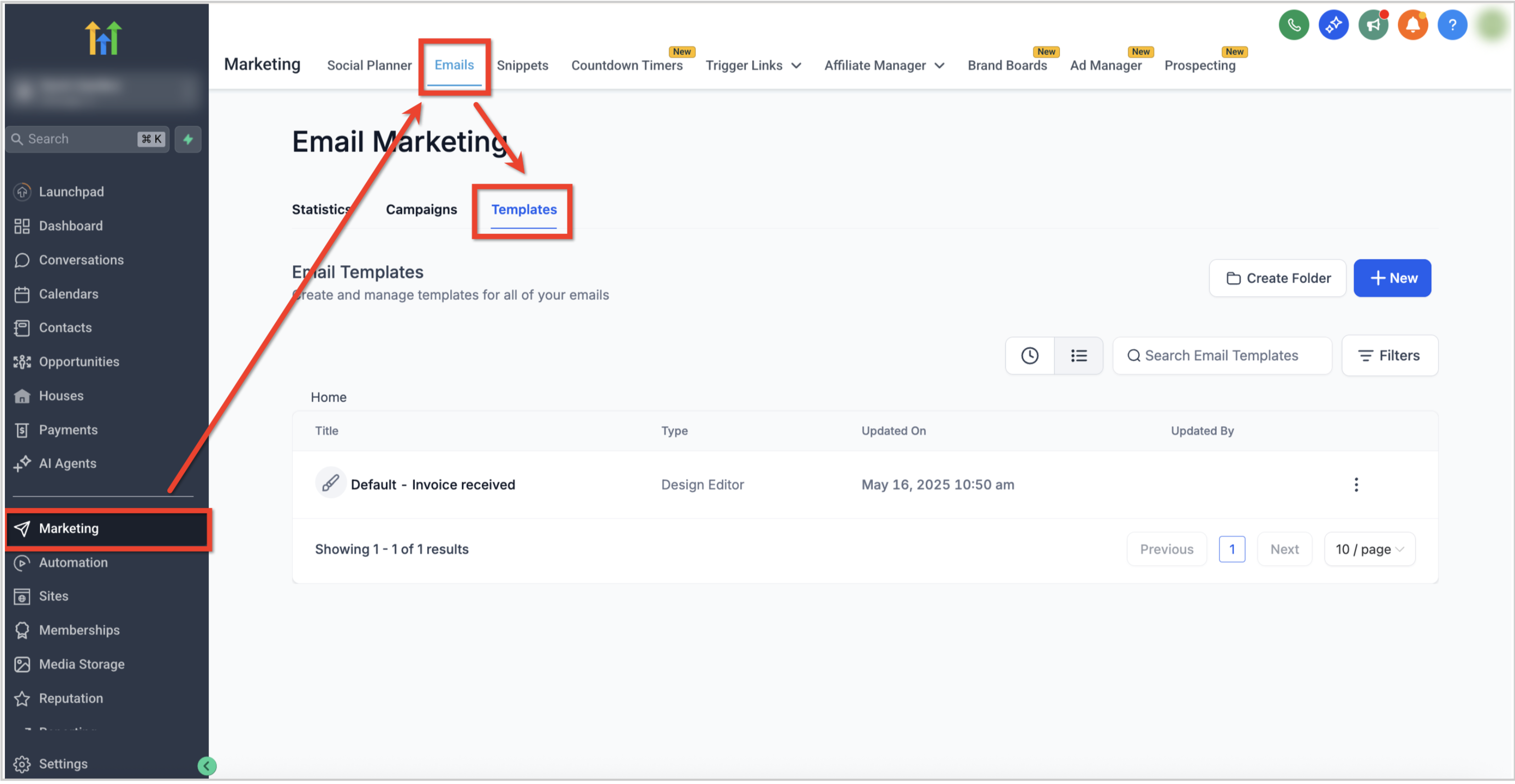
Access the element through Marketing > Emails > Templates, open or create a template, and use the left hand Add Elements icon to locate the Code Element. After placing it, an edit pane opens where you enter your code, preview the result, and test rendering on desktop and mobile views.
03How businesses use the code element
- Ecommerce store. Insert a countdown timer HTML snippet to create urgency for a flash sale. Place the Code Element in the email, paste the timer code, and preview to ensure proper display before sending the promotion.
- Online course provider. Add a tracking pixel to measure opens from specific campaigns. Drag the Code Element into the footer, paste the pixel HTML, and test the email in both desktop and mobile previews to confirm the pixel loads.
- Local service business. Embed a third party badge that shows accreditation. Use the Code Element to include the badge HTML, apply inline CSS for size and spacing, and duplicate the block across multiple templates for consistent branding.
04How to set up and use the code element in HighLevel
Add the Code Element to an email template
- Go to Marketing > Emails > Templates from the subaccount dashboard.
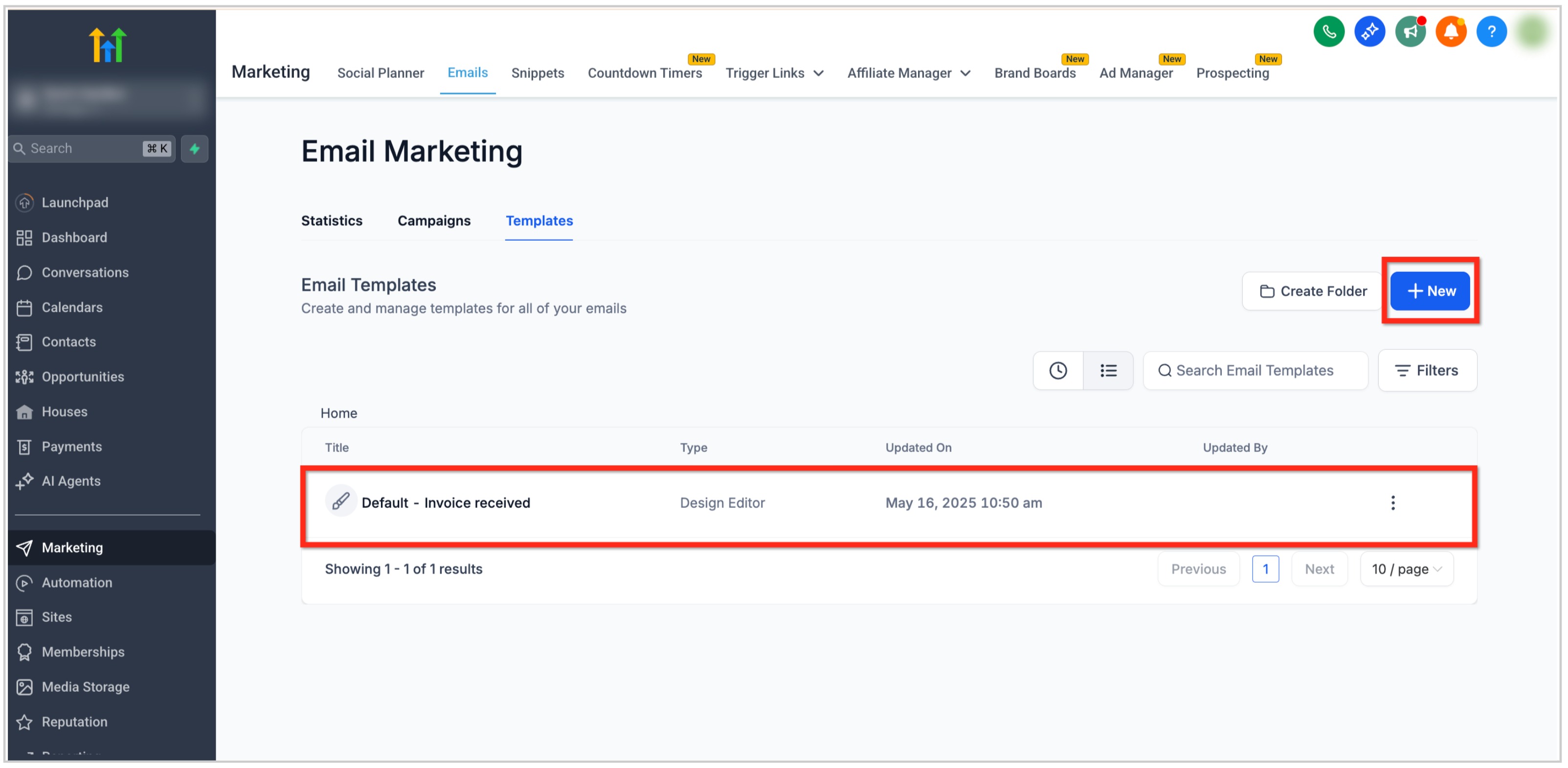
- Open an existing template or click the + New button to start a fresh one.
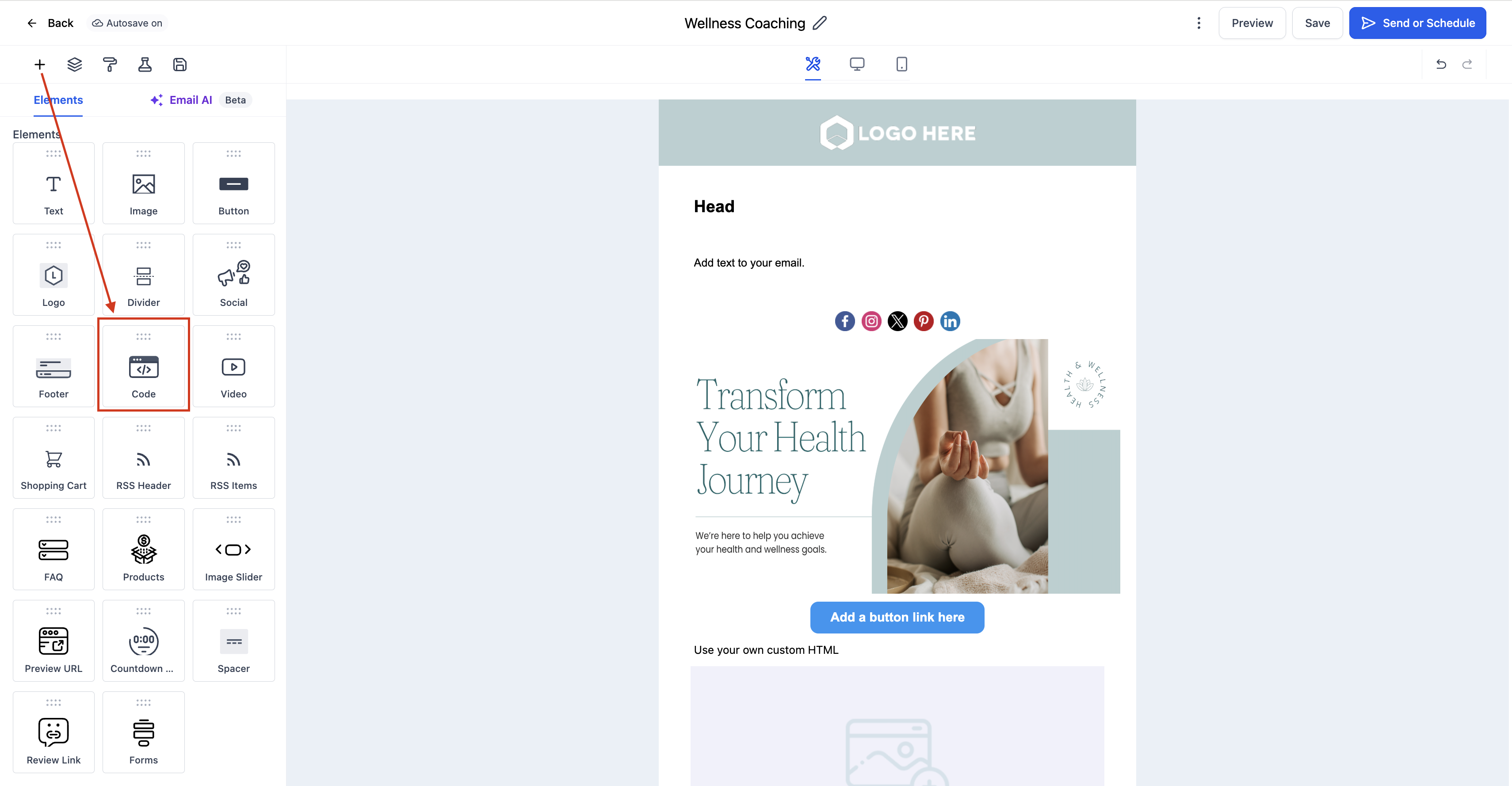
- In the Email Builder, select the Add Elements (+) icon located in the left sidebar.
- Find the Code Element listed under the Elements section.
- Drag the Code Element and drop it into the chosen area of the email layout.
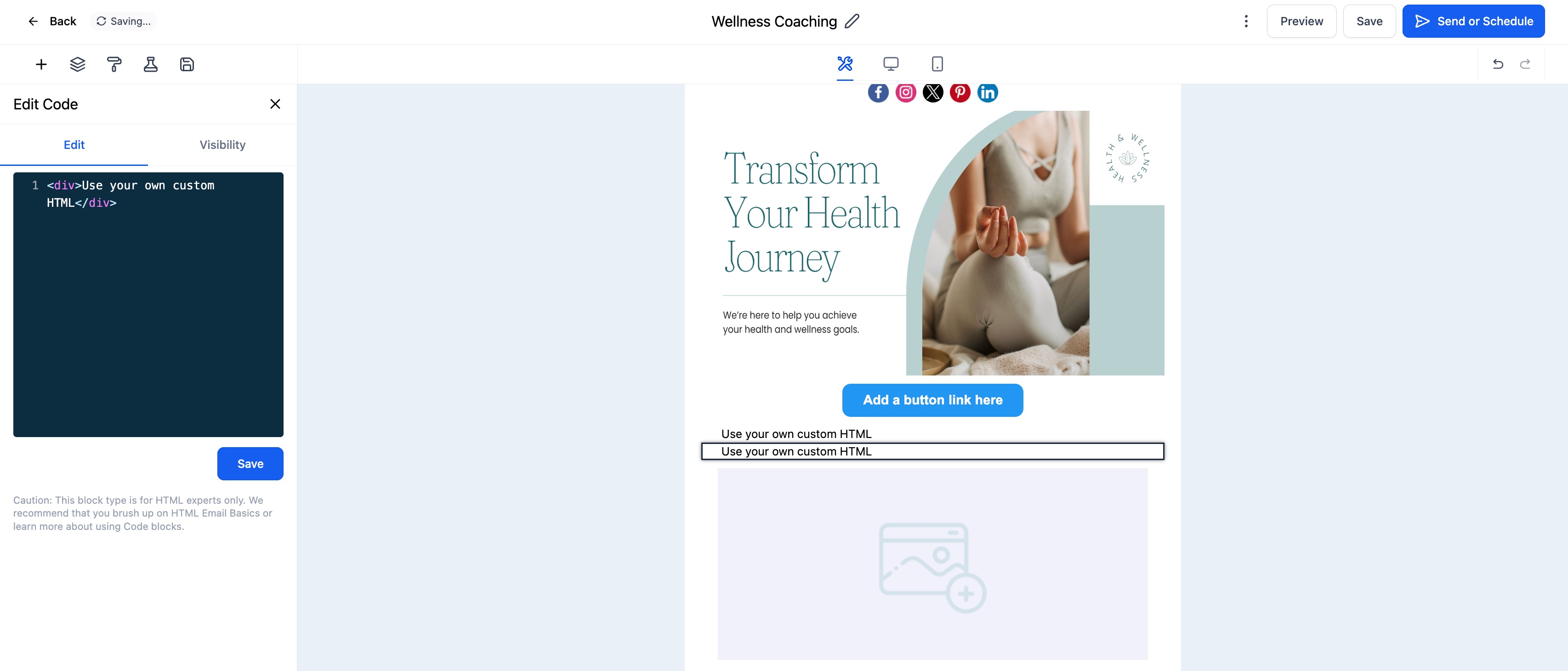
- Click the placed Code Element to open its Edit tab on the left side.
- Paste or type the custom HTML or inline CSS into the code editor box.
- Use HTML tags such as divs, tables, or embeds to define the structure.
- Apply inline CSS properties for colors, spacing, and fonts as needed.
- Press Preview to view how the custom code renders within the design.
- Run a test in both desktop and mobile preview modes to verify proper rendering before sending.
05What it looks like in HighLevel
06Things to know before you rely on it
- Email clients often limit support for custom code, so thorough testing is required.
- JavaScript and iframe content are generally not supported by most email clients.
- Improperly written code can affect other parts of the email layout if not self contained.
07How it connects to the rest of HighLevel
- Add custom fonts to enhance email typography Custom fonts guide
- Insert a video element for richer content Video element guide
- Use inline forms or surveys within email campaigns Inline forms guide
Michael's take

Custom code in emails can be a minefield. Even a tiny stray tag can cause the whole message to render oddly, and many clients strip out scripts or iframes altogether. Treat the Code Element like a specialty ingredient. You need to know when and where it belongs.
When used wisely, you can add a countdown timer, embed a tracking pixel, or craft a custom layout that stands out from the template crowd.