
01Who this is for
- Marketing managers can enhance local relevance by adding place tags to scheduled social content.
- Small business owners with a physical storefront can highlight their location in every post to attract nearby customers.
- Social media agencies managing multiple client accounts benefit from a single place to add location tags across campaigns.
02Location tagging, explained
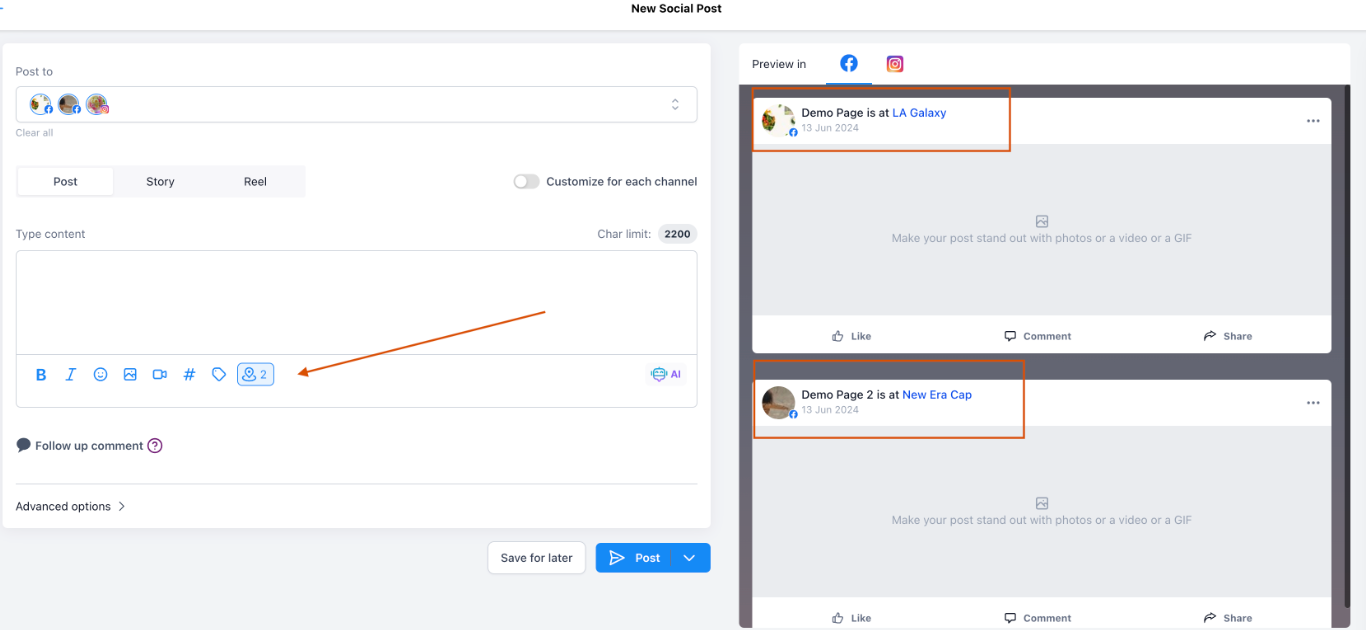
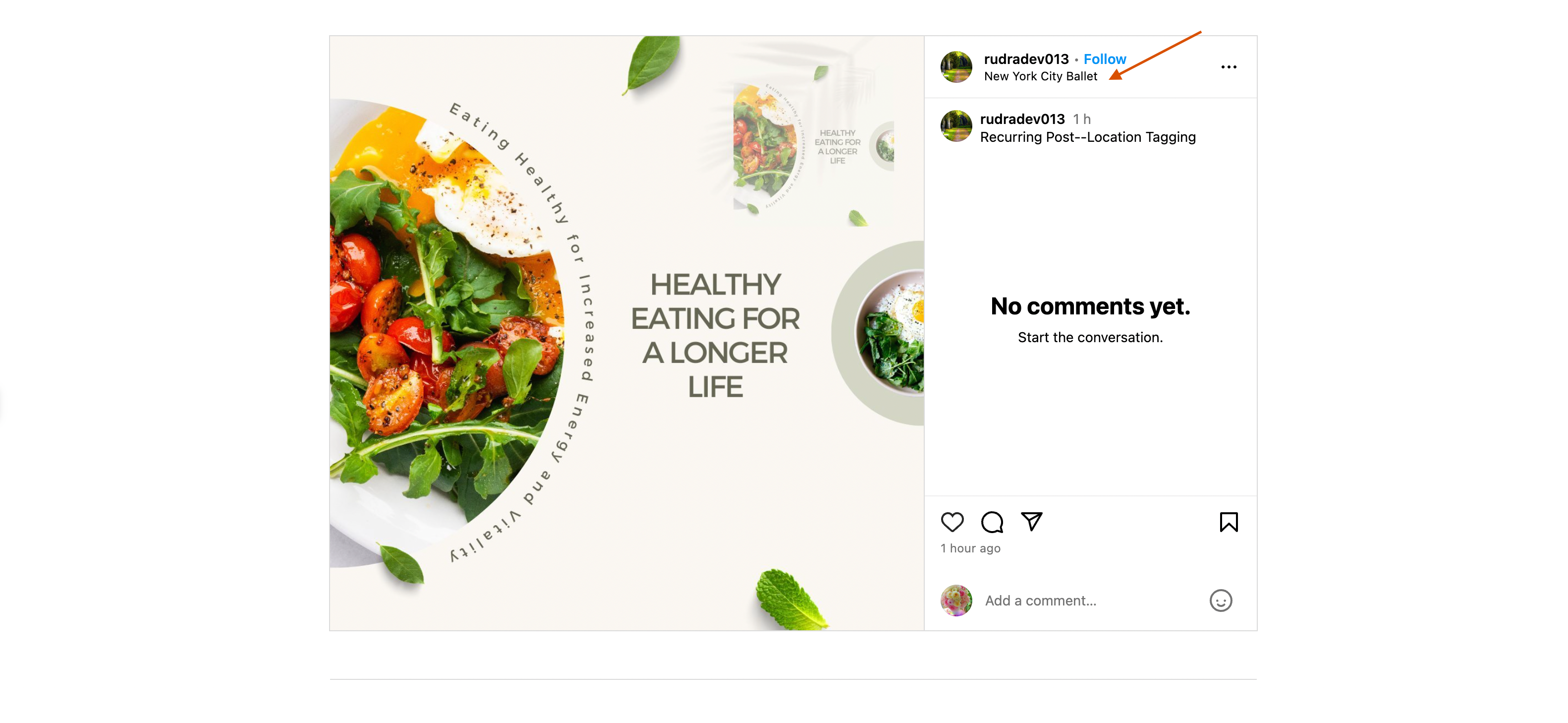
Location tagging is a feature inside the Social Planner that allows you to associate a geographic place with a Facebook or Instagram post. When you create a post, you can search for a location and attach it before publishing. The tag is sent to the social platform as part of the post payload.
The option appears while you compose a new post in Social Planner. It works only for connected Facebook pages and Instagram Business or Creator accounts that have granted the required permissions. After the tag is selected, it is included in the post whether you publish immediately or schedule for later.
All location management happens within the Social Planner interface, so you do not need to switch tools. The feature depends on the platforms’ own location databases, so only locations returned by Facebook or Instagram can be chosen.
03How businesses use location tagging
- Restaurant. The owner creates a new post in Social Planner, selects the restaurant’s Facebook page, and uses the Location Tagging field to attach the venue’s address. The post then shows the restaurant’s location to diners browsing the feed.
- Real estate agency. An agent drafts a property highlight post, picks the agency’s Instagram Business account, and searches for the property’s neighborhood in the Location Tagging option. The tag appears with the photo, helping prospects see where the home is located.
- Event promoter. The promoter schedules a concert announcement, selects the event’s Facebook page, searches for the concert hall in the Location Tagging field, and saves the post. When the post goes live, the venue tag provides clear location context for fans.
04Before you start
- A Facebook page or Instagram Business/Creator account must be connected to Social Planner.
- The connected account may need to be reauthorized to grant location tagging permissions.
05How to set up and use location tagging in HighLevel
Add a location tag to a new social post
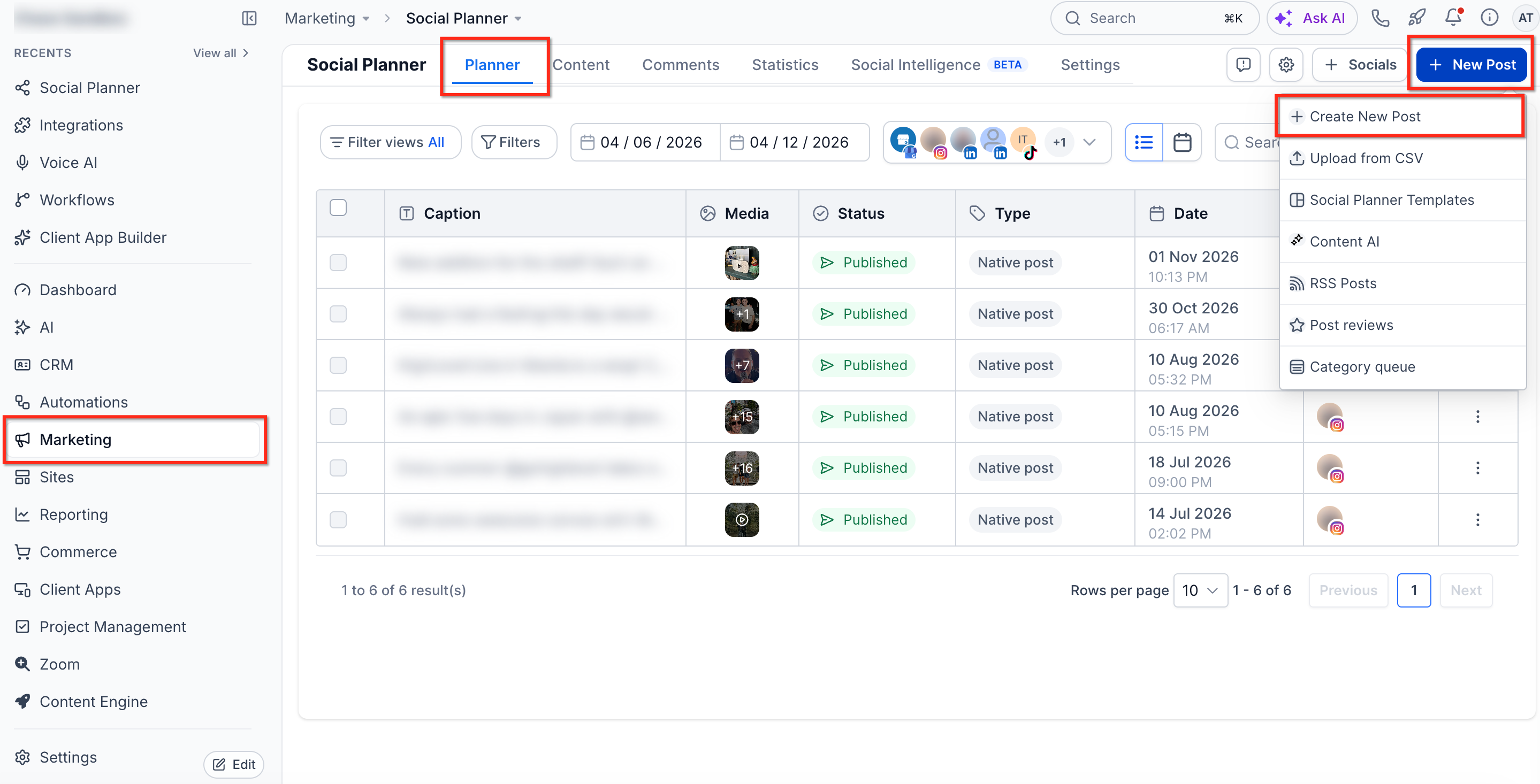
- Open Marketing > Social Planner in the platform.
- Press + New Post and choose Create New Post.
- Select the connected Facebook or Instagram account under Post to.
- Enter the caption, upload media, and fill any other post fields.
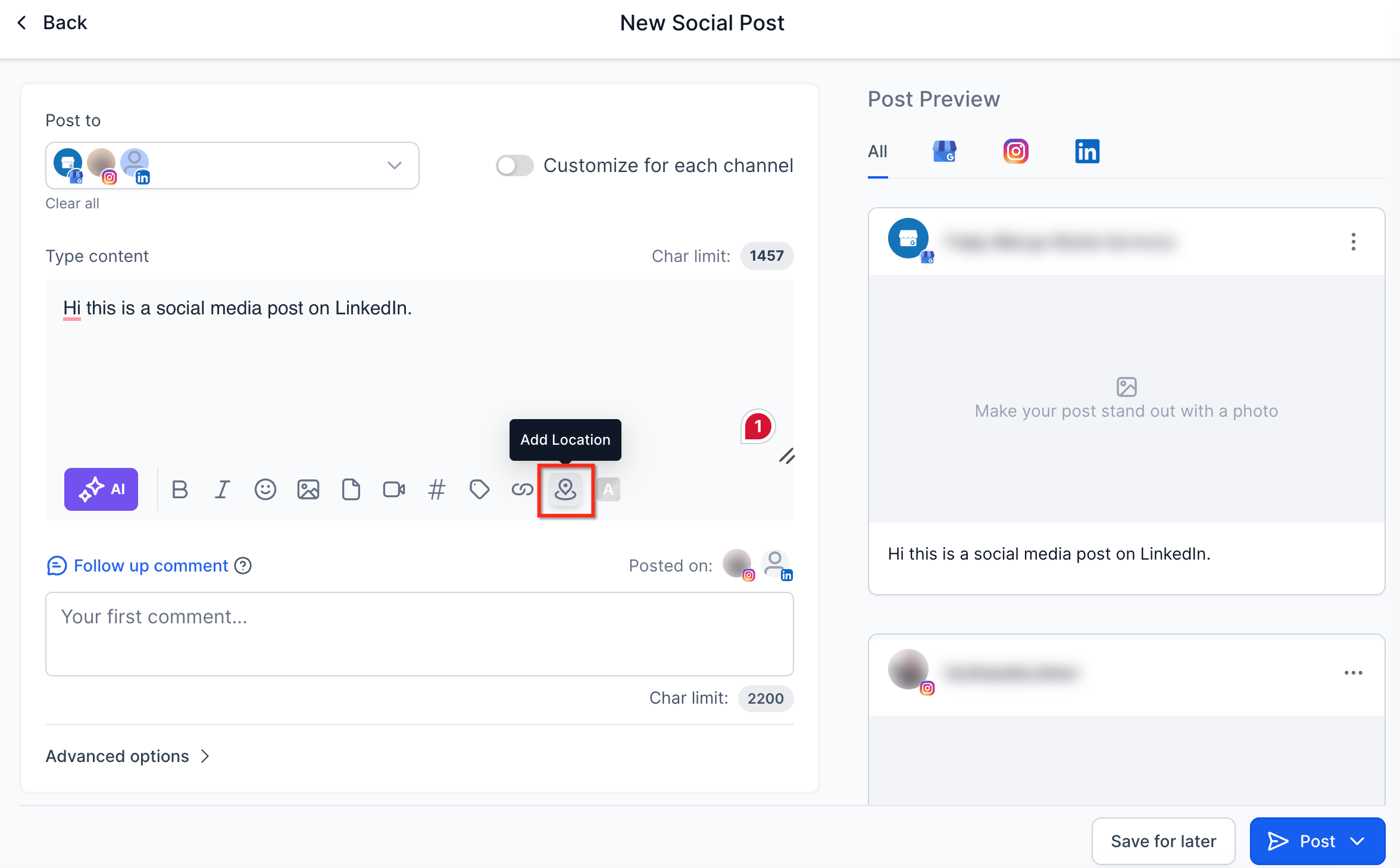
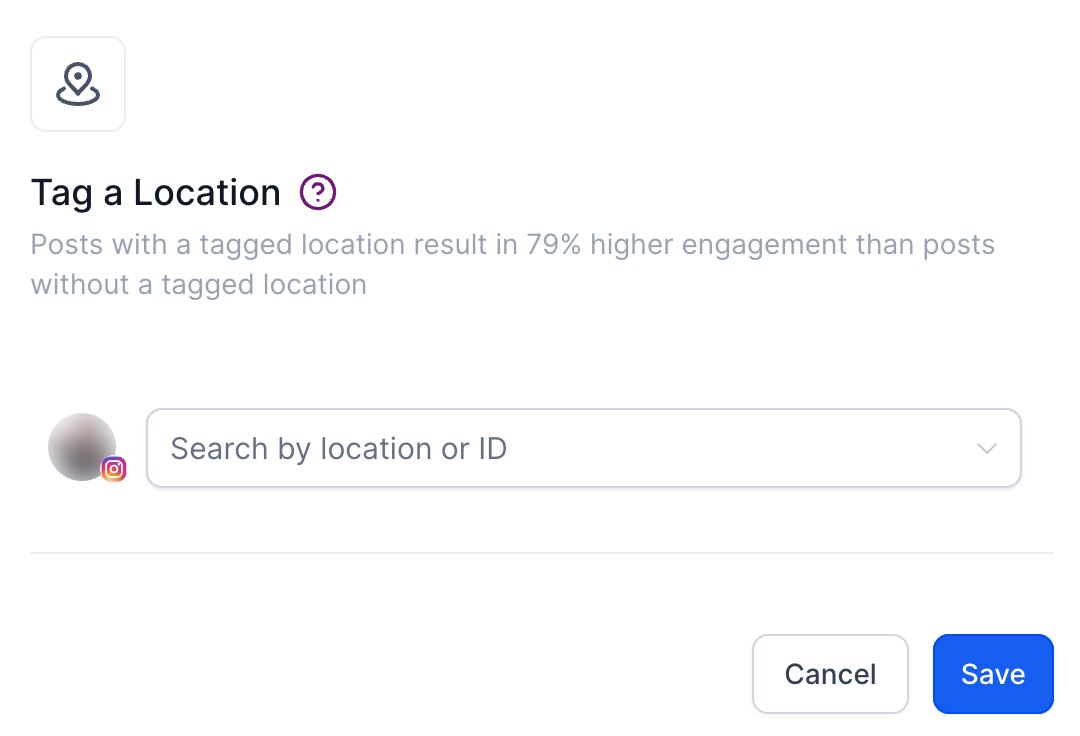
- Find the Location Tagging option, type the desired place, and pick it from the results.
- If prompted, reauthorize the account to grant additional location tagging permissions before publishing.
- Confirm the selected location and either Publish Now or schedule the post.
06What it looks like in HighLevel
07Settings that matter
- Location Tagging. Controls whether a place is attached to the post being created in Social Planner.
08Things to know before you rely on it
- Location tagging works only for supported Facebook and Instagram posts.
- Only locations returned by the platform’s location search can be chosen.
- Availability may vary by post format and the connected account’s permissions.
- Instagram posts synchronized to the personal feed may not display the location due to API limits.
09If something goes wrong
- Cannot find the desired location. Search using the full business or place name; only locations available through the platform’s search can be selected.
- Prompted to reconnect the Facebook or Instagram account. Reauthorize the account to grant the additional permissions required for location tagging.
10How it connects to the rest of HighLevel
- Connect a Facebook page for Social Planner Facebook connection guide
- Set up Instagram Business or Creator integration Instagram connection guide
- Add @mentions and tag profiles in posts Mentions and tags guide
Michael's take

People often skip the extra authorization step and end up with a post that has no location tag. The platform will prompt you to reauthorize, and that step is required for the tag to be applied.
I would make sure the correct Facebook or Instagram Business account is connected, then add the location while creating the post.