
01Who this is for
- Founders who run multiple client campaigns benefit from quick reuse of business names, phone numbers and offers.
- Marketing managers in agencies can keep ad copy consistent across subaccounts by mapping the same keys to each client.
- Small business owners who publish ads on several platforms avoid retyping details by inserting Custom Values.
02Custom Values in ad copy, explained
Custom Values are key:value pairs defined under Settings > Custom Values. Once saved, the key can be placed in any supported text field of an Ad Manager campaign. The platform swaps the placeholder for the stored value when you view the preview or publish the ad.
Supported fields include Primary Text, Headlines and Descriptions for Meta, Google and LinkedIn campaigns. Fields such as URLs, CTA dropdowns, media uploads and targeting settings do not accept Custom Values.
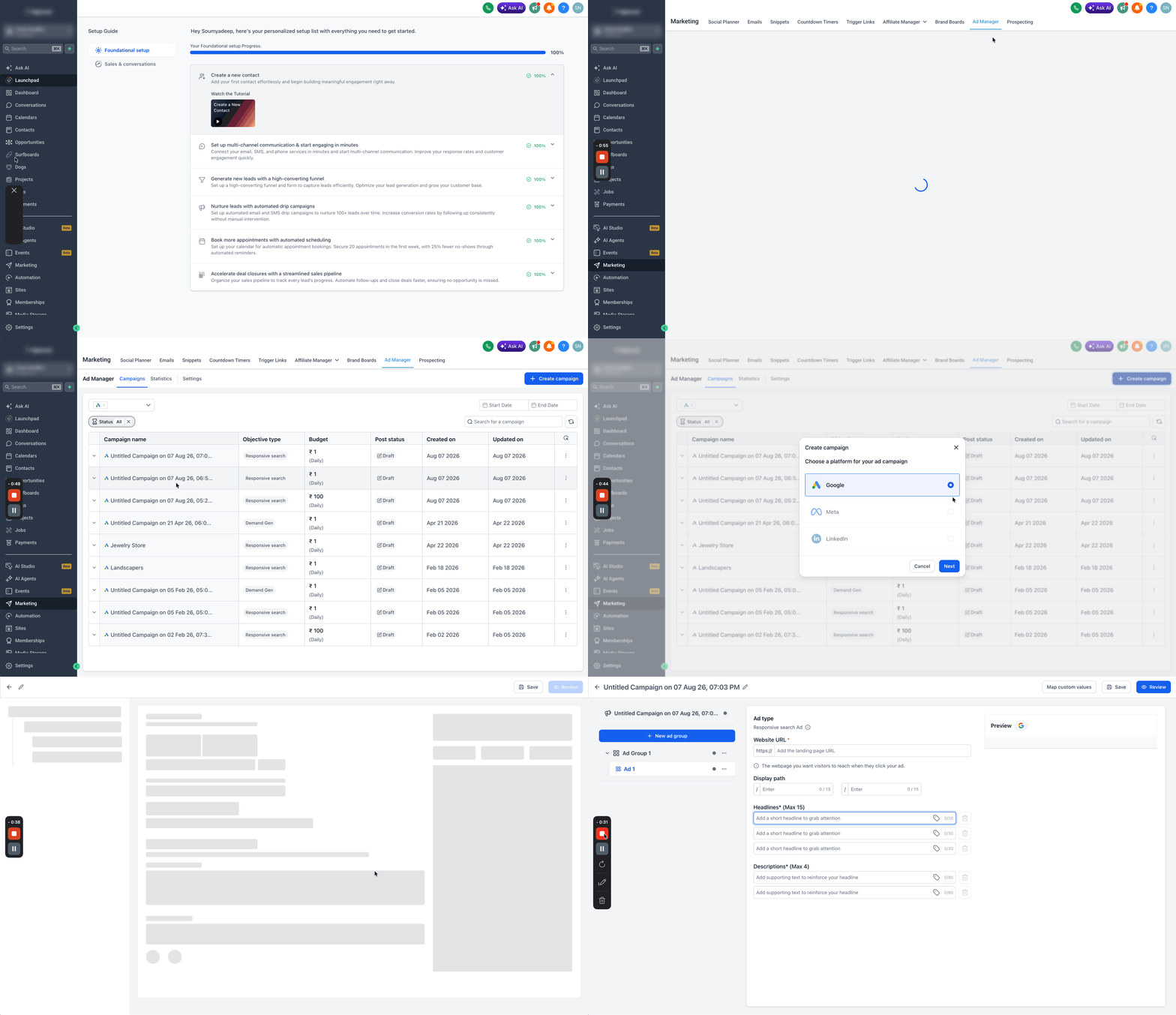
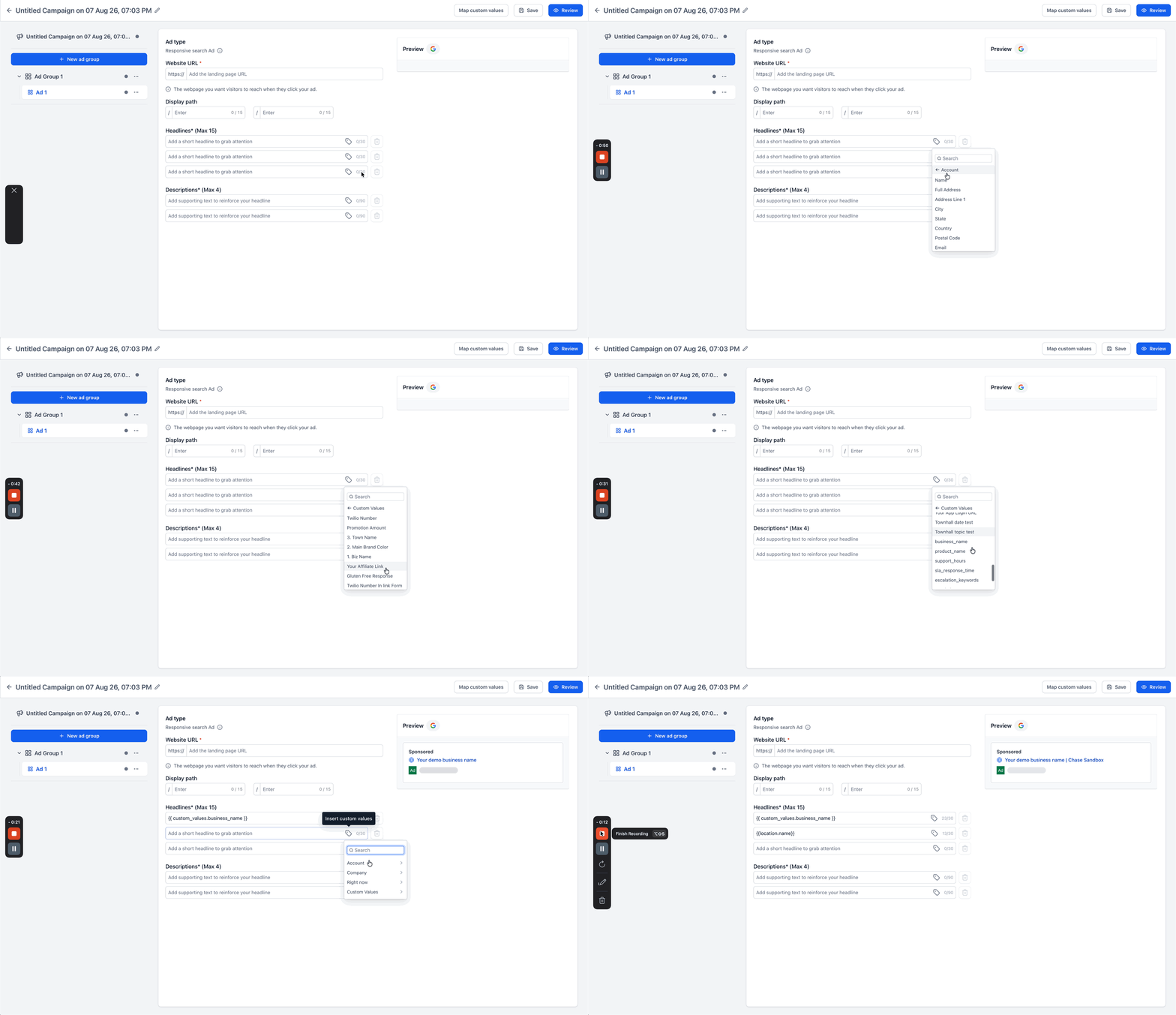
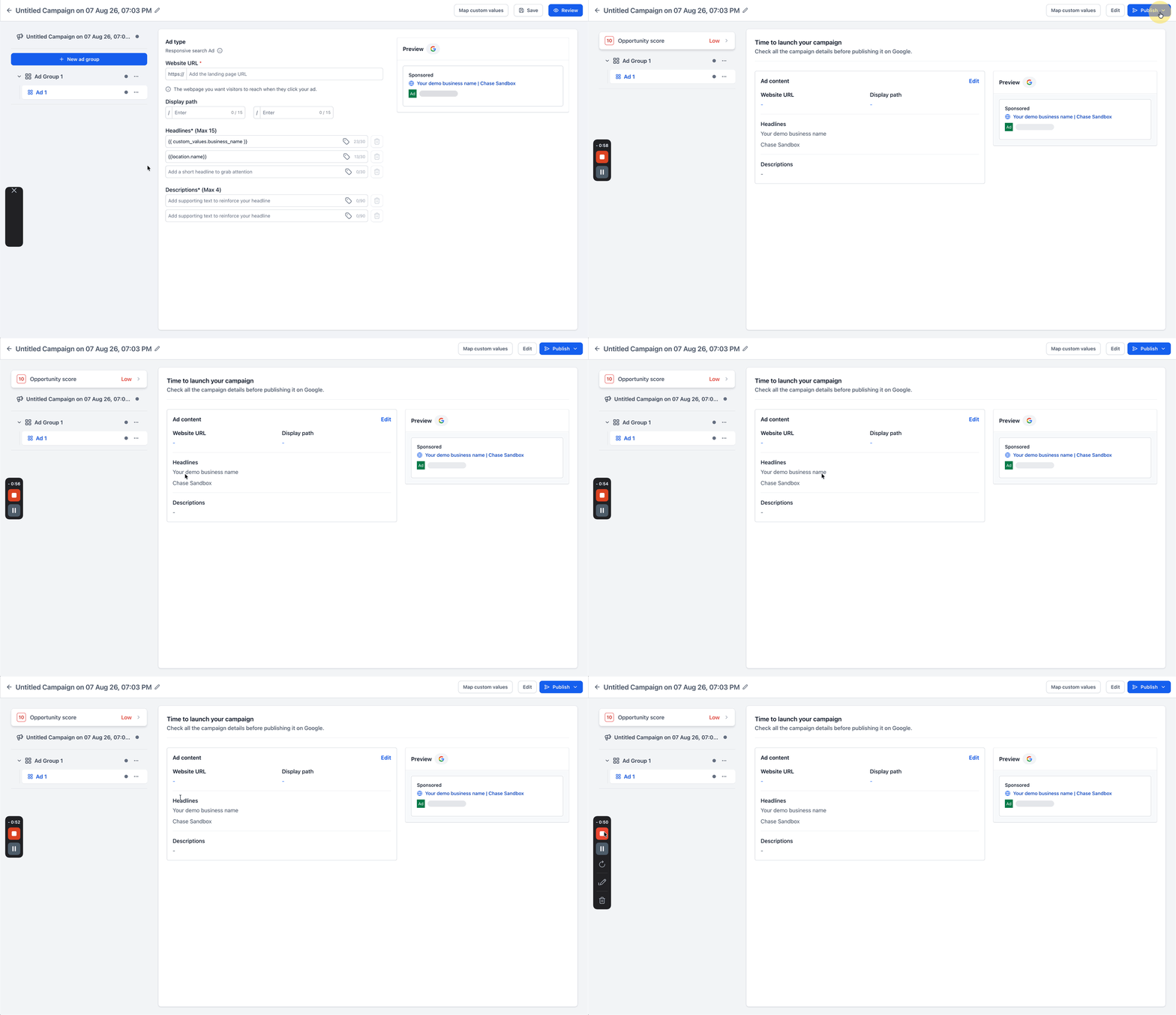
The feature lives inside the Ad Manager workflow. After you create or edit a campaign, you use the Insert Custom Values icon next to a supported copy field, pick the desired key, and the token appears in the field. A mapping step validates the keys before you can publish.
03How businesses use Custom Values in ad copy
- Dental practice. The practice creates Custom Values for its name, city and phone number. While building a Meta ad, it clicks the Insert Custom Values icon in the Primary Text field and adds the placeholders. The preview shows the actual practice name and contact details before publishing.
- Real estate agency. The agency stores an offer name and a guarantee phrase as Custom Values. When drafting a Google ad, it inserts those keys into the headline and description fields. The Review screen displays the full offer text, confirming it meets character limits.
- Software startup. The startup defines a support email and a product tagline as Custom Values. In a LinkedIn campaign, it uses the Insert Custom Values picker to add the email to the intro text and the tagline to the headline. The final preview shows the exact email address and tagline.
04The numbers and rules that matter
- Supported platforms: Meta, Google, LinkedIn.
- Supported fields: Meta, Primary Text, Headline, Description; Google, Headlines, Descriptions; LinkedIn, Intro/Primary Text, Headline (where supported).
- Not supported in URL fields, CTA dropdowns, lead form selectors, media uploads, targeting settings, budget or bid strategy fields.
- Built in validation warns when values are missing, blank, invalid or push copy over platform character limits.
05Before you start
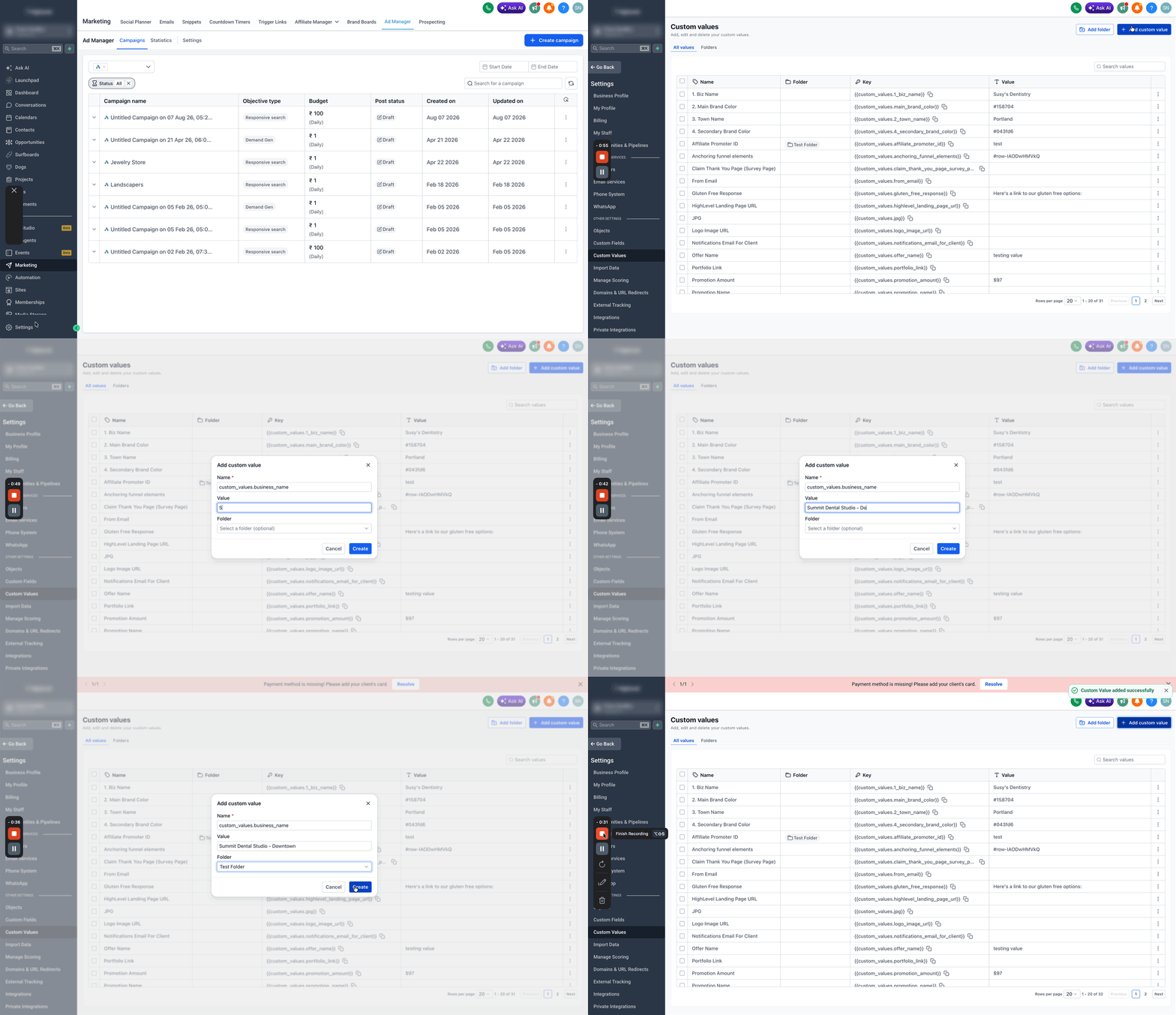
- Create the needed Custom Values in Settings > Custom Values before inserting them into ad copy.
06How to set up and use Custom Values in ad copy in HighLevel
Set up and use Custom Values in ad copy
- Plan the business details you want to reuse across ads, such as name, city, phone, offer or guarantee.
- Open Settings > Custom Values, click + Add Custom Value, enter a descriptive key and the exact value, optionally assign it to a folder, then click Create.
- Go to Marketing > Ad Manager and start a new campaign or edit an existing one for Meta, Google, or LinkedIn.
- In the ad copy step, click inside a supported field, press the Insert Custom Values icon, locate the desired key, and insert it into the text.
- Add any additional surrounding text around the inserted placeholder to form a complete sentence.
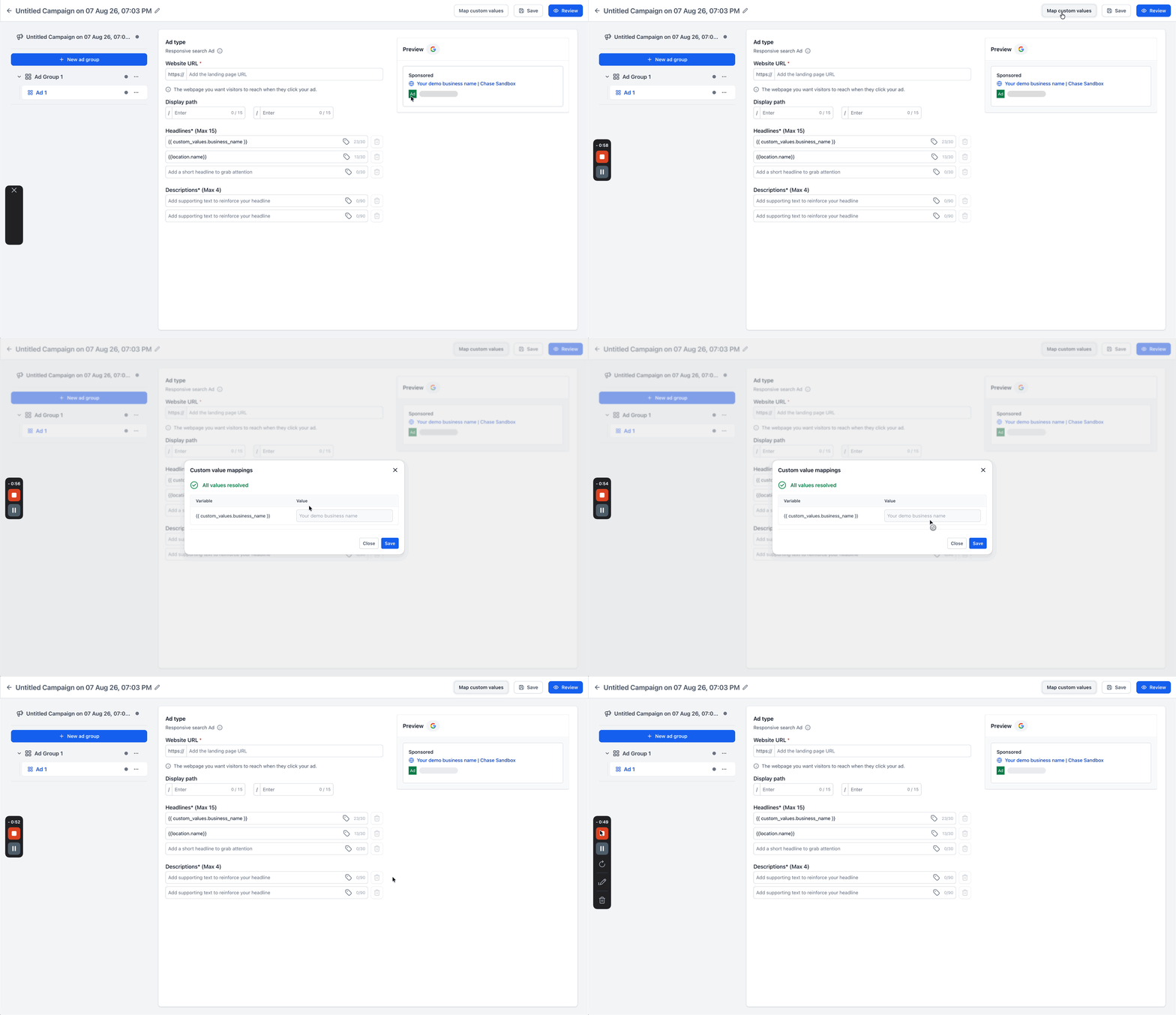
- Select the Map custom values option, review detected keys, correct any missing or blank entries, and save.
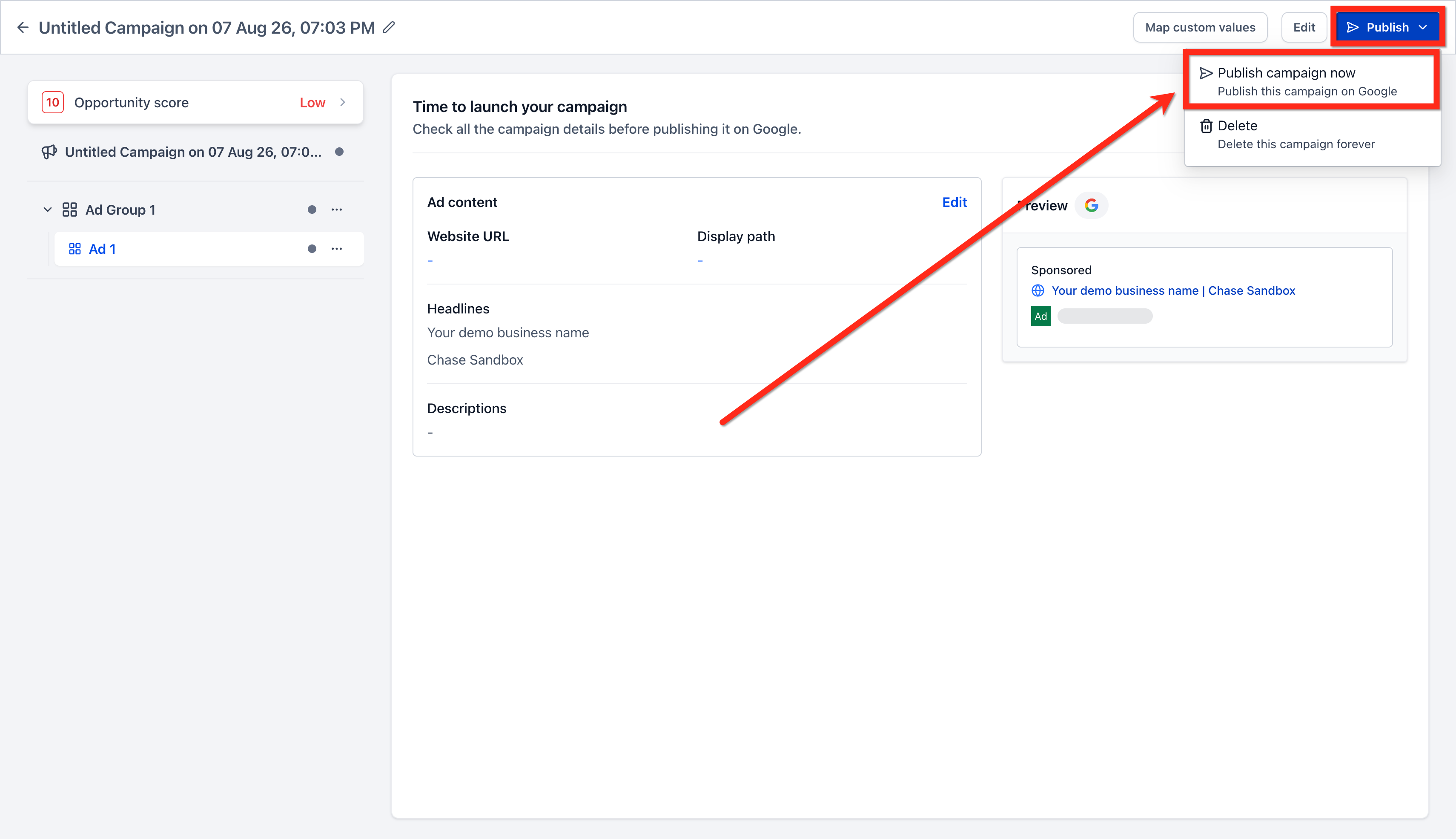
- Click Review, confirm that all placeholders have resolved to real text and that the copy stays within platform limits.
- When validation passes, click Publish Campaign Now to send the fully resolved ad copy to the ad platform.
07What it looks like in HighLevel
08Settings that matter
- Custom Values. Stores reusable key:value pairs that can be inserted into supported ad copy fields throughout the platform.
09Things to know before you rely on it
- Custom Values work only in text based ad copy fields; URLs, CTA selections, media uploads, targeting and budget fields do not accept them.
- If a resolved value pushes the ad copy beyond platform character limits, the system shows a validation warning and blocks publishing until the copy is shortened.
- Changing a Custom Value after a campaign is live does not alter the already published ads; the update only affects future campaigns.
10If something goes wrong
- Attempting to use a Custom Value in a URL or CTA field. Custom Values are not supported in those fields; enter the information manually.
- Publishing blocked because a Custom Value is missing or blank. Use the Map custom values step to locate the empty key, provide the correct value, and save before publishing.
- Resolved copy exceeds platform character limits. Edit the Custom Value or the surrounding copy to reduce length, then re preview and publish.
11How it connects to the rest of HighLevel
- Use ad templates that keep Custom Value keys for easy reuse Ad templates
- View and export ad campaign statistics after publishing Ad statistics
Michael's take

People often think they can drop a custom value into any field and let HighLevel handle the rest. The picker only shows up in text based copy fields, so trying to use it in URLs, CTAs or media slots leaves a raw token that will never resolve.
I would begin with mapping out the pieces of information that never change. Business name, phone, city, offer. And create clean, well named Custom Values for each. Then I’d build a template campaign, insert the tokens, preview the resolved copy, fix any length issues, and finally save the whole thing as a reusable template for the subaccount.