
01Who this is for
- Agency owners who need to relocate multiple client accounts to a partner agency, simplifying the transition process.
- Compliance managers handling HIPAA enabled subaccounts, ensuring transfers only occur between agencies with the required add on.
- IT administrators preparing for agency mergers, needing to move all associated assets and user permissions in bulk.
02Subaccount transfers, explained
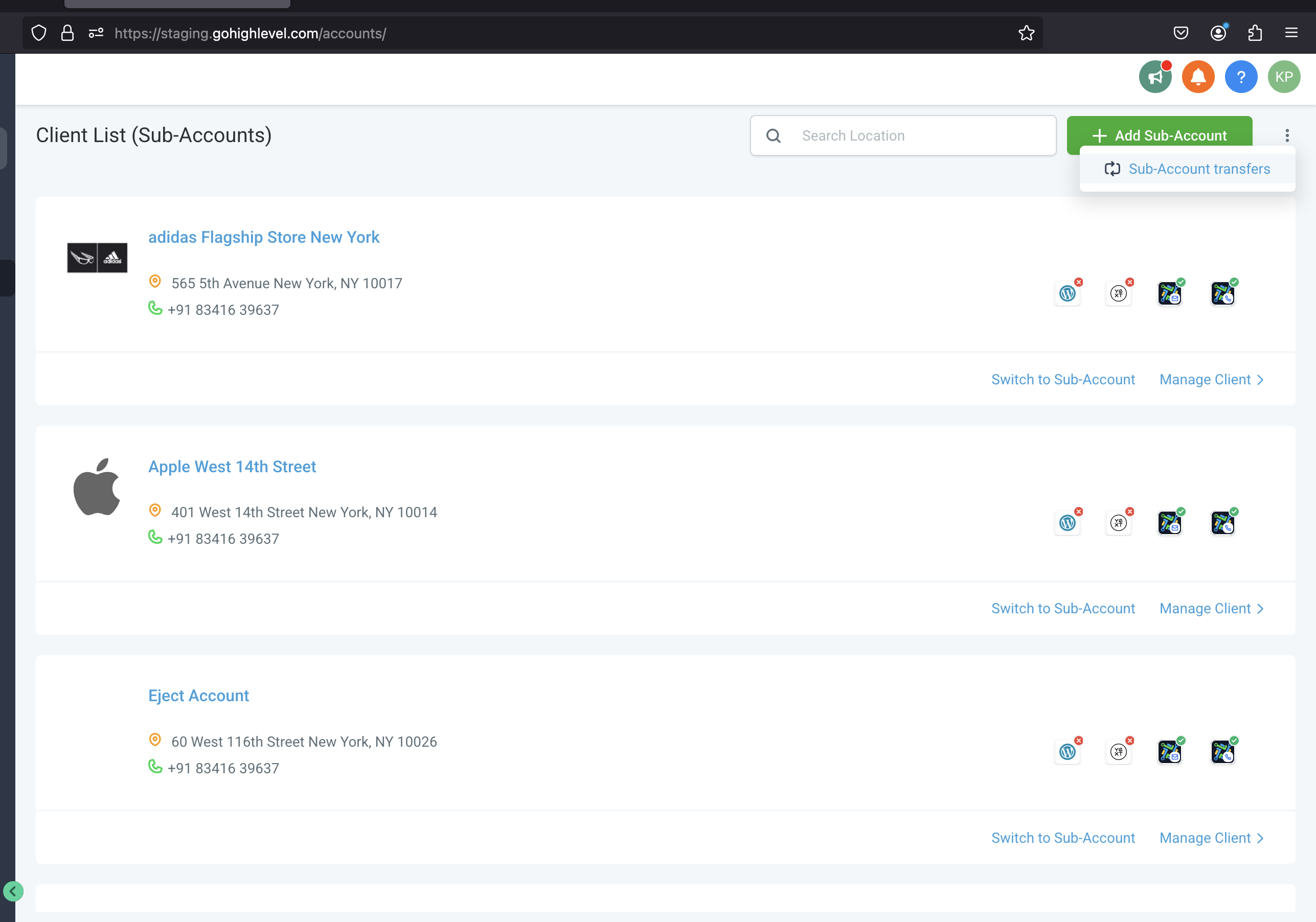
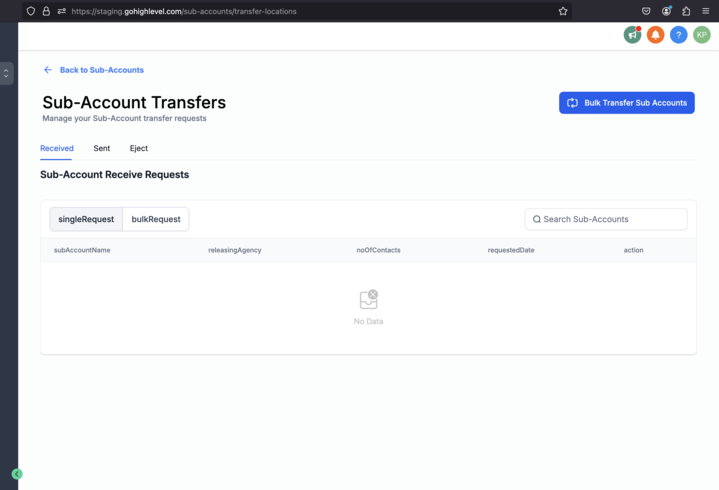
The feature lives under Agency Level > Subaccounts > Subaccount Transfers. It creates a bulk request that lists each selected subaccount and sends it to the receiving agency’s inbox. The request stays in a Sent or Received tab where both parties can monitor its progress.
When the receiving agency approves the request, all included assets, websites, funnels, calendars, automations, contacts and their histories, memberships, and API keys, are moved to the new agency. Certain connections such as auth accounts, external calendar integrations, and SaaS settings are removed and must be re configured after transfer.
03How businesses use subaccount transfers
- Digital marketing agency. The agency selects all client subaccounts that are being handed off to a partner. After entering the partner’s Relationship Number, it sends the bulk request and watches the status until the partner accepts the transfer.
- Health clinic network. A network transfers HIPAA compliant subaccounts to another clinic that also has the HIPAA add on. It ensures only users of type ‘Account’ are assigned before submitting the request and then monitors the acceptance.
- SaaS consultancy. The consultancy disables SaaS mode on each subaccount, cancels active subscriptions, and uses the bulk tool to move many client environments to a new agency partner, later re enabling SaaS after the transfer.
04The numbers and rules that matter
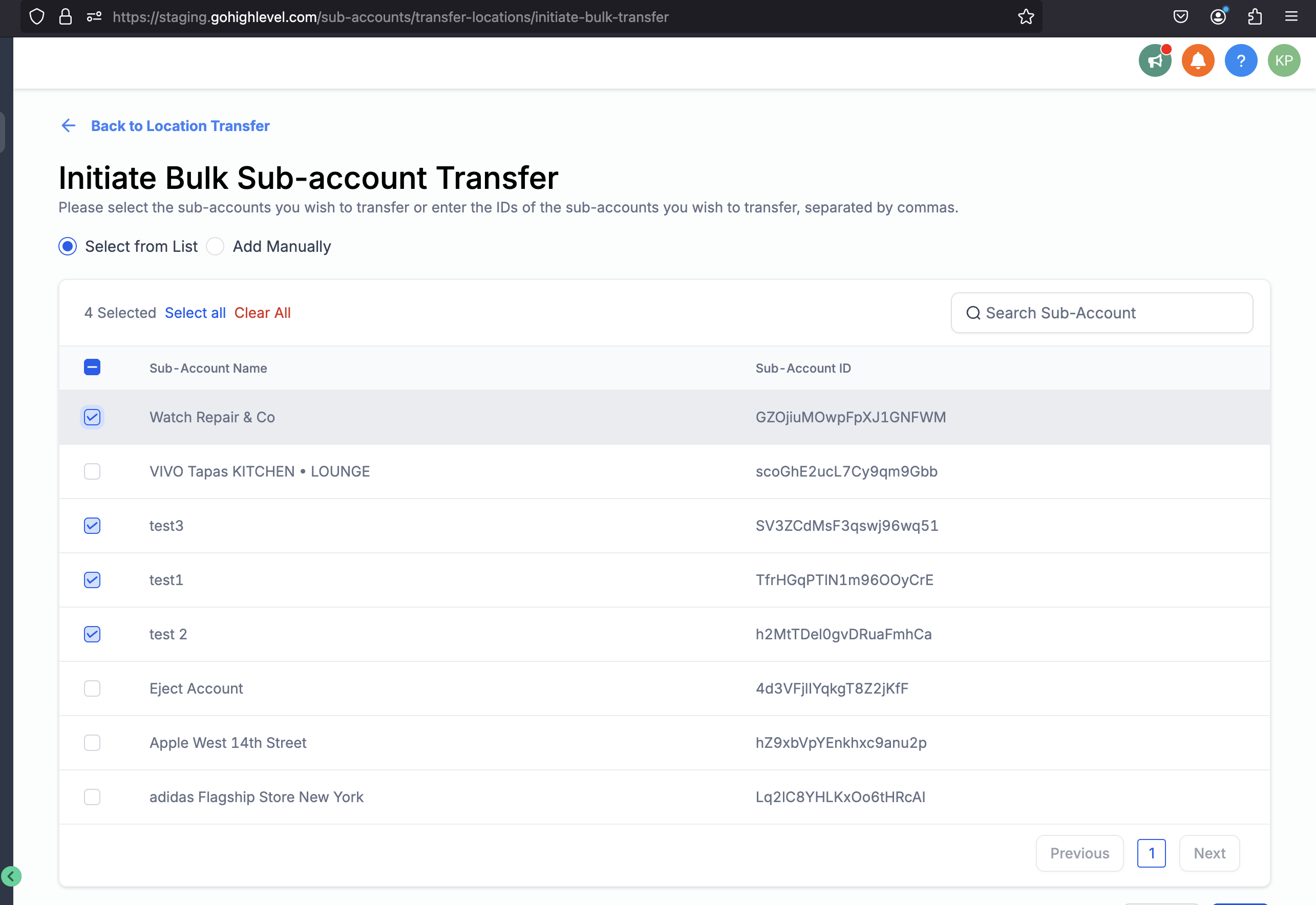
- Maximum of 1,000 subaccounts can be selected at a time.
05Before you start
- You must be logged in to your Agency level HighLevel account.
- The receiving agency’s Relationship Number must be known and entered correctly.
- All users to be transferred must have User Type ‘Account’ and be assigned solely to the targeted subaccount.
- Any SaaS enabled subaccounts must have SaaS disabled before the transfer.
- Active subscriptions such as WordPress, Yext, WhatsApp, or Dedicated IP must be cancelled prior to requesting the transfer.
06How to set up and use subaccount transfers in HighLevel
Send bulk subaccount transfer request
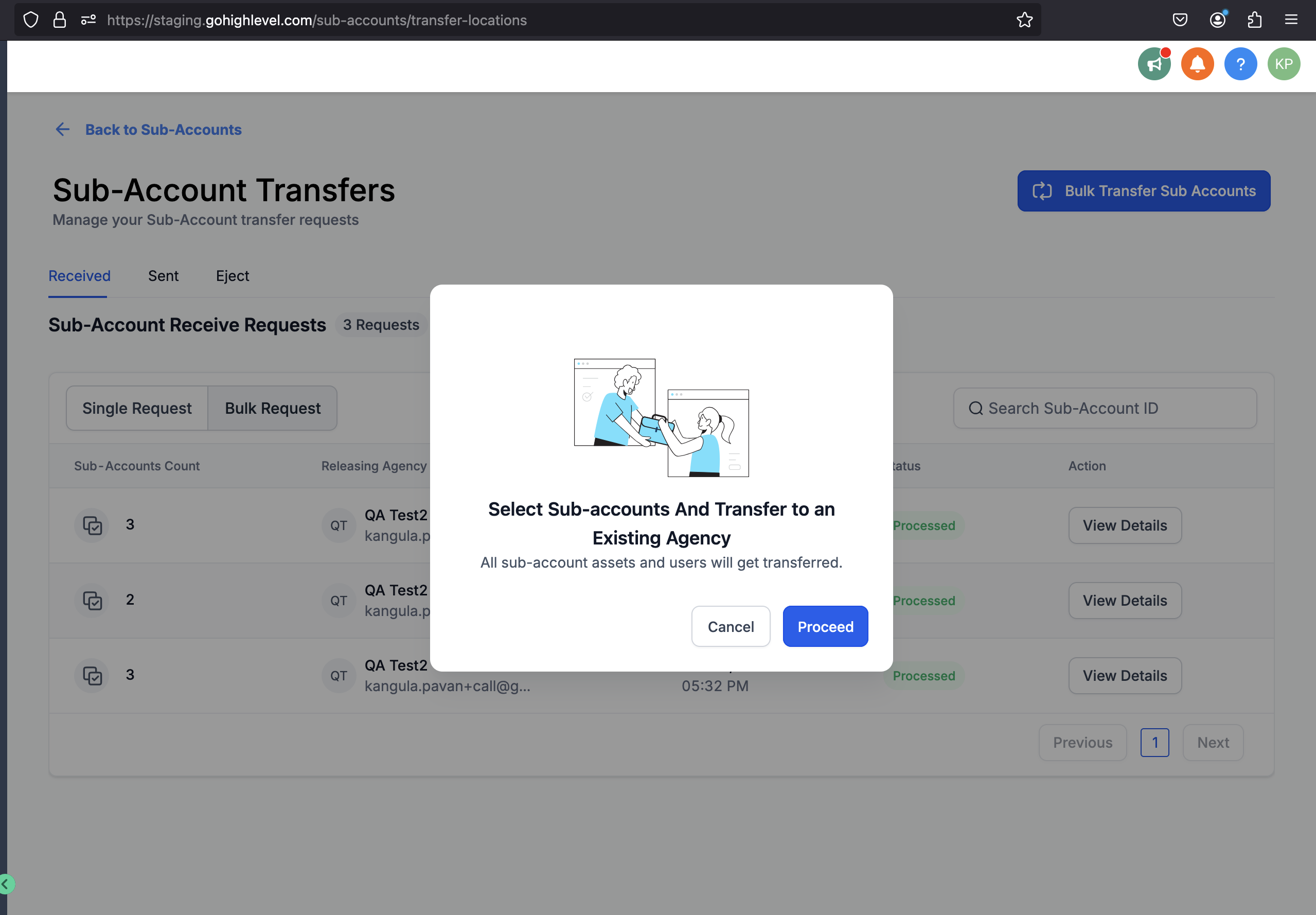
- Log in to your Agency account and go to Agency Level > Subaccounts > Subaccount Transfers, then click the Bulk Transfer Subaccount button and click Proceed.
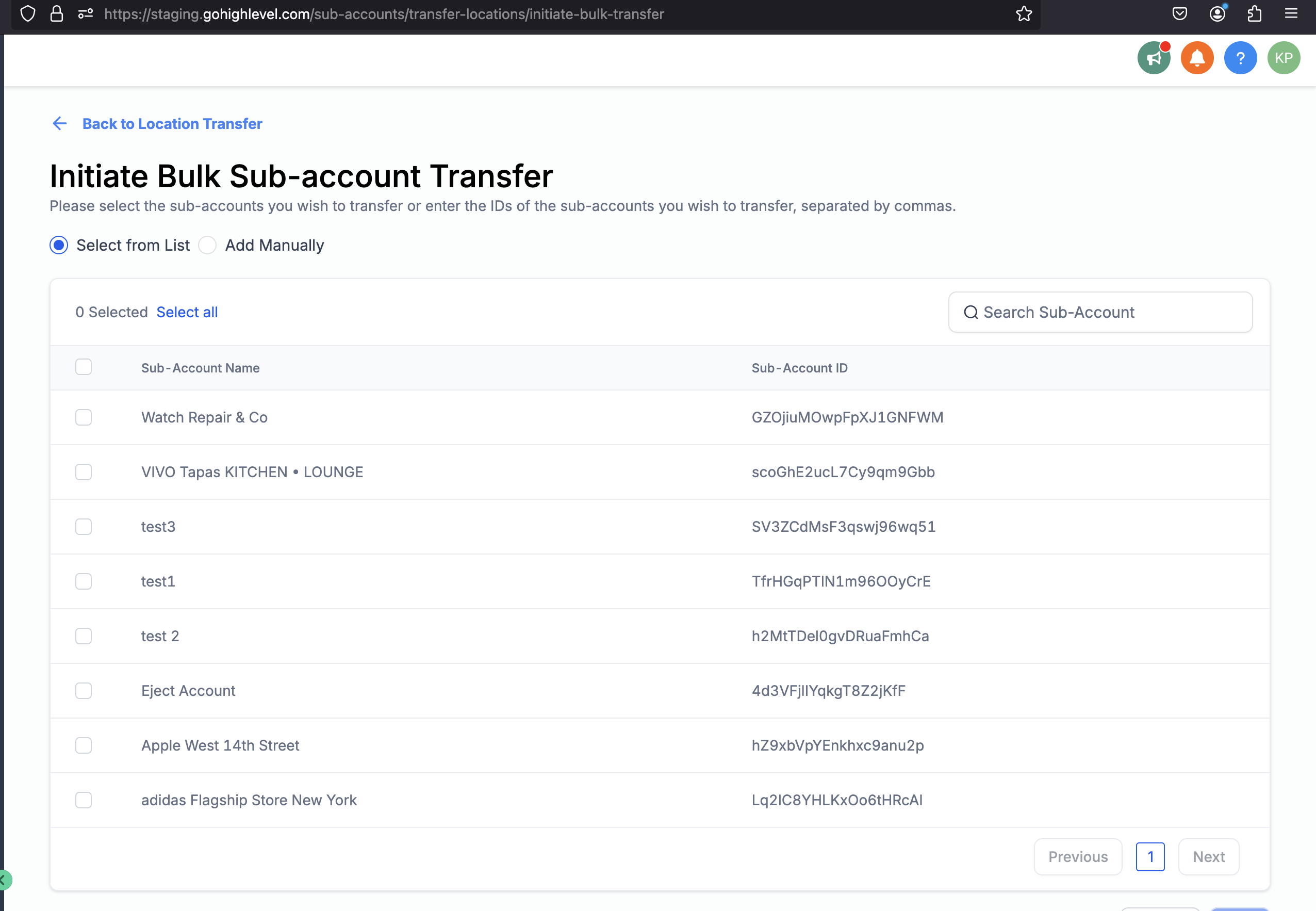
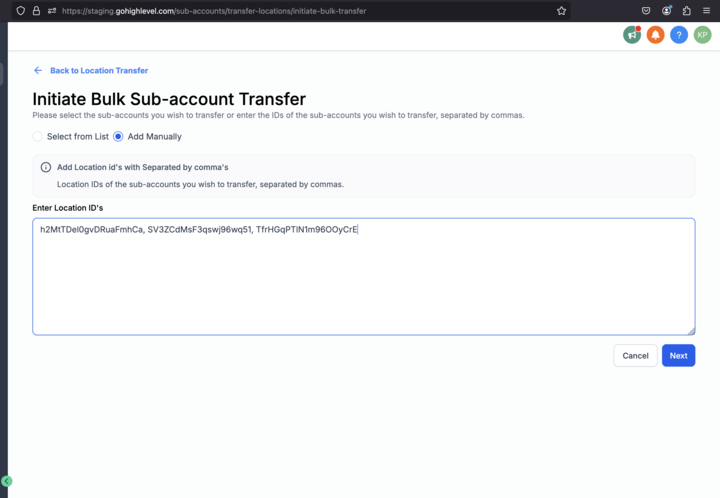
- Choose how to select subaccounts, search and pick from the list (or use Select All, up to 1,000) or manually enter Location IDs separated by commas.
- Enter the Relationship Number of the agency that will receive the selected subaccounts, double checking its accuracy.
- Review the transfer details, type your password, and click Confirm to submit the request.
- Switch to the Bulk Request tab on the Subaccount Transfers screen to view the request’s progress.
- Click View Details to see the status of each subaccount in the bulk transfer.
Accept or reject a bulk subaccount transfer as the receiving agency
- Open the email or in app notification, then go to the Received section of the Subaccount Transfers screen.
- Click Take Action to display the list of subaccounts included in the request and review their details.
- Choose either Accept All or Reject All, as partial selections are not supported.
- Switch to the Bulk Request tab to monitor the overall request status.
- Click View Details to check the outcome for each subaccount.
07What it looks like in HighLevel
08Things to know before you rely on it
- A maximum of 1,000 subaccounts can be selected in a single bulk transfer request.
- The receiving agency can only accept or reject the entire batch; partial approvals are not allowed.
- Subaccounts that are non transferable due to HIPAA restrictions or SaaS mode will appear with a Failed status.
- Phone numbers transfer automatically only when both agencies use LeadConnector; otherwise numbers must be moved manually.
09How it connects to the rest of HighLevel
- Full guide on sending, tracking, and receiving subaccount transfers Subaccount Transfer Guide
- How to add, edit, and delete custom values used in transfers Custom Values
- HighLevel pricing and plan details for agencies Pricing
Michael's take

This feels like a small convenience for agencies that routinely shuffle locations between owners. It removes the manual grind of moving each subaccount one by one, but it’s not a game changing shift in how you run your agency.
A marketing agency that runs separate branding accounts for each client can use the bulk transfer to hand off a whole set of client subaccounts to a partner agency after a merger. I would first double check that all users are set to Account type and that any SaaS features are turned off, then run a single test transfer to confirm the assets land where they should.