
01Who this is for
- Users who need to capture additional information about contacts or opportunities.
- Administrators who organize fields into folders for easier management.
02Custom Fields, explained
Custom fields are additional data points attached to contacts, opportunities, custom objects, or companies. They appear in records, can be referenced in forms, surveys, automations, and Smart Lists, and help segment contacts based on business specific criteria.
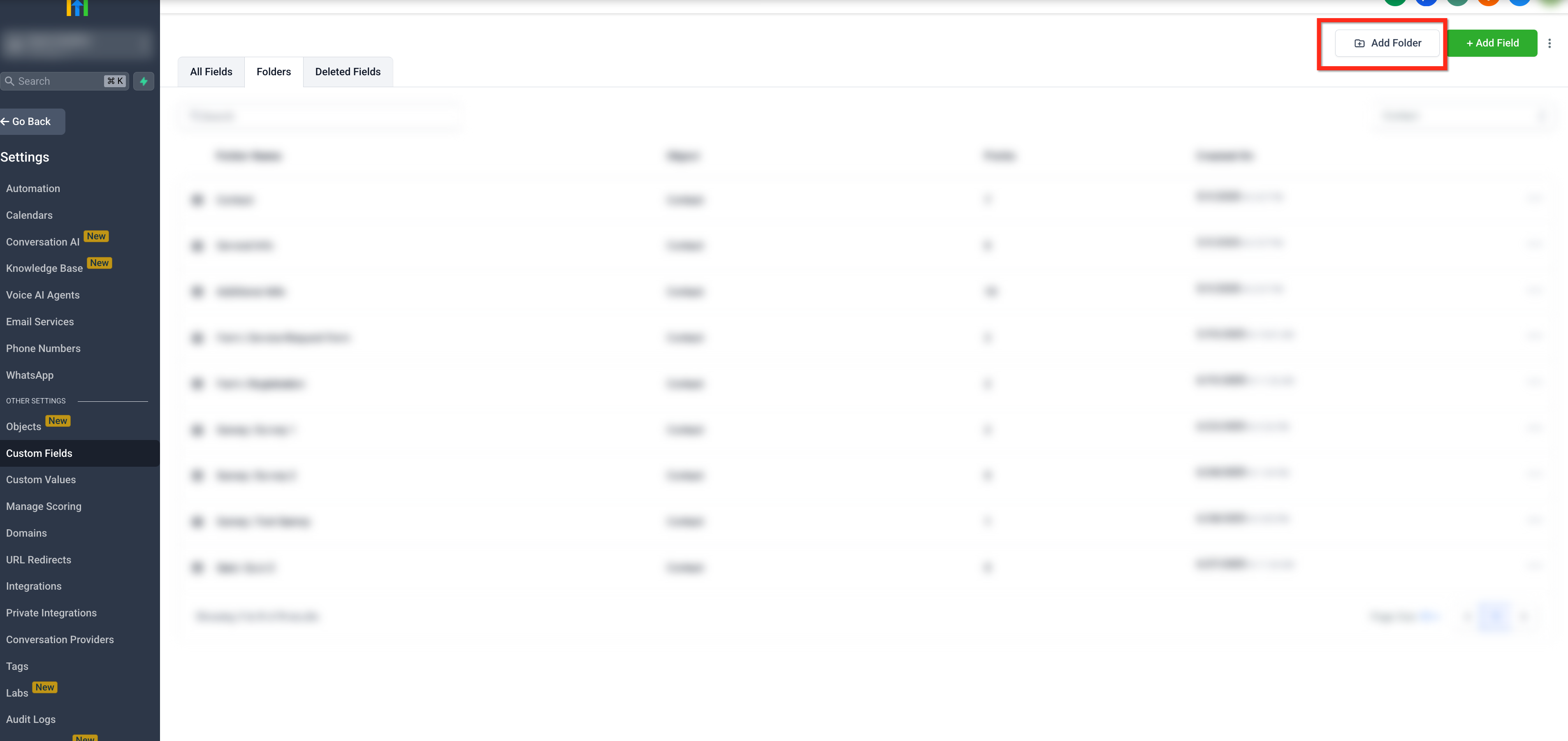
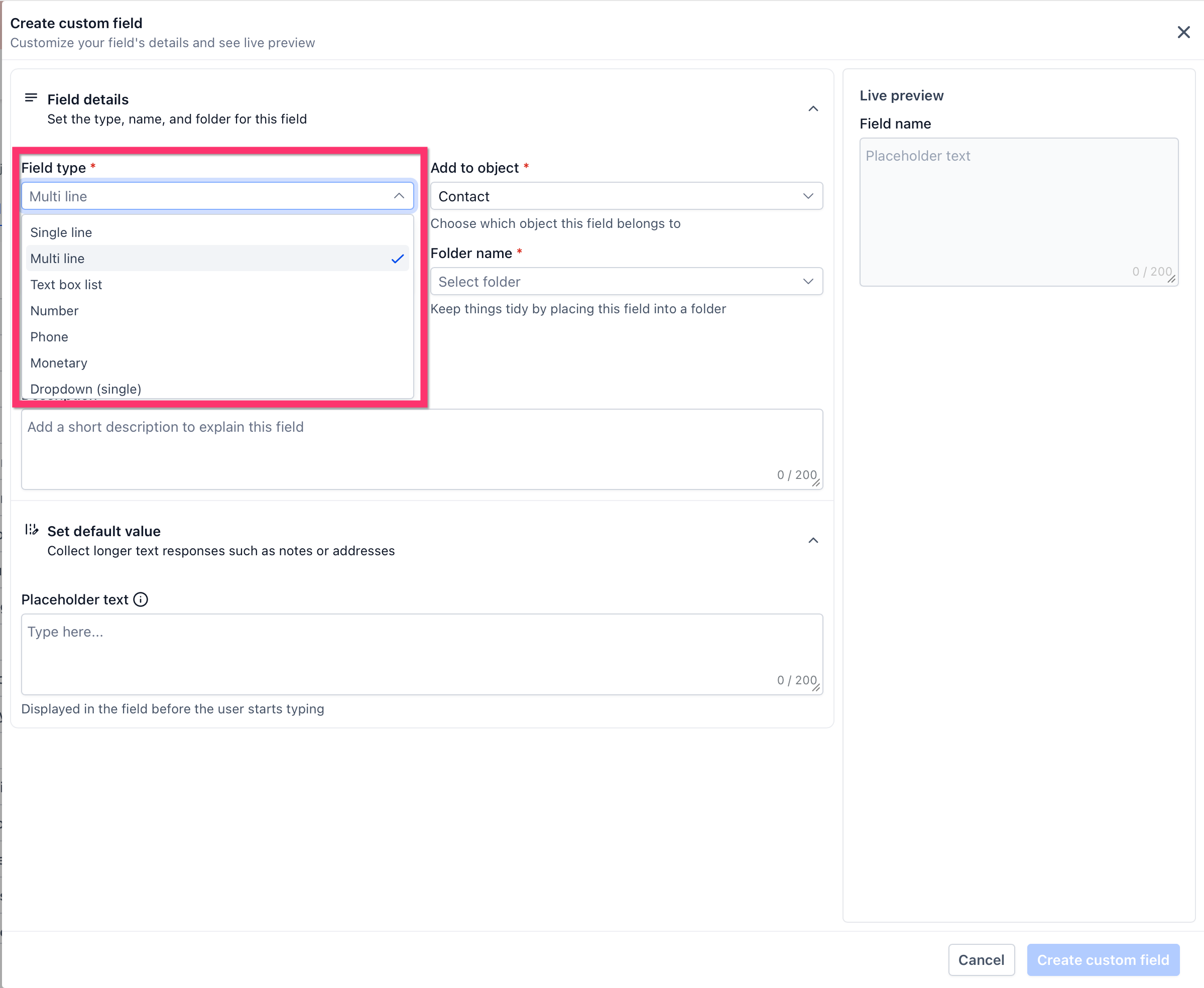
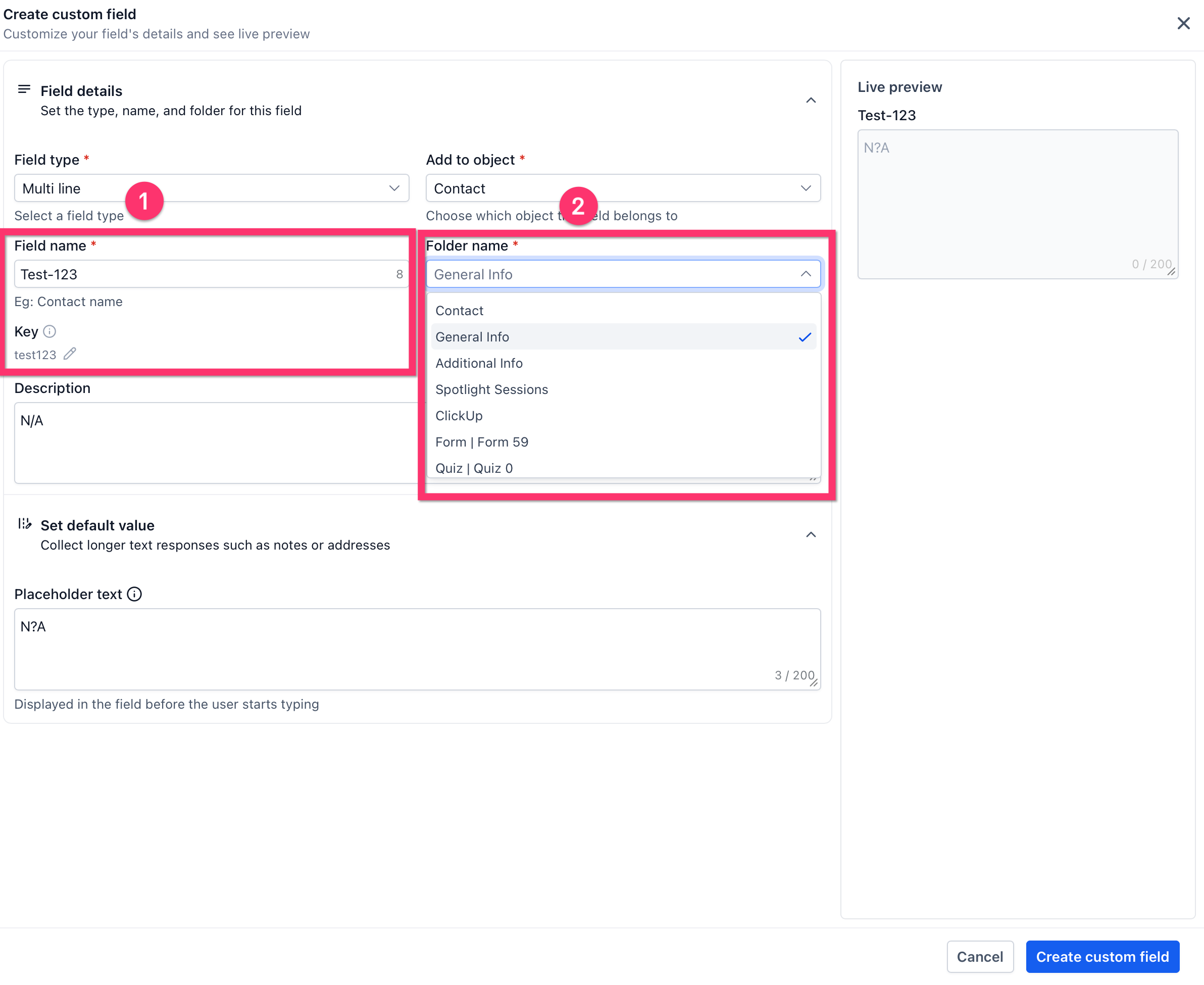
You create fields from Settings > Custom Fields, choose the object type, define the field type, and optionally place the field in a folder for organization. The page shows a live preview of how the field will look.
For picklist style fields you can delete individual options without affecting existing records that already use those values. Ask AI also supports creating, updating, and managing fields through natural language commands.
03How businesses use Custom Fields
- Real estate brokerage. The brokerage creates an Opportunity custom field called "Property Type" to tag each deal. Agents fill the field in the pipeline, and the team filters Smart Lists to see residential versus commercial opportunities.
- Fitness studio. The studio adds a Contact custom field "Preferred Workout Time" as a dropdown. When a member books a class, the field value merges into reminder texts, ensuring messages reference the correct time slot.
- Software SaaS startup. The startup uses Ask AI to update the Contact field "Lead Source" from "Webinar" to "Referral" by typing a natural language request, speeding up data cleanup without navigating the UI.
04The numbers and rules that matter
- The Dropdown (multiple) field can have a lot of options (50+) so there is no practical limit.
05Before you start
- You must be logged into the appropriate subaccount where the fields will be used.
06How to set up and use Custom Fields in HighLevel
Create a custom field
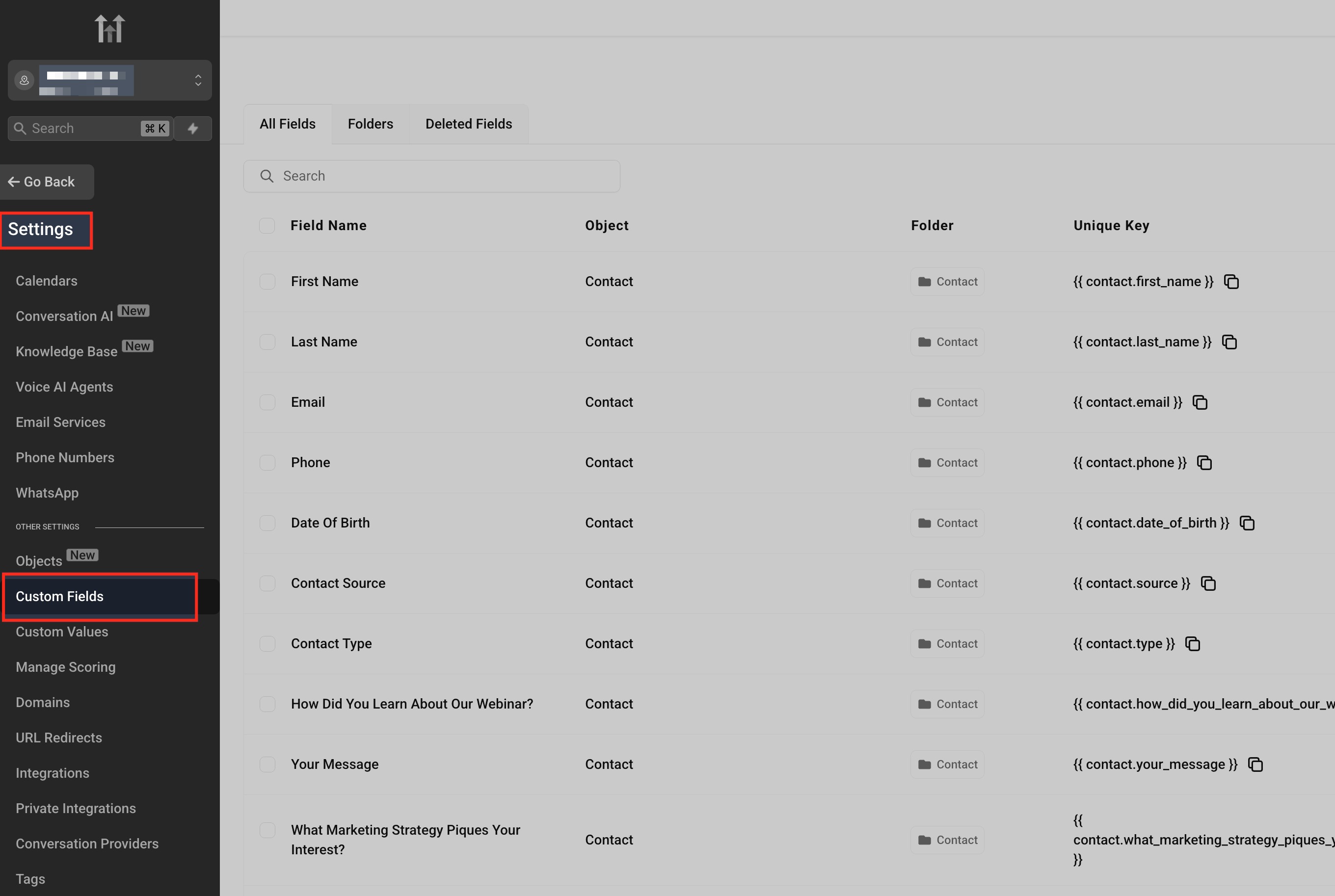
- Open Settings and select Custom Fields.
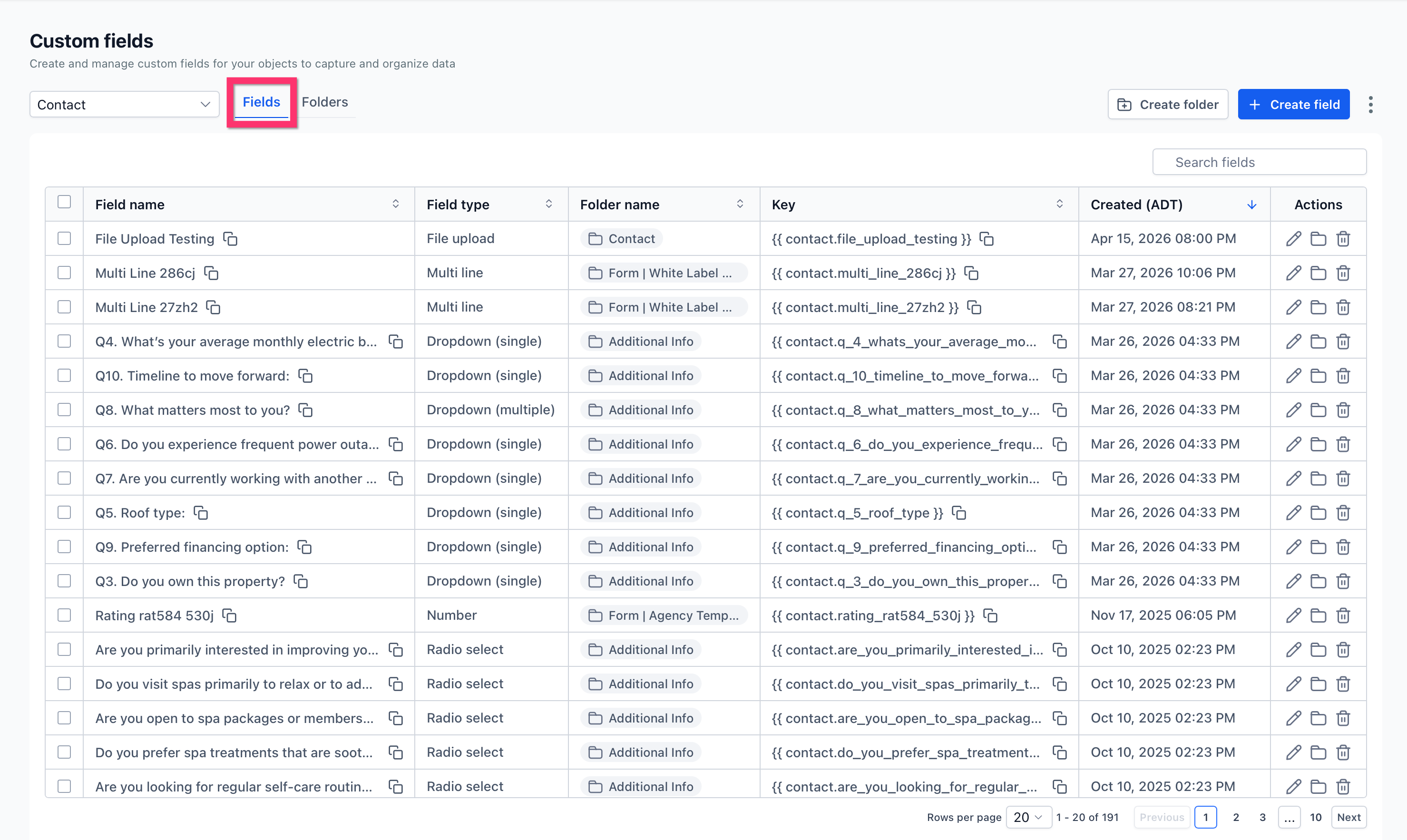
- Choose the object (Contact, Opportunity, Custom Object, or Company) with the object selector.
- Stay on the Fields tab to view existing fields.
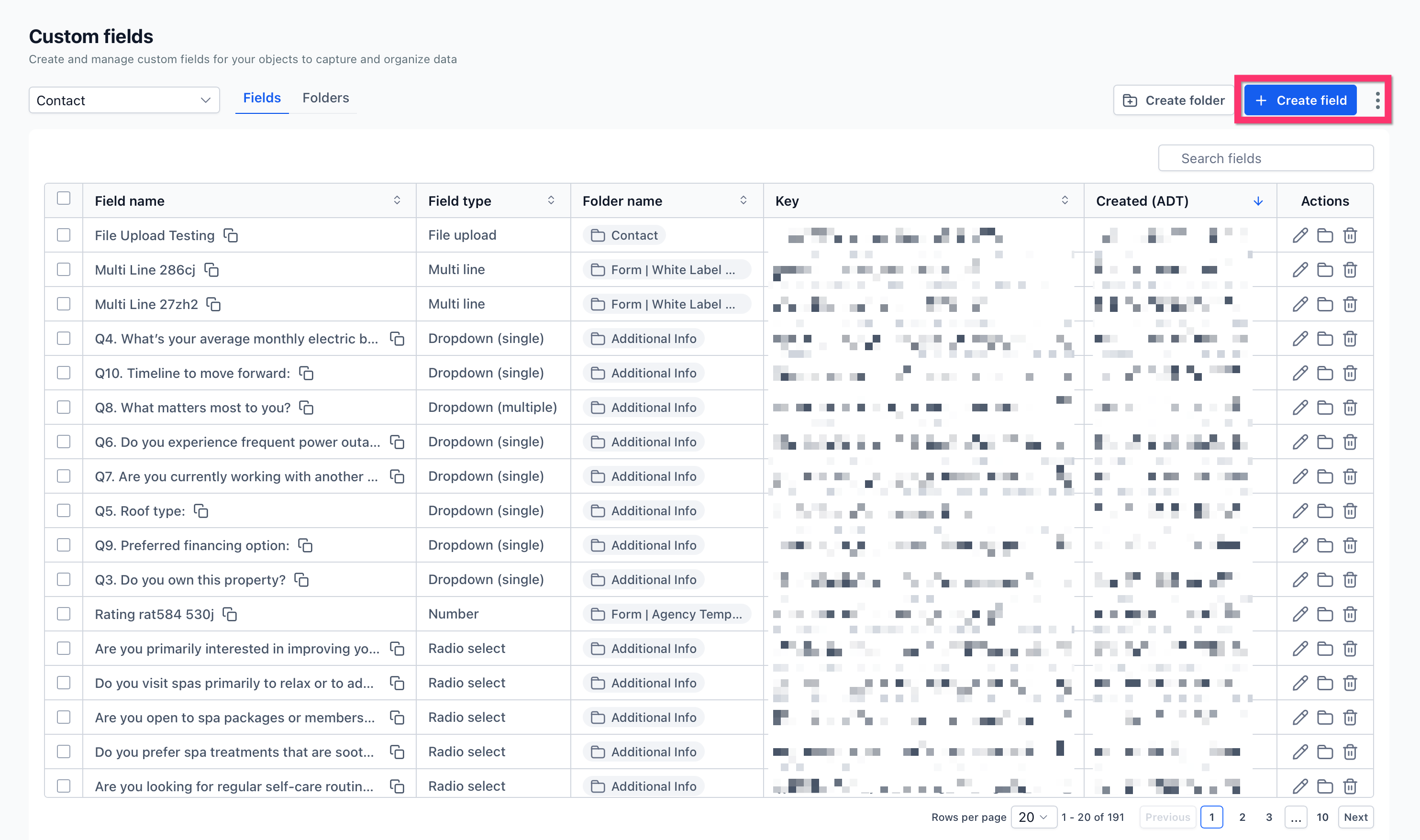
- Click the Create field button at the top right.
- Pick the desired field type from the list.
- Enter the field name and assign a folder if needed.
- Review the appearance in the Live preview panel.
- Press Create custom field to save the new field.
Delete options from select fields
- Navigate to Settings > Custom Fields.
- Select the Custom Object or Company that contains the field.
- Open the specific Dropdown, Multi select, Radio, or Checkbox field.
- Click to delete the unwanted option.
- Check the displayed affected record count before proceeding.
- Confirm the deletion to remove the option.
07What it looks like in HighLevel
08Settings that matter
- object selector. Determines which object (Contact, Opportunity, Custom Object, Company) you are managing custom fields for.
- field type. Specifies the data format for the new custom field, such as Short Text, Dropdown, or Date Picker.
- folder assignment. Places the custom field inside a user defined folder to keep related fields together.
- Live preview panel. Shows how the custom field will appear on records before it is saved.
09Things to know before you rely on it
- A field created as a Contact field cannot be changed to an Opportunity field after creation.
- Deleting an option from a picklist removes it only for new selections; existing records keep the old value.
- A dropdown multiple field can hold more than 50 options, so there is no practical limit on the number of choices.
10How it connects to the rest of HighLevel
- Learn how to add, edit, and delete custom values Custom values guide
- Explore all Logic & Fulfillment features Logic & Fulfillment overview
- Start a 30 day HighLevel trial 30 day trial
Michael's take

I find Custom Fields useful when I need to capture information that isn’t covered by the built in fields.