
01Who this is for
- Agency Owners can manage client migrations to keep control of data during agency changes.
- Agency Admins with transfer permission can request moves for specific subaccounts while preserving client history.
02Subaccount transfers, explained
A subaccount transfer shifts an entire client account from a releasing agency to a receiving agency. The operation does not merge accounts and does not allow partial data movement. All supported records stay attached to the transferred subaccount.
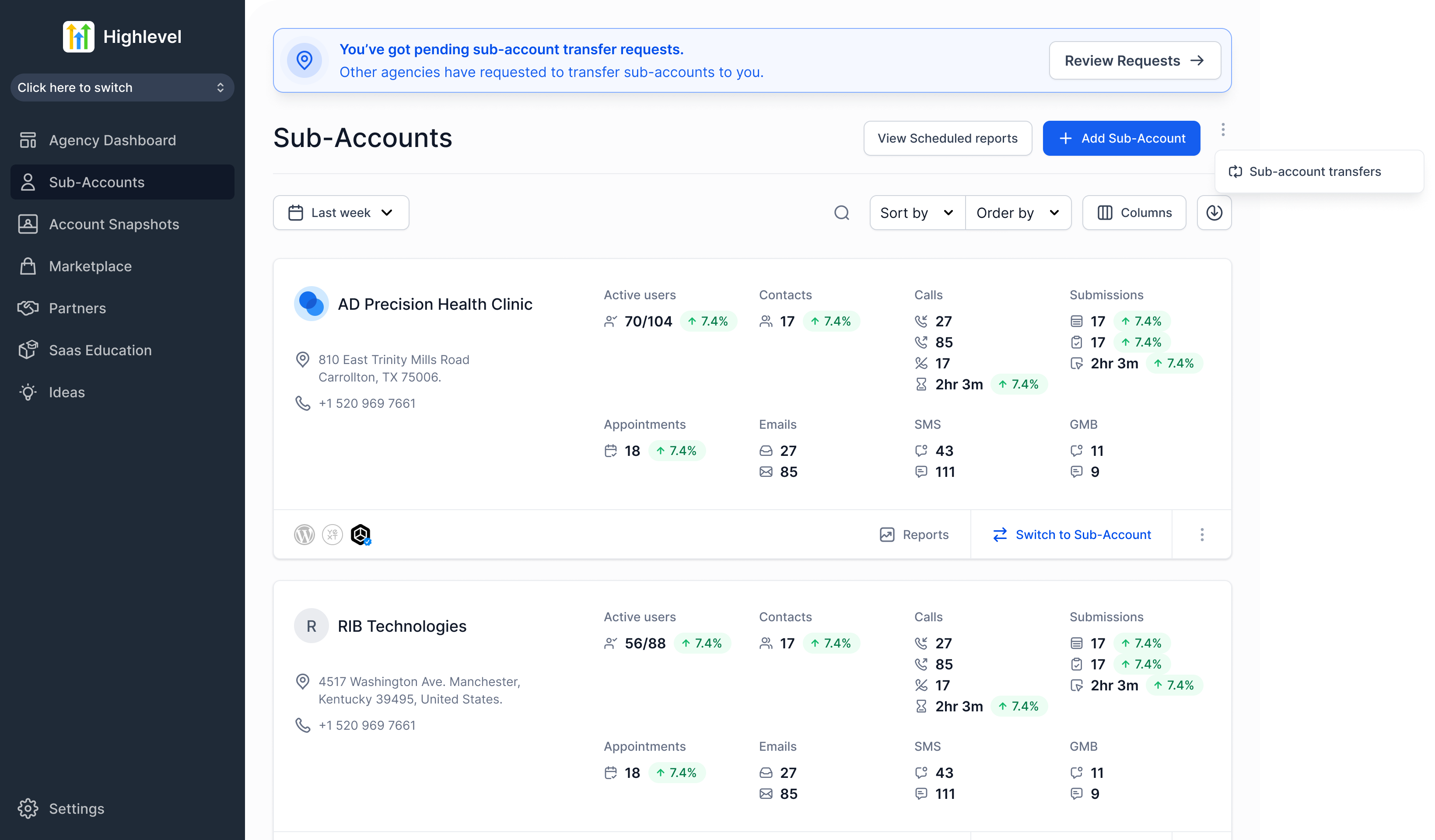
The feature lives under Agency Level > Subaccounts. From there, users can send a request, monitor its status, cancel if needed, and approve incoming requests. Phone numbers and email settings follow provider specific rules described in the article.
03How businesses use subaccount transfers
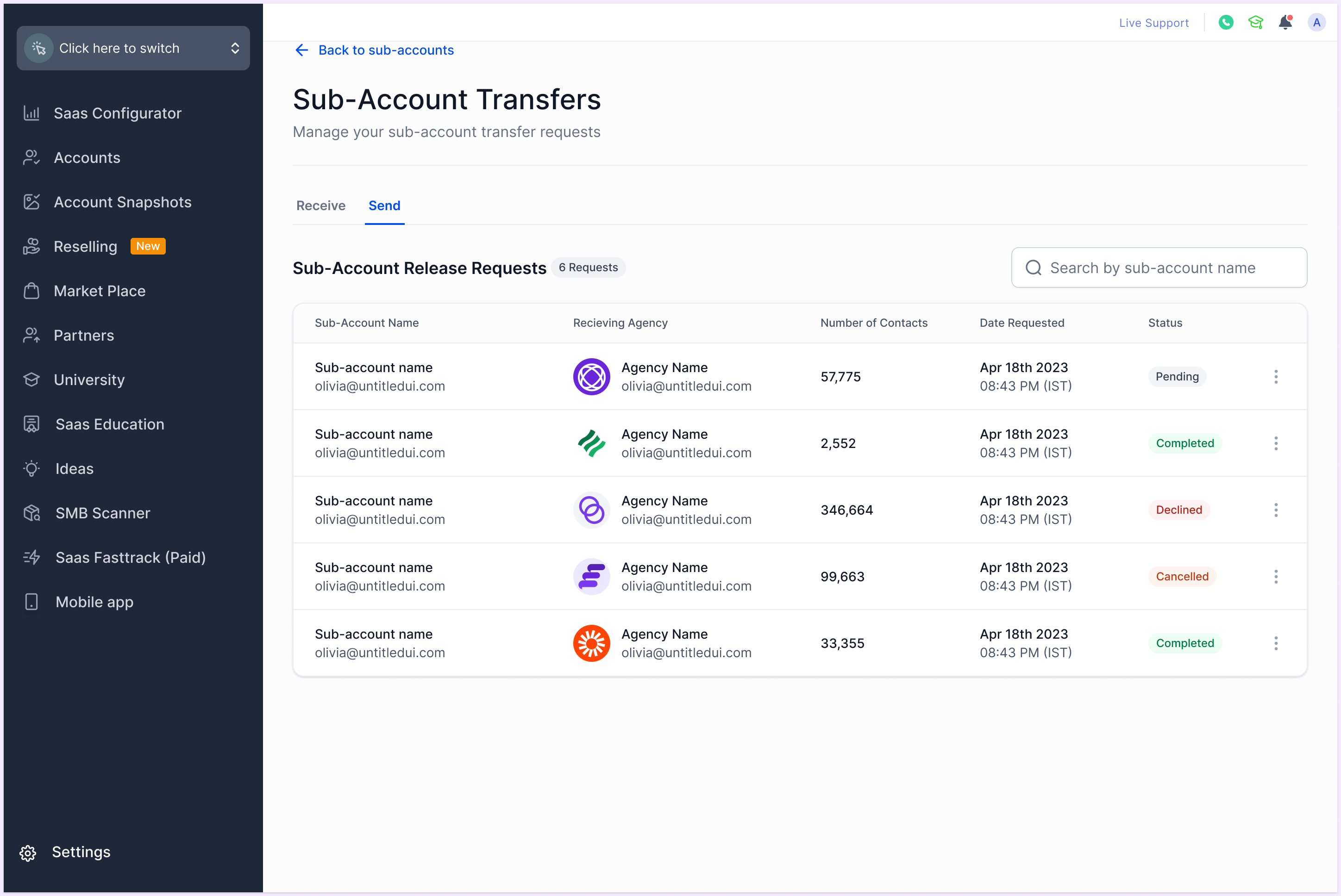
- Digital marketing agency. The agency owner opens the Subaccounts page, selects the client to move, initiates a Transfer Subaccount action, enters the receiving agency’s Relationship Number and confirms. The request appears in the Send tab for tracking.
- Consulting firm with multiple practice groups. When a practice group changes ownership, the firm’s admin receives an email, clicks Review Request, then approves the transfer from the Subaccount Transfers page, allowing the new group to continue work without data loss.
- Healthcare service provider with HIPAA compliance. A HIPAA enabled subaccount is transferred only after confirming the receiving agency has the HIPAA Compliance add on, ensuring the protected data remains within a compliant environment.
04How to set up and use subaccount transfers in HighLevel
Send subaccount transfer request
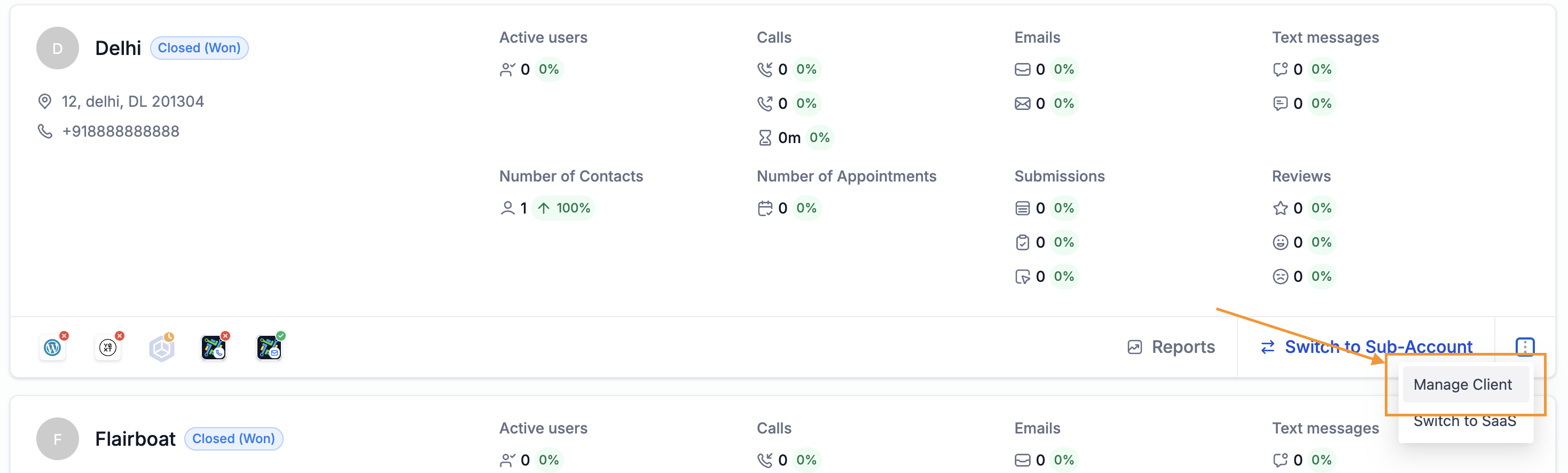
- Navigate to Agency Level > Subaccounts and open the Manage Client view for the subaccount you want to move.
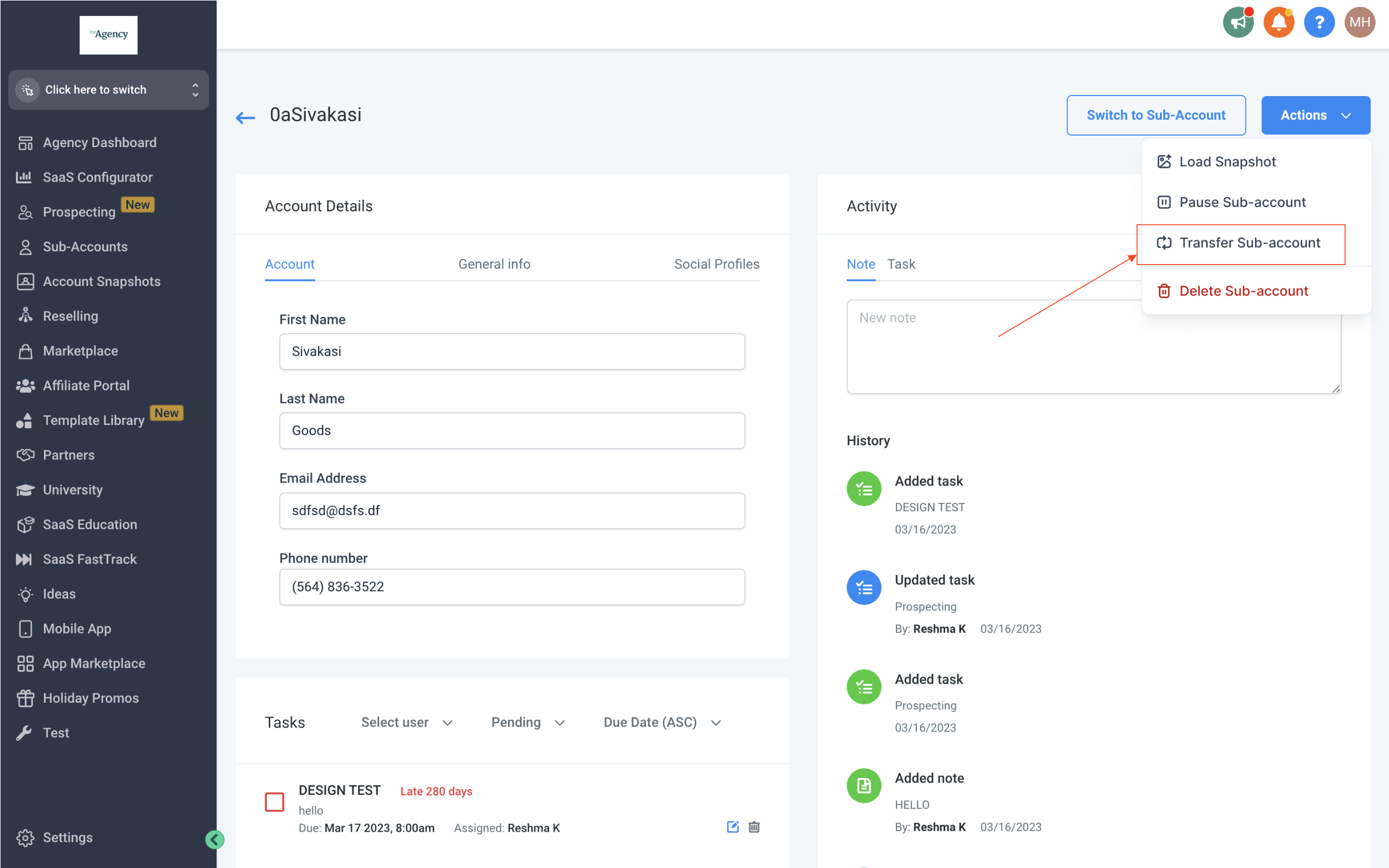
- Choose Actions > Transfer Subaccount.
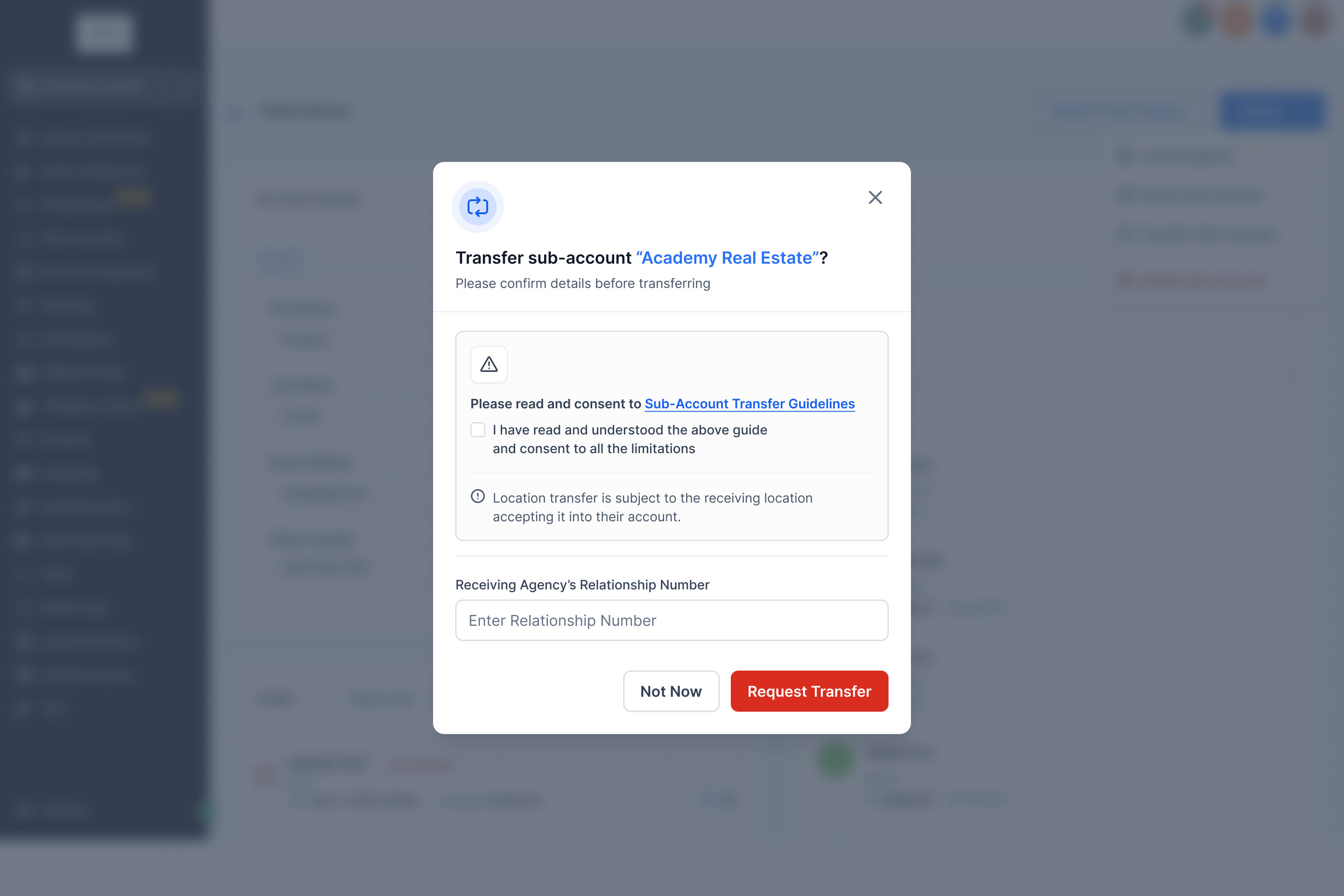
- Enter the Relationship Number of the receiving agency.
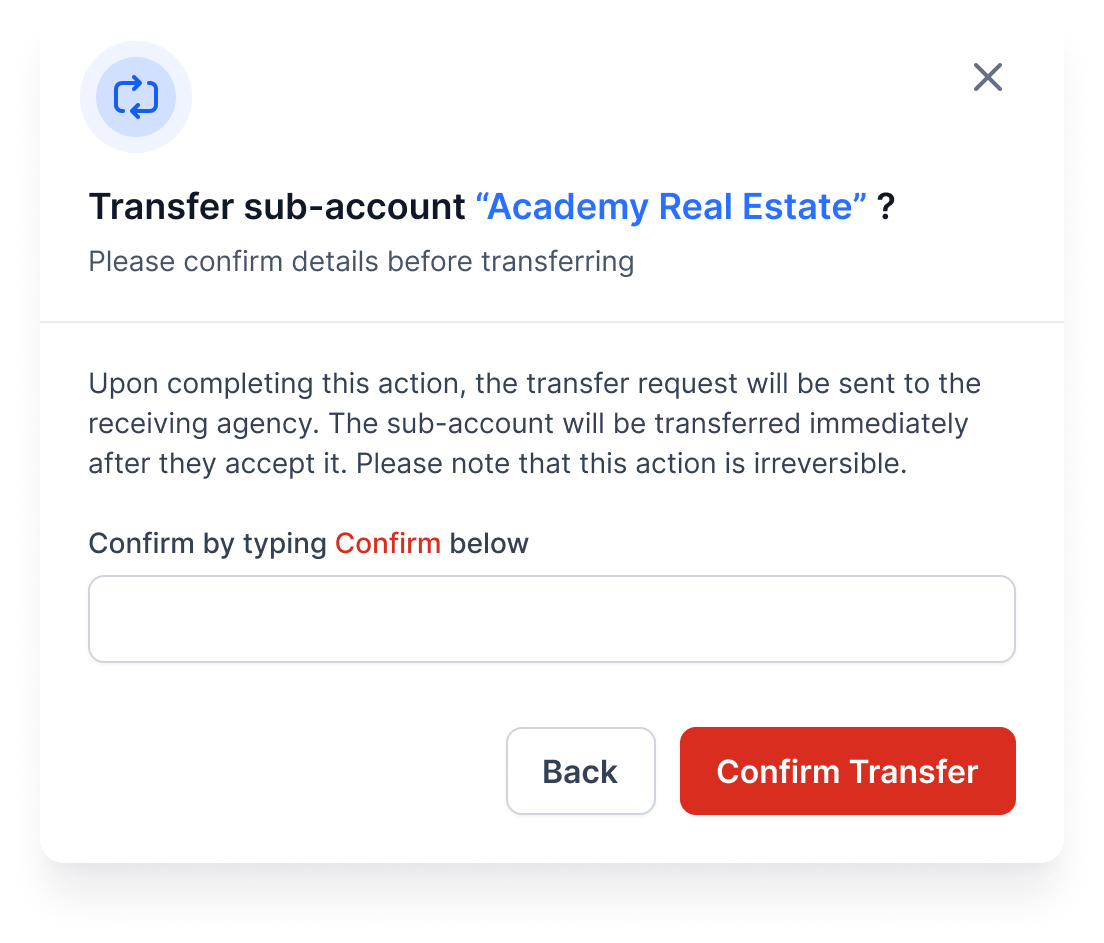
- Confirm the action to send the transfer request.
Track or cancel a transfer request
- Go to Agency Level > Subaccounts and select the Subaccount Transfers option.
- Open the Send tab to see pending transfer requests.
- Click the 3 Dot Menu on a request and choose Cancel Request.
Receive and approve a subaccount transfer
- Open the email notification and click the Review Request button, or go to Agency Level > Subaccounts and select Subaccount Transfers.
- On the Transfer Requests page, click Approve to complete the transfer.
05What it looks like in HighLevel
06Things to know before you rely on it
- Only the Agency Owner or an Agency Admin with explicit transfer permission can create or approve requests.
- A transfer moves the entire subaccount; partial or merged transfers are not supported.
- Phone numbers transfer automatically only when both agencies use LC Phone; otherwise coordination with Twilio is required.
07If something goes wrong
- Cannot access the Subaccount Requestor Form or encounter errors during the transfer process. Contact HighLevel Support for assistance.
08How it connects to the rest of HighLevel
- Bulk subaccount transfer guide Bulk transfer
- Eject subaccount to a new agency Eject transfer
- HighLevel pricing and plans Pricing
Michael's take

A subaccount transfer lets you move a client’s entire account to another agency, keeping contacts, conversations and history together so the new agency can continue work without rebuilding the data.
If the client only needs a few records moved or you are looking to merge two accounts, this feature won’t help. It also won’t work if the receiving agency lacks the needed compliance add on or capacity, so you may need to work with support.