
01Who this is for
- Account administrators who add or edit payment methods need the card information to stay valid to keep the account active.
- Team members responsible for subscription payments must ensure the card ZIP code matches the bank statement to avoid interruptions.
02ZIP code check failed for your card, explained
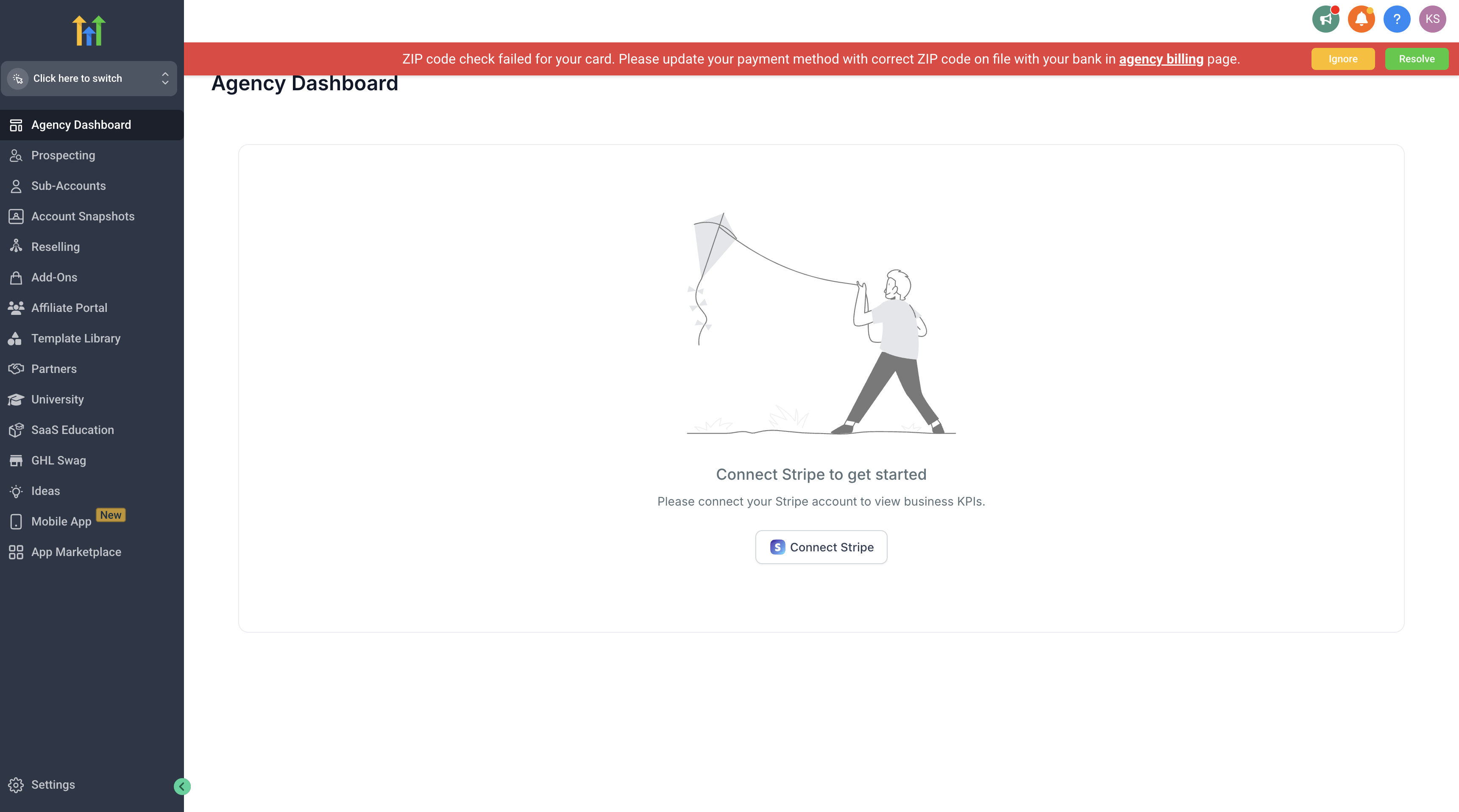
The platform checks the ZIP code supplied with a payment method against the code on file with the payment provider. If the two values differ, a banner appears that blocks further payment use. This check adds a security layer against stolen card use.
The check runs when a card is added or edited in the Billing area. The error stops the card from being saved until the ZIP code matches the one on the bank statement. Updating the ZIP code on the card resolves the banner.
03How businesses use ZIP code check failed for your card
- Digital marketing agency. An agency adds a new client credit card for ad spend. The staff opens the Billing page, edits the payment method, and enters the correct ZIP code that appears on the card’s statement. The banner disappears and the agency can continue purchasing media.
- SaaS startup. The startup updates its subscription card after a team member moves. In the payment tab the startup clicks Add New Card, re enters the same card number and the new ZIP code, which replaces the old card and clears the error.
- Coaching practice. A coach receives a new business credit card. The coach goes to the Billing page, selects the edit icon, adds the card, and types the ZIP code that matches the statement. The platform accepts the card and the warning banner is removed.
04How to set up and use ZIP code check failed for your card in HighLevel
Update ZIP code on card
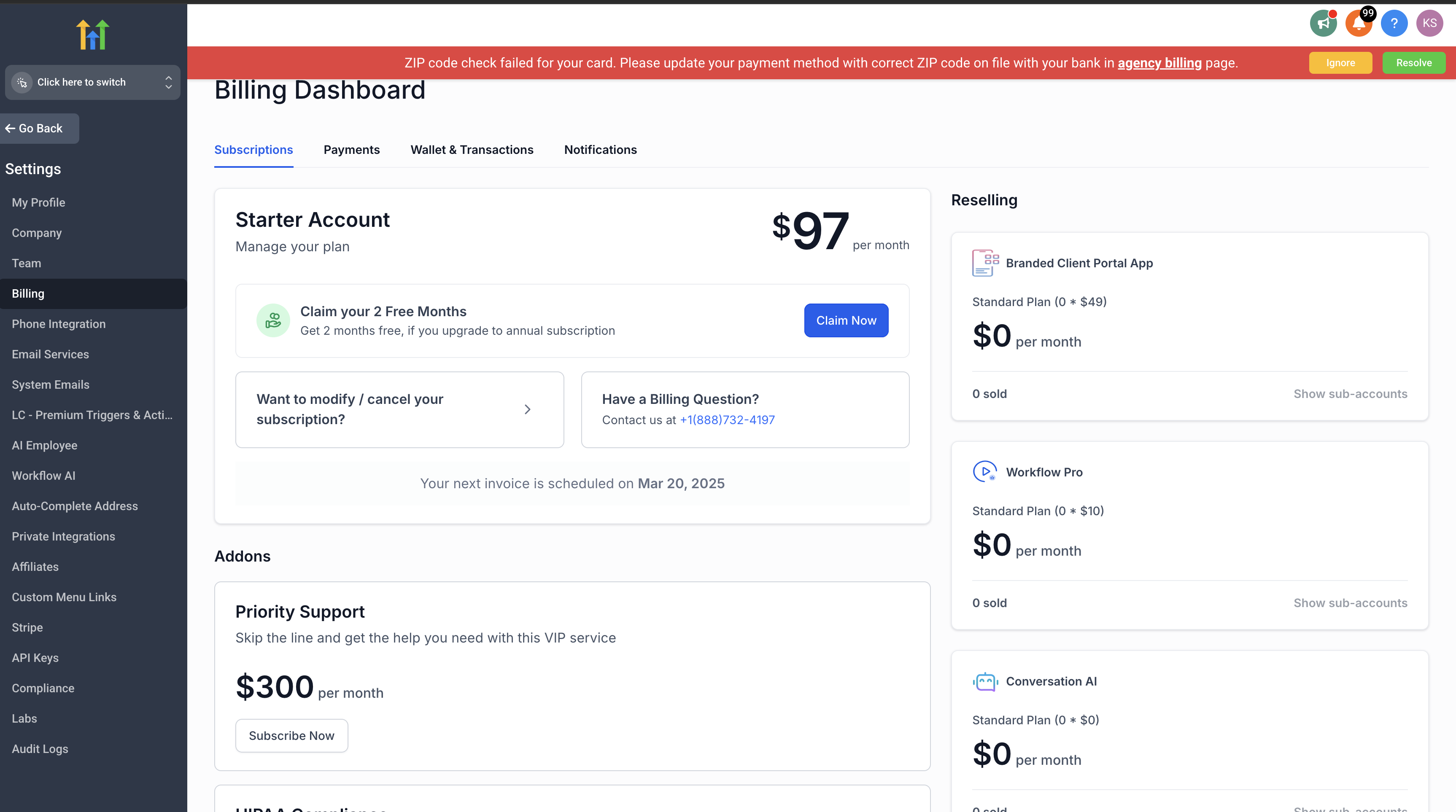
- Open the Billing page in your HighLevel account.
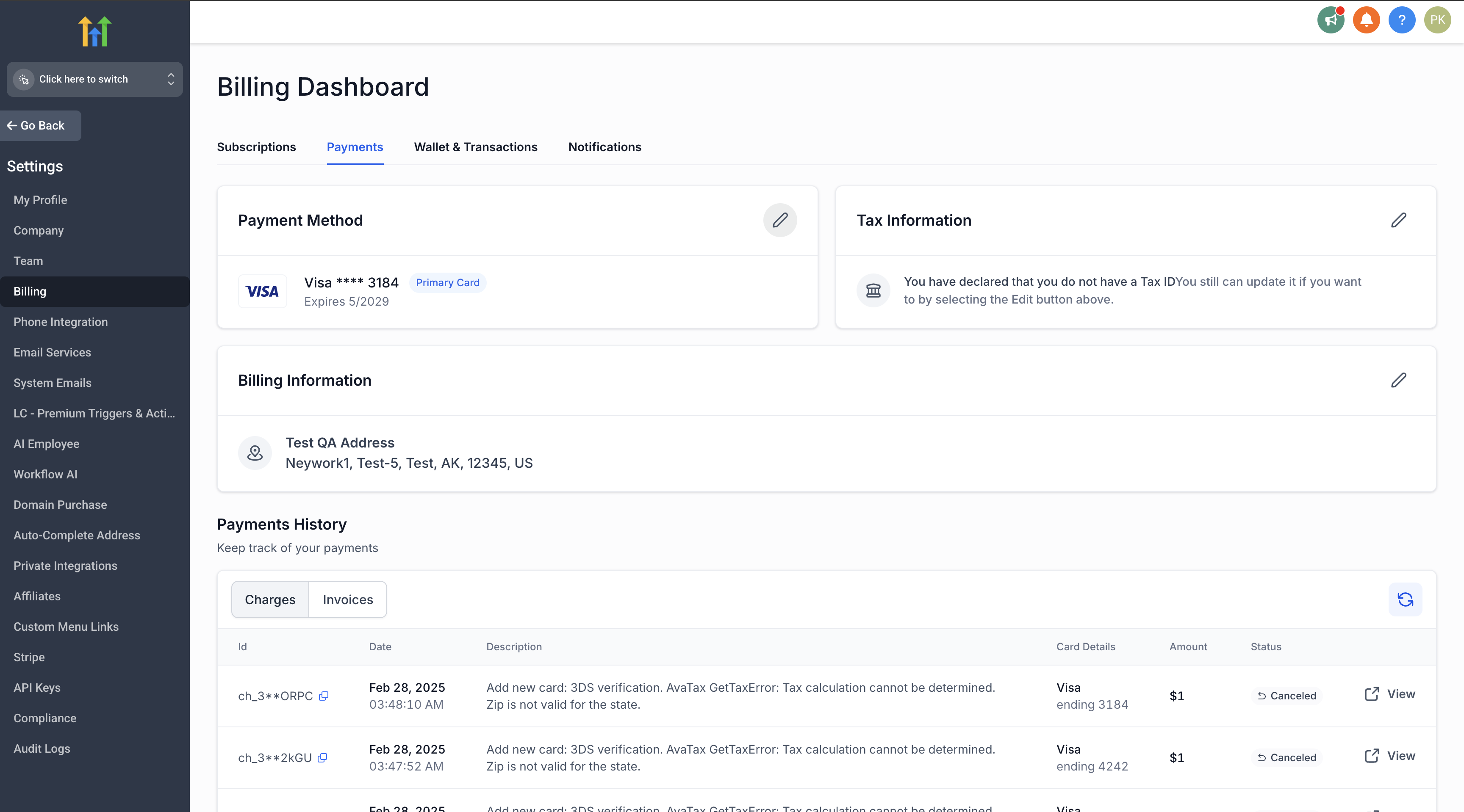
- Select the Payment tab.
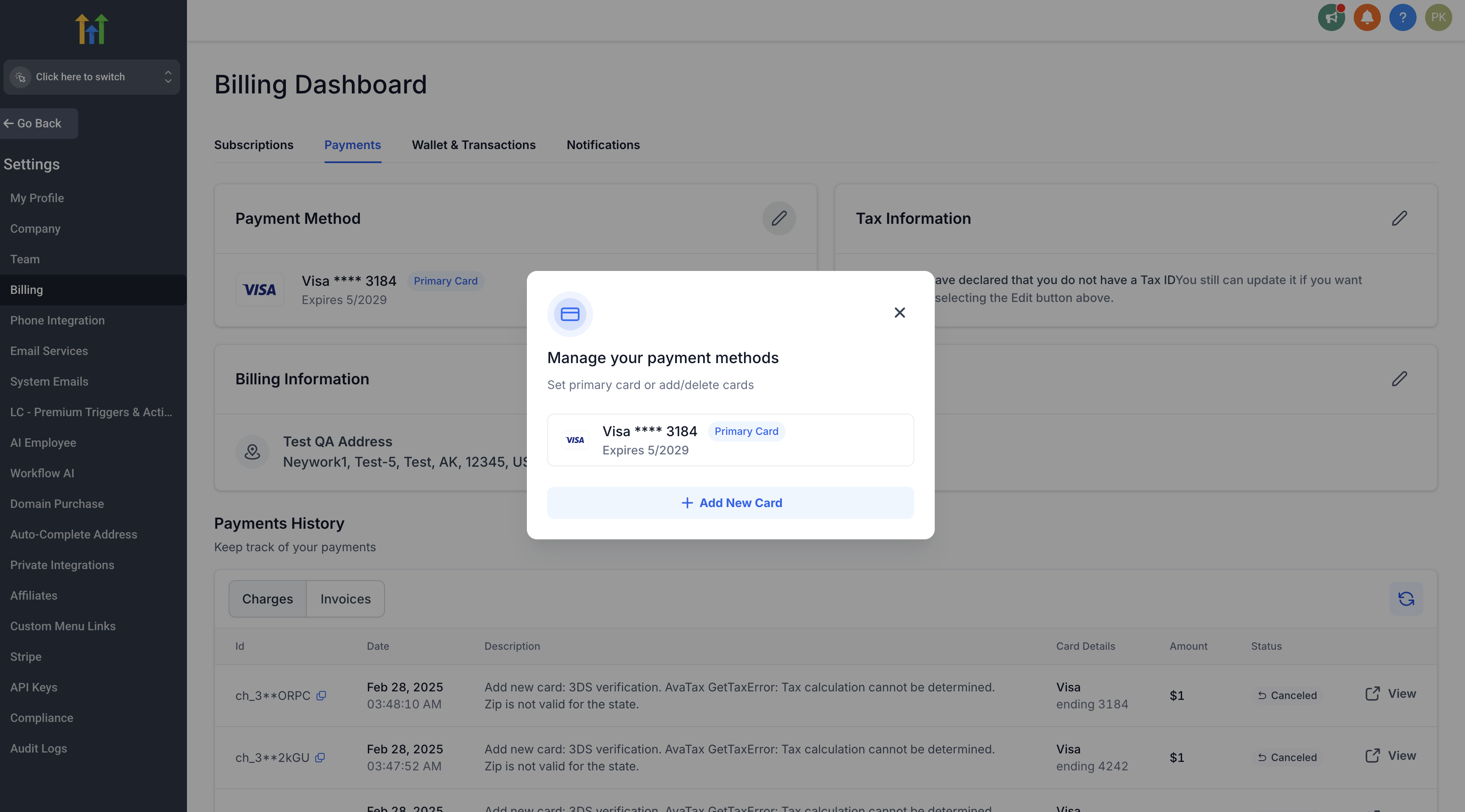
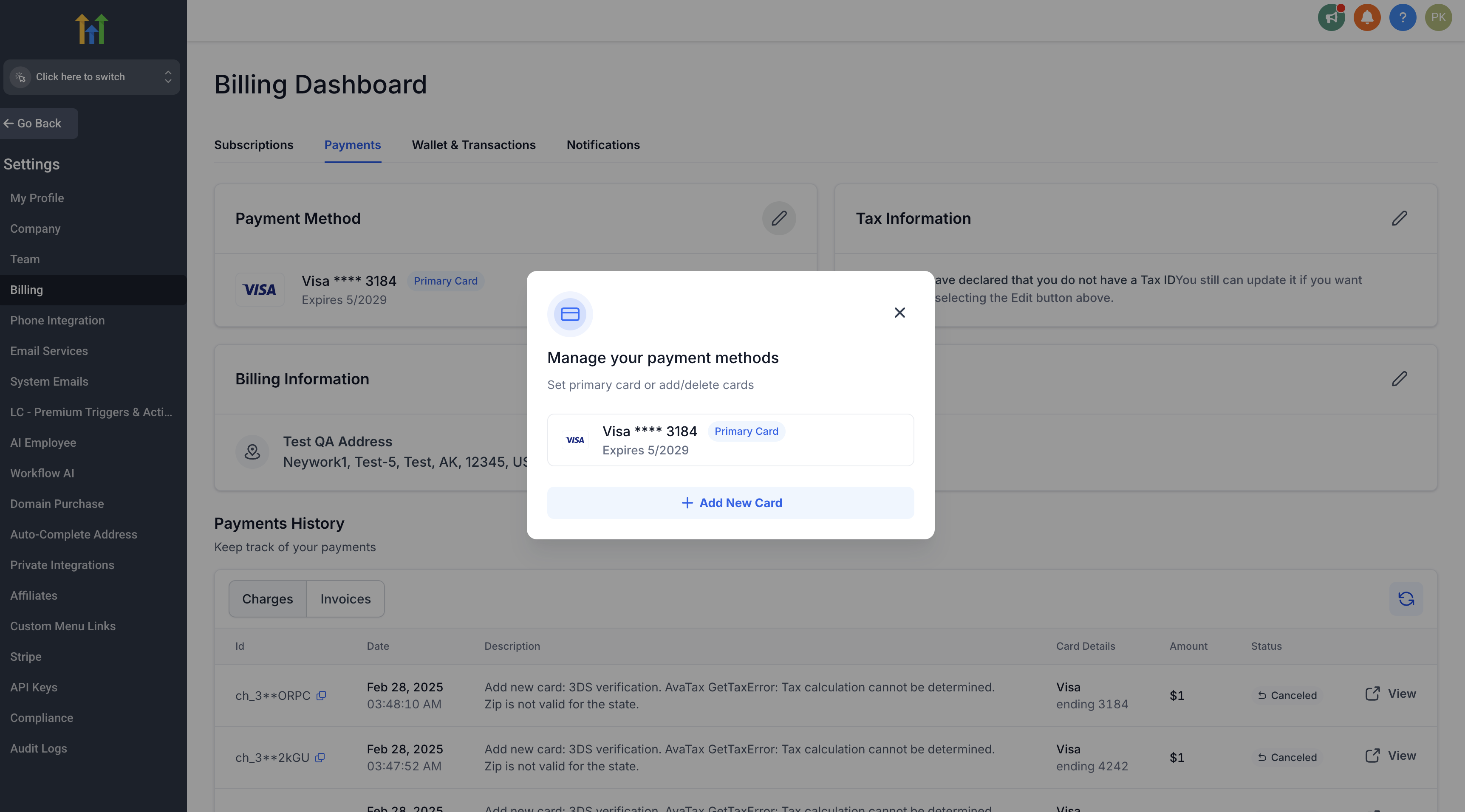
- Click the edit icon next to the current payment method.
- Choose Add New Card.
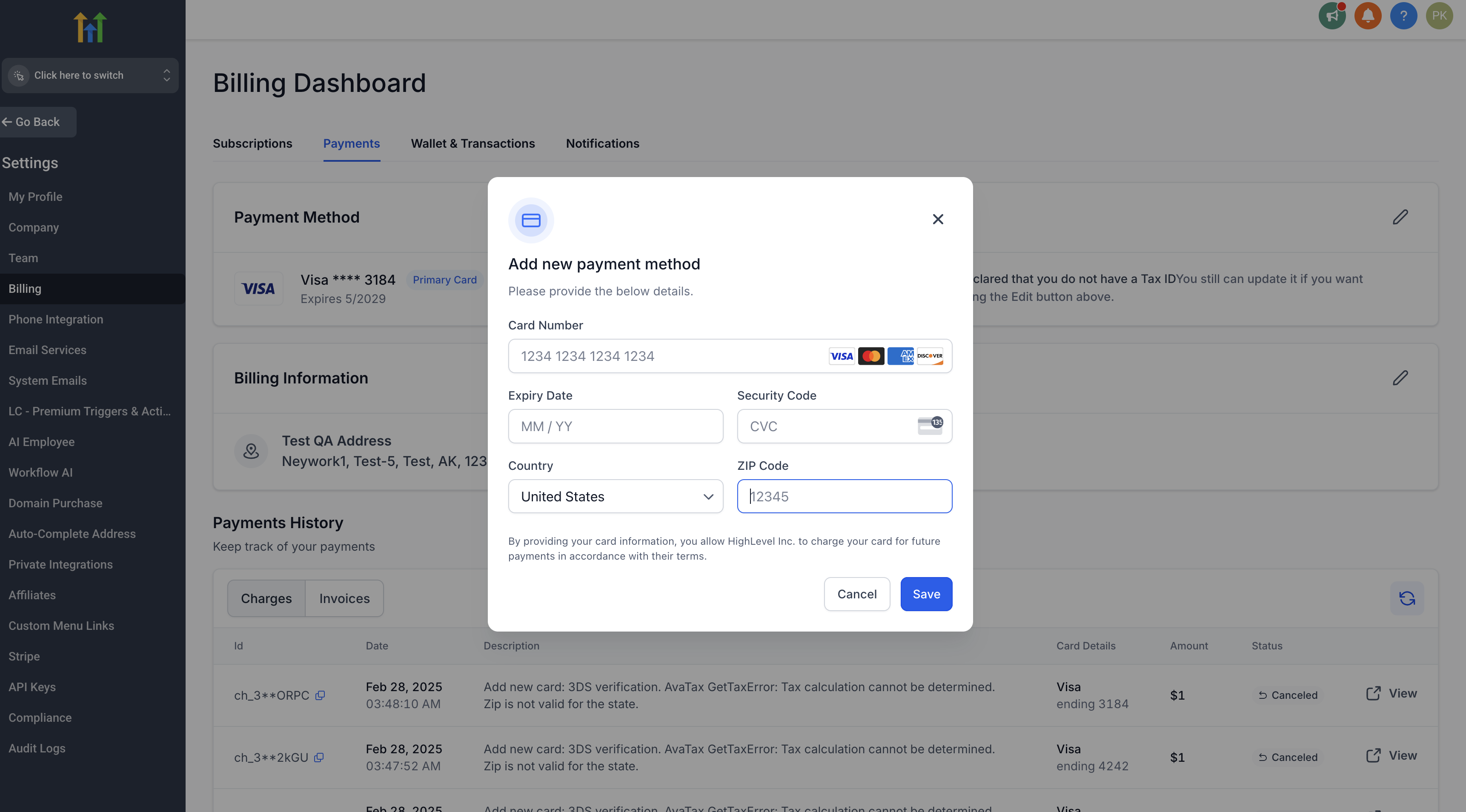
- Enter the card number and the ZIP code that appears on the bank statement.
- Save the changes; the new ZIP code replaces the old card if the number is unchanged.
05What it looks like in HighLevel
06Settings that matter
- ZIP code. Controls the postal code stored with a card; it must match the code on the card’s statement for the payment provider to accept the method.
07Things to know before you rely on it
- The ZIP code that must be updated belongs to the card details, not the billing address ZIP code.
- If the card number stays the same and only the ZIP code changes, the new entry replaces the existing card record.
08If something goes wrong
- Error persists after entering the correct ZIP code. Raise a Support Ticket and attach a snippet of the bank statement showing the last four digits of the card and the ZIP code.
09How it connects to the rest of HighLevel
- Explore other Logic & Fulfillment tools All Logic & Fulfillment features
- Review HighLevel pricing and plan options HighLevel pricing and plans
- Start a free trial to test payment updates 30 day trial
Michael's take

Michael ReimerFounder of CRM Pros, HighLevel Commander and Certified Admin
I find it handy to update the ZIP on the card when this banner appears. It’s a quick fix.
If the banner persists, a short support ticket with a bank statement snippet usually gets it sorted.
Get More InformationOpens on HighLevelPublished November 2, 2026 · Updated November 17, 2026