
01Who this is for
- Marketers who run time limited promotions can restrict scans to a set number, preventing over use.
- Event planners can schedule QR codes to become active only during event hours and expire afterward.
- Service providers offering limited access resources can enforce one time or limited scan redemption without reissuing codes.
02Dynamic QR code usage limits, explained
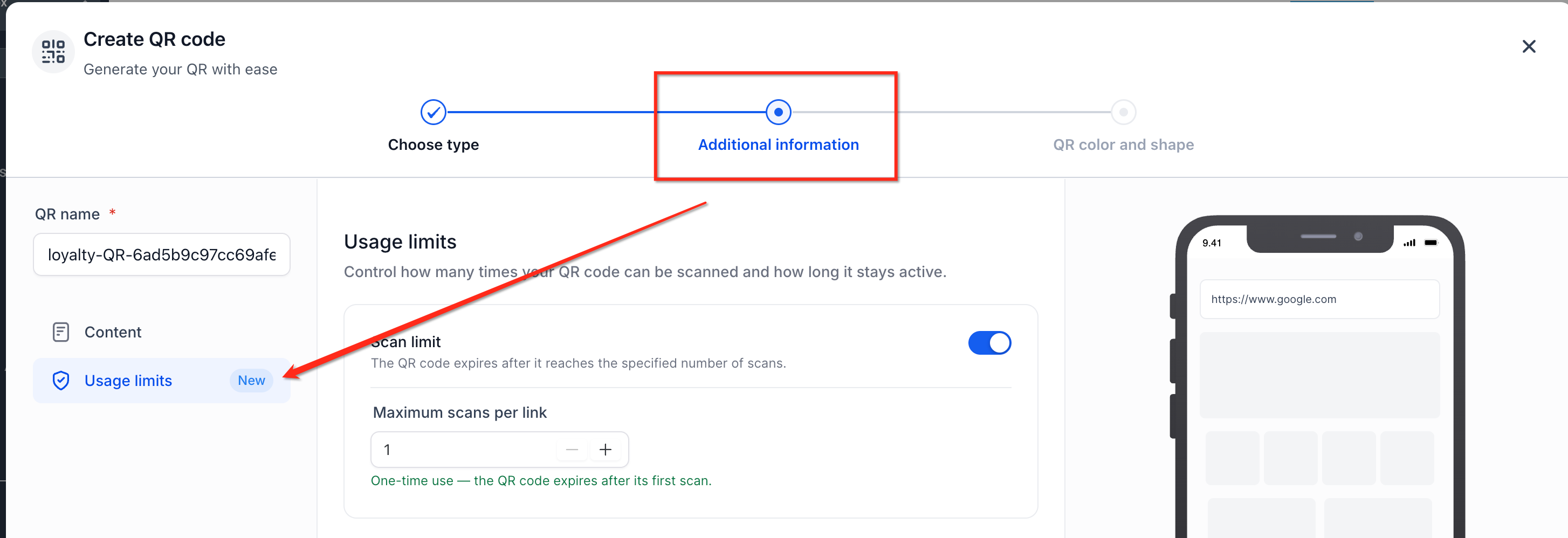
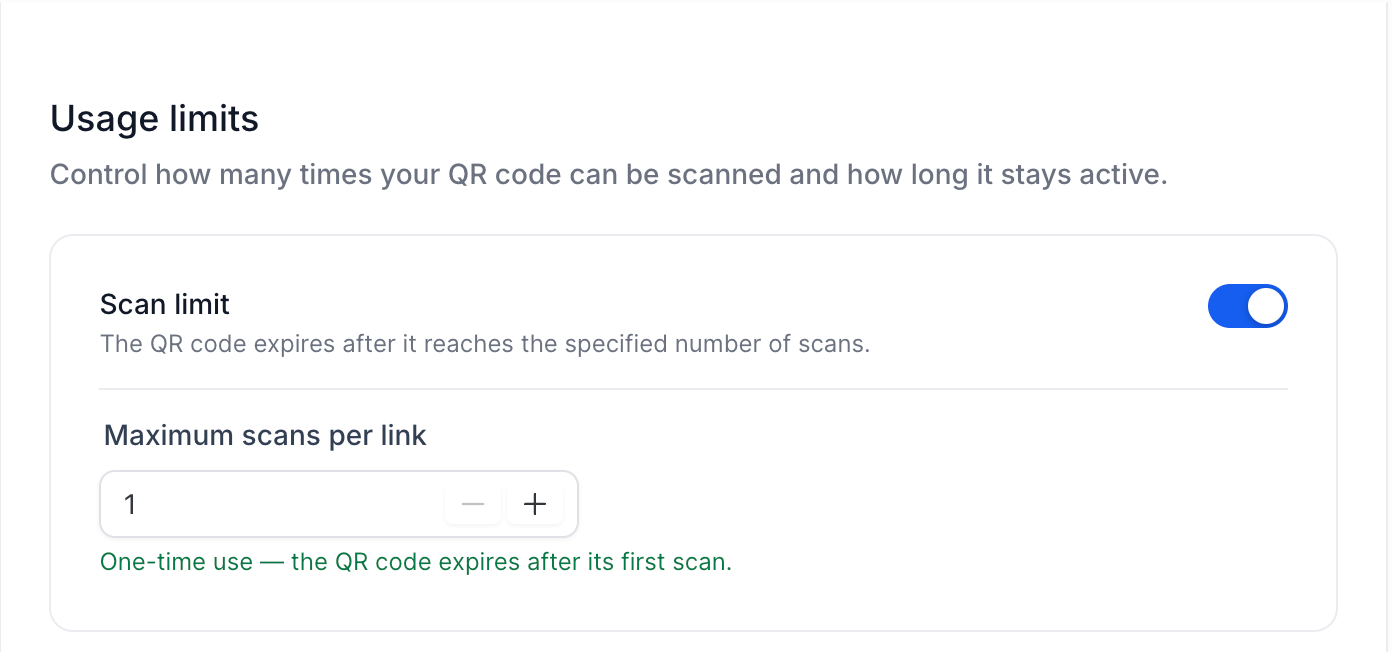
The feature adds usage controls to any dynamic QR code generated in HighLevel. You can define a maximum number of scans, a duration that starts when the code is created, or a start and end date window. The platform checks these rules each time the code is scanned and blocks access once a limit is reached or the period ends.
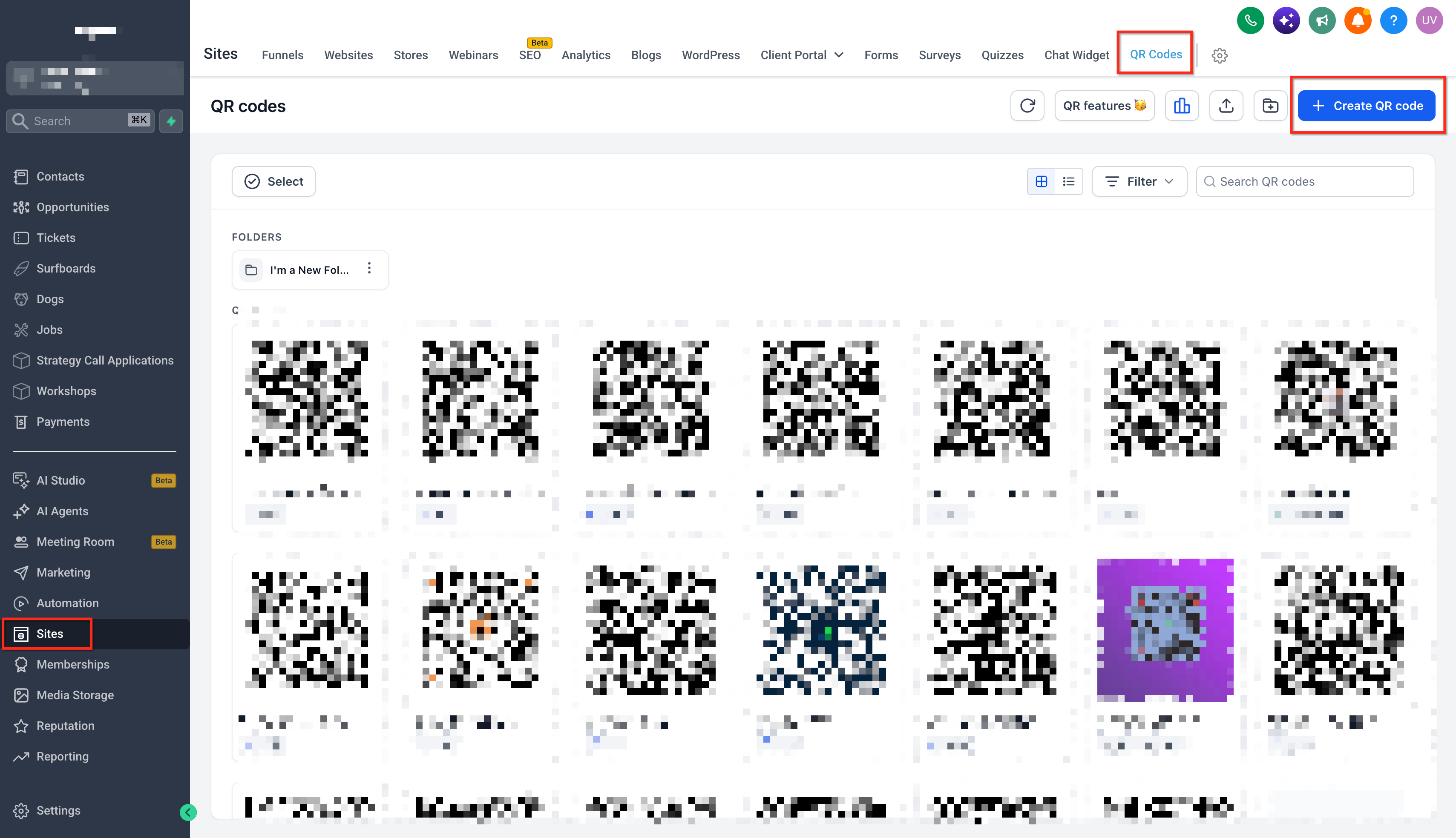
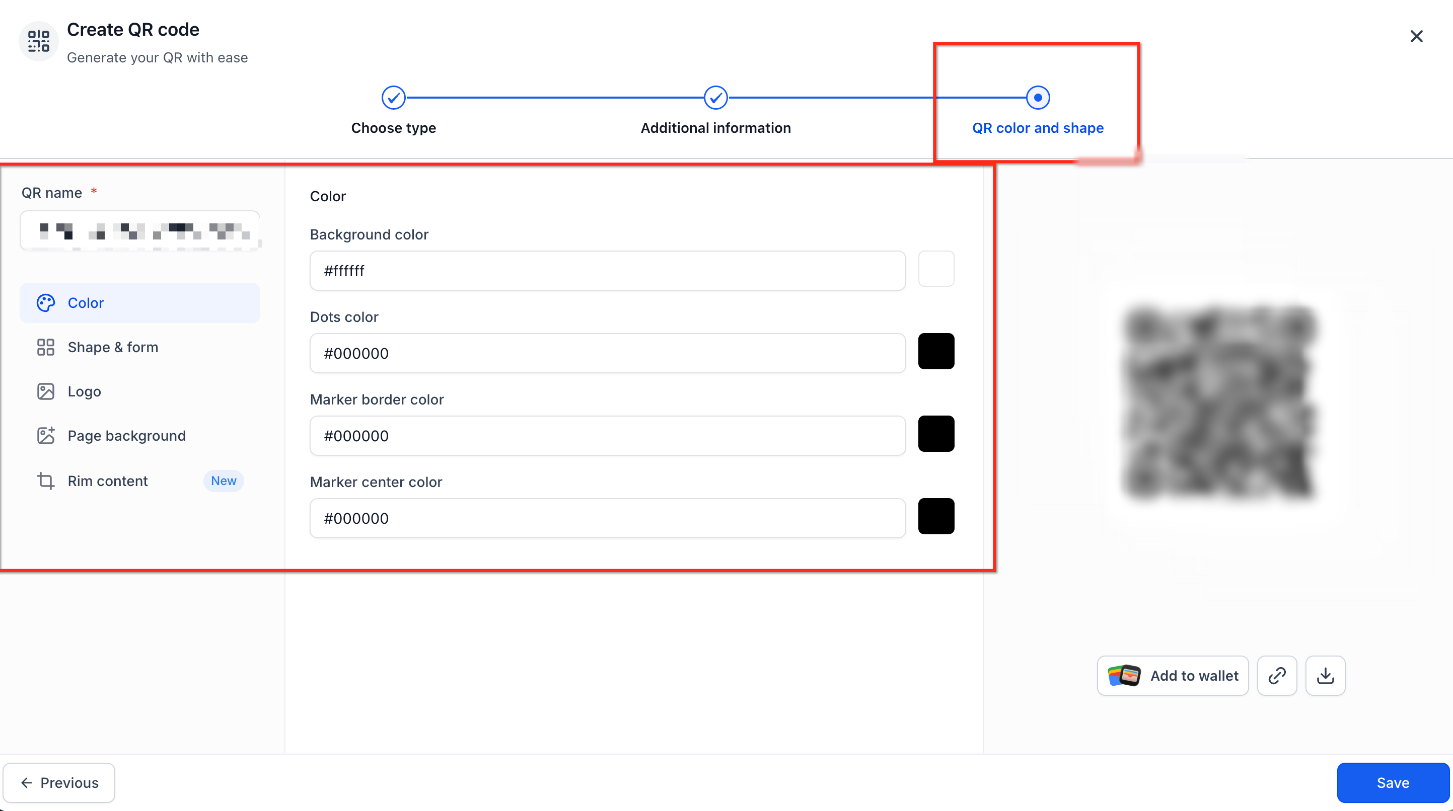
Restrictions are stored on the server, not in the image, so updating a limit or expiration does not require a new QR print. The QR Code Builder, found under Sites > QR Codes, contains all settings in clearly labeled sections and shows status tags, Limited for active restrictions and Inactive for codes outside their schedule.
All settings respect the timezone you select, and the system automatically handles daylight saving changes. Scanners see an explanatory message when the code is no longer valid.
03How businesses use dynamic QR code usage limits
- Retail promotion. Create a QR code that redirects to a discount page, set a scan limit of 100, and publish the image on flyers. When 100 customers scan the code, the platform shows a message that the promotion has ended, without needing new flyers.
- Conference check in. Generate a QR code for attendee verification, choose a date range expiration that matches the conference dates, and set the appropriate timezone. Scanners can only use the code during the event hours; attempts before or after show an inactive notice.
- Online course access. Produce a QR code linking to a private video, set a one time scan limit, and share the code with a single student. After the student scans it, the code automatically becomes unavailable, protecting the content from further sharing.
04The numbers and rules that matter
- 13 supported languages for labels and tooltips.
- Scan limits can be set to a specific number, such as 1, 10, or 100, as shown in examples.
05How to set up and use dynamic QR code usage limits in HighLevel
Configure scan limits and expiration for a dynamic QR code
- Navigate to Sites > QR Codes in your HighLevel subaccount.
- Click Create QR Code or select Edit for an existing code.
- Enter the QR code name and the destination URL.
- Open the usage limit section.
- Set the maximum number of scans allowed.
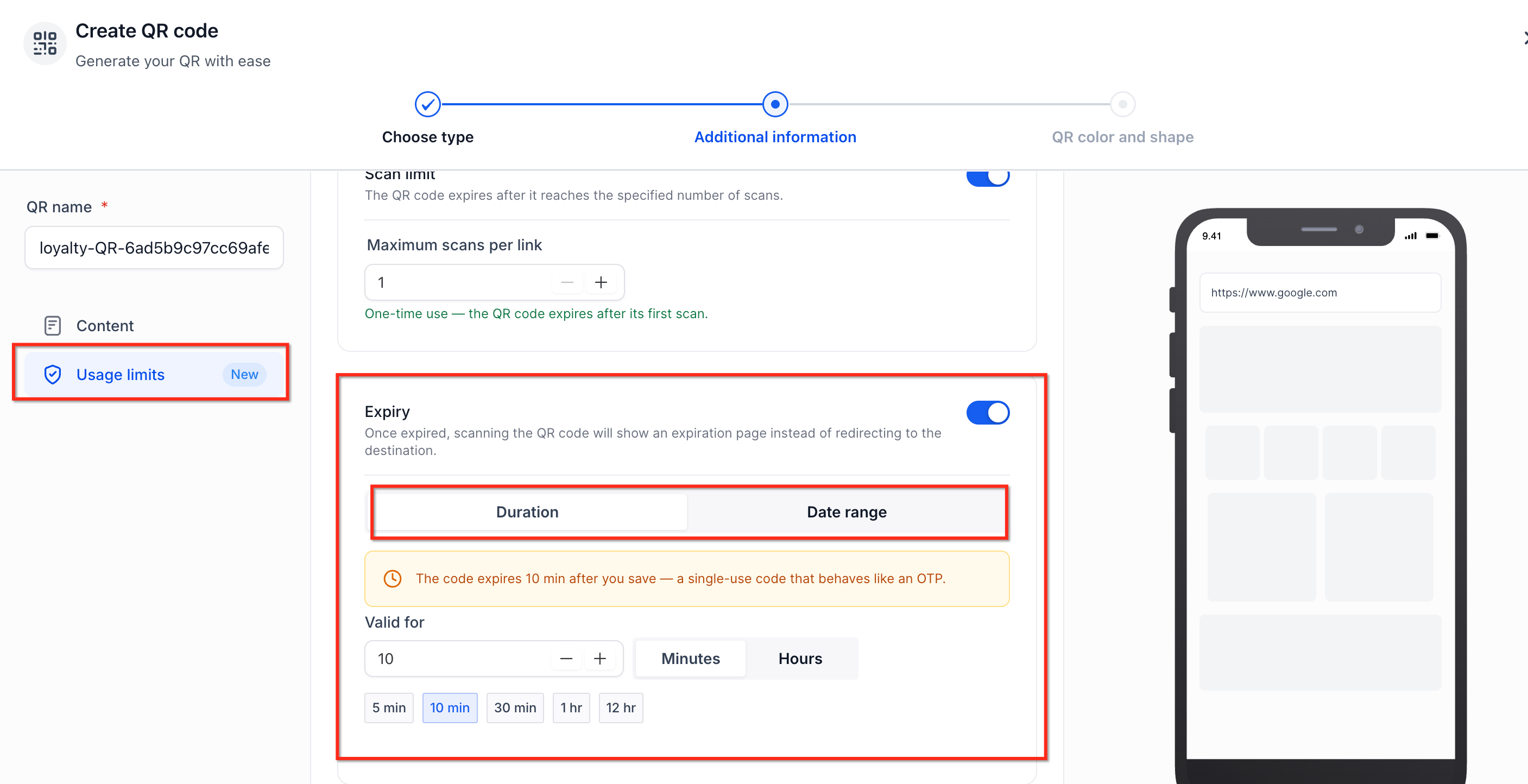
- Choose an expiration method, either Duration or Date Range.
- If Duration, type the length of time the code stays valid.
- If Date Range, pick start date, start time, end date, end time and the timezone.
- Click Save, then download the QR code file.
- Return to Sites > QR Codes, locate your saved QR code, and review the Limited or Inactive status tags.
- Hover over a tag to view its restrictions.
- Important: Updating scan limits or expiration does not require reprinting the existing QR image, but changing the underlying API or branded domain may invalidate the QR code.
06What it looks like in HighLevel
07Settings that matter
- Scan Limit. Defines the total number of scans a QR code will accept before becoming unavailable.
- Expiration Method. Selects whether the QR code expires after a set duration or at a specific date range.
- Duration. Specifies how long the QR code remains valid starting from its creation time.
- Start Date and Time. Sets the moment when a date range QR code begins accepting scans.
- End Date and Time. Sets the moment when a date range QR code stops accepting scans.
- Timezone. Determines which timezone is used for the date range schedule, independent of the scanner’s location.
08Things to know before you rely on it
- The duration countdown starts when the QR code is created, not when it is first scanned.
- Date range scheduling follows the timezone selected during configuration, regardless of where the code is scanned.
- Changing the underlying API or branded domain can invalidate an existing QR code even if its usage restrictions are still valid.
- A Limited status indicates active usage restrictions; an Inactive status means the code is currently not accepting scans.
09How it connects to the rest of HighLevel
- Explore all LevelUp 2026 features for more QR code tools LevelUp 2026 features
- Review HighLevel pricing and plan options Pricing
- Start a 30 day trial to test QR code limits 30 day trial
Michael's take

Dynamic QR code usage limits feel risky for critical access points because a change to your API or branded domain may affect the QR code. When they work as intended, they provide control over promotions, event entry, and resource distribution without needing to reprint codes.