
01Who this is for
- Founders who need AI agents to collect competitor data from websites and compile reports, keeping the process within the platform.
- Agency owners managing multiple client accounts, allowing agents to fill out web forms or generate client deliverables without exposing passwords.
- Small business operators who want AI to create spreadsheets or process data using scripts while maintaining approval oversight.
02Computer for Managed Agents, explained
Computer for Managed Agents is a capability that gives AI agents a virtual computer environment inside HighLevel. The environment includes three tools: a Browser for navigating web pages, a Files workspace for creating and editing documents, and a Terminal for running scripts. Agents can use these tools during a chat conversation or a manual run.
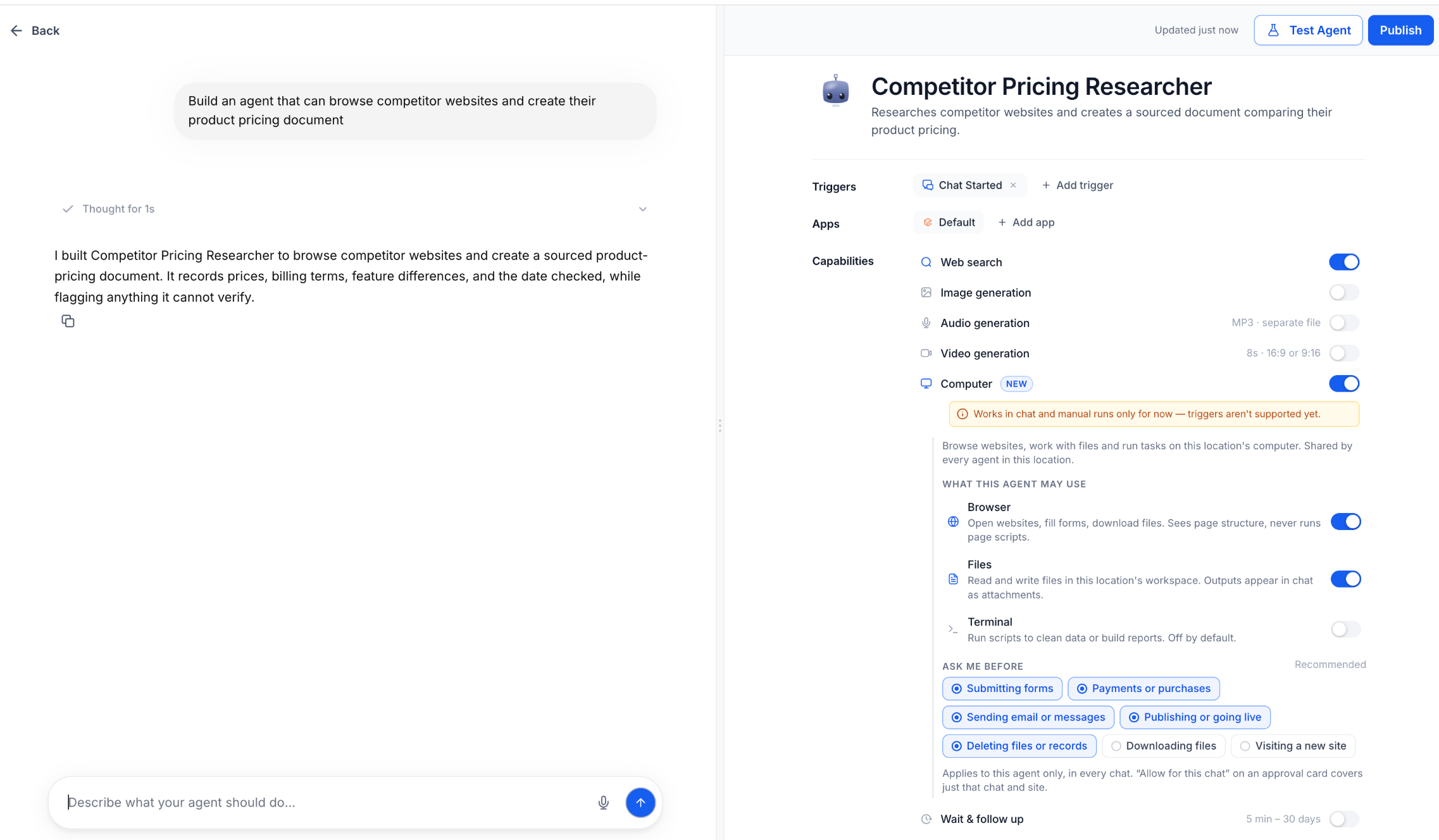
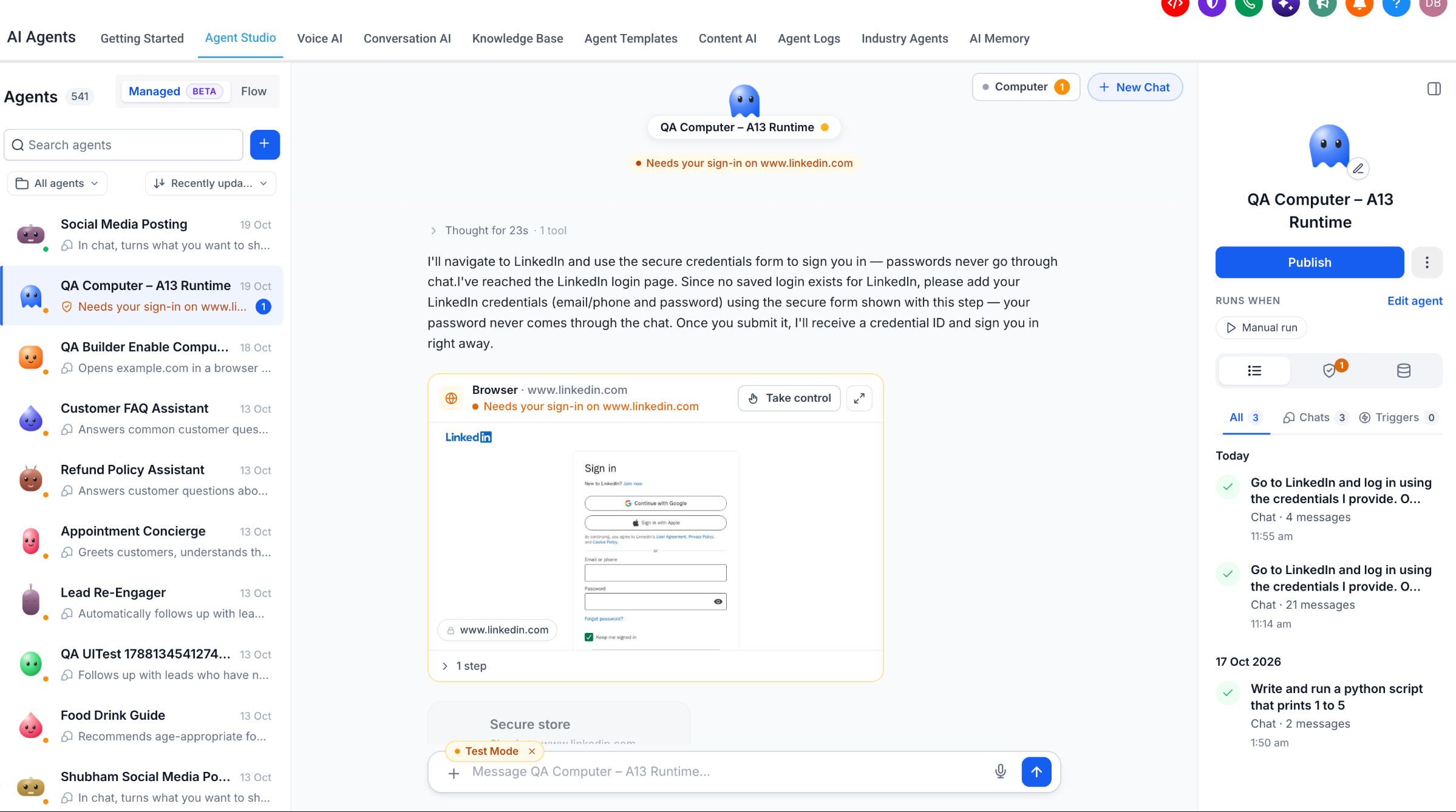
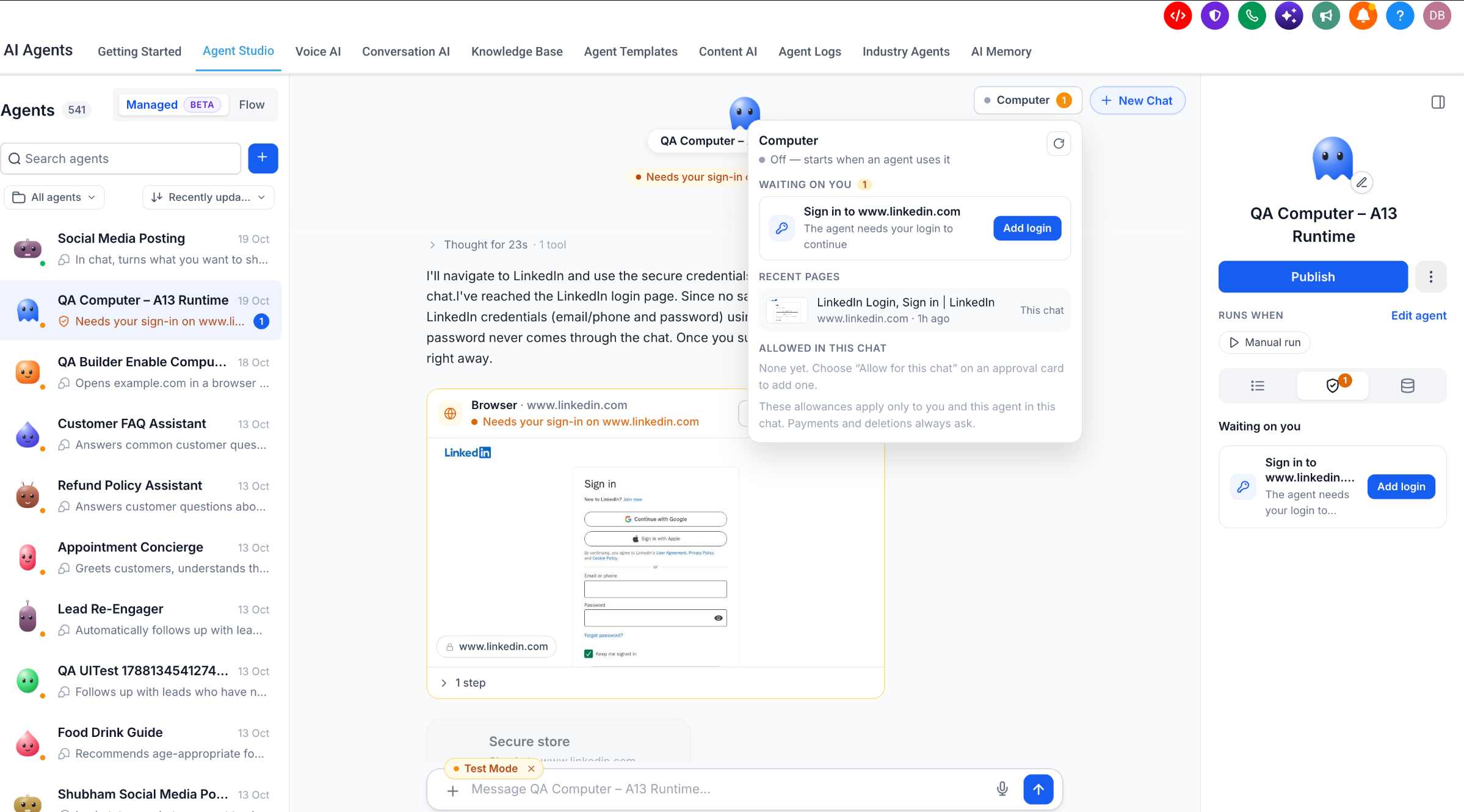
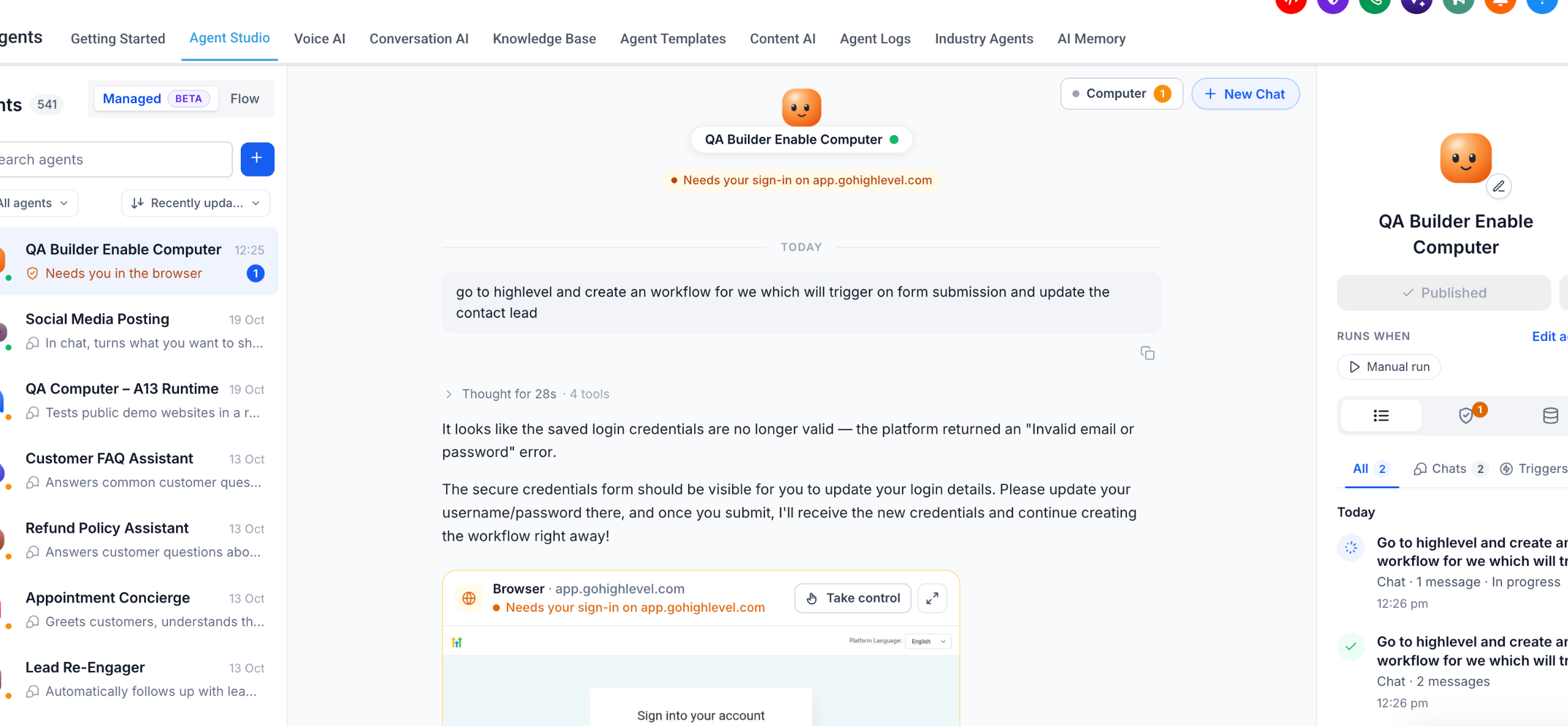
The feature is controlled through the Managed Agent’s configuration. You enable the Computer toggle, select which of the three tools the agent may use, and set Ask Before permissions for actions such as form submissions, payments, email sending, publishing, deletions, downloads, and new website visits. Approvals appear in the conversation or the Waiting on You panel, where you can allow or decline them. Secure website sign ins let agents authenticate without exposing passwords.
Computer works only for direct chat interactions and manual testing. It does not run when a workflow trigger fires. The shared computer workspace is at the subaccount level, so files persist across conversations and the environment sleeps when idle.
03How businesses use computer for Managed Agents
- Ecommerce store. The store can enable Browser and Files for an agent to log into a supplier portal, download product catalogs, and generate a spreadsheet of inventory levels. The agent requests login credentials through the secure form, and the file is saved in the shared workspace for later use.
- Real estate agency. An agent can activate Browser and Terminal to navigate listing sites, extract property details, run a Python script that calculates mortgage estimates, and produce a PDF report. The agency reviews the approval request for accessing the new site before the agent proceeds.
- Marketing consultancy. The consultancy enables Files for an AI agent to draft a client brief, then uses Browser to pull competitor ad copy from public pages. The agent creates a document in the workspace and presents it for approval before the consultant publishes the content.
04Before you start
- Log in to a HighLevel subaccount with access to AI Agents.
- Ensure the Managed Agents feature is available in the account.
- Create or identify a Managed Agent that will receive the Computer capability.
05How to set up and use computer for Managed Agents in HighLevel
Set up Computer for a Managed Agent
- Log in to your HighLevel subaccount.
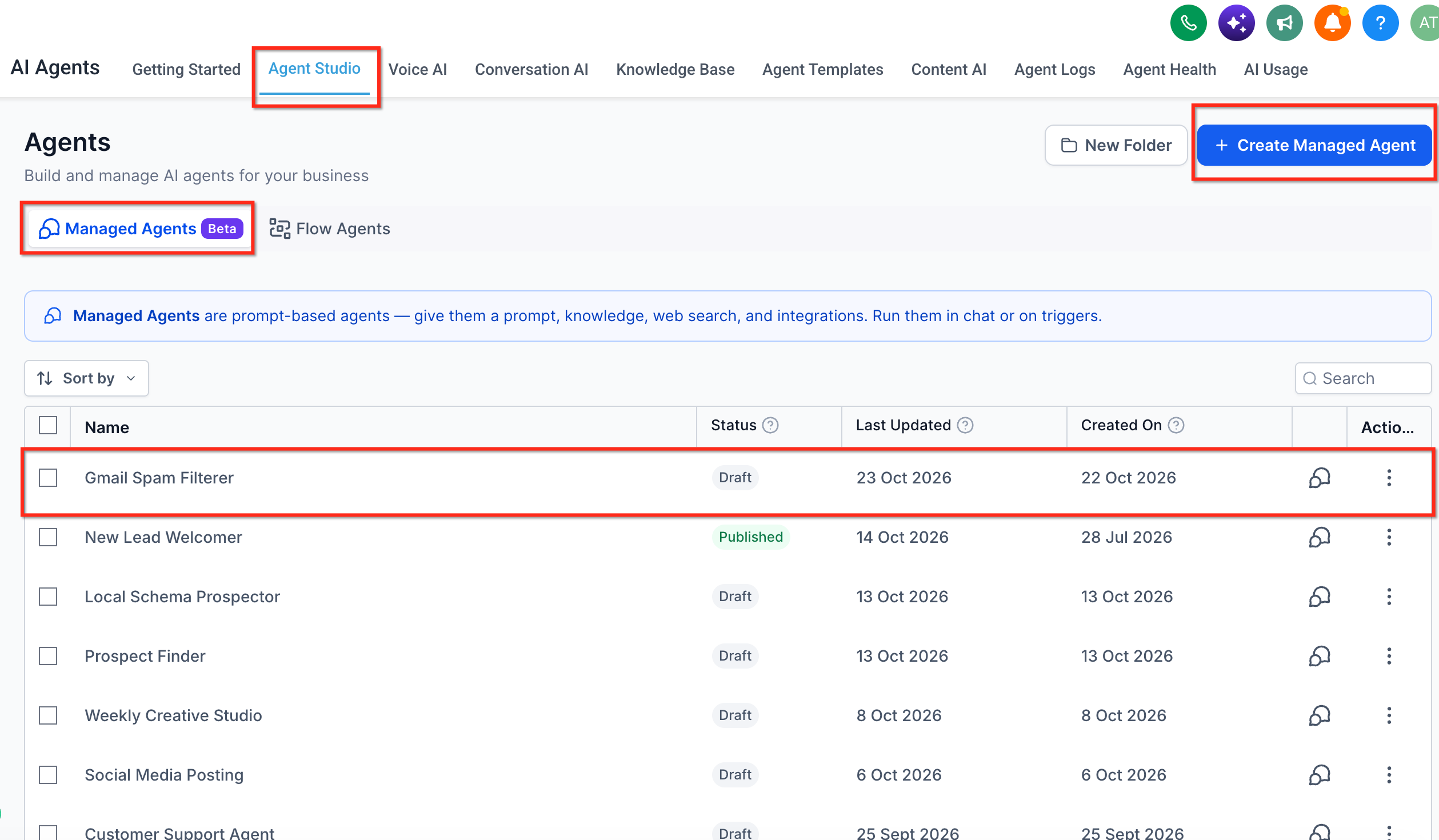
- Navigate to AI Agents and open Agent Studio.
- In Agent Studio, select the Managed Agents tab.
- Choose an existing Managed Agent or create a new one.
- In the agent settings, locate the Capabilities section and turn on the Computer toggle.
- Under What This Agent May Use, enable the Browser, Files, and/or Terminal tools needed for the agent’s tasks (Terminal is disabled by default and must be turned on if code execution is required).
- Open the Ask Before settings and configure approval requirements for actions such as form submissions, payments, email sending, publishing, deletions, downloads, and new website visits.
- Save the configuration, then open the agent’s chat interface to test a task that uses the enabled Computer tools.
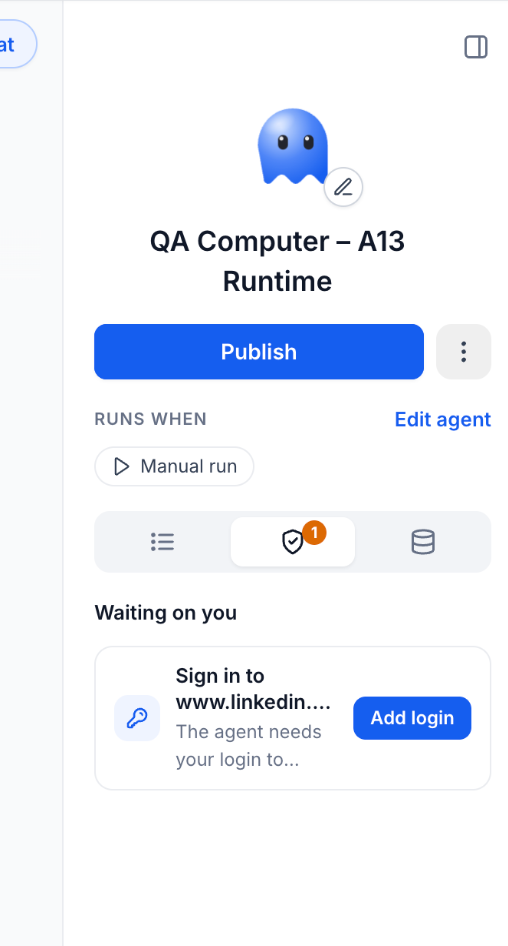
- If the agent presents an approval request, open Waiting on You, review the request, and approve or decline it; provide login credentials via the secure form when needed.
- After the task finishes, review any generated files or browser activity, then publish the agent to make it available for ongoing use.
06What it looks like in HighLevel
07Settings that matter
- Computer (NEW). Activates the virtual computer environment for the selected Managed Agent.
- What This Agent May Use. Controls which of the three tools, Browser, Files, Terminal, the agent can access.
- Ask Before. Specifies which actions require your approval before the agent can proceed, such as form submissions, payments, and new website visits.
08Things to know before you rely on it
- Computer supports only chat and manual runs; it does not work for trigger based executions.
- Terminal is disabled by default and must be enabled explicitly if code execution is required.
- Payments and deletions always require approval regardless of other settings.
- The shared computer workspace is isolated to the subaccount; other subaccounts cannot access its files.
09If something goes wrong
- Computer does not run when a workflow trigger fires. Use the agent in a chat conversation or run it manually; trigger based executions are not supported for Computer.
- Agent requests website login but credentials are missing or invalid. Open the sign in request, select Add login, and enter the correct credentials through the secure form.
- Agent cannot proceed because an action was not approved. Locate the request in Waiting on You, review it, and approve if appropriate; otherwise decline to stop the action.
10How it connects to the rest of HighLevel
- Learn how to customize the chat widget that agents may interact with during browser tasks. Chat widget customization
- Explore Conditional Logic V2 for forms that agents might fill out using the Browser tool. Conditional Logic V2
- See all LevelUp 2026 features to understand other AI capabilities that can complement Computer. LevelUp 2026 overview
Michael's take

How can I let my AI agent pull data from competitor sites without giving it unlimited access? The Computer feature lets you turn on just the Browser and Files tools, set Ask Before approval for new website visits, and keep passwords behind a secure sign in form. You keep full visibility in the Computer Panel and only approve the exact steps the agent needs.
If I were setting this up, I would begin with enabling the Browser and Files tools for a research focused agent, leave Terminal off, and test a simple price compare request. Watching the Waiting on You queue helps you gauge how often you’ll need to intervene, and the built in approval controls keep sensitive actions under your control.