
01Who this is for
- Agency owners who need a consistent sidebar across client subaccounts for easier navigation.
- Founders managing multiple internal teams and wanting each team to see only the products they use most.
- Team leads who want to reduce clutter by hiding unused products and arranging frequently used ones at the top.
02Navigation menu customization, explained
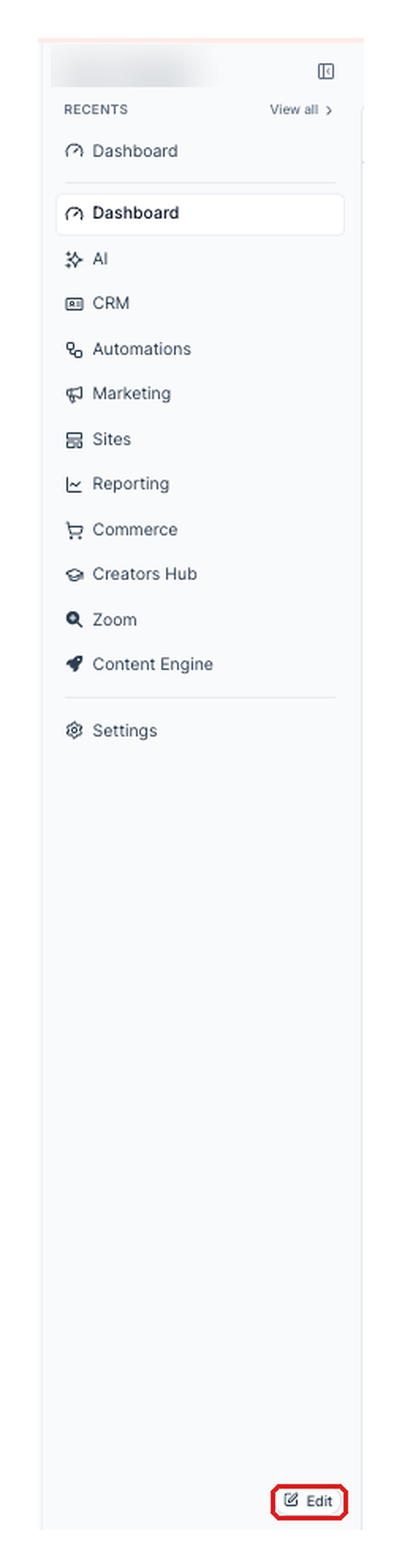
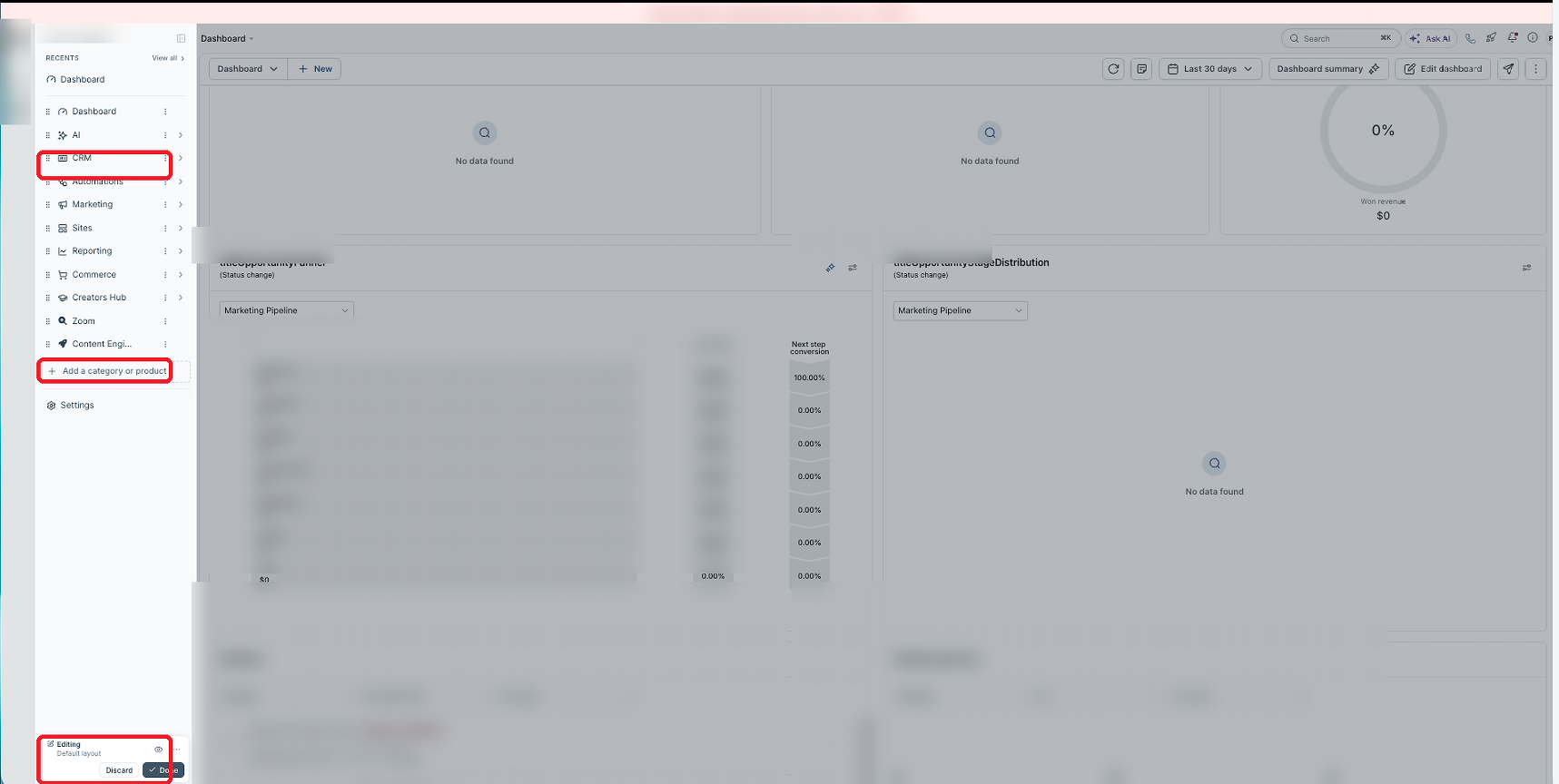
The navigation editor lives at the bottom of the left sidebar in the new HighLevel interface. When you click **Edit**, the main page dims and drag handles, three dot menus, and an Editing panel appear next to each navigation entry. From there you can rename L1 groups, change icons at any level, reorder items within their current parent, hide L1 groups or L2 products, and create new groups.
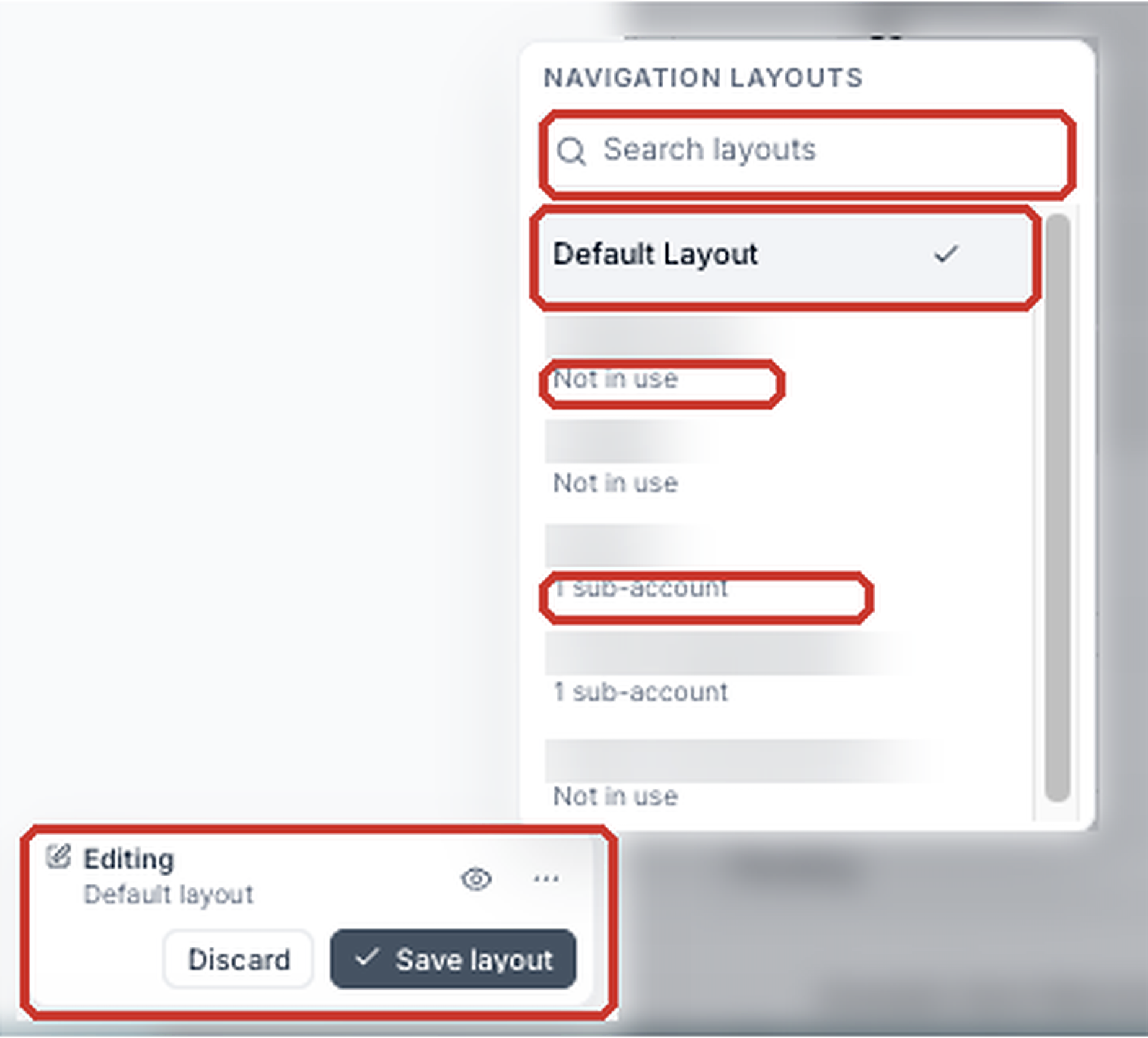
Changes are stored as a navigation layout that belongs to the subaccount, not to an individual user. The layout is shared among all users of that subaccount, although personal sections like Recents and Pinned remain unaffected. Permissions still control access to the underlying products regardless of visibility changes.
03How businesses use navigation menu customization
- Digital marketing agency. The agency admin opens the navigation editor for a client subaccount, creates a new group called "Campaign Tools", moves the Ads and Emails products into that group, and hides the unused Calendar product. The sidebar now reflects the agency’s workflow.
- SaaS startup. A startup Founder renames the default "Automation" group to "Workflows", selects a more recognizable icon, and reorders the products so HighLevel appears first. The updated layout is saved and shared with the whole development team.
- Local service business. The business manager hides the "Reports" product in the navigation because no staff need it, adds a new group named "Client Management", and places the Booking and Contacts products inside. Team members see only the relevant items.
04The numbers and rules that matter
- $97/month, Default navigation only. Customization is not included (per HighLevel's help center, checked November 2026).
- $297/month, Customize one subaccount. Reusable layouts and application across multiple subaccounts are not included (per HighLevel's help center, checked November 2026).
- $497/month, Customize all subaccounts, create reusable layouts, and apply layouts across multiple subaccounts (per HighLevel's help center, checked November 2026).
- A group name cannot duplicate another L1 group name in the same navigation.
05Before you start
- An eligible agency plan that includes navigation customization must be active.
- You must be inside the subaccount whose navigation you intend to edit.
06How to set up and use navigation menu customization in HighLevel
Locate the navigation editor
- Open the subaccount in the new HighLevel interface.
- Scroll to the bottom of the left navigation bar.
- Select **Edit** (do not choose Edit dashboard from the Dashboard toolbar).
Enter editing mode
- Click **Edit** at the bottom of the sidebar.
- The main page will dim and drag handles, three dot menus, and an Editing panel appear beside each navigation entry.
Reorder navigation groups and items
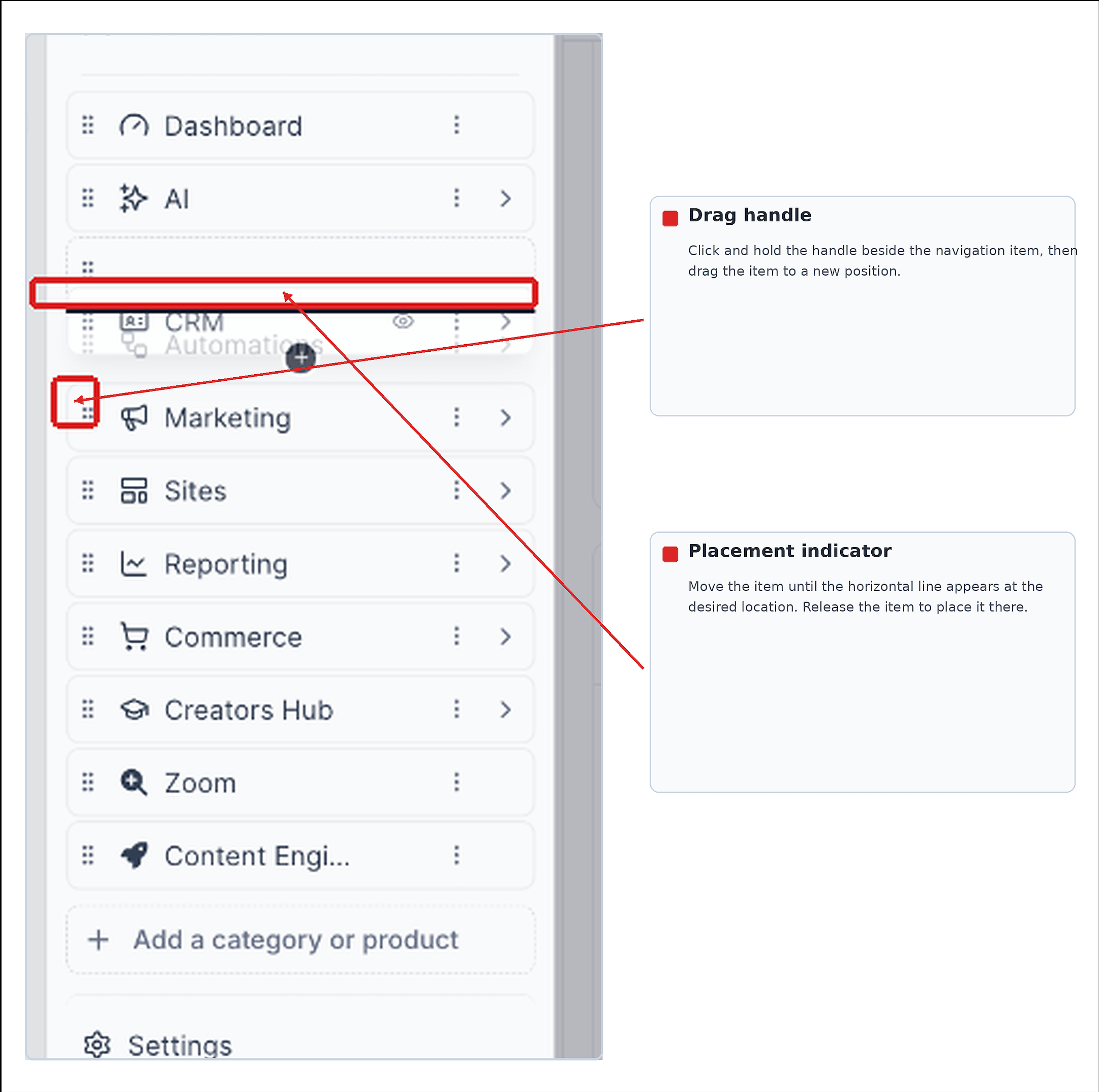
- Click and hold the drag handle next to the group or item you want to move.
- Drag the entry toward the target position.
- Watch the horizontal placement line to see where the item will land.
- Release the mouse button to drop the entry into place.
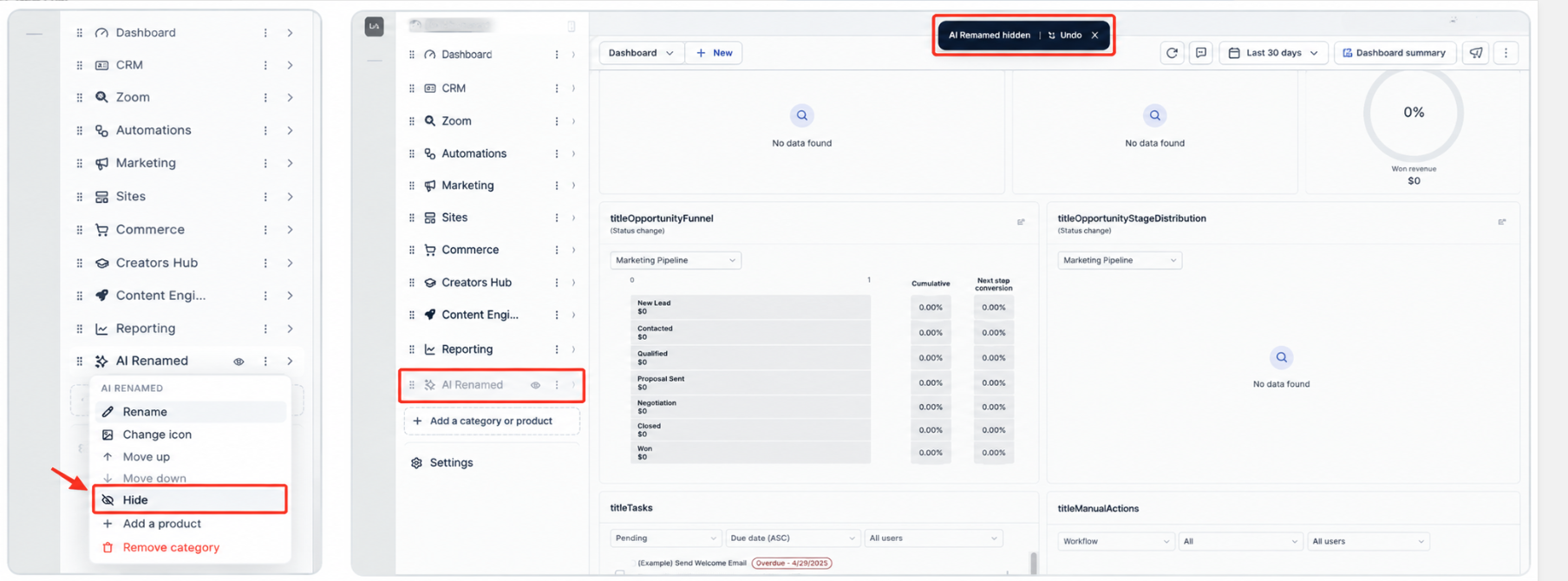
- For top level groups you can also pick **Move up** or **Move down** from the three dot menu.
Rename a group or change an icon
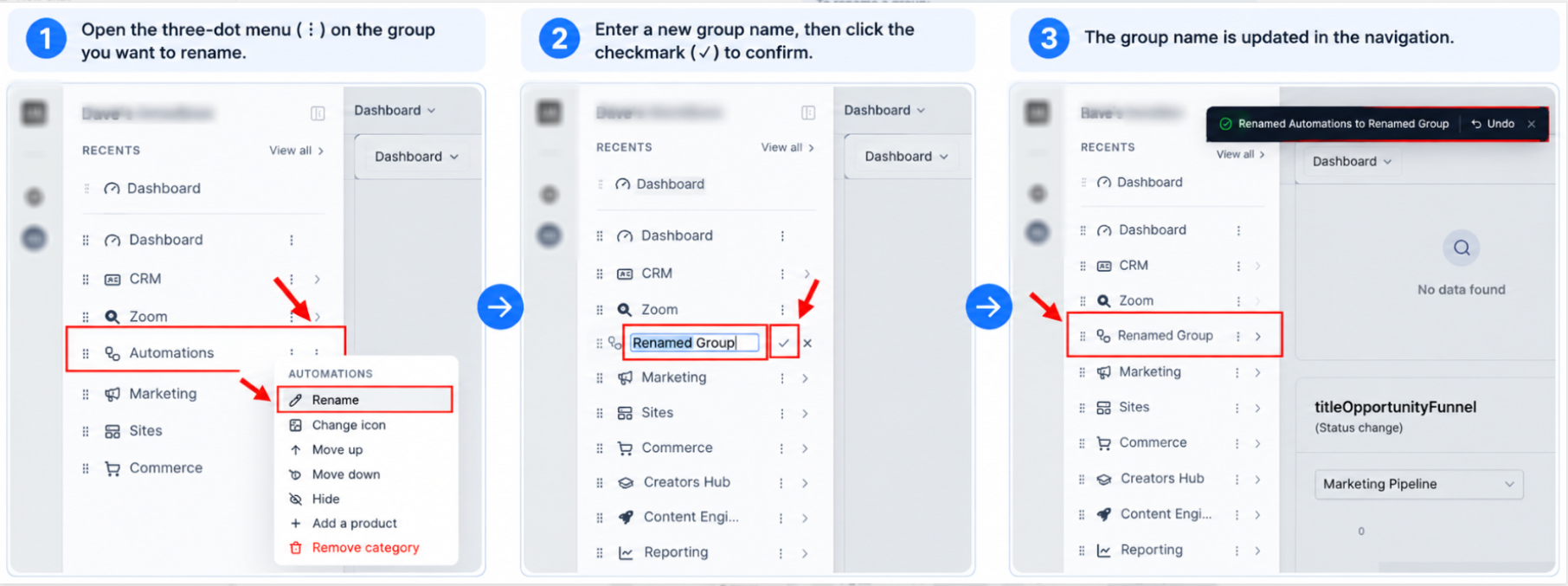
- Click the three dot menu (⋮) beside the group or item you wish to edit.
- Choose **Rename**, type a new L1 group name that follows the naming rules, and confirm the change.
- Select **Change icon**, pick a new navigation icon, and confirm the selection.
Manage visibility and organize groups
- Open a group's three dot menu (⋮) and pick **Hide** or **Show** to adjust its visibility.
- Select **Add a category or product**, then choose the option to create a new category and give it a name.
- From the same menu, choose **Add a product** and select the products you want placed in the group.
- Use the three dot menu on a product and select **Move** to shift it into a different group.
Review and save the layout
- Check the group names, icons, order, visibility settings, and product placement for accuracy.
- Confirm whether the layout is already applied to other subaccounts.
- Click **Save layout** in the Editing panel at the bottom of the sidebar.
- If an application scope dialog appears, review which subaccounts will receive the changes.
- Complete the save and verify that the navigation reflects the intended arrangement.
07What it looks like in HighLevel
08Settings that matter
- Rename. Allows you to change the label of a top level navigation group.
- Change icon. Lets you select a different icon for a navigation entry at any level.
- Hide. Controls whether a top level group or a product (L2) appears in the sidebar.
- Add a category or product. Provides the option to create a new navigation group (category) or insert a product into an existing group.
- Move up. Moves a top level group one position higher within the L1 list.
- Move down. Moves a top level group one position lower within the L1 list.
09Things to know before you rely on it
- Custom navigation is only available on agency plans; the $97 plan shows the default layout only (per HighLevel's help center, checked November 2026).
- The $297 plan lets you edit one subaccount; the $497 plan permits editing all subaccounts and reusable layouts (per HighLevel's help center, checked November 2026).
- Recents and Pinned sections cannot be hidden and remain personal to each user.
- The Settings entry cannot be reordered or hidden.
- Group names cannot be empty, duplicate an existing L1 name, or use the reserved names Recents, Pinned, or Settings.
- Moving an item changes its parent group, while reordering keeps the item within its current parent.
10How it connects to the rest of HighLevel
- See all LevelUp 2026 features for related updates LevelUp 2026 features
- Check plan eligibility and pricing for navigation customization HighLevel pricing and plans
- Start a trial to explore navigation editing in a fresh account 30 day HighLevel trial
Michael's take

Customizing the navigation menu can help teams locate tools more quickly, and it is included with the agency plan you already have.
Don’t hide a product to try to block access; use proper permissions instead.