
01Who this is for
- Agency owners benefit because they can tailor the workspace layout for each client subaccount.
- Marketing consultants gain quicker access to frequently used tools through pinned and recent items.
- SaaS service providers enjoy a clearer navigation structure that reduces time spent scrolling through menus.
02Custom navigation, explained
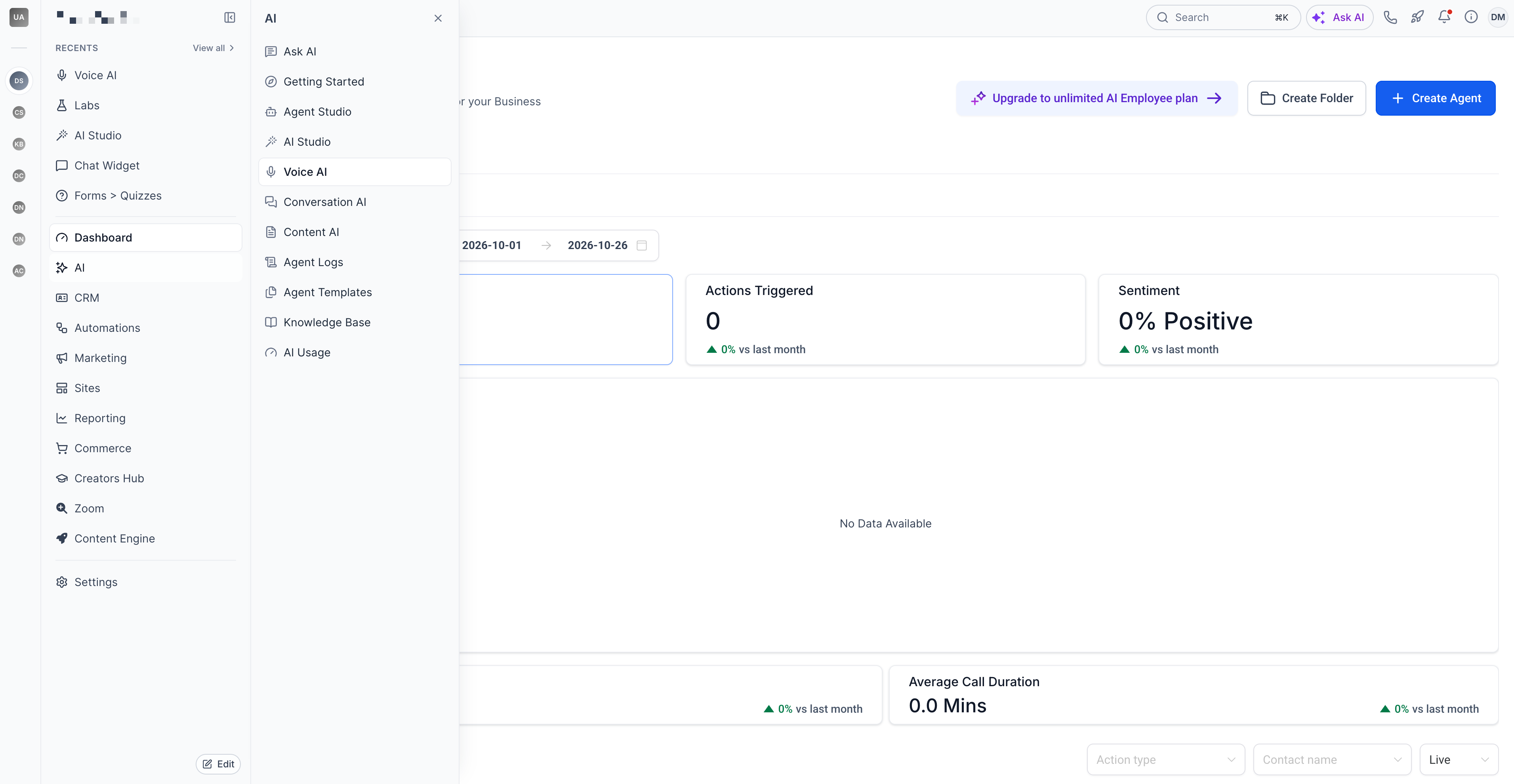
Custom Navigation replaces the long list of menu items with grouped sections in the left sidebar. It adds Recents, Pinned shortcuts, an enhanced global search, breadcrumbs and an All Products directory so users can locate features faster.
The feature is toggled in Settings > Labs and can be activated for the agency view, individual subaccounts, or a selection of subaccounts. Enabling does not alter product functionality or user permissions.
03How businesses use custom navigation
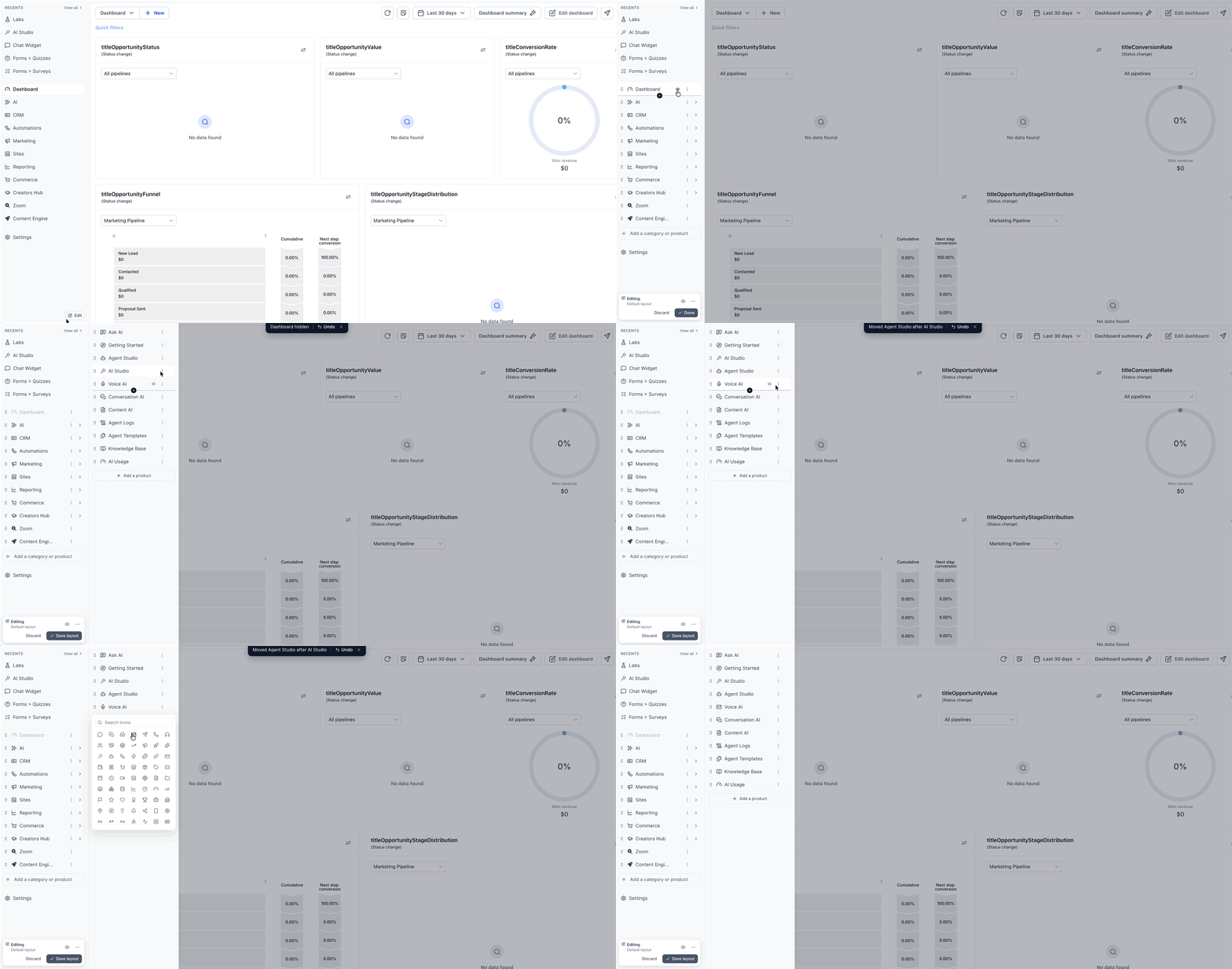
- Marketing agency. The agency enables Custom Navigation for a client subaccount, then uses the navigation editor to rename groups and reorder tools to match the client’s campaign workflow.
- Real estate brokerage. A brokerage turns on Custom Navigation for its main agency view, previews the new layout, and hides rarely used product links to keep agents focused on lead management.
- Online course platform. The platform activates Custom Navigation in a specific subaccount, creates a custom group for course creation tools, and pins the most used resources for its instructors.
04The numbers and rules that matter
- $97/month. Default redesigned navigation only, no customization (per HighLevel's help center, checked November 2026).
- $297/month. Customize navigation for one subaccount; no reusable layouts (per HighLevel's help center, checked November 2026).
- $497/month. Customize across all subaccounts, create and manage reusable layouts (per HighLevel's help center, checked November 2026).
05Before you start
- Customization features require an eligible plan; only the $297 or $497 monthly plans allow editing of navigation groups, icons, ordering or visibility (per HighLevel's help center, checked November 2026).
06How to set up and use custom navigation in HighLevel
Enable Custom Navigation from Agency View
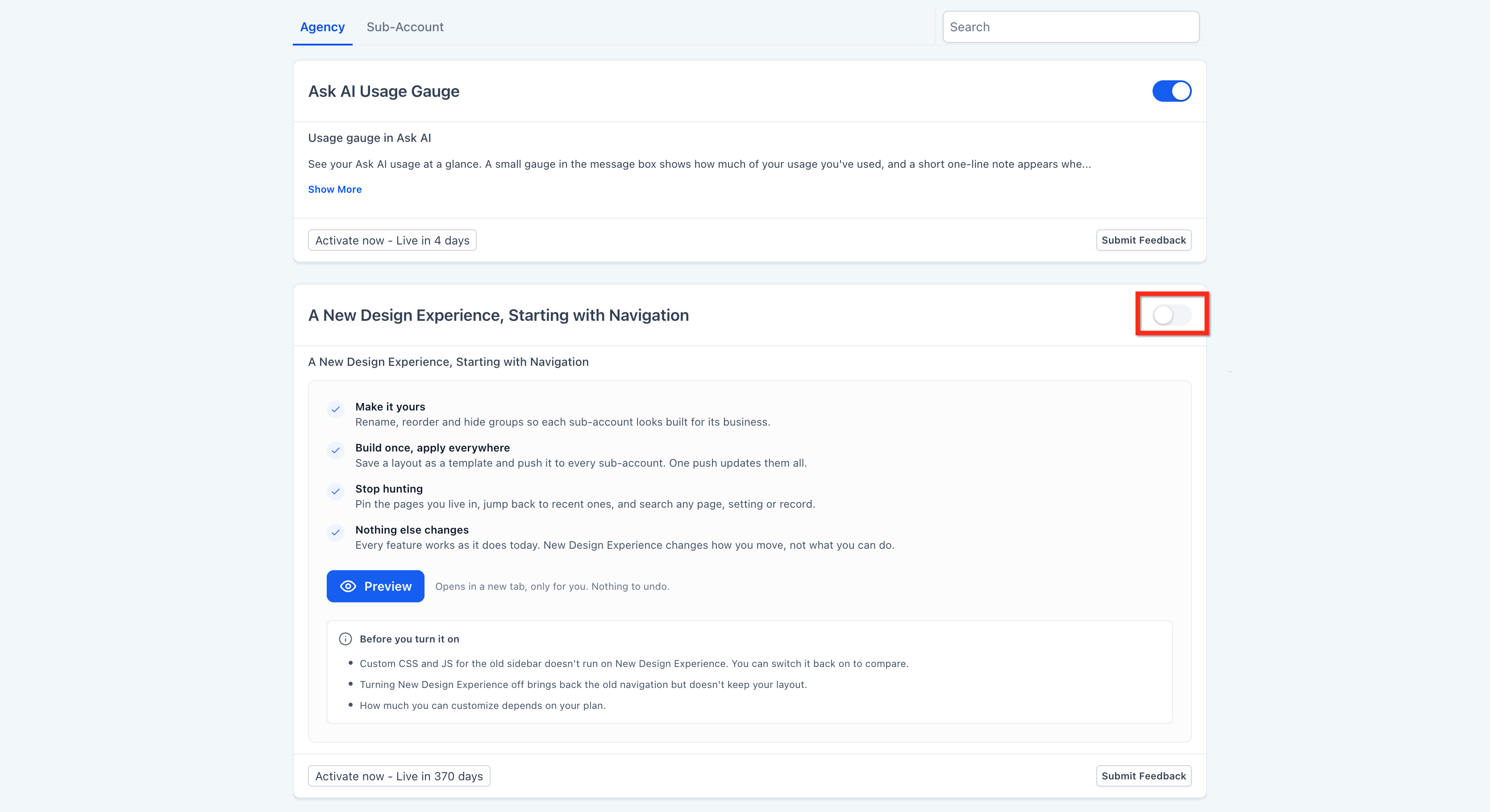
- Open Agency View and navigate to Settings > Labs.
- Select the Agency tab and scroll to the A New Design Experience, Starting with Navigation section.
- Optionally click Preview to explore the new layout before activation.
- Turn on the toggle to activate Custom Navigation for the agency view.
- Note: Enabling at the agency level does not automatically enable the feature for subaccounts.
Enable Custom Navigation for selected subaccounts
- In Agency View, go to Settings > Labs.
- Choose the Subaccount tab and locate the A New Design Experience, Starting with Navigation area.
- Optionally click Preview to review the interface.
- Press Activate Feature, select the subaccounts you wish to enable, and confirm the selection.
Enable Custom Navigation from a subaccount view
- Open the target subaccount and go to Settings > Labs.
- Scroll down to the A New Design Experience, Starting with Navigation block.
- Optionally click Preview to see the new design.
- Flip the toggle to activate Custom Navigation for that subaccount.
Preview Custom Navigation before enabling
- Within Settings > Labs, find the A New Design Experience, Starting with Navigation entry.
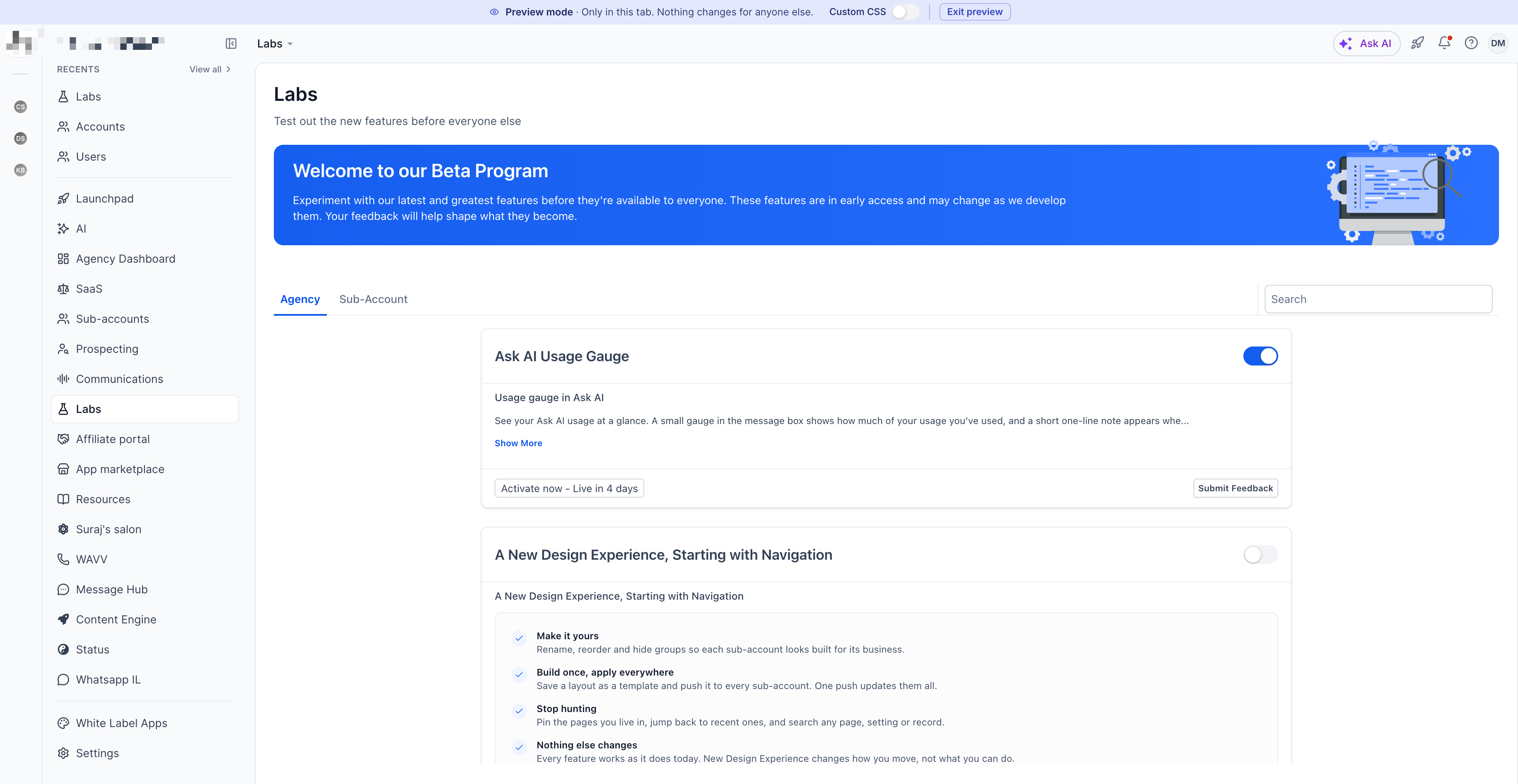
- Click the Preview button.
- A new browser tab opens showing the redesigned sidebar.
- Use the Custom CSS toggle at the top to compare styling with your existing custom code.
- Close the tab or click Exit Preview when finished; preview does not change any settings.
Disable Custom Navigation
- Go to Settings > Labs in the account where you want to turn it off.
- Locate the toggle for Custom Navigation and switch it off.
- Disabling at the agency level also disables it for all subaccounts using the feature; disabling for a subaccount only affects that subaccount.
- Be aware that disabling resets any navigation customizations; they will not be restored automatically if you enable the feature again.
07What it looks like in HighLevel
08Settings that matter
- A New Design Experience, Starting with Navigation. Controls whether the redesigned sidebar is active for the selected agency view or subaccount.
- Custom CSS toggle. Lets you compare the new interface with existing custom styling while previewing.
09Things to know before you rely on it
- Navigation customization is not available on the $97/month plan; that plan receives only the default redesigned layout (per HighLevel's help center, checked November 2026).
- The $297/month plan permits editing navigation for one subaccount, while the $497/month plan extends editing and reusable layout management to all subaccounts (per HighLevel's help center, checked November 2026).
- Disabling Custom Navigation removes all saved customizations; they are not automatically restored when you enable the feature again (per HighLevel's help center, checked November 2026).
- Preview mode does not alter any settings and leaves legacy custom CSS and JavaScript disabled (per HighLevel's help center, checked November 2026).
- Navigation layouts are not included in snapshots and must be reapplied after a snapshot restore (per HighLevel's help center, checked November 2026).
10How it connects to the rest of HighLevel
- Review which HighLevel plans include navigation customization. HighLevel pricing and plans
- Start a free trial to test Custom Navigation before committing. Start a 30 day HighLevel trial
- Explore the Founder Plan for agencies that need advanced features. The HighLevel Founder Plan
- See all LevelUp 2026 features related to navigation and UI improvements. All LevelUp 2026 features
Michael's take

Finding the right tool in a sea of menu items slows down every agency. The new sidebar groups products, adds Recents and Pins, and gives you a fast search. The first setting I would lock in is the preview mode. It lets you see exactly how the new layout looks before you flip the switch for the whole account.
If I were rolling this out, I would enable the feature in a single subaccount first, walk the team through the grouped view, and then decide whether to push it agency wide.