
01Rental add ons, explained
Rental add ons are optional products or services that can be attached to a rental reservation. They are stored in a global catalog, so the same add on can be reused across many listings without recreating it each time.
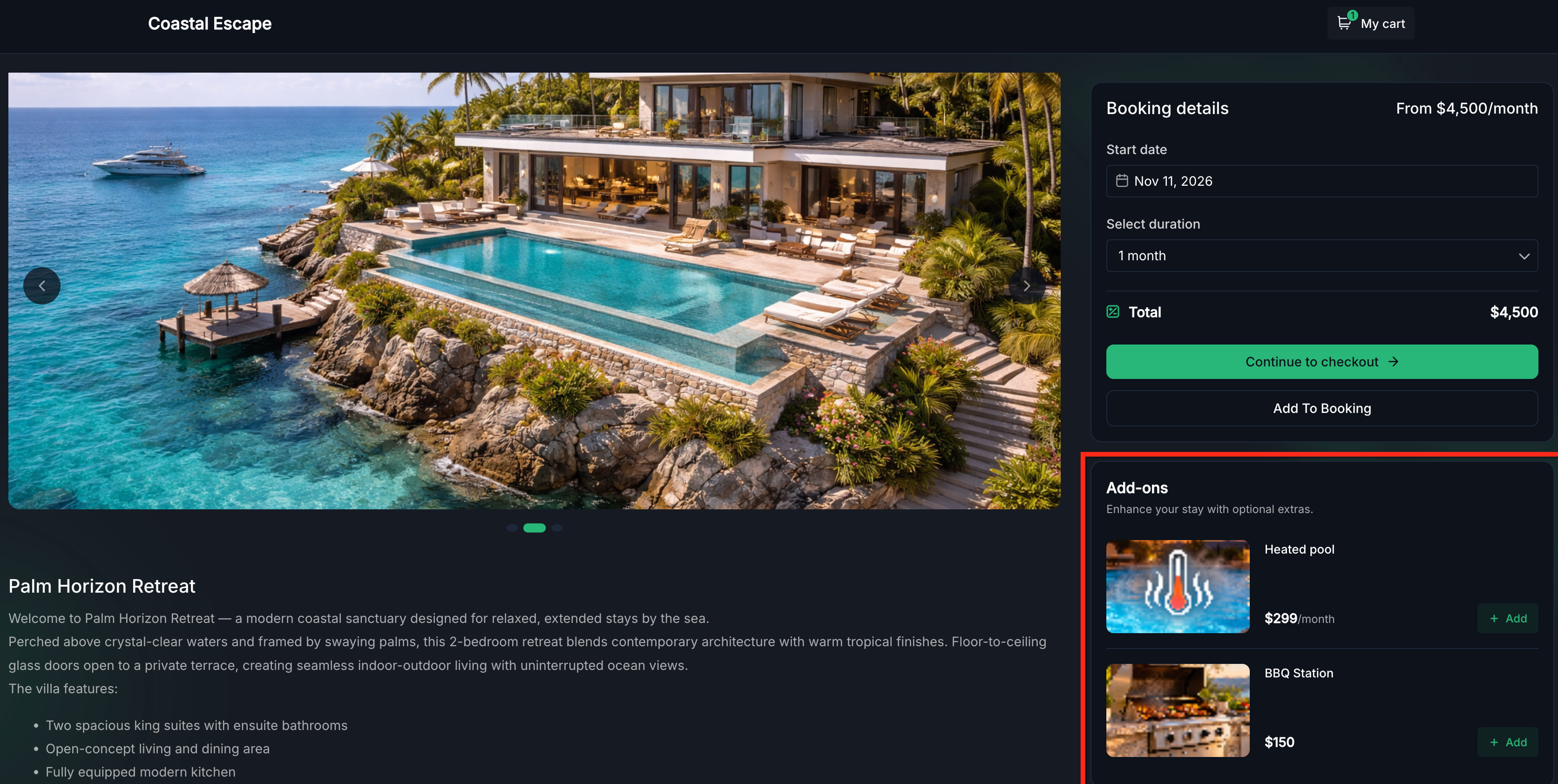
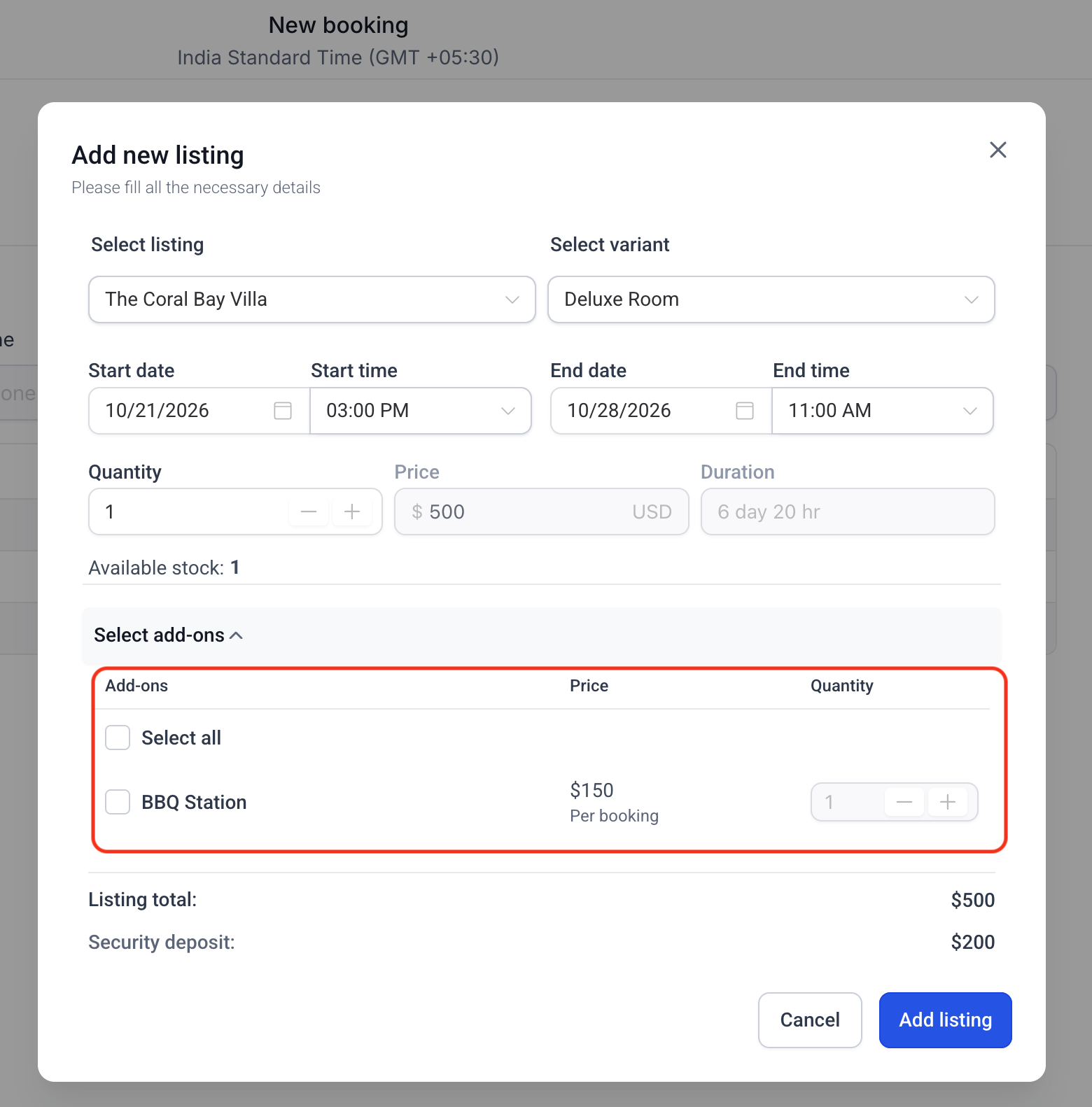
When a customer books, they can pick any active, nonhidden add on and see the total update in real time. Admins can also add or change add ons in manual bookings, and all selected extras appear as separate line items on the invoice.
02How businesses use rental add ons
- Offer optional extras. A vacation rental can add a BBQ station or a heated pool as add ons. Guests choose these during checkout, and the total updates in real time.
- Centralize configuration. Admins create an add on once in the global catalog, set its price, maximum quantity and tax, then assign it to multiple listings. Any edit to the catalog updates the add on for all listings that use it.
03The numbers and rules that matter
- Pricing types: Flat, Per booking; Flat, Per booking unit; Percentage.
- Flat, Per booking: Fixed charge per selected add on quantity, regardless of rental duration.
- Flat, Per booking unit: Charged for each hour, day, week, or month based on the listing's booking unit.
- Maximum quantity is a fixed cap per booking, regardless of the number of rental units.
- Pricing unit: Per booking or Per booking unit for flat pricing.
- Maximum quantity: Maximum units selectable per booking; does not track inventory.
04How to set up and use rental add ons in HighLevel
Create a global add on
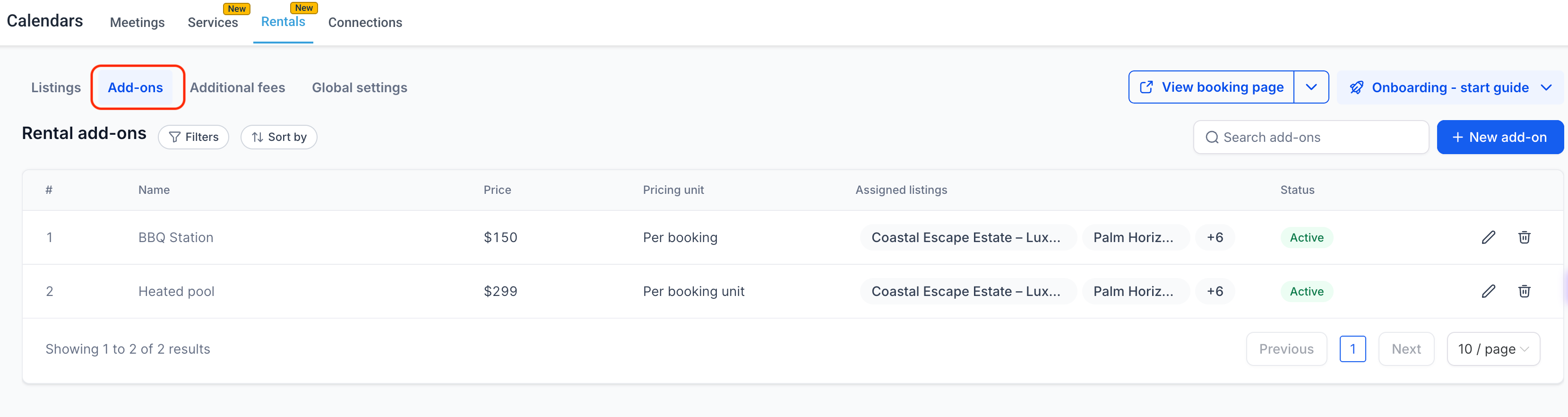
- Navigate to Calendars > Calendar Settings > Rentals > Add ons.
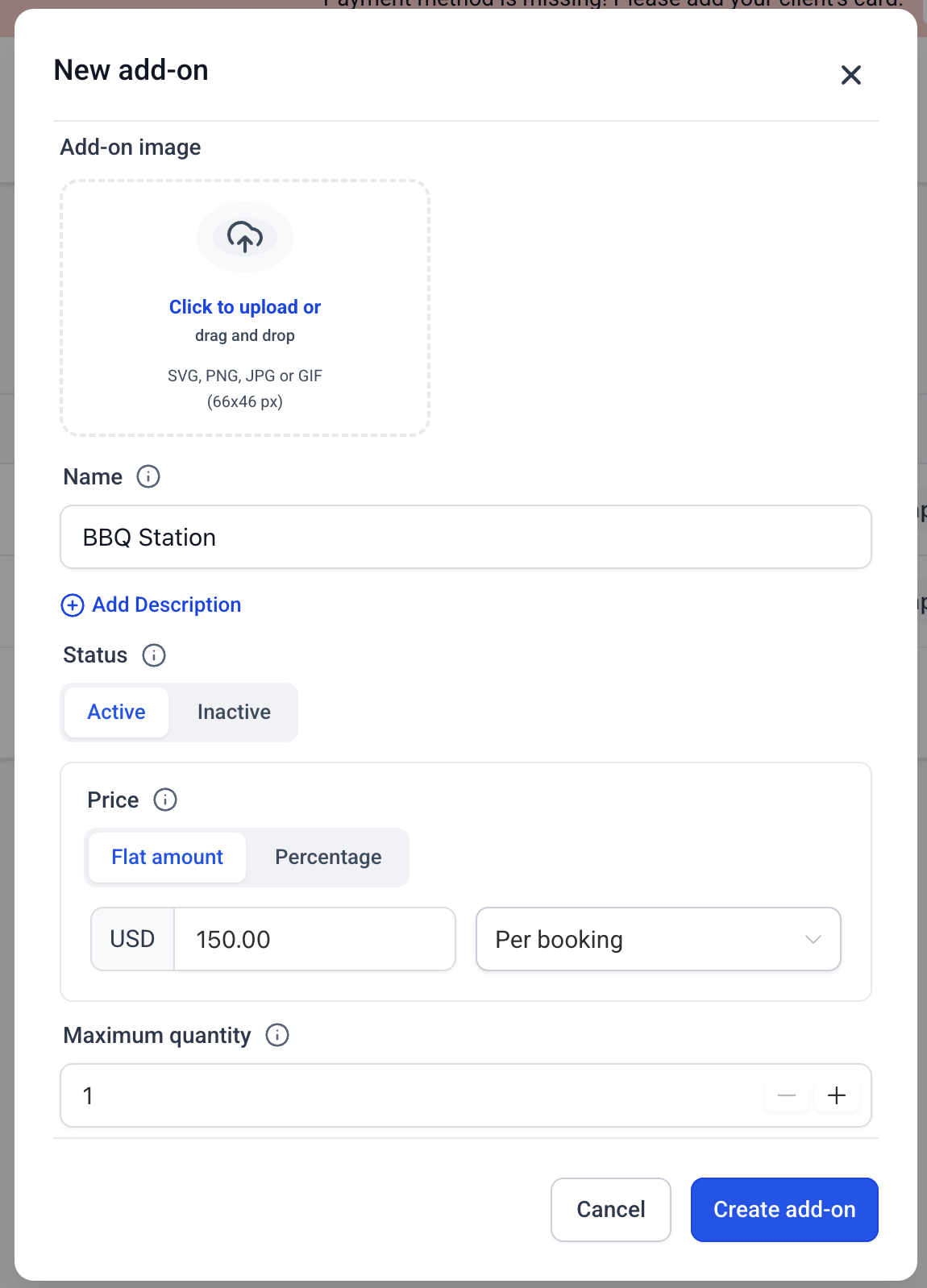
- Click + New add on.
- Enter the Name, optional Description, and Image.
- Select Active or Inactive.
- Choose the Price type, enter the amount, and configure the Pricing unit if applicable.
- Set the Maximum quantity and customer visibility.
- Optionally select the listings to associate with the add on.
- Click Create add on.
05What it looks like in HighLevel
06Settings that matter
- Name. Required name displayed to customers and on invoices.
- Description / Image. Optional information displayed on the booking page.
- Status. Set to Active, Hidden, or Inactive to control availability for new bookings.
- Price. Choose Flat amount or Percentage and enter the value.
- Pricing unit. Choose Per booking or Per booking unit for flat pricing.
- Maximum quantity. Maximum units selectable per booking; does not track inventory.
- Hide from booking page. Keeps the add on available to admins but hidden from customers.
- Tax. Configure applicable taxes after saving the add off.
07Things to know before you rely on it
- Add ons are always optional; use Additional fees for mandatory charges.
- Add on status and visibility settings determine whether customers or admins can select an add on for new bookings without affecting previously recorded selections.
- Editing a global add on updates its configuration across all associated listings.
- Deleting an add on removes it from those listings, but previously created bookings retain their recorded add on details.
- Unsaved Changes banner appears until changes are saved or discarded.
- Updating add ons may require payment adjustments; the updated total cannot be lower than the amount already paid.
- Tax amounts appear separately from add on charges on the invoice and are included in the customer facing total where applicable.
08If something goes wrong
- Listing filter returns no results. Clear or adjust the filter to check for other add ons in the catalog.
Michael's take

Michael ReimerFounder of CRM Pros, HighLevel Commander and Certified Admin
Rental add ons let a small business offer extra services without creating separate listings.
The central catalog saves time and keeps pricing consistent across all rentals.
Get More InformationOpens on HighLevelPublished November 3, 2026 · Updated November 3, 2026