
01Who this is for
- Founders who want a single place to handle social conversations, reducing the time spent juggling Facebook and Instagram apps.
- Customer support teams that need to reply to leads from social channels without leaving the platform.
02Messaging setup & troubleshoot, explained
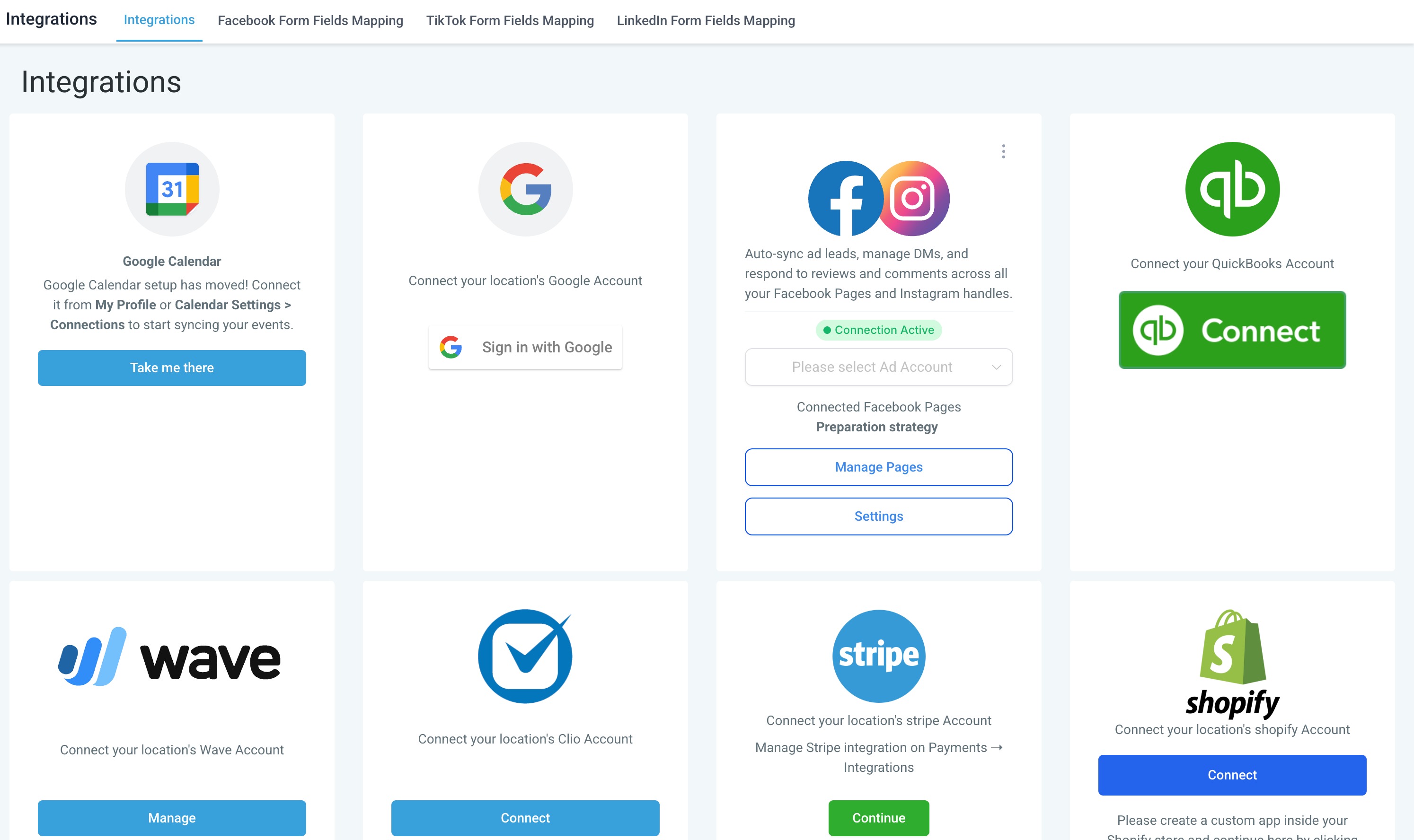
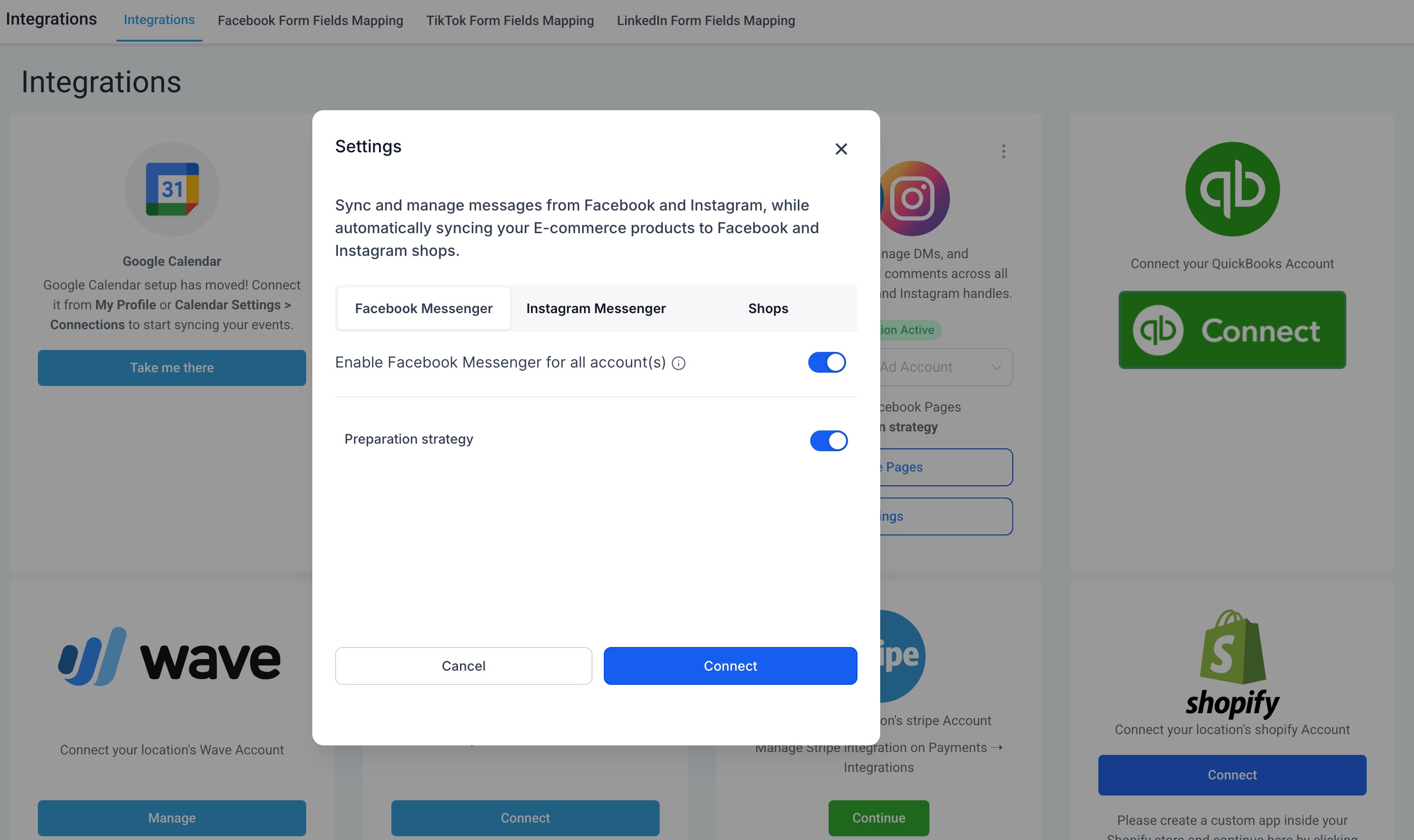
The feature connects the Facebook Page messenger and Instagram Direct Message inbox to HighLevel. The integration lives under Settings > Integration > Facebook card > Settings, where messenger toggles for both platforms are enabled after confirming Leadconnector and user permissions.
03How businesses use messaging setup
- Real estate brokerage. The broker adds the brokerage's Facebook Page to HighLevel, enables messenger, and then answers buyer inquiries directly from the platform.
- Dental practice. The practice links its Instagram Business account, verifies messaging rights, and replies to appointment requests through HighLevel.
- Ecommerce store. The store connects its Facebook Page, turns on messenger in the integration settings, and handles order questions and support tickets inside HighLevel.
04Before you start
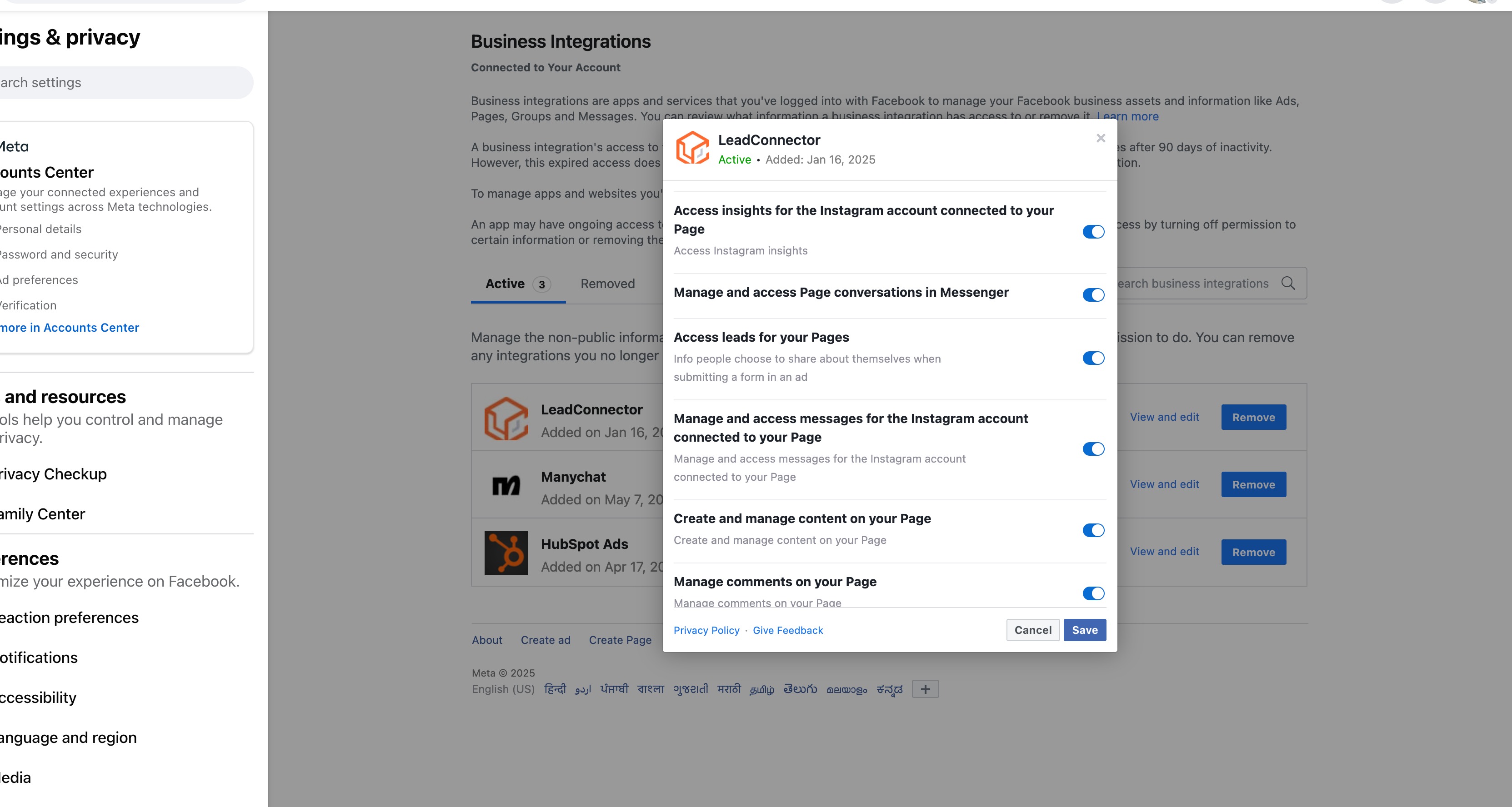
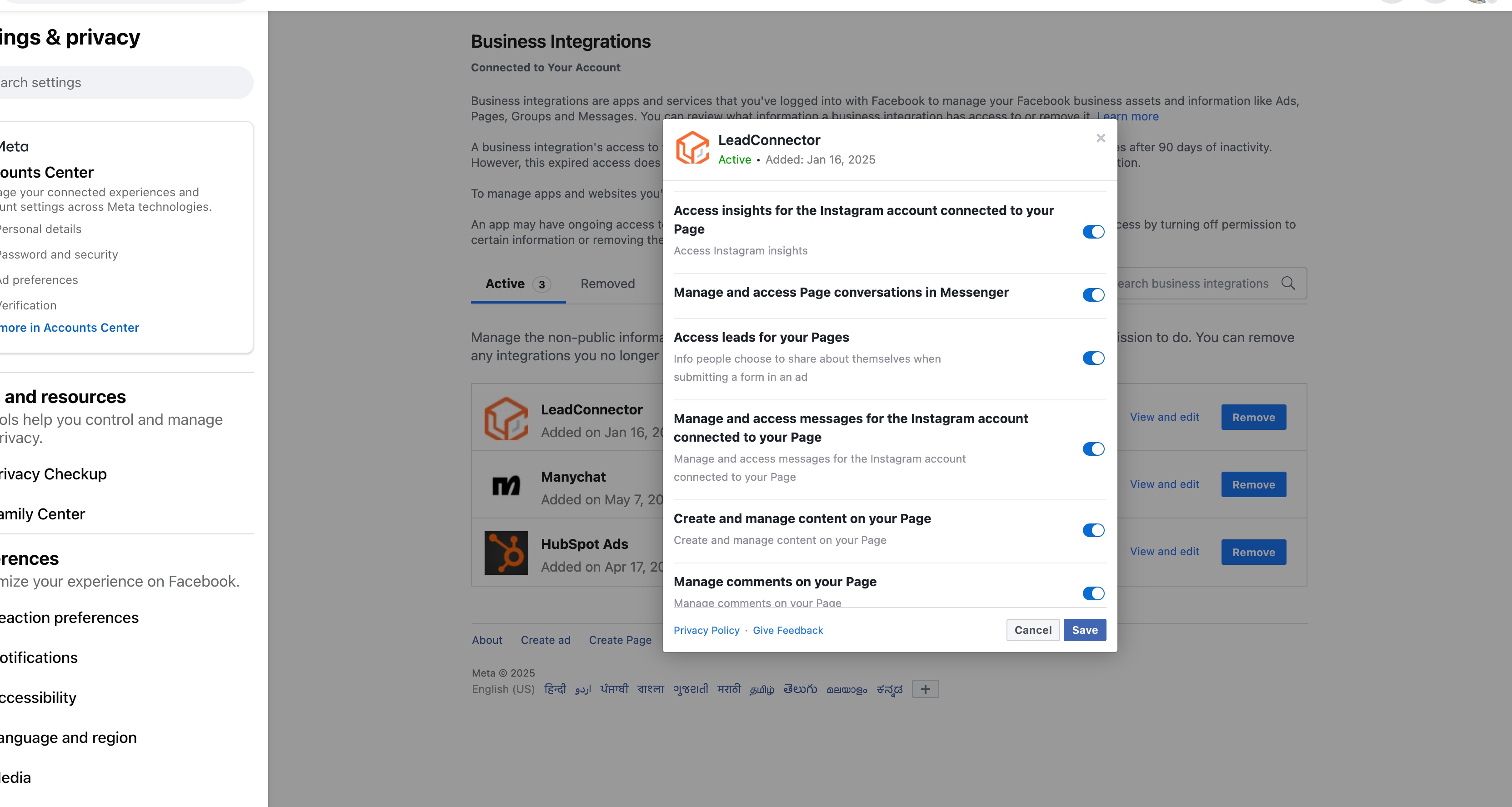
- Leadconnector must have permission to send messages and access messages for the Facebook Page.
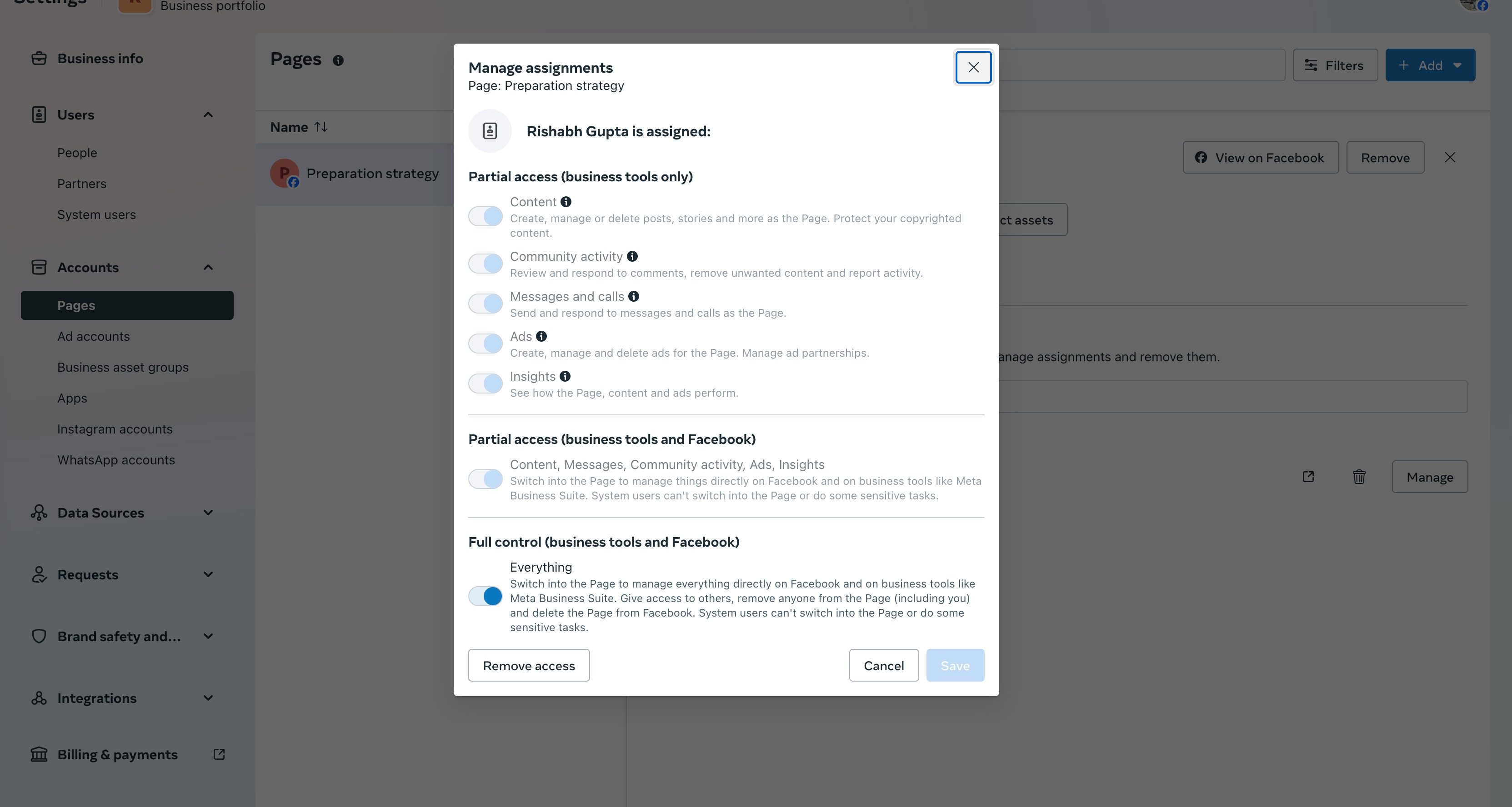
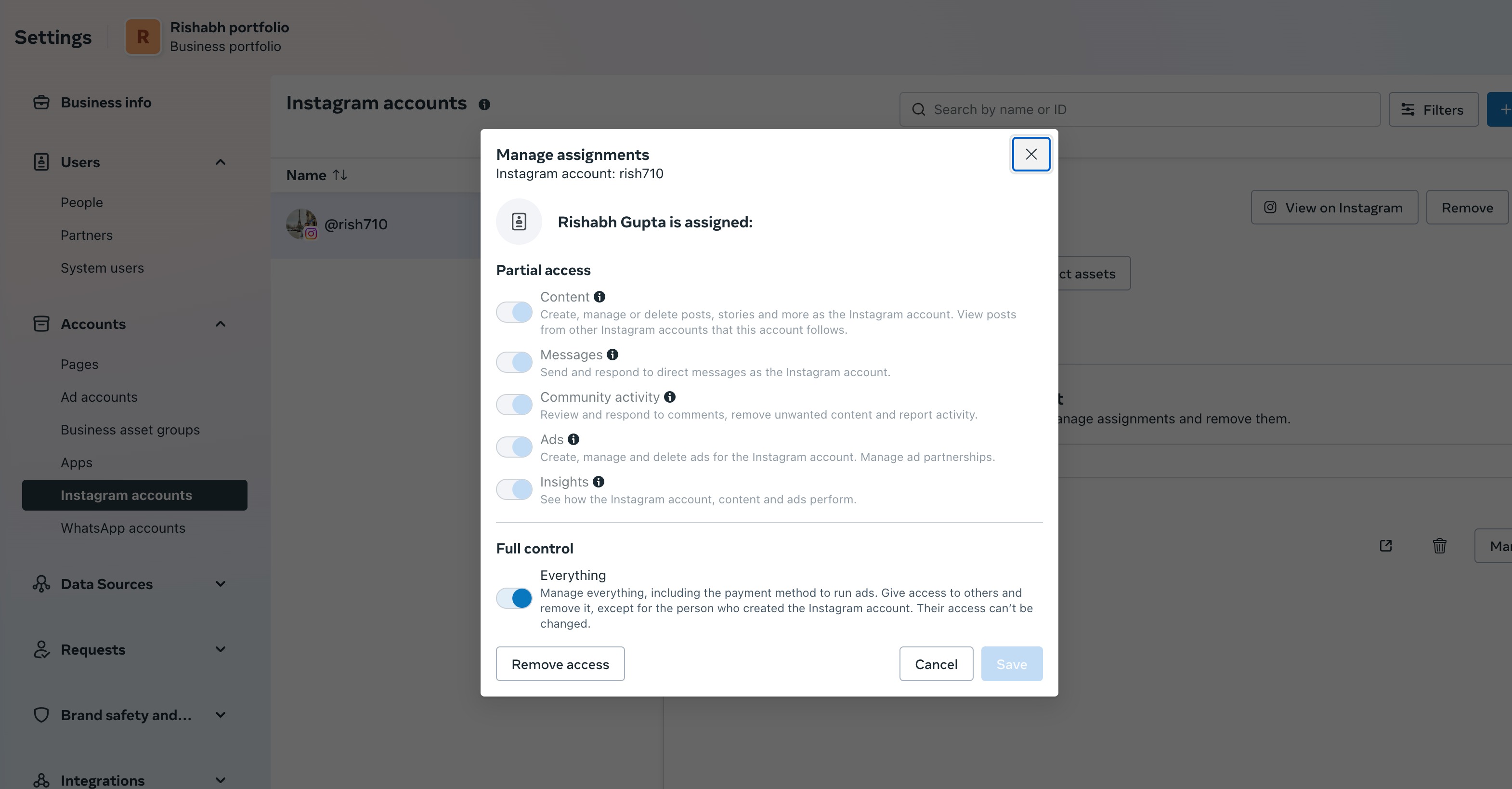
- The user account needs full access to the page and messaging rights.
- Facebook messenger integration must be turned on in Settings > Integration > Facebook card > Settings.
- For Instagram, the account must be allowed to send and receive messages under Instagram accounts and appear in the connected assets list.
05How to set up and use messaging setup in HighLevel
Facebook page messaging setup
- Grant Leadconnector permission to send and read messages for the Facebook Page via the Business Tools settings page.
- Ensure the user’s account holds full page access and also has messaging permissions in the Business Settings.
- Activate Facebook messenger in Settings > Integration > Facebook card > Settings.
Instagram messaging setup
- Give Leadconnector permission to send and read messages for the associated Facebook Page using the Business Tools settings page.
- Confirm that the Instagram Business account can send and receive messages in the Instagram accounts section of Business Settings.
- Check that the Instagram account appears in the connected assets list for the page.
- Enable Instagram messaging in Settings > Integration > Facebook card > Settings.
06What it looks like in HighLevel
07Settings that matter
- Facebook messenger. Controls whether messages from the linked Facebook Page are routed into HighLevel.
- Instagram messaging. Controls whether Direct Messages from the linked Instagram Business account appear inside HighLevel.
08Things to know before you rely on it
- Leadconnector and user accounts must both have messaging access; without these permissions the integration will not function.
- The Instagram account must be listed in the connected assets for the Facebook Page before messaging can be enabled.
09How it connects to the rest of HighLevel
- Guide to linking Facebook pages and syncing leads Facebook page integration
- How to control Instagram Direct Message access Instagram DMs
- Connect multiple Facebook pages to a subaccount Multiple pages
Michael's take

Michael ReimerFounder of CRM Pros, HighLevel Commander and Certified Admin
If you already use Facebook and Instagram for customer chats, connecting them lets you handle those conversations without switching tools.
Start by confirming Leadconnector’s permissions on both Facebook and Instagram, then enable the respective messaging options in the integration settings.
Get More InformationOpens on HighLevelPublished November 2, 2026 · Updated November 16, 2026