
01Who this is for
- Marketing agencies, can view and adjust client integrations from a single, organized screen.
- SaaS product teams, gain faster access to connect third party services and monitor connection health.
- Consulting firms, manage multiple client accounts for the same integration without switching pages.
02Integration UI/UX revamp, explained
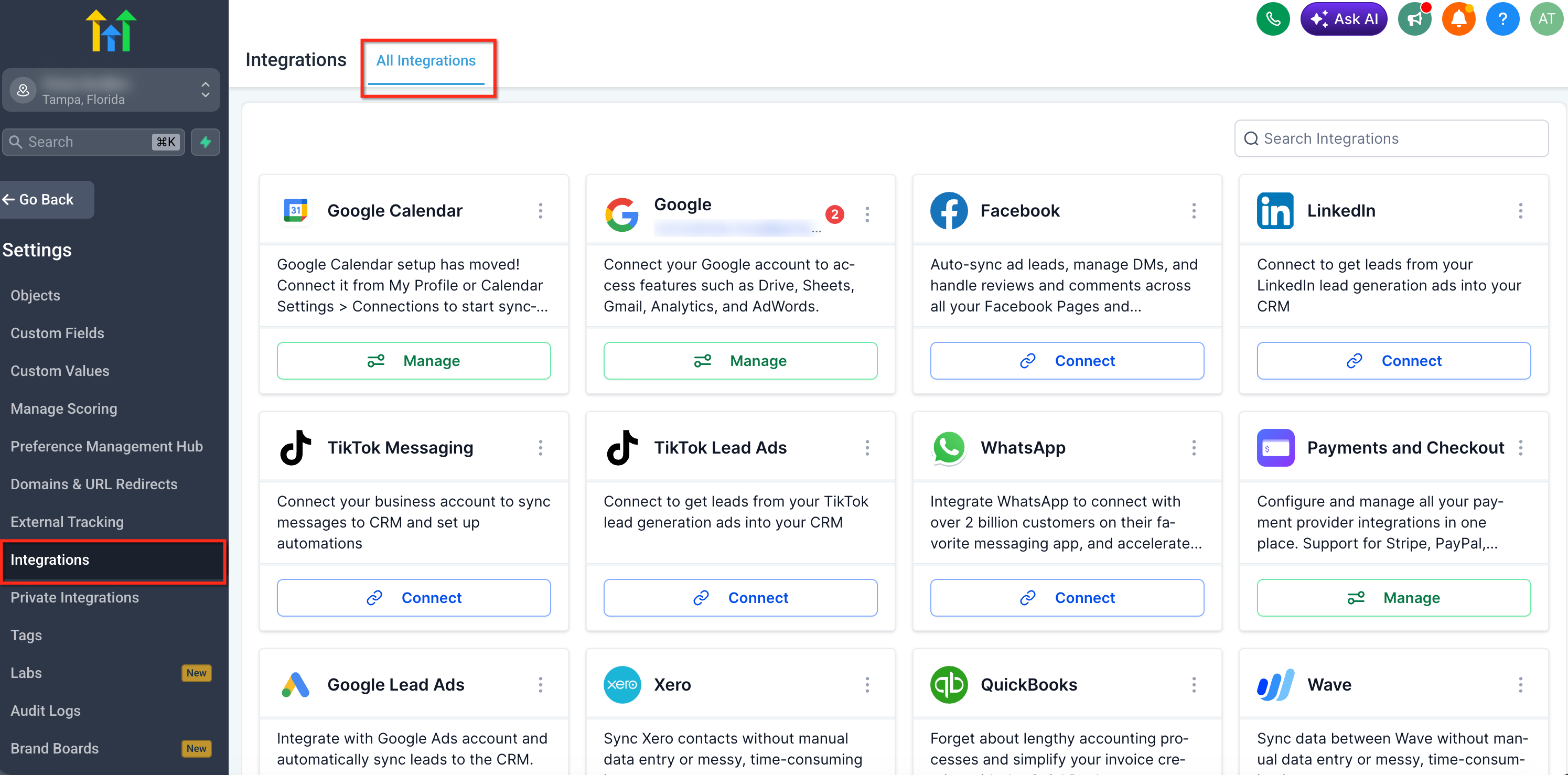
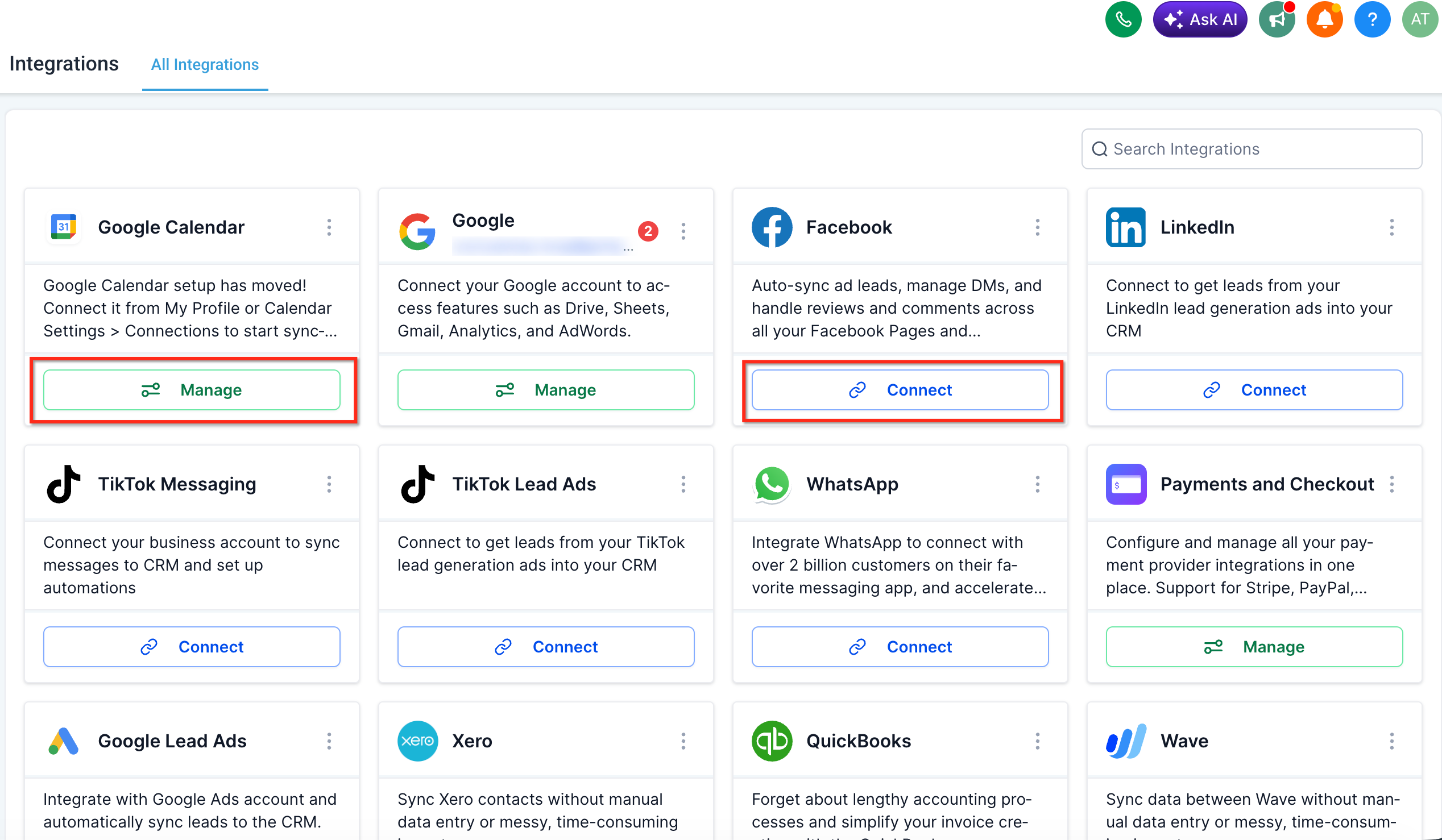
The Integration Page is a redesigned area inside HighLevel that centralizes how users find, link, and oversee every external service. Each integration appears as a card that shows its name, logo, short description and a primary button that either starts a connection or opens management options.
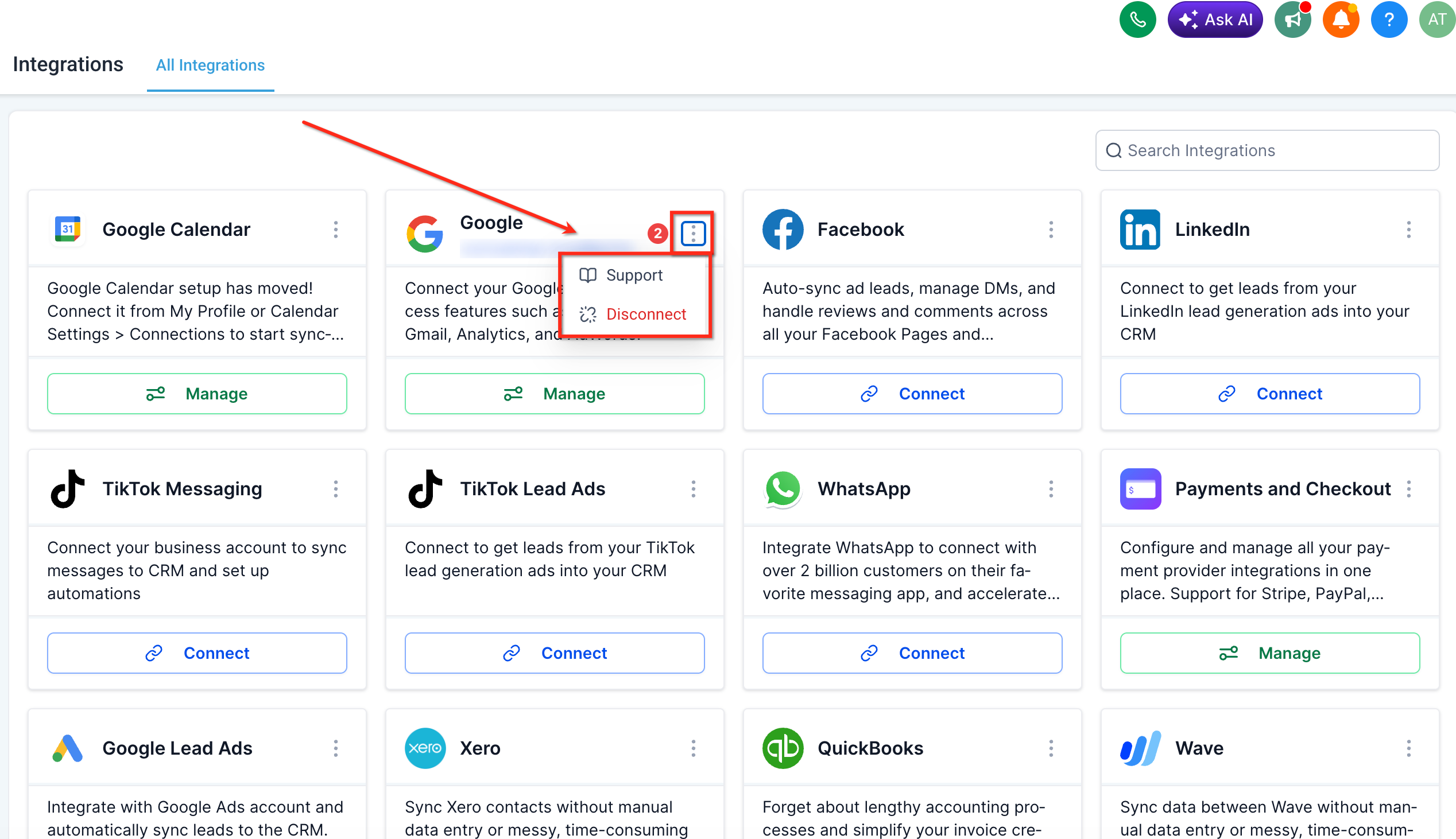
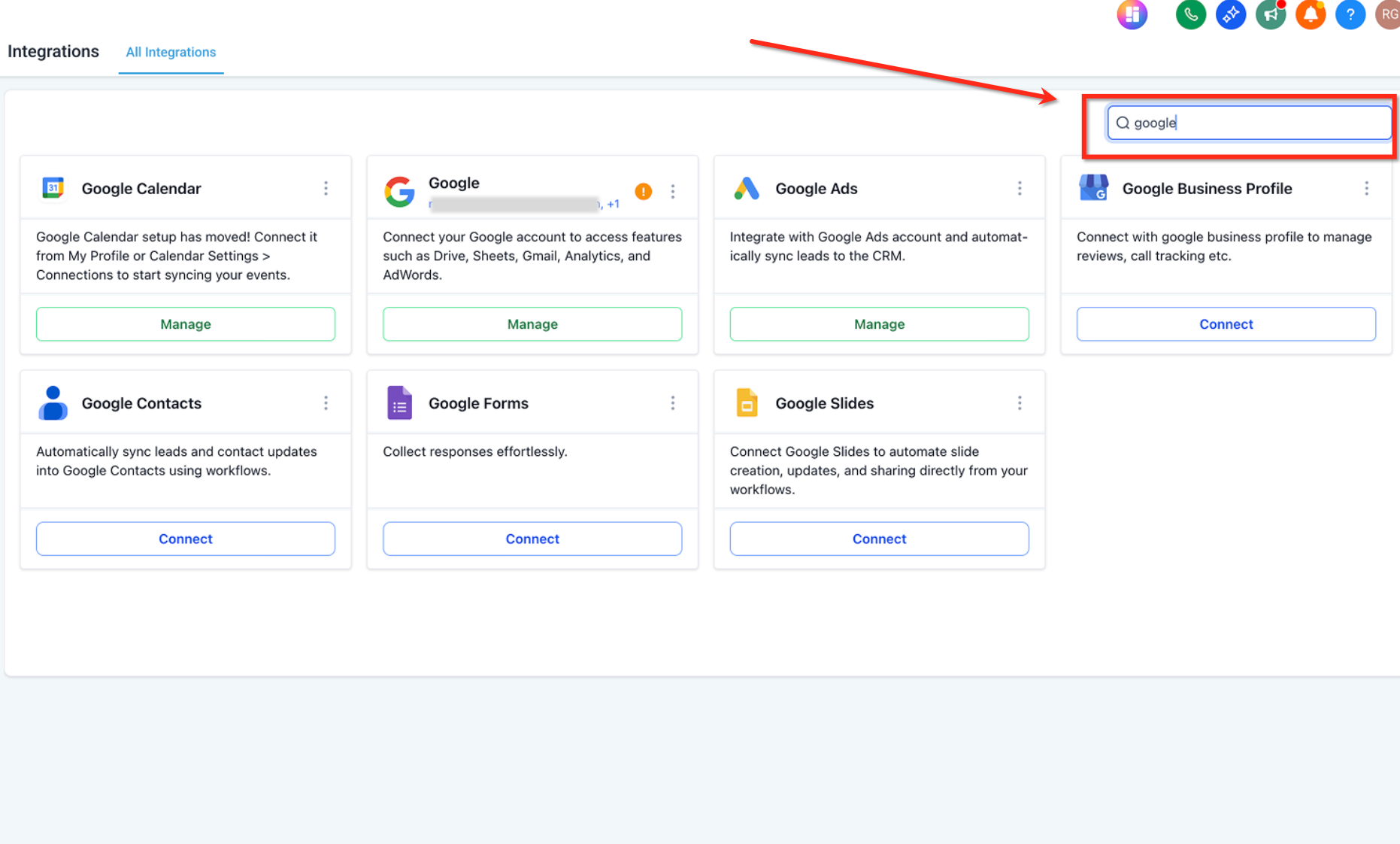
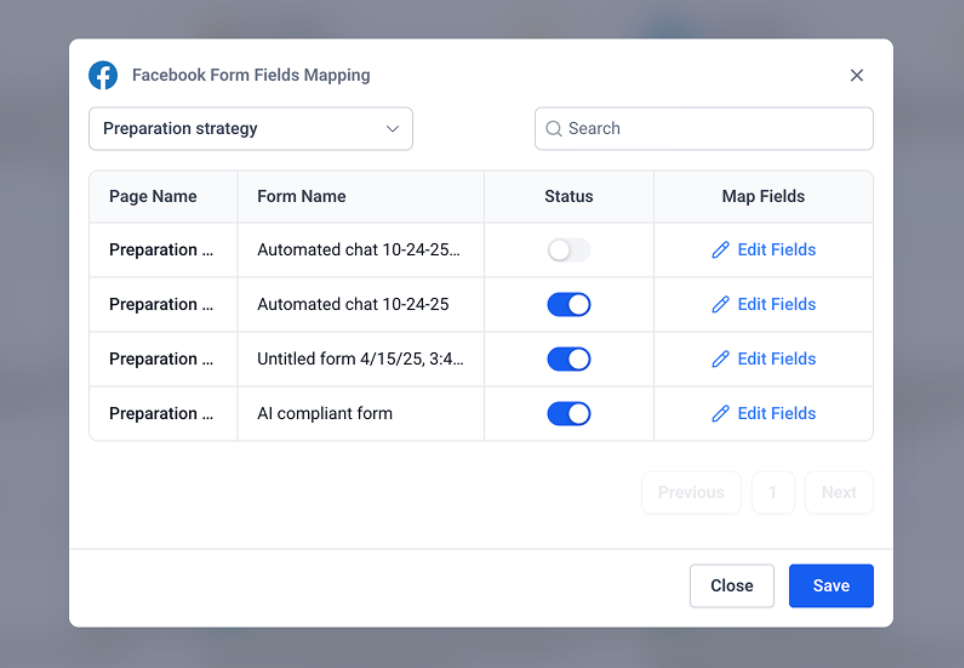
Cards also include a three dot menu that opens quick actions such as documentation, form mapping, troubleshooting tools or disconnect commands. A search bar at the top filters cards in real time, making it easy to locate a specific integration among many.
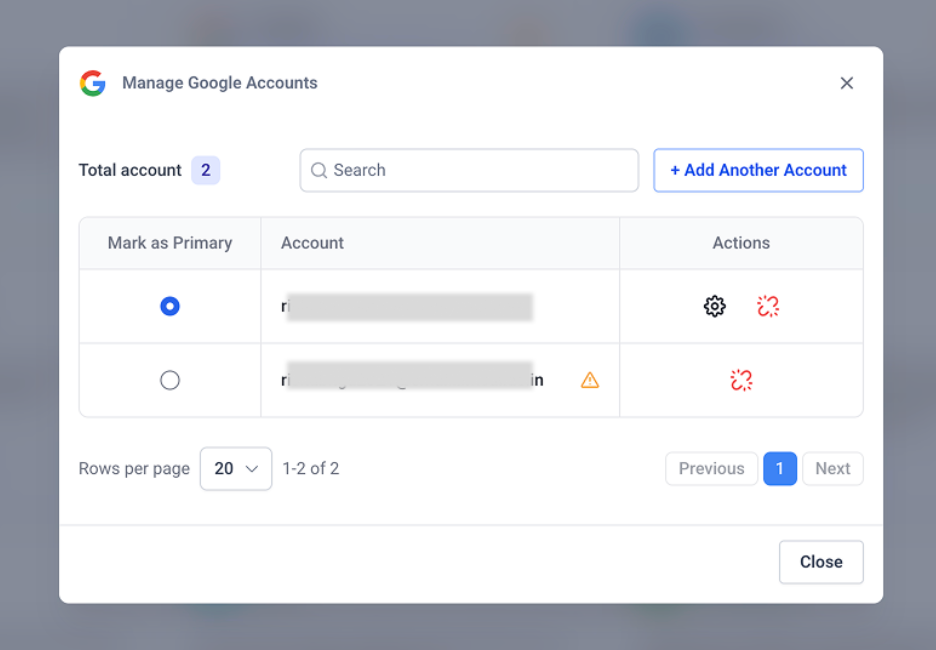
When an integration is already linked, the primary button changes to Manage and leads to settings or account details. The unified account modal lets users see all linked accounts for that service, set a primary account, add more, or remove existing ones, while showing error icons for any problematic connections.
03How businesses use integration UI/UX revamp
- Digital marketing agency. The agency opens the Integration Page, uses the search bar to locate the Facebook Lead Ads card, clicks Connect to authorize the account, and later uses the Manage button to edit form mapping for new campaigns.
- SaaS startup. The startup adds multiple Stripe accounts via the integration’s three dot menu, marks the primary account in the unified modal, and monitors error indicators to ensure payment processing stays active.
- Consulting firm. The firm selects the Zoom integration card, clicks Manage to adjust meeting settings, and uses the account modal to add a secondary Zoom account for a new client without leaving the Integration Page.
04What it looks like in HighLevel
05How it connects to the rest of HighLevel
- Browse the full list of integrations available in HighLevel. All integrations
- Learn how to map form fields to HighLevel records for connected services. Form mapping guide
- Read about private integrations and how to configure custom connections. Private integrations
Michael's take

The first setting I would get right is the primary action button. Make sure every integration shows Connect when it’s not linked and flips to Manage once it’s active. That simple visual cue keeps the team moving without second guessing what to do next.