
01Who this is for
- Ecommerce managers who need a single place to view Shopify orders and customer purchase history.
- Marketing teams that want to trigger email or SMS campaigns based on recent Shopify activity.
02Shopify integration, explained
The integration creates a link between a Shopify storefront and a HighLevel subaccount. After authorizing via OAuth, the platform can pull selected Shopify records once and then keep selected data updated in real time. Import Elements decide which historical records are copied initially, while Sync Settings determine what continues to flow after the connection is live.
The integration lives under Settings > Integrations > Shopify in the chosen subaccount. When contacts arrive from Shopify, the system automatically adds fields such as lifetime spend, order count and tax exempt status. These fields are read only for the integration and can be used in Smart Lists or workflow conditions.
03How businesses use Shopify integration
- Online apparel retailer. The retailer selects product and collection imports to display its catalog inside HighLevel, then enables order sync so new purchases appear for order fulfilment notifications.
- B2B wholesale supplier. The supplier enables contact sync and order sync to enrich contacts with purchase totals and tax exempt flags, allowing targeted follow up for bulk buyers.
- Digital course creator. The creator imports contacts and transactions to segment students by total spend and trigger post purchase email sequences within HighLevel.
04The numbers and rules that matter
- Supported Shopify data: Products, collections, contacts, orders, transactions.
- One transaction is created per order in the subaccount.
05How to set up and use Shopify integration in HighLevel
Set up the Shopify integration
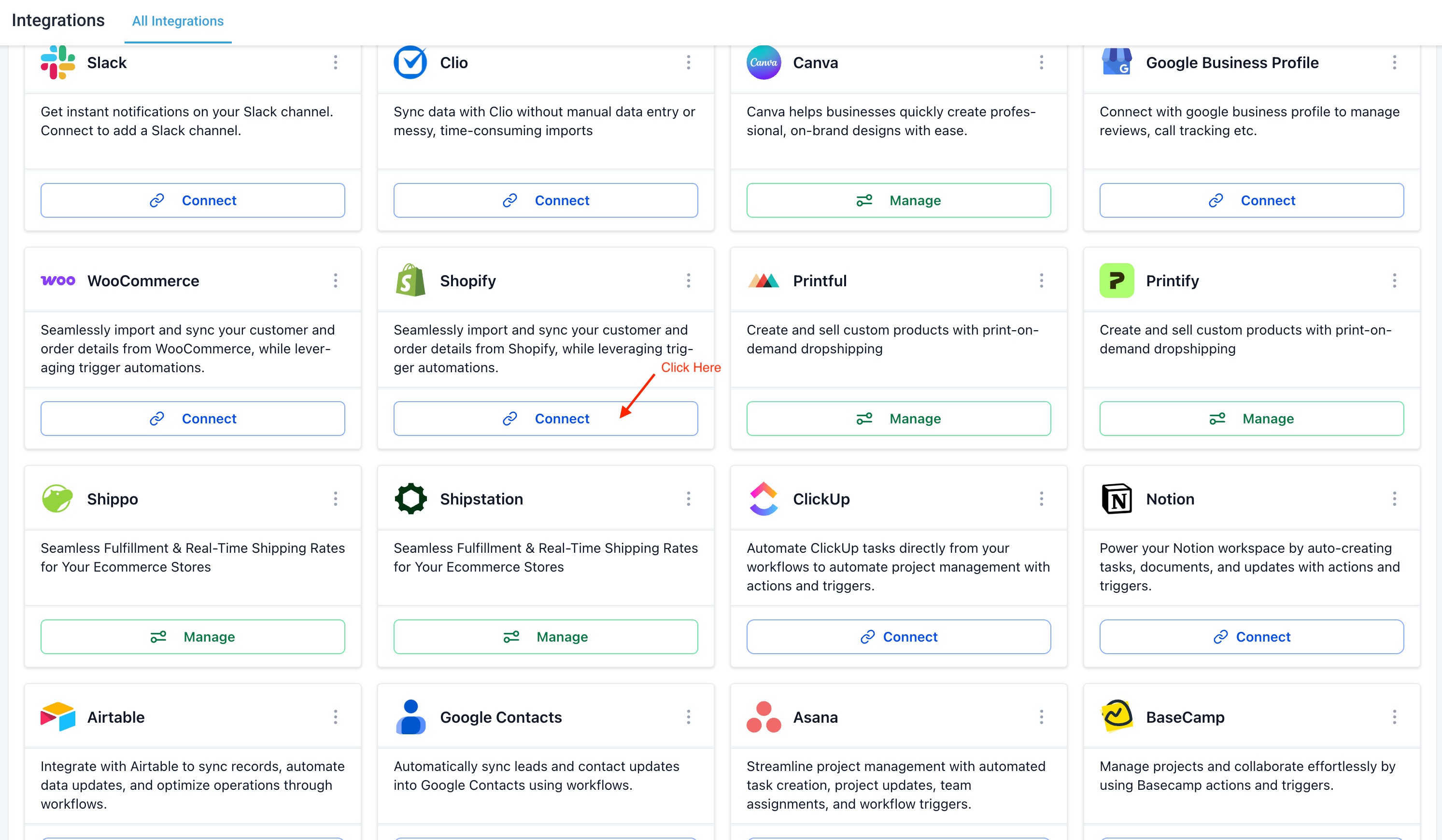
- Open the desired subaccount and navigate to Settings > Integrations > Shopify.
- Press the Connect button.
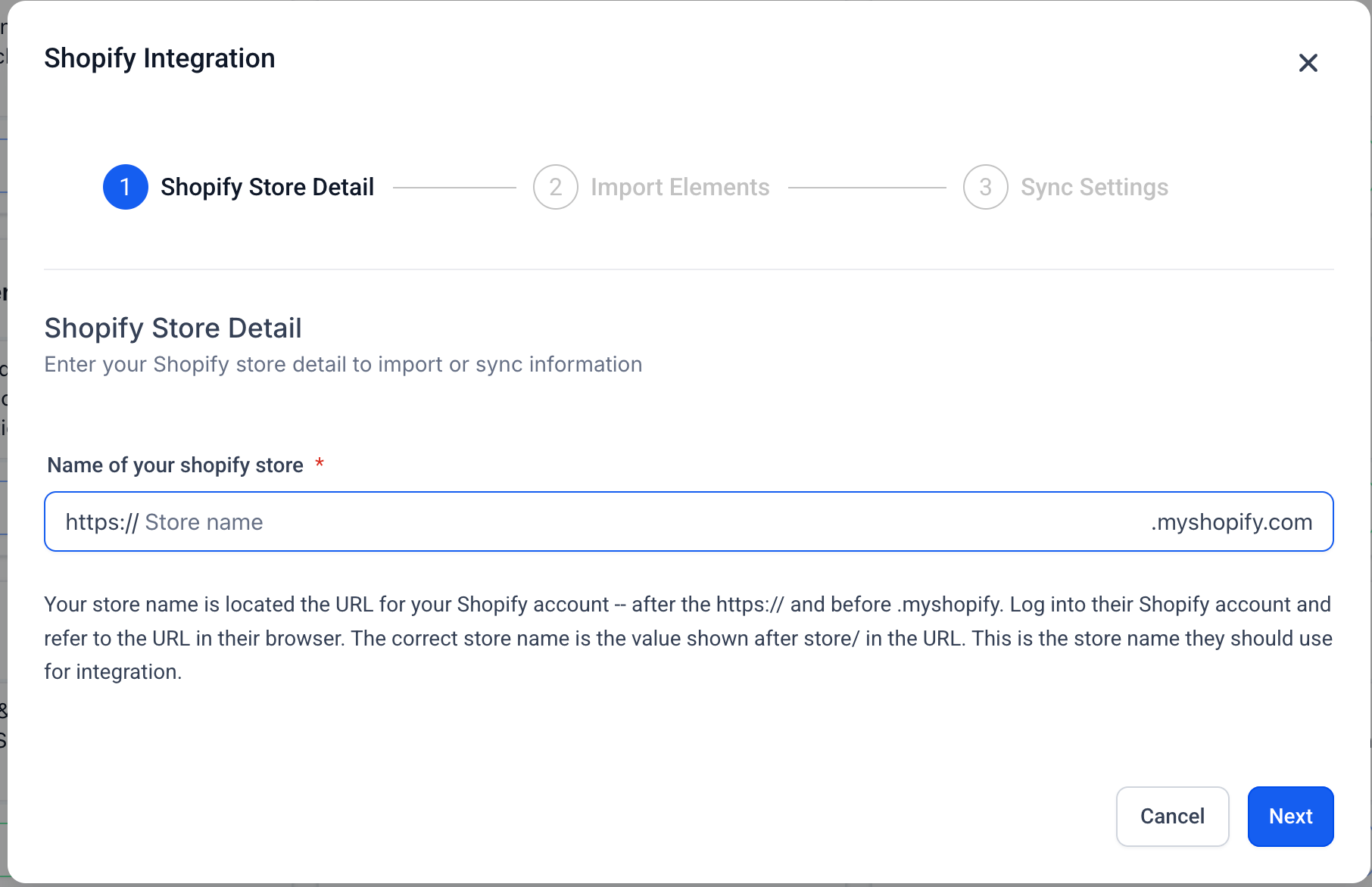
- Enter the store’s URL or name, then choose Next.
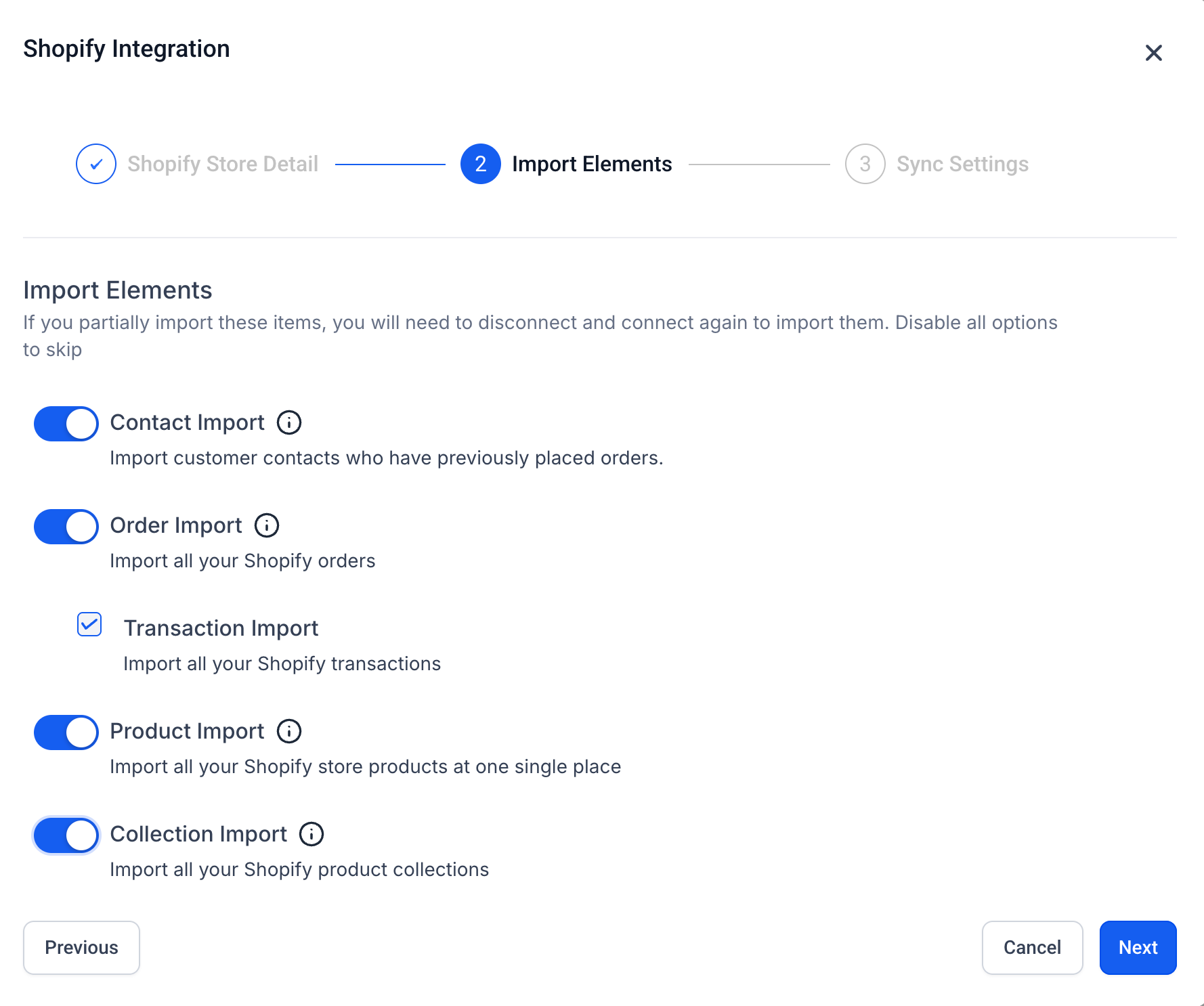
- On the Import Elements screen, tick the items you want to bring in, such as contacts, orders, transactions, products and collections.
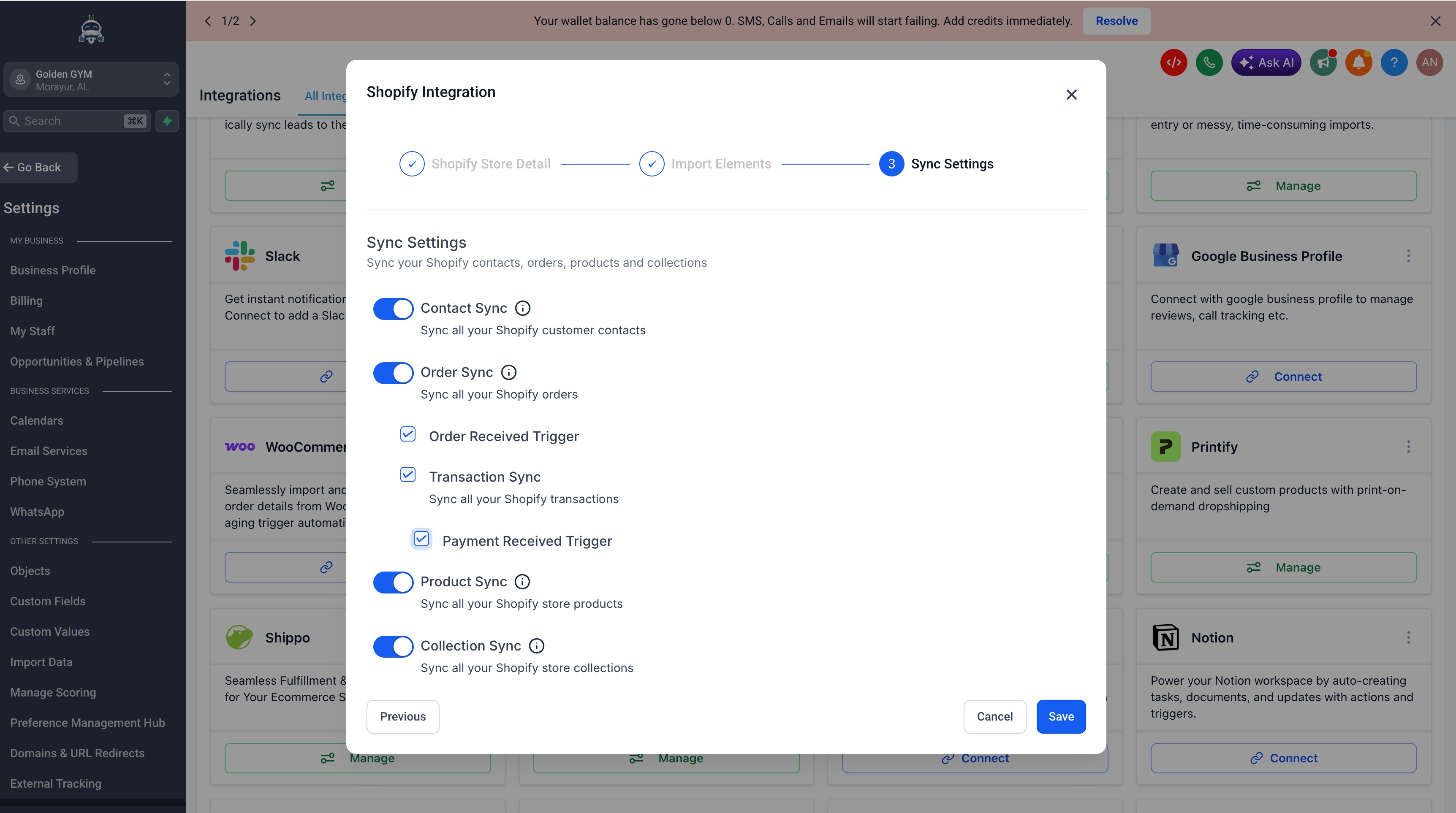
- Choose Next, then on the Sync Settings screen select the data and triggers you wish to keep updating, like contact sync, order sync and product sync.
- Click Save to start the OAuth flow and be sent to Shopify.
- On Shopify’s install screen review the requested permissions and click Install.
- After approval you are returned to HighLevel and the store appears connected.
06What it looks like in HighLevel
07Settings that matter
- Contact Import. Brings existing Shopify contacts into the HighLevel subaccount during the initial connection.
- Order Import. Copies historic Shopify orders into HighLevel when the integration is first set up.
- Transaction Import. Imports past Shopify transactions as single records linked to orders.
- Product Import. Loads catalog items from Shopify for use inside HighLevel.
- Collection Import. Adds Shopify collections to HighLevel for organization or display.
- Contact Sync. Keeps new or updated Shopify contacts synchronized after the initial import.
- Order Sync. Continuously imports new Shopify orders as they are placed.
- Order Received Trigger. Enables a workflow trigger when a new Shopify order is received.
- Transaction Sync. Updates transaction records in HighLevel for each new Shopify transaction.
- Payment Received Trigger. Provides a workflow trigger when a payment is recorded in Shopify.
- Product Sync. Refreshes product details from Shopify on an ongoing basis.
- Collection Sync. Keeps Shopify collection data current within HighLevel.
08Things to know before you rely on it
- Data already imported remains in HighLevel even if its sync option is later disabled.
- Shopify Basic stores must use the OAuth flow to access protected customer and order data.
- The exact store name or URL must be entered during connection.
- Legacy Custom App connections should stay active unless ready to switch to OAuth.
- Certain Shopify workflow triggers are slated for deprecation; newer ecommerce triggers are recommended.
- All contact fields added by the integration sync automatically; there is no per field opt out.
- Refunded or cancelled orders do not lower the order count field.
- Draft orders do not affect any contact field; only completed paid orders do.
- Lifetime value reflects only purchases made through the linked Shopify store.
- Tax information is not mapped when importing or syncing products.
- Only one transaction record is created in the subaccount for each Shopify order.
- Order statuses are recorded as "Completed" or "Cancelled" when synced.
- Merged contacts in Shopify result in the primary contact being updated in the subaccount.
- If no SEO details are set in Shopify, the data is received as null in the subaccount.
09How it connects to the rest of HighLevel
- Explore other integration options All Integrations features
- See pricing details for HighLevel plans HighLevel pricing and plans
- Start a free trial of HighLevel 30 day trial
- Learn about the Founder Plan for businesses Founder Plan
Michael's take

Linking Shopify to HighLevel is a direct way for a small ecommerce business to pull product catalogs, order histories and customer details into one place, letting you automate follow up and reporting without juggling two dashboards.
Avoid using the old Custom App method unless you have a legacy connection that you cannot change.