
01Who this is for
- Agency administrators, they need to verify they are the original integrator and an admin of the Facebook page to make the page appear.
- Marketing managers handling multiple client pages, they can select the relevant pages for each subaccount without breaking existing connections.
- Small business owners who use HighLevel for lead capture, they must ensure they have admin rights on their Facebook page to see it during integration.
02Facebook pages, explained
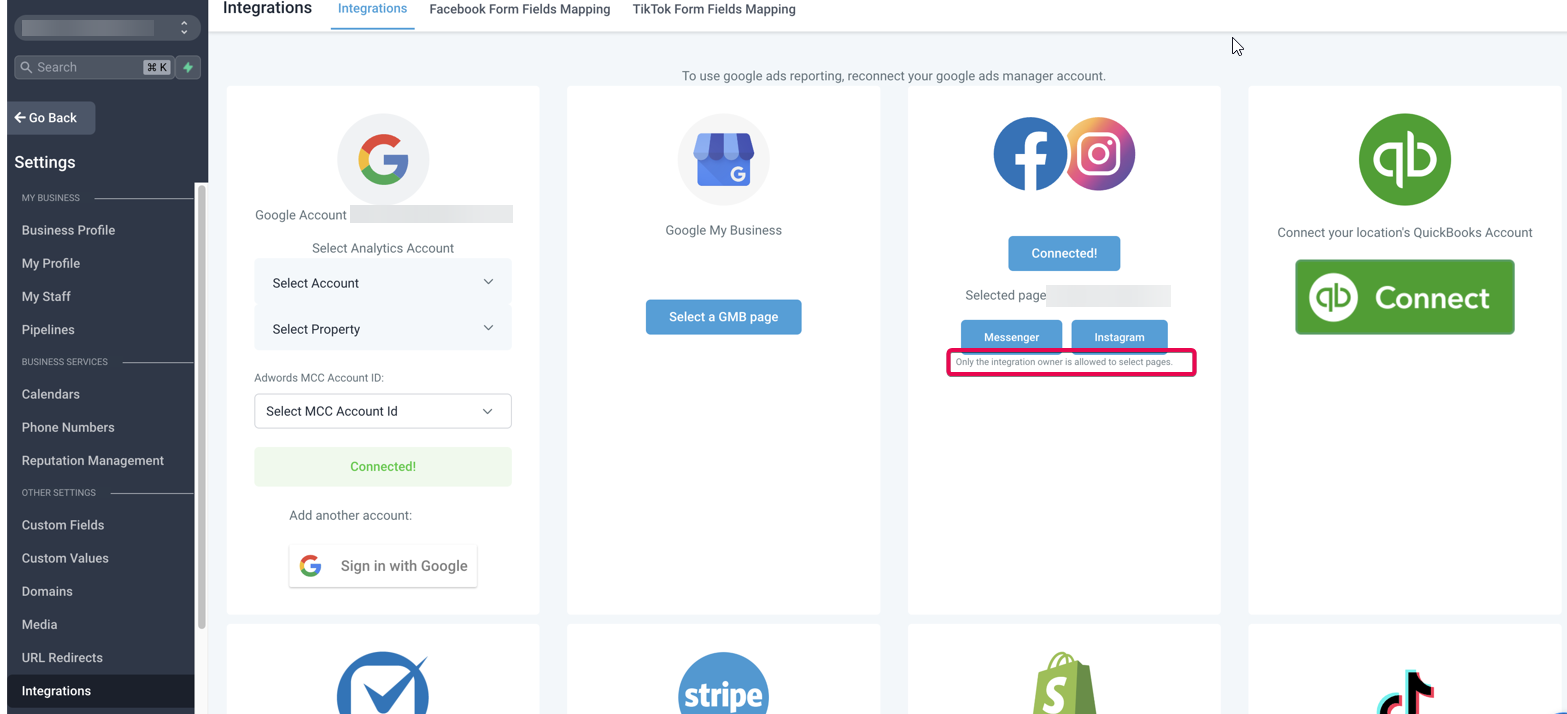
The Manage Pages list in HighLevel displays Facebook Business Pages that have been successfully linked. If a page is missing, the platform cannot retrieve leads from that page until the Facebook side permissions are corrected.
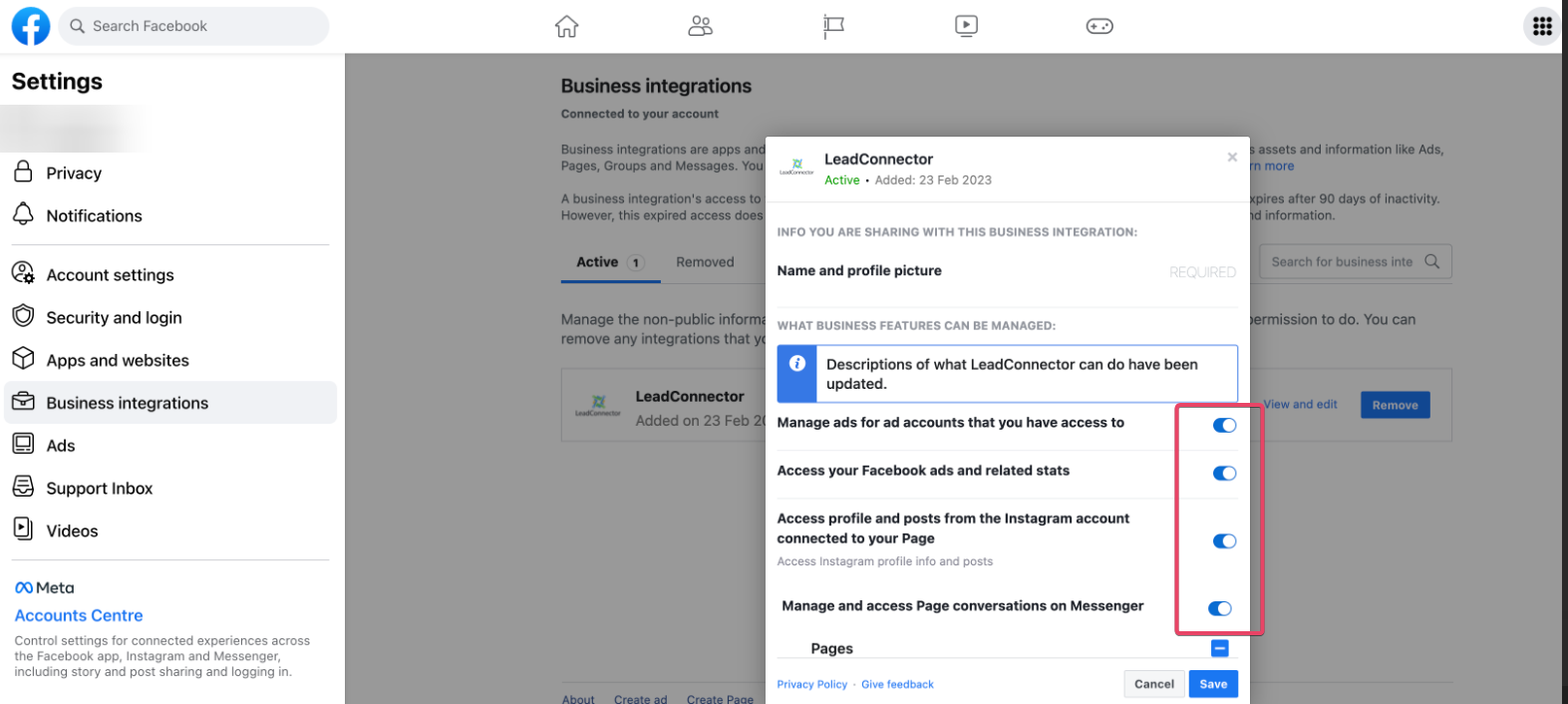
The issue is resolved by changing settings inside the Facebook account. The steps involve navigating to the Business Integrations area, editing the LeadConnector app permissions, and turning on all toggles. Afterward, the relevant pages are checked in the displayed list and the changes are saved.
The toggles are edited in the Facebook Business Integrations area; after updating them, the dropdown in HighLevel refreshes to show the newly authorized pages.
03How businesses use Facebook pages
- Digital marketing agency. An agency will open Facebook, edit the LeadConnector app permissions, and turn on every toggle. Then it will tick the client pages that belong to each subaccount and save. This makes the clients' pages visible in HighLevel for lead syncing.
- Real estate brokerage. The brokerage logs into its Facebook business account, ensures the user who integrated the page is also the page admin, enables all LeadConnector toggles, selects the property listing pages needed, and clicks Save. The pages then appear in HighLevel for capture of lead ads.
- Fitness studio. The studio owner accesses Facebook settings, opens Business Integrations, edits the LeadConnector entry, activates every toggle, checks the studio’s Facebook page in the list, and saves. After this, the page shows in HighLevel and can be used for class sign up forms.
04Before you start
- The person performing the fix must be the same Facebook user who originally linked the page to HighLevel.
- That user must hold admin rights on the Facebook Business Page they want to appear in the Manage Pages dropdown.
05How to set up and use Facebook pages in HighLevel
Open Facebook account
- Log in to the Facebook account that was used for the integration.
Access Settings and Privacy
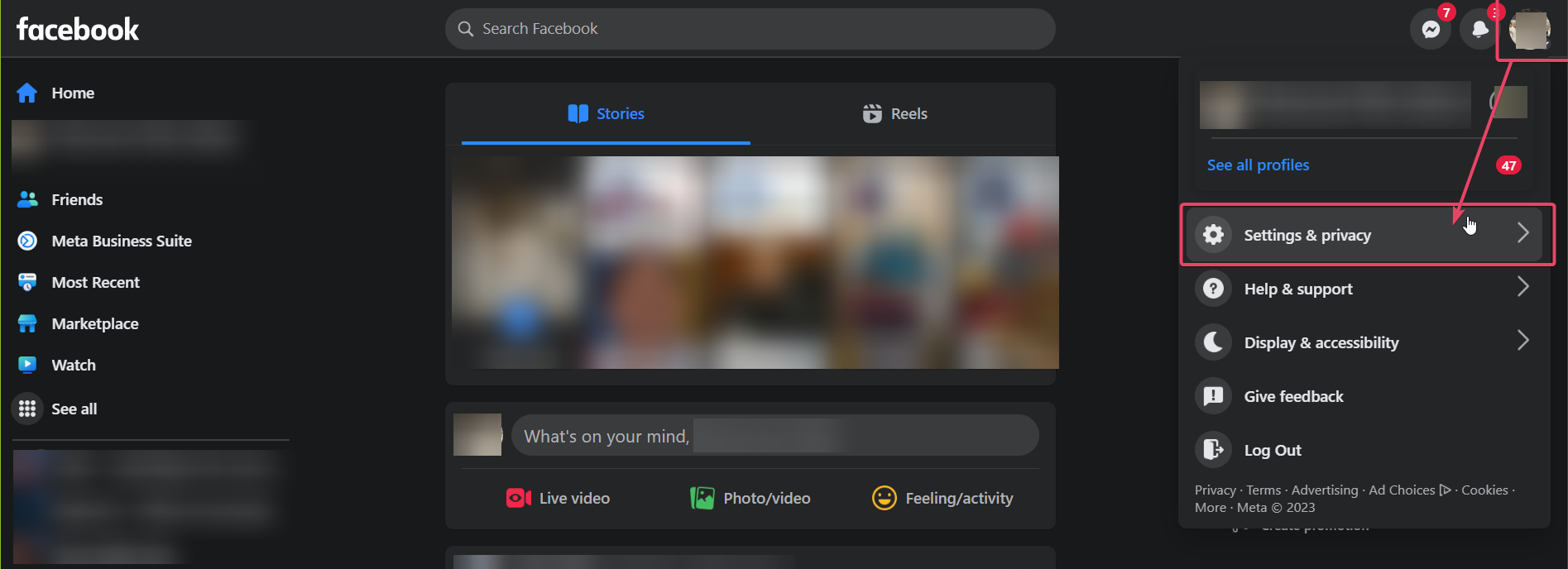
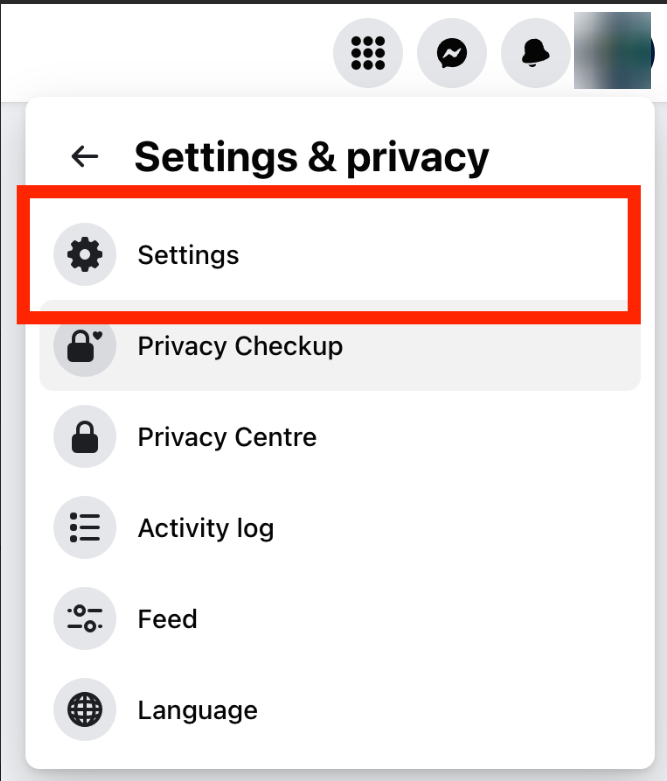
- Click the avatar icon at the top right, choose Settings and Privacy, then select Settings.
Open Business Integrations
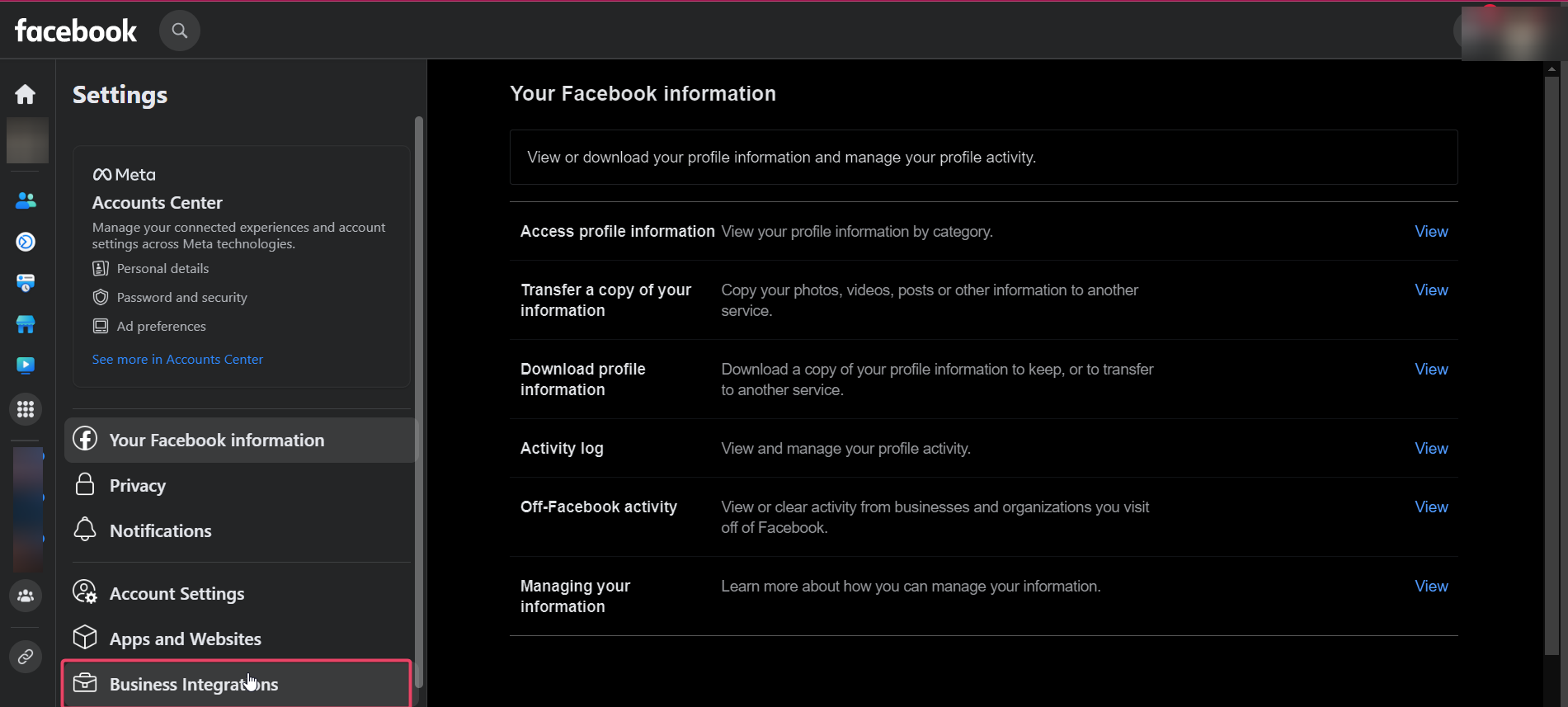
- In the left hand menu, click Business Integrations.
Edit LeadConnector permissions
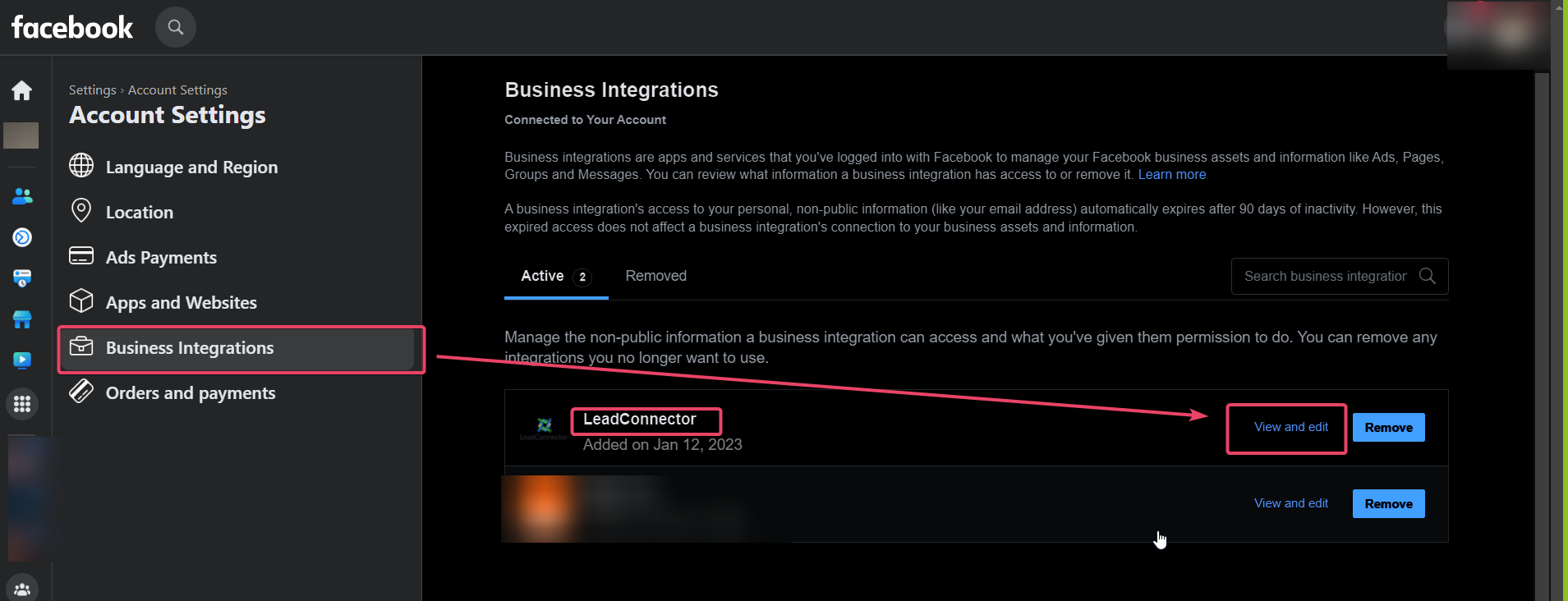
- Locate the LeadConnector app and press View and Edit.
Enable all toggles
- Scroll to the bottom of the permissions page and turn on every toggle presented.
Select relevant pages
- When a list of Facebook pages with checkboxes appears, tick each page that should be linked to the agency’s subaccounts.
Save changes
- Click the Save button to apply the updated permissions and page selections.
06What it looks like in HighLevel
07Settings that matter
- LeadConnector app. Controls the permissions and toggles that allow HighLevel to read leads from linked Facebook pages.
08Things to know before you rely on it
- Only the Facebook user who performed the original integration can view the page in HighLevel’s dropdown.
- The user must be an admin of the Facebook Business Page to see it listed.
- Unchecking a page that is already marked will break its integration with any subaccounts, even if not currently being edited.
09How it connects to the rest of HighLevel
- Step by step guide to Facebook integration in HighLevel Facebook integration guide
- Facebook Lead Ads integration: how to set up and manage Lead Ads setup
- HighLevel pricing and plans Pricing page
Michael's take

I find that fixing missing pages can be a bit tedious, but it’s part of keeping the integration working.
If you only use a single Facebook page for personal marketing, you might prefer to manage the page outside of HighLevel.