
01Who this is for
- Restaurant owners who want first time visitors to complete orders without the barrier of account creation.
- Managers of repeat business restaurants that want returning guests to sign in quickly and have their details filled automatically.
- Food service operators that need a single control for both online orders and table bookings.
02Guest checkout and sign in, explained
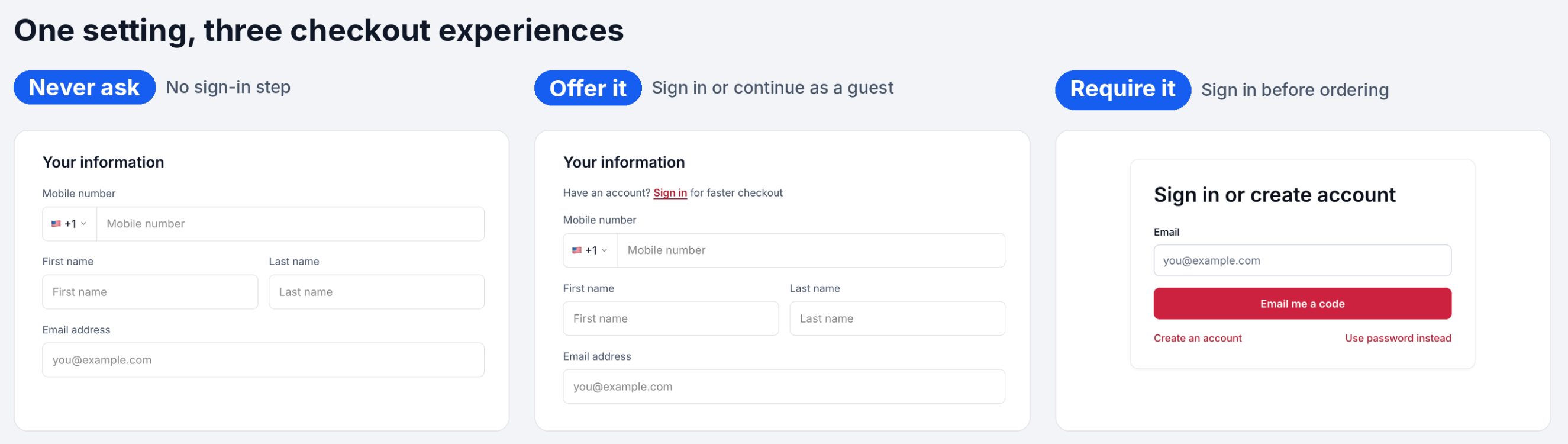
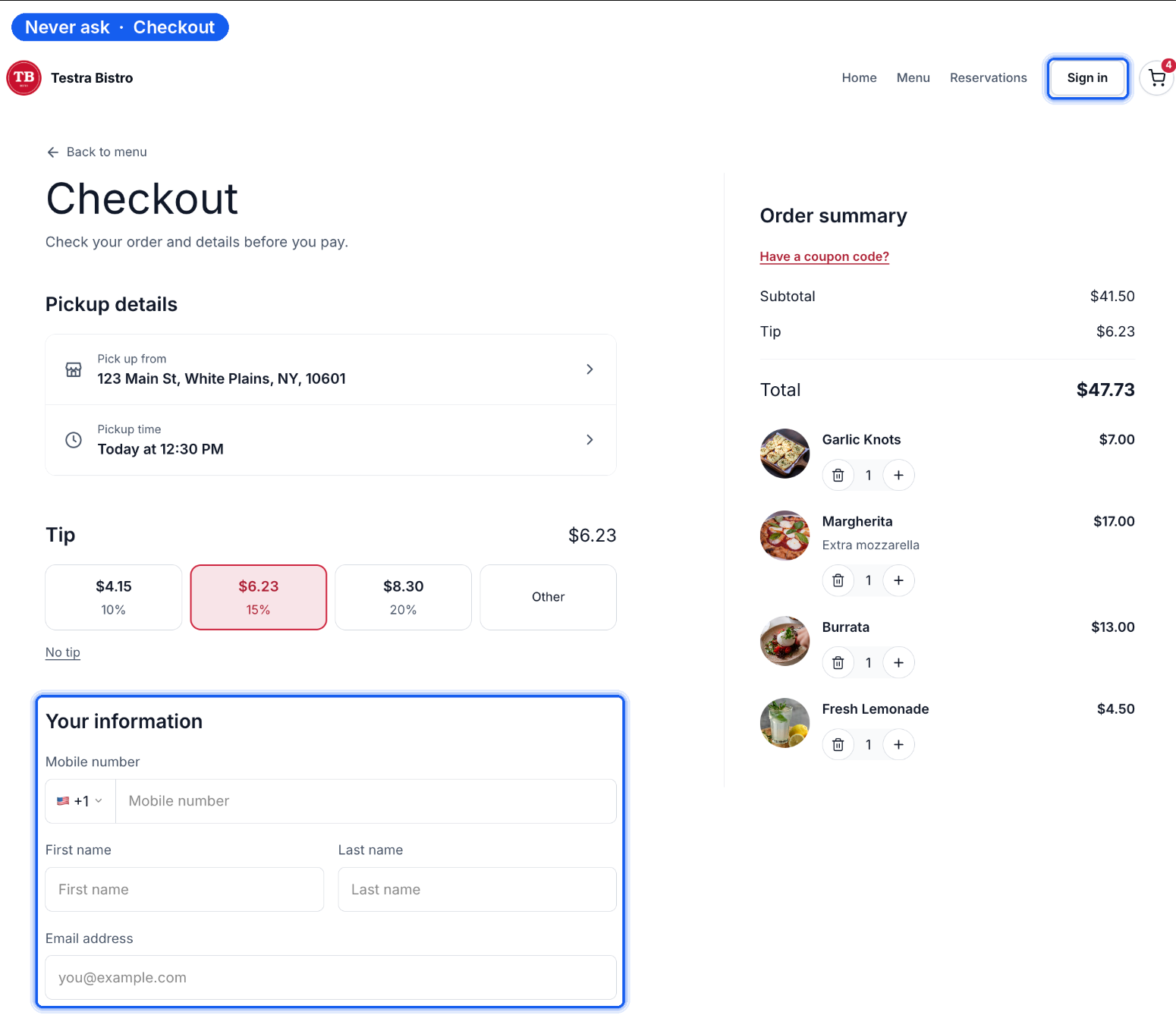
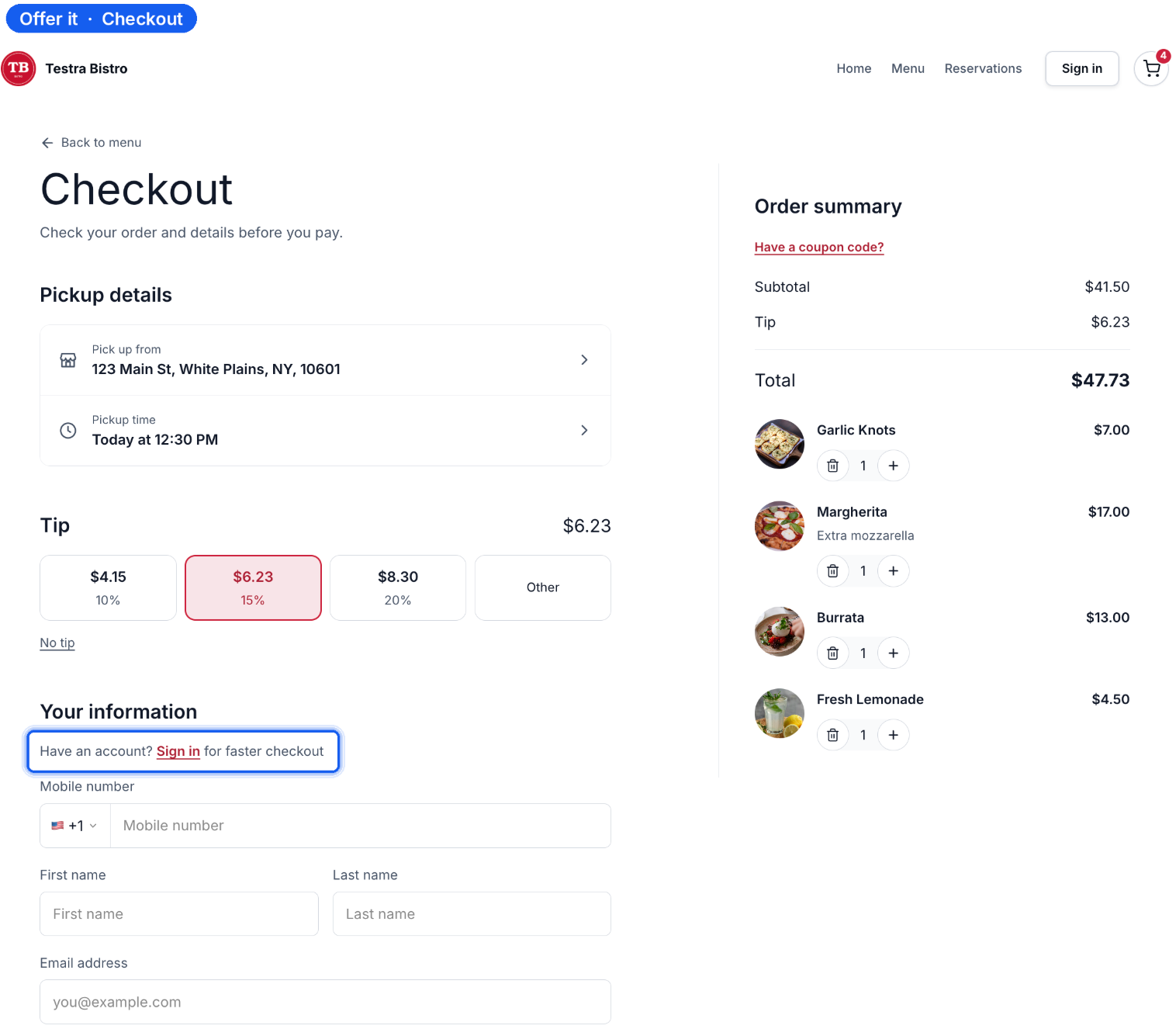
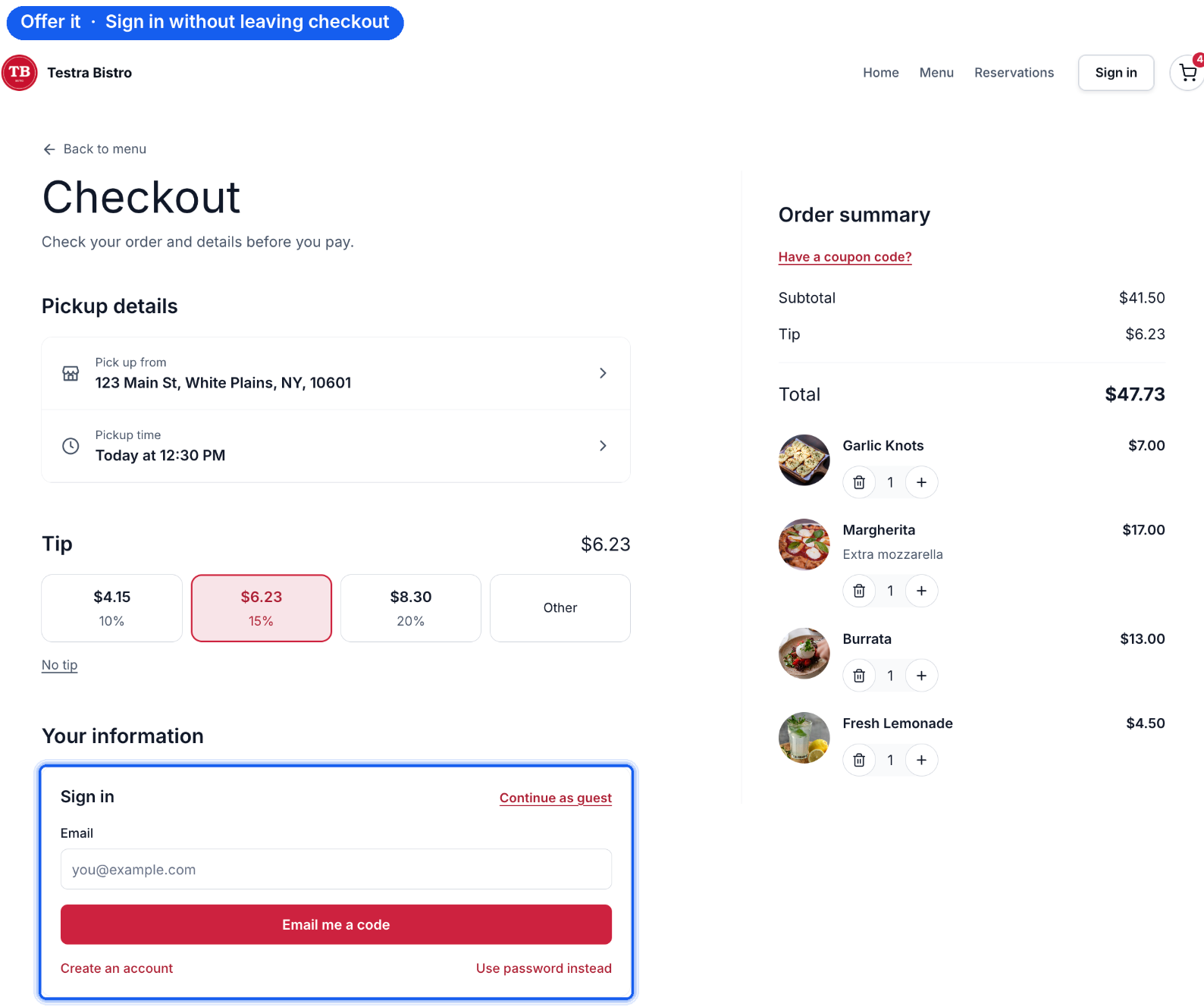
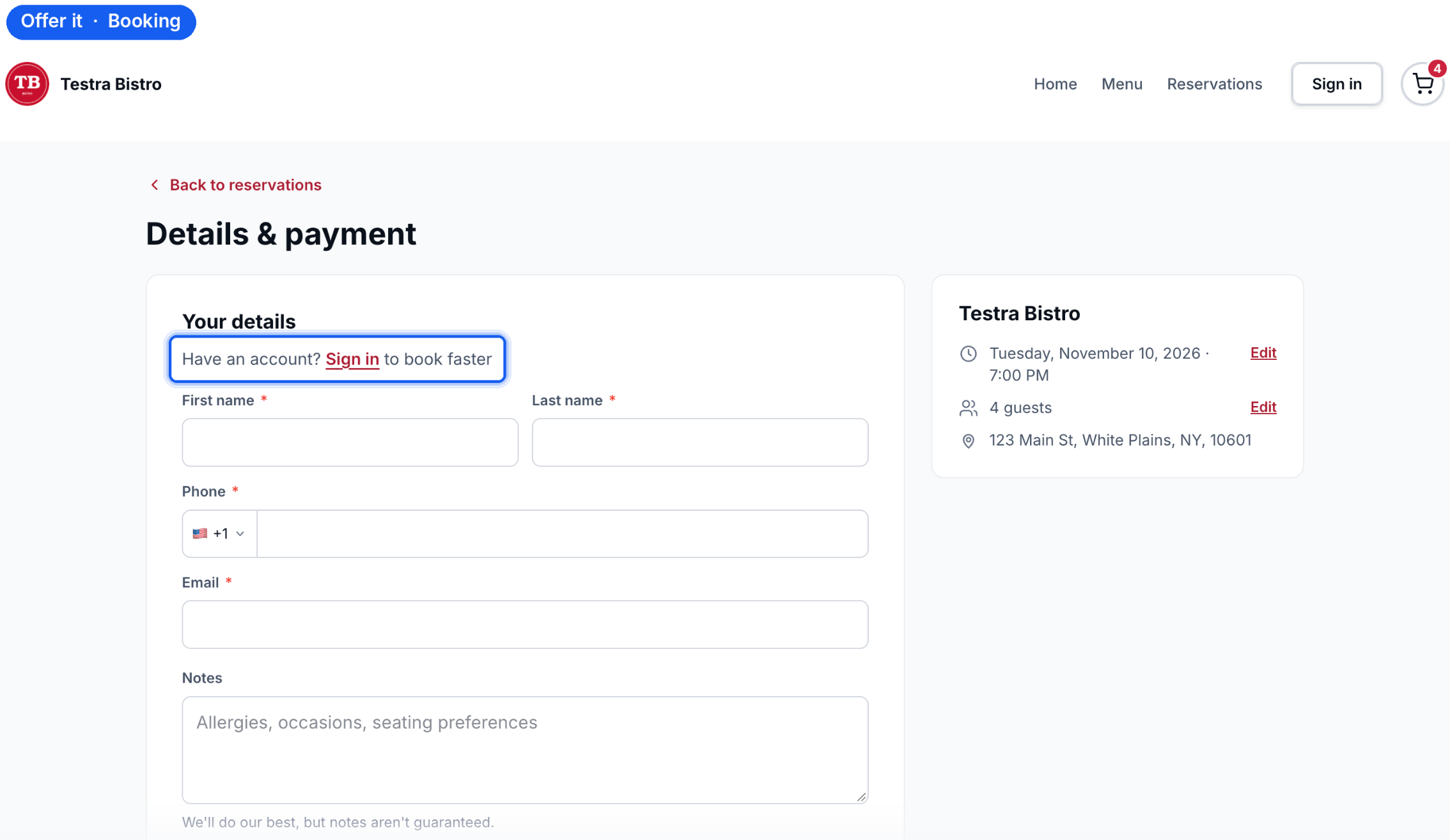
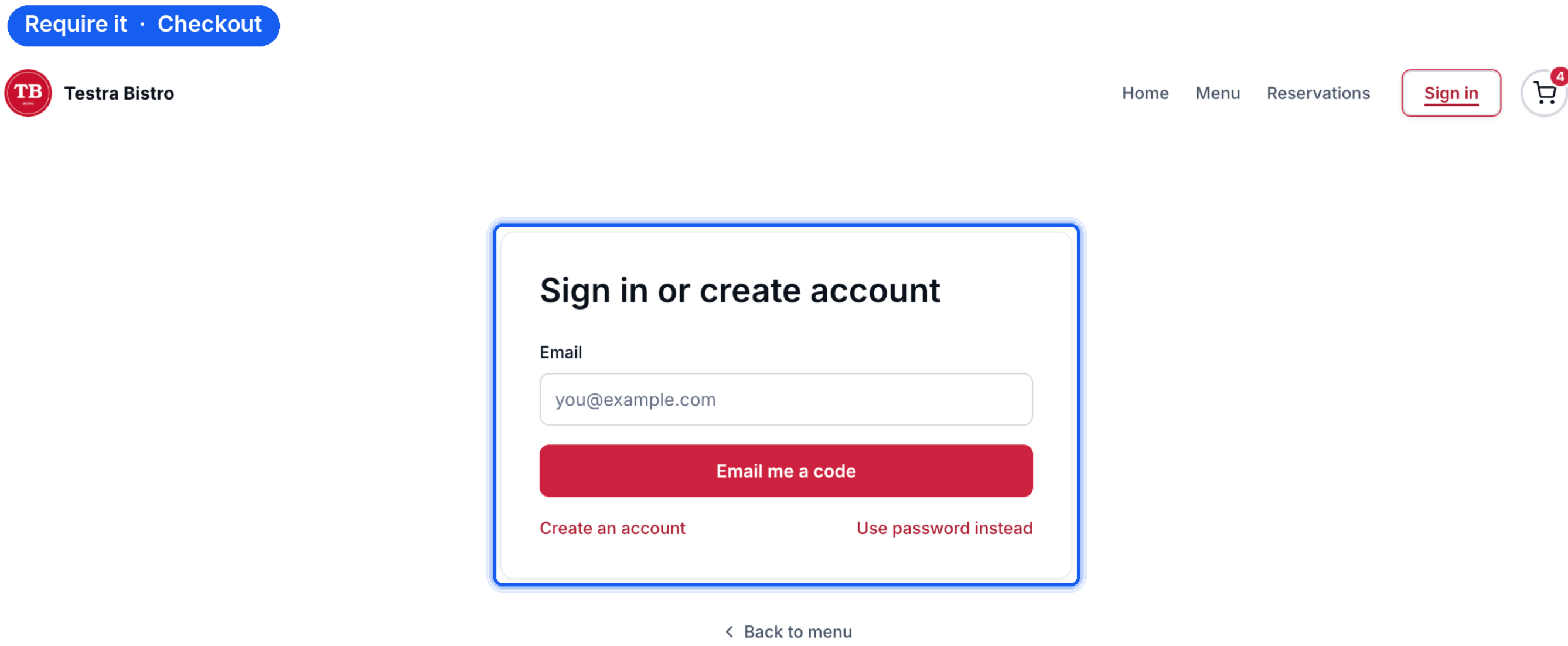
The feature is a single setting that determines the authentication experience for customers using a restaurant website. It can be set to Never ask, Offer it, or Require it. When set to Never ask, guests can finish an order or reservation without an account, while a Sign in button stays visible for returning customers. When set to Offer it, guests see a choice to sign in or continue as a guest; the sign in form appears within the checkout page. When set to Require it, customers must log in or create an account before they can complete the transaction.
The setting lives on the restaurant website configuration page. It appears as a card labeled Sign in within the Setup section of the Restaurant Website area. Changing the option updates the experience for both the online ordering flow and the table reservation flow at the same time; separate controls for each are not provided.
03How businesses use guest checkout and sign in
- Casual dine in restaurant. Select Offer it so walk in customers can sign in for faster checkout or stay as guests. The sign in form opens inside the order page, keeping the order summary visible.
- Food truck catering service. Choose Never ask to let new customers place catering orders without needing to create an account, while still collecting name and contact details.
- Private dining event venue. Set Require it so clients must log in before booking a private room, ensuring all reservations are tied to a customer account for later management.
04Before you start
- The restaurant account must be part of the Restaurants private beta to access this setting.
05How to set up and use guest checkout and sign in in HighLevel
Set up guest checkout and sign in
- Go to Restaurants > Restaurant Website in HighLevel.
- Open Setup and sharing > Setup.
- Find the Sign in card on the page.
- Under When guests check out or book, pick Never ask, Offer it, or Require it.
- Check the email sign in option that appears.
- Press Save changes.
- Press Preview and walk through an order and a reservation to verify the chosen experience.
- Note: One setting controls both online orders and table reservations; separate sign in requirements are not available.
06What it looks like in HighLevel
07Settings that matter
- When guests check out or book. Controls whether customers can order or reserve a table as guests, are given the option to sign in, or must sign in before completing the transaction.
08Things to know before you rely on it
- Only agencies in the Restaurants private beta can use this feature.
- A single setting applies to both online ordering and table reservations; separate options are not available.
09How it connects to the rest of HighLevel
- Learn how to customize and publish your restaurant website. Customize and publish site
- Manage and edit your restaurant menu for online ordering. Edit restaurant menu
- Set up restaurant orders and payments workflow. Orders and payments
- Check HighLevel pricing and plan options. Pricing
- Start a 30 day HighLevel trial to explore restaurant features. 30 day trial
Michael's take

If I were setting this up, I’d start with Offer it so new diners can slip through without friction while loyal guests still get the speed of a saved profile. Test both the order and reservation flows after saving to make sure the sign in prompt behaves as expected.