
01Who this is for
- Agency owners who build client workspaces benefit from a ready made industry layout that reduces setup time.
- Restaurant consultants gain instant access to menus, order and reservation tools without manual configuration.
- Field service providers receive request, estimate, job and scheduling modules tailored to on site work.
02HighLevel Industries, explained
The feature adds an industry layer on top of a standard subaccount. When a subaccount is started from an industry, the navigation includes an industry specific section and a guided setup walks the client through initial configuration steps. The industry’s tools sit alongside core HighLevel features such as contacts, automations and marketing.
Industries are limited to Restaurant and Field services. An industry can be set at creation time or later on a subaccount that has no industry assigned. Once chosen, the industry cannot be changed through the user interface.
03How businesses use HighLevel Industries
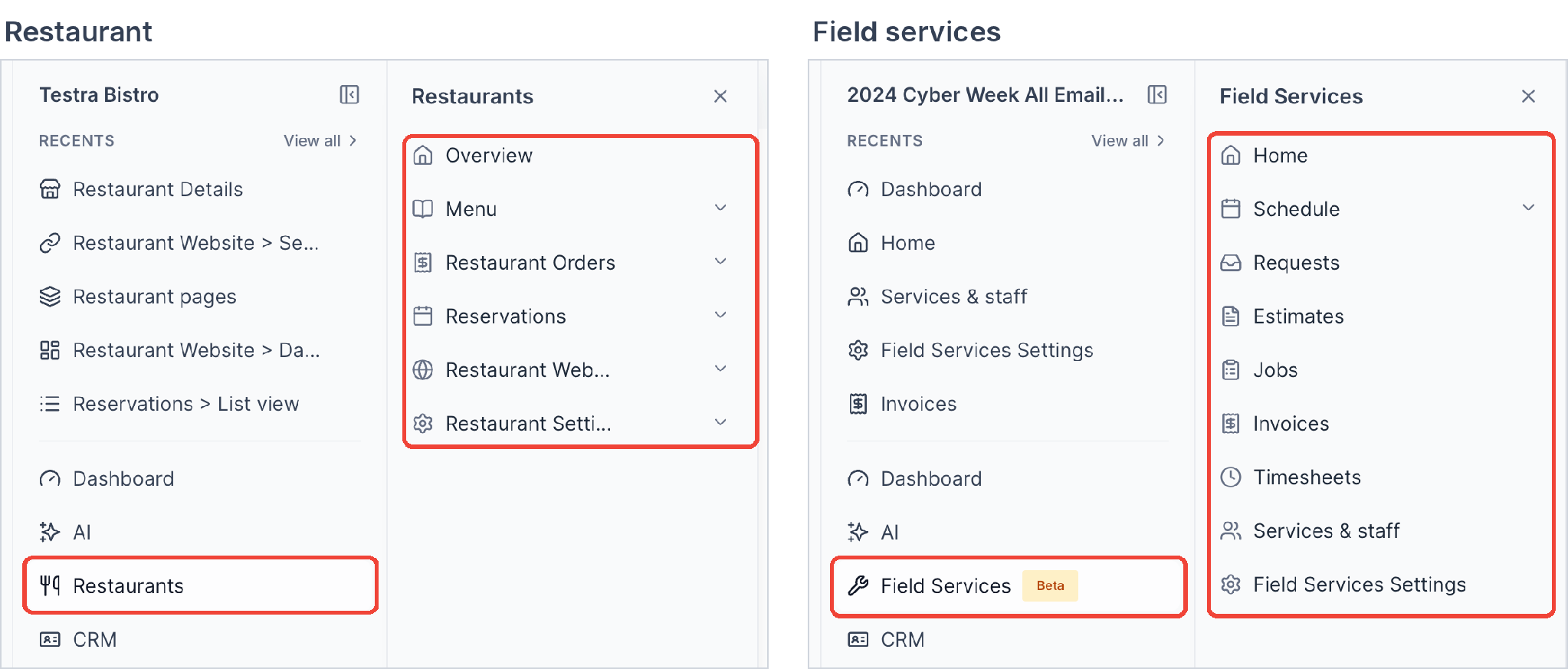
- Restaurant. Select the Restaurant industry when creating a subaccount. The workspace appears with Menu, Restaurant Orders, Reservations and related settings. The client then adds menu items, defines payment options, and configures table layouts directly in HighLevel.
- Field services. Choose Field services for a plumbing or HVAC business. The subaccount gains Requests, Estimates, Jobs, Scheduling and Timesheets tools. The client populates staff, service areas and service types using the guided setup.
- Agency. An agency creates a subaccount for a new client and picks the appropriate industry. The client receives the industry specific workspace immediately, eliminating the need to build separate menus or job modules manually.
04The numbers and rules that matter
- Restaurant industry includes menus, online ordering, reservations and tables.
- Field services industry includes requests, estimates, jobs and scheduling for on site work.
- One industry per subaccount; cannot be changed after assignment.
05Before you start
- Open the agency view and navigate to Subaccounts.
- Have the client’s business details ready, either searchable in the listing or prepared for manual entry.
06How to set up and use HighLevel Industries in HighLevel
Create a new industry subaccount
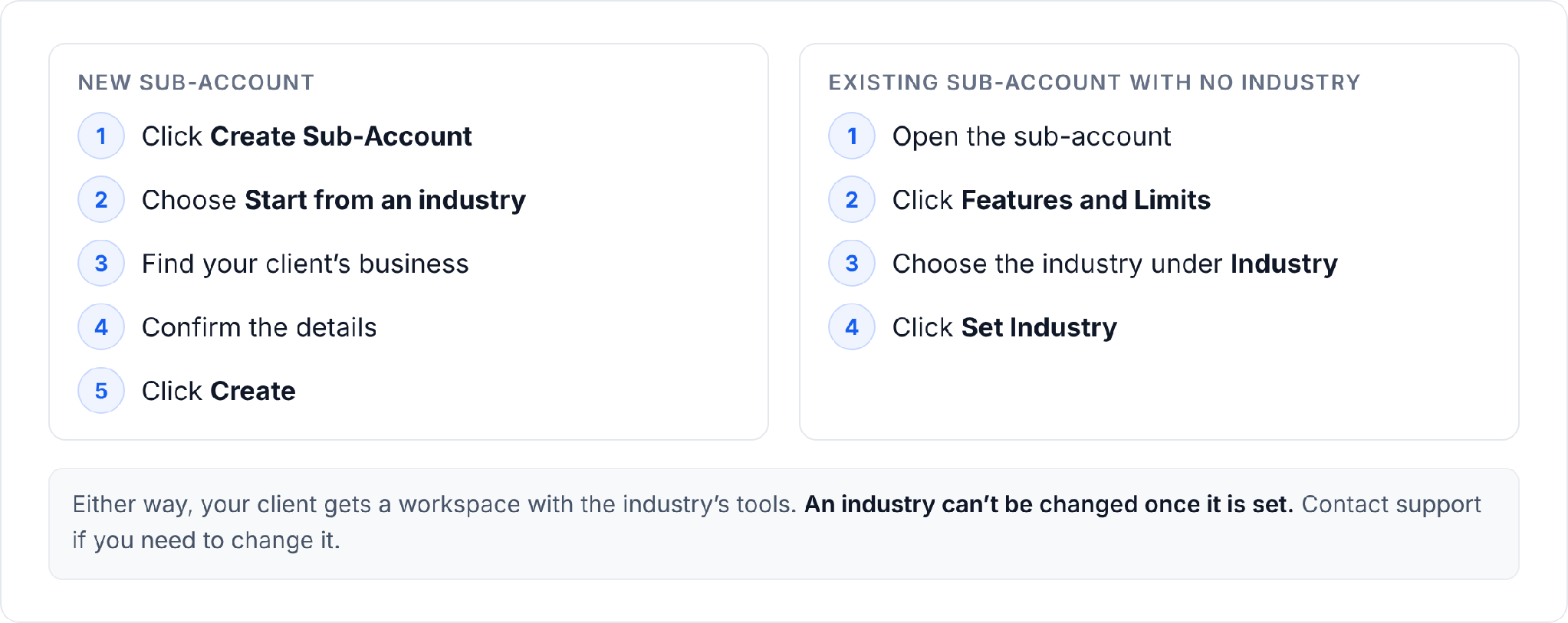
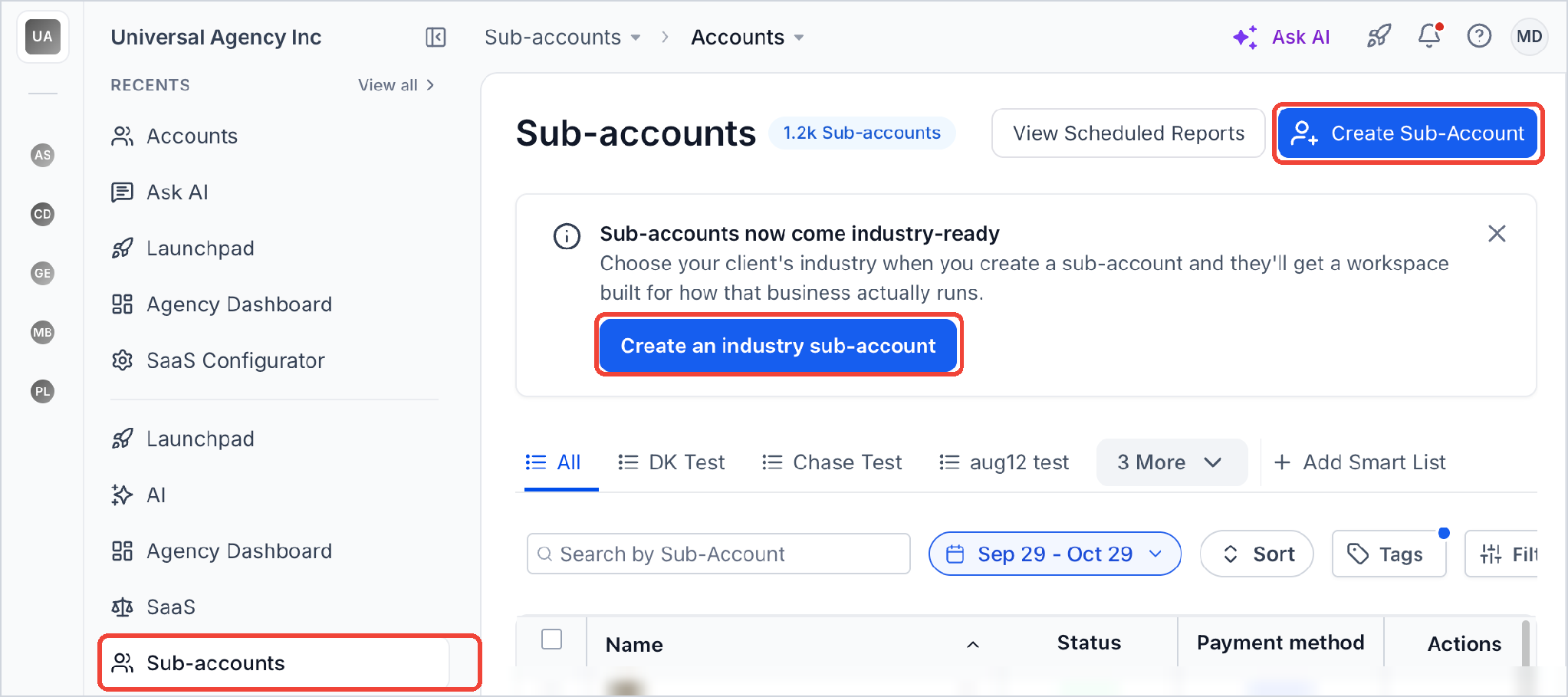
- In the agency view, click Subaccounts in the left navigation.
- Press Create Subaccount at the top right, or select Create an industry subaccount from the banner.
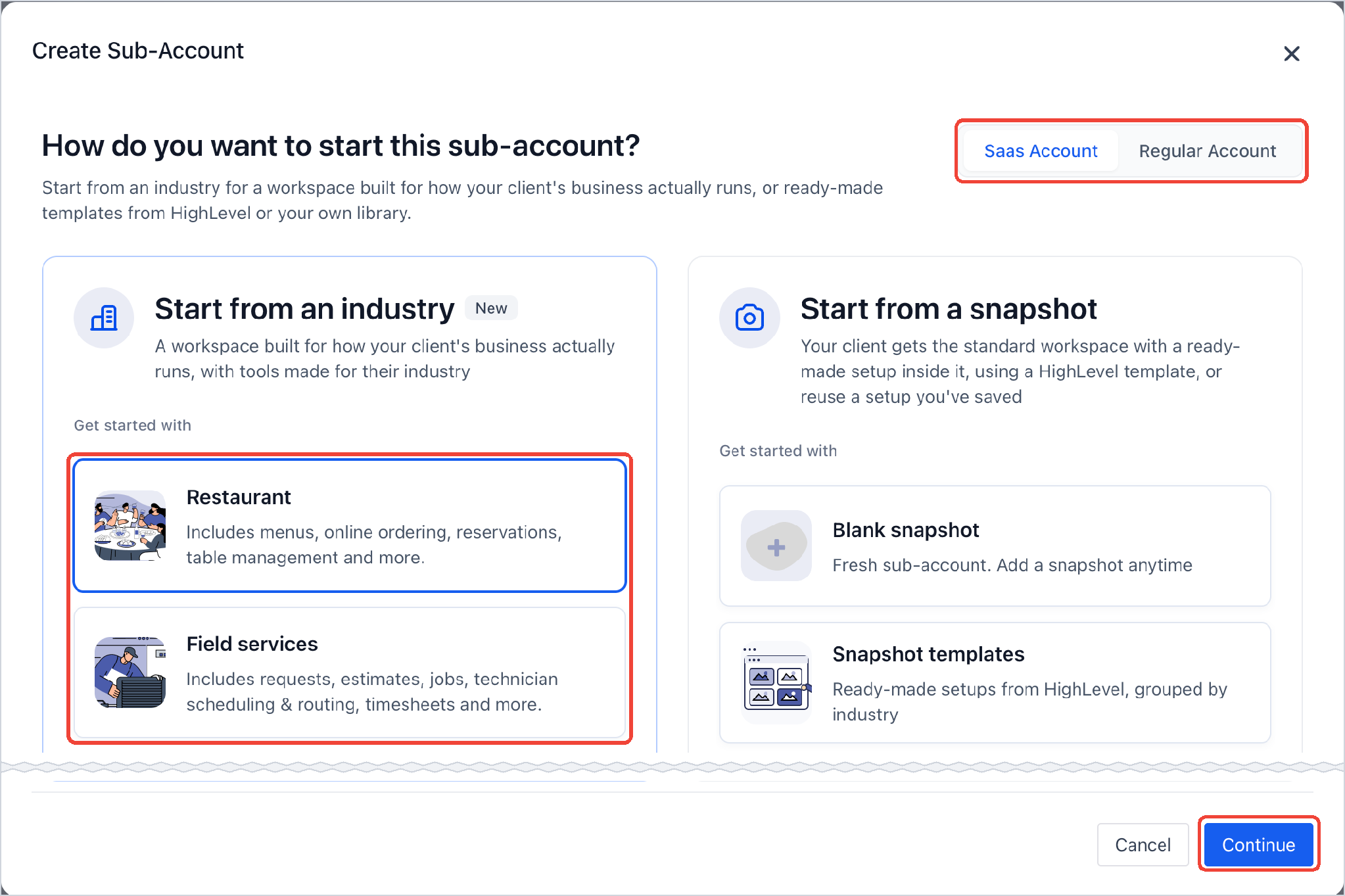
- Choose Restaurant or Field services under Start from an industry and click Continue.
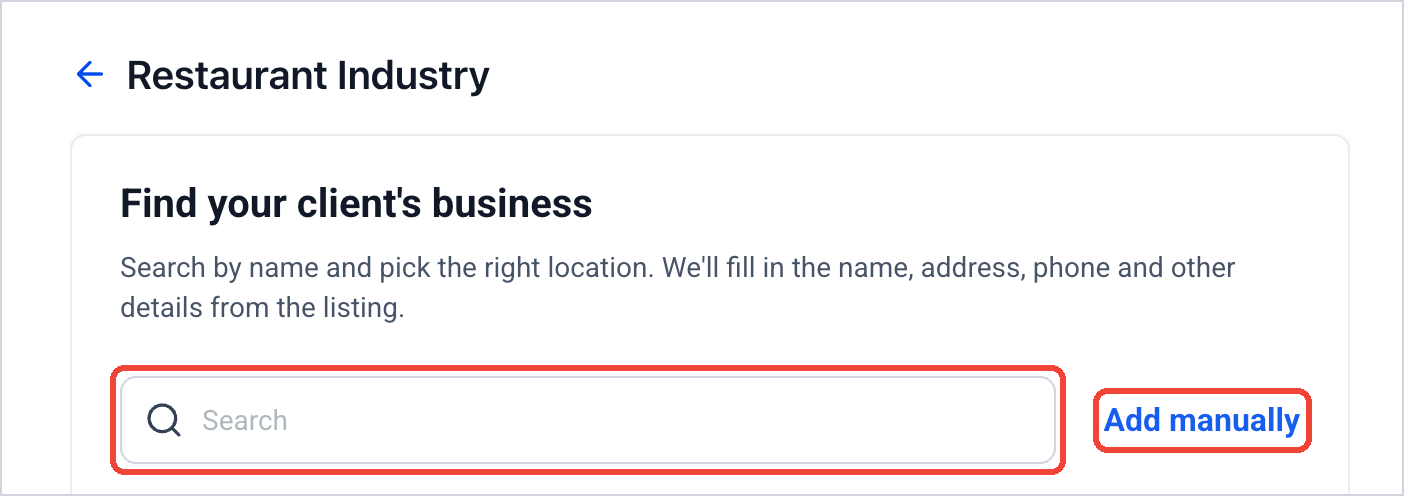
- Search for the client’s business by name, select the listing, or click Add manually if not found.
- Select the client’s address from the Pick an address list.
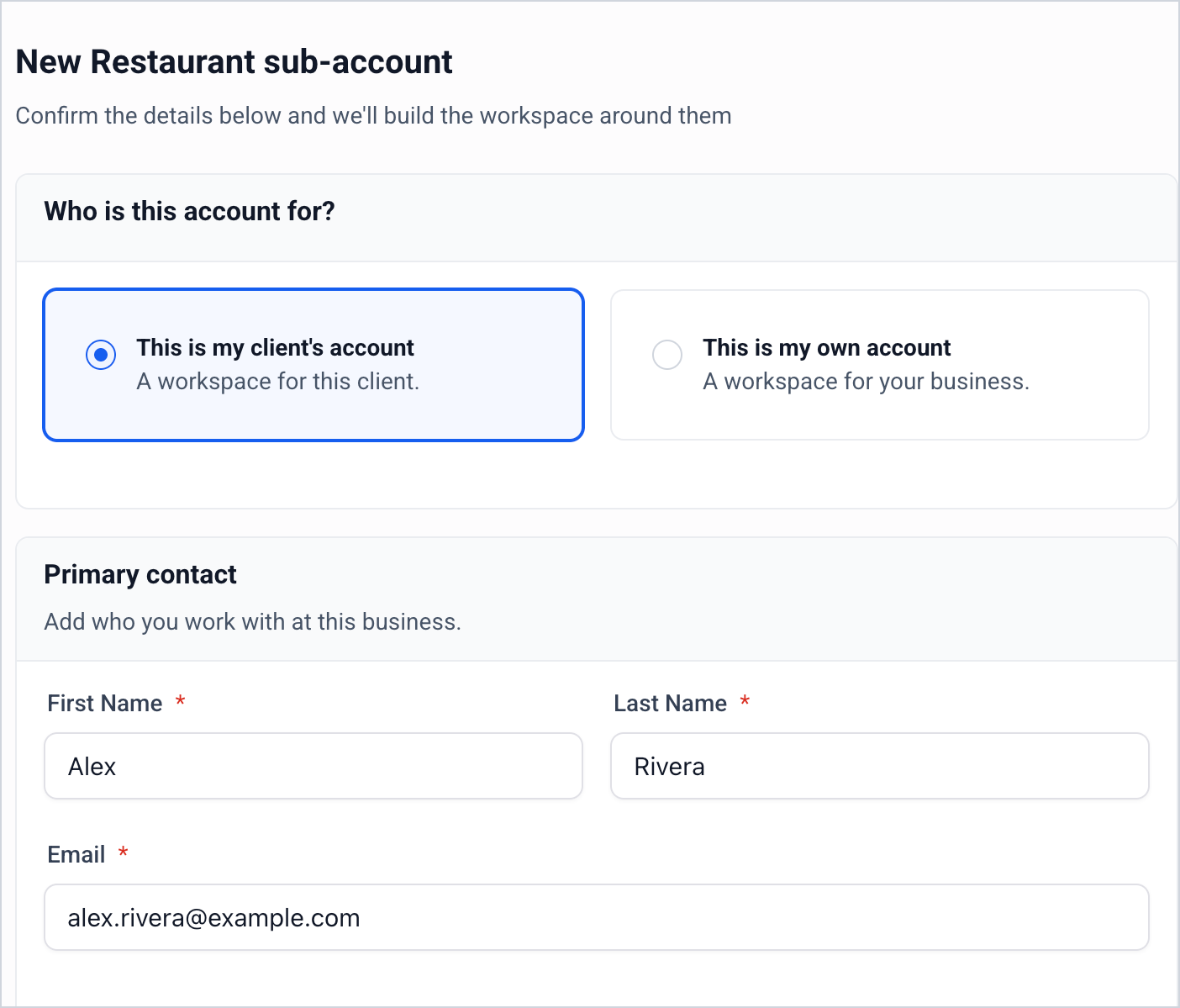
- Choose whether the account is for the client or for your own business.
- Enter the primary contact’s first name, last name and email, then fill the required business fields.
- Select the services the client needs, optionally choose Other, and click Create.
- Important: Check the industry before you click Create. An industry can’t be changed once it is set.
Assign an industry to an existing subaccount
- In Subaccounts, click the name of the subaccount you want to modify.
- Open the Features and Limits tab.
- Under Industry, click No industry and pick Restaurant or Field services.
- Click Set Industry to apply the selection.
- Important: Check that you chose the right industry before you click Set Industry. An industry can’t be changed once it is set.
07What it looks like in HighLevel
08Settings that matter
- Industry. Specifies which industry template, Restaurant or Field services, is applied to the subaccount, adding the corresponding navigation items and guided setup.
09Things to know before you rely on it
- Only Restaurant and Field services are offered as industries; other businesses must start from a snapshot.
- A subaccount can have only one industry assigned.
- Once set, the industry cannot be changed or removed without contacting support.
- Industries can be assigned to an existing subaccount only if it currently shows No industry.
- The Subaccounts list cannot be filtered, sorted, or grouped by industry.
- Field Services appears with a Beta label in the client navigation.
10If something goes wrong
- Industry cannot be changed after it is set. Contact support to request a change.
- Client’s business cannot be found in the search. Click Add manually and enter the business details yourself.
11How it connects to the rest of HighLevel
- Set up menus and reservations for a restaurant workspace Restaurant workspace guide
- Explore all industry features available in HighLevel All Industries features
- Review HighLevel pricing and plan options Pricing and plans
Michael's take

HighLevel Industries packs a lot of value for a small business that needs a ready made setup. It drops the time spent building menus, job boards or reservation systems and hands over a workspace that already matches how the business works.
Don’t set the wrong industry and then discover you can’t switch it later.