
01Who this is for
- Founders who need to locate records across multiple products without switching menus, staying within permission limits.
- Agency managers who oversee contacts, opportunities and workflows for many clients and require a fast way to jump to any item.
- Small business owners who want a single point of entry to find calendar events, funnels or product listings while multitasking.
02Global Search V2, explained
Global Search V2 provides a centralized search window that covers more than 530 platform routes and eight core products such as contacts, opportunities, calendars, funnels, workflows, social planner and conversations. The backend runs parallel queries, delivering results in a single round trip regardless of how many products are involved.
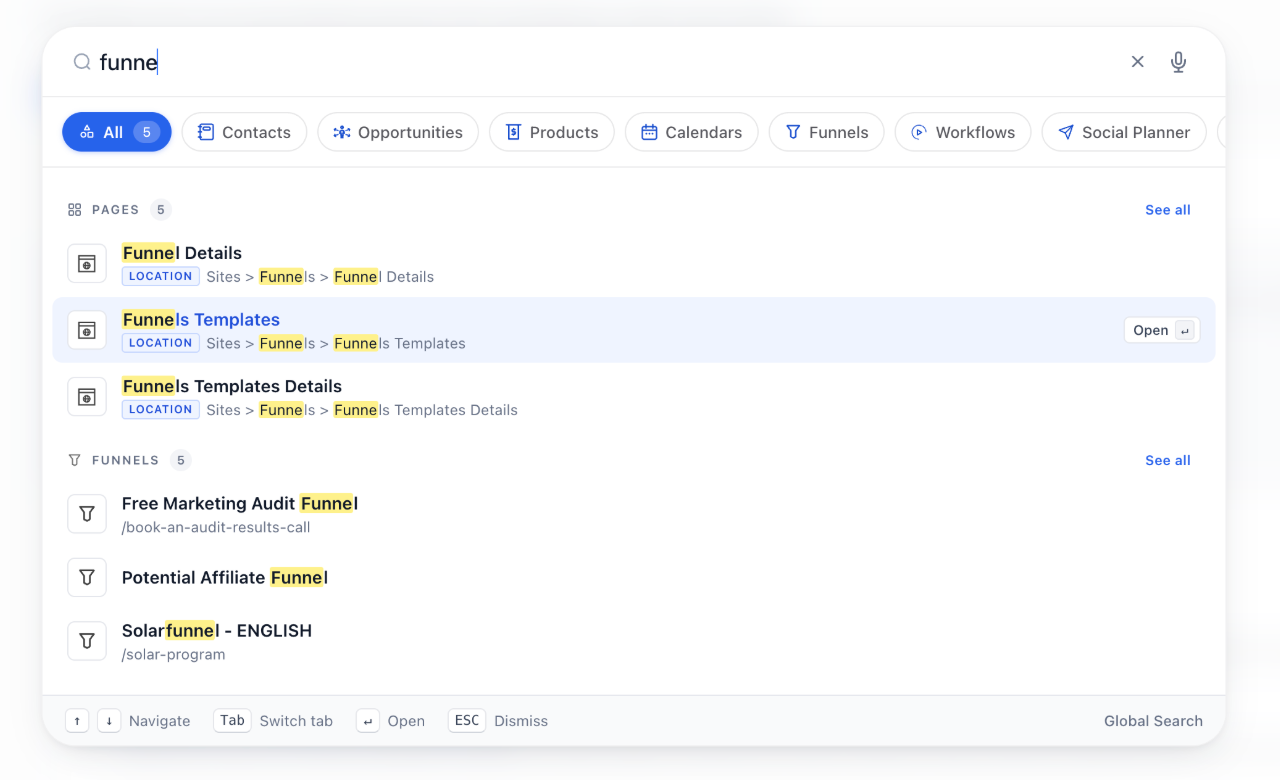
The interface appears as a modal overlay with a search bar, product filter pills and grouped results. Users can open it by clicking the sidebar search field or pressing Cmd/Ctrl + K. Voice dictation is available through a microphone icon, and a footer lists keyboard shortcuts for navigation, scope switching and closing the modal.
Search results are automatically limited to what the current user can see, based on role permissions, data only restrictions, feature flags and deprecated features. If no items match, users with Ask AI access can forward the same query to Ask AI directly from the modal.
03How businesses use Global Search V2
- Marketing agency. An agency team member types a client's contact name into the search bar, selects the returned record with the arrow keys, and opens the contact profile right away. The same process works for locating a specific funnel or workflow without navigating through separate sections.
- Real estate brokerage. A broker uses voice commands to say "open property listings" and the platform jumps to the listings page. They then filter the search to the Calendars product to find a showing appointment quickly.
- Fitness studio. The studio owner presses Cmd/Ctrl + K, enters a class name with a typo, and the fuzzy matcher still brings up the correct class record. They press Enter to edit the schedule directly from the results.
04The numbers and rules that matter
- Indexes 530+ platform routes.
- Searches across 8 core products: Contacts, opportunities, products, calendars, funnels, workflows, Social Planner, conversations.
- Shortcut keys: Arrow keys, Enter, Tab, Cmd/Ctrl + 1.9, Esc.
05Before you start
- Access to HighLevel Labs settings within the account.
06How to set up and use Global Search V2 in HighLevel
Enable and use Global Search V2
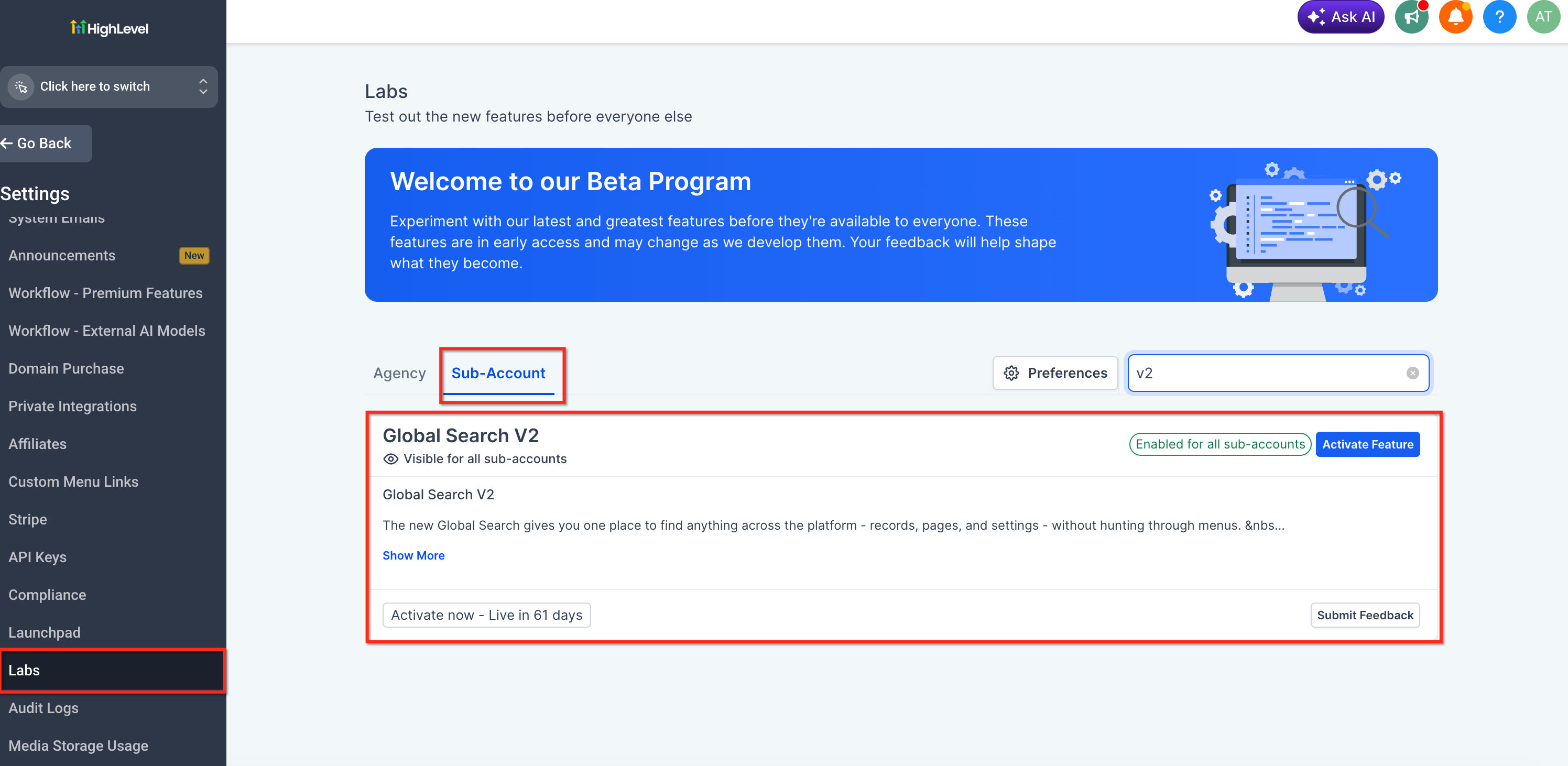
- Open Labs > Subaccounts and toggle the Global Search V2 option to the enabled position.
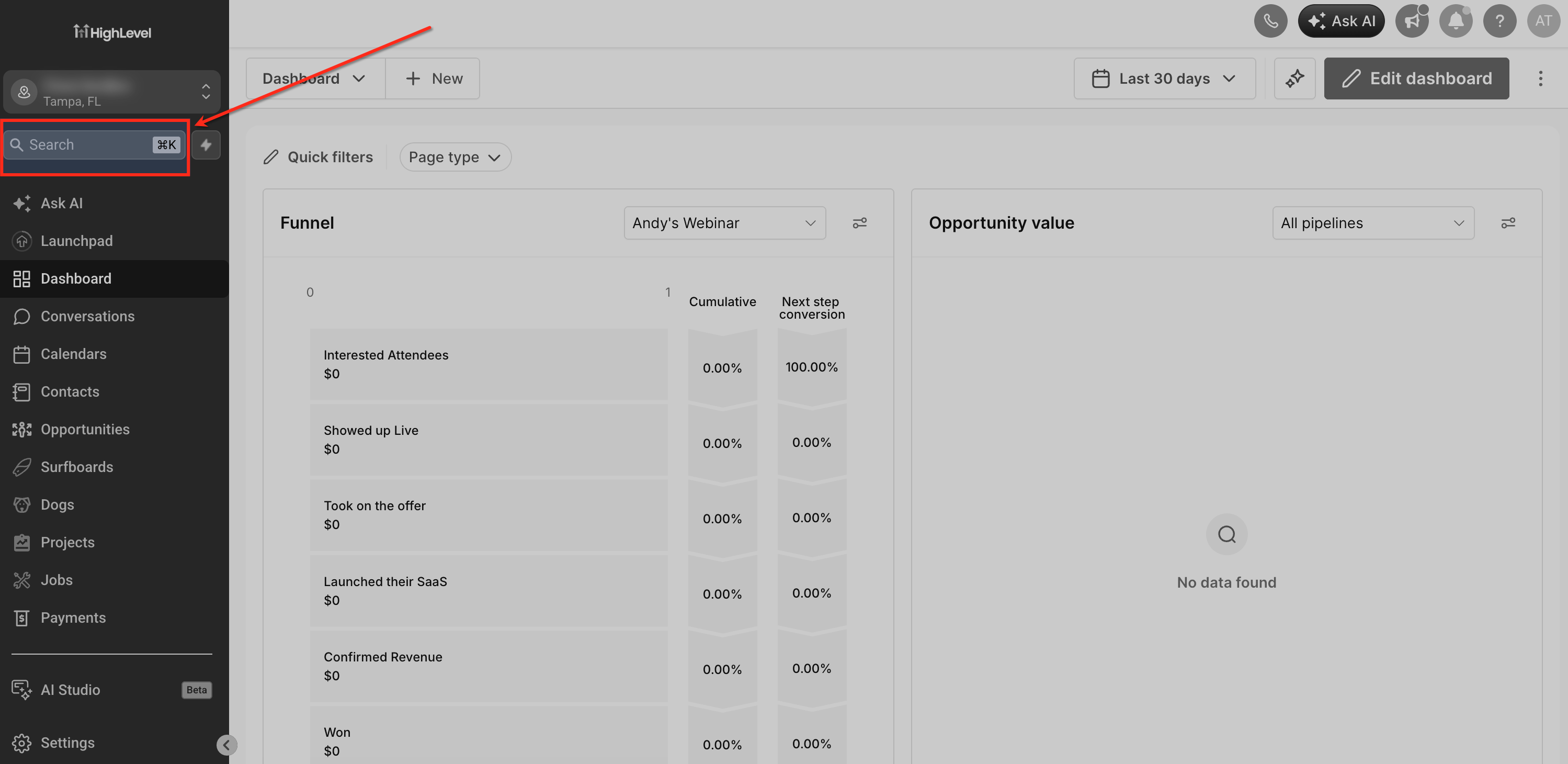
- Click the search bar in the left sidebar or press Cmd/Ctrl + K to open the search modal.
- Type the name of the record or page you want to locate; you may also click the microphone to issue a voice command.
- Examine the grouped results, move through them with the arrow keys, and press Enter to open the chosen item.
- Select a product filter pill to limit the scope, or click the empty search bar to view the app icons grid for browsing.
07What it looks like in HighLevel
08Settings that matter
- Global Search V2. Controls whether the unified search interface is available; enabling it activates the search bar, shortcuts and voice command features.
09Things to know before you rely on it
- The feature is offered as a Labs early access capability and may be updated based on user feedback.
- Currently it indexes eight core products; additional products will be added over time.
- Search results are filtered by the user’s role, data only permissions, feature flags and any deprecated features.
10How it connects to the rest of HighLevel
- Create and manage contacts in HighLevel Contact management
- Launch a funnel and capture leads Funnel launch
- Set up a personal booking calendar Booking calendar
Michael's take

I find Global Search V2 helpful for quickly locating records or pages without navigating through multiple menus.
If your team rarely needs to jump across multiple products or you already have a workflow that pins the exact pages you use, the feature may add little extra value.