
01Who this is for
- Marketing managers can automatically enroll leads after they engage with email content.
- Sales teams benefit by receiving timely follow up steps when a prospect clicks a link.
- Customer support specialists can trigger satisfaction surveys when an email is opened.
02Email event triggers, explained
The Email Events trigger is a workflow entry point that activates whenever a contact performs a selected email interaction, such as opening or clicking a message. It is available within the Workflows & Automation section of HighLevel. After adding the trigger, you can attach any workflow actions to run for each qualifying contact.
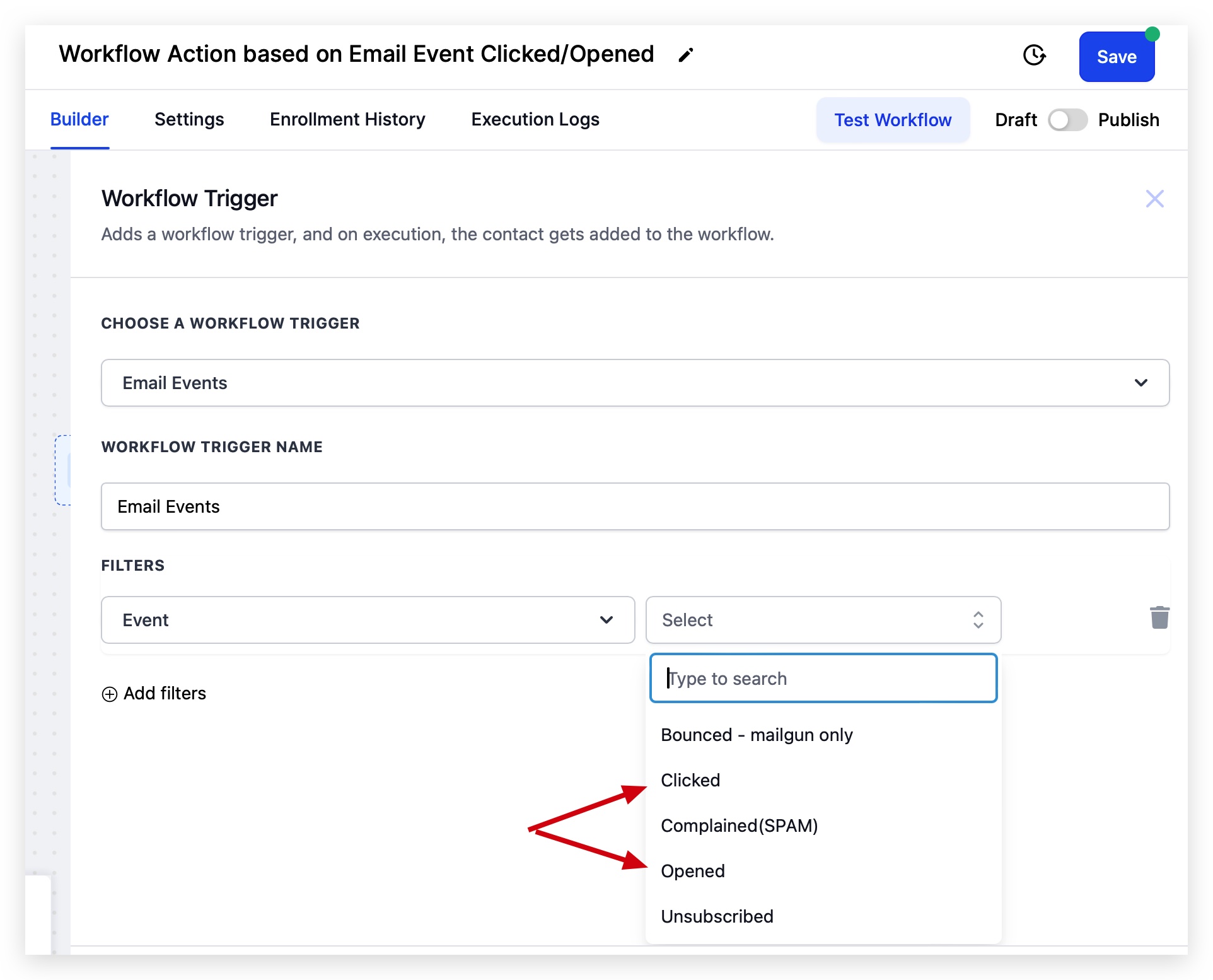
You can narrow the trigger by adding filters. First you select the Email Events trigger type, then you add a filter, choose the Event field, and finally pick either Clicked or Opened as the event you care about. Additional filters like Campaign Name let you limit the trigger to specific sends.
The trigger respects the platform’s tracking settings. Open and Click tracking must be active on the sending domain for events to be recorded. If Bot Detection Prevention is turned on, automated bot activity is excluded, keeping the automation based on genuine human actions.
03How businesses use email event triggers
- Ecommerce store. Add a Clicked event filter to enroll shoppers who click product links in promotional emails. The workflow then sends a personalized follow up offering a discount code.
- SaaS startup. Choose the Opened event to add prospects who view a trial invitation email into a nurture series. Subsequent steps deliver onboarding resources.
- Non profit organization. Apply an Email Events trigger on a campaign specific filter so volunteers who open an event invitation email receive a reminder sequence.
04Before you start
- Open and Click tracking must be enabled on the sending domain.
- The workflow must be published for the trigger to become active.
05How to set up and use email event triggers in HighLevel
Add an Email Event trigger to a workflow
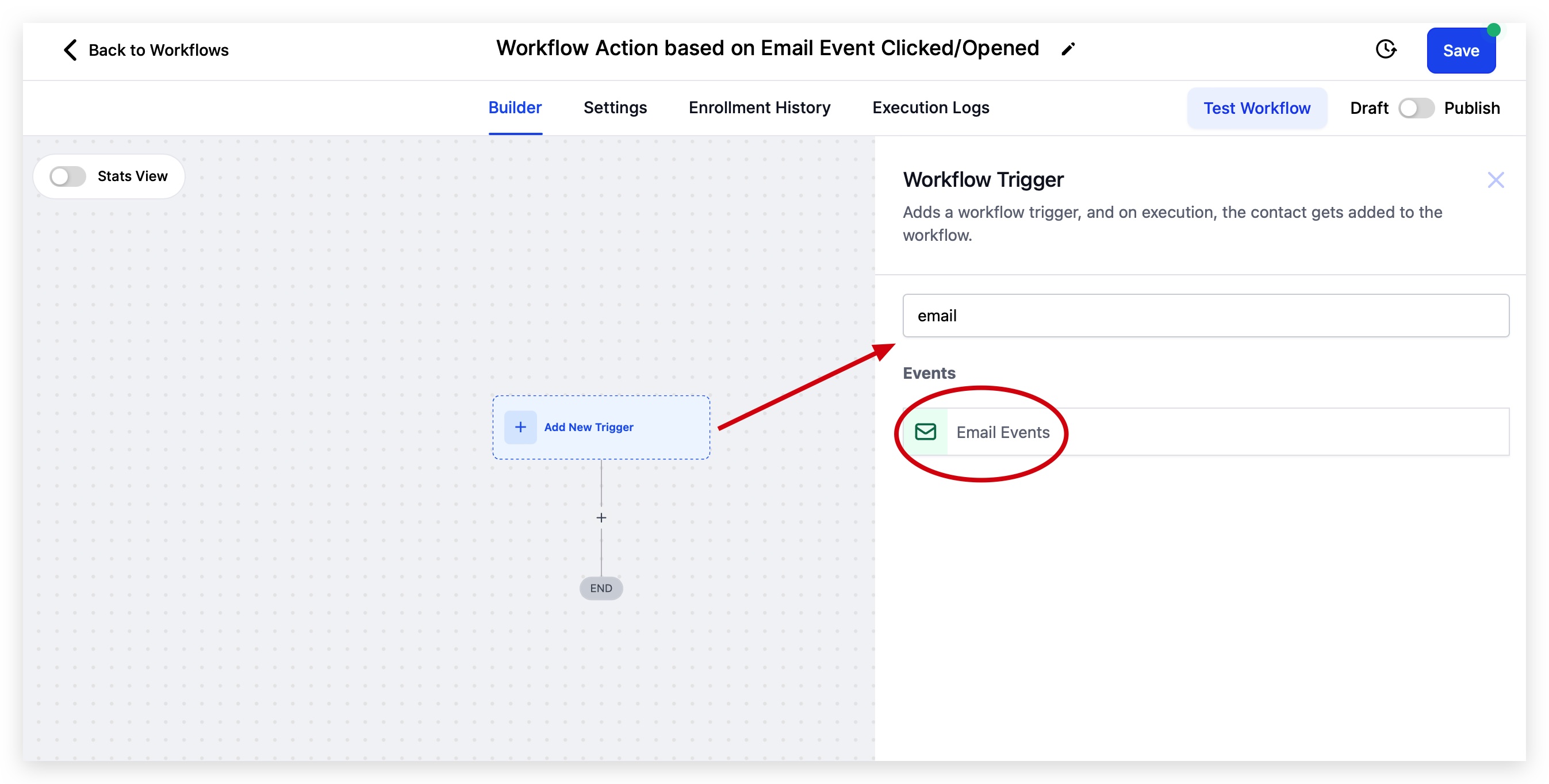
- Open the desired workflow and click Add New Trigger, then type “email” in the search box to reveal email related options.
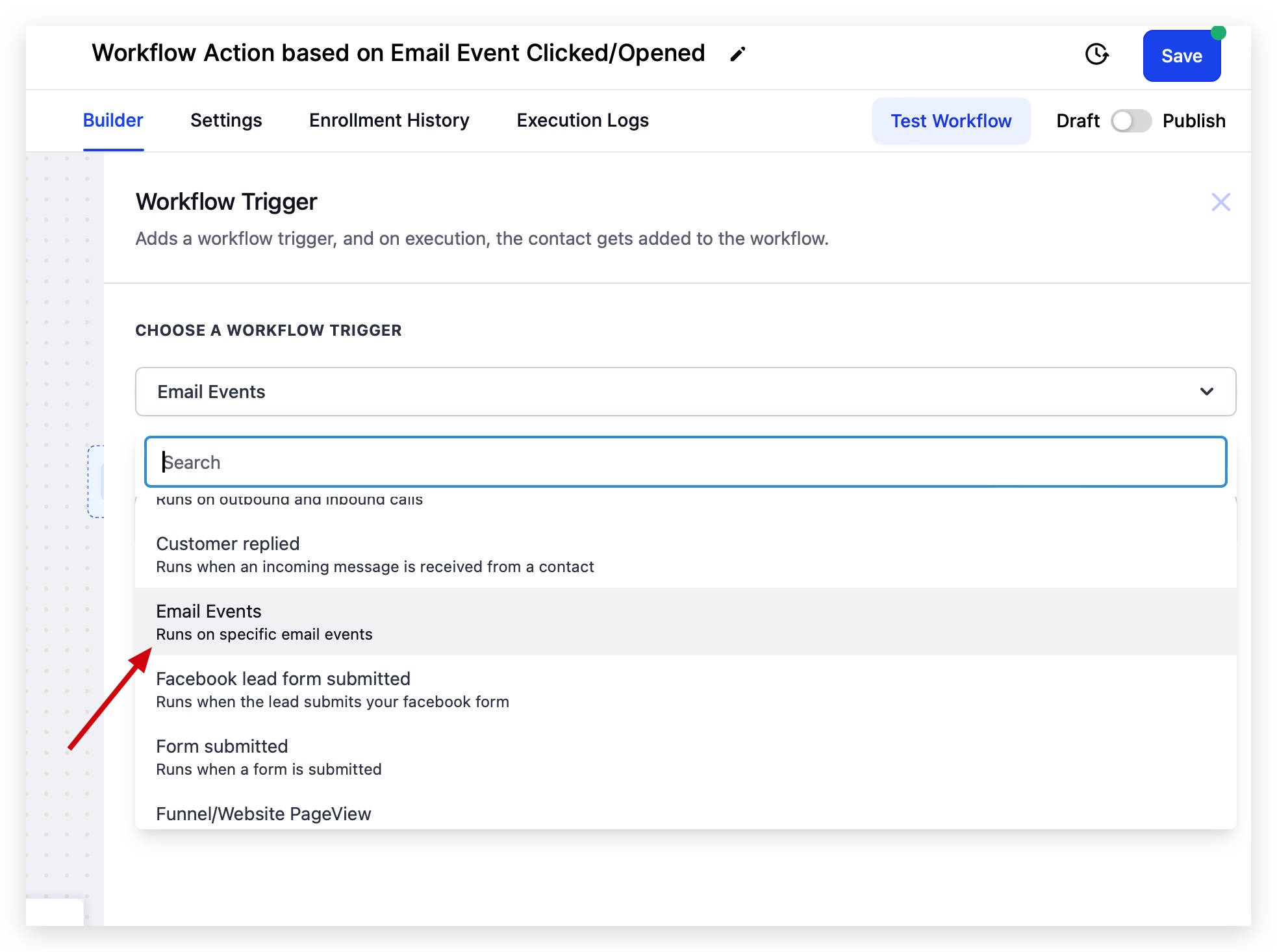
- From the list, select Email Events as the trigger type.
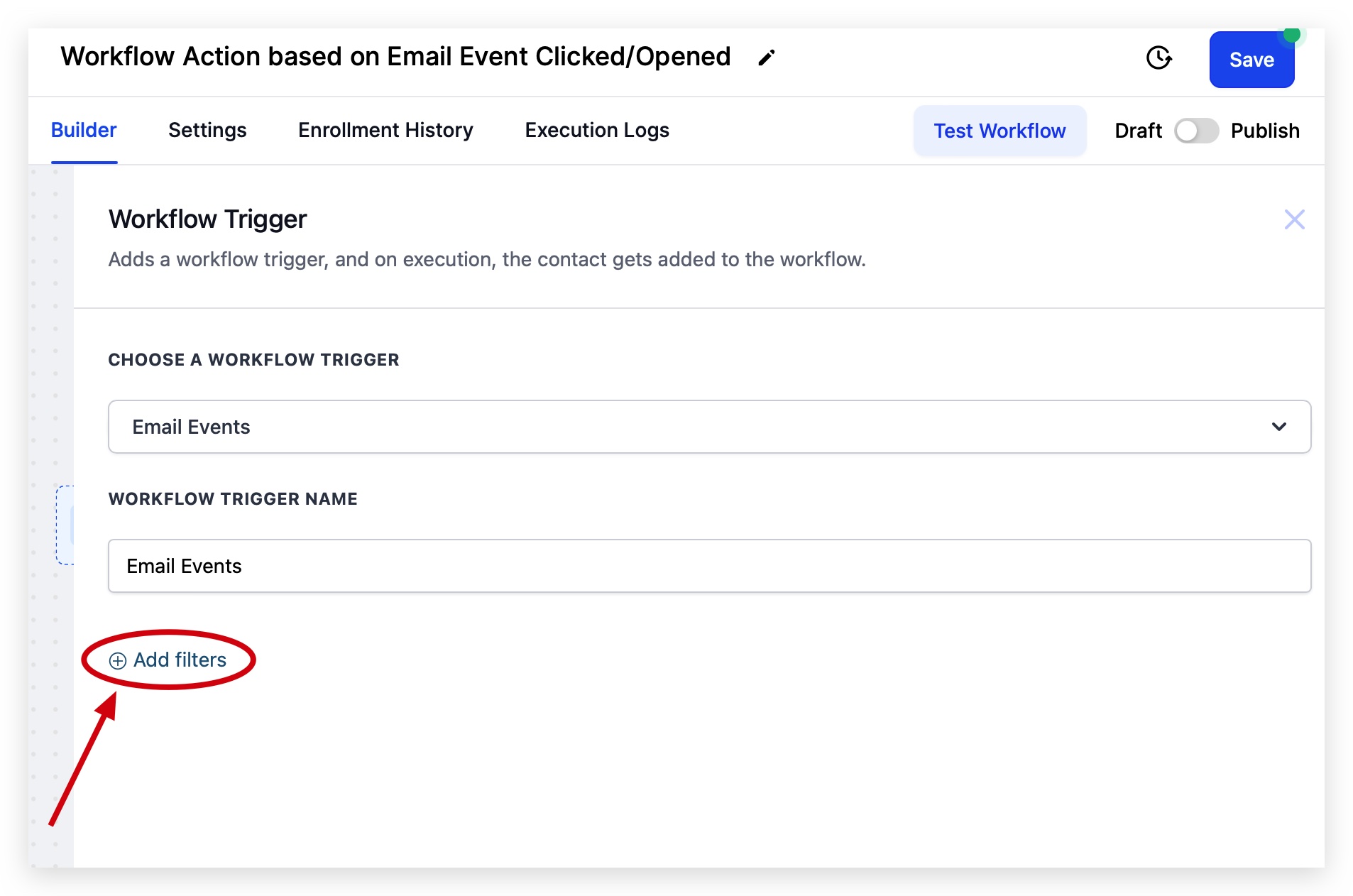
- Click Add Filters to start narrowing the event criteria.
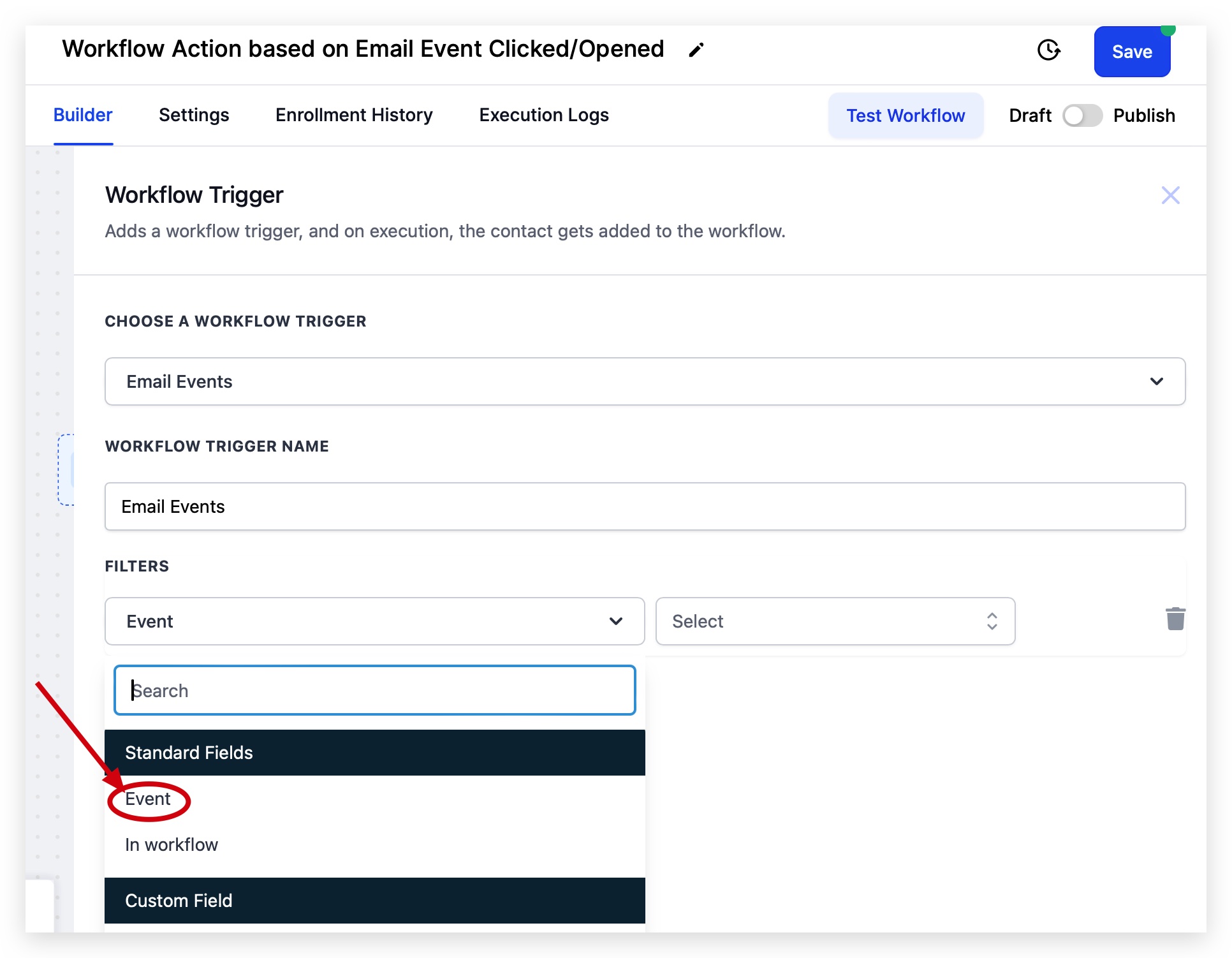
- Choose Email Events from the filter dropdown, then select Event to display the available event types.
- Pick either Clicked or Opened to define the exact action that will enroll contacts into the workflow.
- Publish the workflow so the new trigger can fire.
06What it looks like in HighLevel
07Settings that matter
- Open and Click tracking. Controls whether the platform records when a recipient loads the tracking pixel (open) or clicks a tracked link (click) in an email.
- Bot Detection Prevention. Filters out automated opens and clicks generated by bots so they do not trigger workflows.
08Things to know before you rely on it
- Triggers fire only when Open or Click tracking is active for the sending domain.
- Bot filtered events are ignored if Bot Detection Prevention is enabled.
- The trigger runs each time a contact meets the selected event, without a built in limit on frequency.
09If something goes wrong
- Email Event trigger not firing. Enable Open and Click tracking on the sending domain, confirm the workflow is published, and verify the filter matches the actual event type and source.
10How it connects to the rest of HighLevel
- How mailbox providers decide where your email lands Email deliverability guide
- Set up a dedicated sending domain to enable tracking Dedicated domain setup
- Review HighLevel pricing and plan options Pricing page
Michael's take

If tracking is correctly enabled, the workflow can fire as soon as a contact clicks a link, allowing immediate follow up.