
01Who this is for
- Agency admins, need visibility into each subaccount’s email quota and automatic stage progression to protect shared domain reputation.
- Subaccount users, benefit from real time counters that show how many campaign emails remain before the daily limit resets.
- Founders of trial agencies, see a simplified 500 email daily limit until the agency upgrades to a paid plan.
02LC Email sending limits, explained
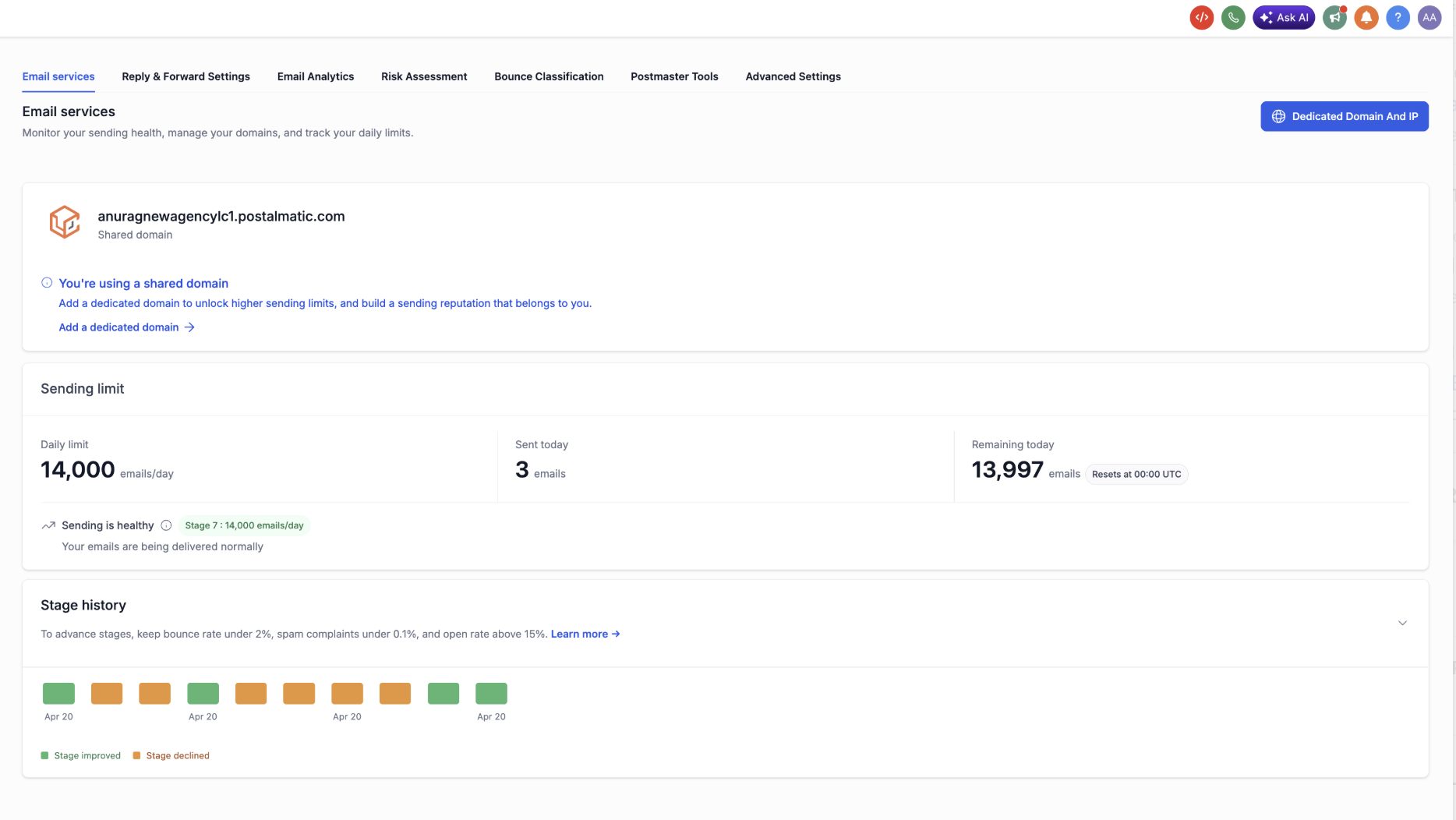
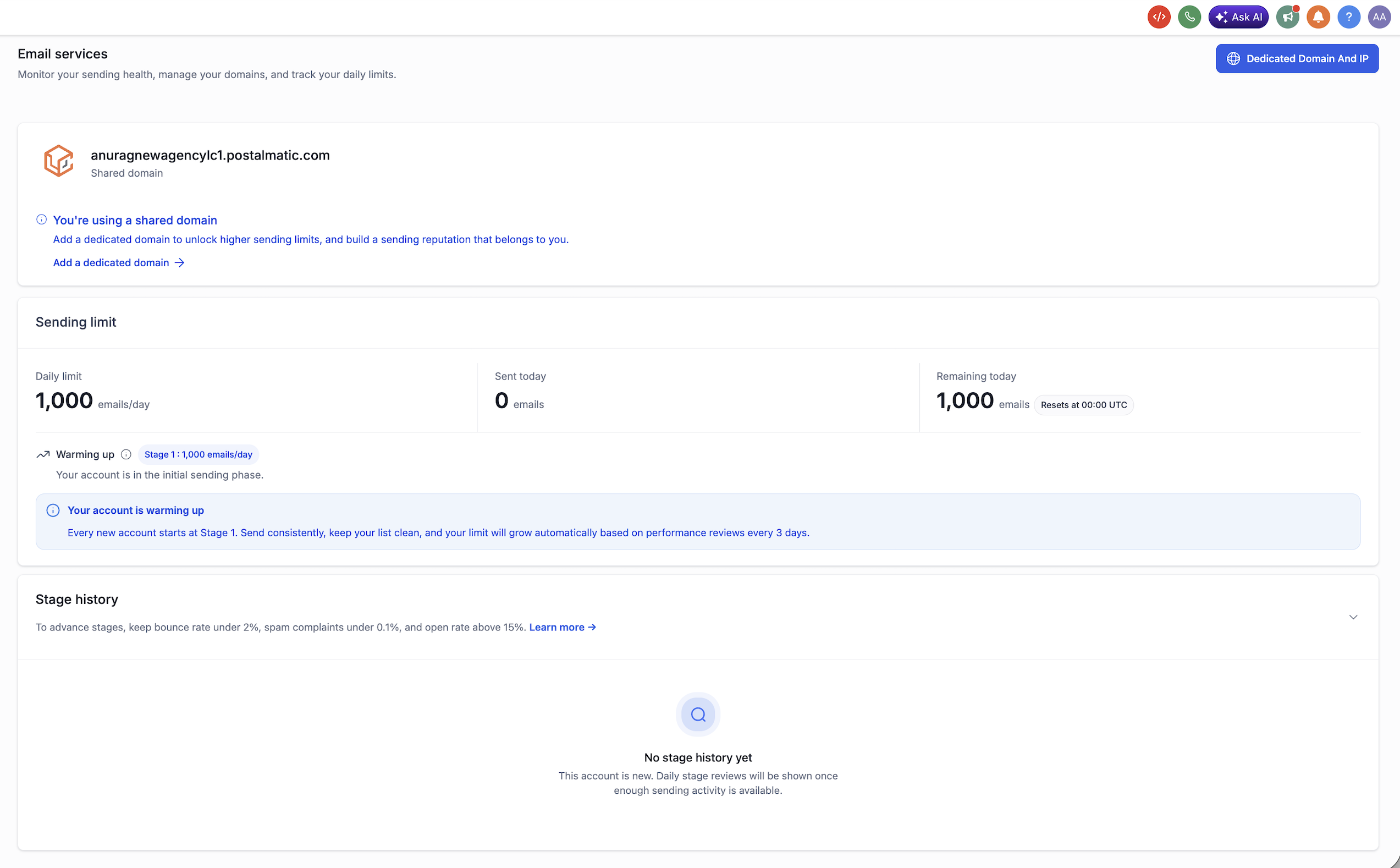
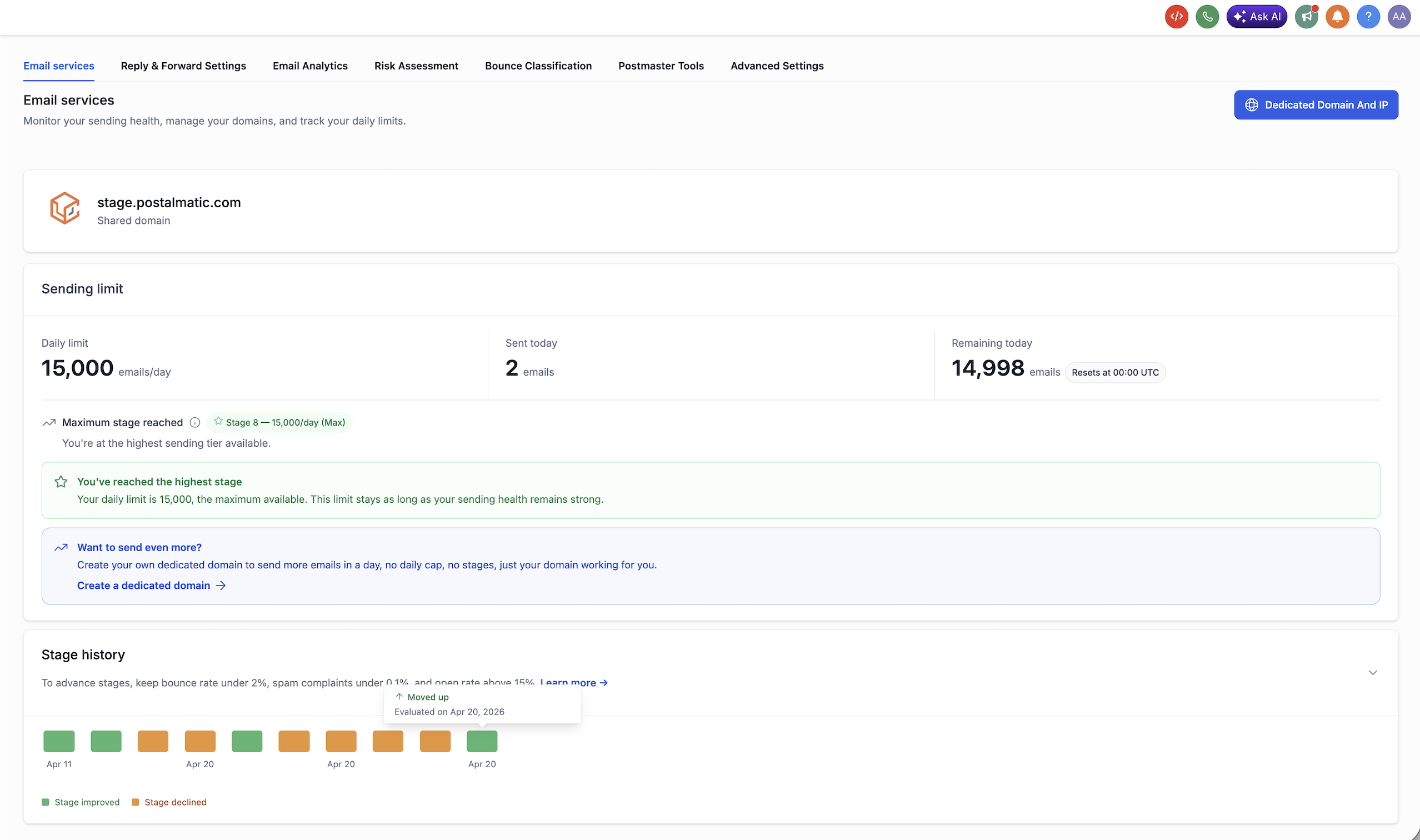
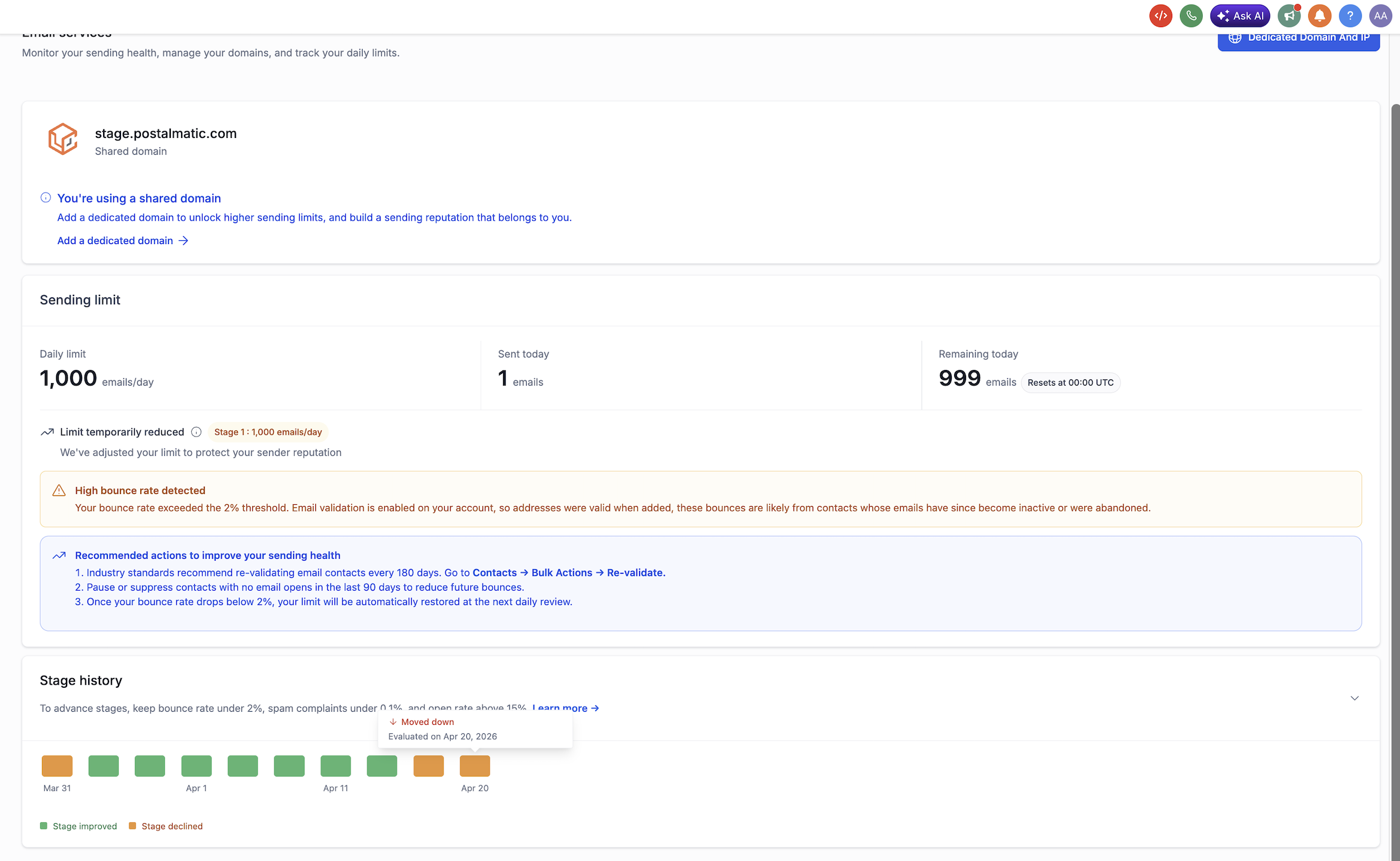
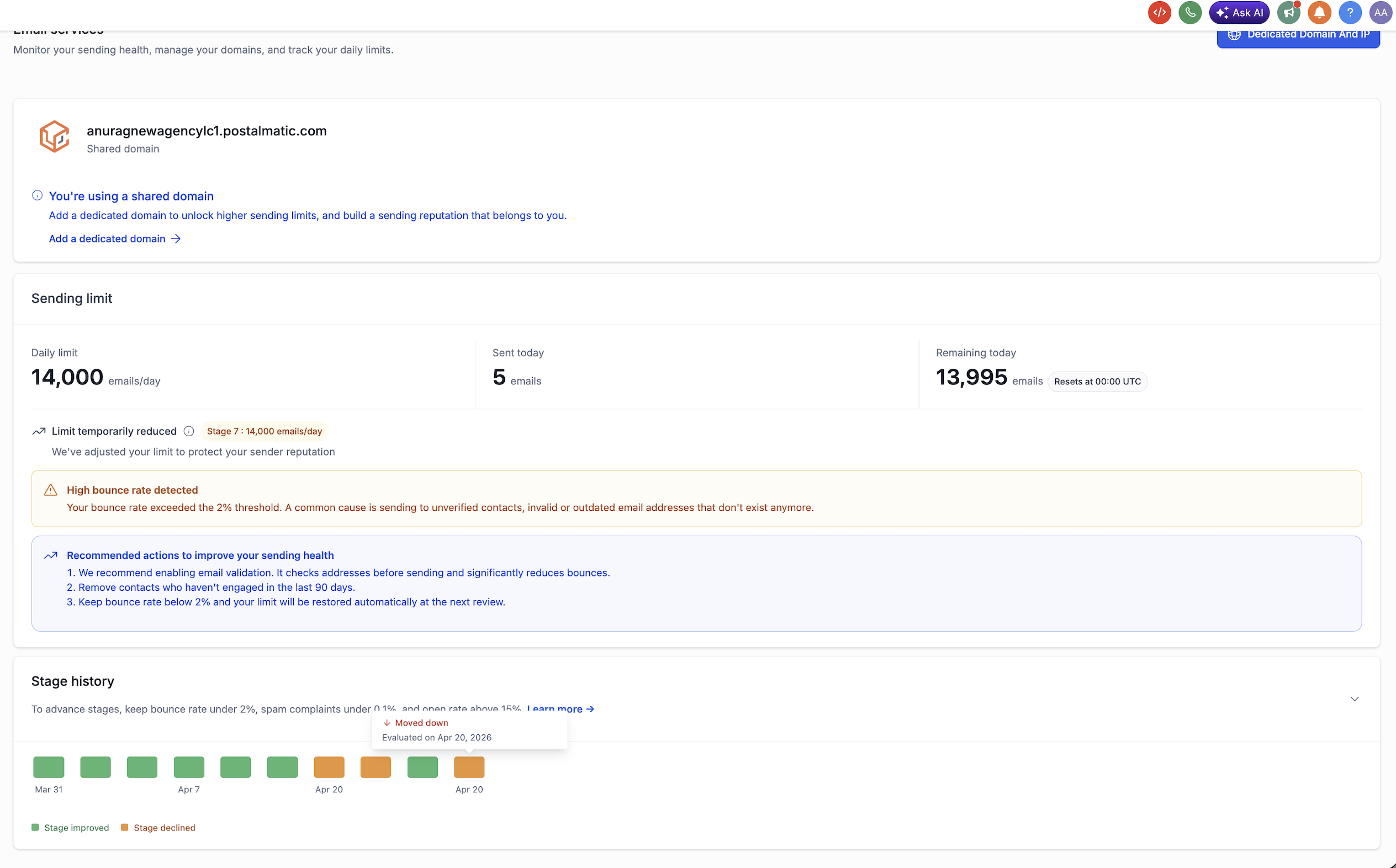
The feature introduces a Sending Limit panel on the Email Services page for any subaccount that uses a HighLevel Shared or Agency Shared domain. The panel shows three live numbers: Daily Limit, Sent Today, and Remaining. It also displays a badge indicating the current stage, which ranges from Stage 1 (1,000 emails) up to Stage 9 (25,000 emails).
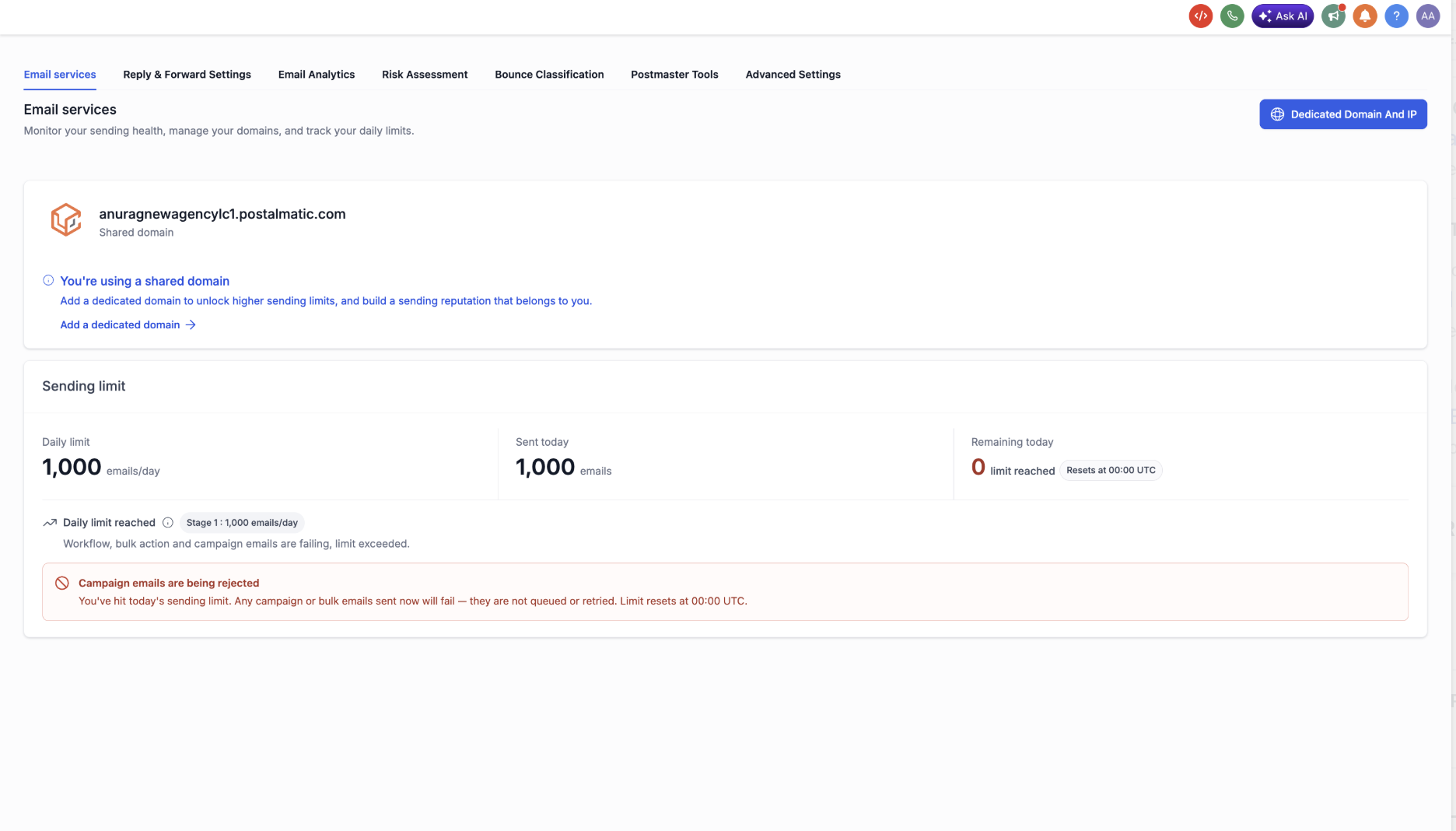
When the daily ceiling is reached, the panel turns red, a banner blocks further campaign and bulk sends, and a note explains that the limit resets at midnight UTC. One to one messages, payment confirmations, calendar invites, and system notifications are excluded from the count and continue to deliver.
03How businesses use LC Email sending limits
- Digital marketing agency. The agency admin opens the Email Services page for each client subaccount, checks the Sending Limit panel to confirm the current stage, and monitors the Remaining count while running campaigns. If the limit is hit, the admin knows the exact reset time and can plan send volumes accordingly.
- SaaS startup. The startup’s marketing team views the Daily Limit badge on the Email Services page to ensure onboarding emails stay within the allotted quota. Transactional messages such as password resets keep sending even when the campaign limit is reached, so user communication remains uninterrupted.
- Ecommerce boutique. When launching a promotional blast, the boutique reviews the Sent Today number on the Sending Limit panel. If the display shows a high bounce rate alert, the team follows the on screen recommendations to pause low engagement campaigns before the daily limit is exhausted.
04The numbers and rules that matter
- Stage 1 to 1,000 emails/day.
- Stage 2 to 2,500 emails/day.
- Stage 3 to 5,000 emails/day.
- Stage 4 to 6,500 emails/day.
- Stage 5 to 8,000 emails/day.
- Stage 6, 10,000 emails/day.
- Stage 7, 14,000 emails/day.
- Stage 8, 15,000 emails/day.
- Stage 9, 25,000 emails/day.
- Trial agency subaccounts cap, 500 emails/day.
- Limit resets at 00:00 UTC.
- 1 to 1 emails, payment confirmations, calendar invites and system notifications are not counted against the daily limit.
05Before you start
- The subaccount must be using a HighLevel Shared or Agency Shared domain.
06How to set up and use LC Email sending limits in HighLevel
View the Sending Limit panel on the Email Services page
- Log in to a subaccount that uses a shared domain.
- Open the Email Services page from the left navigation menu.
- Read the Daily Limit, Sent Today, and Remaining numbers shown at the top of the page.
07What it looks like in HighLevel
08Settings that matter
- Daily Limit. Sets the maximum number of campaign and bulk emails the subaccount can send each day based on its current stage.
- Sent Today. Shows a live count of how many campaign and bulk emails have been sent so far on the current day.
- Remaining. Displays the difference between the Daily Limit and Sent Today, updating in real time.
- Stage badge. Indicates which of the eight (plus Stage 9) ramp up stages the subaccount currently occupies.
- Update Limit control. Former manual override for limit changes; for new agencies it is replaced by an automatic system and hidden from Advanced Settings.
09Things to know before you rely on it
- Stage 1 starts at 1,000 emails per day and progresses up to Stage 9 at 25,000 emails per day.
- Trial agencies have a flat 500 email per day cap; the cap rises from the previous 100 email limit.
- Limits reset at 00:00 UTC each day; a red banner appears when the daily ceiling is reached.
- One to one messages, payment confirmations, calendar invites, and system notifications are excluded from the daily count.
- The automatic limit system applies only to agencies created on or after 27 April 2026; earlier agencies keep the manual Update Limit control.
10If something goes wrong
- Daily limit reached. Campaign and bulk emails will fail after the ceiling; wait until the limit resets at midnight UTC.
- High bounce rate detected. Follow the on screen recommendations to enable email validation or improve list quality.
- Delivery rate dropped below 95 %. Pause campaigns targeting unengaged contacts and tighten audience targeting as suggested.
- Spam complaints exceed threshold. Improve opt in practices, clean the list, and ensure unsubscribe links are visible.
- Account suspended. Sending is halted; review the banner for next steps and await manual review to lift the suspension.
11How it connects to the rest of HighLevel
- Learn more about built in LC Email limits and upgrades LC Email limits
- Best practices for warming up email and configuring DMARC Email warm up guide
- View HighLevel pricing and plans for agencies Pricing
- Start a 30 day HighLevel trial 30 day trial
- Add and verify a sending domain for dedicated email Add sending domain
Michael's take

The stage badge tells you fast what limit you’re living under and how close you are to the next upgrade.
If the badge shows you’re stuck at a low stage, focus on keeping bounce and complaint rates low. That clean sending behavior moves you to higher daily limits without any manual tweaks.