
01Who this is for
- Email marketers who need detailed engagement metrics to refine campaigns, because the data appears directly in HighLevel dashboards.
- Agency owners managing multiple client domains, since each domain can have its own webhook and tracking configuration.
- SaaS Founders who send onboarding and notification emails through Mailgun and want to monitor deliverability and user interaction.
02Click & open tracking, explained
The feature forwards every Mailgun email event to HighLevel through a webhook. When a webhook is set up for a sending domain, Mailgun posts JSON data for events such as delivered, opened, clicked, bounced or spam reported. HighLevel captures that data and matches it to the corresponding contact and campaign.
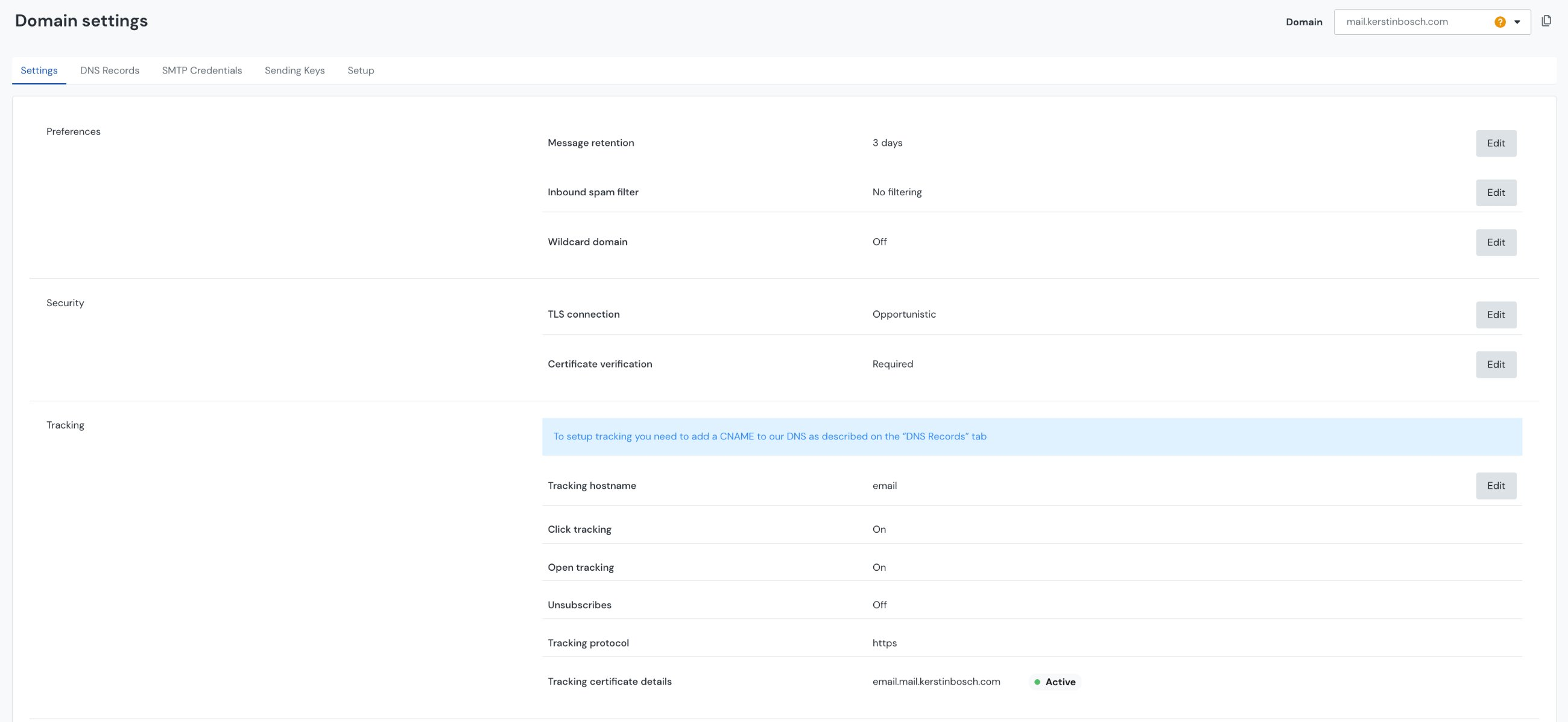
Click tracking adds a tracking subdomain to every link in outgoing messages. Open tracking inserts a tiny image that reports when a recipient loads the email. Both settings are toggled in the Mailgun domain’s Tracking section. A DNS CNAME record must be added for the tracking subdomain; the certificate status shows whether the CNAME is active.
All of these controls live inside the Mailgun console, not within HighLevel. After the webhook URL and domain tracking are saved, HighLevel receives the events in real time and populates its email statistics panels.
03How businesses use click & open tracking
- Ecommerce store. The store configures a webhook for its sales related sending domain and enables click and open tracking. HighLevel then records each customer’s interaction with promotional emails, allowing the owner to see which products generate the most clicks.
- Software startup. The startup adds the webhook to its product notification domain and turns on both tracking toggles. HighLevel captures opens and clicks from onboarding sequences, providing the team with accurate engagement numbers for each step.
- Digital marketing agency. The agency creates a webhook for every client domain it manages and activates tracking. HighLevel aggregates click and open data across all client campaigns, letting the agency compare performance without leaving the platform.
04The numbers and rules that matter
- DNS propagation may take up to 48 hours.
05Before you start
- Active Mailgun account with at least one verified sending domain.
- Admin rights in Mailgun to manage webhooks and domain settings.
- The sending domain already connected and sending through HighLevel.
06How to set up and use click & open tracking in HighLevel
Add the webhook in Mailgun
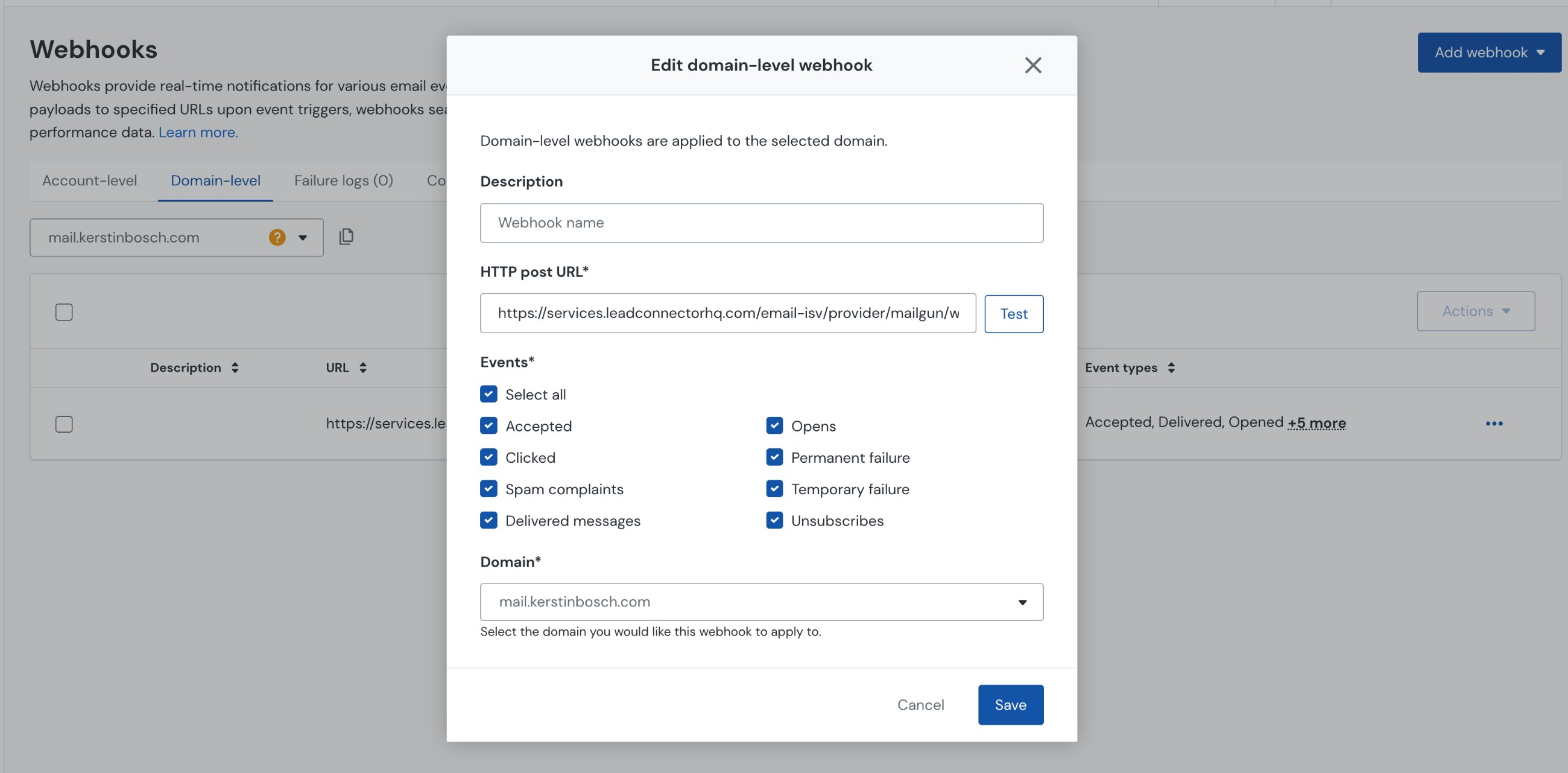
- Log in to Mailgun, open the left sidebar, choose Send > Webhooks, select the Domain level tab and pick the desired sending domain.
- Click Add webhook at the top right, then enter a recognizable description such as CRM Event Tracking.
- Paste https://services.leadconnectorhq.com/email isv/provider/mailgun/webhook/event into the HTTP post URL field.
- Select the same sending domain from the Domain dropdown.
- Under Events, choose Select all to capture every event type.
- Optionally press Test next to the URL to verify connectivity.
- Click Save so the new webhook appears in the domain level list.
- Repeat this process for each sending domain you have, because webhooks are domain scoped.
Enable click & open tracking on the domain
- In Mailgun go to Send > Domains, click the target domain and open the Settings tab.
- Scroll to the Tracking section, click Edit next to Click tracking and toggle the switch to On, then Save.
- Still in Tracking, click Edit next to Open tracking, toggle it to On, and Save the change.
- Verify that the Tracking certificate shows as Active; if it is inactive, add the required CNAME record under Domain Settings > DNS Records.
07What it looks like in HighLevel
08Settings that matter
- Click tracking. Controls whether Mailgun rewrites every link with a tracking URL that reports click events to HighLevel.
- Open tracking. Controls insertion of a tracking pixel that notifies HighLevel when a recipient opens the email.
- Tracking protocol. Sets the scheme used for tracking URLs; it should be https for secure redirects.
- Tracking certificate. Shows whether the SSL certificate for the tracking subdomain is active; an inactive status indicates a missing DNS CNAME.
09Things to know before you rely on it
- Webhooks are domain scoped; you must add one for each sending domain you use.
- If the required tracking CNAME is missing, the tracking certificate stays inactive and tracked links break.
- DNS changes for the CNAME can take up to 48 hours to propagate.
- Enabling click tracking has minimal impact on deliverability when the tracking subdomain is correctly configured.
10If something goes wrong
- No click or open data appears in HighLevel after adding the webhook.. Confirm that click and open tracking are turned on in the domain’s Tracking section and that the webhook was added at the domain level, not the account level.
- The Test button on the webhook returns an error.. Check that the webhook URL matches https://services.leadconnectorhq.com/email isv/provider/mailgun/webhook/event exactly and ensure outbound network access is allowed.
11How it connects to the rest of HighLevel
- Review HighLevel pricing and plan options Pricing
Michael's take

Accurate click and open data is priceless for a small business that needs to know what’s resonating with its audience and where to improve.
Don’t forget to add the webhook for every sending domain; a single webhook won’t cover multiple domains.