
01Automatic email and SMS followup, explained
Automatic email and SMS followup lets you create workflows that react when a lead fills out a form. The system can send a series of emails, then follow with text messages, all on a schedule you define. This removes the need to manually write and send each message.
You build the workflow in the Automation area, choose a recipe or start from scratch, add a Form Submitted trigger, then add email or SMS actions. After configuring the content and timing, you publish the workflow and it runs automatically for every new submission.
02How businesses use automatic email and SMS followup
- Email drip after form submission. When a lead submits a selected form, the workflow sends a sequence of customized emails on the schedule you set. This keeps the lead engaged without you having to send each email manually.
- SMS followup after form submission. After the same form is submitted, the workflow can send an SMS message, with texts typically opened within minutes, and then drip additional messages at a set interval to stay top of mind.
03The numbers and rules that matter
- Batch size set to 100.
- Drip interval set to every 1 day.
04How to set up and use automatic email and SMS followup in HighLevel
Create automated email followup
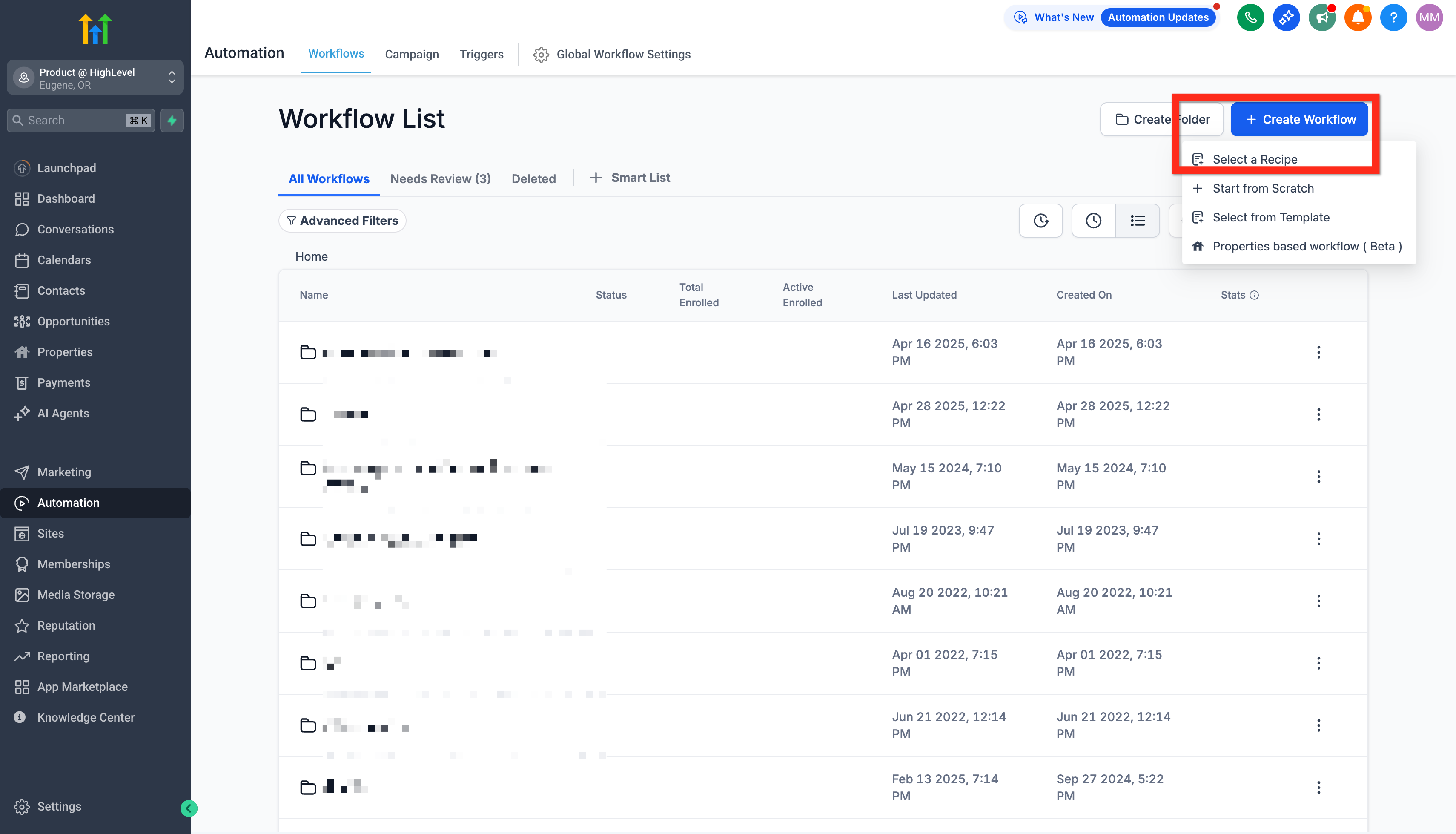
- Navigate to Automation.
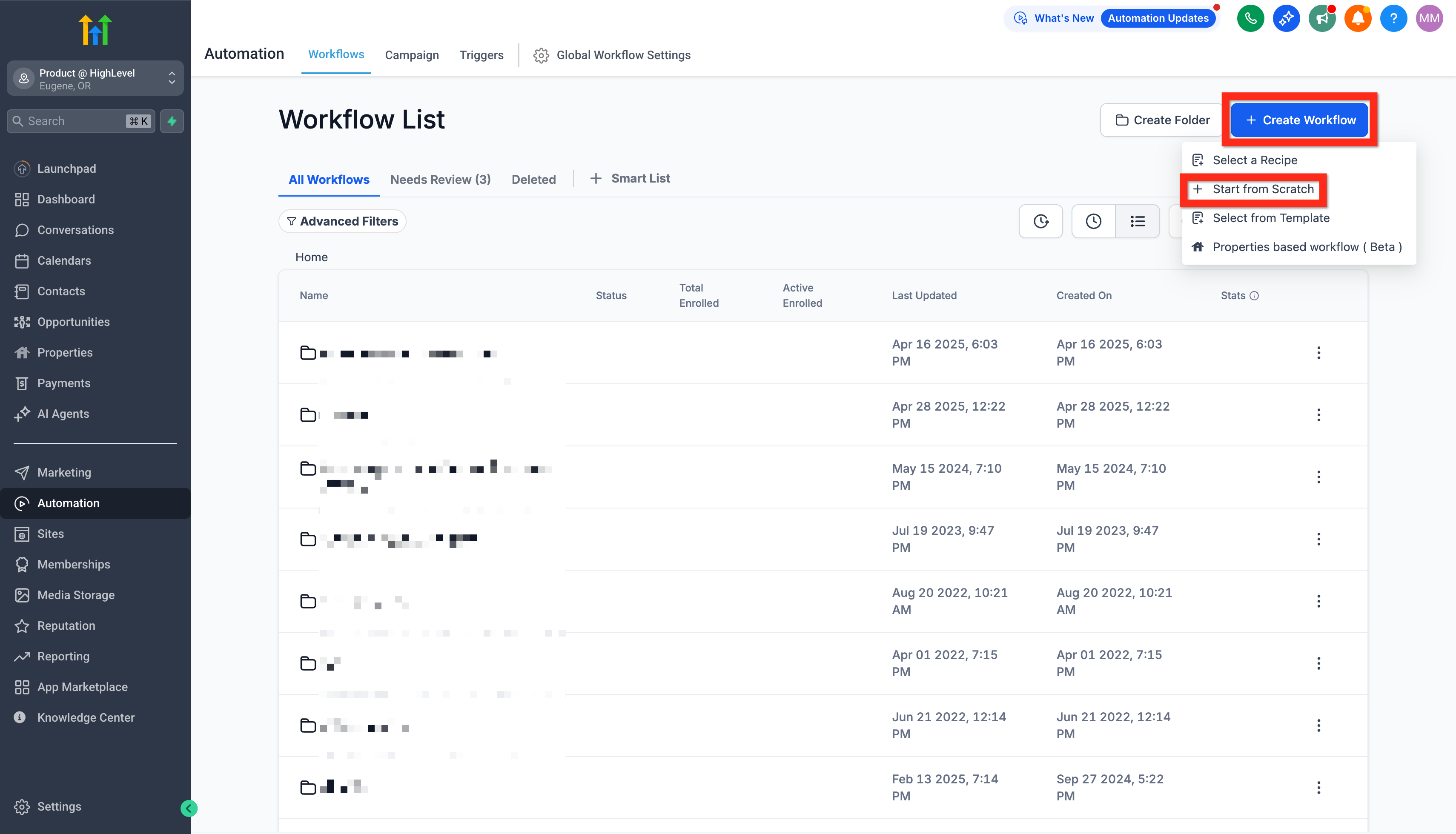
- Click Create Workflow > Select a Recipe.
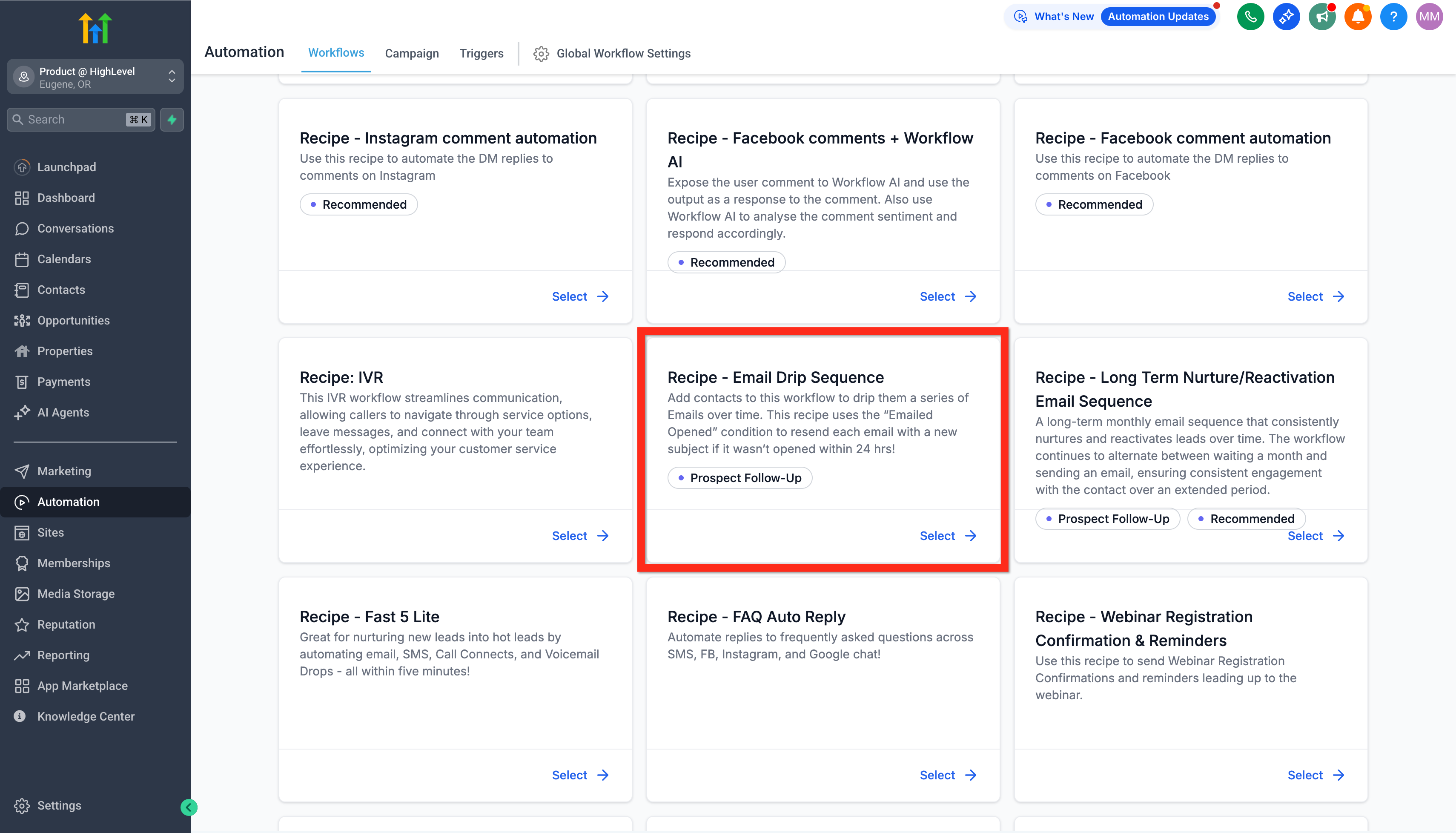
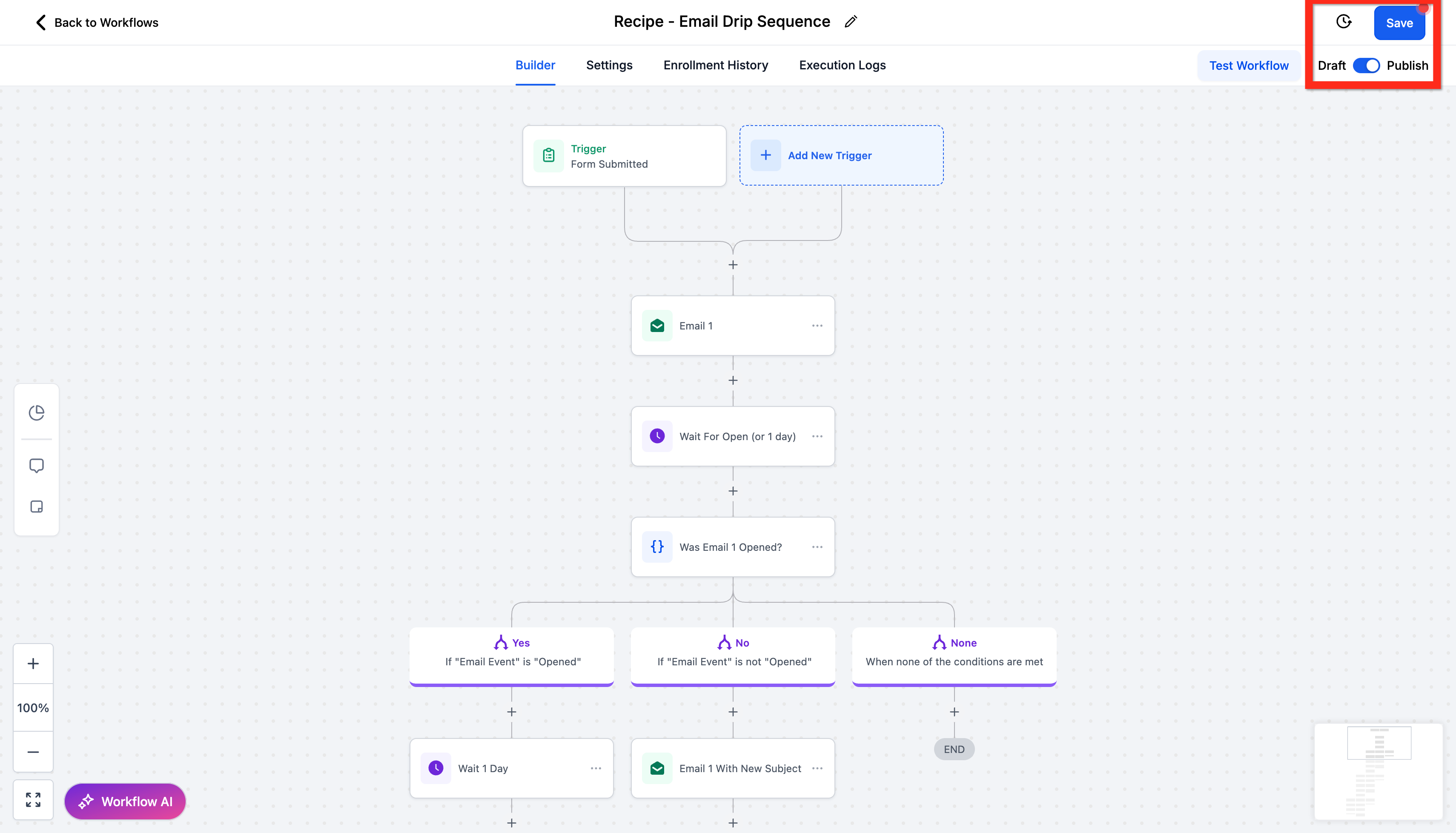
- Select the recipe Email Drip Sequence.
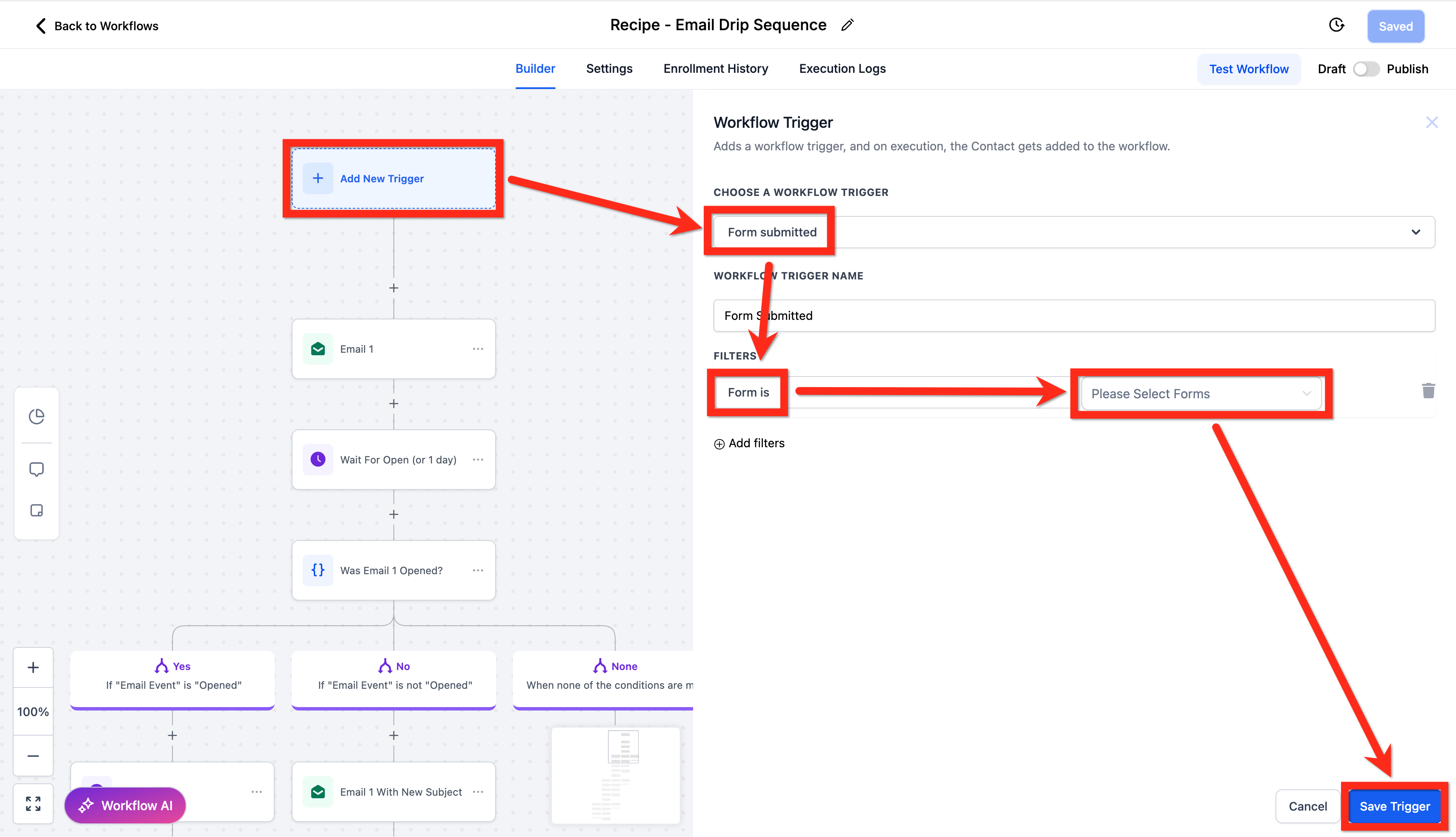
- Add the trigger Form Submitted: Click Add filter, choose Form is, select the relevant form, then click Save.
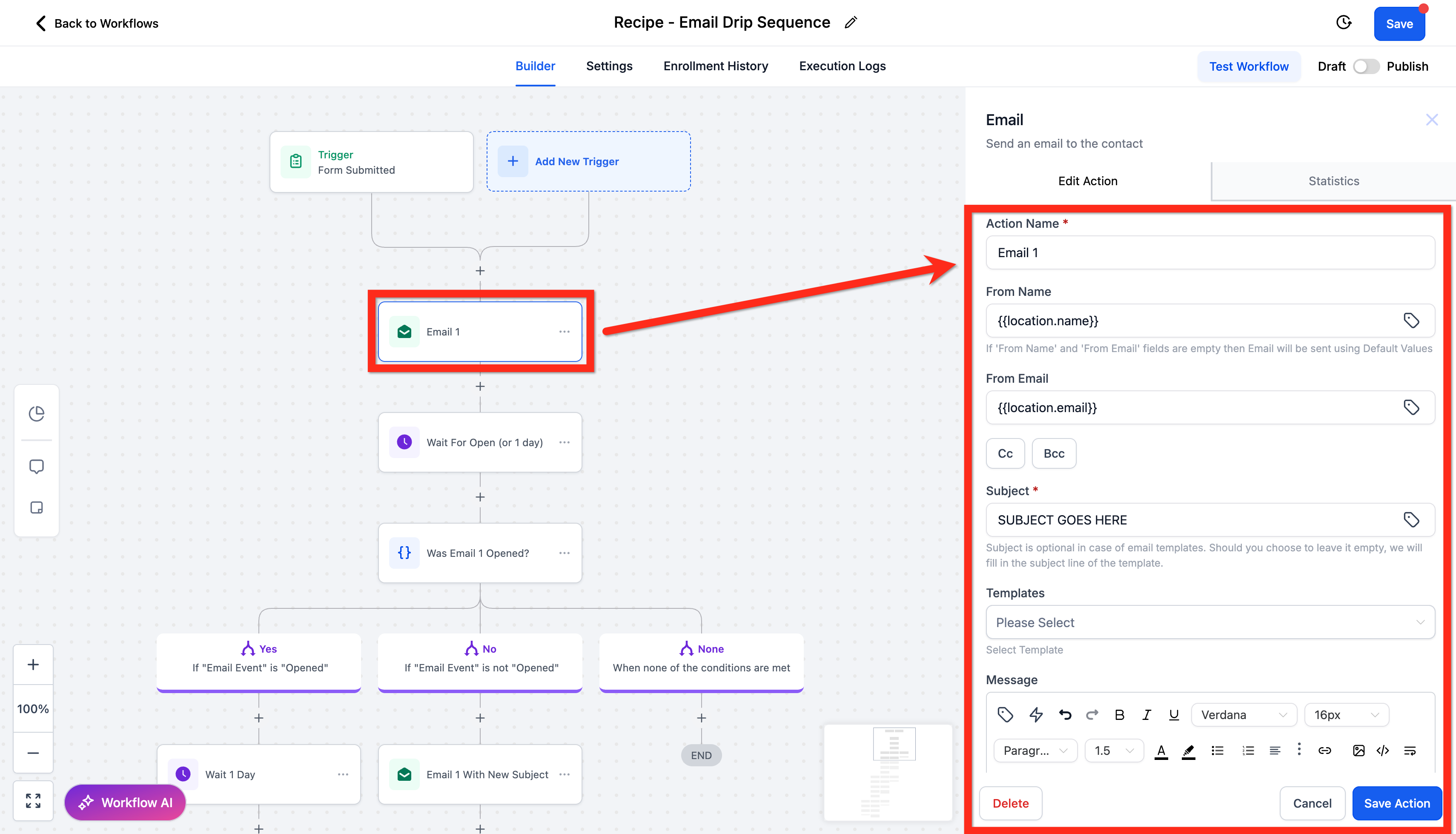
- Edit the email actions by customizing the subject, message content, attachments, and other details. Then click Save Action.
- Click Publish.
- Click Save.
Create automated SMS followup
- Navigate to Automation.
- Click Create Workflow > Select Start from scratch.
- Add the trigger Form Submitted: Click Add filter, choose Form is, select the desired form, and click Save.
- Add the Send SMS action.
- Write your engaging message clearly and succinctly, then click Save Action.
- Add the Drip action BEFORE your Send SMS action.
- Set your batch size to 100. Choose the drip interval as every 1 day. Click Save Action.
- Click Publish.
- Click Save.
05What it looks like in HighLevel
06Settings that matter
- Batch size. Defines how many contacts are processed in each drip batch.
- Drip interval. Sets the frequency at which drip messages are sent, such as every 1 day.
Michael's take

Michael ReimerFounder of CRM Pros, HighLevel Commander and Certified Admin
Automated email and SMS follow up lets a small business keep leads engaged without spending hours on manual outreach.
Get More InformationOpens on HighLevelPublished November 2, 2026 · Updated November 3, 2026