
01Who this is for
- Ecommerce Founders who sell physical products and need real time shipping costs at checkout.
- Online store managers who want to add markup fees or fallback rates when live rates are unavailable.
02Shippo integrations, explained
The integration pulls live carrier rates from Shippo and displays them during checkout. It requires a Shippo account, a valid sender address, and a properly configured package template. Once the app is installed and the token entered, HighLevel can toggle live rates on or off.
All settings reside under the HighLevel Settings menu. Package dimensions, weights, default template, and shipping options are managed in Shippo, while the shipping origin is set in the Payments section of the ecommerce store. Enabling live rates causes the checkout page to show the names defined in the Shippo shipping options.
03How businesses use shippo integration
- Apparel retailer. The retailer creates a Shippo live token, adds a default package template for clothing items, sets the warehouse address as the shipping origin, and defines a live rate option with a markup. The app then shows live rates at checkout.
- Home goods store. The store sets up a standard carrier parcel size, selects a fixed markup fee for bulky items, and installs the Shippo app. Customers see the exact shipping cost based on the live carrier rates during purchase.
- Handmade jewelry boutique. The boutique defines a custom package dimension for small parcels, adds a fallback shipping fee, and installs Shippo. When carrier rates cannot be fetched, the checkout uses the fallback value.
04Before you start
- A Shippo account with access to Settings > Advanced > API.
- A valid sender address entered in Shippo’s address book.
05How to set up and use shippo integration in HighLevel
Create live token in Shippo
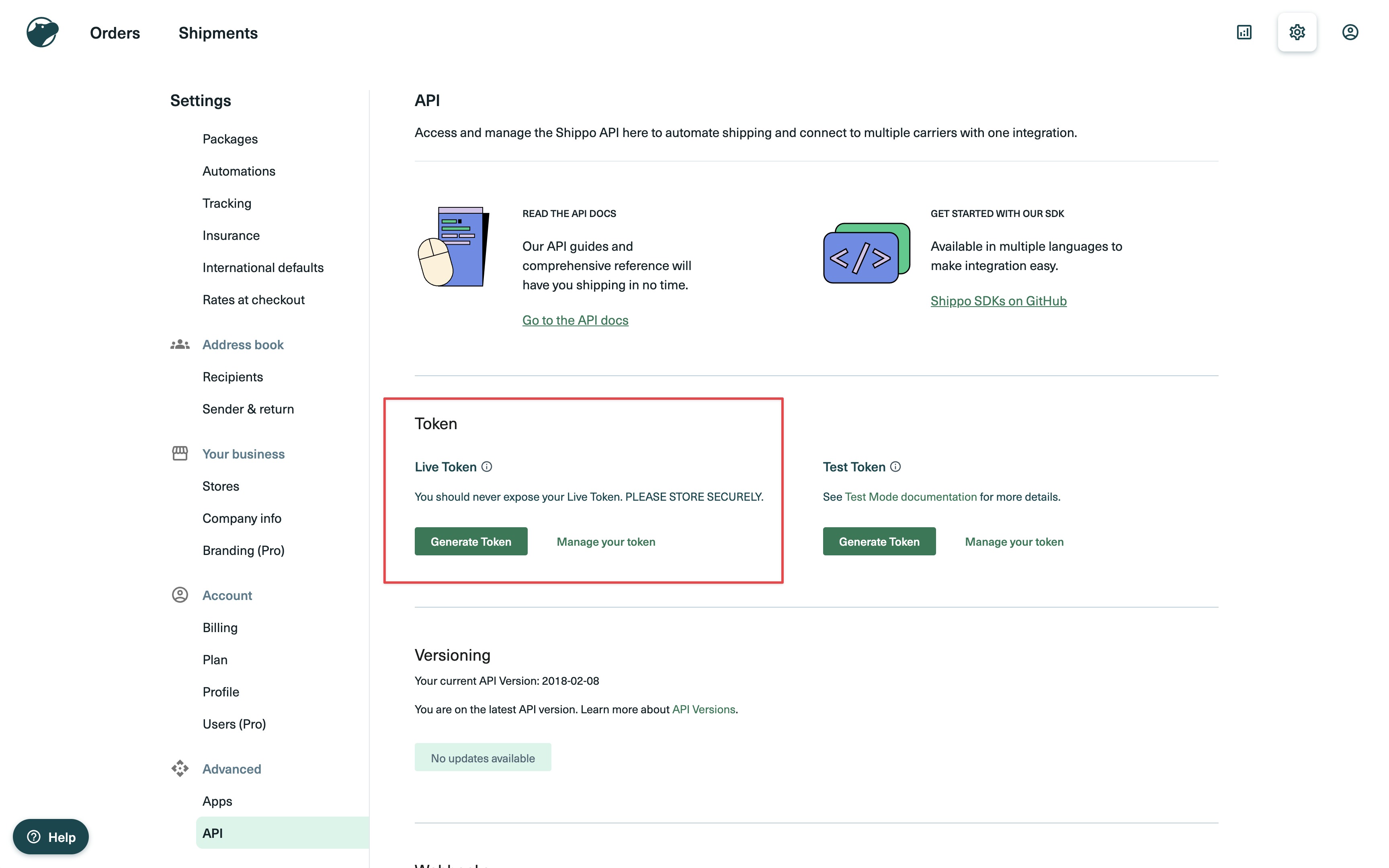
- Open Settings > Advanced > API > Live Token in Shippo.
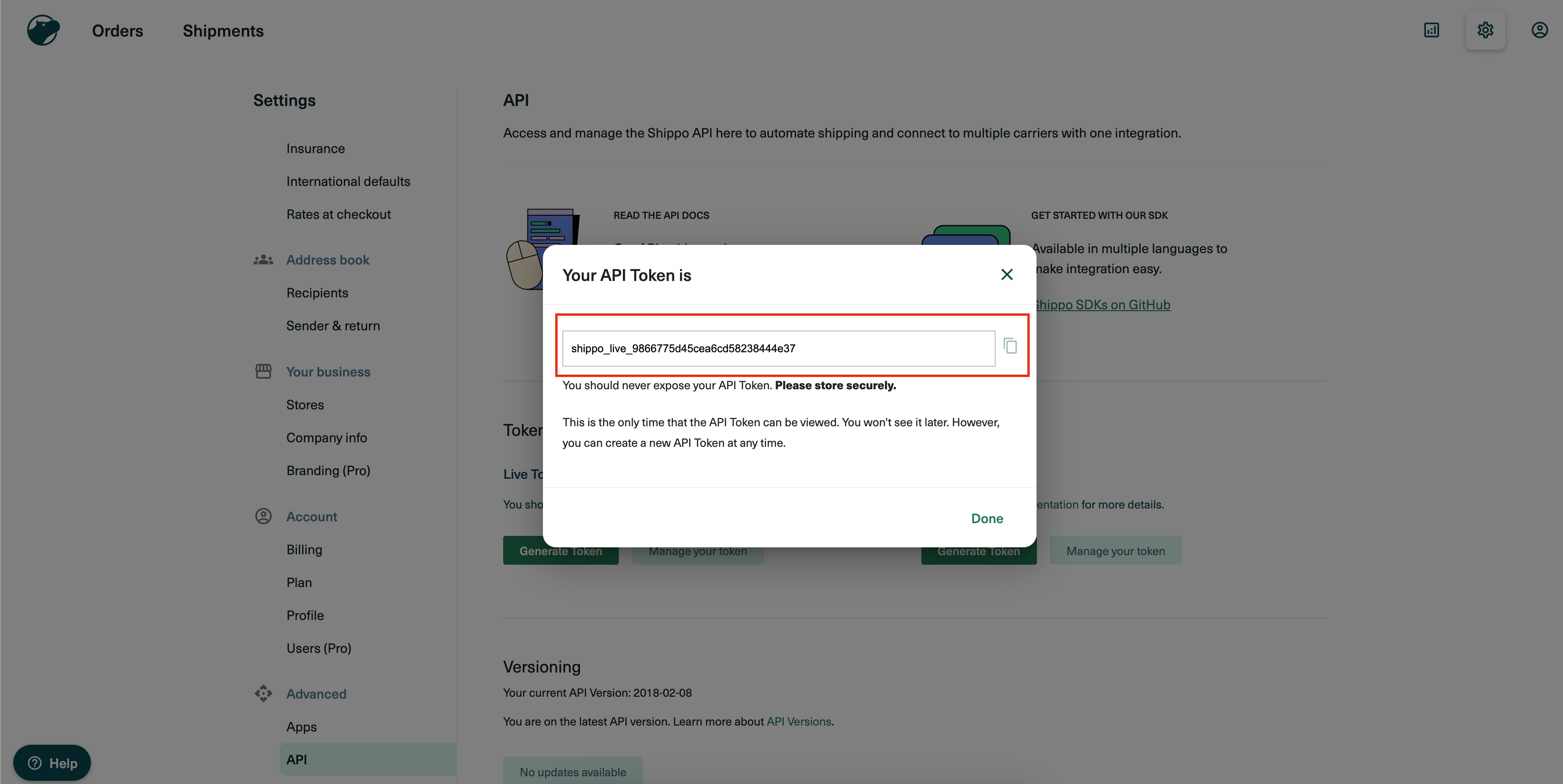
- Click the generate live token button.
- Copy the newly generated live token.
Set up package template and shipping options in Shippo
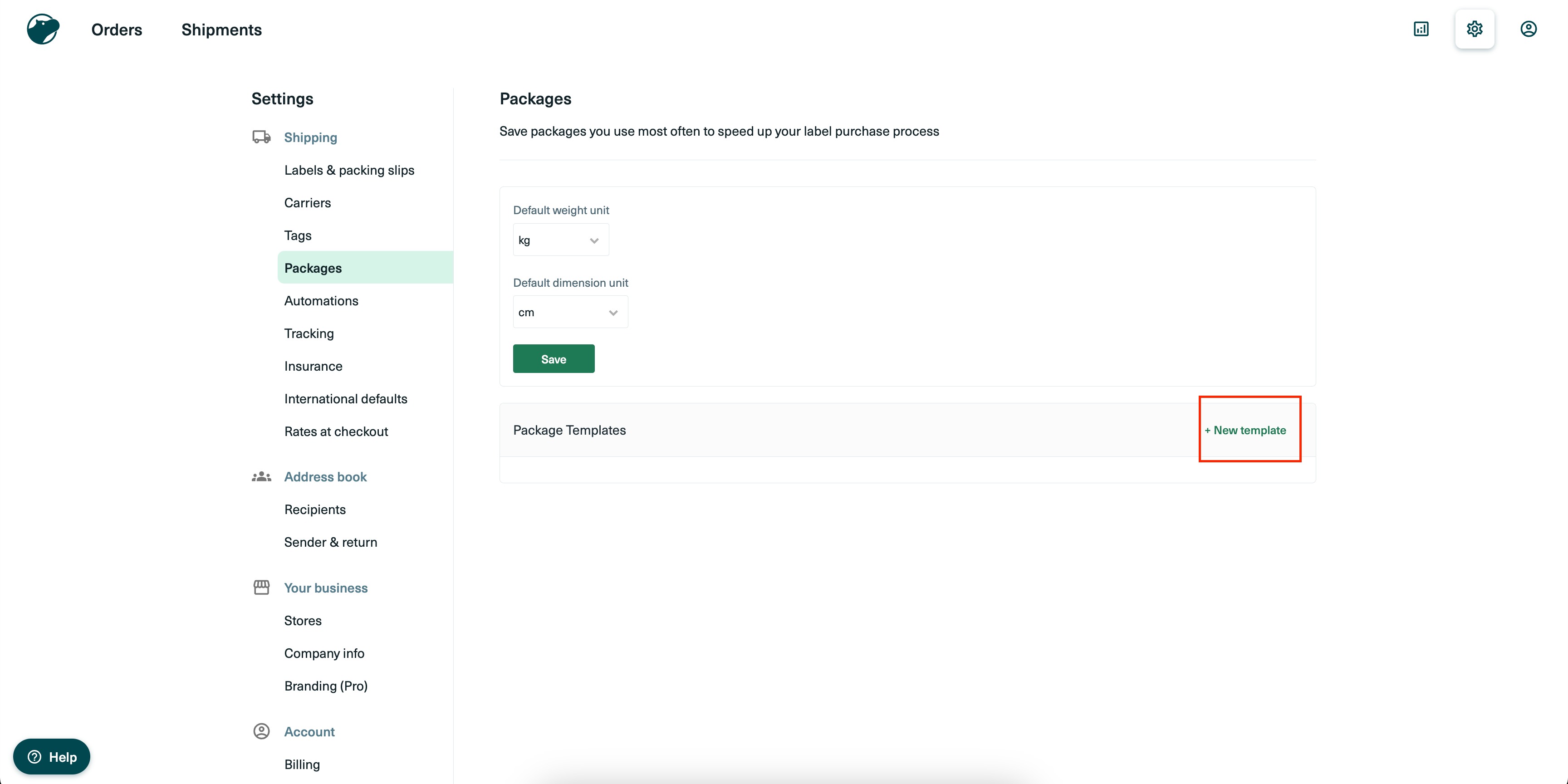
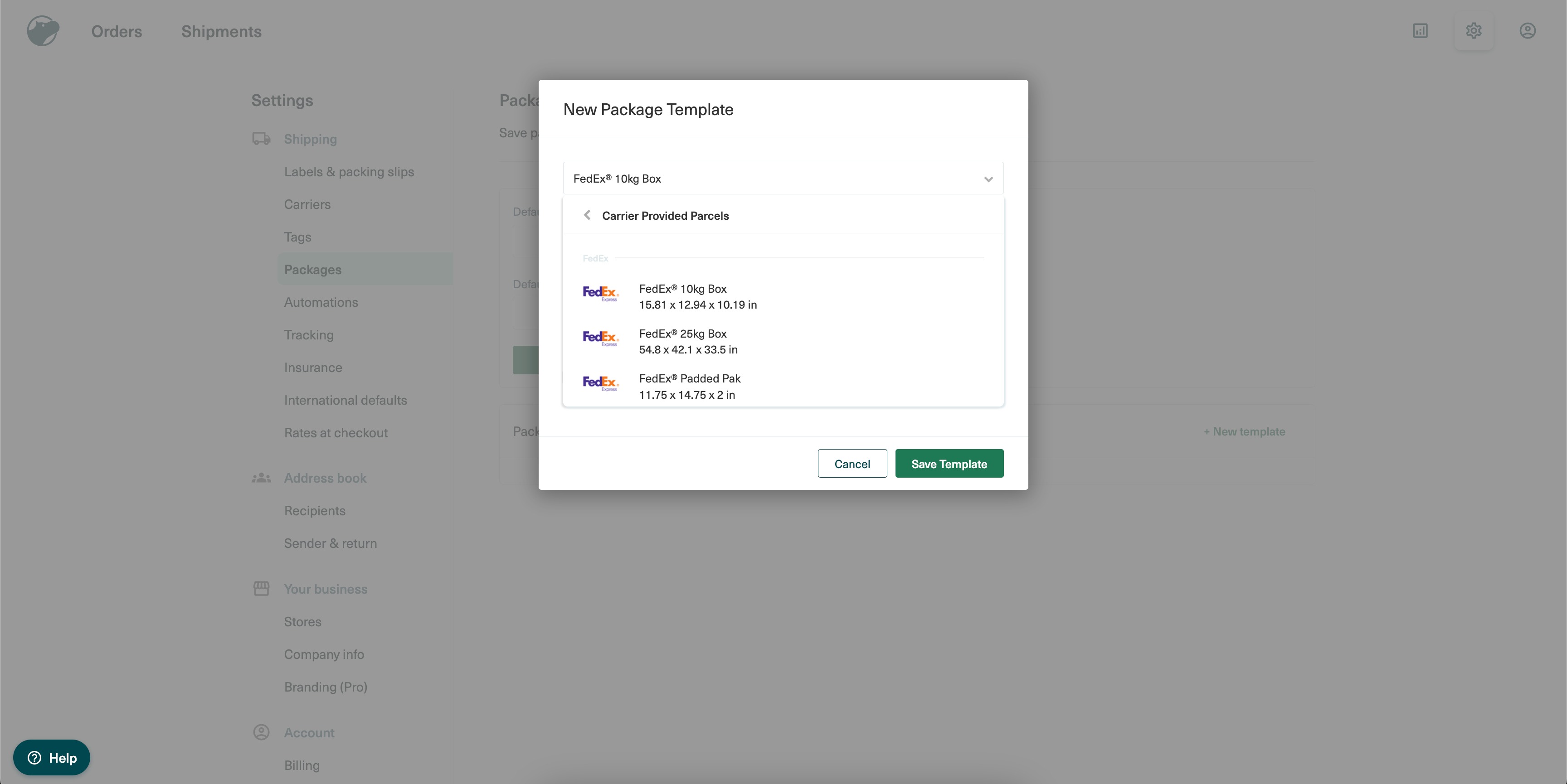
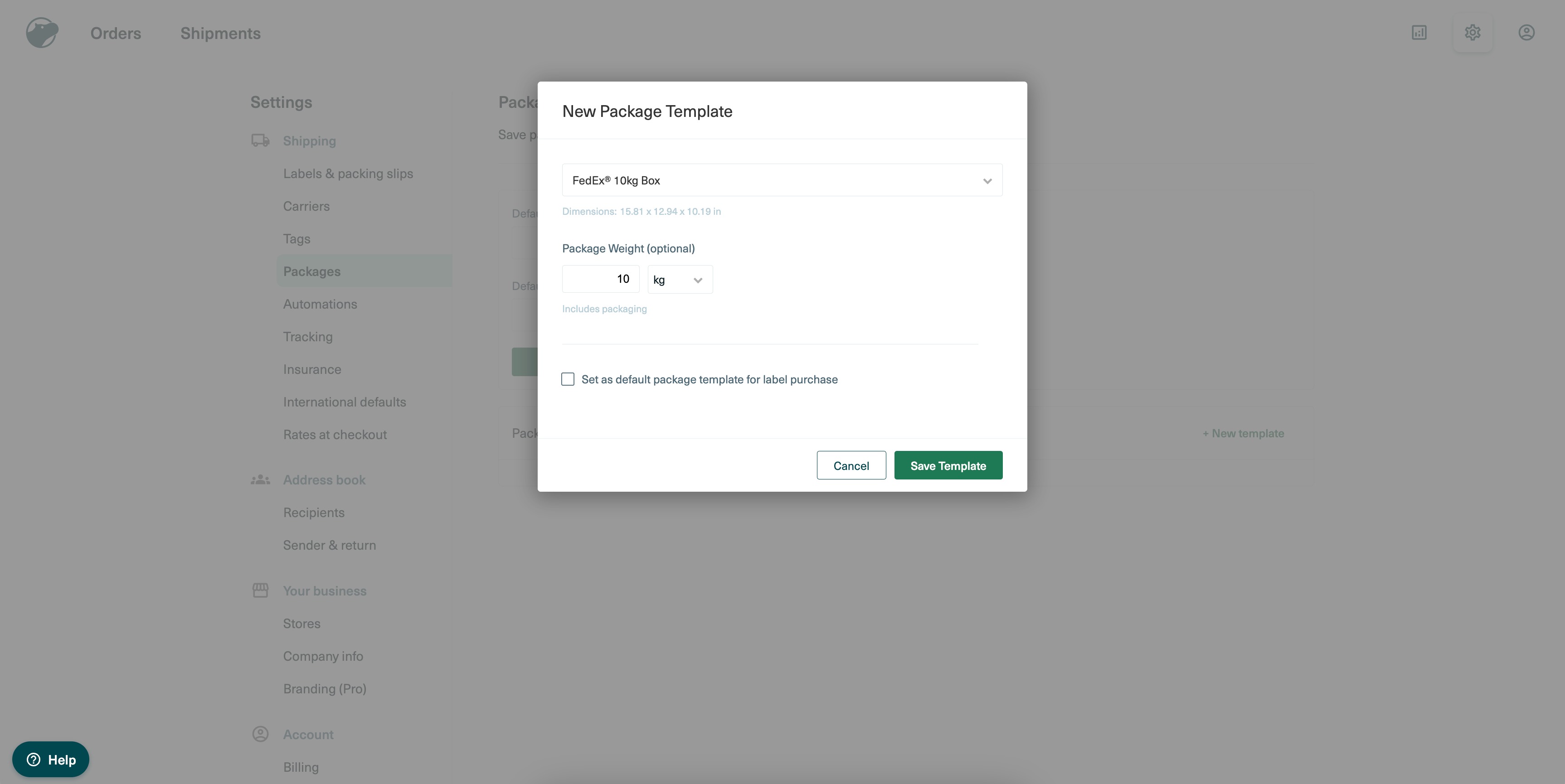
- Navigate to Settings > Shipping > Packages > Add New Template.
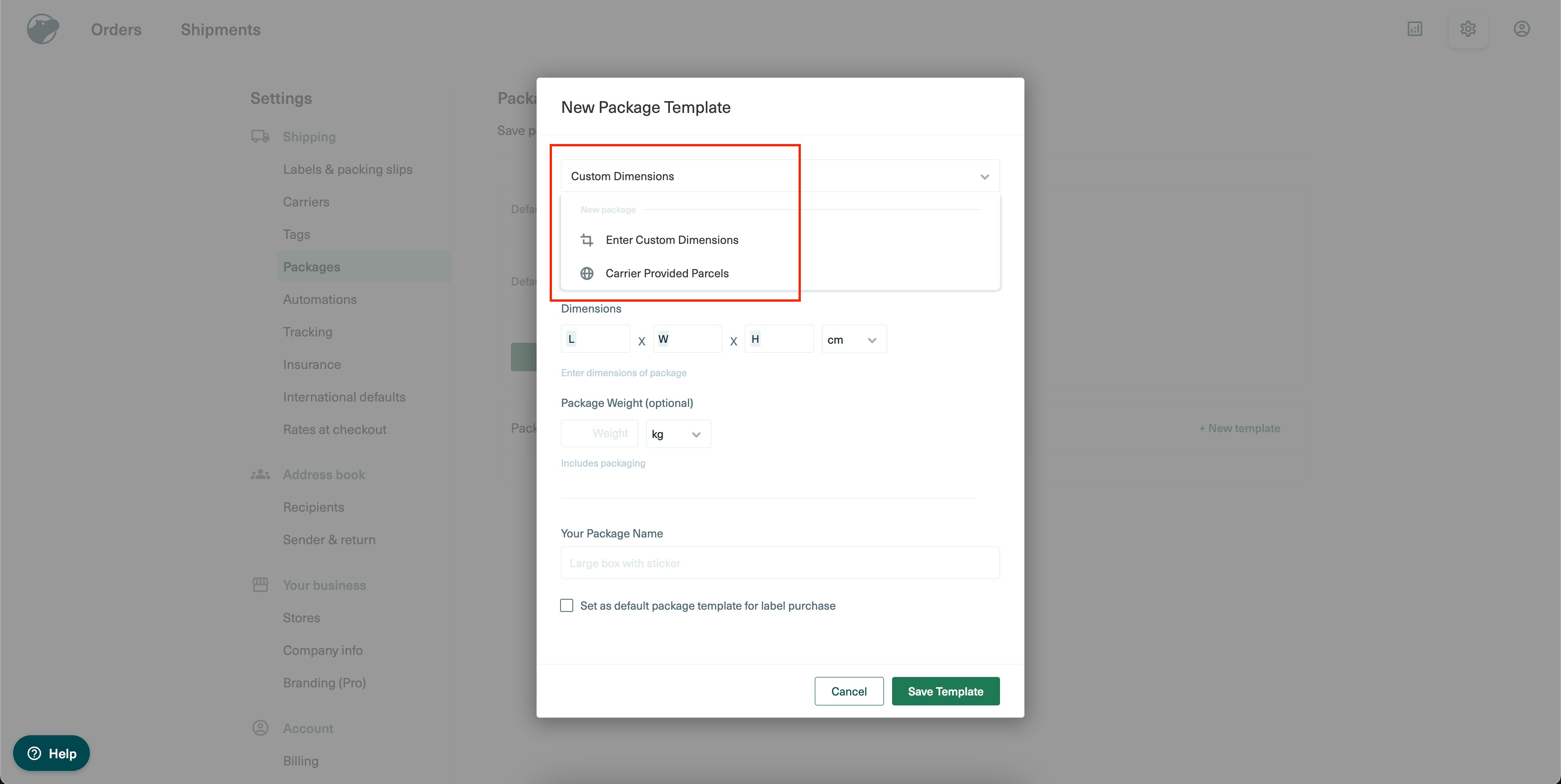
- Choose either custom dimensions or a standard carrier provided parcel dimension.
- If using a carrier provided parcel, enter the package weight.
- Tick the checkbox to set the template as the default, if desired.
- Go to Settings > Address book > Sender & return > Add New address.
- Enter the complete sender address details and mark it as the default sender and return address if needed.
- Open Settings > Shipping > Rates at Checkout > Add Shipping option.
- Select the Live rate option and choose the preferred carrier services.
- Optionally define markup (percentage or fixed) and a fallback delivery fee.
Install Shippo app and enter token
- In Settings, open the marketplace or Integrations page, search for Shippo, and install the app.
- After installation, open the app settings and paste the live token generated earlier.
- Save the token entry to complete the connection.
Enable live shipping rates
- In Payments > Settings > Shipping Origin, ensure the sender address is entered and saved.
- Return to the Shippo app settings in HighLevel and tick the Live rates checkbox.
- Click Save.
Handle missing configuration errors
- If a required package template, shipping origin, or shipping option is missing, an error popup will appear when enabling live rates.
- Review Shippo to confirm all three components are fully configured, then retry enabling live rates.
06What it looks like in HighLevel
07Settings that matter
- Live Token. Controls access to Shippo’s live carrier rate API.
- Package Template. Defines parcel dimensions and weight used for rate calculations.
- Sender & Return address. Specifies the origin address used when creating shipping labels in Shippo.
- Shipping options. Lists the rate options displayed at checkout, including live rates and optional markup.
- Live rates. Enables or disables the display of carrier calculated shipping costs on the checkout page.
08Things to know before you rely on it
- The sender address must be valid; otherwise Shippo will block label purchase.
- If the required package template, shipping origin, or shipping options are missing, an error popup appears when enabling live rates.
09If something goes wrong
- Error popup after enabling live rates. Ensure the package template, shipping origin, and shipping options are fully configured in Shippo.
10How it connects to the rest of HighLevel
- Configure shipping zones and ZIP limits Shipping zones
- Set up shipping and delivery rates in HighLevel stores Shipping rates
- Start a 30 day HighLevel trial Free trial
Michael's take

If live rates are enabled before completing the Shippo setup, an error may appear. Common missing steps include the shipping origin address or an incomplete package template.
Confirm the sender address in HighLevel’s Payments > Shipping Origin, then add the package template and shipping option in Shippo before installing the app. When those pieces are in place, the live token can be entered.