
01Who this is for
- Founders of ecommerce businesses who need to charge different amounts for distinct geographic areas.
- Online retailers selling physical goods that vary in weight and want price brackets per weight range.
- Store owners offering products only in certain states or provinces and requiring separate shipping fees.
02Shipping & Delivery rates, explained
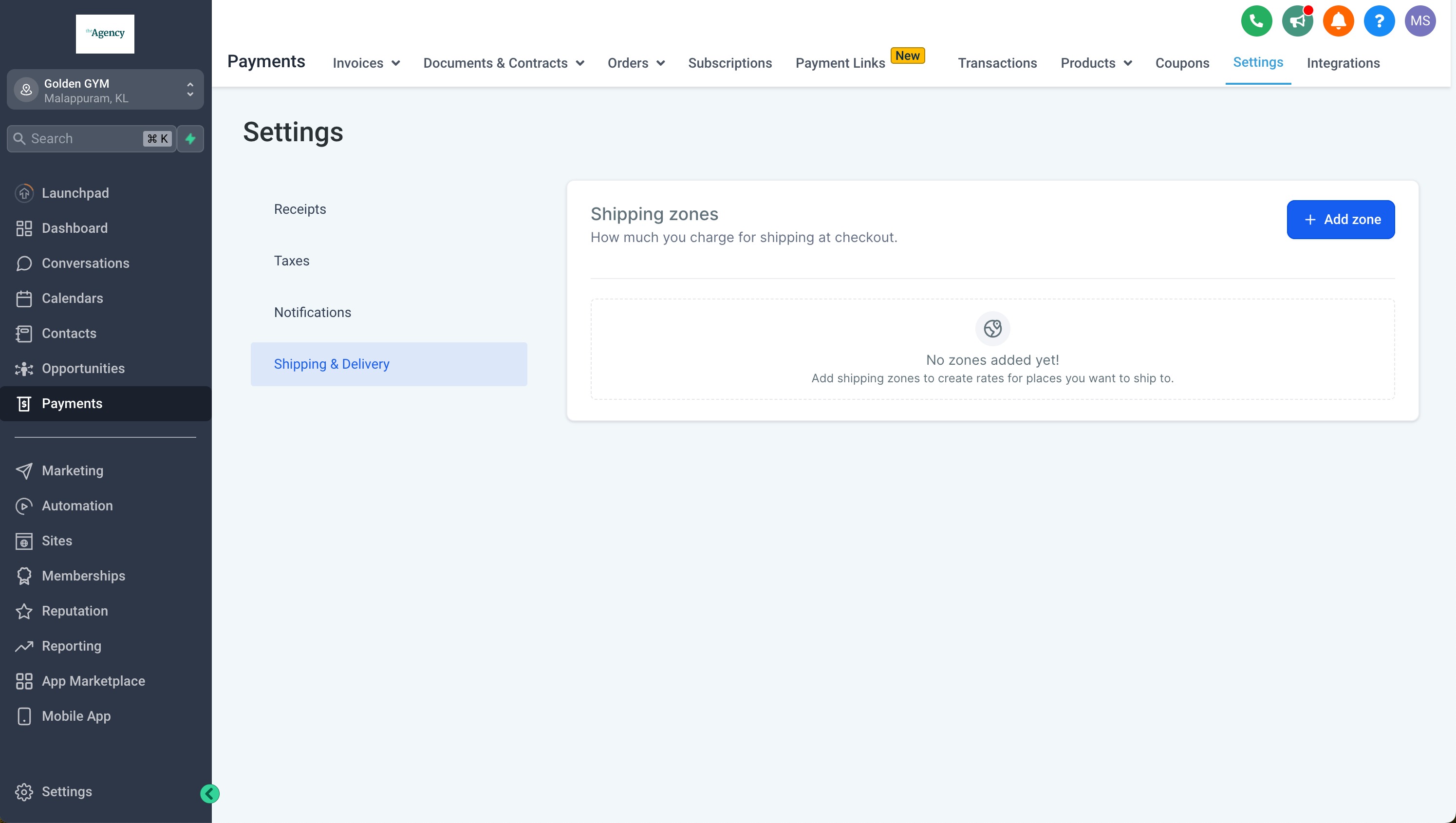
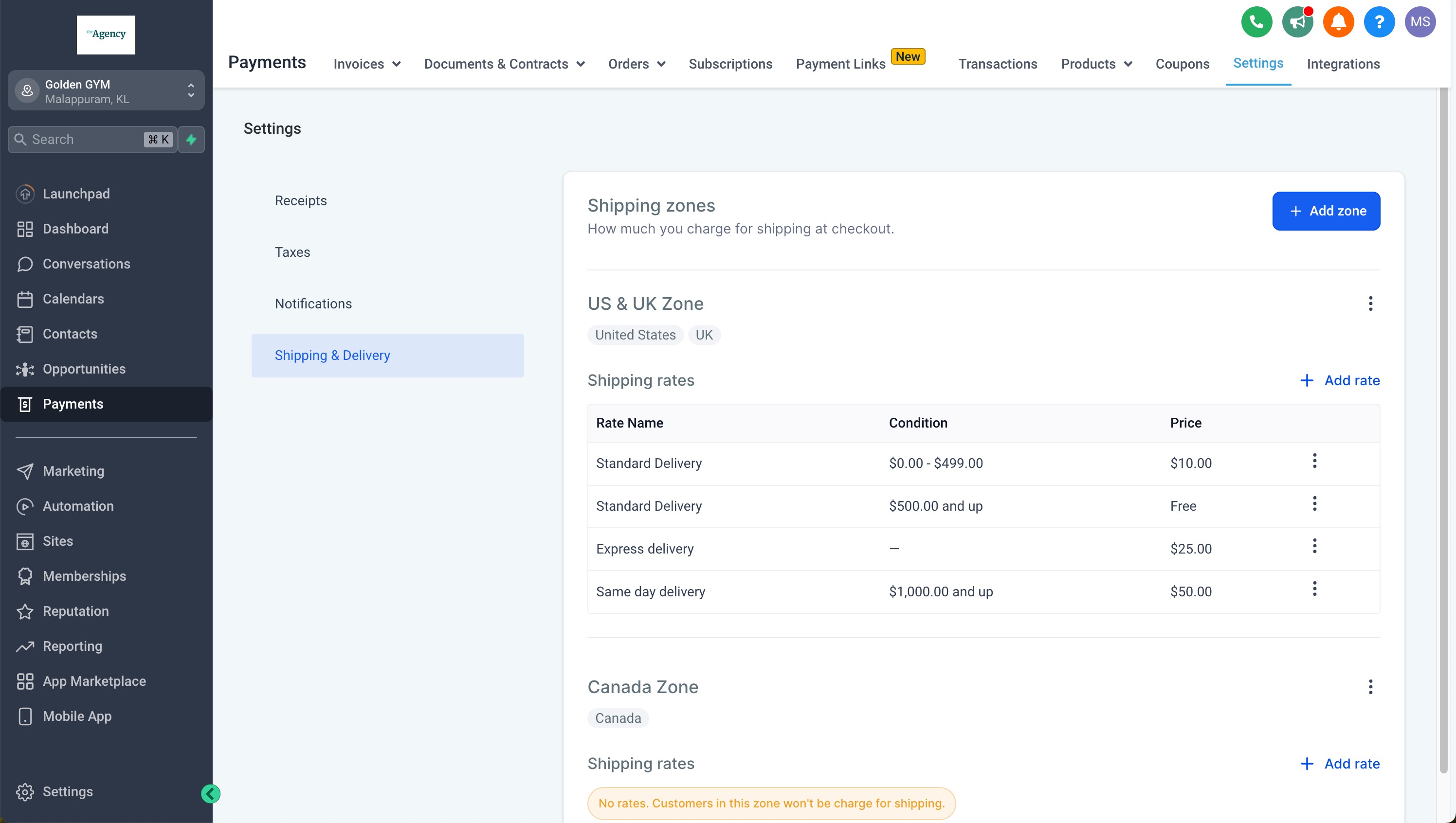
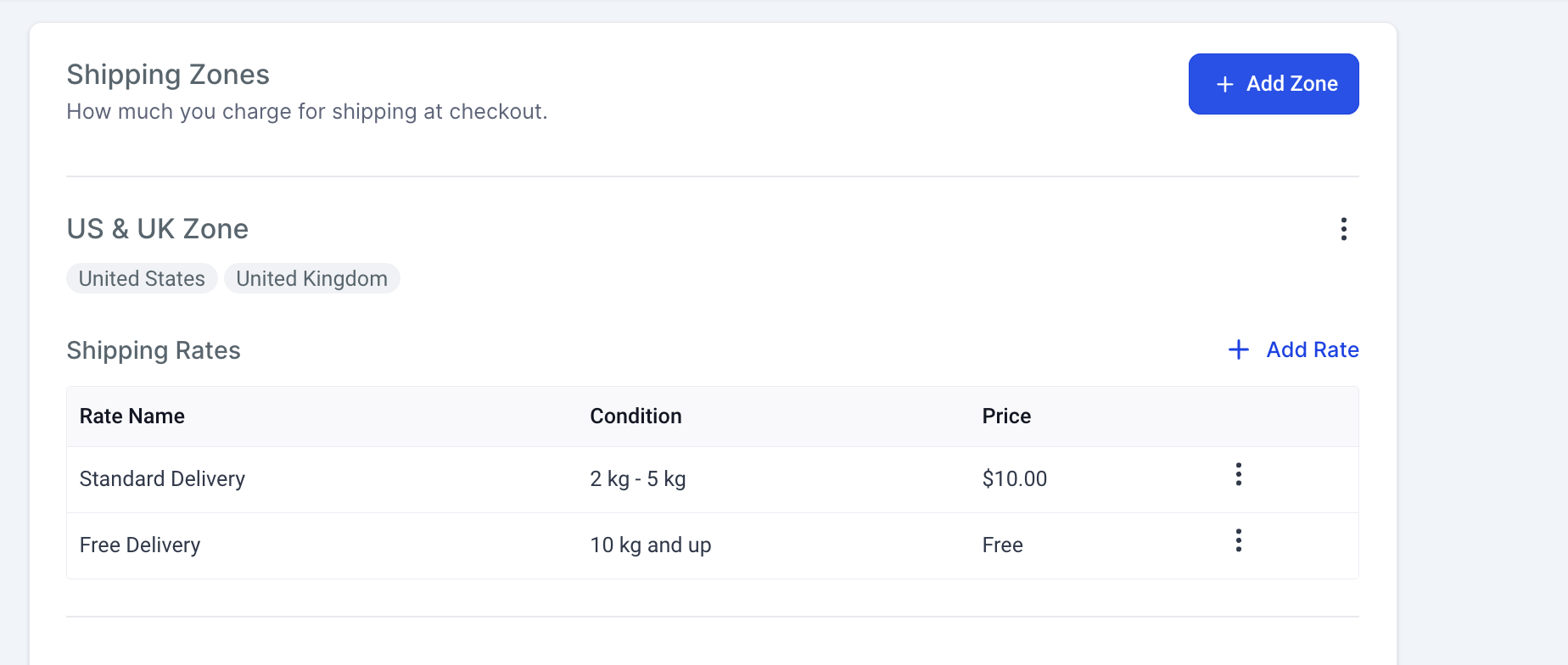
The Shipping & Delivery feature adds a section under Payments where store owners create zones and assign rates. A zone groups countries, and optionally specific states or provinces, to which manual delivery fees apply. Within each zone, multiple rate entries can be added.
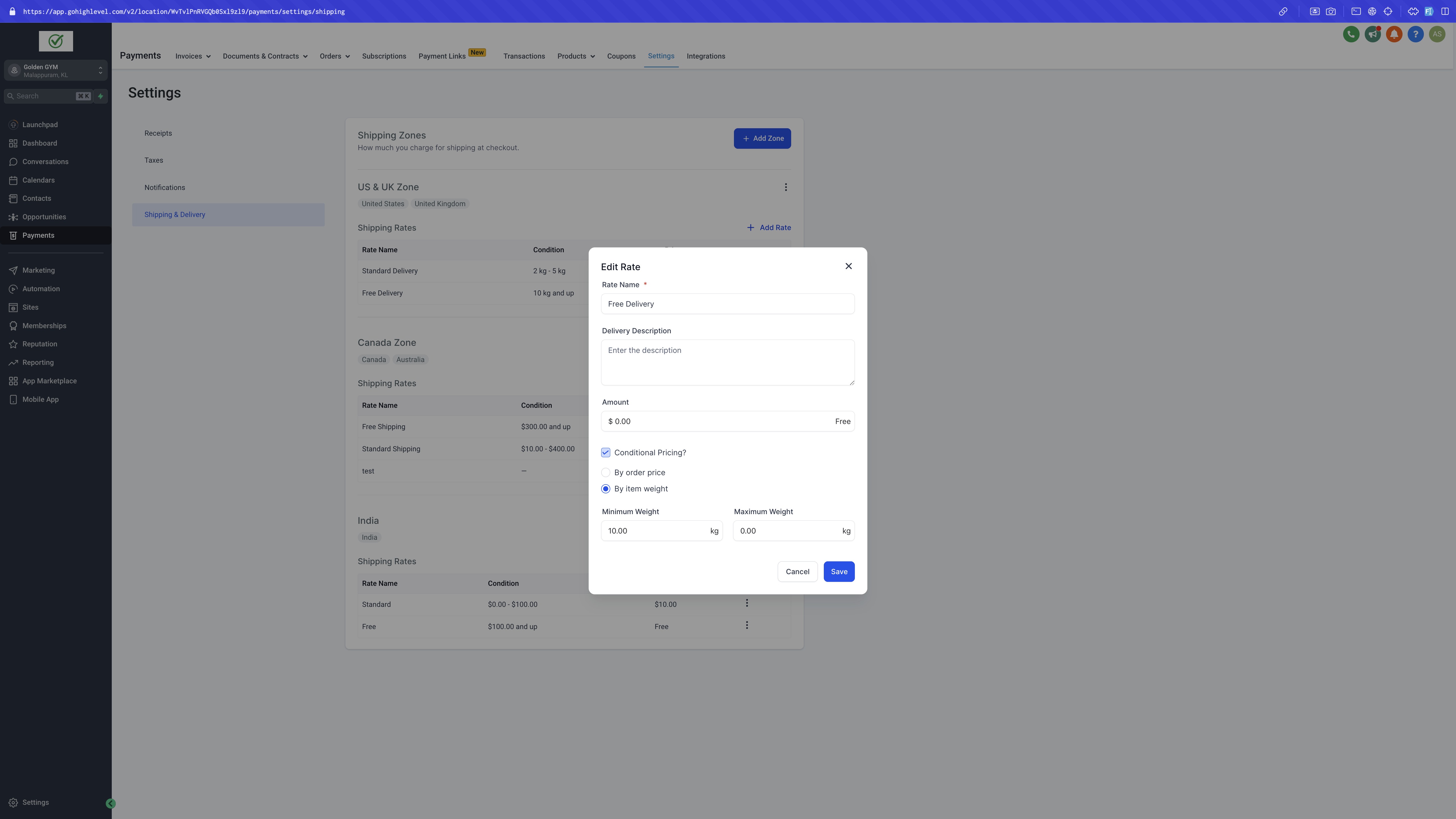
Rates may be conditional on the cart total, such as free shipping over a threshold, or on the total weight of items, allowing separate charges for weight intervals. The settings are accessed via Subaccount > Payments > Settings > Shipping & Delivery.
03How businesses use shipping & delivery rates
- Physical product retailer. The retailer creates a zone for the United States, adds a sub zone for California, and defines a free shipping rule for orders over $500 and a $10 charge for orders below that amount. They also add weight based rules such as free shipping for 0 to 10 kg and a $10 charge for heavier orders within the same zone (per HighLevel's help center, checked November 2026).
- Regional craft shop. The shop sets up a zone that includes Canada and selects only Ontario and Quebec as provinces. It then applies a flat delivery fee that applies to every order regardless of amount or weight.
- Fitness equipment seller. The seller builds separate zones for Europe and Asia, each with weight based rates reflecting different carrier costs. Within each zone they add a free shipping rule for a low weight range and a charge for higher weight ranges.
04How to set up and use shipping & delivery rates in HighLevel
Set up shipping & delivery rates
- Navigate to Subaccount > Payments > Settings > Shipping & Delivery.
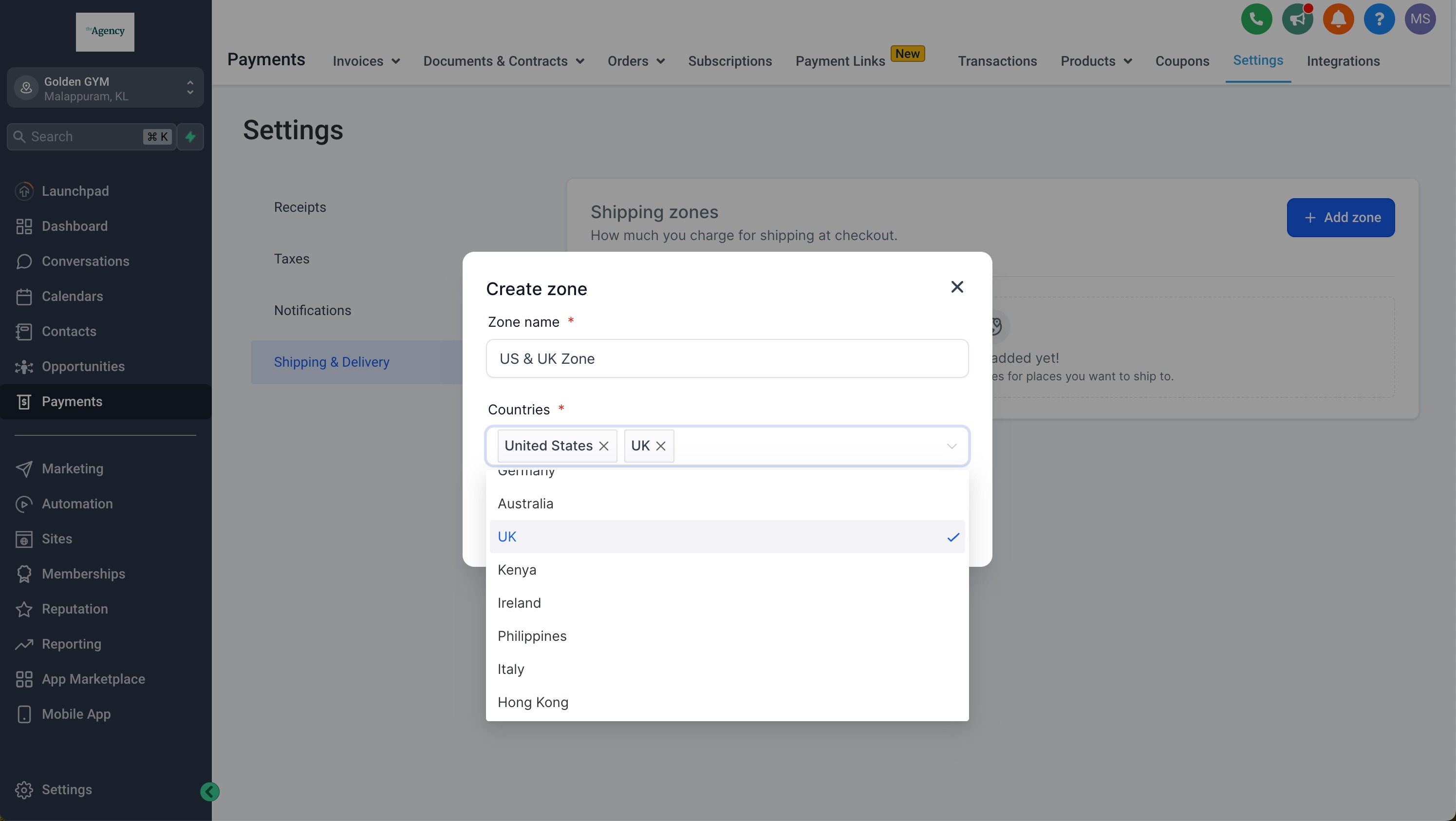
- Click Add Zones to start a new shipping zone.
- Choose the desired countries for the zone, or drill down to specific states or provinces.
- Confirm the zone selection (once a state or province is added it cannot be added to another zone).
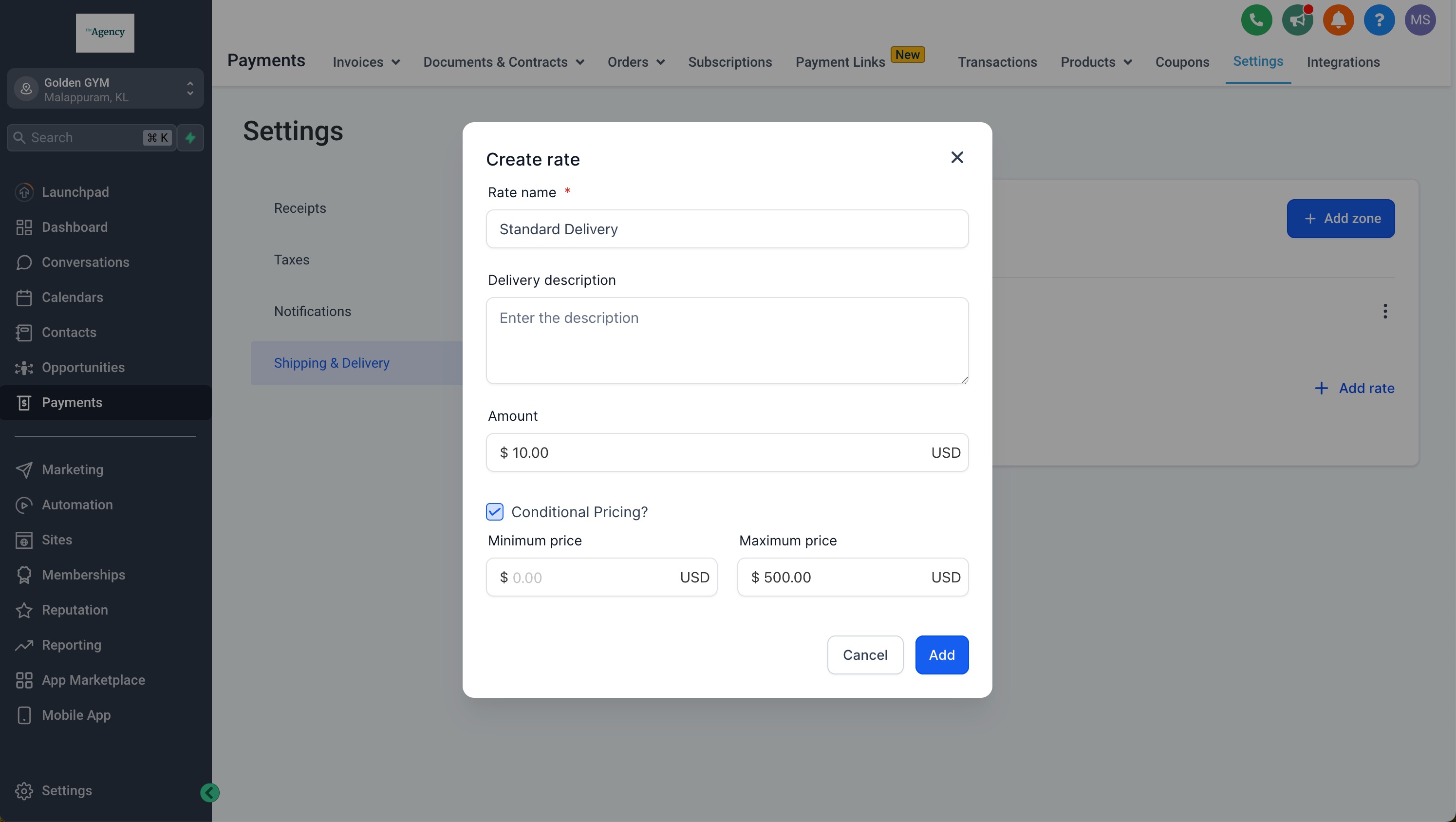
- Click Add Rate within the created zone.
- Enter rate details, optionally conditioning them on cart total or product weight.
- Save the rate entry to activate the shipping charge.
05What it looks like in HighLevel
06Settings that matter
- Shipping & Delivery. Controls the overall area where zones and rates are defined for an ecommerce store.
- Add Zones. Opens the interface for creating a new geographic zone and selecting countries or states.
- Add Rate. Allows entry of a delivery charge, with optional conditions based on order amount or weight.
07Things to know before you rely on it
- A state or province added to one zone cannot be added to another zone.
- Rates are manual; automatic carrier calculations require a separate integration.
08How it connects to the rest of HighLevel
- Learn how to set up shipping zones and ZIP limits in HighLevel Shipping zones guide
- Connect Shippo for live shipping rates Shippo integration
- Set up manual payment methods for ecommerce stores Manual payments
Michael's take

Michael ReimerFounder of CRM Pros, HighLevel Commander and Certified Admin
Shipping & Delivery Rates are a direct way for a small online shop to charge exactly what they need for each market, which can protect margins and keep customers happy.
Get More InformationOpens on HighLevelPublished November 2, 2026 · Updated November 17, 2026