
01Who this is for
- Store owners who sell subscription based services can list their plans directly in the storefront.
- Businesses offering membership programs can display recurring options without using separate billing tools.
- Companies that provide recurring services can sell them within HighLevel without leaving the platform.
02Subscription based services, explained
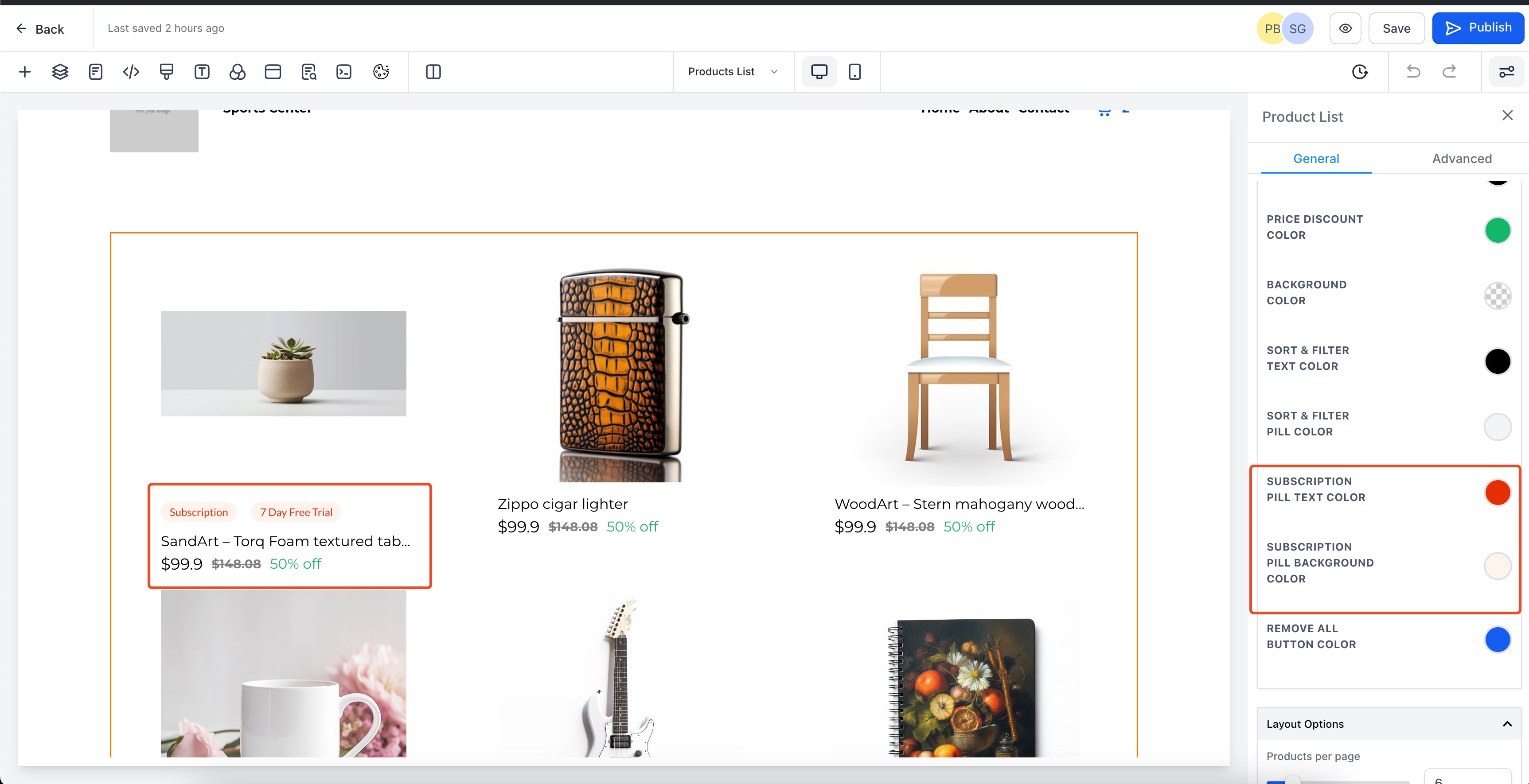
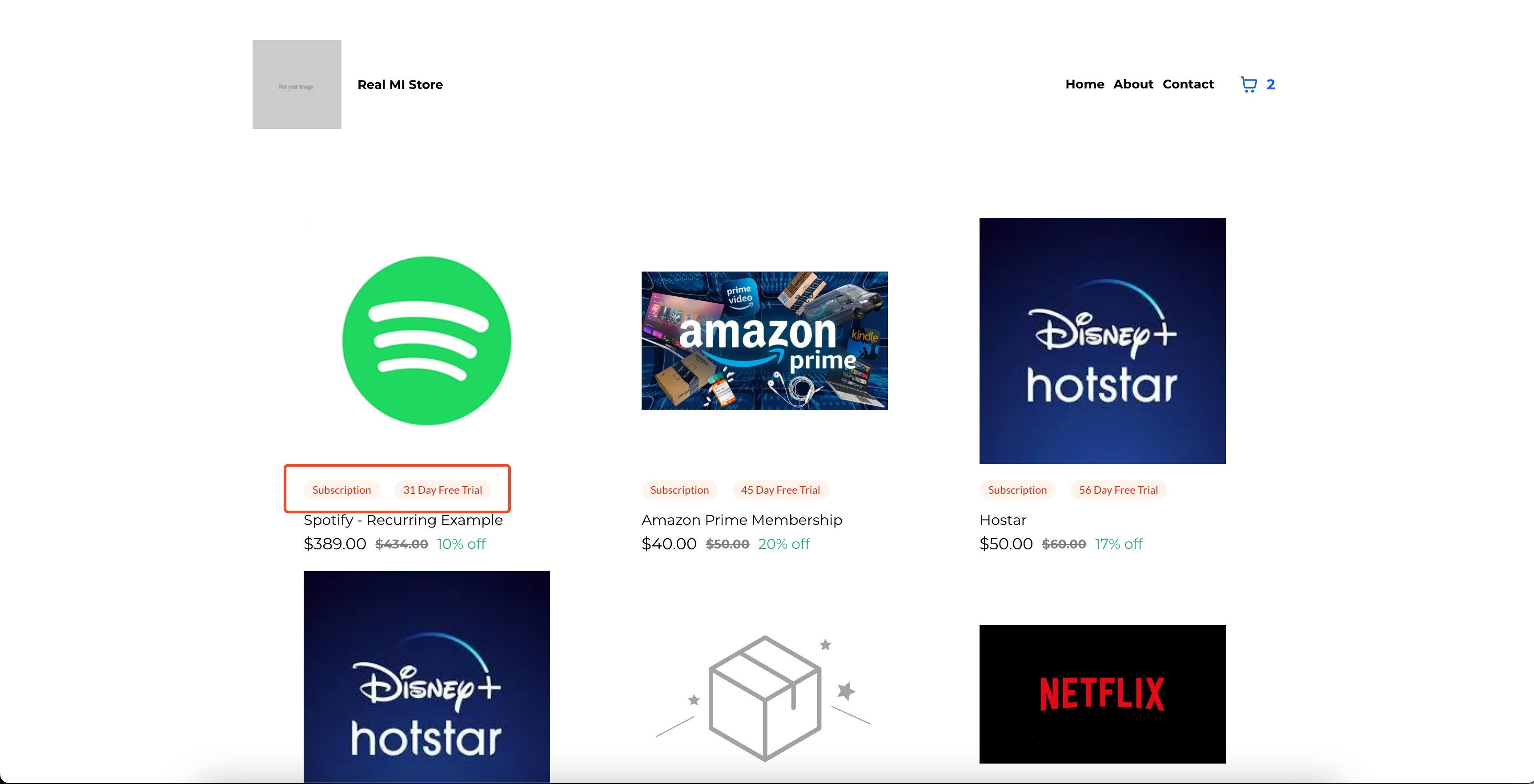
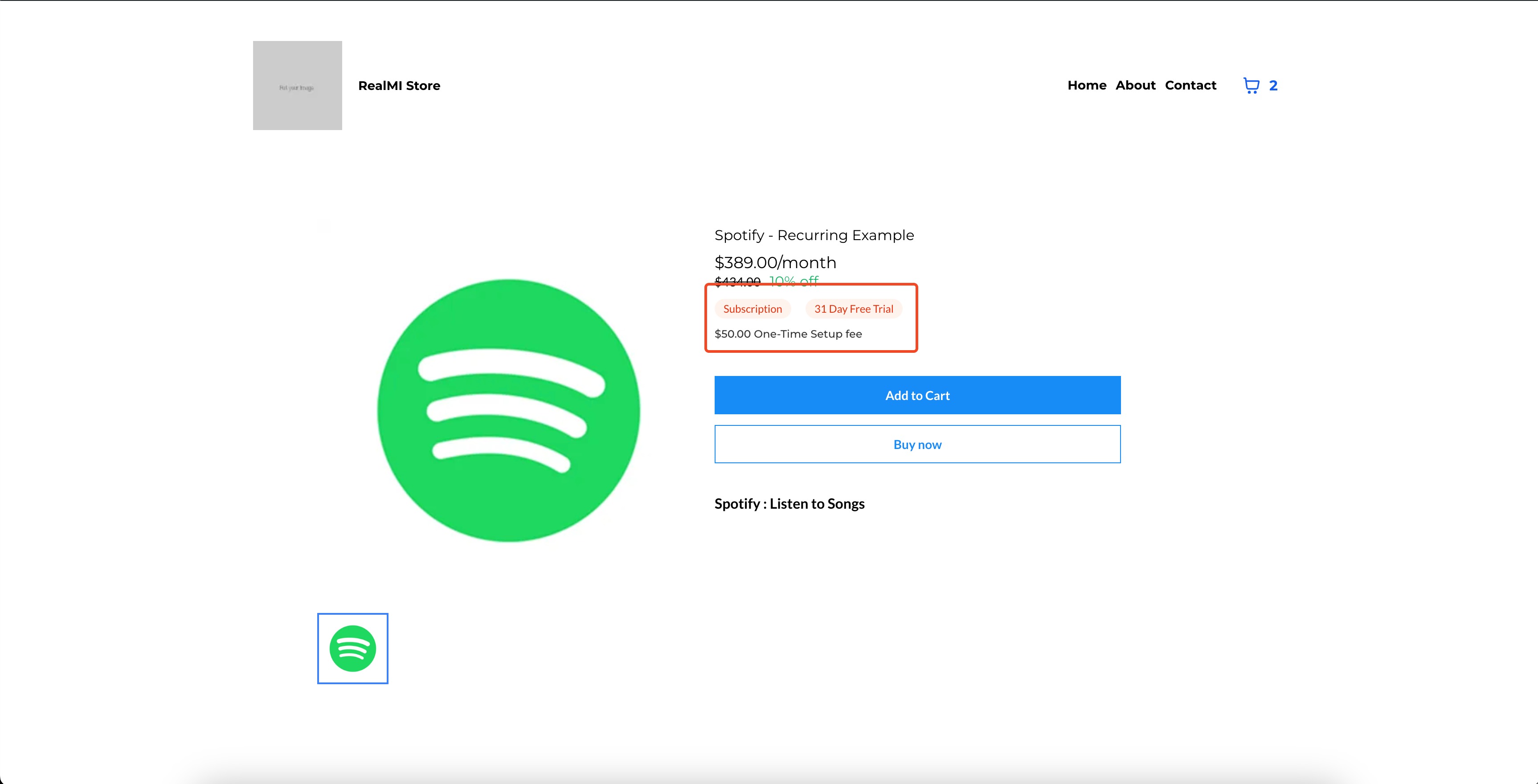
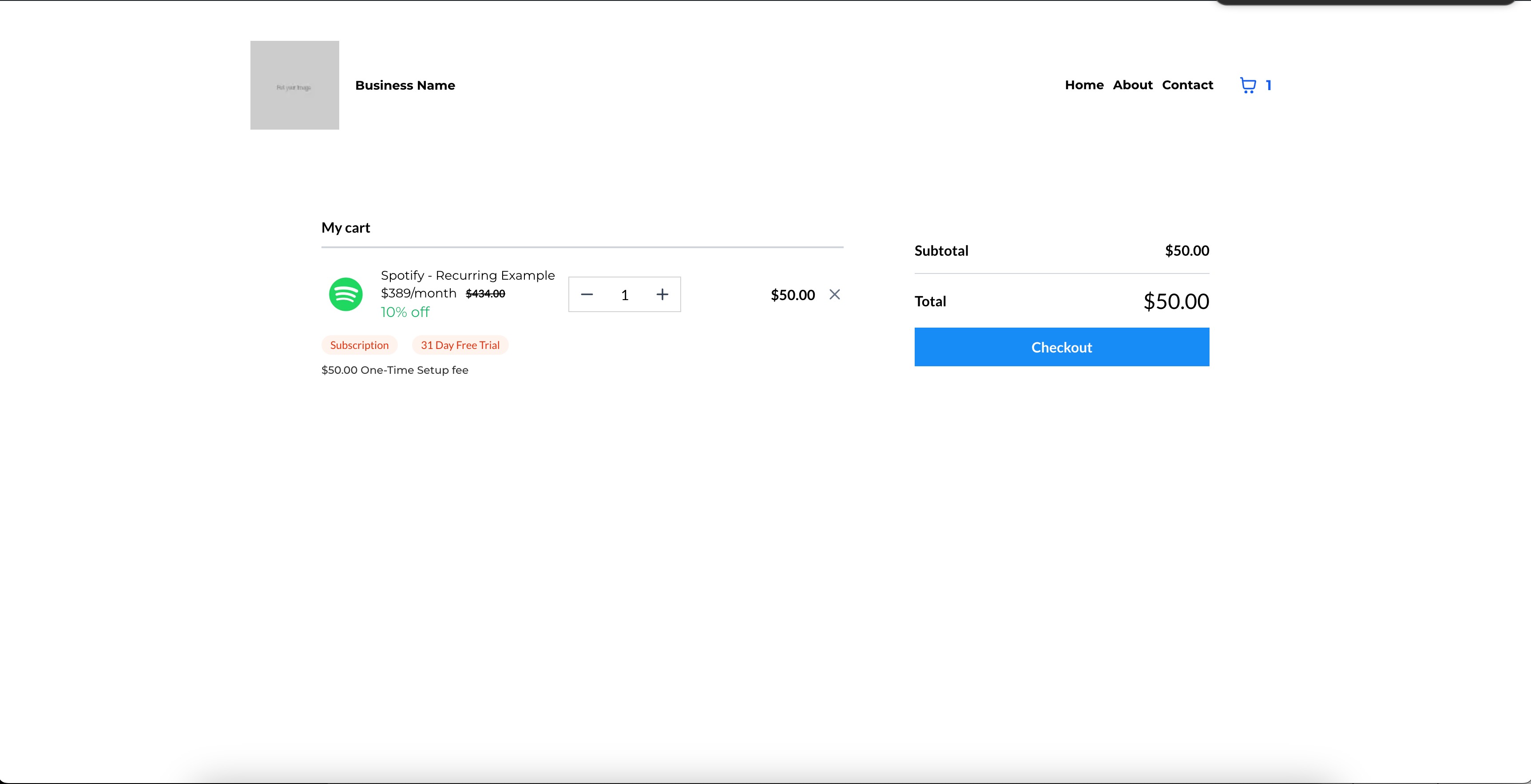
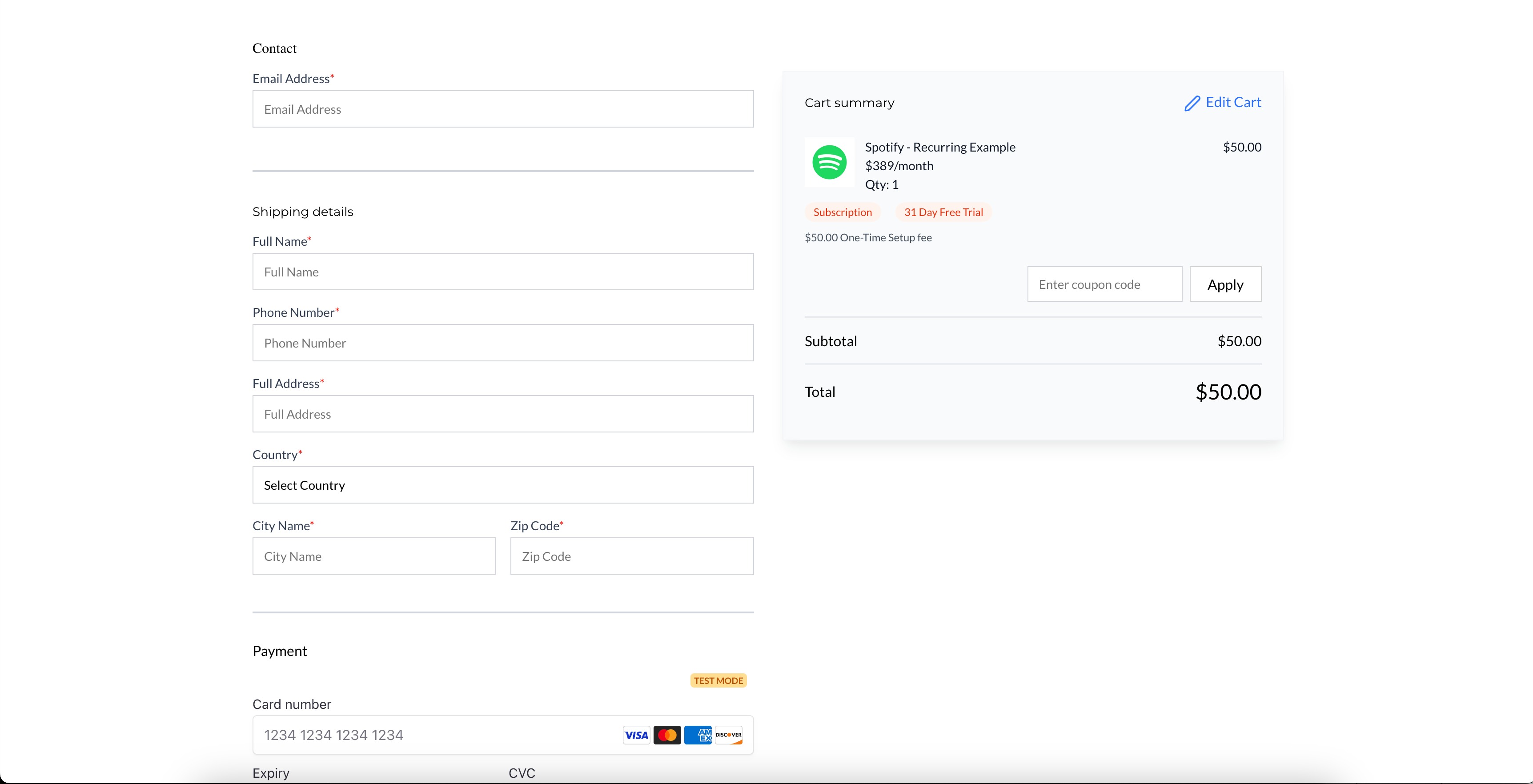
The feature adds a new product type that repeats billing on a defined schedule. When a product is created with a recurring price and the online store flag is turned on, the storefront shows a badge that indicates the item is a subscription. The badge appearance can be styled via pill background and text colors in the page builder. After changes are saved and the store pages are published, the live site mirrors the builder view, displaying the recurring product correctly.
03How businesses use subscription based services
- Online fitness coaching business. Create a monthly membership product, set the price to recur, enable the online store toggle, and adjust the badge colors to match the brand. Publish the store pages so visitors see the recurring option.
- Digital magazine publisher. Add a yearly subscription product, activate the include in store setting, and optionally color code the badge to stand out. After publishing, readers can purchase the recurring subscription directly from the storefront.
- Home cleaning service company. Define a recurring service package, turn on the online store flag, customize the pill colors if desired, and publish the store pages. Customers can then select the recurring cleaning plan during checkout.
04How to set up and use subscription based services in HighLevel
Add a recurring product
- Open the Payments menu and choose Products.
- Create a new product or edit an existing one, set a recurring price, and switch on the Include in online store toggle.
- Enter the page builder, locate the store page, and notice the new recurring product UI elements.
- Adjust the badge background and text colors to align with the site design.
- Save all changes and publish every store page so the recurring product appears as expected.
- Please save and publish all store pages even if you do not customize the pill colors; this ensures the live site matches the builder preview.
05What it looks like in HighLevel
06Settings that matter
- Include in online store. Controls whether a product with a recurring price is displayed on the public storefront.
- Pill colors. Sets the background color of the badge that marks a product as recurring.
- Pill text colors. Sets the font color used inside the recurring product badge.
07Things to know before you rely on it
- All store pages must be saved and published for the badge styles to match the builder preview.
- The recurring product badge appears only after pages are published; otherwise the live site will differ from the builder view.
08How it connects to the rest of HighLevel
- Set up a HighLevel ecommerce store ecommerce store setup
- Connect Stripe for payment processing Stripe integration
- Recover abandoned checkouts with automatic emails Abandoned checkout recovery
Michael's take

Most people forget to publish the store pages after tweaking the recurring badge, so the live site ends up looking off. I would make the change, hit save, then hit publish right away to lock in the look.
If I were setting this up, I’d first add the recurring product, flip the Include in online store switch, and then publish the store. That way the UI matches what I see in the builder.