
01Who this is for
- Online retailers who need a physical document to accompany shipped packages, because the slip consolidates order and item details.
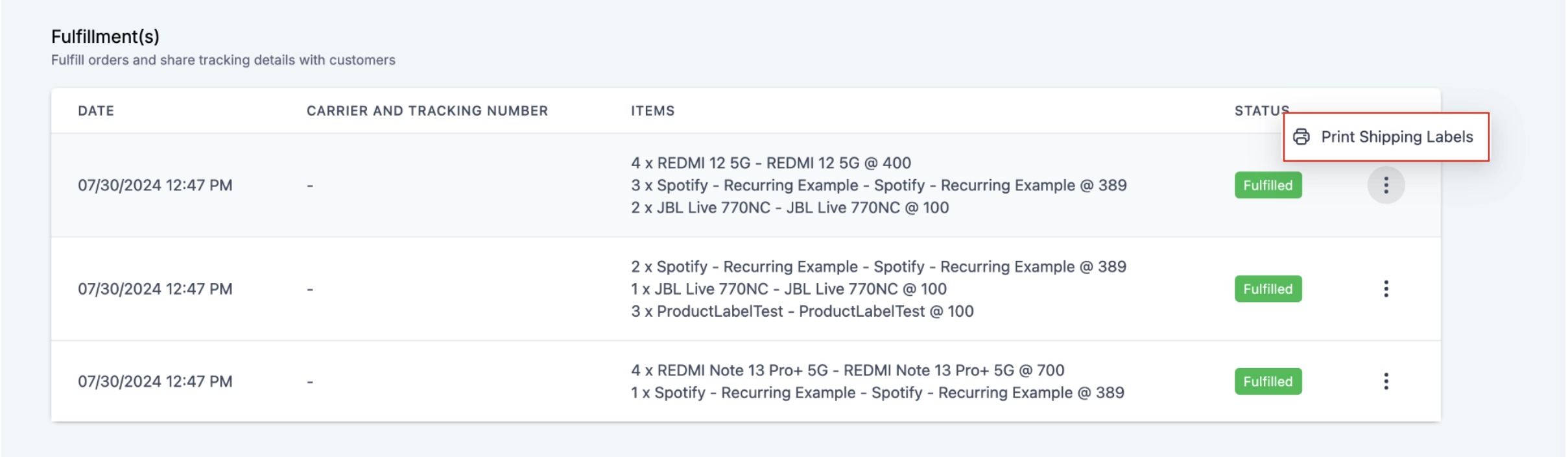
- Fulfillment staff handling partial shipments, as each fulfillment can produce its own slip with the selected items.
- Small business owners managing multiple product variants, since SKUs from variants appear on the slip for easy identification.
02Packing slips, explained
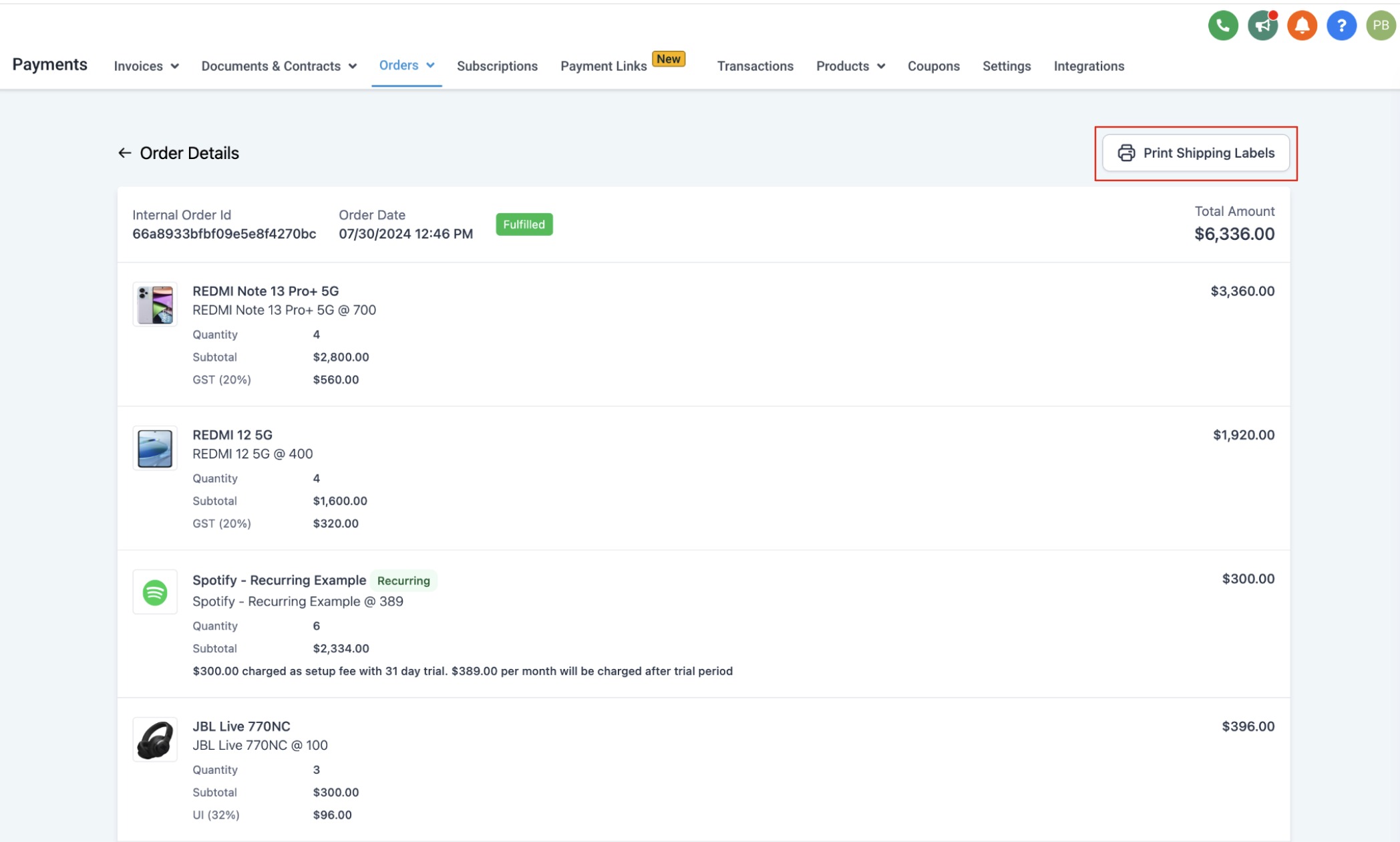
The packing slip feature adds a “Print Shipping Label” button inside the ecommerce order workflow. When clicked, the platform creates a PDF that contains the core order information and a line item table. The PDF separates unfulfilled and fulfilled items onto different pages.
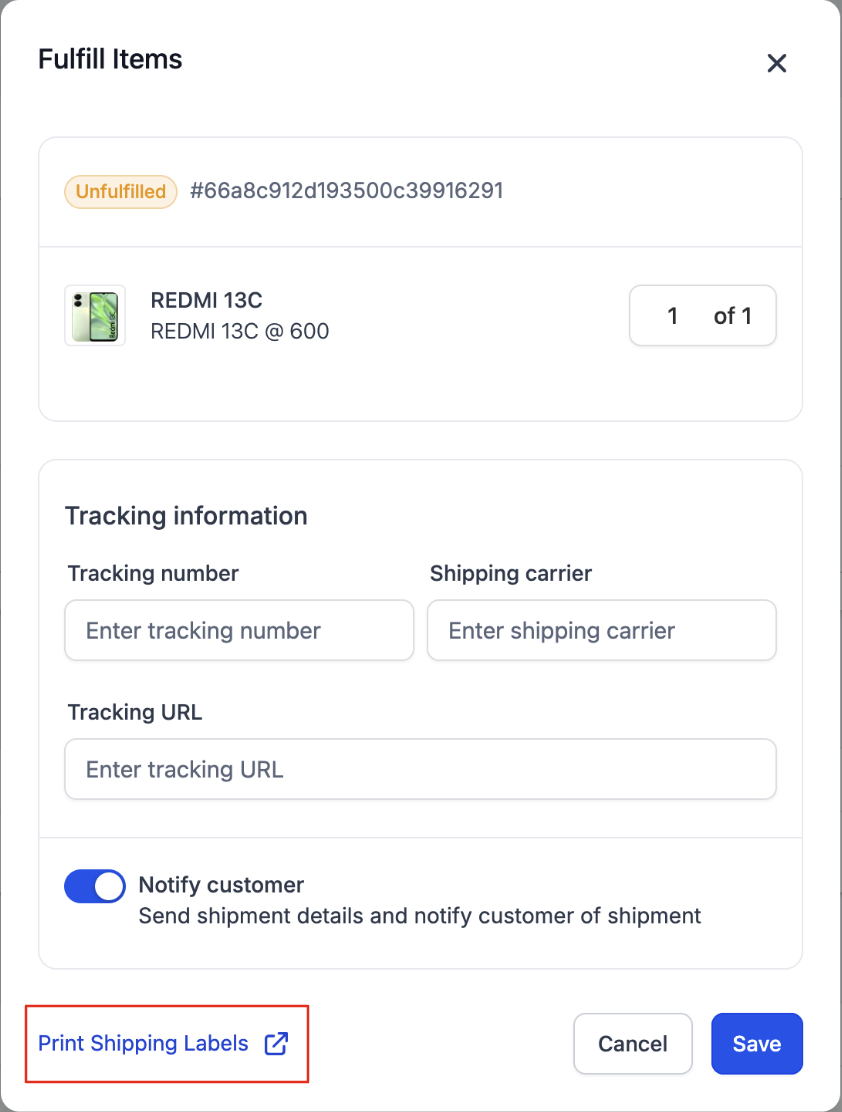
The button is reachable from two places. On the order details page it prints a slip for the whole order. While fulfilling an order, after selecting specific items and quantities, the same button prints a slip for just those items. The feature works only with orders created through a HighLevel ecommerce store.
03How businesses use packing slips
- Clothing boutique. The boutique selects an order in Payments > Orders, clicks “Print Shipping Label,” and prints a full order slip to attach to the package. When a customer receives part of their order later, the staff fulfills the remaining items, selects them, and prints a slip for that partial shipment.
- Electronics reseller. During fulfillment, the reseller chooses the specific smartphones being shipped, hits the “Print Shipping Label” button, and generates a PDF that lists only those models with their SKUs and quantities, ensuring accurate packing.
- Custom gift shop. The shop accesses the order details page, prints a packing slip that includes the customer’s notes entered at checkout, and uses the printed information to verify custom requests before packing.
04Before you start
- An ecommerce store must be set up in HighLevel.
- At least one order must exist in the store.
05How to set up and use packing slips in HighLevel
Print packing slip from order details
- Navigate to Payments > Orders.
- Select the store order you want to print.
- Click the “Print Shipping Label” button.
- Download the PDF and print it.
Print packing slip during fulfillment
- Open the fulfillment view for the chosen order.
- Select the items and quantities you are fulfilling.
- Click the “Print Shipping Label” button.
- Download the PDF and print it.
06What it looks like in HighLevel
07Things to know before you rely on it
- Packing slips can be generated only for HighLevel ecommerce store orders.
- If an order has multiple partial fulfillments, each fulfillment appears on a separate page in the PDF.
- Currently the billing and shipping addresses are identical on the slip; this will change when the billing address field becomes editable on checkout.
- The Order Notes section is shown only when the customer adds notes during checkout.
- Product SKUs are taken from the product or variant configuration and shown in the line item table.
08How it connects to the rest of HighLevel
- Set up shipping zones and ZIP limits for accurate address handling. Shipping zones
- Use the Order fulfilled trigger to automate follow up actions after a packing slip is printed. Order fulfilled trigger
- Review HighLevel pricing and plans to ensure your account includes ecommerce features. Pricing
Michael's take

If I were setting this up, I’d generate a slip for a full order first to verify the layout matches my workflow, then switch to partial slips for the items we ship in batches.