
01Who this is for
- Ecommerce Founders, add social proof to increase shopper confidence.
- Online boutique managers, showcase customer sentiment next to each product.
- Digital product sellers, gather feedback on courses or downloads to guide future content.
02Reviews and ratings, explained
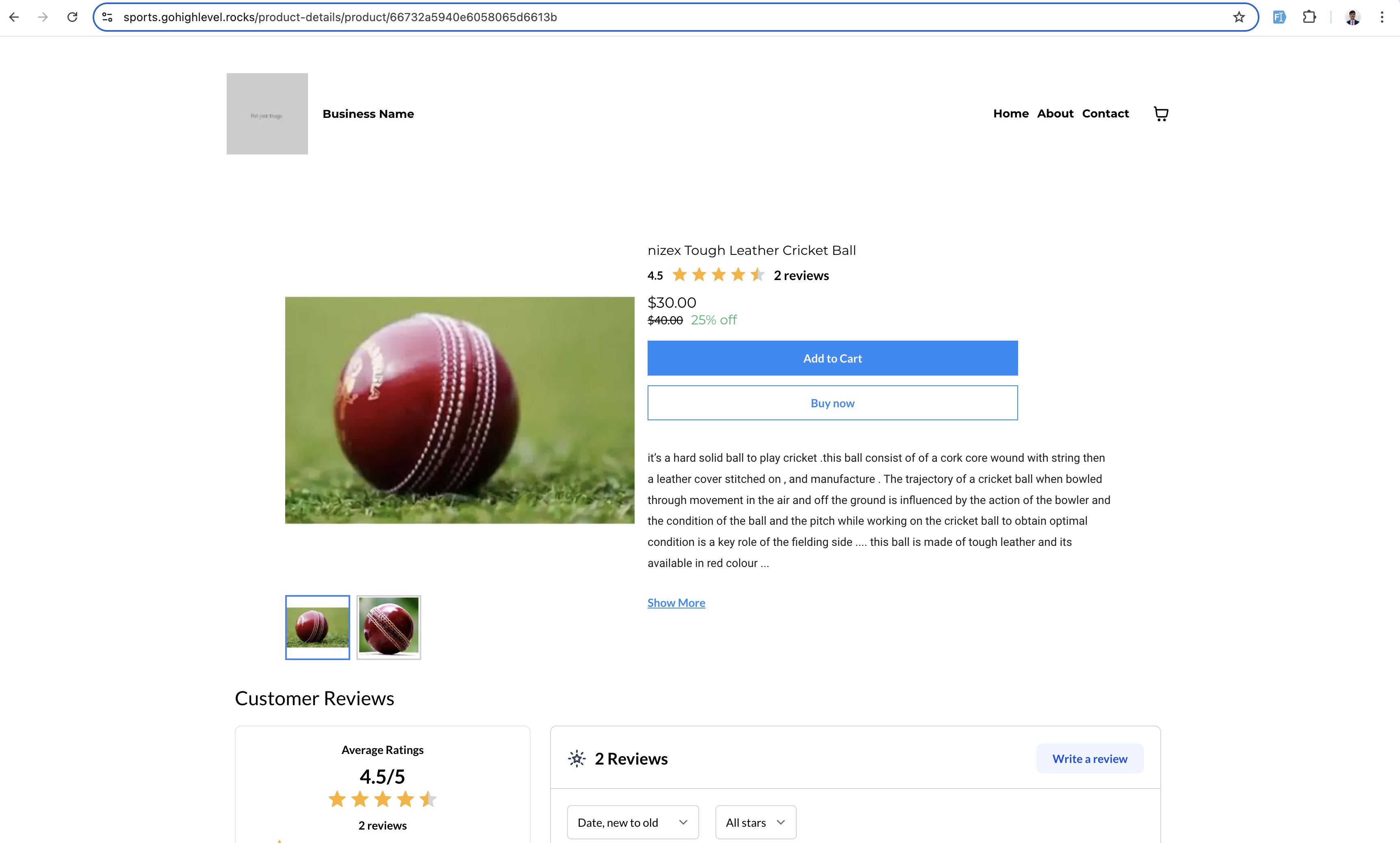
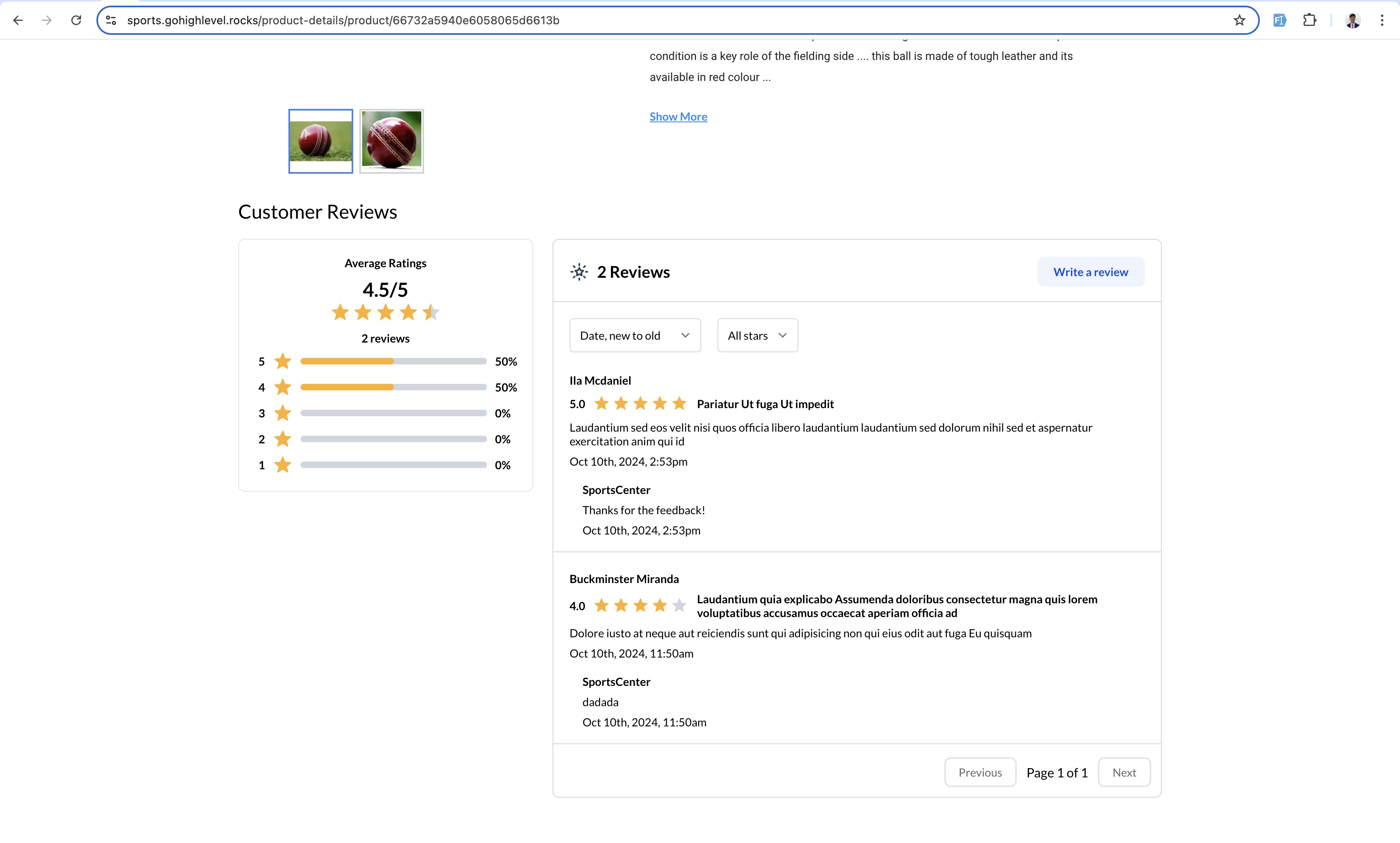
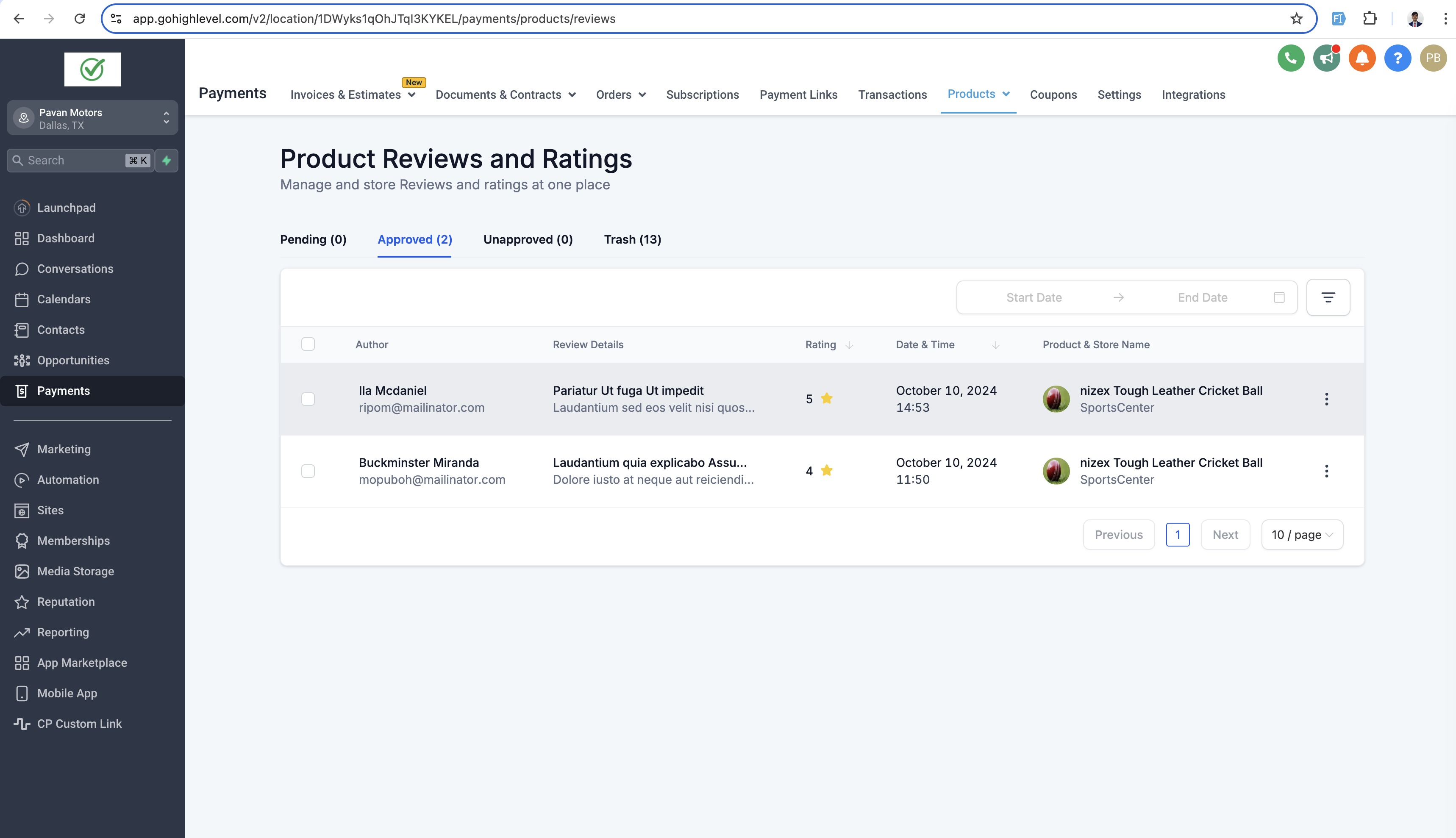
The Reviews and Ratings tool adds a star rating widget and a comment area to both the product list view and the individual product detail page. Store owners decide whether to show the rating count alongside the stars. Customers can write reviews that are held for moderation before appearing publicly. All review activity is managed from a dedicated Reviews dashboard within the Payments section.
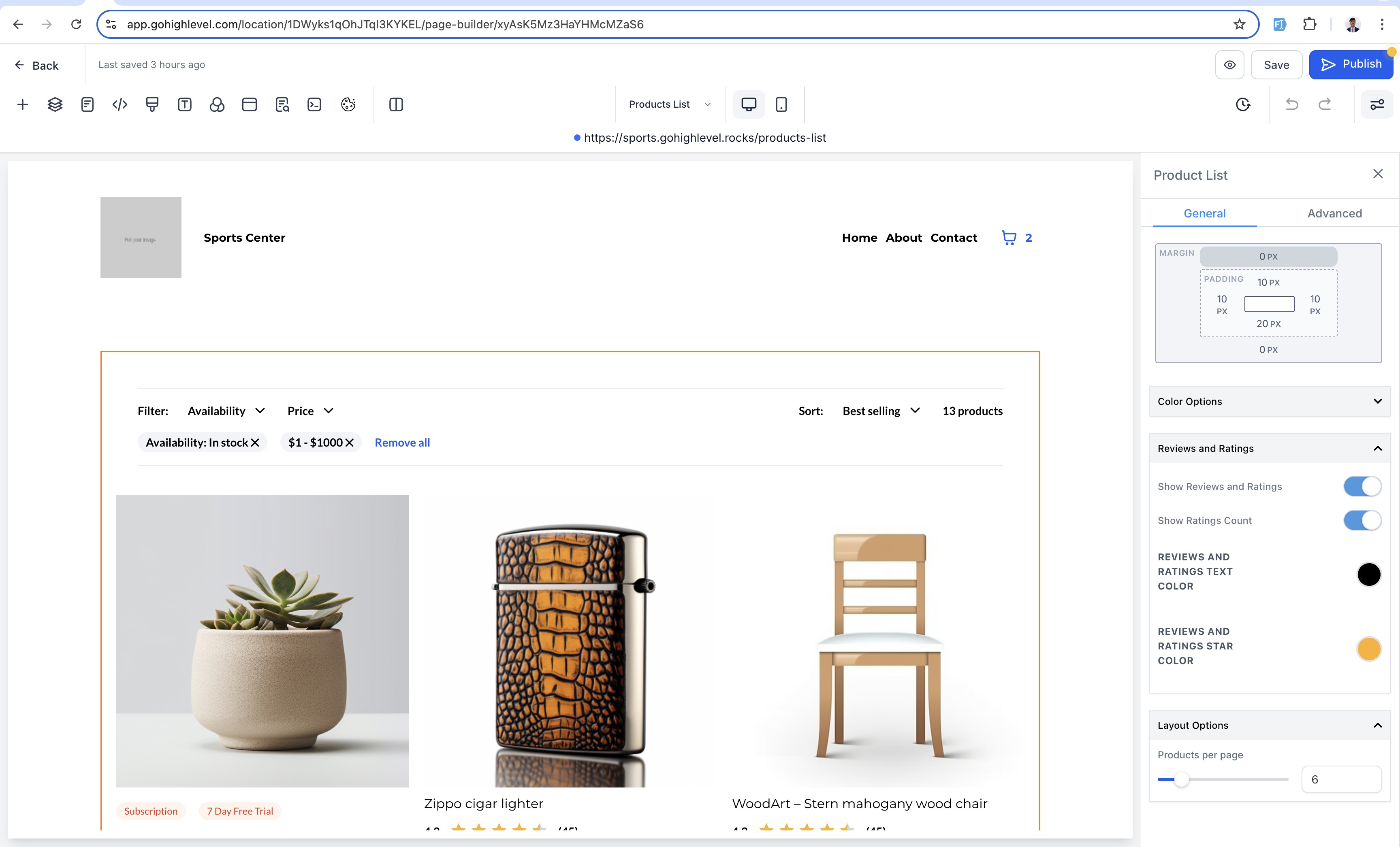
In the page builder, two toggles control visibility: "Show Reviews and Ratings" turns the entire review block on or off, while "Show Ratings Count" adds the numeric total of ratings. Font style follows the page’s existing typography, though size cannot be changed. Reviews are protected by Cloudflare Turnstile verification that runs in the background.
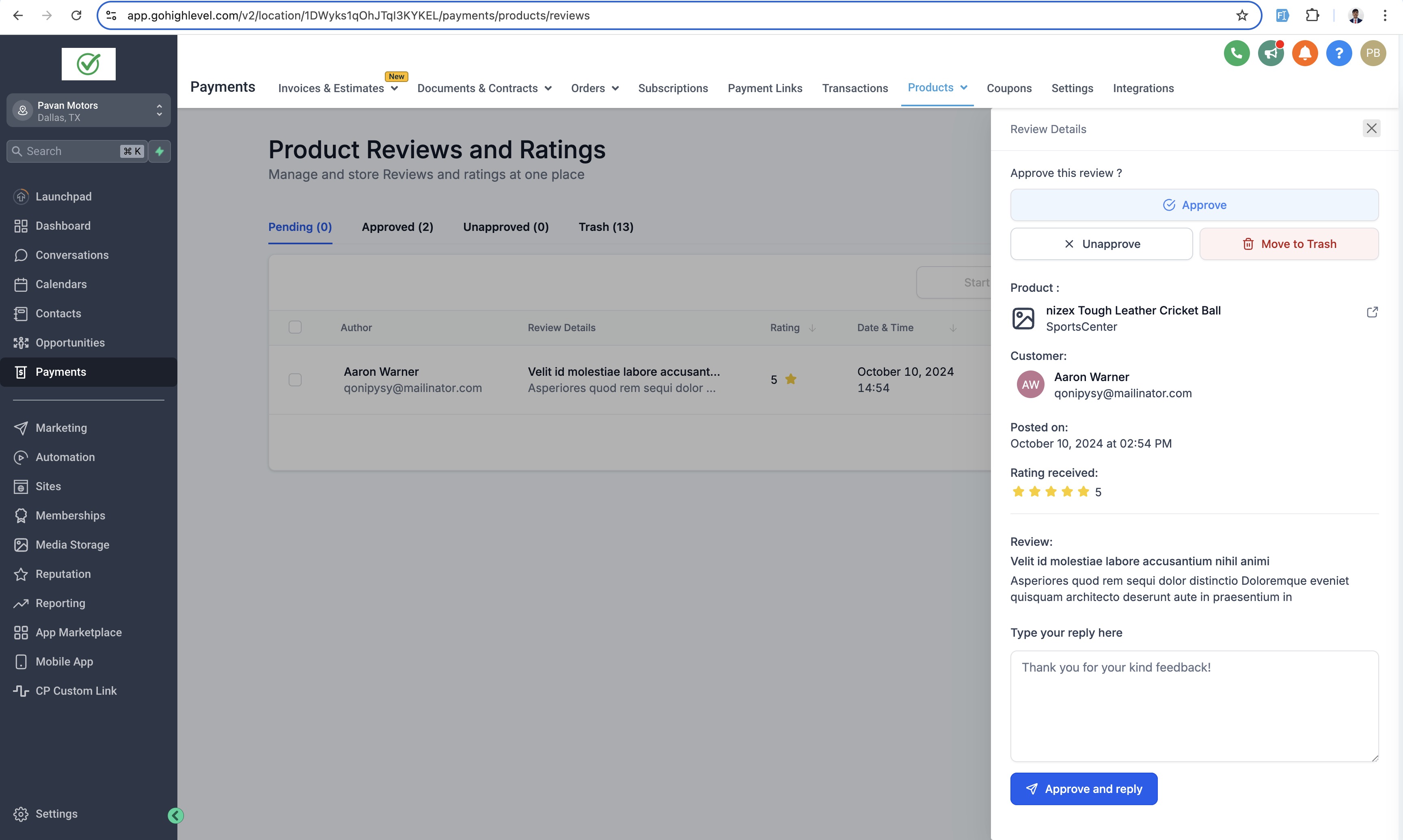
The feature lives under Payments > Products dropdown > Reviews, where owners can approve, unapprove, trash, reply to, filter, and permanently delete reviews.
03How businesses use reviews and ratings
- Clothing boutique. The boutique owner enables the review block on product pages, then monitors the Pending list for new shopper comments. They approve positive feedback and reply to questions, helping future buyers decide on styles.
- Digital course provider. After a student completes a course, they click "Write a Review" on the course detail page, fill in name, email, and optional headline. The provider reviews the submission, approves it, and posts the testimonial beside the course offering.
- Home goods store. The store activates the rating count toggle so shoppers see how many reviews each item has. Using the filter tools, the owner reviews five star comments first, replies to any concerns, and removes spam from the Trash.
04Before you start
- No additional configuration is needed beyond enabling the toggles in the page builder.
05How to set up and use reviews and ratings in HighLevel
Enable reviews and ratings
- Open the product page builder and switch on the "Show Reviews and Ratings" toggle.
- Activate the "Show Ratings Count" toggle if the number of ratings should be visible.
- Save the changes so the stars and optional count appear in the preview.
Submit a review as a customer
- Navigate to a product’s detail page and scroll to the Reviews section at the bottom.
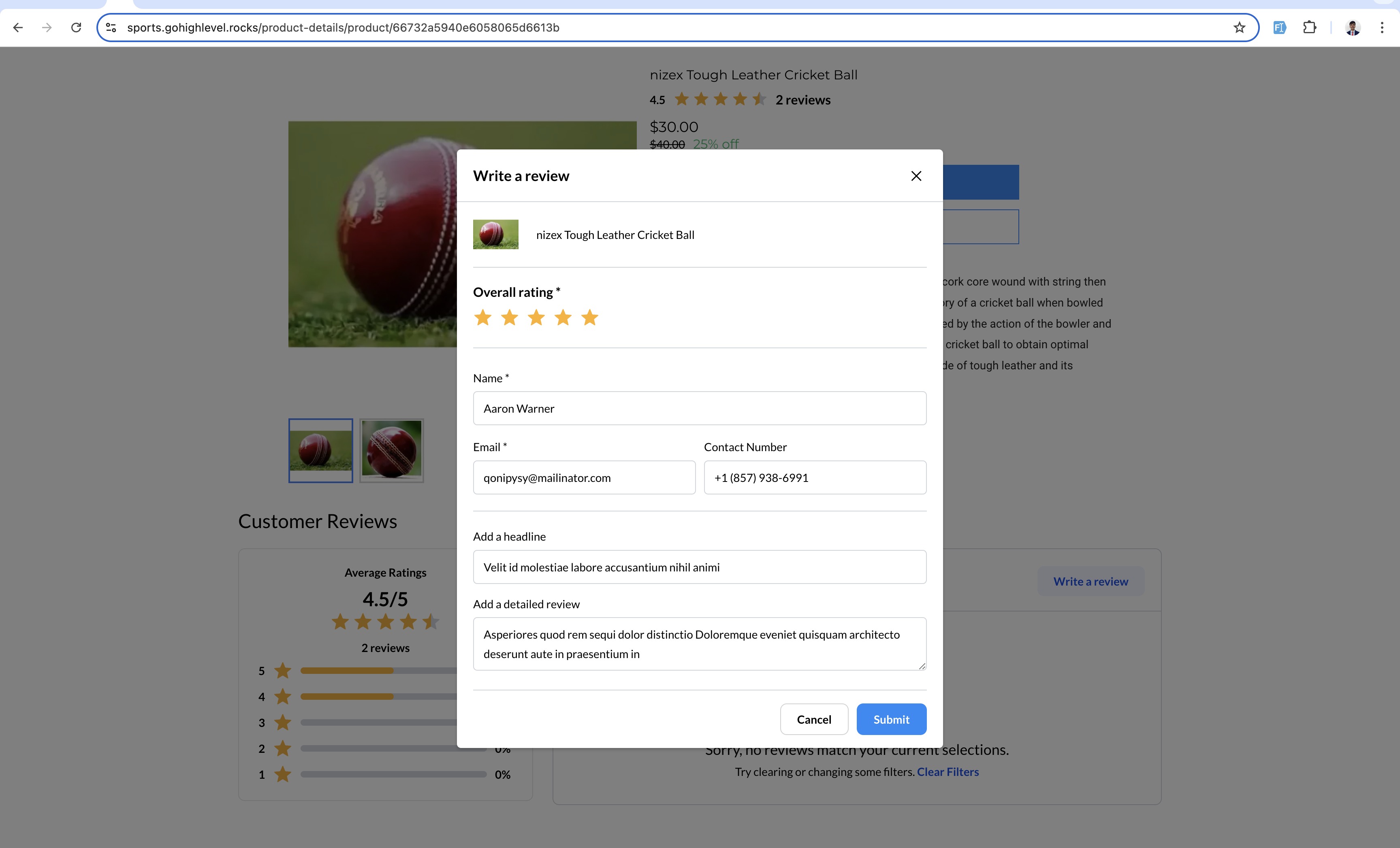
- Click the "Write a Review" button to open the review form.
- Enter the required name and email fields.
- Optionally add a contact number, headline, and description.
- Complete any Cloudflare Turnstile challenge if it appears.
- Press Submit and note the confirmation message shown on the page.
Publish and moderate reviews and ratings
- Go to Payments > Products dropdown > Reviews.
- Locate new submissions in the Pending tab.
- Select one or more reviews and choose Approve, Unapprove, or Move to Trash.
- Open an individual review from the side menu to add a reply.
- Apply filter options such as time frame, rating, product name, or store name to find specific entries.
- Delete unwanted reviews permanently from the Trash section.
06What it looks like in HighLevel
07Settings that matter
- Show Reviews and Ratings. Controls whether the review widget appears on product list and detail pages.
- Show Ratings Count. Determines if the numeric total of ratings is displayed next to the stars.
08Things to know before you rely on it
- Font size for review text cannot be changed; it follows preset hierarchy values.
- Reviews can be permanently deleted only after moving them to the Trash section.
- Cloudflare Turnstile verification runs automatically, but a visible challenge may appear for some users.
09How it connects to the rest of HighLevel
- Set up a HighLevel ecommerce store Store setup guide
- Configure shipping and delivery rates Shipping rates
- HighLevel pricing and plans Pricing page
Michael's take

I’d turn the feature on and monitor the first reviews, responding promptly to show care. The built in moderation tools keep the conversation clean.