
01Who this is for
- Marketing managers who need brand consistent icons for chat triggers.
- Web developers who want to programmatically open or close the widget from site interactions.
- International businesses that must display field labels in languages other than English.
02Web chat widget advanced configurations, explained
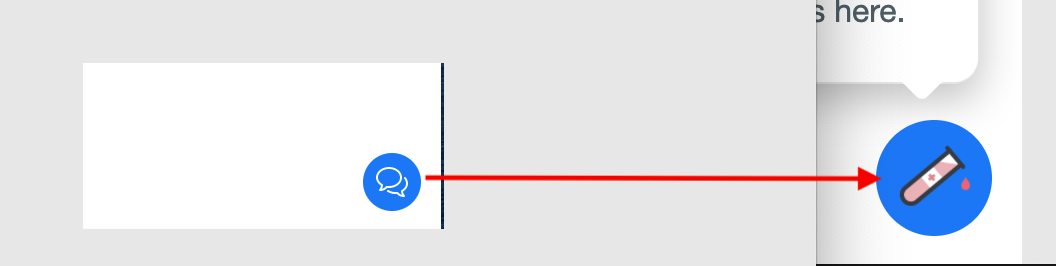
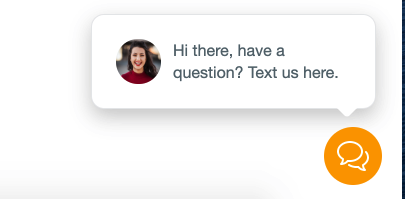
The widget is placed on a page with a <chat widget> tag and a loader script. Adding attributes to this tag changes its visual elements or behavior without using the visual builder. For example, open icon url swaps the default chat bubble icon, and next prompt timer sets how long the widget waits before showing the bubble again. The JavaScript object window.leadConnector.chatWidget provides methods such as openWidget, closeWidget, isActive and localizeWidget, which can be called after the LC_chatWidgetLoaded event fires.
03How businesses use web chat widget advanced configurations
- Digital marketing agency. The agency adds open icon url and close icon url attributes to match client branding. They also set next prompt timer to zero so the chat invitation appears on every visit, ensuring maximum lead capture.
- Ecommerce store. A store developer attaches a click handler to a “Help” button that calls window.leadConnector.chatWidget.openWidget(), letting shoppers open the chat on demand rather than waiting for the automatic bubble.
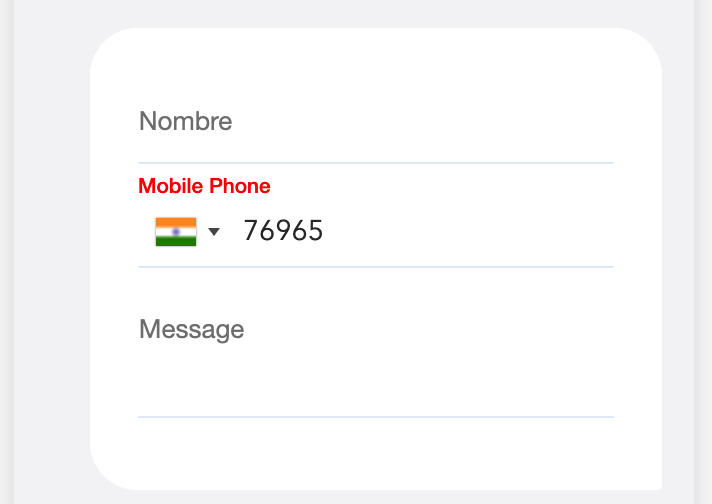
- Travel booking platform. The platform calls window.leadConnector.chatWidget.localizeWidget() after the widget loads to replace field labels with Spanish equivalents, providing a localized experience for non English users.
04The numbers and rules that matter
- Default next prompt timer is 86400 sec (24 hours).
- Supported label keys: Name, phone, email, message, required, received, sending, invalid_value, send, powered_by.
05How to set up and use web chat widget advanced configurations in HighLevel
Add a custom open icon to the widget
- Copy the embed code generated by the chat widget builder.
- Insert the attribute open icon url with the URL of the desired image into the <chat widget> tag.
- Save the page and ensure the loader script remains after the <chat widget> element.
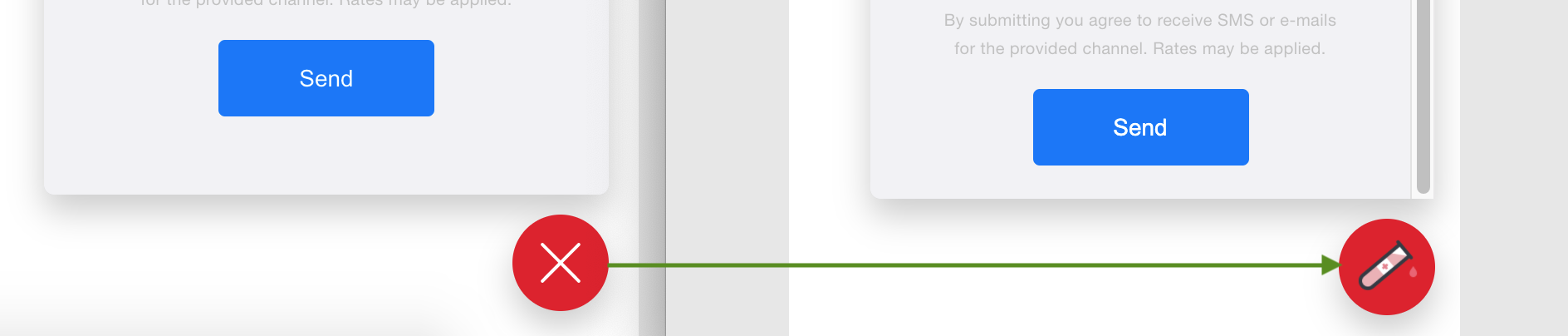
Add a custom close icon to the widget
- Copy the original embed snippet.
- Add the attribute close icon url with the image URL to the <chat widget> tag.
- Publish the changes so the new close button icon is displayed.
Show the chat prompt on every page visit
- Copy the existing widget embed snippet.
- Add the attribute next prompt timer="0" to the <chat widget> element.
- Refresh the site and confirm the bubble appears on each page load.
Point the widget to a different server for testing
- Copy the original embed code.
- Add the attribute server u r l="https://test staging.com" to the <chat widget> tag.
- Verify that lead submissions are sent to the specified test server.
Localize widget labels after it loads
- Add a script that listens for the LC_chatWidgetLoaded event on the window object.
- Within the handler, call window.leadConnector.chatWidget.localizeWidget() with a JSON object mapping label keys to the desired translations.
- Make sure this script runs after the widget loader script so the new labels take effect.
Open the widget from a button using the public API
- Place a button element on the page and give it an id.
- Write JavaScript that adds a click listener to the button and calls window.leadConnector.chatWidget.openWidget() inside the handler.
- Load the page and click the button to see the widget open programmatically.
06What it looks like in HighLevel
07Settings that matter
- open, icon, url. Specifies the image address used for the widget’s open button icon.
- close, icon, url. Defines the image address for the widget’s close button.
- next, prompt, timer. Controls the number of seconds before the chat bubble can reappear after a user closes it.
- server, u, r, l. Overrides the default server endpoint used for lead submission and other widget calls.
- i, 1 to 8n, labels. Provides a JSON string that maps default field labels to custom text for localization.
08Things to know before you rely on it
- These advanced attributes are not available in the visual widget builder; they must be added manually to the embed code.
- The widget does not automatically switch languages based on browser settings; label changes require explicit localization calls.
- The default next prompt timer is 86400 seconds (24 hours) if the attribute is omitted.
09How it connects to the rest of HighLevel
- Read the full API reference for HighLevel to see all available widget methods. API documentation
- Set up webhooks for additional integrations using the HighLevel OAuth V2 flow. Webhook setup
- Explore how to distribute a custom app that uses the chat widget through the marketplace. Marketplace distribution
Michael's take

Modifying the widget code can feel risky if you’re not comfortable editing HTML. A small typo can break the chat on your site, so double check the attribute names and syntax before you publish.
When you need a tighter branding look or want the chat bubble to appear on every visit, these tweaks give you that control without a full rebuild. The API methods are handy for launching the chat from a CTA button or checking its state during a flow.