
01Who this is for
- Agency owners who want to control app availability across their network and manage payments at the agency level.
- Subaccount administrators who need to discover and install tools directly into their locations.
- Developers targeting agencies that wish to resell apps to their subaccounts while handling pricing markup.
02Marketplace app distribution types, explained
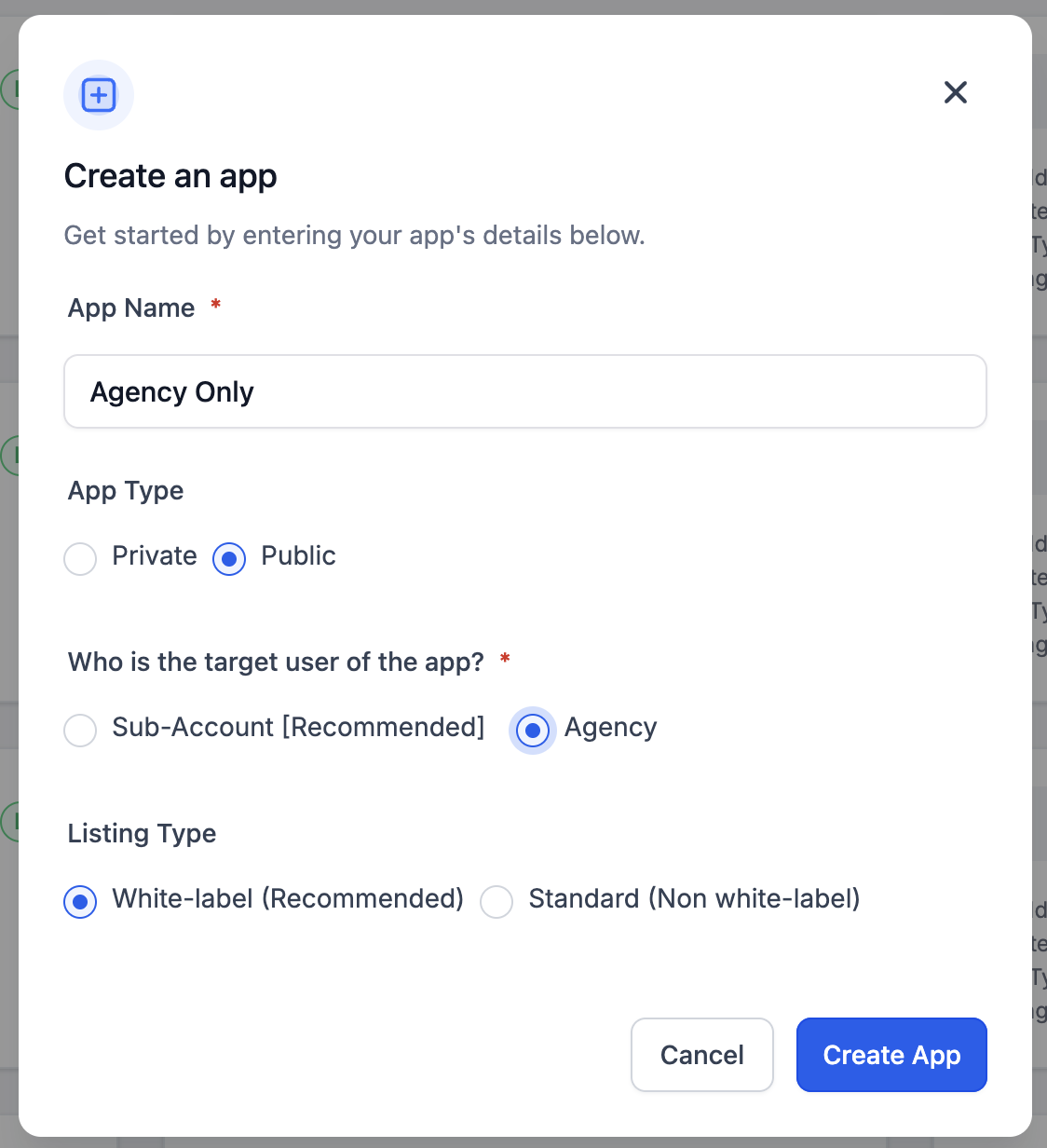
The distribution configuration lives in the Marketplace app settings area. It asks three questions: which user type the app is built for, who may install it from the Marketplace UI, and whether agencies can install it in bulk. The answers determine where the app appears, which token type is issued, and how installation counts are recorded.
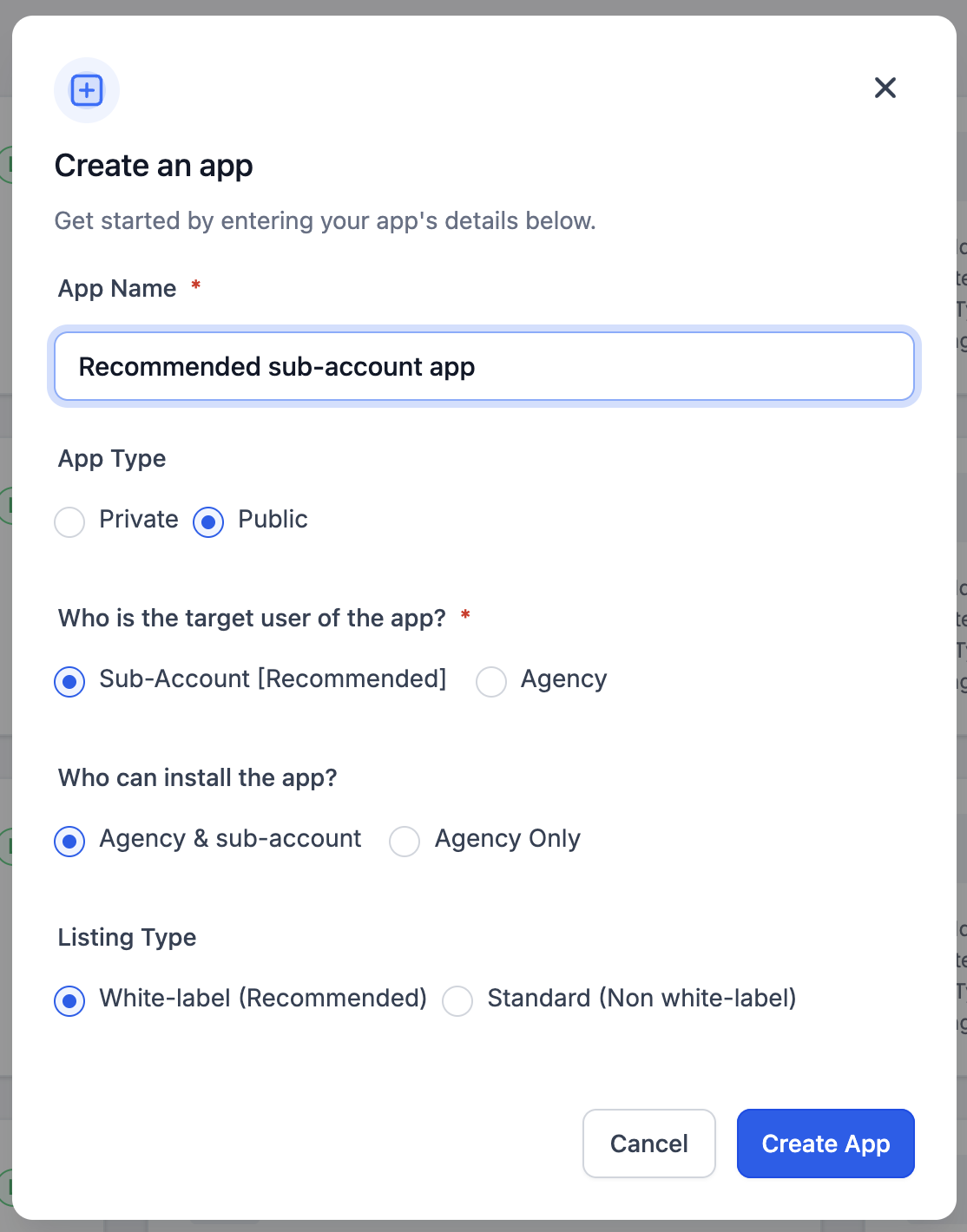
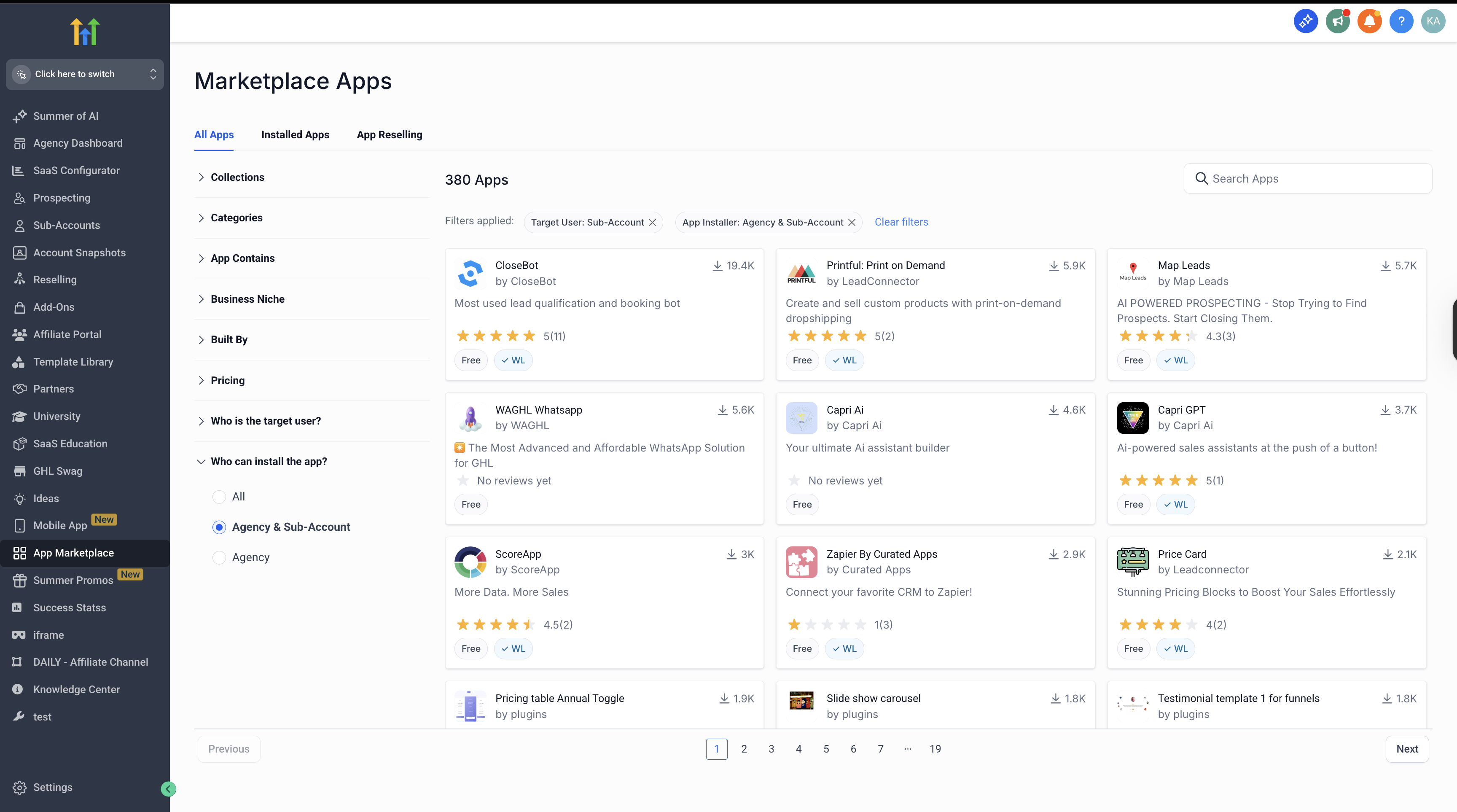
When the target user is set to subaccount (the recommended choice for most apps), the app receives a location token after installation. If the install audience includes both agency and subaccount, both groups can see the listing. The bulk install flag, which is mandatory for new apps, lets an agency owner install the app to many locations in a single action. Once any of these fields are saved they cannot be altered.
Private apps follow a separate policy: they may be installed in up to five agencies only. Installing in a sixth agency is blocked until the developer makes the app public or passes a security review. Install counts are updated in real time when an agency fully removes the app.
03How businesses use marketplace app distribution types
- Marketing agency. Select “Subaccount” as the target user, allow both agency and subaccount to install, and enable bulk install. The agency can then push the app to all client locations with a single operation, and each client location receives its own token.
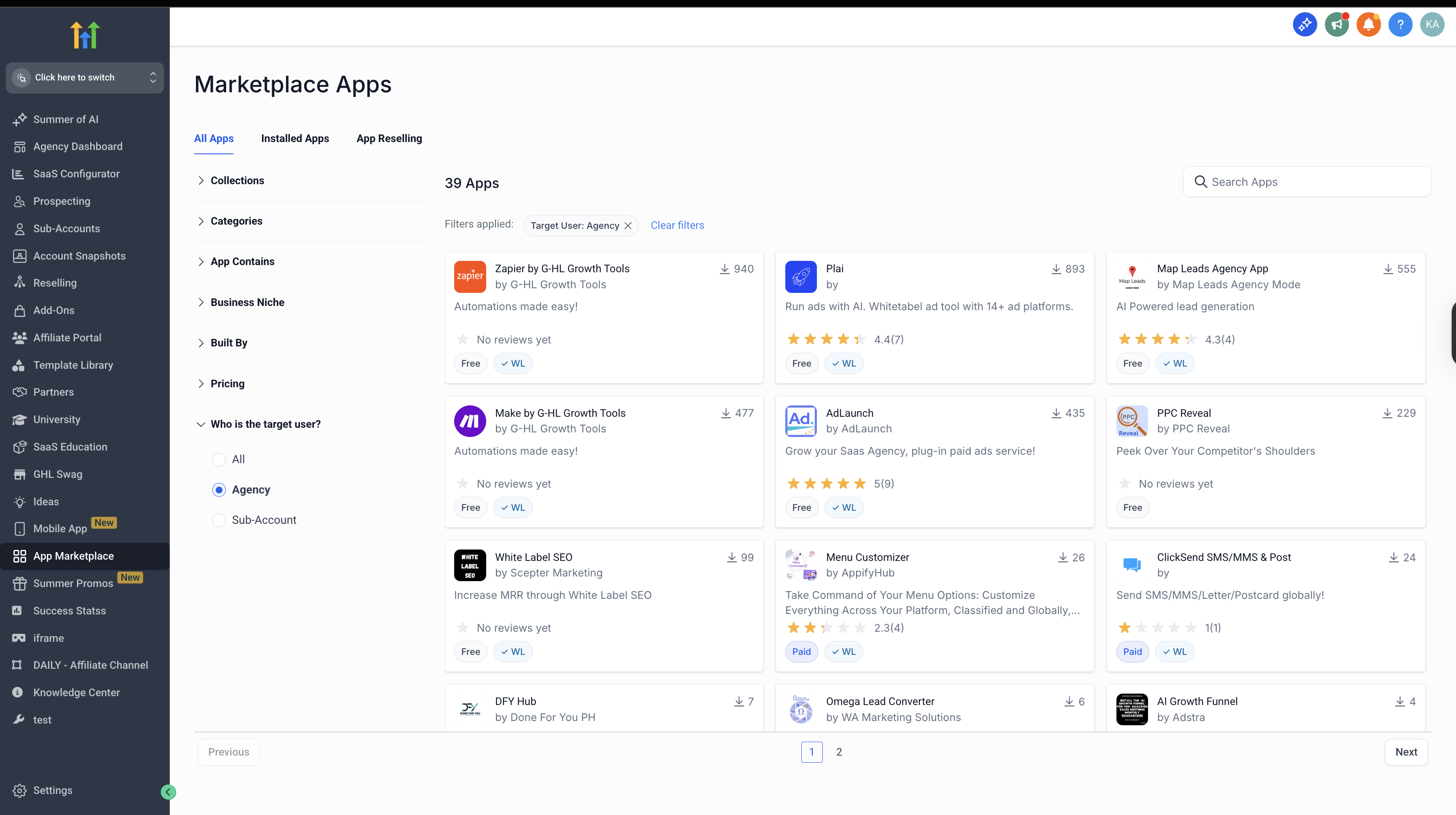
- SaaS startup selling a white label feature. Choose “Agency” as the target user and set the install audience to “Agency only”. The app appears only in the agency marketplace, and the agency pays for the subscription, keeping the feature fully branded.
- Franchise chain with many locations. Configure the app for subaccount users, allow both agency and subaccount installs, and keep bulk install enabled. The corporate office can install the tool across all locations at once, while each location runs with its own access token.
04The numbers and rules that matter
- Private apps can be installed in up to 5 Agencies.
- When a private app reaches 6+ Agencies new installs are blocked until the app is published as Public or passes Security Review.
- Each unique Agency counts as 1 regardless of how many subaccounts the app is installed in.
- Bulk installs still count as 1 per Agency.
05How to set up and use marketplace app distribution types in HighLevel
Configure the app’s distribution model
- Select the appropriate value for “Who is the target user of the app?”, either Agency or Subaccount.
- Choose who may install the app by setting “Who can install the app?” to Both agency and subaccount or Agency only.
- Set “Can this app be bulk installed by agencies?” to Yes; this is mandatory for new apps and cannot be changed back to No.
06What it looks like in HighLevel
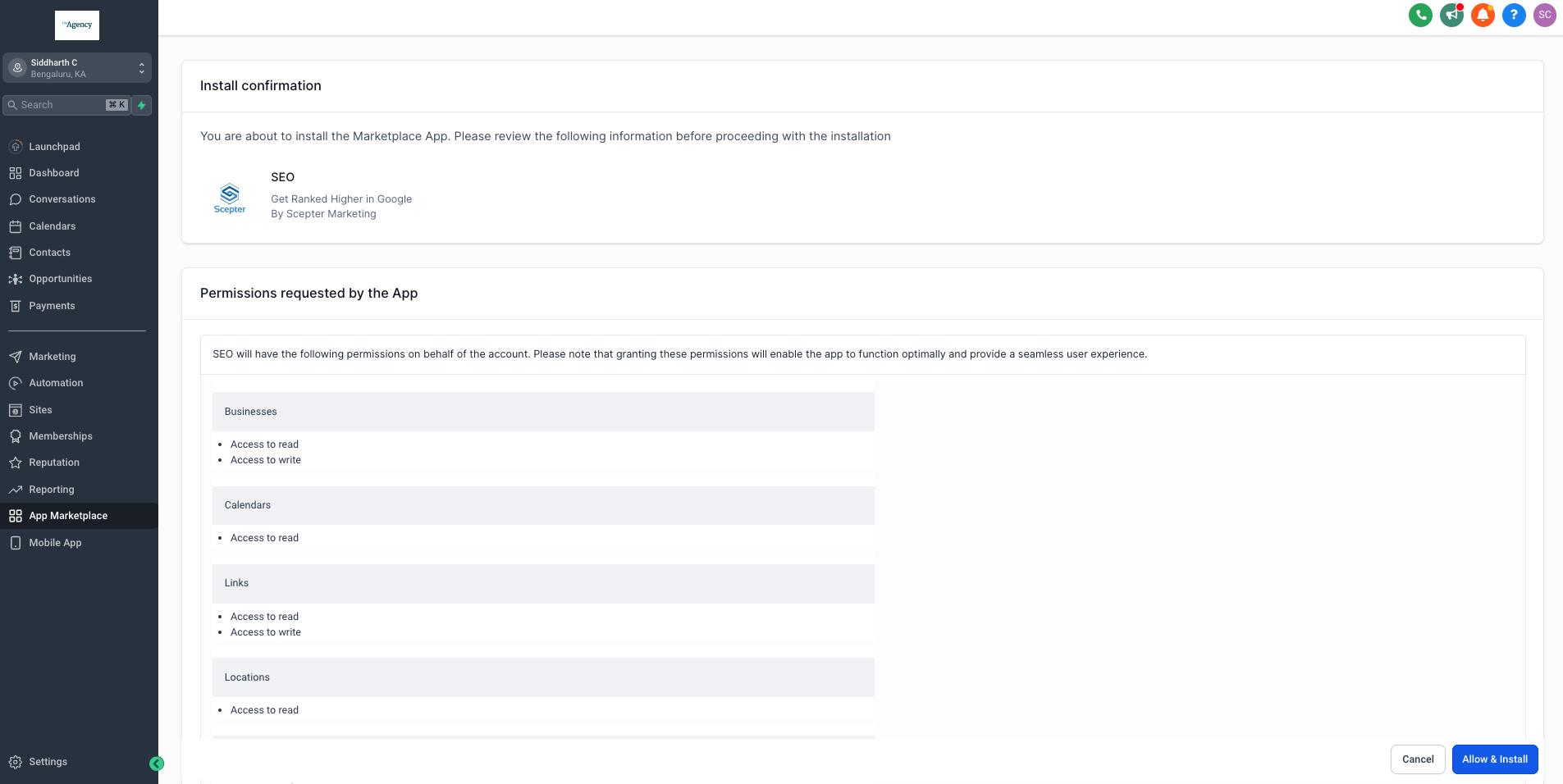
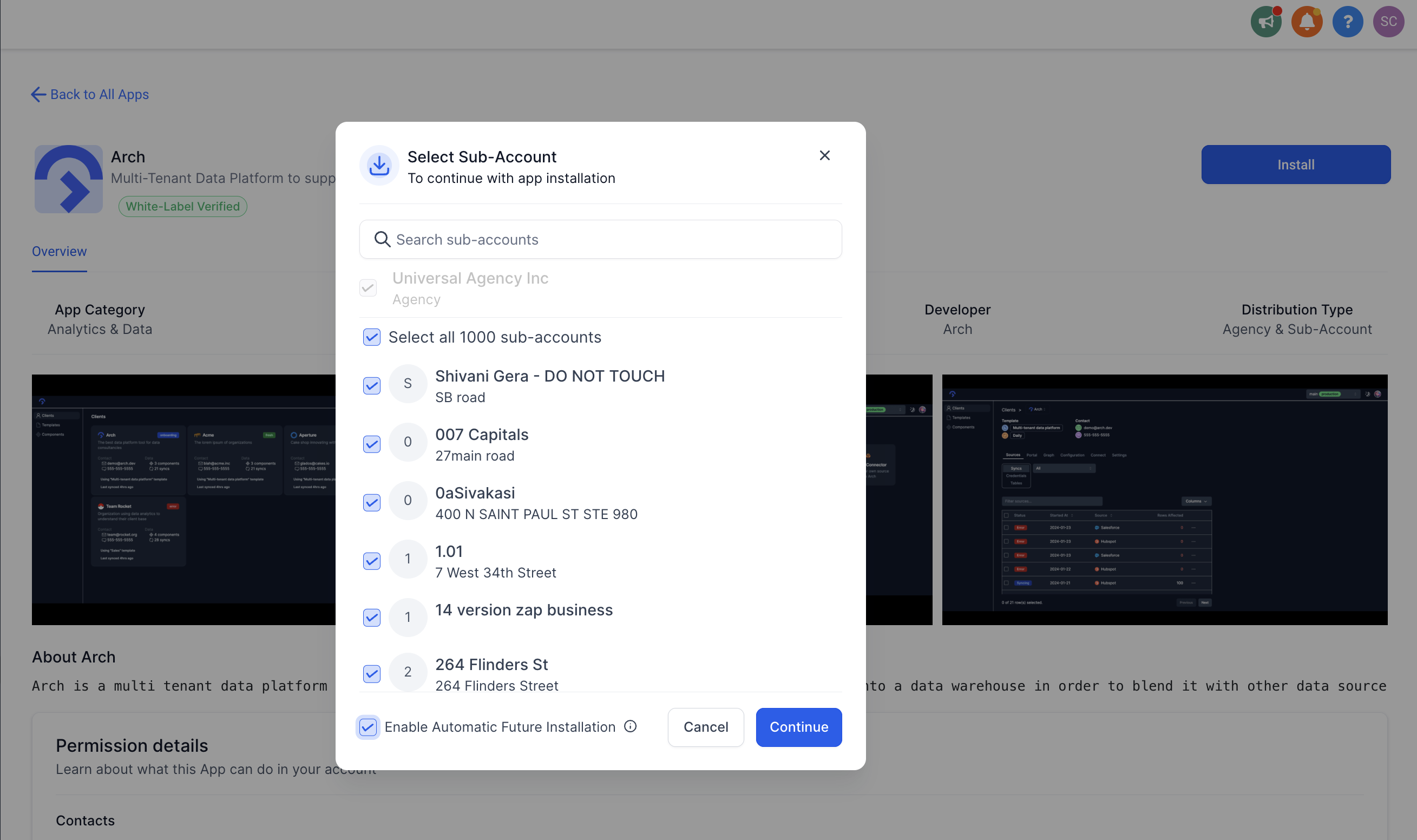
07Settings that matter
- Who is the target user of the app?. Determines which access token the app will receive after installation, an agency token or a location token.
- Who can install the app?. Controls which roles see the app in the Marketplace and are allowed to add it to an account.
- Can this app be bulk installed by agencies?. Allows an agency owner or admin to install the app to multiple subaccounts in a single operation.
08Things to know before you rely on it
- Private apps are limited to installations in up to five agencies; a sixth agency is blocked until the app becomes public or passes a security review.
- The bulk install flag must be set to Yes for all new apps and cannot be changed back to No.
- The target user selection cannot be modified after the app is saved.
09How it connects to the rest of HighLevel
- Configure Marketplace App Listing Type Listing type guide
- Marketplace app pricing in HighLevel: Configure pricing and earnings Pricing configuration
- Developer Guide for selling Web Widgets on the App Marketplace Web widget guide
Michael's take

Most developers assume they can flip the bulk install flag later to restrict agency wide rolls out. The platform locks that choice at creation, so you end up with a setting you can’t change when your strategy shifts.
I would lock in the Subaccount target user and keep bulk install enabled from day one. That gives you the widest reach and lets agencies push the app to new locations without extra work.