
01Who this is for
- Agency owners benefit because they can monetize fully featured AI agents without building a separate sales channel.
- Marketing firms can package lead qualification bots with their existing workflows and sell them to subaccounts.
- Software providers can distribute voice enabled assistants that include pre configured appointments and custom fields.
02Conversation AI and Voice AI templates, explained
The feature lets you turn a Conversation AI or Voice AI agent into a Marketplace listing. After selecting the agent you generate a special Marketplace link that carries the agent package, then complete listing details in the Developer Portal. The template can include prompts, actions and optional assets such as workflows, calendars, custom fields and a Knowledge Base.
Templates follow the same app versioning flow as other Marketplace apps. Changes are made in a Draft version then published with either a minor or major version bump. Minor updates cover edits to description, use case or assets, while a major version is required when a new AI module is added to an existing live app.
03How businesses use Conversation AI and Voice AI templates
- Lead generation agency. The agency builds a Conversation AI that qualifies leads, bundles the related workflow and custom fields, and publishes the template. Prospects can install the bot directly from the Marketplace receiving the complete lead capture package.
- Medical appointment service. A clinic creates a Voice AI agent that schedules appointments, includes the calendar and appointment workflow, and decides whether to bundle the Knowledge Base. The packaged template is listed so other clinics can adopt the same booking system.
- Digital marketing consultancy. The consultancy develops an AI chatbot that can send SMS blasts and transfer calls. After packaging the associated actions it publishes the template, allowing partner agencies to purchase and right away deploy the full suite.
04The numbers and rules that matter
- Supported channels: SMS, email, Instagram, calls.
05Before you start
- You must be logged in as an Agency Owner or Admin; subaccount admins and users cannot see the publishing option.
- All assets you plan to include must not be imported from an IP protected snapshot.
06How to set up and use Conversation AI and Voice AI templates in HighLevel
Publish new AI agent template
- Generate a Marketplace link for your agent.
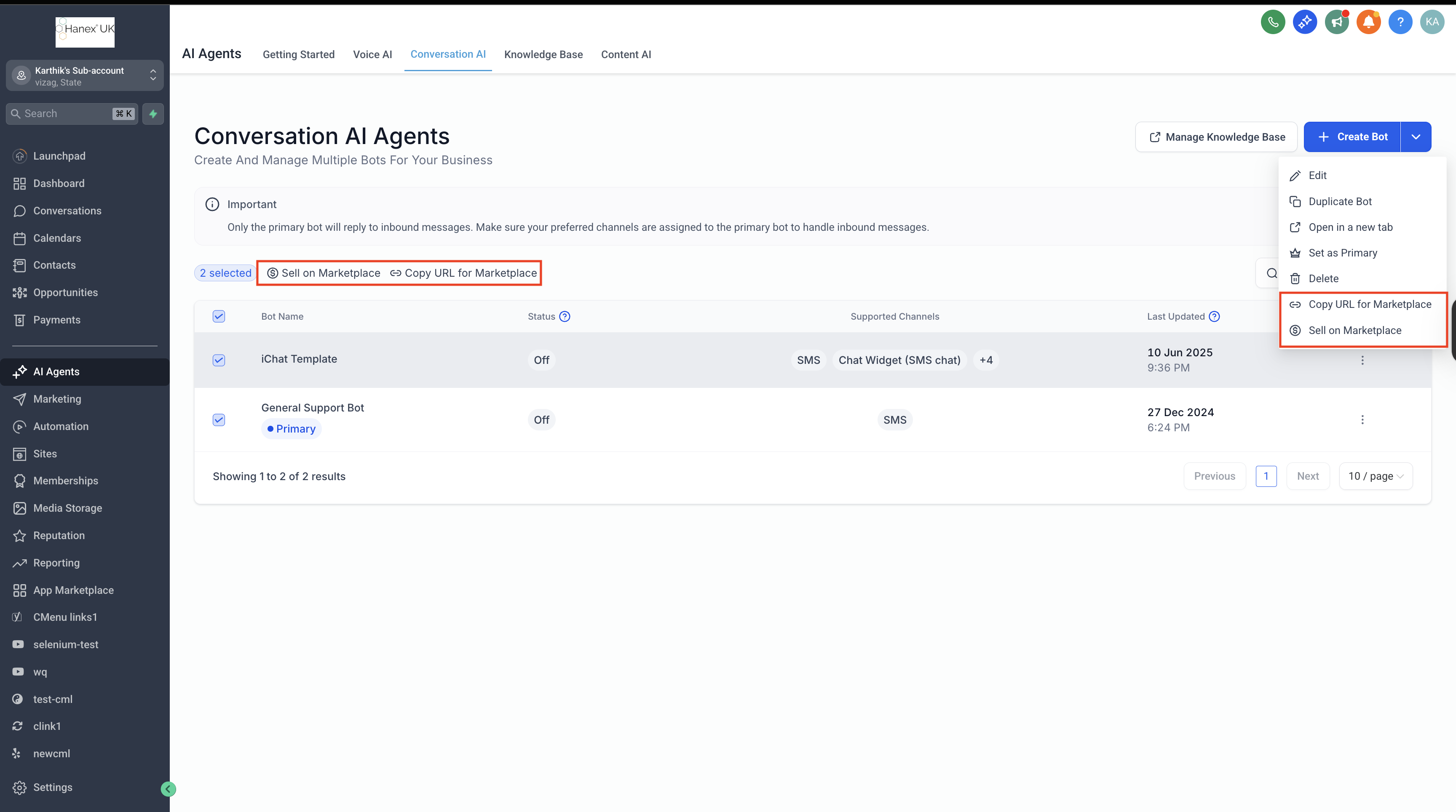
- In the Conversation AI or Voice AI page select the agent and click Sell this Template/Agent on Marketplace.
- Define exactly what ships with your agent so buyers know what installs automatically and what they will configure later.
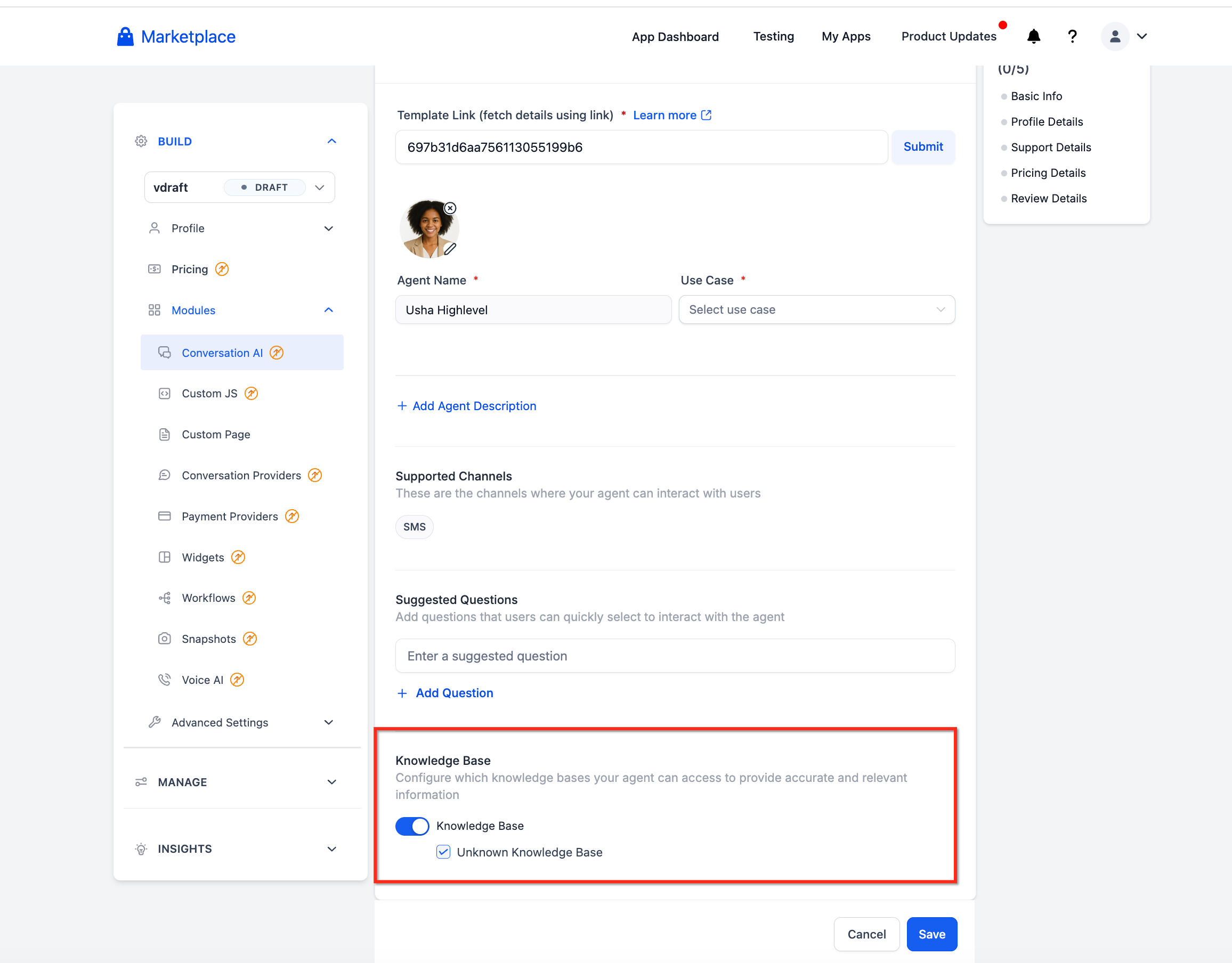
- Choose whether to Include or Exclude the Knowledge Base during publishing.
- If you include the Knowledge Base confirm it will be bundled and install automatically for the buyer.
- Verify that none of the packaged assets come from an IP protected snapshot.
- After confirming you are redirected to the Developer Portal with a special link carrying your bot package.
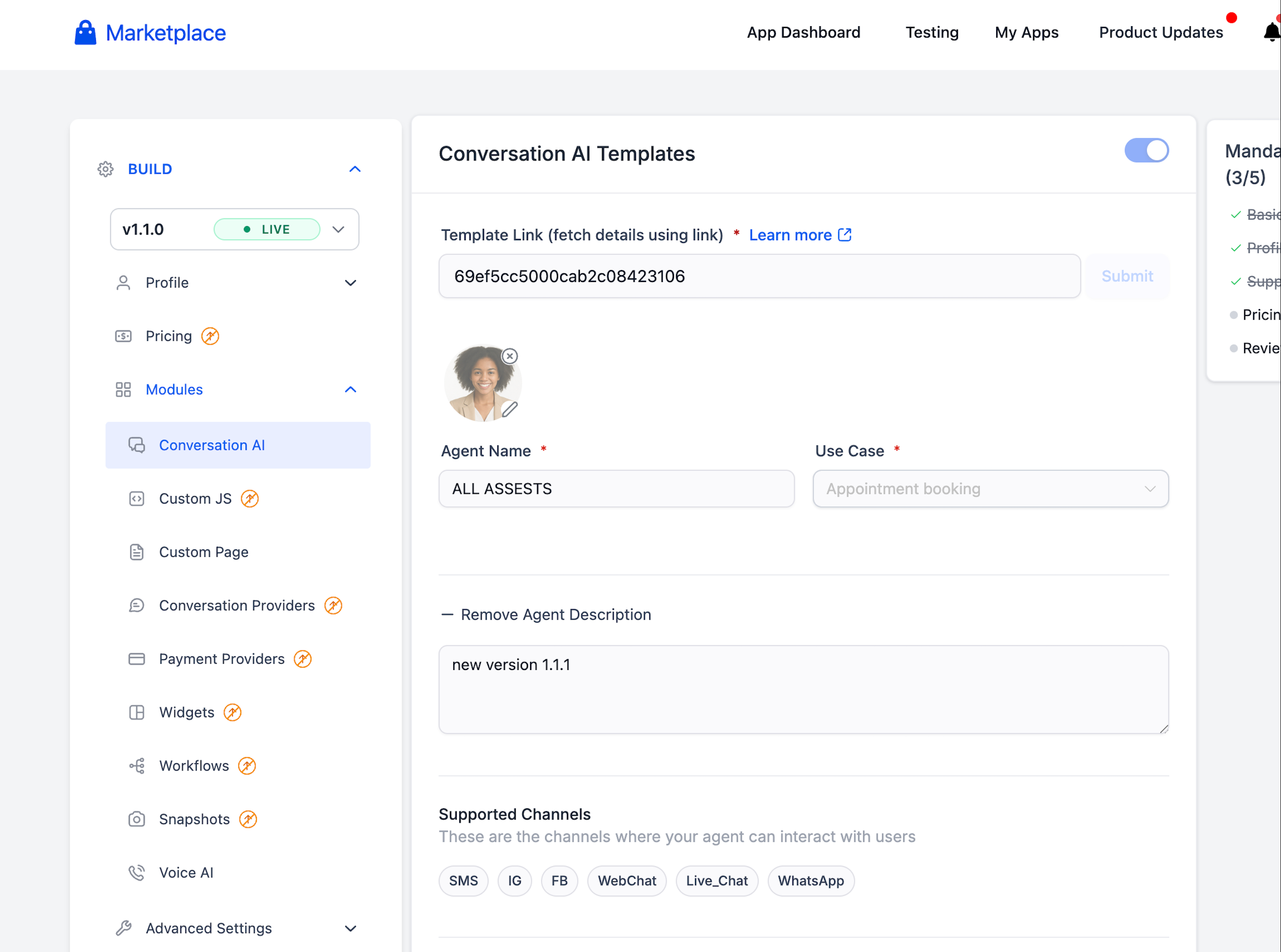
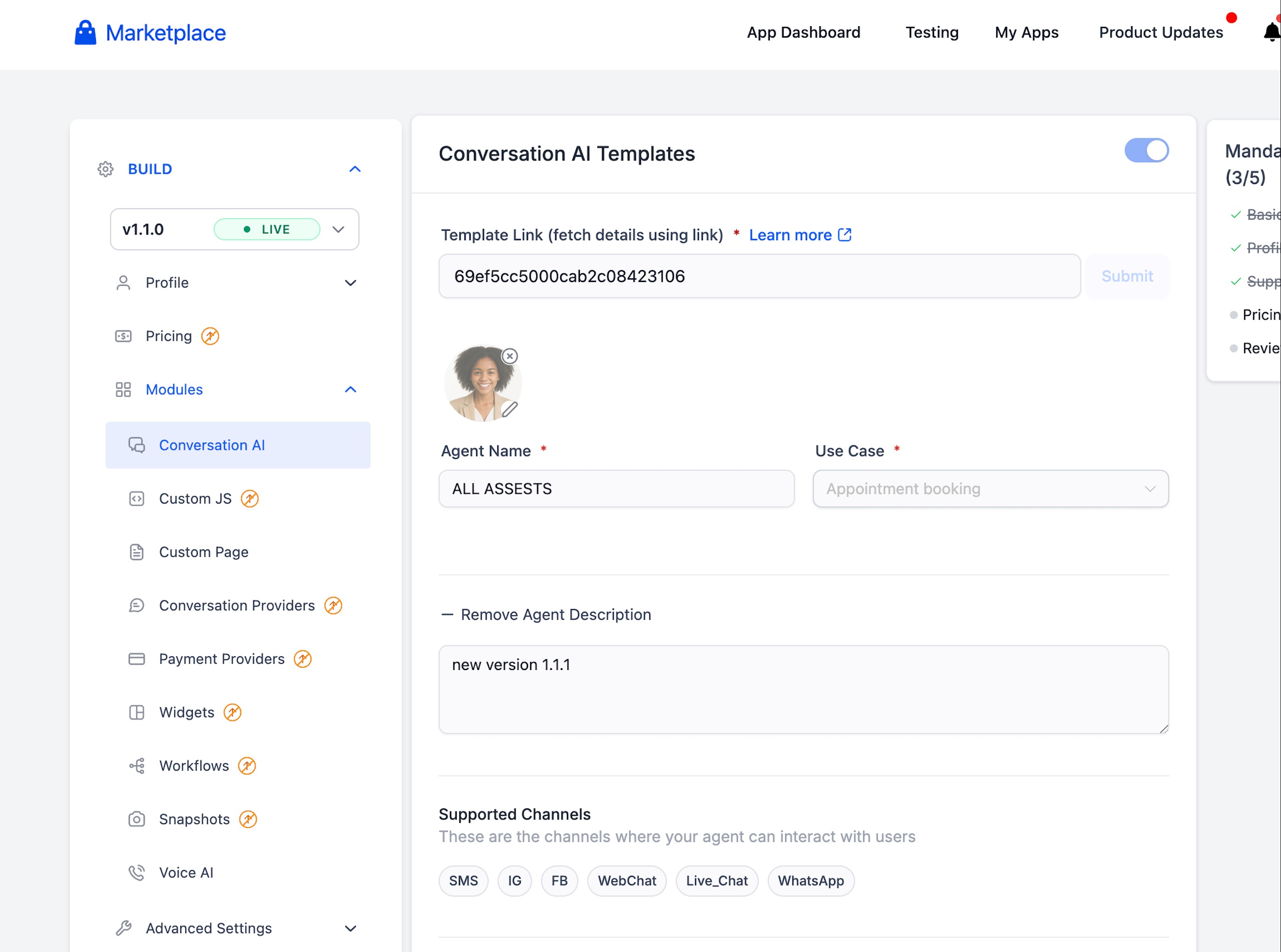
- In the Developer Portal open Modules > ConversationAI or Voice AI and paste the link.
- Click Submit to fetch the package and populate editable fields such as Use cases, Agent Description and available actions.
- Optionally add a list of suggested questions that buyers can ask the agent while testing it on the Marketplace.
- Review the non editable fields including the supported channels.
- Fill out the Basic Info, App Profile, Pricing and Support sections.
- Submit your listing for review; once approved it goes live in the Marketplace for all agency users and subaccounts.
Update existing AI agent template
- Go to Manage > Versions and clone the current Live version as a Draft.
- Make the required changes to the Conversation AI or Voice AI template within the Draft version.
- Publish the Draft using the appropriate version bump, minor by default.
- Return to the Conversation AI or Voice AI page and click Copy Link for Marketplace from the menu.
- Update the link in the Developer Portal and resubmit the listing.
07What it looks like in HighLevel
08Settings that matter
- Knowledge Base. Controls whether the agent Knowledge Base is bundled and installed automatically with the template.
- Use cases. Describes the primary purpose of the agent such as lead qualification or appointment booking.
- Agent Description. Provides a textual overview of what the agent does for marketplace buyers.
- Available actions. Lists the actions the agent can trigger such as workflows, appointments, SMS blasts or call transfers.
- Suggested questions. Sets sample questions buyers can ask the agent while testing it on the Marketplace.
- Supported channels. Shows the communication channels (SMS, email, Instagram, calls) the agent works with; this field is not editable.
- Basic Info. Collects core identification details for the marketplace listing.
- App Profile. Defines branding and descriptive content for the listing.
- Pricing. Specifies the cost structure for purchasing the template.
- Support. Provides contact information for buyer assistance.
09Things to know before you rely on it
- Assets that originate from an IP protected snapshot cannot be included in a template.
- Minor version updates are the default for changes such as description, use case or asset tweaks.
- A major version is required when a new Conversation AI or Voice AI template is added to an existing Live app.
- Knowledge Base inclusion is optional and can be excluded during publishing.
10How it connects to the rest of HighLevel
- Choose between Standard or White Label listing for your Marketplace app. Listing type guide
- Set up pricing details for your Marketplace app. Pricing configuration
- View overall HighLevel pricing and plan options. Pricing plans
Michael's take

Don’t forget to verify that none of the bundled assets are IP protected before you publish.