
01Who this is for
- Customer support teams that need to provide instant order updates without manual lookups.
- Sales agents who must verify inventory levels while chatting with prospects.
- Booking services that want to confirm appointment availability in real time.
02API Call actions, explained
API Call actions enable a Conversation AI agent to send an HTTPS request to any external system whenever a defined trigger fires. The returned JSON can be parsed and inserted into the agent's reply, allowing the conversation to include live order status, inventory counts, booking details or any custom data.
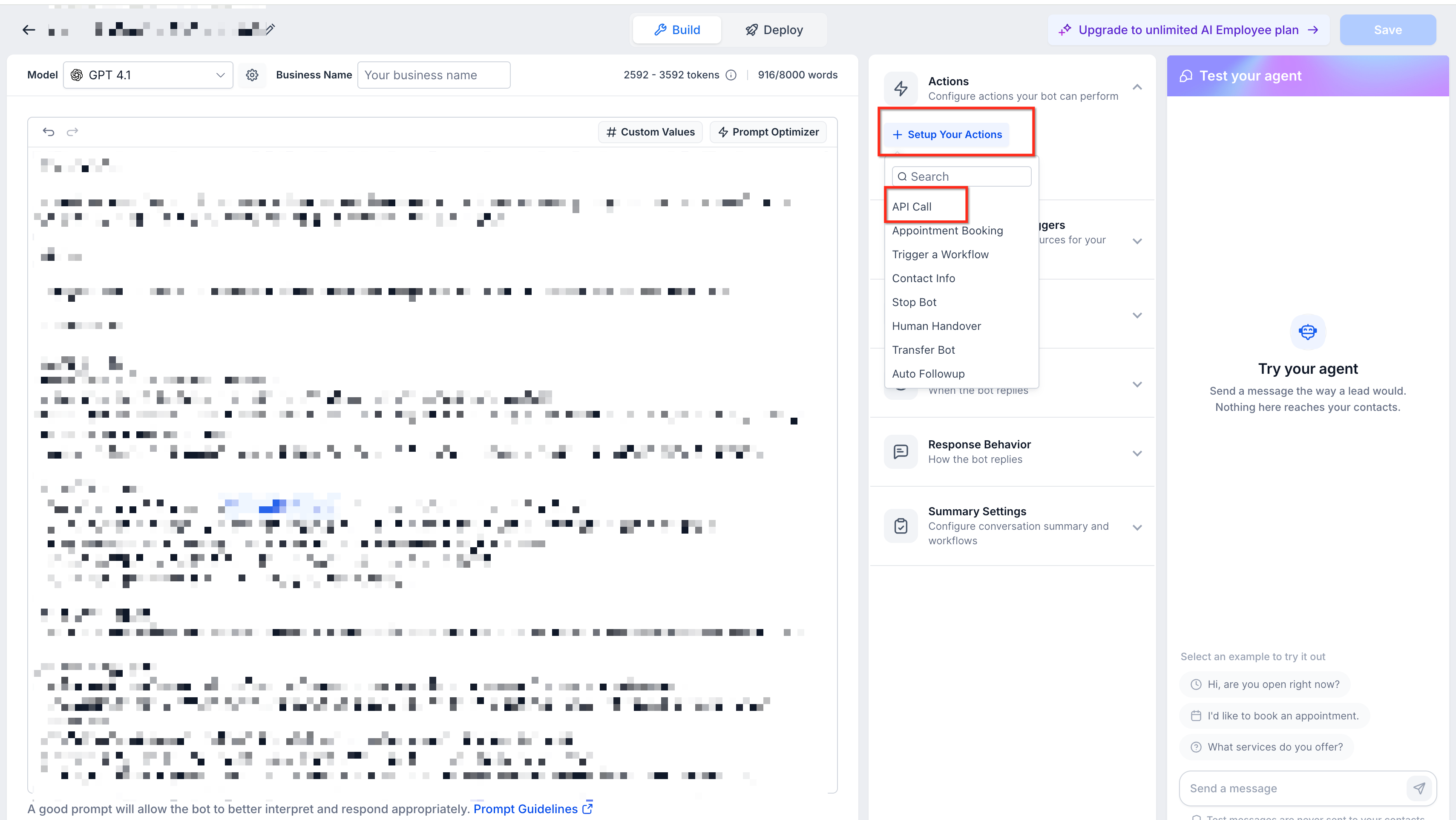
The configuration lives inside the platform under AI Agents > Conversation AI. Open an existing agent in the Agent Builder, choose Actions > API Call, and then define the trigger, request, authentication, output fields and post action prompt. Activity can be reviewed in conversation action pills, the AI Response Info drawer, and the API Calls card on the AI Employees dashboard.
03How businesses use API Call actions
- Online retailer. The retailer creates an API Call that looks up an order ID supplied by a shopper. The request sends the ID to the order management system, retrieves the current status and estimated delivery, and the agent replies with a personalized update.
- Appointment based service. A service business adds an API Call that queries its booking platform for available slots using the date a client provides. The agent returns the first open time slot so the client can confirm right away.
- SaaS platform with custom data. The SaaS provider configures an API Call that pulls usage statistics from its backend when a user asks for their current quota. The agent uses the selected output fields to tell the user their remaining credits.
04The numbers and rules that matter
- Timeouts can be set up to 60 seconds.
05Before you start
- A Conversation AI agent must already exist in the Agent Builder before adding an API Call action.
06How to set up and use API Call actions in HighLevel
Configure an API Call action for a Conversation AI agent
- Open the Conversation AI area and navigate to AI Agents > Conversation AI, then select the target agent in the Agent Builder.
- Add a new action and choose the API Call option.
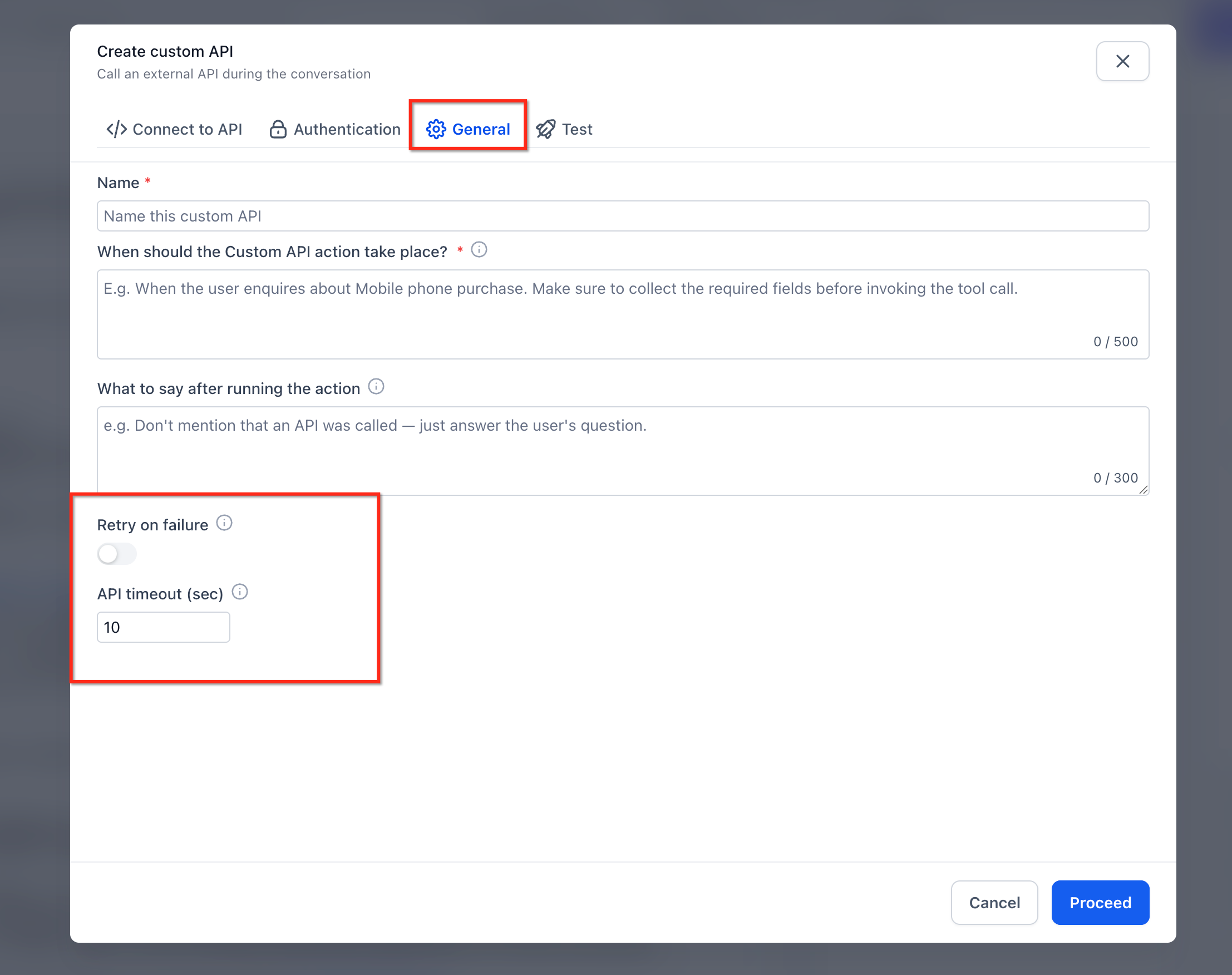
- Write a trigger condition that explains when the agent should run the action.
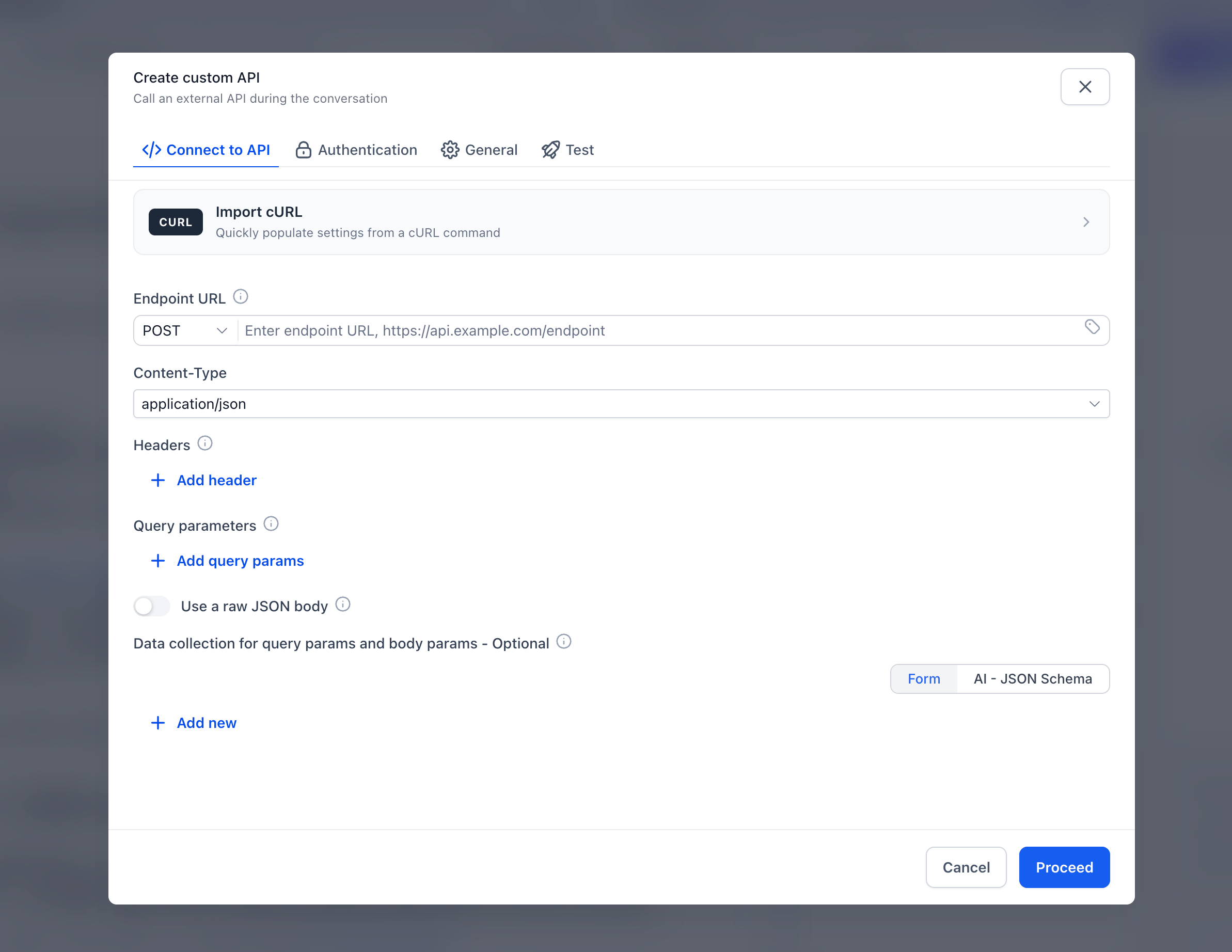
- Enter the HTTPS endpoint and set up any required headers, query parameters and the body template.
- Define the variables the agent will capture and reference them with {{variable}} placeholders.
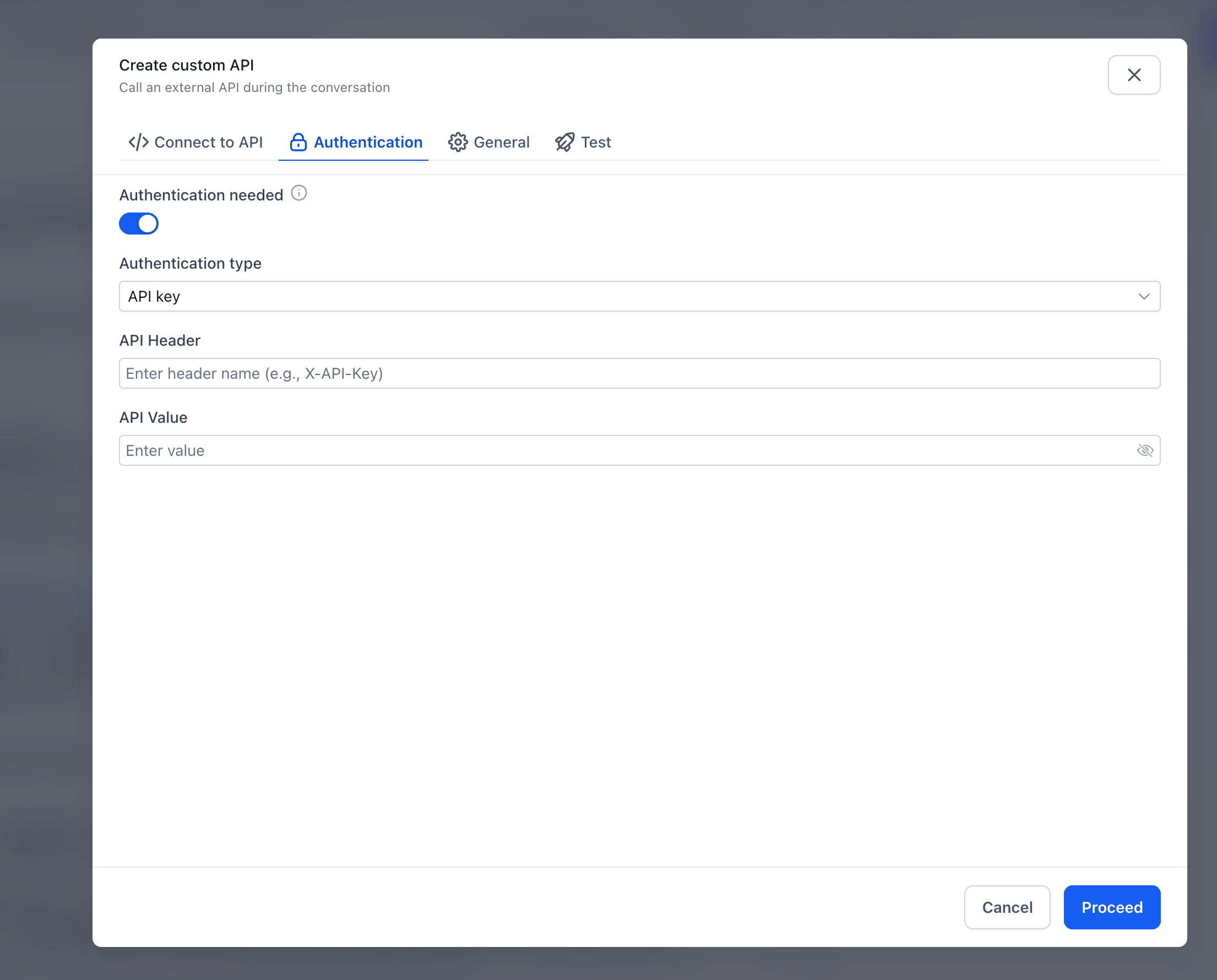
- Configure the authentication credentials; after saving they become write only.
- Select the response fields the agent may use from the API output.
- Create a post action prompt that tells the agent how to present the returned information.
- Set the timeout value, which can be up to 60 seconds.
- Open the Test tab, run the request, save a sample response, and then save the complete action.
- Test the agent in a conversation before using it with customers.
07What it looks like in HighLevel
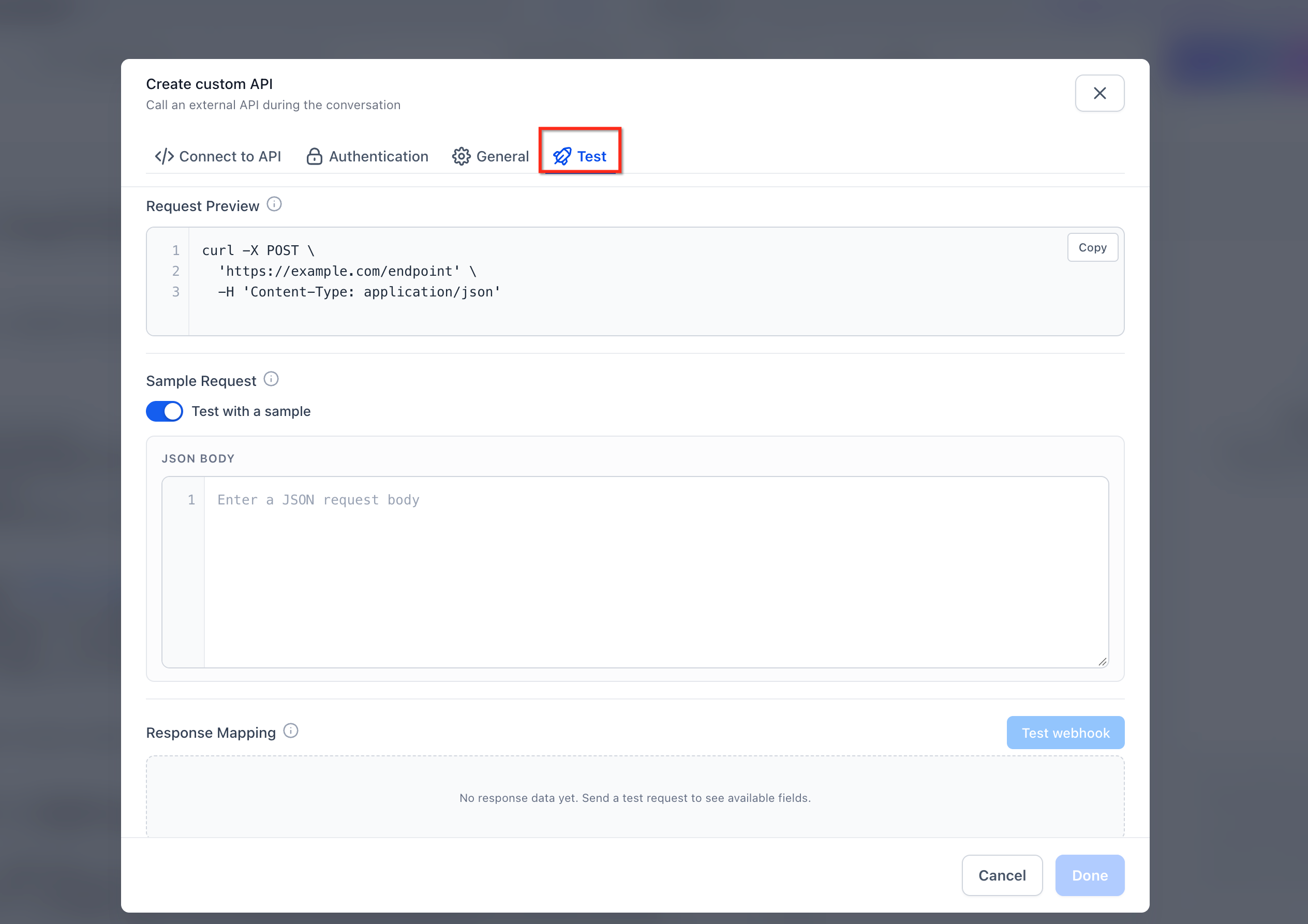
08Settings that matter
- Trigger Condition. Specifies the exact customer request pattern that tells the agent when to fire the API Call.
- HTTP Request. Defines the HTTPS URL, headers, query parameters and body template that will be sent to the external service.
- Parameters. Lists the variables collected from the conversation and inserted into the request using {{variable}} placeholders.
- Authentication. Holds the credentials needed to access the external API; these secrets are stored as write only and cannot be viewed after saving.
- Output Fields. Identifies which parts of the API JSON response the agent is allowed to use in its reply.
- Post, Action Prompt. Provides instructions for how the agent should phrase the information returned by the API.
- Timeout. Sets the maximum time, up to 60 seconds, that the platform will wait for the external request to finish.
09Things to know before you rely on it
- The request timeout can be set no higher than 60 seconds.
- Authentication secrets are stored as write only and cannot be retrieved after they are saved.
- Dynamic placeholders must use the {{variable}} syntax to pull data from the conversation.
10If something goes wrong
- API request takes longer than expected and times out.. Adjust the timeout setting to a suitable value up to 60 seconds and test the request before deploying the action.
11How it connects to the rest of HighLevel
- Explore all developer focused features in HighLevel. Developer resources
- Learn how to test webhook requests, useful for validating API Call configurations. Test webhooks
- View pricing options and start a trial if you need access to Conversation AI features. Pricing
Michael's take

People often overwrite the trigger condition with a vague description, then wonder why the agent never calls the external API. The condition must explicitly state when the action should run and what data the request needs.
I would write a clear trigger like “when a customer asks about an order and provides an order number, retrieve the status using that number.” Then I would map the {{order_ID}} variable in the request body, test the call, and only after a successful sample response would I enable the action for live chats.