
01Who this is for
- Agency owners who need a quick, customizable snapshot of each client’s performance.
- Account administrators who manage dashboard access and default settings for team members.
02Subaccount dashboards, explained
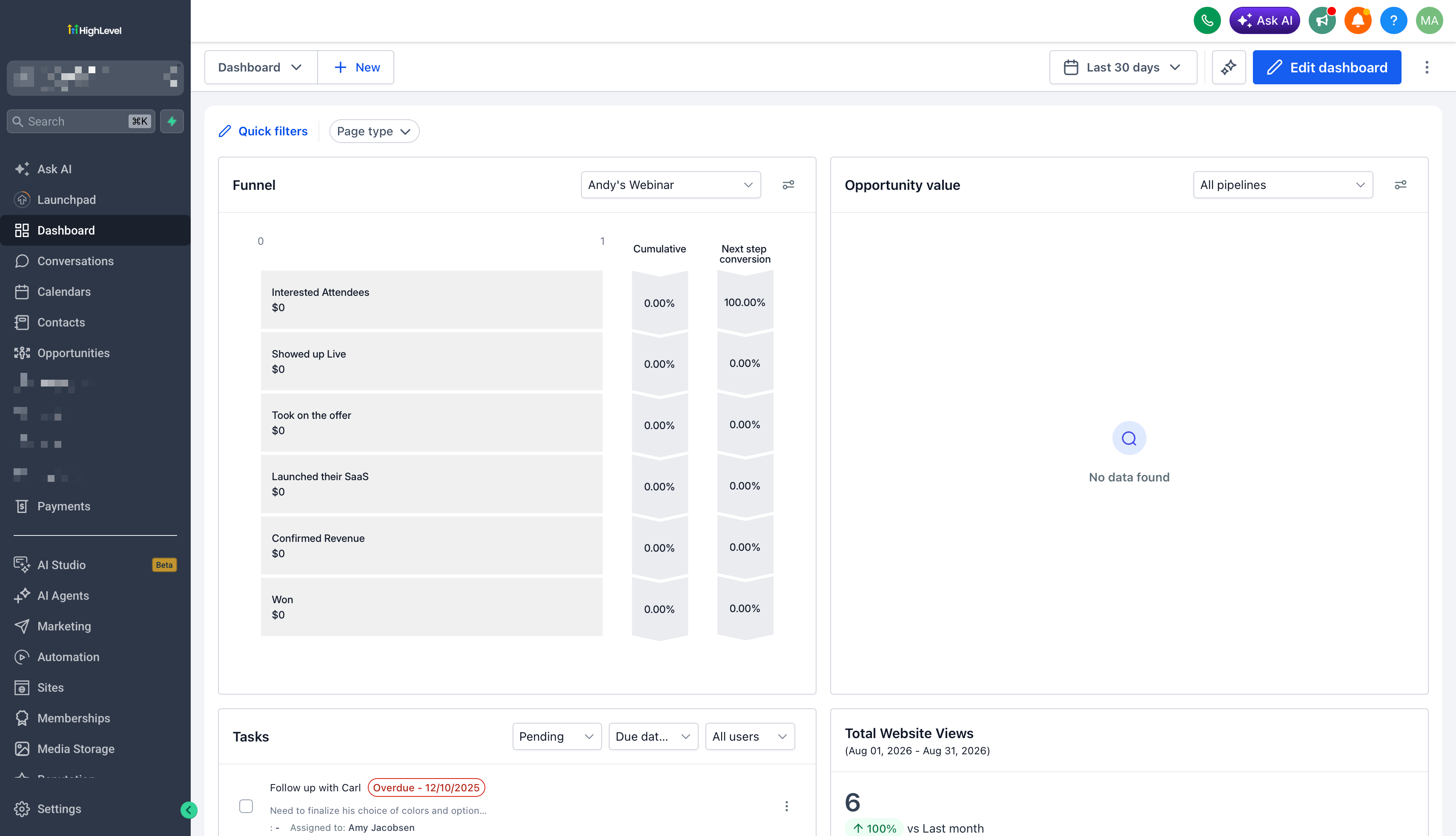
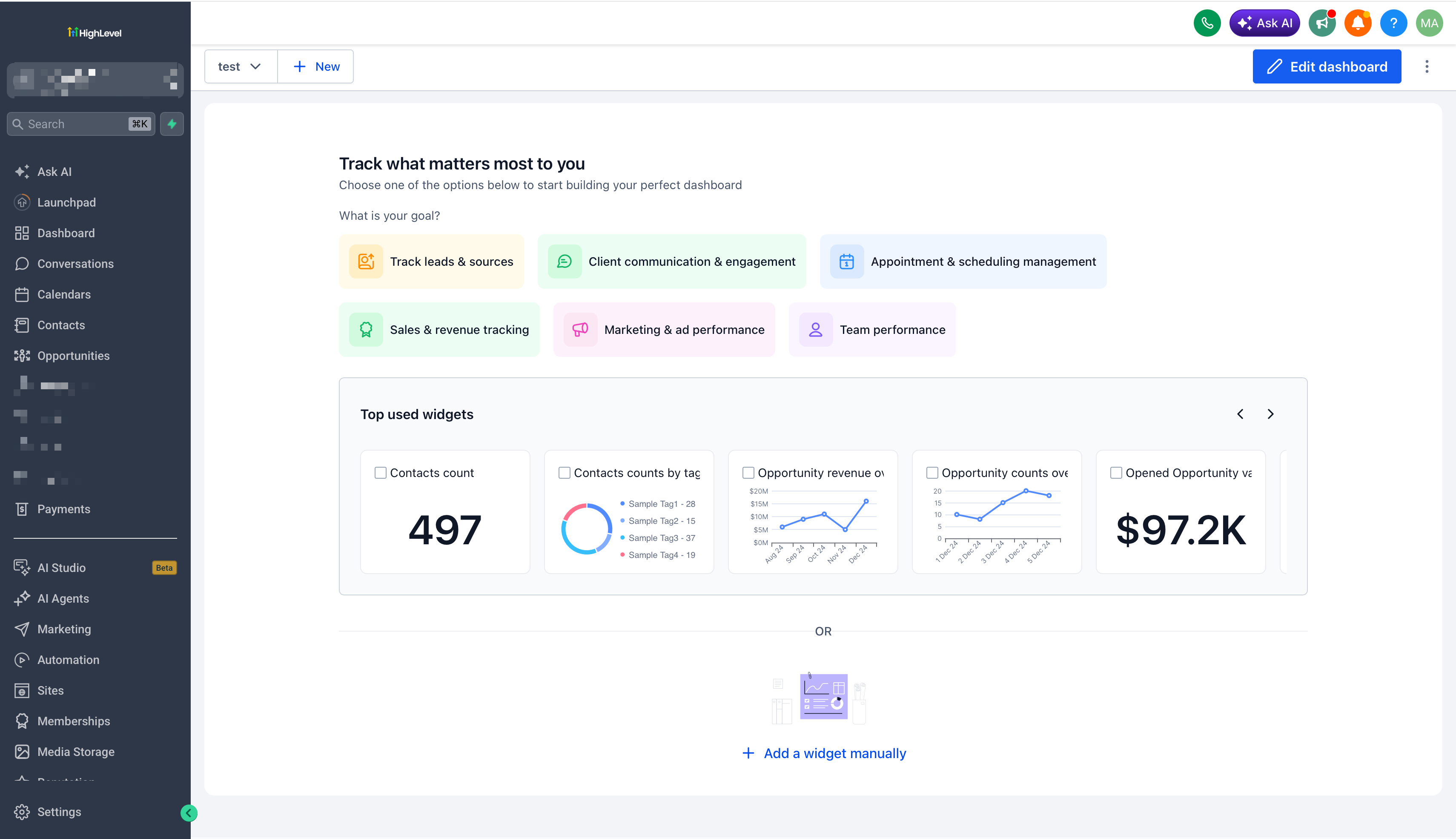
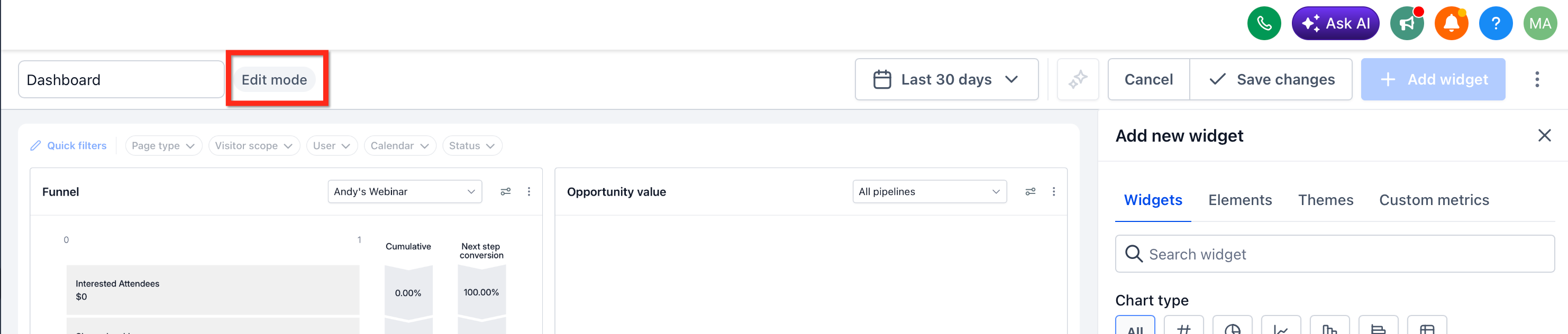
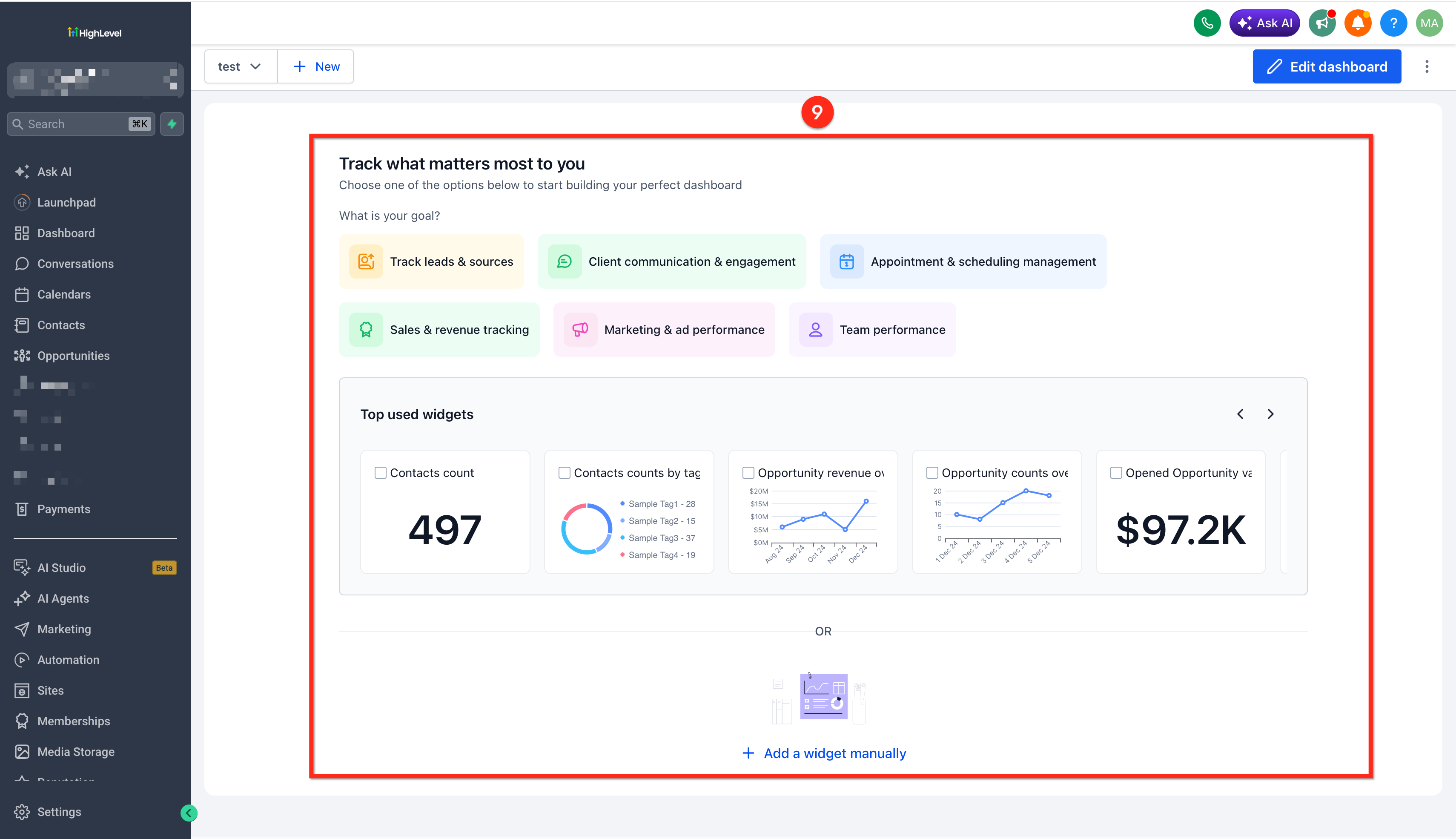
The Subaccount Dashboard is a page that shows a collection of widgets reporting on subaccount data. It can be displayed with widgets or, when empty, offers quick start options. Users can switch between view mode, read only data, and edit mode, where widgets can be rearranged, added, or removed.
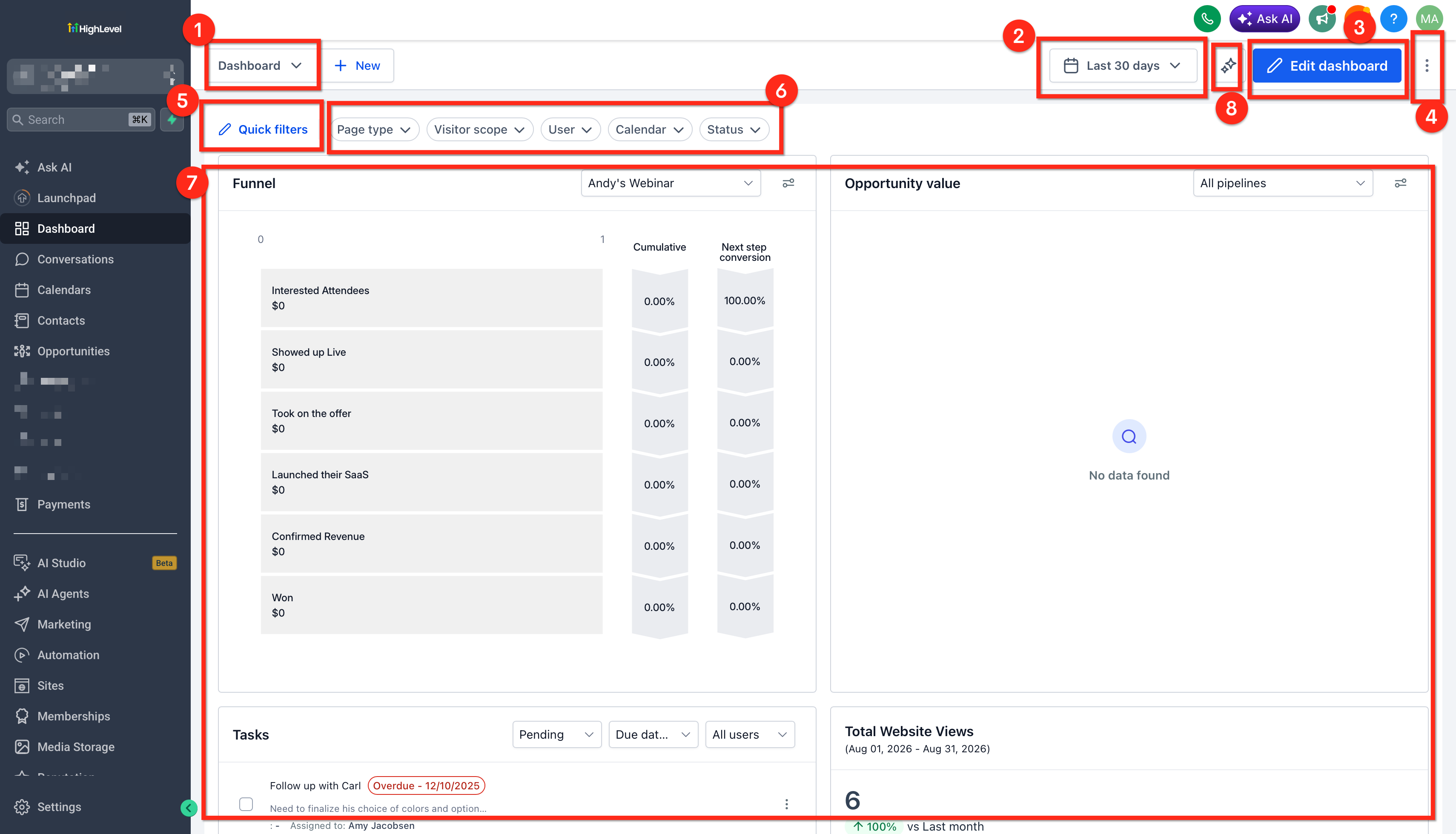
All dashboard components live within the platform. The dashboard selection menu lets you choose, create, pin, or open dashboards. The date picker saves a user specific date range and can include a comparison range that widgets inherit unless they have their own setting. The edit button toggles edit mode, and the three dot action menu provides options such as cloning, setting default, and managing permissions.
Widgets are added through the Add Widget side panel, which contains tabs for widgets, elements, and themes. Filters and chart type buttons let you find the right widget, and once selected, the widget appears on the dashboard. Quick filters appear as pills that can be edited or cleared.
03How businesses use the Subaccount Dashboard
- Digital marketing agency. The agency creates a separate dashboard for each client, adds performance widgets, and sets the most important client dashboard as default so consultants see key metrics immediately when they log in.
- Ecommerce store. The store builds a dashboard that tracks sales, inventory, and ad spend widgets. Team members are given view only access, while the manager receives edit rights to adjust widgets as campaigns evolve.
- Consulting firm. The firm clones a template dashboard for new projects, edits the title, and selects appropriate access levels for consultants, then sets the project dashboard as default so all new users land on the project overview.
04The numbers and rules that matter
- Dashboard date range saves automatically per user.
- Quick filters can have up to 5 filters.
05How to set up and use the Subaccount Dashboard in HighLevel
Create a new subaccount dashboard
- Open the dashboard selection menu and click the blue “+ Add Dashboard” button.
- Enter the desired name in the Dashboard Name field.
- Toggle the Private Dashboard switch on or off according to visibility needs.
- Set the access level for Agency User, Account Admin, and Account User using their dropdowns.
- Review the configuration.
- Click the blue Confirm button to create and open the new dashboard.
Add a widget to a dashboard
- Click the pencil Edit button to switch the dashboard into edit mode.
- Click the blue “+ Add Widget” button to open the widget side panel.
- Select the Widgets tab in the side panel.
- Choose a widget type and click it to add the widget to the dashboard.
Set a default dashboard
- Open the three dot Action Menu on the desired dashboard.
- Select “Set as default dashboard” from the menu.
- Click the blue Confirm button to make the dashboard the default.
06What it looks like in HighLevel

07Settings that matter
- Private Dashboard Toggle. Controls whether the dashboard is visible only to the creator or can be shared with other users.
- Agency User Access Dropdown. Assigns Full, Edit, View, or No Access permission for users with the Agency role.
- Account Admin Access Dropdown. Assigns Full, Edit, View, or No Access permission for account administrators.
- Account User Access Dropdown. Assigns Full, Edit, View, or No Access permission for regular account users.
- Date Picker. Sets a dashboard level date range that saves per user and can include a comparison range for widgets.
- Edit Button. Switches the dashboard from view mode to edit mode, enabling widget rearrangement and addition.
- Action Menu. Provides options such as cloning, duplicating, setting default, managing permissions, and deleting the dashboard.
- Quick Filters Button. Opens the quick filters side panel where up to five filter pills can be added or edited.
- Filter Pills. Represent active quick filters; each can be edited, cleared, or have its logic changed.
08Things to know before you rely on it
- A dashboard without widgets shows quick start options instead of a blank page.
- Quick filters are limited to a maximum of five active filters.
- System admins automatically have full access to a dashboard unless it is set to private.
- Setting a default dashboard makes it the landing page for all users when the subaccount loads.
09How it connects to the rest of HighLevel
- Step by step guide to creating custom dashboards Create custom dashboards
- How to manage dashboard permissions for users Dashboard permissions
- Overview of all dashboard features Dashboard features
- HighLevel pricing and plans details Pricing
Michael's take

Subaccount dashboards let a small business keep an up to date snapshot of each client’s activity without building separate reports. The ability to toggle privacy and assign granular permissions means you can share exactly what matters with the right people.
Don’t forget to set a default dashboard so everyone lands on the most useful view when they log in.