
01Who this is for
- Sales managers can restrict reps to view only their own leads, preventing overlap.
- Customer success leaders can ensure agents see only their assigned customers and appointments.
02Only Assigned Data setting, explained
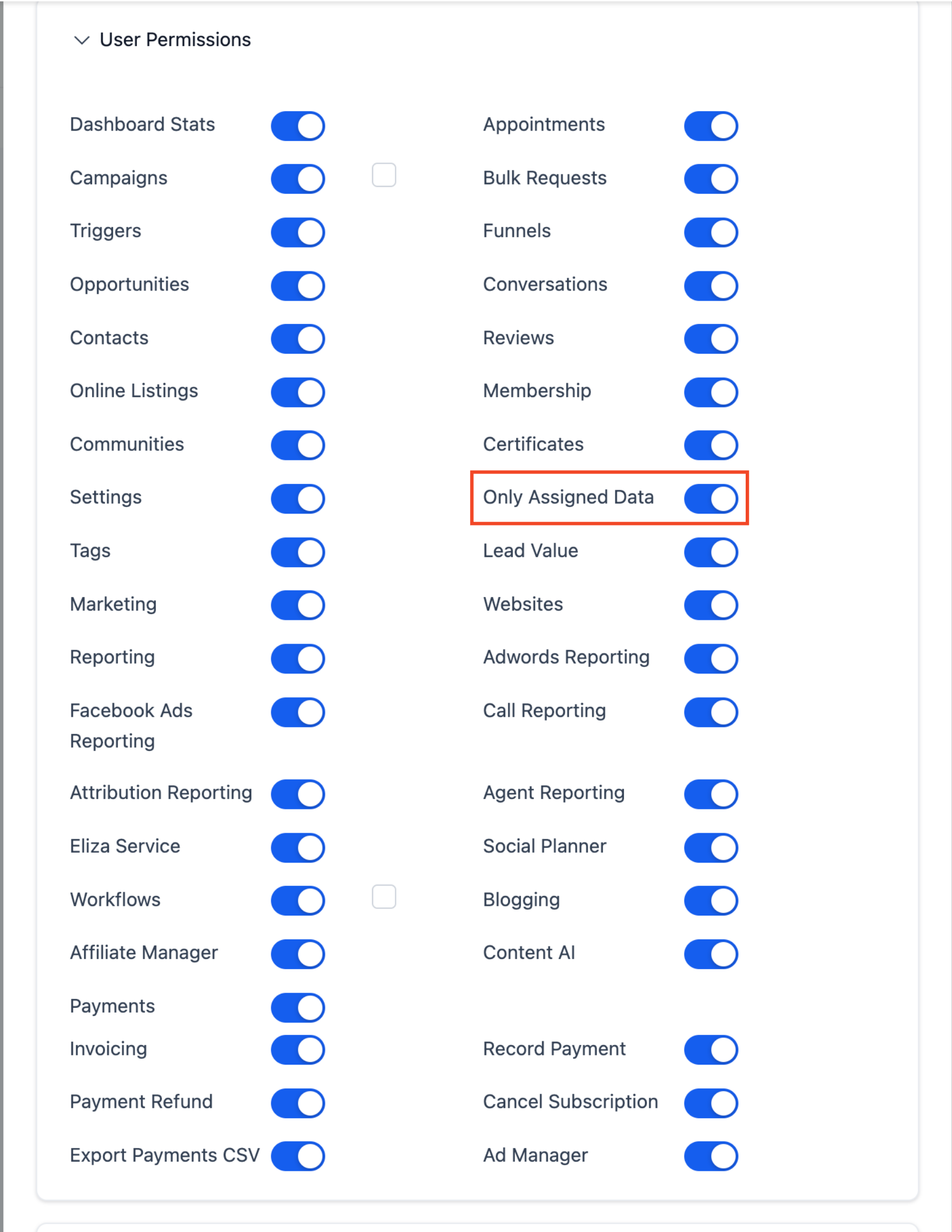
Only Assigned Data is a toggle within the Roles and Permissions area of a user profile. When selected, the platform automatically filters every dashboard widget to the records that belong to that user. The setting does not alter widget definitions; it simply restricts the data shown.
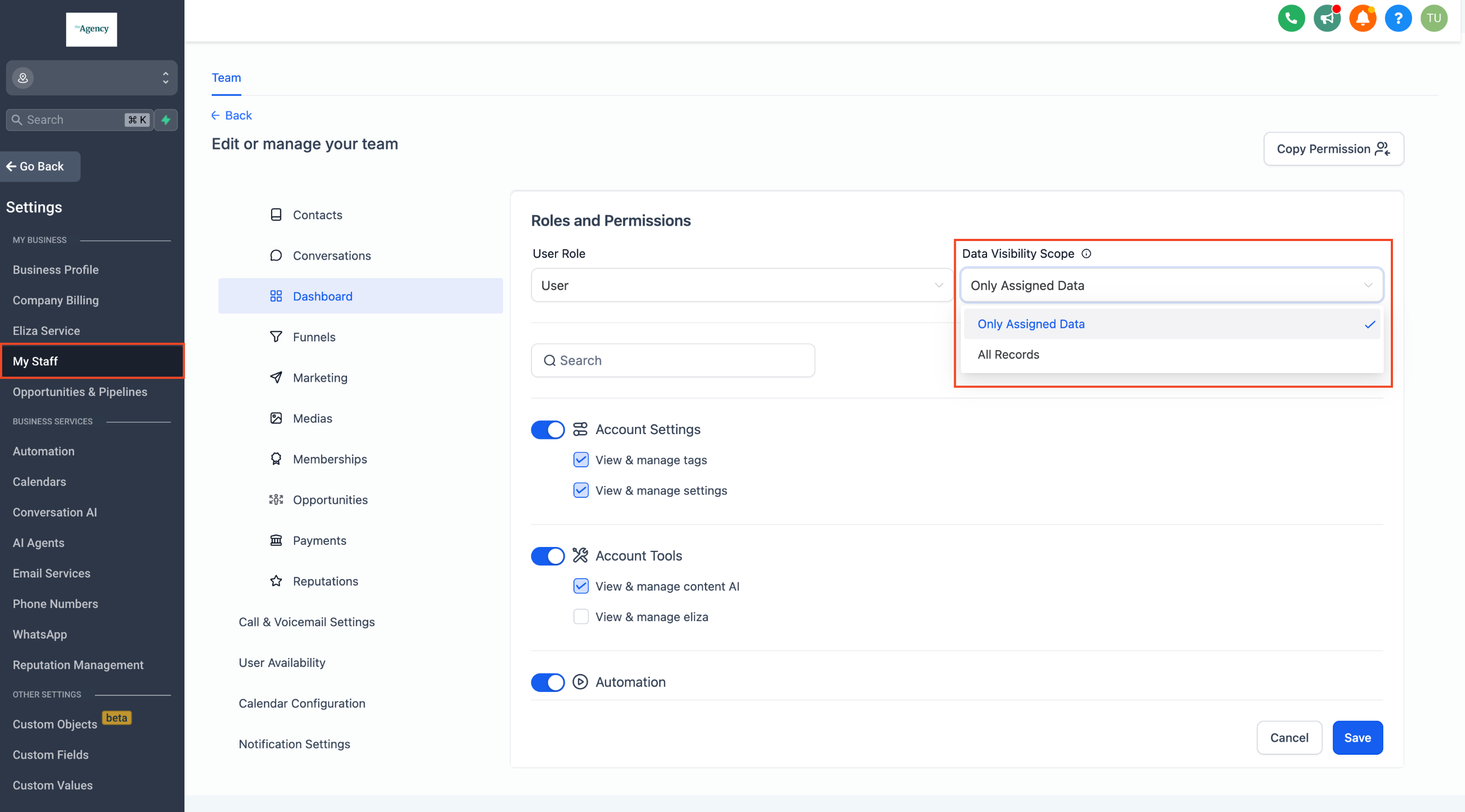
The option lives under Settings > My Staff, then in the profile’s Roles and Permissions section. The dropdown labeled Data Visibility Scope contains the Only Assigned Data choice. After saving, each dashboard view reflects the new visibility limits.
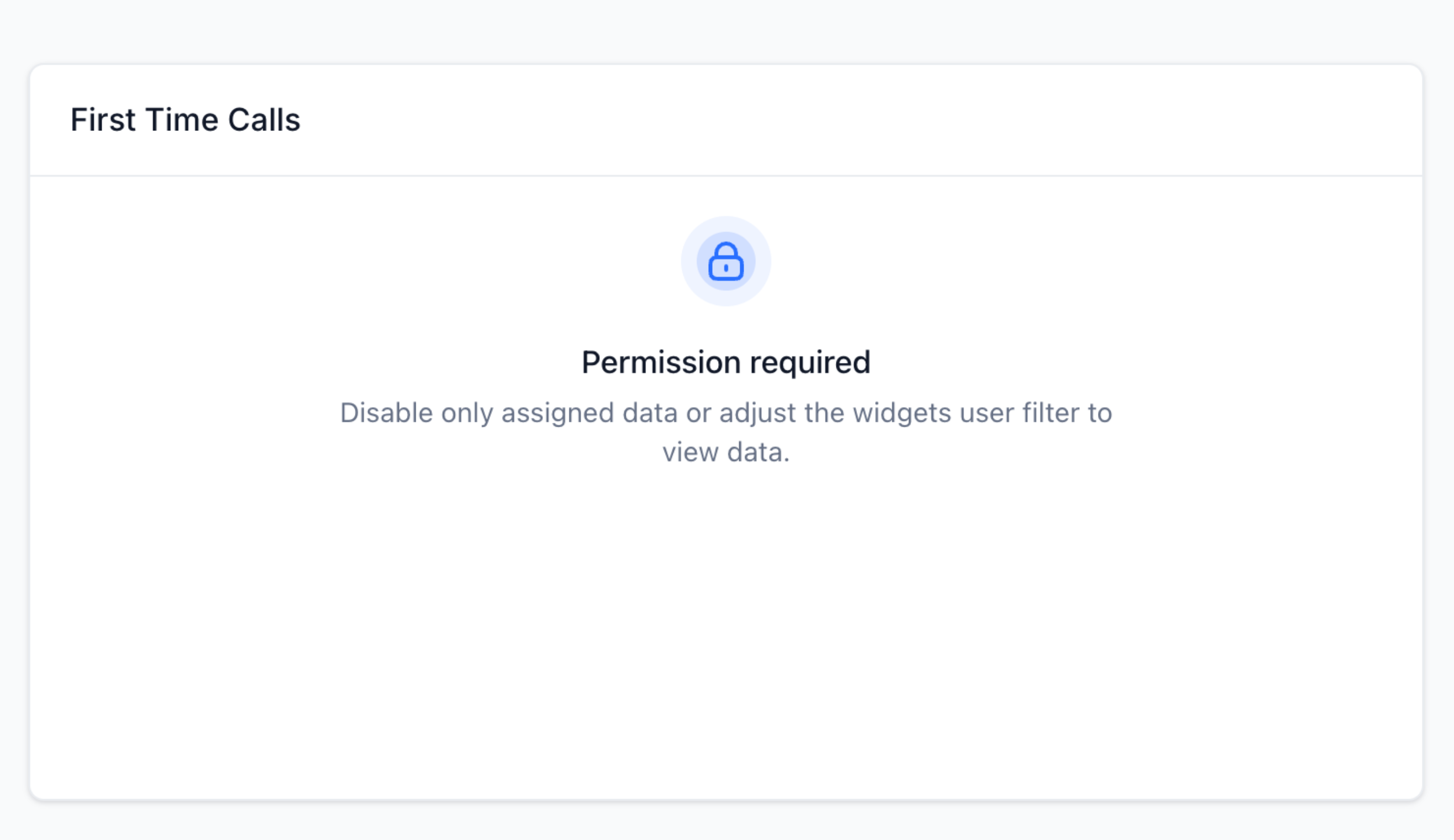
If a widget contains a hard coded filter for another team member, the user will receive a permission required notice instead of the data.
03How businesses use Only Assigned Data setting
- Sales organization. The sales manager enables Only Assigned Data for each representative. Dashboard widgets then automatically display only that rep’s leads and opportunities, removing the need to set individual filters.
- Customer success team. A customer success lead turns on the setting for agents. Agents’ dashboards show only the customers, calls, and appointments assigned to them, helping them focus on their own workload.
- Technical support department. Support supervisors activate Only Assigned Data for technicians. Each technician’s dashboard presents only the tickets assigned to them, ensuring no cross view of other technicians’ work.
04How to set up and use Only Assigned Data setting in HighLevel
Enable Only Assigned Data for a team member
- Open Settings and select My Staff.
- Find the team member to modify and click the Edit button.
- In the profile, go to the Roles and Permissions section and locate Data Visibility Scope.
- Choose Only Assigned Data from the dropdown menu.
- Click Save to apply the change.
05What it looks like in HighLevel
06Settings that matter
- Data Visibility Scope. Determines the range of data a user can view; selecting Only Assigned Data limits visibility to records explicitly assigned to that user.
- Only Assigned Data. An option within Data Visibility Scope that, when selected, restricts dashboard widgets to display only the user’s own assigned records.
07Things to know before you rely on it
- If a widget has a fixed filter for another user, the viewer will see a permission required message.
- The setting only changes what data is shown; it does not modify the underlying widget filters.
08How it connects to the rest of HighLevel
- HighLevel dashboard permissions: how to set and edit access Dashboard permissions
- How to edit a dashboard in HighLevel Edit dashboard
- Creating custom dashboards in HighLevel: a step by step guide Create custom dashboard
Michael's take

When you need to protect lead or customer data and want each team member to focus on their own work, enabling Only Assigned Data helps keep dashboards clean and the team stays on task, reducing accidental data exposure.
If your workflows rely heavily on shared reports or you have few users, the extra step may feel unnecessary. In those cases the setting adds little value and can complicate dashboard design without a clear benefit.