Home/HighLevel/Features/Dashboards/How to change the Timezone for a Dashboard (Logged in User)

Reporting and Dashboards

How to change the Timezone for a Dashboard (Logged in User)

In short

Dashboard timezone in HighLevel lets a logged in user set the time zone for every dashboard they view, affecting internal data metrics only.

AreaDashboards · Getting Started with Dashboards
Used forDashboards
Setup steps4 steps in 1 task
Last updatedNovember 3, 2026

01Dashboard timezone, explained

The selected timezone is applied to all dashboards you view and affects internal data metrics.

The setting applies to the logged in user and does not alter any widgets that pull data from outside sources.

02How to set up and use the dashboard timezone in HighLevel

Change dashboard timezone

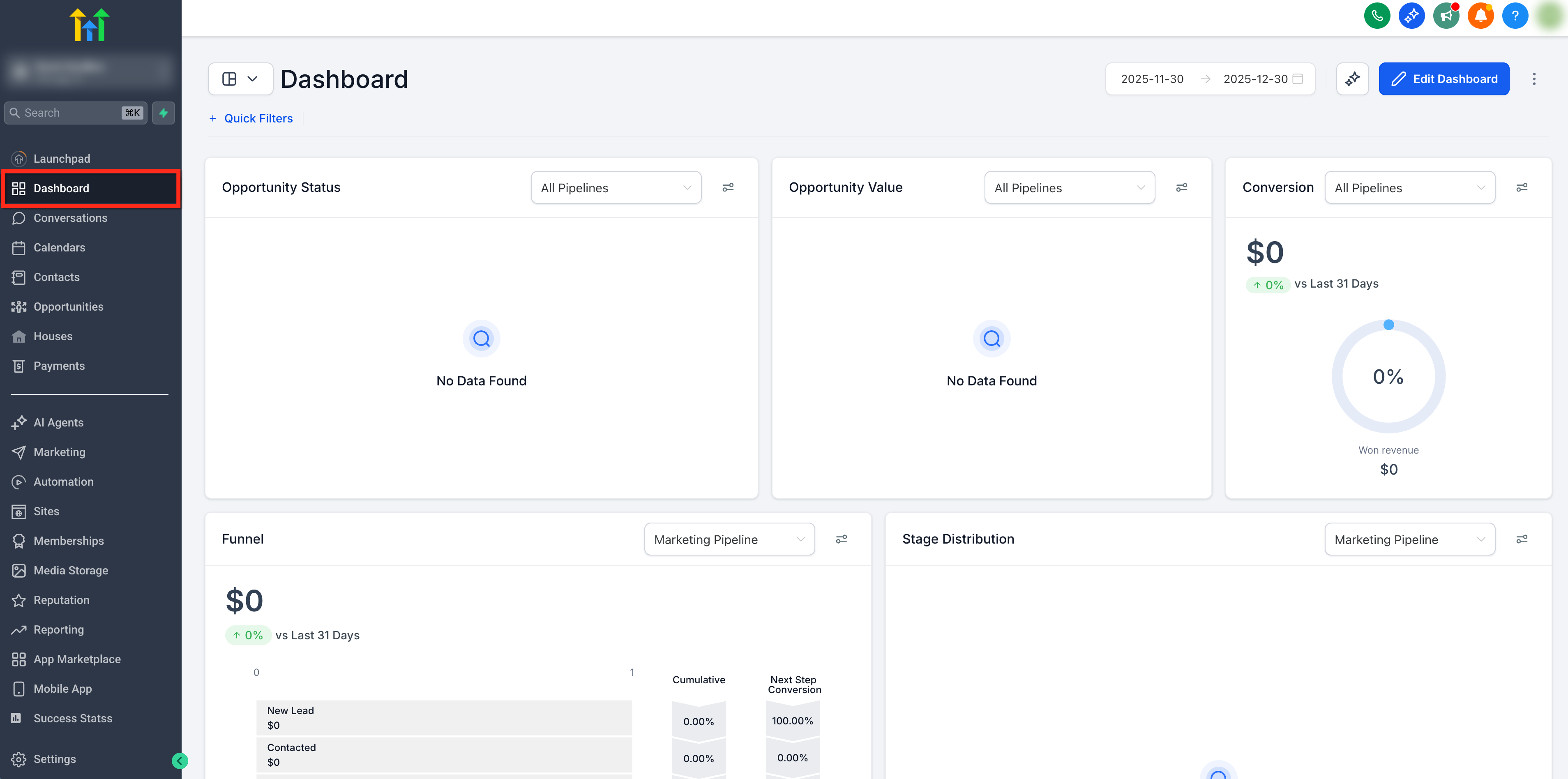
  1. Open Your Dashboard by selecting Dashboard on the left side navigation bar.
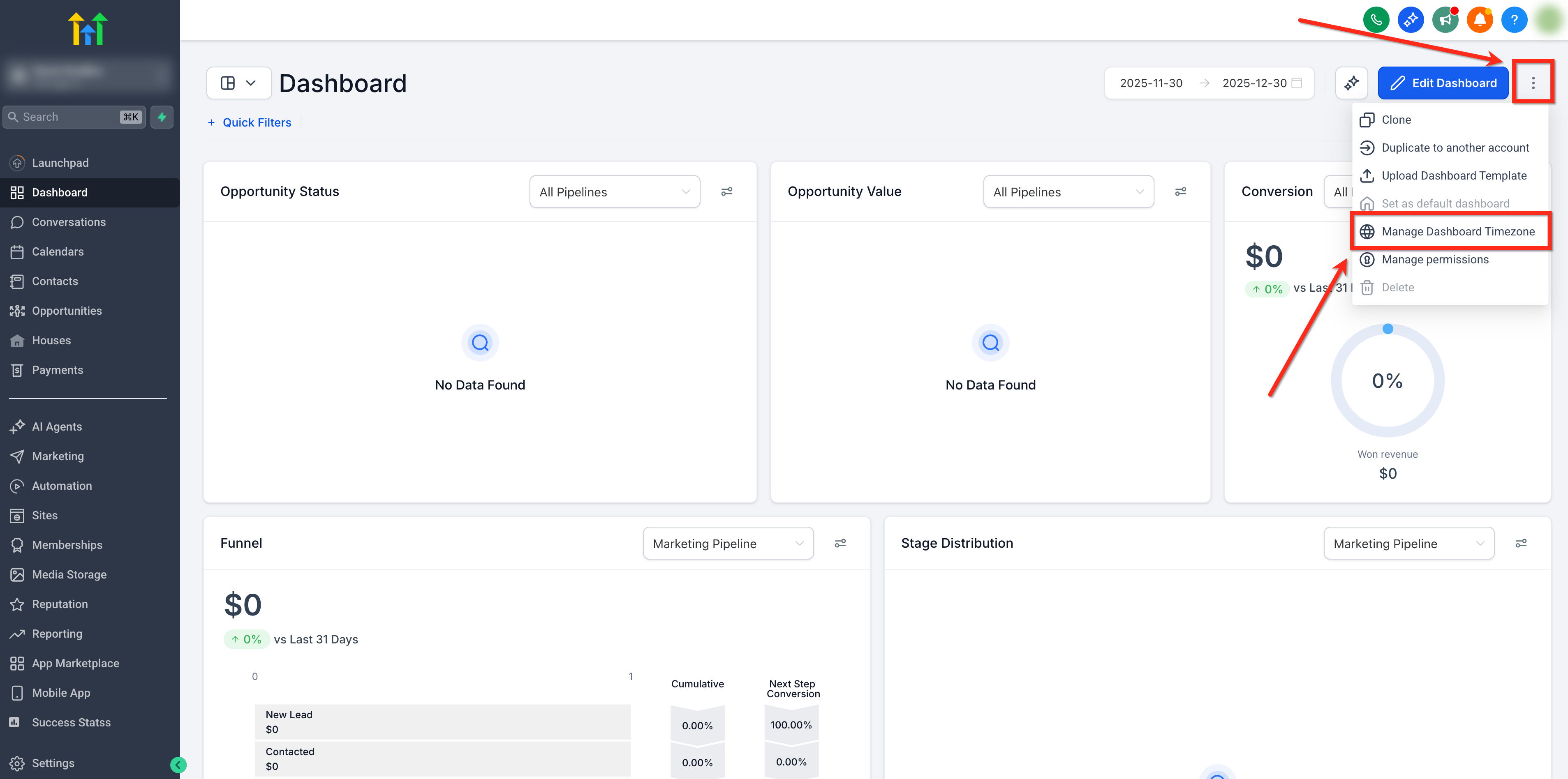
  2. Click the 3 dot menu icon on the top right corner and choose Manage Dashboard Timezone.
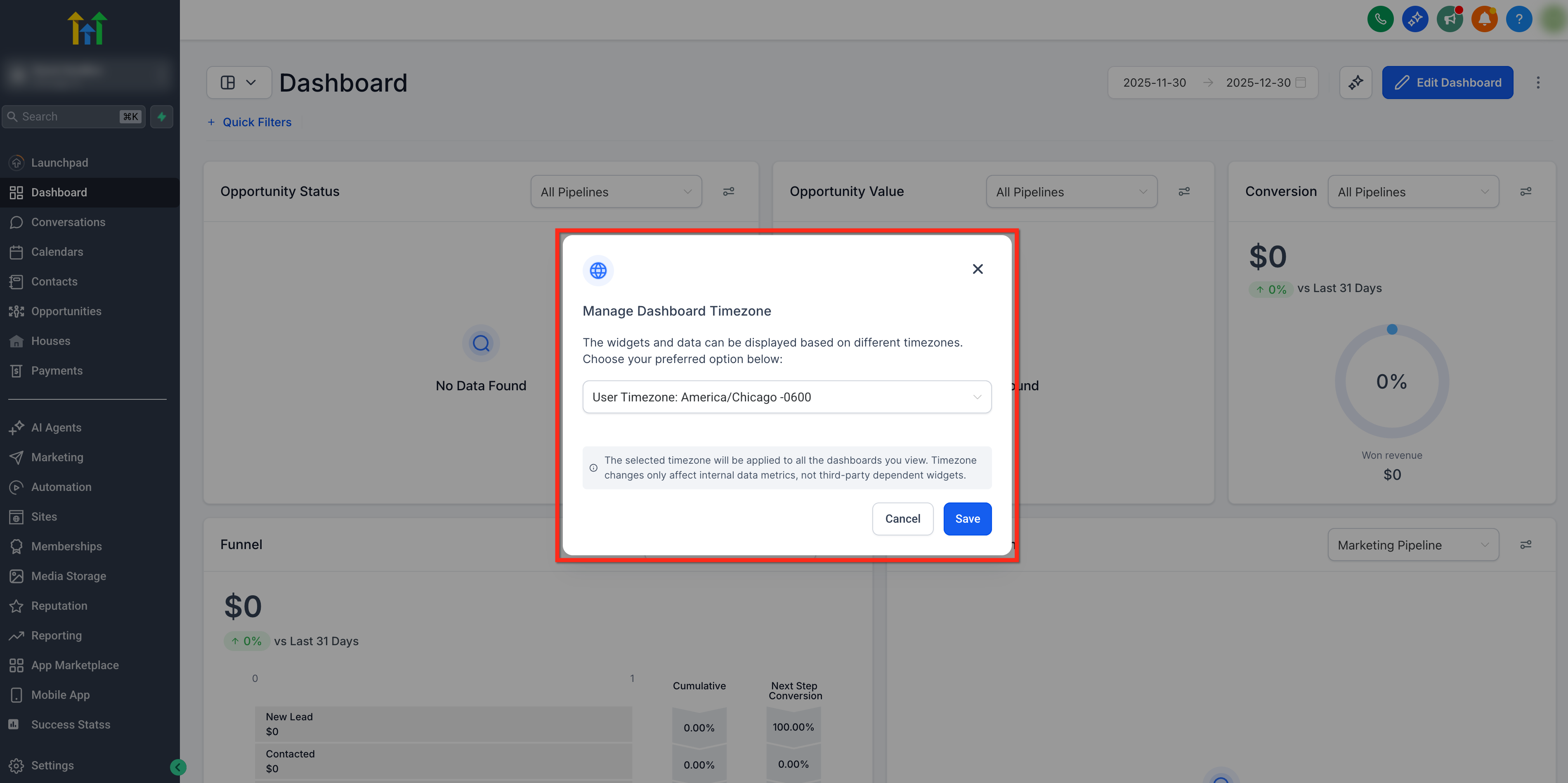
  3. From the dropdown menu, select your preferred timezone.
  4. Save your changes.

03What it looks like in HighLevel
04Settings that matter

  • Manage Dashboard Timezone. Opens a dropdown where you can choose a time zone for the logged in user. The choice applies to all dashboards you view.

05Switching dashboard timezones in HighLevel

Dashboard timezones in HighLevel let users set the time zone for any dashboard they view. The chosen zone applies to all dashboards, helping teams across regions stay aligned.

The Timezone Switcher lets each user pick a time zone for the dashboards they open.

The selected timezone is applied only to the dashboards you view.

Switch dashboard timezone

  1. Open any dashboard (private or shared).
  2. Click on the 3 dot menu.
  3. Choose "Manage Dashboard Timezone"
  4. Select your desired timezone.
  5. Save your changes.

Michael's take

Michael Reimer
Michael ReimerFounder of CRM Pros, HighLevel Commander and Certified Admin

In my experience, the dashboard timezone can help keep reports aligned when teams are in different regions, making it easier to interpret daily numbers.

If everyone works from the same location, you might find that the default timezone works fine and you may not need to change it.

Get More InformationOpens on HighLevelPublished November 2, 2026 · Updated November 3, 2026

Common questions

Common questions about the dashboard timezone.

How does changing the dashboard timezone affect widgets?

Timezone changes only affect internal data metrics. Widgets that rely on third party sources keep their original timing.

Can I set different timezones for different dashboards?

The selected timezone applies to all dashboards you view, so a single setting is used across every dashboard.

Where do I find the option to change the dashboard timezone?

Open a dashboard, click the 3 dot menu in the top right, and select Manage Dashboard Timezone from the dropdown.

Next step

Pick the features that matter. Then get the plan that unlocks them.

Explore the features you want, start with the five at the top, and upgrade through my link when you are ready. The bonuses and the team come with it.

The features directory explains every HighLevel feature in plain English. Browse it to see what the platform can do.

Back to the FeaturesSee the full details
⌃

Site preview

Explore the next page

This destination is reserved in the page inventory and is not built yet.