
01Who this is for
- Founders moving from HubSpot to HighLevel who need to preserve sales pipelines and custom fields.
- Marketing agencies that manage multiple client accounts and require bulk data migration without manual entry.
- Sales teams that rely on custom fields and need to keep contact and deal properties intact.
02HubSpot Importer, explained
The HubSpot Importer copies supported HubSpot objects into HighLevel. Contacts become contacts, deals become opportunities, and related pipelines, stages, custom fields, folders, emails, notes and tasks are also transferred. Field mapping uses internal keys, and the importer retains pipeline structures and folder organization.
The import runs in the background after you start it from the Import data menu. HighLevel displays a preview with estimated record counts, lets you filter which records to bring over, and provides a detailed results report after the run. The report shows totals, successes, warnings and errors, and you can download a CSV of any failed records for correction.
03How businesses use the HubSpot Importer
- SaaS startup. The startup connects its HubSpot account, selects contacts, opportunities and custom fields, and runs the import. After the import finishes it reviews the error report, fixes any field key conflicts, and re imports the affected records.
- Real estate brokerage. The brokerage filters deals by HubSpot Created Date to bring only recent property listings into HighLevel as opportunities. It then checks the import details for any listing errors and updates missing attachments before re running the import.
- Nonprofit organization. The nonprofit imports contacts, tasks and notes from HubSpot, using the filter panel to select records modified in the last month. It examines the warning list for notes that could not be linked to companies and adjusts them in HubSpot before a second import.
04The numbers and rules that matter
- An opportunity can be associated with up to 10 additional contacts.
- A task can be associated with up to 10 records of each object type.
05Before you start
- Use a clean HighLevel account when possible.
- Turn on Allow duplicates for both Contacts and Opportunities.
- Set the account language to English.
- Test the import in a new or non production location first.
06How to set up and use the HubSpot Importer in HighLevel
Open Import Data
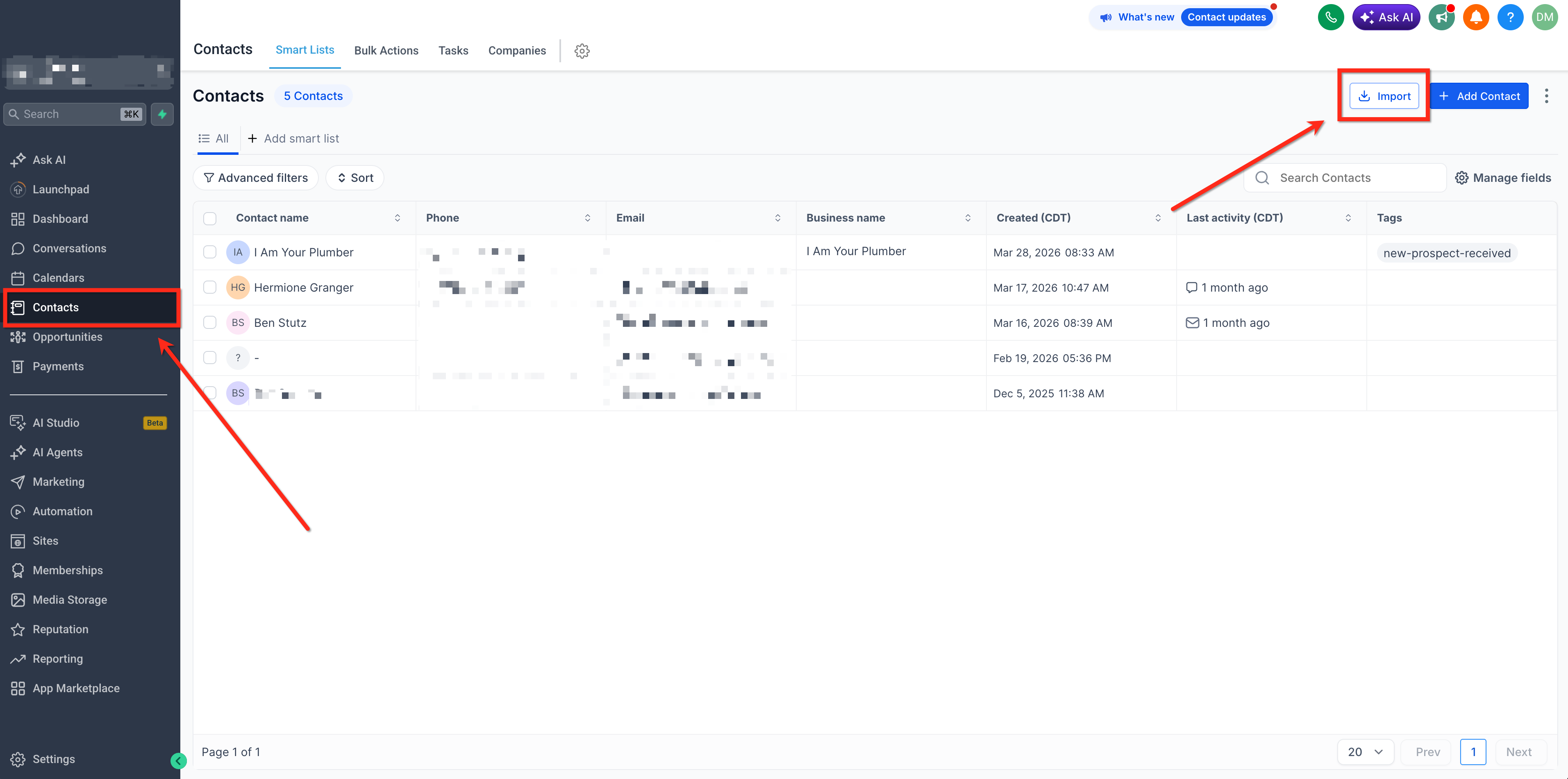
- From Contacts (or Companies or Opportunities) open the Import menu in the top right and select Import data.
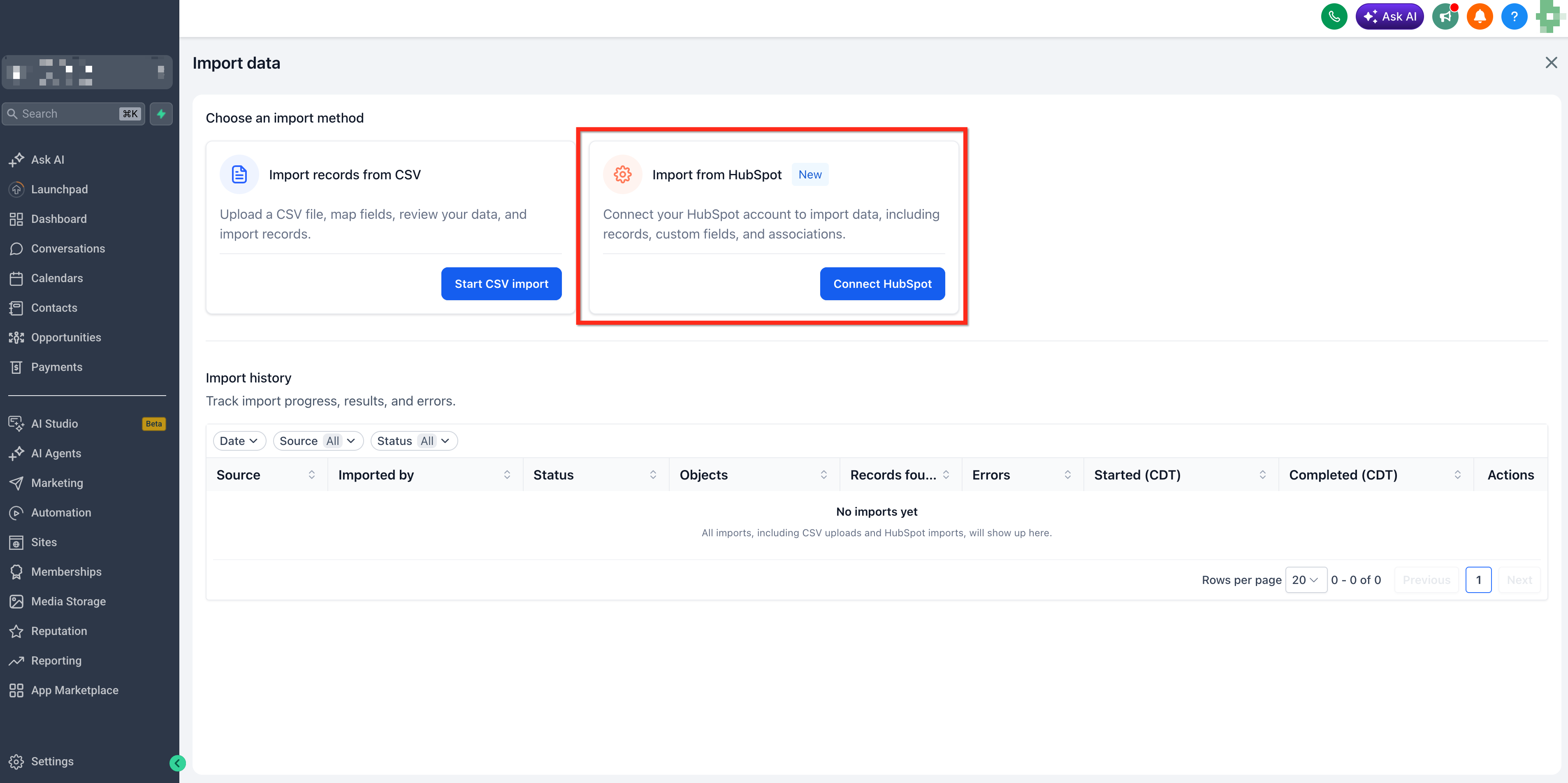
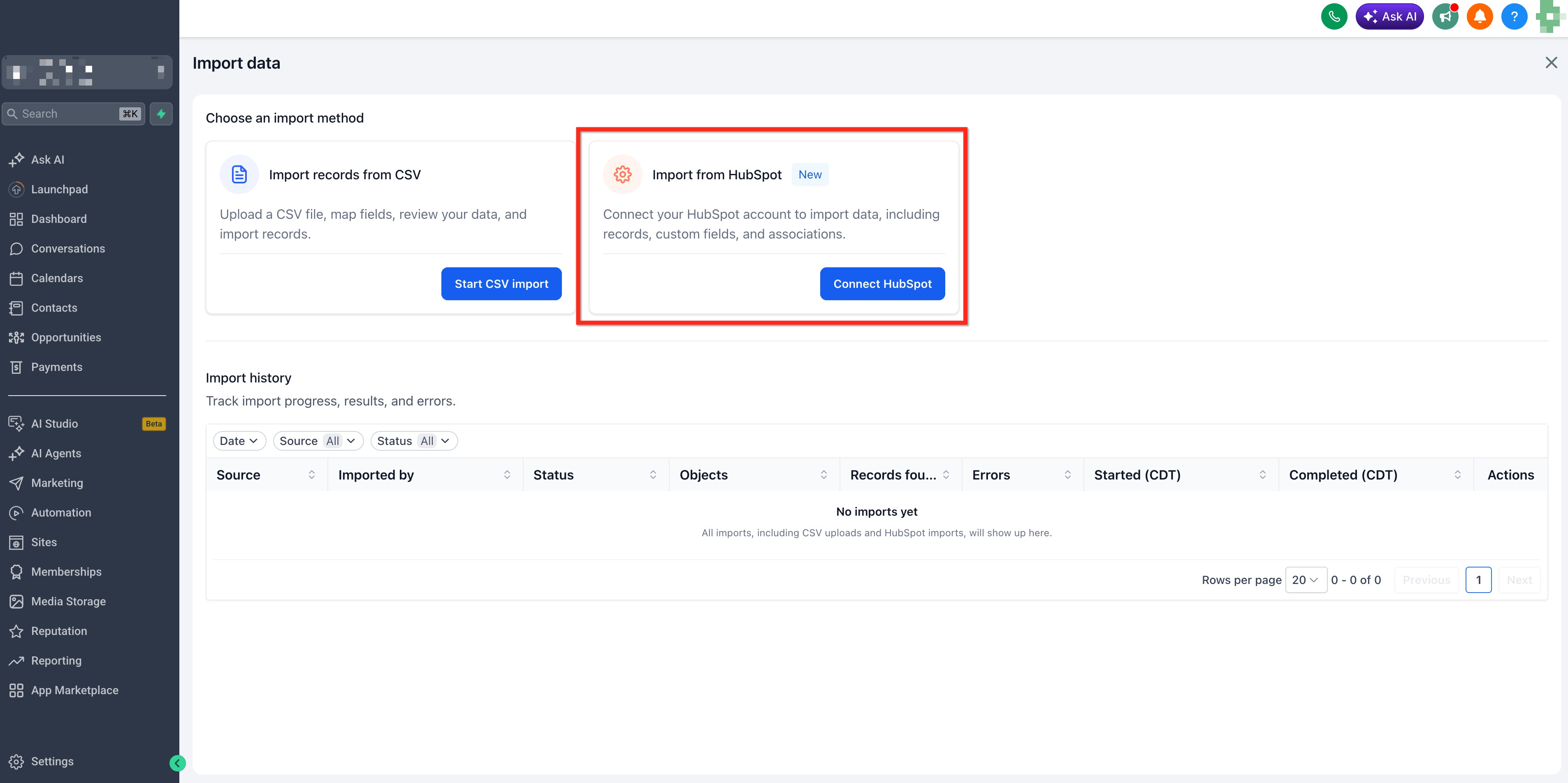
Select HubSpot Import
- Click Connect HubSpot in the right card to start a HubSpot import.
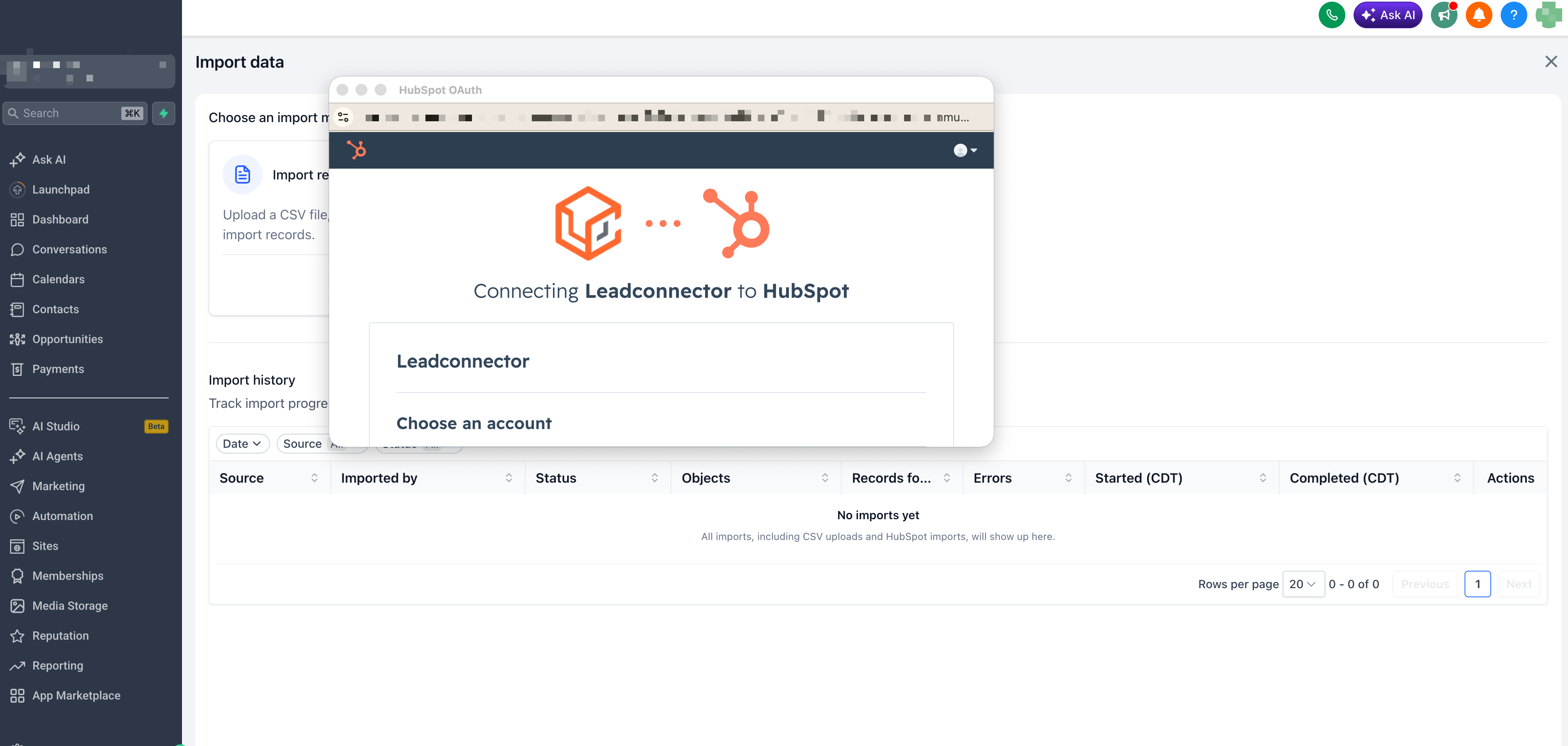
Authenticate HubSpot account
- Log in to your HubSpot account and complete the authentication step.
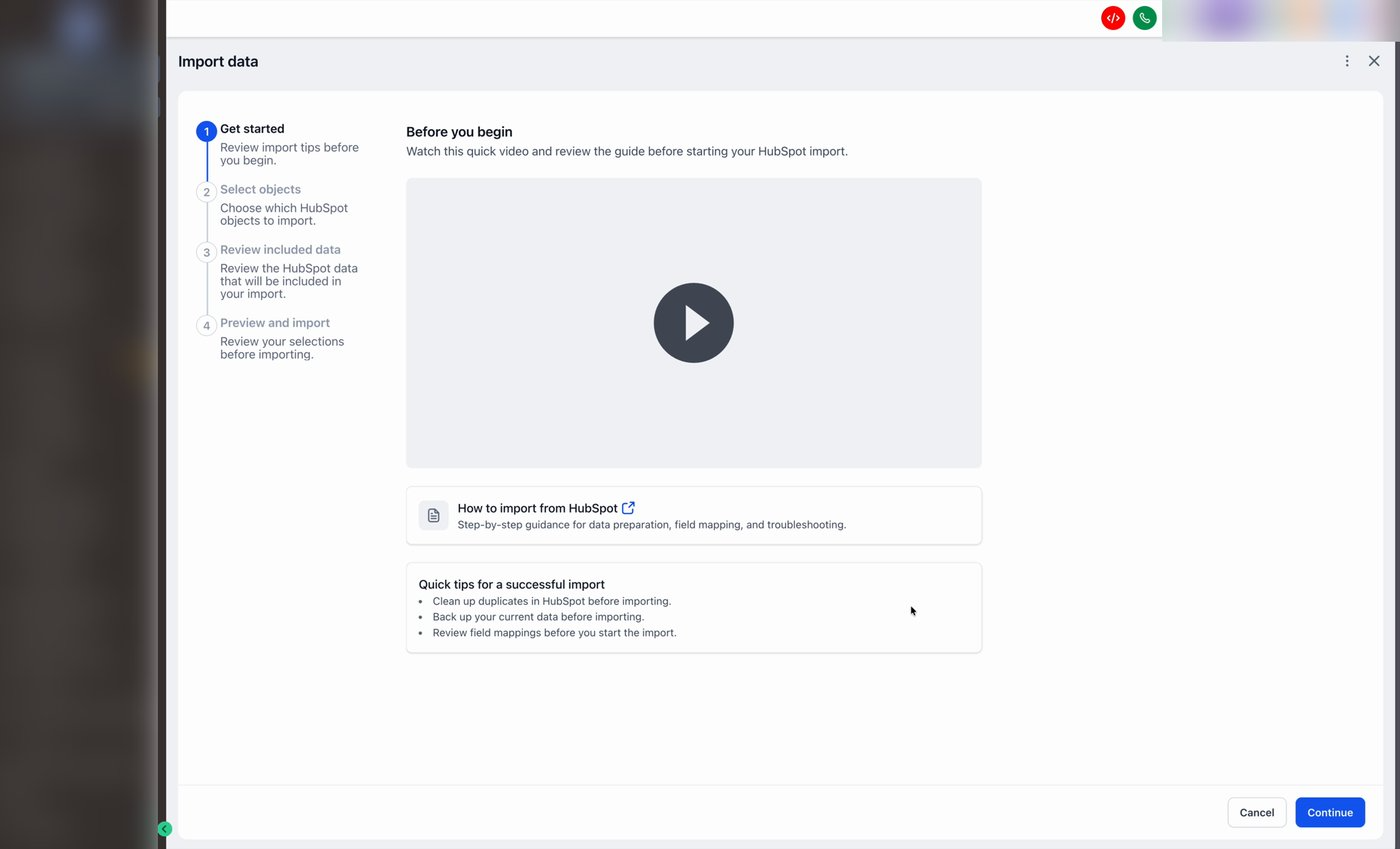
Review Quick Tips
- Watch the walkthrough video, clean up duplicates in HubSpot, back up current data, and review field mappings.
- When ready, click Continue.
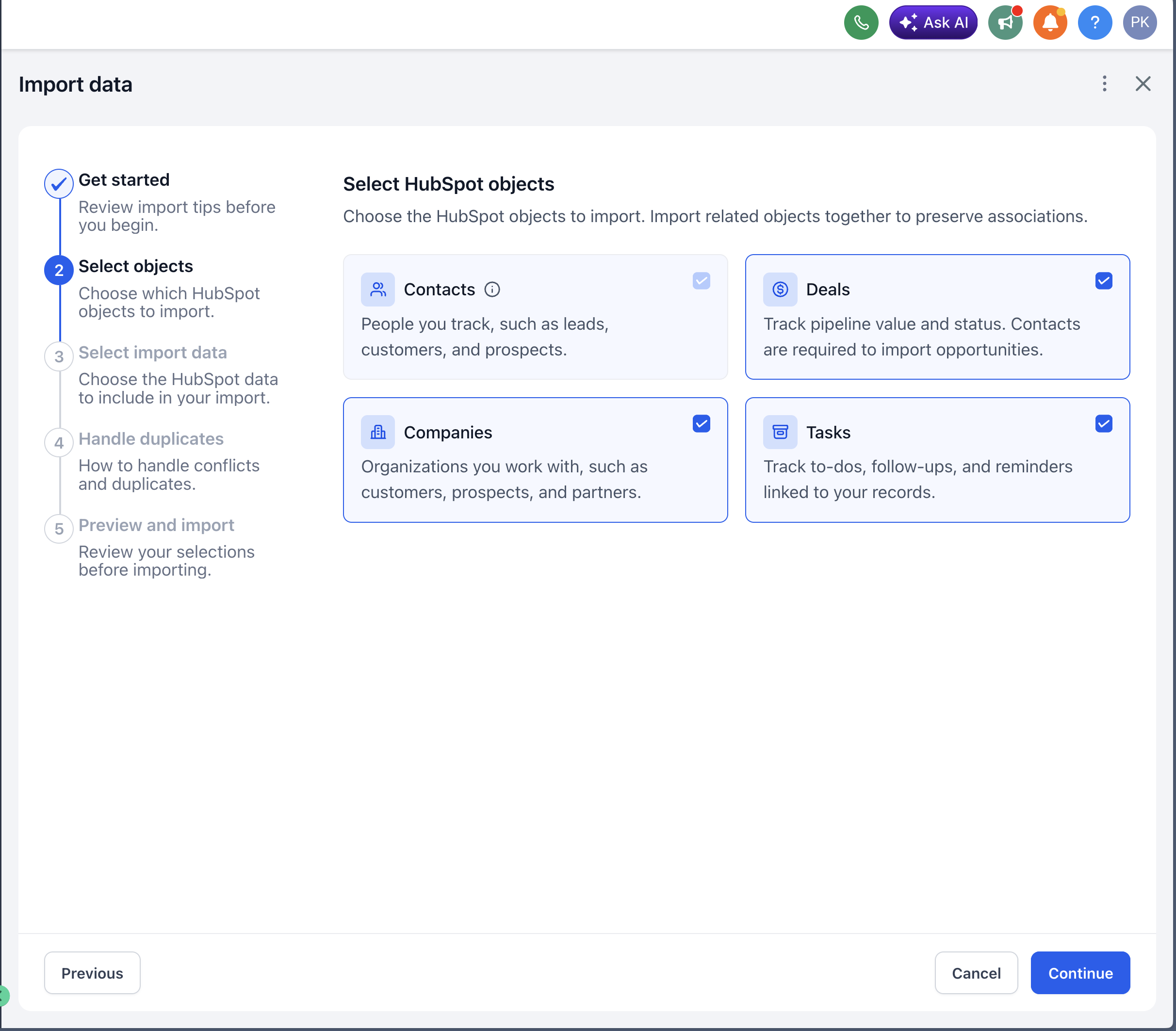
Select what to import
- Check the boxes for the HubSpot objects you want, Contacts, Tasks, Deals (imported as Opportunities), Companies.
- Click Continue.
Review what is included
- Confirm that related data such as properties, notes, emails, pipelines, and associations are automatically included.
Review and filter record counts
- On the Preview and import screen, click the edit (pencil) icon on an object's records row.
- Add filters by choosing HubSpot Created Date or HubSpot Last Modified Date, set a condition (Is or Is not), and enter a value or range.
- Apply the filter and verify the selected record count before proceeding.
Confirm and start import
- Click Confirm and start import on the preview screen.
- Confirm again in the confirmation dialog.
Import runs in background
- A notification appears that the HubSpot import has started and is running in the background.
- You may close the window or navigate away; the import continues.
Open import details (Object view)
- When the import finishes, click the stats icon in the Actions column of the import row.
- The Import details modal opens showing total records, successes, errors and warnings.
Drill into individual records
- Switch to the Record view tab.
- Use the object and status filters to narrow results to Contacts, Opportunities, etc., and to Success, Error or Imported with warnings.
Review and fix errors
- Set the Status filter to Error to list failed records.
- Click Download in the bottom left to export the error list as a CSV.
- Correct the data in HubSpot and re run the import.
07What it looks like in HighLevel
08Settings that matter
- Allow duplicates. Controls whether HighLevel blocks duplicate contacts or opportunities during the import. Enabling it prevents import failures caused by duplicate blocking rules.
09Things to know before you rely on it
- Opportunities can be linked to up to 10 additional contacts; opportunities without any contacts cannot be imported.
- Custom field keys must be unique; existing keys cause import errors.
- File attachments are only supported for contacts and opportunities.
- Deleted contacts may be re imported and create duplicates if restored later.
- A note can be attached to only one record per object type and cannot be linked to companies.
- Recurring tasks are not supported; tasks can associate with up to 10 records of each object type.
- Some associations may be omitted due to platform limits.
- Imported emails are read only.
10If something goes wrong
- "Records found" count is lower than HubSpot shows. The preview only counts fields that the importer can map. Unmapped or unsupported fields are excluded, so the difference is expected.
- Error "Couldn't import contact with HubSpot record ID…". Remove any file attachments from the contact field, rename or delete conflicting custom field keys, and ensure custom field names match labels before re importing.
11How it connects to the rest of HighLevel
- Explore all features in HighLevel All features
- Start a free trial to test the HubSpot Importer 30 day trial
- Review pricing and plan options for migrations Pricing and plans
Michael's take

When moving a whole CRM, the HubSpot Importer can reduce manual data entry by pulling contacts, deals, Custom Fields and pipeline structure in one go and provides an error report that shows what needs fixing. For a business that wants to keep its sales process intact, it can be useful.
If you only have a few records or you’re already deep into an existing HighLevel setup, the import may introduce extra cleanup steps such as handling duplicates, custom field key collisions or unsupported task types, so a selective CSV export might be a simpler path.