
01Who this is for
- Founders who need to migrate existing client businesses into the platform quickly.
- Operations managers handling thousands of vendor records and requiring consistent data updates.
- Sales teams that receive regular exports of new prospects and want to keep the Companies list current.
02Company bulk imports, explained
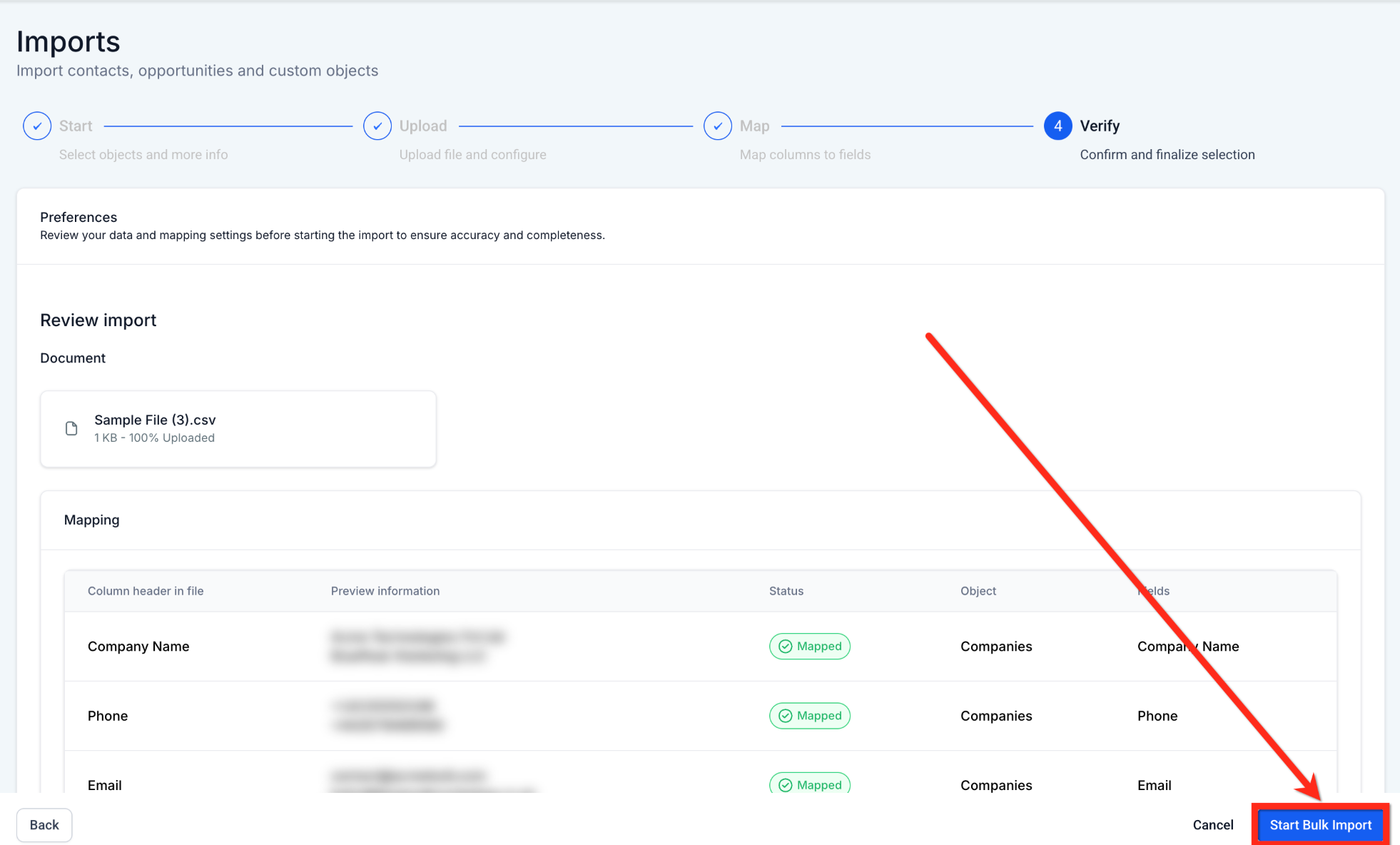
The feature provides a guided wizard for importing Company objects from a CSV file. It can create new records, modify existing ones, or do both in a single run, depending on the selected import mode. During the process the system validates column headers, required fields and custom field existence, then maps each CSV column to a HighLevel field.
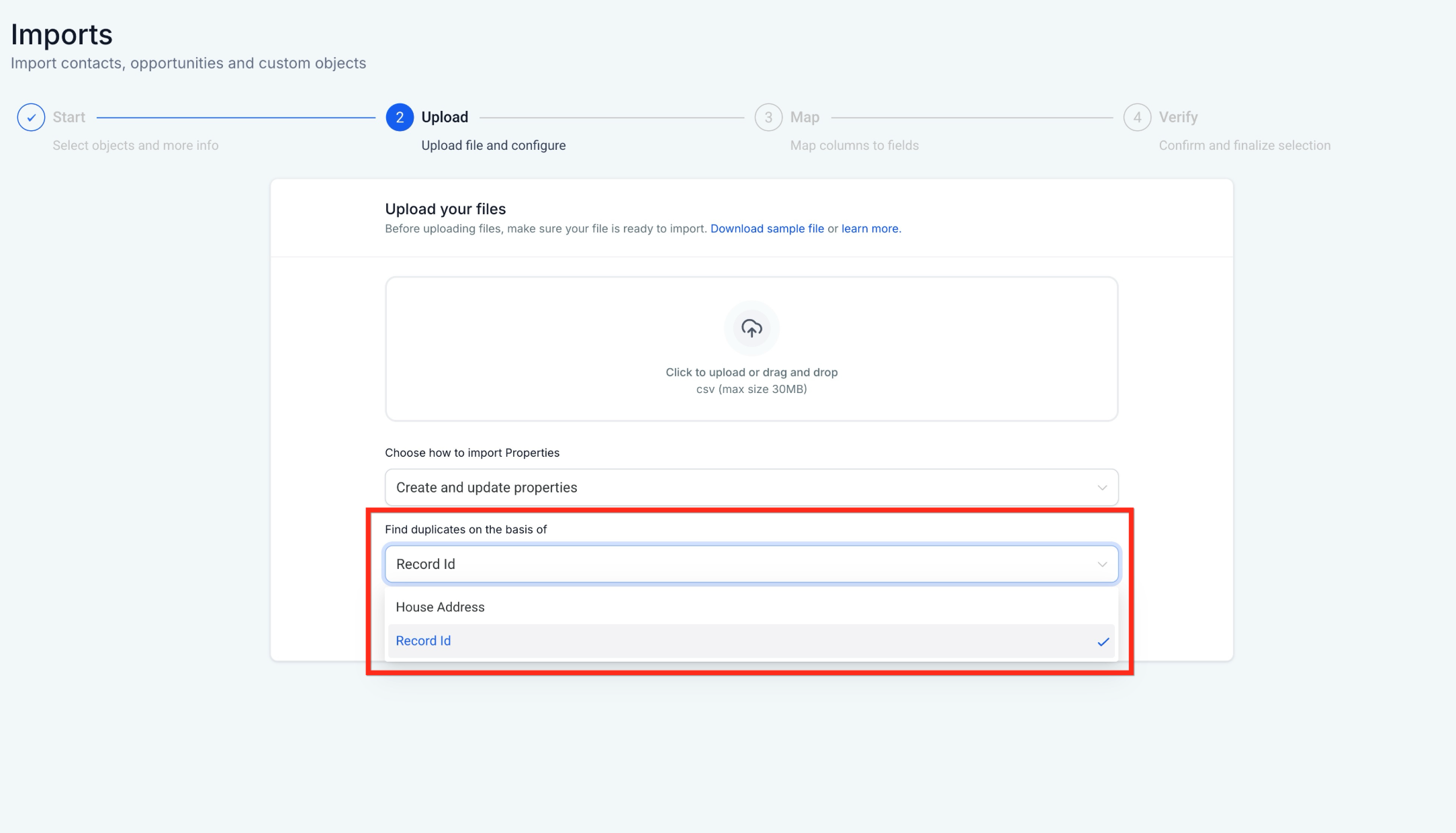
The import runs through Bulk Actions, where you can watch status, view warnings, pause or cancel when allowed, and download reports of successful and failed rows. Duplicate detection relies on Record IDs or any unique Company field you have configured, preventing unintended multiple entries.
All of this lives inside the Companies section. Access is controlled by the permission to view the Companies module and the Company Management feature must be enabled for your account.
03How businesses use company bulk imports
- Real estate brokerage. Export property management companies from an external database, map the columns to HighLevel's Company fields, and run a Create import to add all new brokerage partners at once.
- IT staffing agency. Prepare a CSV with updated contact details for existing client firms, include the Company Record ID column, choose the Update mode, and run the import to refresh phone numbers and addresses without creating duplicates.
- Manufacturing supplier. Combine a monthly export that contains both new distributors and changes to current ones, select the Create & Update mode, map any custom fields that track certification status, and import to keep the supplier list accurate.
04Before you start
- You have permission to access the Companies module.
- Company Management is enabled for your account.
- Your CSV file is saved in .csv format with a header row.
- All required Company fields are present in the file.
- Custom Company fields exist in HighLevel before you import values for them.
05How to set up and use company bulk imports in HighLevel
Import Companies using a CSV file
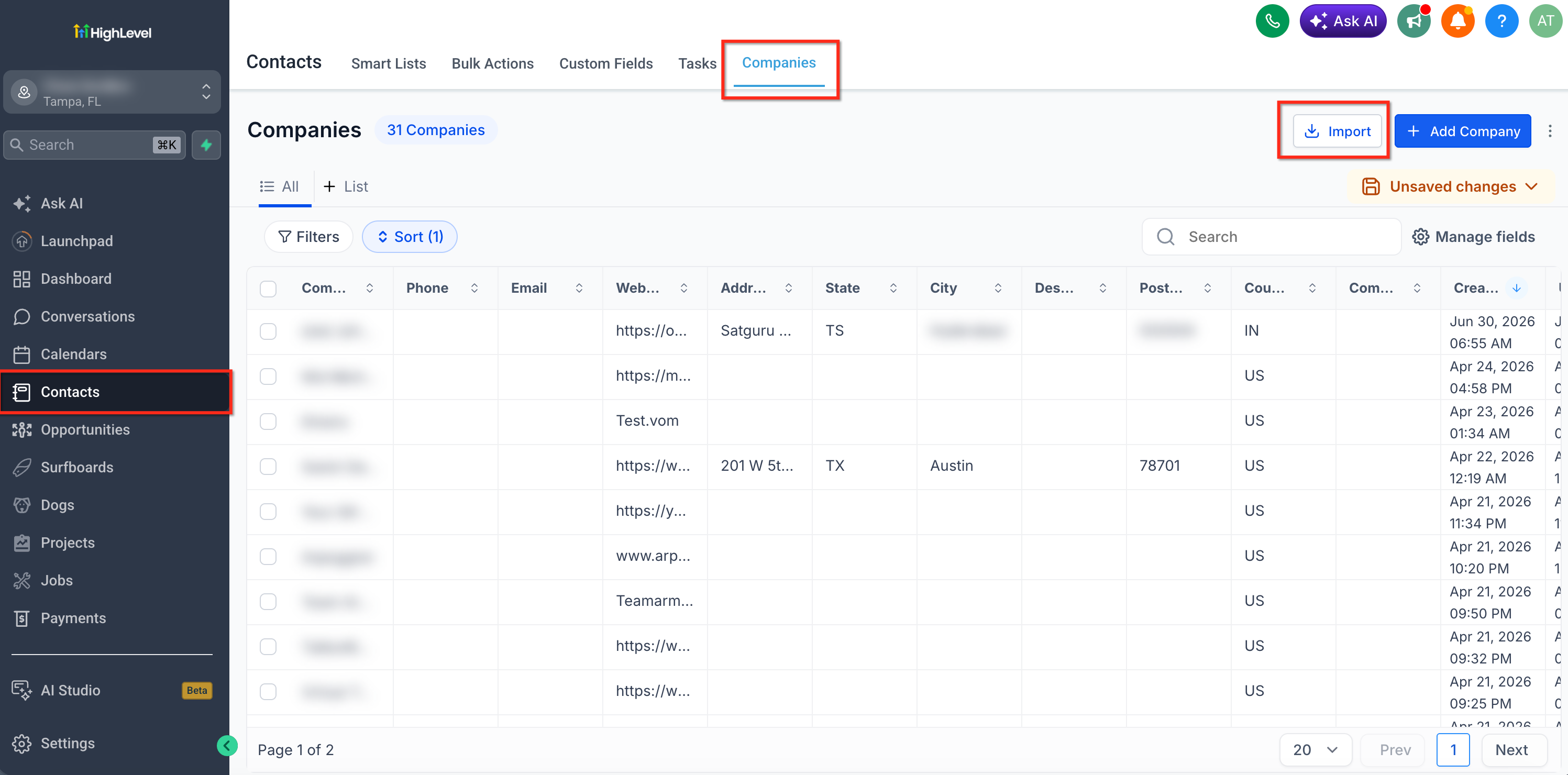
- Open the Contacts area, select Companies, and click the Import button.
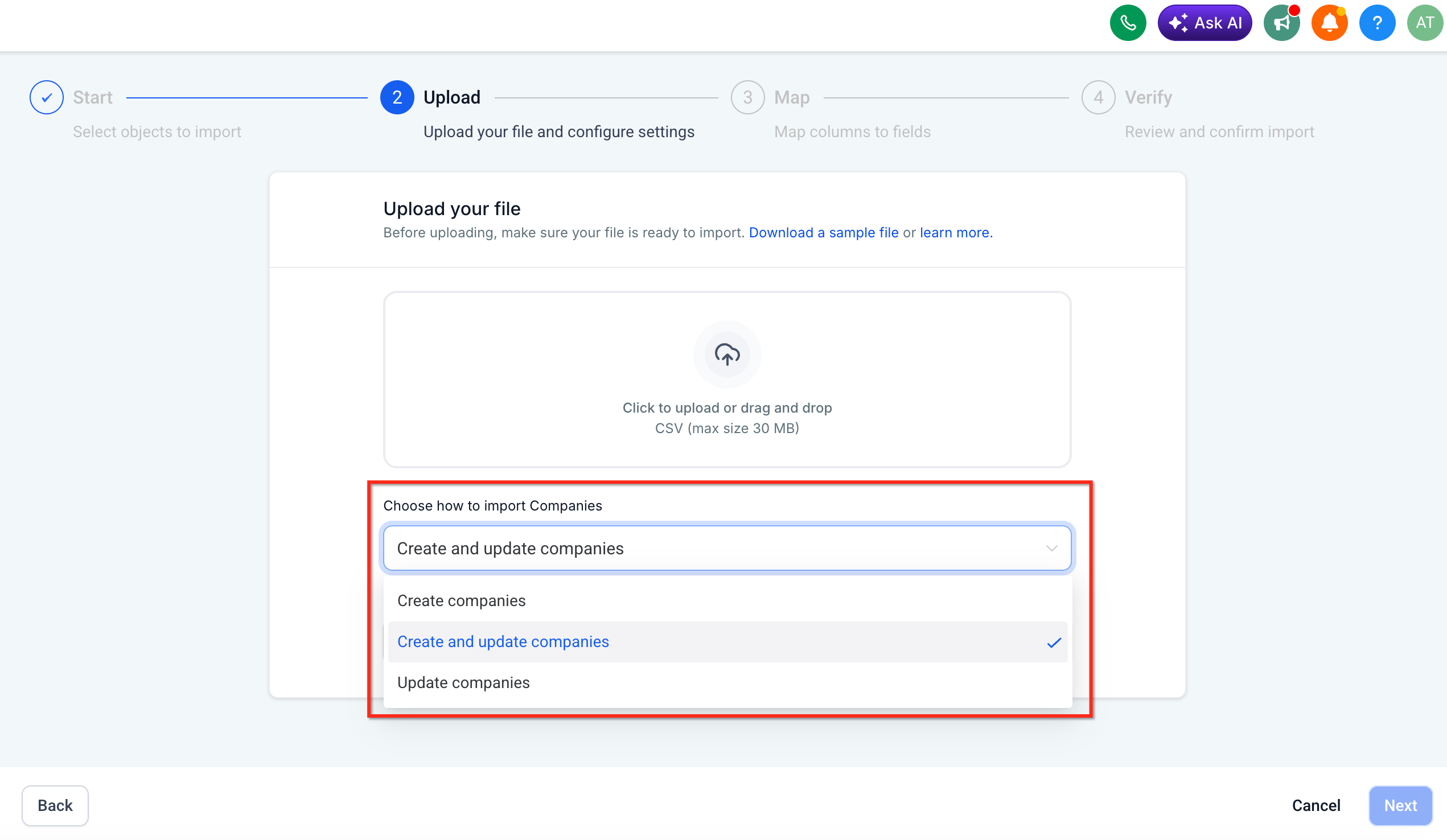
- Pick the desired import mode, Create, Update, or Create & Update, and proceed.
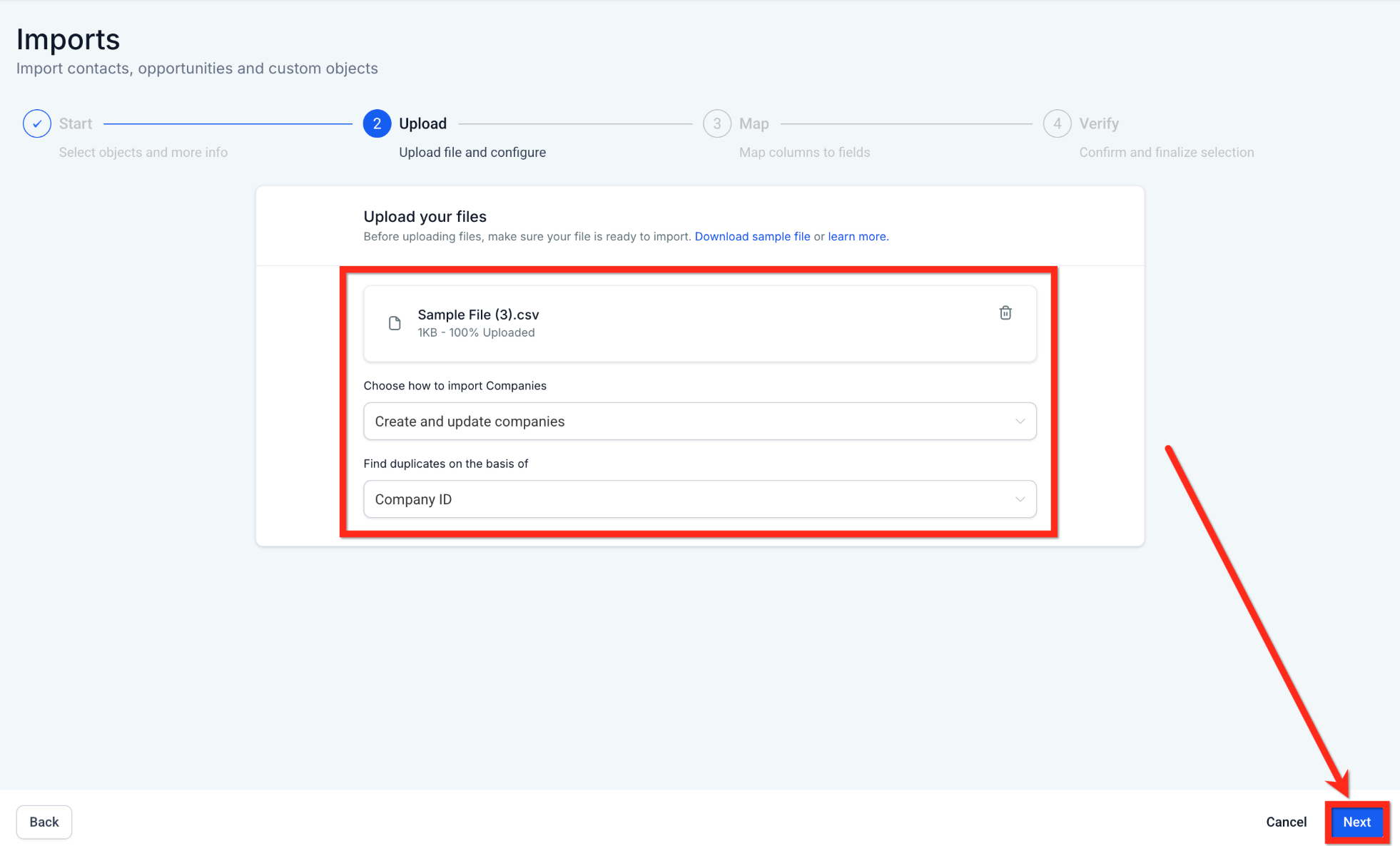
- Upload the prepared CSV file; the system will check the format before moving on.
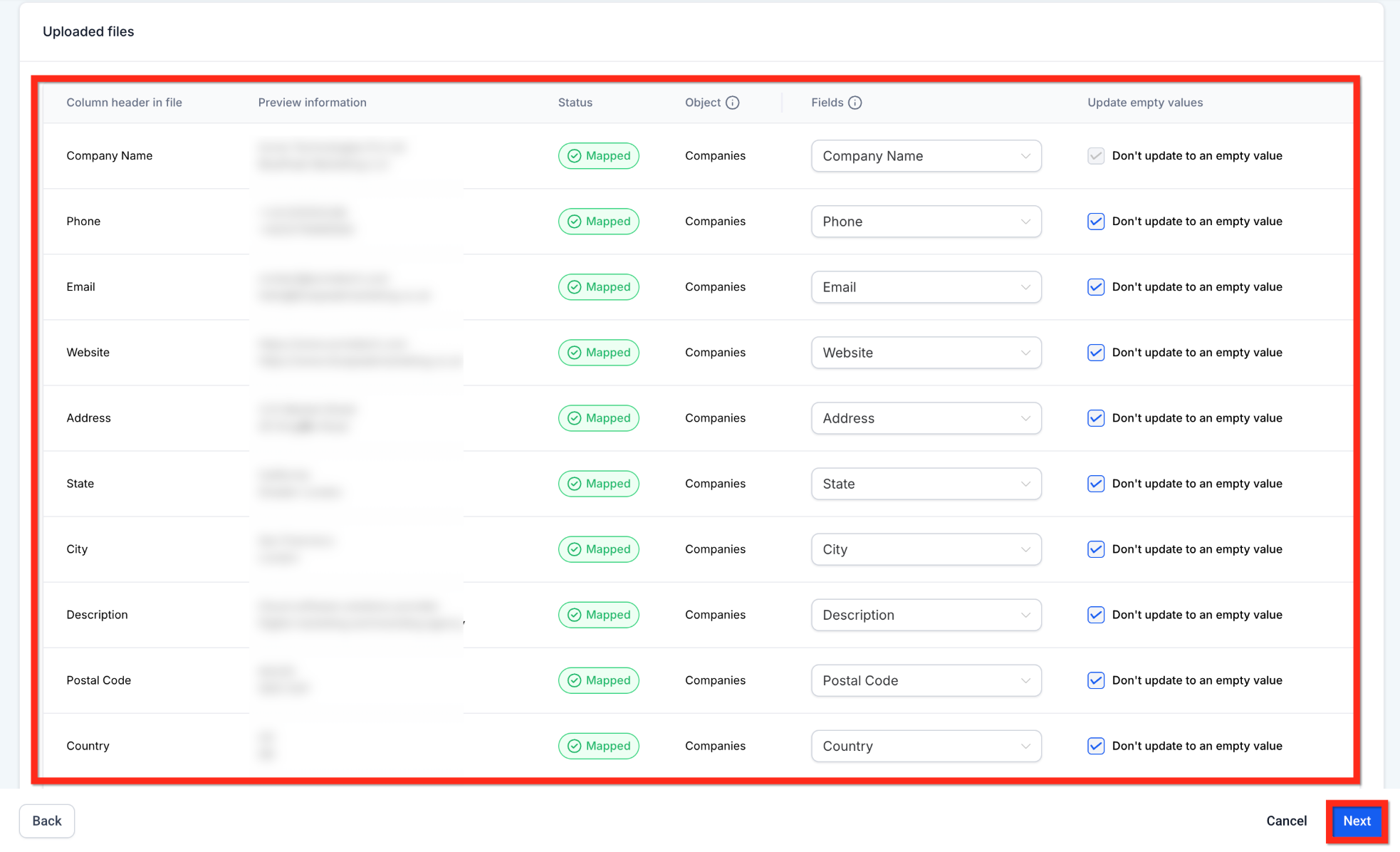
- Review and adjust the automatic field mappings, ignoring any columns you do not need.
- Confirm the import settings and start the bulk import process.
06What it looks like in HighLevel
07Settings that matter
- Import Mode. Determines whether the wizard creates new Company records, updates existing ones, or performs both actions.
- Update Empty Values. When enabled, blank cells in the CSV overwrite existing data; when disabled, blank cells are ignored.
- Duplicate Handling. Controls how the system reacts when a record matches an existing Company by Record ID or a unique field.
- Field Mapping. Associates each CSV column with a specific Company attribute, including any custom fields you have set up.
08Things to know before you rely on it
- The CSV must be saved with a .csv extension and include a header row.
- Required Company fields cannot be omitted; missing required columns cause validation errors.
- Custom fields must be created in HighLevel before importing; the import will not generate missing fields.
- Enabling Update Empty Values can clear existing data if the CSV cell is blank.
- Imports cannot be undone; you must verify the file before starting.
09How it connects to the rest of HighLevel
- Import data from HubSpot into HighLevel HubSpot import guide
- Configure searchable fields to improve CSV mapping accuracy Searchable fields guide
- Review HighLevel pricing and plan options Pricing page
Michael's take

Bulk importing Companies can feel risky if you haven’t double checked your CSV. A stray blank column or an unexpected special character can halt the whole run and leave you chasing errors. Make sure the file follows the formatting rules and that any Custom Fields already exist in HighLevel before you start.