
01Conversation SLA workflow triggers, explained
The Conversation SLA workflow trigger fires a workflow when a conversation hits a specific SLA event. You can choose from three events: Due Soon, Overdue, or SLA dismissed. When the event occurs and any optional filters match, the workflow runs.
The trigger includes an option to avoid repeated execution. When enabled, the workflow runs only once per conversation within a 24 hour period, even if multiple messages cause additional SLA events. This keeps notifications and escalations from spamming the team.
02How businesses use conversation SLA workflow trigger
- Notify when overdue. Select the Overdue event, add a notification action, and publish the workflow. When a conversation exceeds its SLA deadline, the assigned user receives an alert.
- Escalate approaching SLA. Choose the Due Soon event and configure an action that reassigns the contact to a senior agent. The workflow runs before the deadline, giving the team time to respond.
- Automate after dismissal. Pick the SLA dismissed event and add any follow up actions needed after a user manually dismisses an SLA, such as logging the dismissal or triggering a survey.
03The numbers and rules that matter
- Avoid Repeated Triggers limits execution to once per conversation within a 24 hour period.
04How to set up and use conversation SLA workflow trigger in HighLevel
Set up the conversation SLA trigger
- Go to Automation > Workflows.
- Create a new workflow.
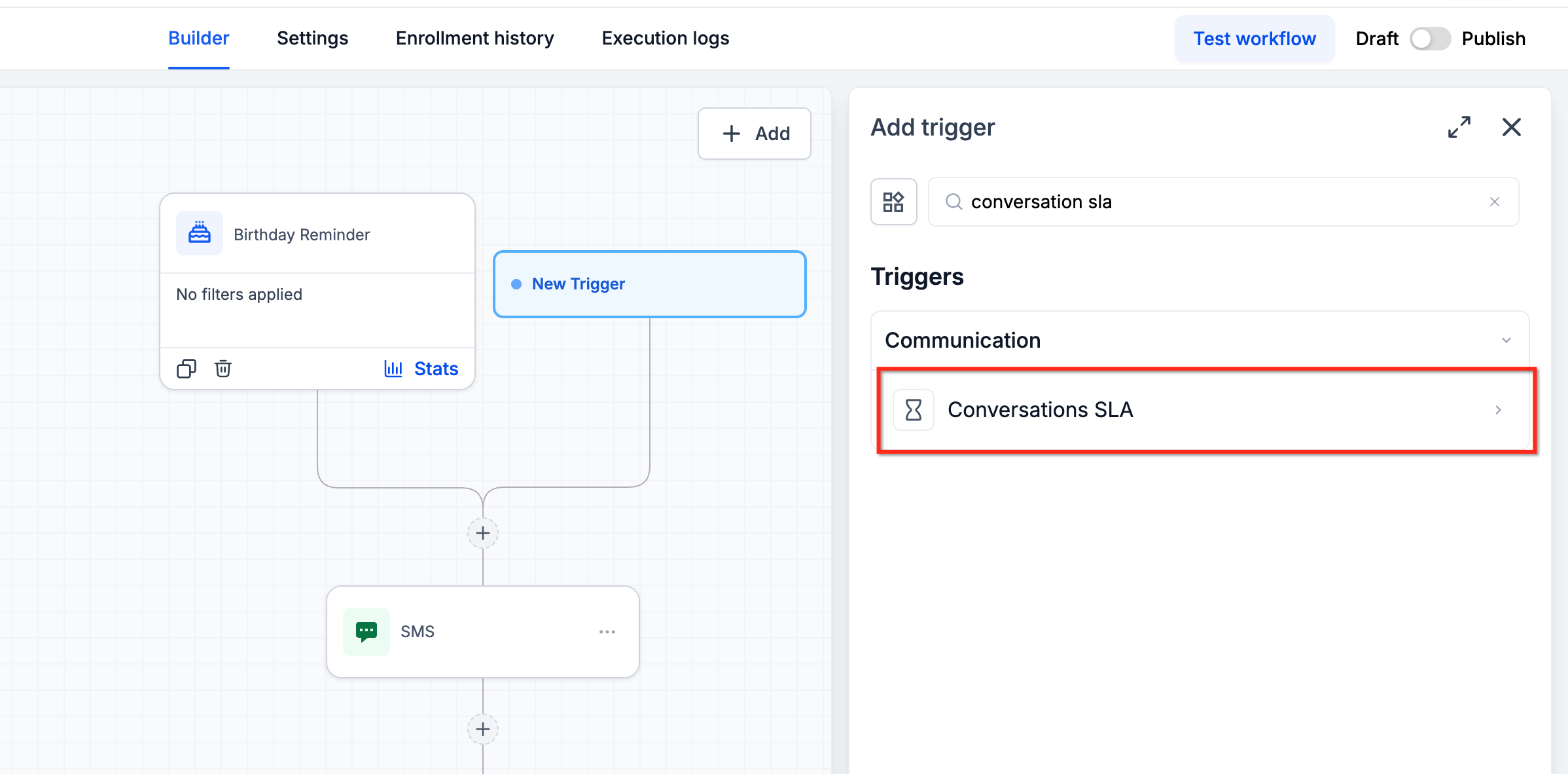
- Add a trigger and select Conversation SLA.
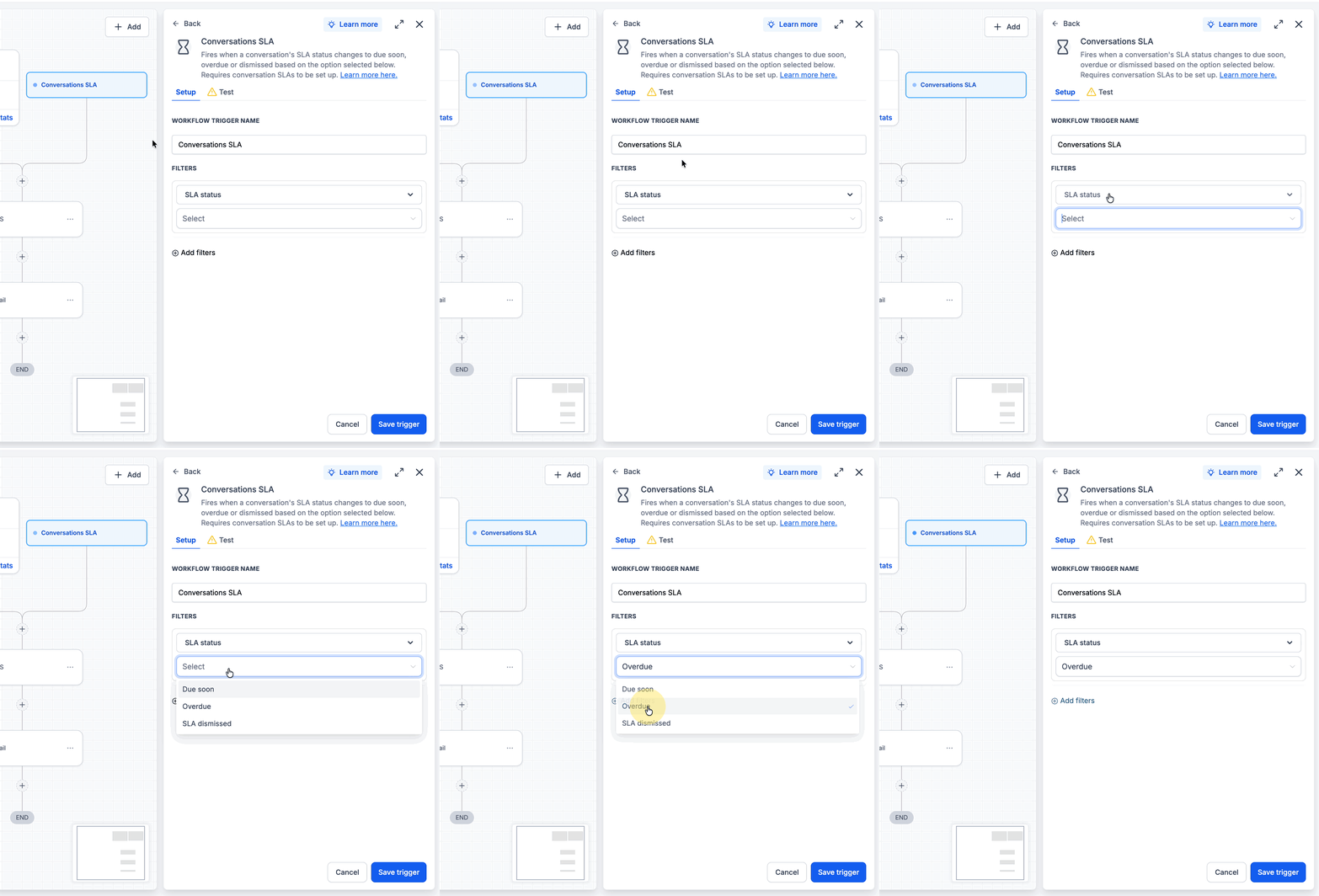
- Choose the SLA event: Due Soon, Overdue, or SLA dismissed.
- Optionally, add filters to narrow when the workflow runs.
- Add the workflow actions you want to perform.
- Publish the workflow.
05What it looks like in HighLevel
06Settings that matter
- Avoid Repeated Triggers. When enabled, the workflow runs only once per conversation within a 24 hour period, even if multiple messages generate additional SLA events.
07Things to know before you rely on it
- Workflow executes only once per conversation within a 24 hour period when Avoid Repeated Triggers is enabled.
Michael's take

Wondering if you really need an automated way to watch SLA timers? The Conversation SLA trigger lets your support crew get alerts or escalations when a deadline is near or missed, so you stop chasing timers manually.
If I were setting this up, I’d use the Overdue event first to make sure nobody slips through the cracks. Turning on the Avoid Repeated Triggers option keeps the team from getting flooded with alerts if a contact sends several messages in a short span.