
01Who this is for
- Sales managers who want to flag leads for follow up without emailing the prospect.
- Customer support teams that need to leave internal context on tickets before handing them off.
- Marketing coordinators who track campaign tasks inside contact conversations.
02Add internal comment, explained
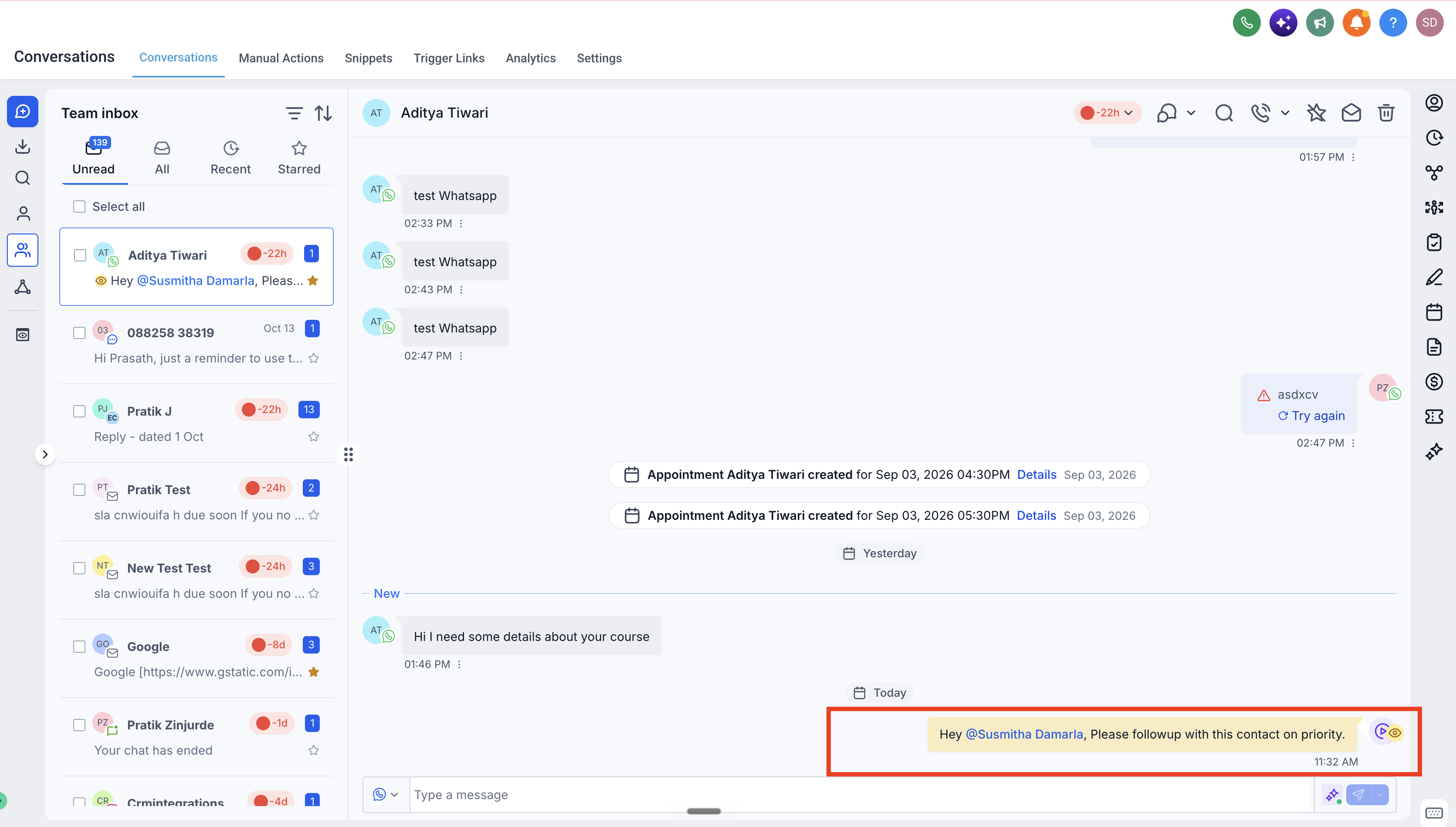
The Add Internal Comment action inserts a private, internal only note into a contact’s conversation timeline. The note appears in chronological order with other messages but never reaches the contact via SMS, email, or any other channel, and it does not use messaging credits.
The comment can contain plain text and @mentions. When you @mention a teammate, the platform adds that person as a follower of the contact and sends a notification based on the user’s own notification preferences. Multiple mentions are allowed. If you select the Assigned User option and the contact has no assigned owner, no mention is added, but the rest of the comment still posts.
The action is created inside the Workflow Builder, located under Subaccount > Automations. It lives in the Communication category of the actions menu and becomes part of any automation you design.
03How businesses use add internal comment
- Real estate agency. Agents create a workflow that adds an internal comment whenever a property inquiry reaches a certain score. The comment notes the property's status and @mentions the lead agent, who receives a notification and gains follower access to the contact.
- SaaS support team. When a support ticket meets a response time SLA, a workflow adds an internal comment tagging the senior support specialist. The specialist is notified, added as a follower, and can view the conversation without the customer seeing the note.
- Marketing agency. A workflow tags leads that click a specific campaign link by posting an internal comment with @mentions of the account manager. The manager is alerted and can view the lead’s conversation to plan the next outreach step.
04How to set up and use add internal comment in HighLevel
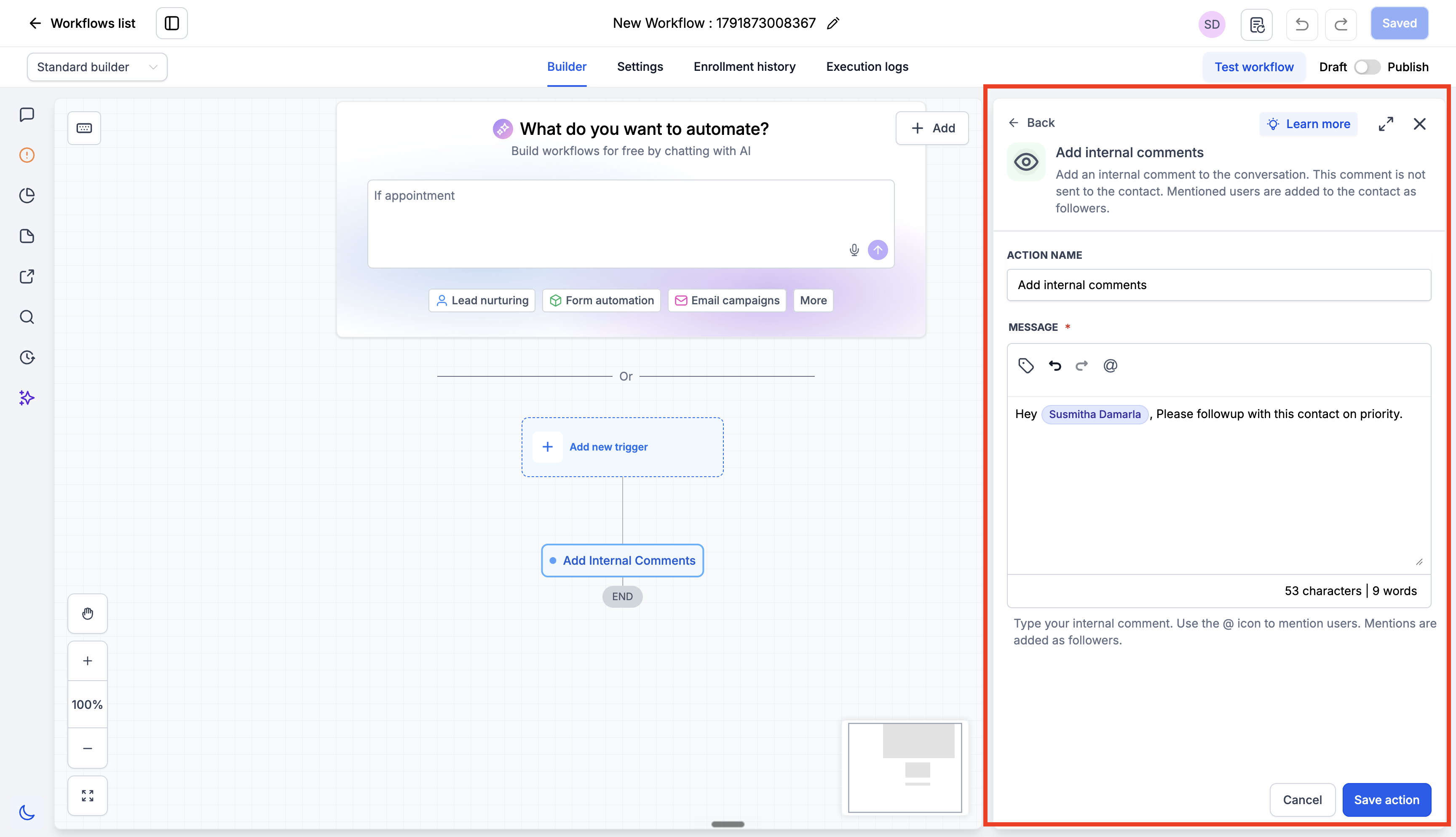
Add an internal comment via a workflow
- Open the Workflow Builder by navigating to Subaccount > Automations and selecting an existing workflow or creating a new one.
- Click the plus (+) icon, find the Add Internal Comments action under the Communication category, and add it to the workflow.
- Enter the desired comment text in the editor, using the @ icon to insert teammate mentions if needed.
- Click Save Action, test the workflow with a sample contact, and publish when satisfied.
05What it looks like in HighLevel
06Settings that matter
- Settings > My Profile > Notifications. Controls whether a mentioned user receives a notification when an internal comment with their @mention is posted.
07Things to know before you rely on it
- Comment text is required; if the action runs with an empty comment, it is skipped and logged.
- Internal comments cannot be edited or deleted after they are posted.
- Attachments are not supported in internal comments.
- Followers are additive; removing a mention later does not remove followers who were already added.
- If the Assigned User mention is used and the contact lacks an assigned owner, no mention is applied but the rest of the comment still posts.
08If something goes wrong
- The action is skipped because the comment contained no text.. Ensure the comment field includes at least one character of text beyond any mentions.
- No teammate is notified when using the Assigned User mention.. Verify the contact has an assigned user; otherwise, the mention will not be applied.
- Cannot edit a comment after the workflow runs.. Review and finalize the comment text before publishing the workflow.
09How it connects to the rest of HighLevel
- Find internal comments quickly using conversation filters Conversation filters
- Explore all conversation capabilities in HighLevel All conversations
- Start a 30 day trial to test workflow actions 30 day trial
Michael's take

Add internal comment is a useful backstage note for teams that need coordination without spamming contacts. Skip it if your process never requires internal hand offs or team alerts.